

Quick Answer
There are plenty of lesser-known capabilities of the Apple Pencil. You can use it to take quick notes, take screenshots with gestures, draw in emails, find lost pencil, and improve comfort and protection using grips, stands, cases, and more.
The Apple Pencil is a great accessory for the iPad. With it, you can draw on the iPad and experience a realistic pencil drawing experience. It feels smooth and fast and makes drawing or writing a pleasant experience.

The Apple Pencil is also compatible with various apps. Whether you’re drawing, taking notes, or editing photos, there’s an app that works well with the Apple Pencil. This flexibility makes it a useful tool for all types of iPad users, from artists to students to professionals.
If you use the Apple Pencil, here are over fifteen tips to help you get even more out of the Pencil. These Apple Pencil tips include various customization settings, drawing, sketching techniques, productivity, note-taking, and more.
Table of Contents
Best Apple Pencil Tips and Tricks
Access Quick Note with Apple Pencil
Imagine you’re reading something interesting on your iPad and want to make a note. With Quick Notes, you can simply start writing right away. Or if you’re a student and want to jot down important points that your teacher has just mentioned. A Quick Note is a quick and easy way for you. You can use your Apple Pencil to make a Quick Note on your iPad.

How to Access Quick Notes with Apple Pencil:
- Pull out your Apple Pencil from the iPad.
- Swipe up from the bottom right corner of your iPad’s screen with the Pencil.
- Your Quick Note will open. If you want to use your finger instead, Go to your iPad’s settings. Choose Multitasking & Gestures. Turn on the option for Swipe Finger from Corner.
- Jot down the important notes with an Apple pencil.
- To See All Your Quick Notes, Open the Notes app on your iPad. You’ll see all your Quick Notes there.
Works with: Apple Pencil 1st Generation, Apple Pencil 2nd Generation, Apple Pencil USB-C, Apple Pencil Pro
Take a Screenshot With Apple Pencil

Taking screenshots is something we do almost every day. If you have an Apple Pencil, it’s even easier to take a screenshot on your iPad with a simple gesture. Just swipe up from one corner of the screen with the Apple Pencil and you’ve got your screenshot.
Works with: Apple Pencil 2nd Generation, Apple Pencil USB-C, Apple Pencil Pro
Convert Handwriting to Text with Apple Pencil

The Apple Pencil is perfect for writing handwritten notes. You can also convert these handwritten notes into text. This way you can easily access your notes. This feature also saves time because you can write naturally with the Pencil and then convert your handwriting, which for many people is faster than typing. You need to activate the Scribble feature to convert handwritten notes to text on the iPad.
Where you can convert Handwritten Notes to Text
- Writing Anywhere: Simply write with the Apple Pencil in a place where you can type. The iPad automatically converts your handwriting to text (activate Scribble to access this feature. See the steps below).
- In Notes or Freeform: A few Note-taking apps offer handwritten-to-text converting features. Open the tool palette, choose the Handwriting tool, and start writing. Your handwriting will turn into text.
How to enable scribble mode on the iPad
- Open the Settings app on your iPad.
- Scroll down and tap Apple Pencil.
- Look for the option Scribble and Turn on the switch next to Scribble.
Works with: Apple Pencil 1st Generation, Apple Pencil 2nd Generation, Apple Pencil USB-C, Apple Pencil Pro
Related Read: Apple Pencil Not Working? Here Are 9 Ways to Easily Fix the Problem
Sign Official Documents Using a Pencil
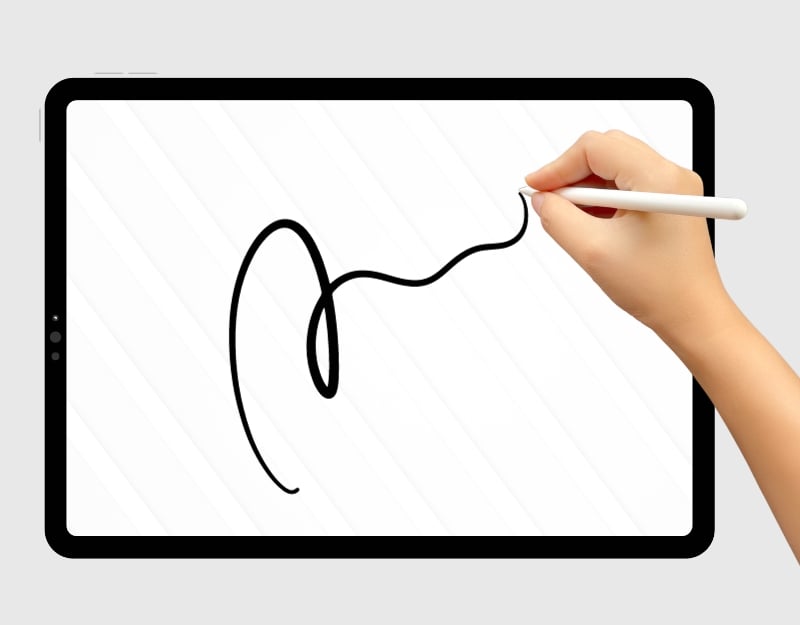
One of the best use cases for the Apple Pencil is signing documents. Signing official documents on your iPad with the Apple Pencil is easy and convenient. First, open the document you need to sign. Then use the Apple Pencil to draw your signature directly on the document.
Works with: Apple Pencil 1st Generation, Apple Pencil 2nd Generation, Apple Pencil USB-C, Apple Pencil Pro
Draw Perfect Shapes Using Pencil

Drawing perfect shapes with a pencil can be difficult. But with a simple tip, you can convert any shape into a perfect design. To use this function, draw the shape and hold it down briefly after drawing. The iPad automatically converts your drawing into a perfect shape. This works with almost all supported apps including Apple Notes and third-party applications like notability, good reads, and more.
Works with: Apple Pencil 1st Generation, Apple Pencil 2nd Generation, Apple Pencil USB-C, Apple Pencil Pro
Draw a Straight Line Using an Apple Pencil

You can not only draw shapes but also straight lines with Apple pencil. This function is available in apps such as Notability, Notes, and others allowing you to draw a straight line with the Apple Pencil using the ruler. You can rotate the ruler to your liking, increase the size of the roller, and much more.
Works with: Apple Pencil 1st Generation, Apple Pencil 2nd Generation, Apple Pencil USB-C, Apple Pencil Pro
Play Apple Pencil Games

You can also use the Apple Pencil for games on the iPad. There are hundreds of games designed specifically for the Apple Pencil. We have a list of the best Apple Pencil games to check out. You can use the apple pencil as a controller to play the game.
Works with: Apple Pencil 1st Generation, Apple Pencil 2nd Generation, Apple Pencil USB-C, Apple Pencil Pro
Use the Double-Tap Shortcut on Pencil

If you find it difficult to switch between pen and eraser mode on the iPad. You can use the practical double-tab function on the iPad. This allows you to quickly switch between tools, e.g., from a pencil to an eraser, without manually selecting them. This makes drawing or writing on your iPad much smoother and faster.
If you are using the latest Apple pencil Pro you can squeeze to get access to the tool palate quickly.
Works with: Apple Pencil 2nd Generation, Apple Pencil Pro
How to enable the double tap feature on the Apple Pencil
- Open the Settings app on your iPad.
- In the settings menu, tap on Apple Pencil. This option will only appear if your Apple Pencil is paired and connected to your iPad.
- In the Apple Pencil settings, you will find options for the double-tap feature. You can set it to switch between the current tool and the eraser, the current tool and the last used tool, show the color palette or turn the feature off.
- To use the double-tap feature, hold your Apple Pencil so your index finger rests naturally on the flat side. Then, double-tap the flat side of the Apple Pencil. The bottom third of the Apple Pencil serves as the action button for this feature
Three-Finger Swipe
 If you are drawn frequently, you know how painful it is to undo a step every time you make a mistake. With the simple three-finger swipe you can easily undo or redo a drawing. Swipe with three fingers to the left to undo and swipe right to redo. These gestures work only on the Apple Notes app as of now. However, If you are using any third-party app, you can try the gestures and check if it is working.
Works with: Apple Pencil 1st Generation, Apple Pencil 2nd Generation, Apple Pencil USB-C, Apple Pencil Pro
Select and Edit Converted Text
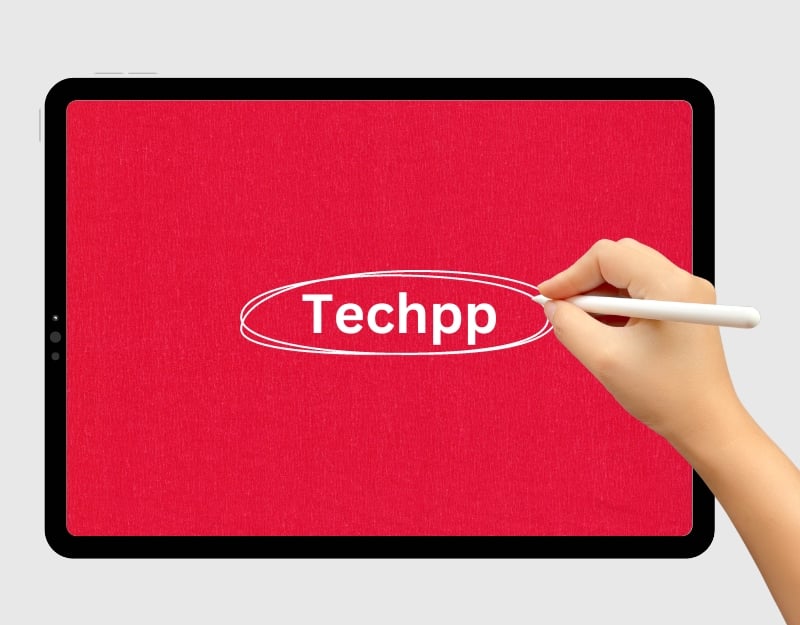
With the Apple Pencil, you can also easily select and edit the text. You can simply select the entire section and drag and drop it anywhere in the same notes. Select a specific passage of text and copy it and much more. You can also use the pencil to easily edit and make changes to the text.
How to select and edit text
To select text on the iPad with the Apple Pencil, circle or underline the text you want to edit or draw a line over it. Double-tap a word to select it, or triple-tap to select an entire paragraph. To edit, you can swipe text to delete it, tap and hold to add new text and drag a line between characters to join or separate them. You can also drag the selected text, copy it, and much more.
Works with: Apple Pencil 1st Generation, Apple Pencil 2nd Generation, Apple Pencil USB-C, Apple Pencil Pro
Mark Up a Screenshot Instantly with a Pencil

You can quickly edit and mark up screenshots using an Apple Pencil. You can use any Apple Pencil to draw directly on top of a screenshot. This is especially handy when you want to quickly highlight a specific element in a screenshot.
To use it, tap on the screenshot after taking it and start drawing. You can select different brushes, pencil types, and more and use it to markup the screenshot.
Works with: Apple Pencil 1st Generation, Apple Pencil 2nd Generation, Apple Pencil USB-C, Apple Pencil Pro
View Pencil Battery Life
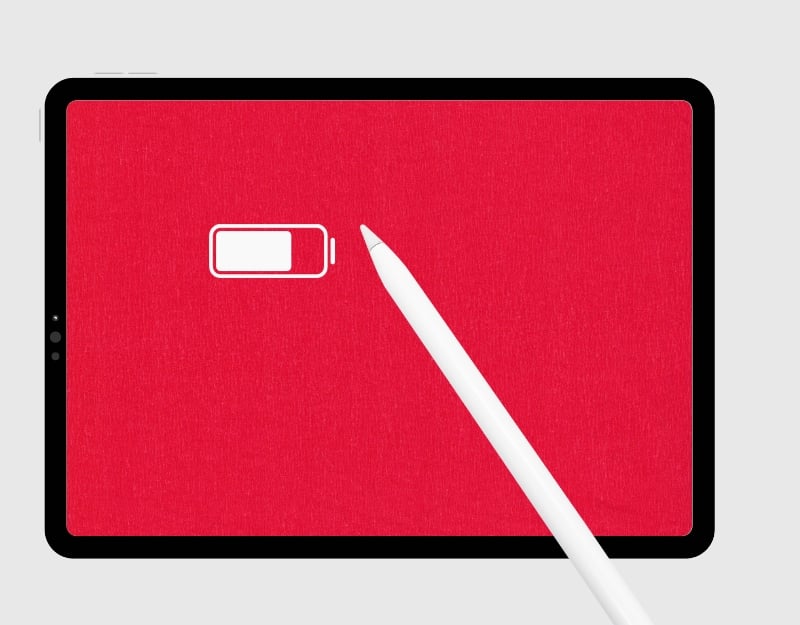
It’s difficult to determine the battery life of the Apple Pencil because it doesn’t have a display or any LED indicator. Thanks to the widget, You can easily view the battery life of your Apple Pencil.
To add the Apple Pencil’s battery life to your iPad’s home screen, you can use a widget. Here’s how to do it:
- Touch and hold an empty area on the iPad home screen until the apps start to wiggle.
- Tap the plus sign (+) in the top corner of the screen.
- Search for the Batteries widget in the list that appears.
- Choose the Batteries widget and select the size you want.
- Tap Add Widget to place it on your home screen.
- Drag the widget to where you want it on the screen.
- Tap Done in the top corner when you’re done.

- Here you can see the battery level of the Pencil along with the other accessories.
Works with: Apple Pencil 1st Generation, Apple Pencil 2nd Generation, Apple Pencil USB-C, Apple Pencil Pro
Convert Physical Drawing Into Digital Arts

In my childhood, I used to convert digital drawings into physical drawings by placing paper on top of the mobile flash. Now, with the iPad and the Apple Pencil, you can convert physical drawings into digital. To use this trick, stick the paper with the drawing on the iPad display, use the Apple pencil, and draw it on the screen. Make sure that the paper isn’t too thick.

Works with: Apple Pencil 1st Generation, Apple Pencil 2nd Generation, Apple Pencil USB-C, Apple Pencil Pro
Enable Palm Rejection when Using a Pencil

When you use an Apple Pencil on an iPad, your hand or fingers may touch the screen and mess things up. To avoid this, You can switch on palm rejection on the iPad to prevent unwanted finger touches when working with the Apple Pencil.
How to enable Palm Rejection in the iPad
- Open Settings on your iPad
- Tap on the Apple Pencil and activate the settings that say “Only draw with the Apple Pencil”
Works with: Apple Pencil 1st Generation, Apple Pencil 2nd Generation, Apple Pencil USB-C, Apple Pencil Pro
Drawing Into the Email Using Pencil
You can insert a drawing into the email if you want. Open the Mail app on your iPad, click on the content of the email, and then on “Insert” to insert a drawing into your email.
How to insert Drawing into Mail
- Open the Mail app on your iPad.
- You can either create a new email or reply to an existing email.
- Tap on the place where you want to insert your drawing into the text of the email.
- Tap the “<” icon near the keyboard. Then, select the pen icon to access drawing tools.
- Use your Apple Pencil to draw directly in the email.
- When you’re done, tap Done to insert the drawing into your email.
- Once you’ve inserted the drawing, you can continue composing your email and send it as soon as it’s ready.
Works with: Apple Pencil 1st Generation, Apple Pencil 2nd Generation, Apple Pencil USB-C, Apple Pencil Pro
Find a Lost Apple Pencil
It is possible to lose an Apple Pencil. The latest Apple Pencil Pro comes with Find My integration, you can use the Find My app on your iPad and find the missing Apple Pencil Pro. However, don’t worry if you are not using the latest version of the Apple pencil, you can still find the missing Apple pencil using the Wunderfind app on your iPad.
How to find the lost Apple Pencil
- Download the Wunderfind app from the App Store.
- Open the app and allow the necessary app permissions. Bluetooth permission is required.
- Now you can see all accessories connected to your iPad. Locate the Apple Pencil and tap on it.
- You can see the signal strength of the Apple Pencil on the right-hand side. The closer you get to the Apple Pencil, the better the signal.
- When you have found the Apple Pencil, click on “I have found it“.
Works with: Apple Pencil 1st Generation, Apple Pencil 2nd Generation, Apple Pencil USB-C, Apple Pencil Pro (Find my app)
Replace Apple Pencil Tip Easily

If your pencil no longer writes or draws as well as it used to, you can easily replace the tip of your pencil. Simply unscrew the old tip and screw on a new one. You can buy the official Apple Pencil tips on Amazon for $13.99 for four tips. If you want other options, the Paiholy tips are good for precise drawing and writing. They are strong and won’t scratch your screen. The Ailun tips are also strong. They are very durable and write smoothly.
Works with: Apple Pencil 1st Generation, Apple Pencil 2nd Generation, Apple Pencil USB-C, Apple Pencil Pro
Best Apple Pencil Accessories

The Apple Pencil is made of plastic and may feel a little slippery or loose in your hand. If you add a case or grip to it, it’ll fit better in your hand, especially if you use it for taking notes. You can also buy a case that protects the Apple Pencil from scratches and drops. Some cases also have a loop or a place where you can attach the Pencil to your iPad or a bag. Here are the useful Apple Pencil gadgets you can get for the Apple Pencil:
- Comfy Grips: They make holding the Apple Pencil more comfortable.
- Charging Stand (1st Gen): It holds the Pencil when you’re not using it and charges it at the same time.
- Tip Protectors: They prevent the tips of the Apple Pencil from becoming worn or broken.
- Carrying Case: It’s a safe place to store your Pencil.
- Magnetic Sleeve: It helps the pencil stick to your iPad so it’s always close by and can’t get lost.

Mastering the Apple Pencil
Those are the helpful tips and tricks for the Apple pencil to use effectively. You can use these tops to perform tasks more quickly, take screenshots with simple gestures, mark up, find the lost pencil easily, and more. We also added tips for the latest Apple Pencil Pro to help you improve your overall experience of using it. If you have any suggestion let me know in the comments below.

