

Quick Answer
If you want to share files between Android and iOS or vice versa, here are the best options:
Best overall: LocalSend
Best without installing an app: PairDrop
Best for remote sharing: Wormhole
Best for very large files: Send Anywhere
Best built-in option: Quick Share with AirDrop
Apple is no longer the dominant player in smartphones, or at least the brand that restricted and built walls around its ecosystem and allowed nobody into its ecosystem. But that is now changing completely. Chinese smartphone brands are taking on Apple not only with better options but also by breaking its ecosystem.
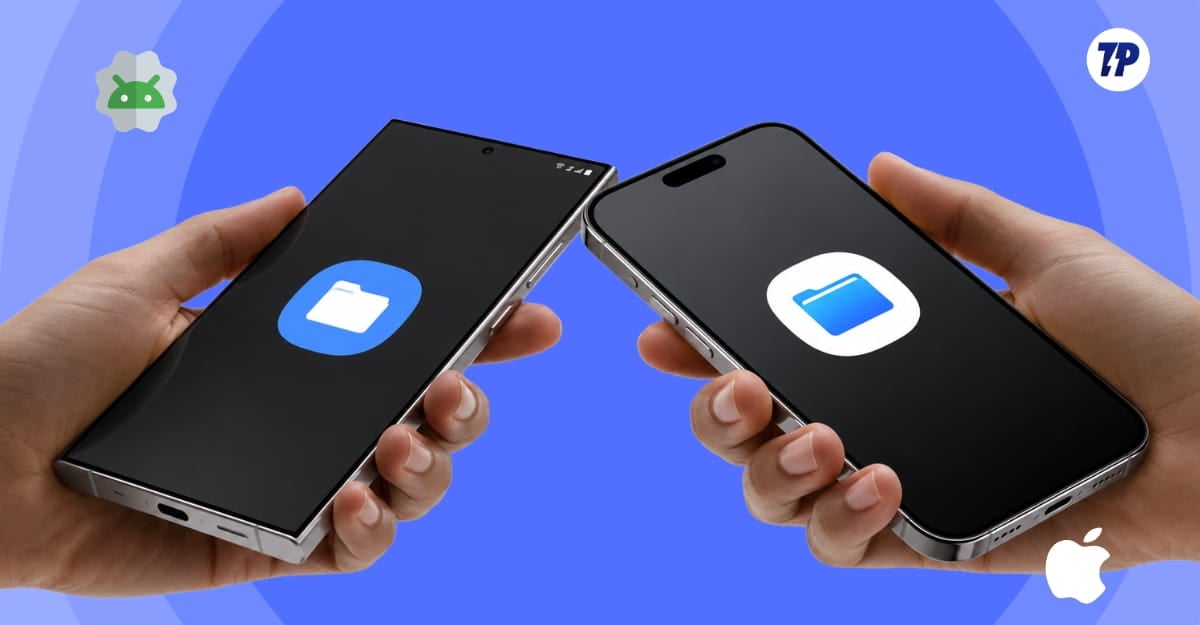
Apple’s biggest strength is its ecosystem, where all Apple devices connect seamlessly with each other to transfer data and do much more. It is truly one of the best. But the problem is that Apple never allowed third parties to enter its ecosystem. Even the most popular ones, like Android and Windows, are incompatible with Apple ecosystems.
However, Chinese players have cracked it first by announcing that their phones can integrate with Apple products. For instance, most Chinese mobile phone brands, such as Vivo or Oppo, can now connect with Apple products, and you can actually share files with your iPhone directly.
And very recently, Google has joined the list with its Quick Share. Supported Android phones with Quick Share and AirDrop support can now directly share files to Apple iPhones. This used to be a hassle, and still is, considering this feature is available only on limited models. However, there are a lot of third-party options and available methods that you can use to share files between an Android and an iPhone.
In this guide, alongside the latest Quick Share with AirDrop support, I am going to tell you all the best and most reliable methods currently available to let you share files with your iPhone friends.
Table of Contents
How to Share Files Between Android and iPhone: All Working Methods Explained
Method | Best for | Internet needed? | App required? | File limit | Main limitation |
|---|---|---|---|---|---|
Quick Share with AirDrop | Supported Android and iPhone users | No | No | No clear limit | Available only on supported Android phones |
LocalSend | Private and reliable nearby sharing | No, but same Wi-Fi is required | Yes, on both devices | No practical fixed limit | Both devices must be on the same network |
PairDrop | Quick sharing without installing an app | No, but same Wi-Fi is normally required | No, works in a browser | No fixed limit | Less reliable for very large files |
Wormhole | Sharing files with someone in another location | Yes | No | Up to 10GB | Sender must stay online for files above 5GB |
Send Anywhere | Large files and remote sharing | Yes for most methods | Usually yes | Up to 50GB with a six-digit key; 10GB with a free link | Most methods require internet |
O+ Connect | OPPO or OnePlus users sharing with an iPhone | No internet required for nearby sharing | Required only on the iPhone | No clearly stated limit | Works mainly with supported OPPO and OnePlus phones |
Quick Share with AirDrop Support
Best for: If you have a supported Android phone with Quick Share AirDrop Support. It is the best and easiest way.
Quick Share is like an AirDrop for Android phones. It is available on a limited number of Android phones. If you share files between devices.
Google initially released Quick Share with AirDrop support in 2025, and the Google Pixel 10 was the first device to support it.
Later, it became available to Samsung devices, and Google has recently rolled it out to even more devices. You can check the full compatibility list here.
You don’t need to install any third-party apps. Quick Share and AirDrop are built in on both of these platforms. However, to make devices discoverable with each other, you need to set them to transfer to everyone. The sharing works in both ways. You can share files from Android to iPhone and even from iPhone to Android. The speed is also consistent and very reliable, almost equal to sharing files via AirDrop or even Quick Share between Android phones.
Quick share with AirDrop support is a Google solution, so Apple hasn’t responded, and it might restrict this support in the future, citing privacy concerns. But for now, if your device is on the supported list, you can share files with your iPhone friend directly without installing or requiring any third-party tools.
How to share files between Android and iPhone using Quick Share:
Step 1: Open the iPhone and go to the AirDrop settings and set it to “Everyone.” In the same way, open the feature settings on Android and set it to “Everyone.”
Step 2: Now, on Android or iPhone, go to any file, click on share, and select Quick Share on Android or AirDrop on iOS.
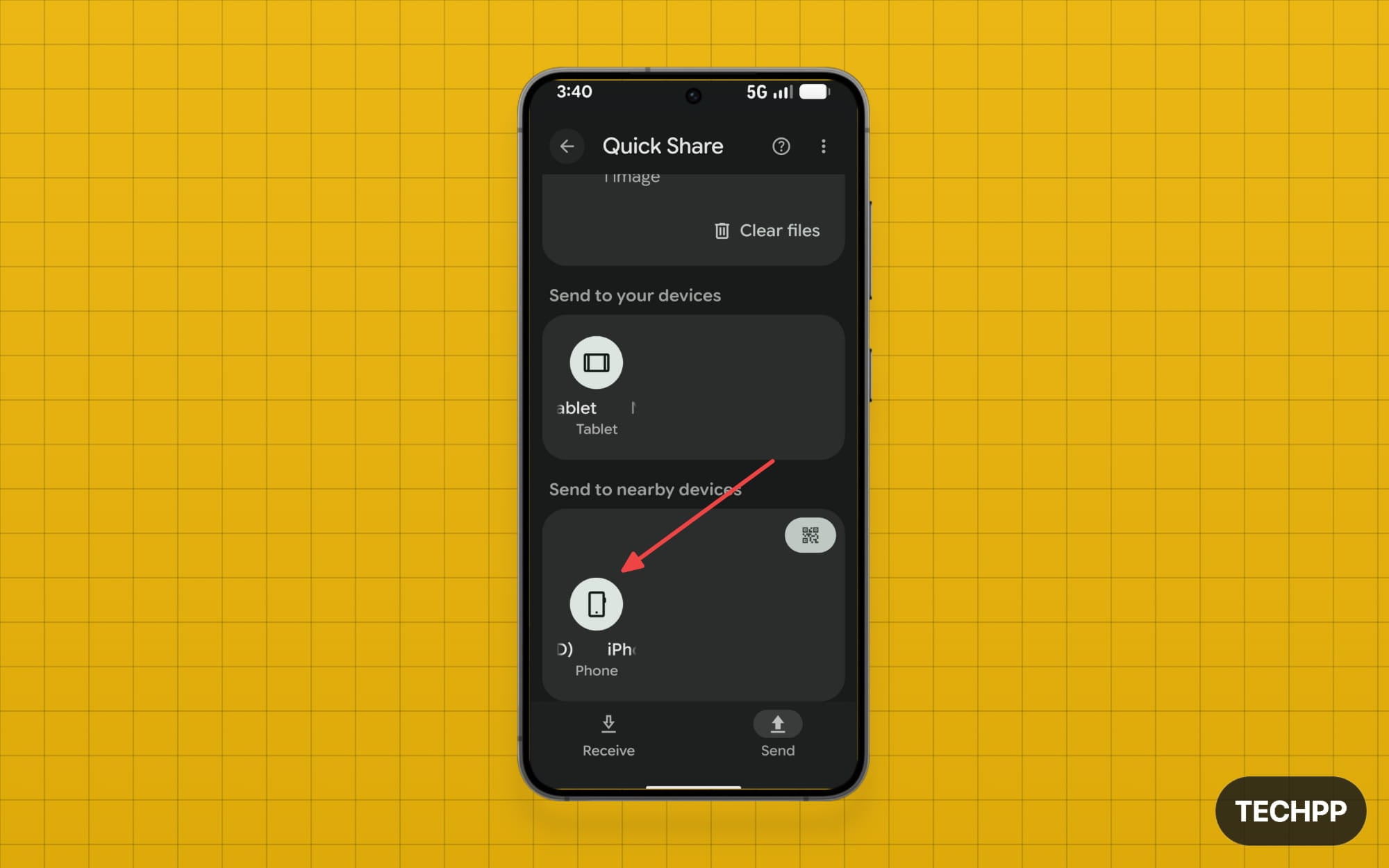
Step 3: Now wait for some time here, and you will see the other device pop up. Tap on it to share the file with the other phone.
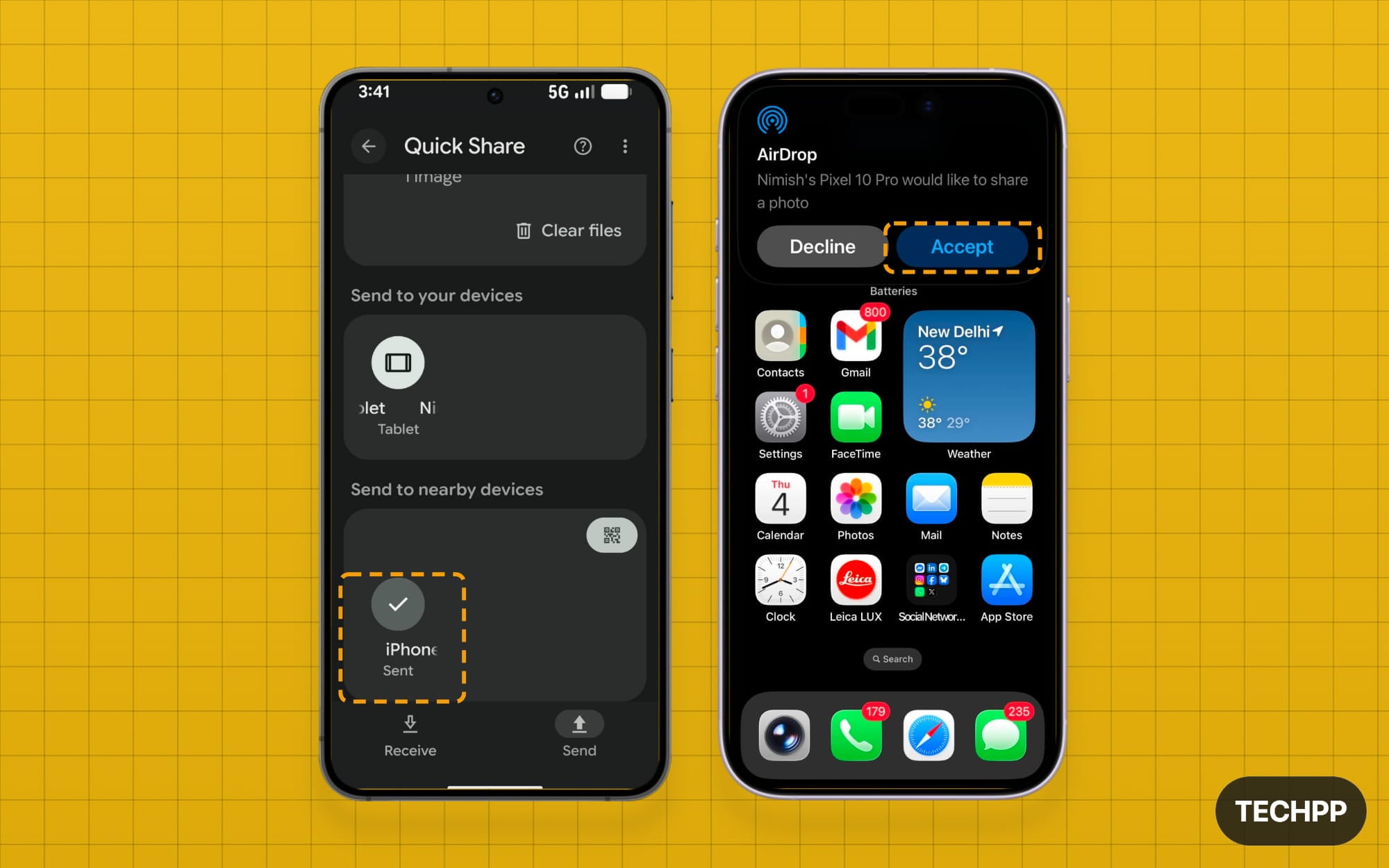
Step 4: The file will be successfully shared to the other device if you are sharing from Android to iPhone or iPhone to Android.
Pros and cons of using Quick Share
Pros and limitations of using Quick Share:
Pros
- No third-party app is needed.
- Works in both directions.
- Fast and reliable.
- Files are transferred directly.
- Easy to use once both devices are visible.
Limitations
- Available only on supported Android phones.
- Both devices must be nearby.
- Bluetooth and Wi-Fi need to be enabled.
- Devices may need to be set to “Everyone.”
- Apple could restrict this compatibility in the future.
LocalSend File Sharing App
Best for: Most users can share files between iPhone and Android. It is the best and most reliable method.
I have tried plenty of methods over the years to share files between Android and iPhone. From ShareDrop to Xender and Quick Share options, however, after using all those methods, LocalSend is my current default option.
There are many things I love about LocalSend, but the biggest thing I like is how reliable it is. There is no single instance where it has failed to send files to other devices, apart from an error code that appears if you try to share files to the same device a second time if the other device is not active.
LocalSend is available on almost all platforms, including macOS, which I use as the default method to share files. And the app is also super lightweight. You can install it on your low-end devices, too, and share files instantly. The app uses your local Wi-Fi network to transfer files, so you don’t need to worry about your data being shared to the cloud.
LocalSend is easy to use, even for beginners. It supports all file transfers, and there is no practical limit; you can even share large files above 5GB in size. If you have a faster network, the app can share files at up to 80 Mbps per second, which is sometimes faster than AirDrop or even most other file-sharing apps.
LocalSend is also open source, and it doesn’t include any ads. It easily beats any app that is out there for the best file sharing. To share files, Localsend needs to be installed on both devices between which you want to share files.
As I mentioned, it is available on all platforms, including Linux. Once you have the app, open it and select the media file and the device you want to share it with. Ensure that the app is open and running on both devices to share the files.
How to use local send to share files between Android and iPhone:
Step 1: Install the LocalSend app on both Android and iPhone.
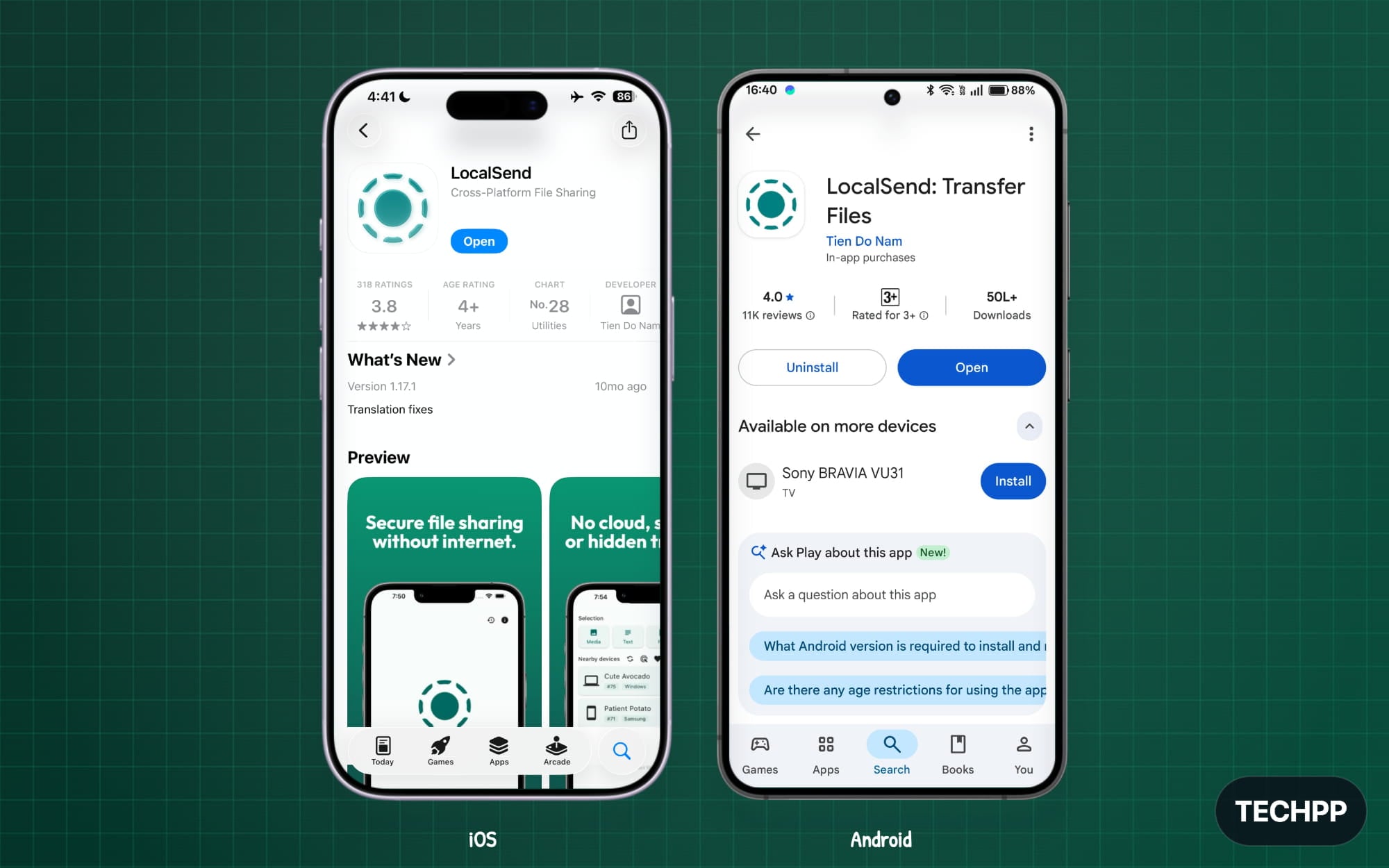
Step 2: Open LocalSend on both devices.
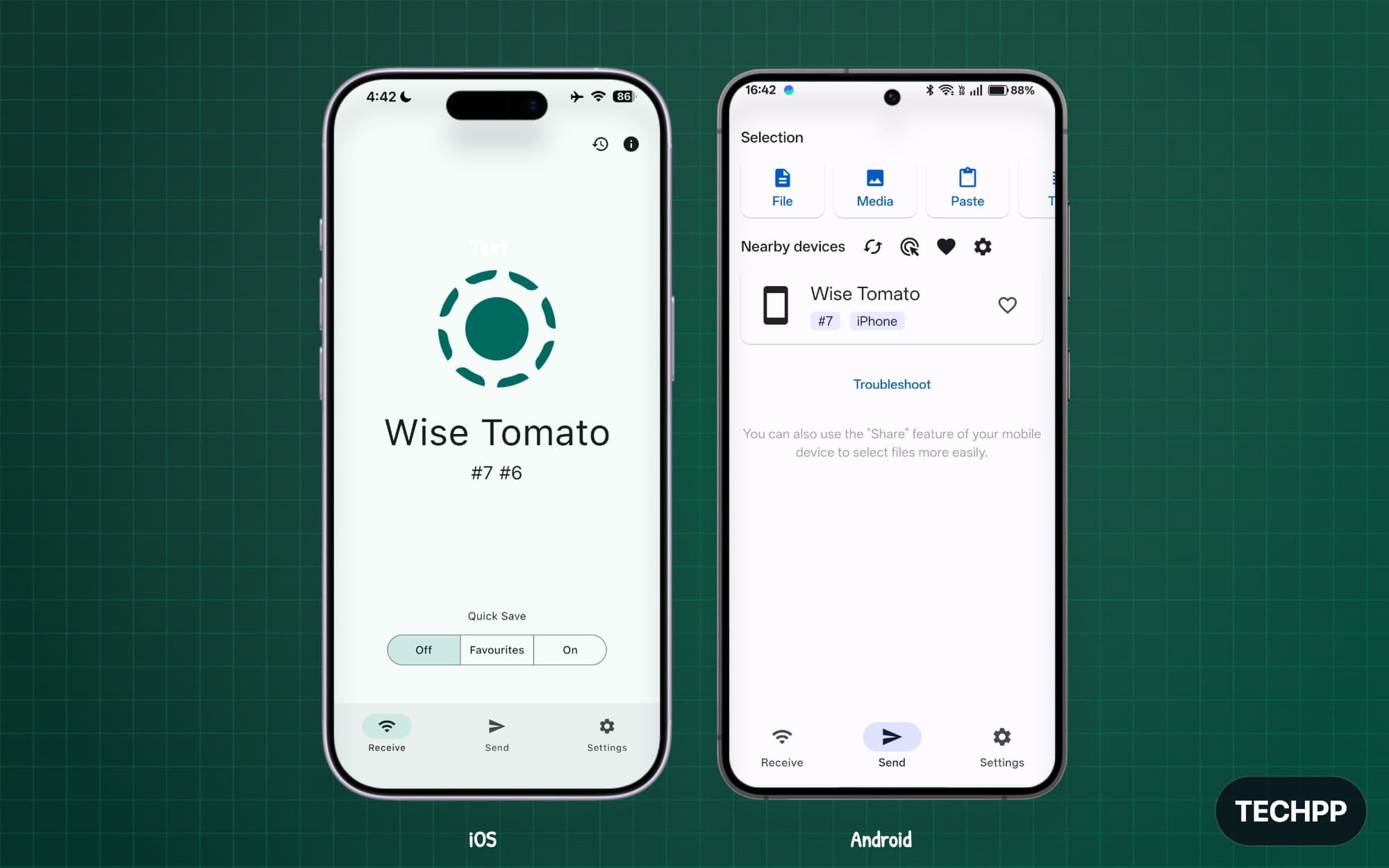
Step 3: To send files, tap on the send option on either of the devices you want to share files from.
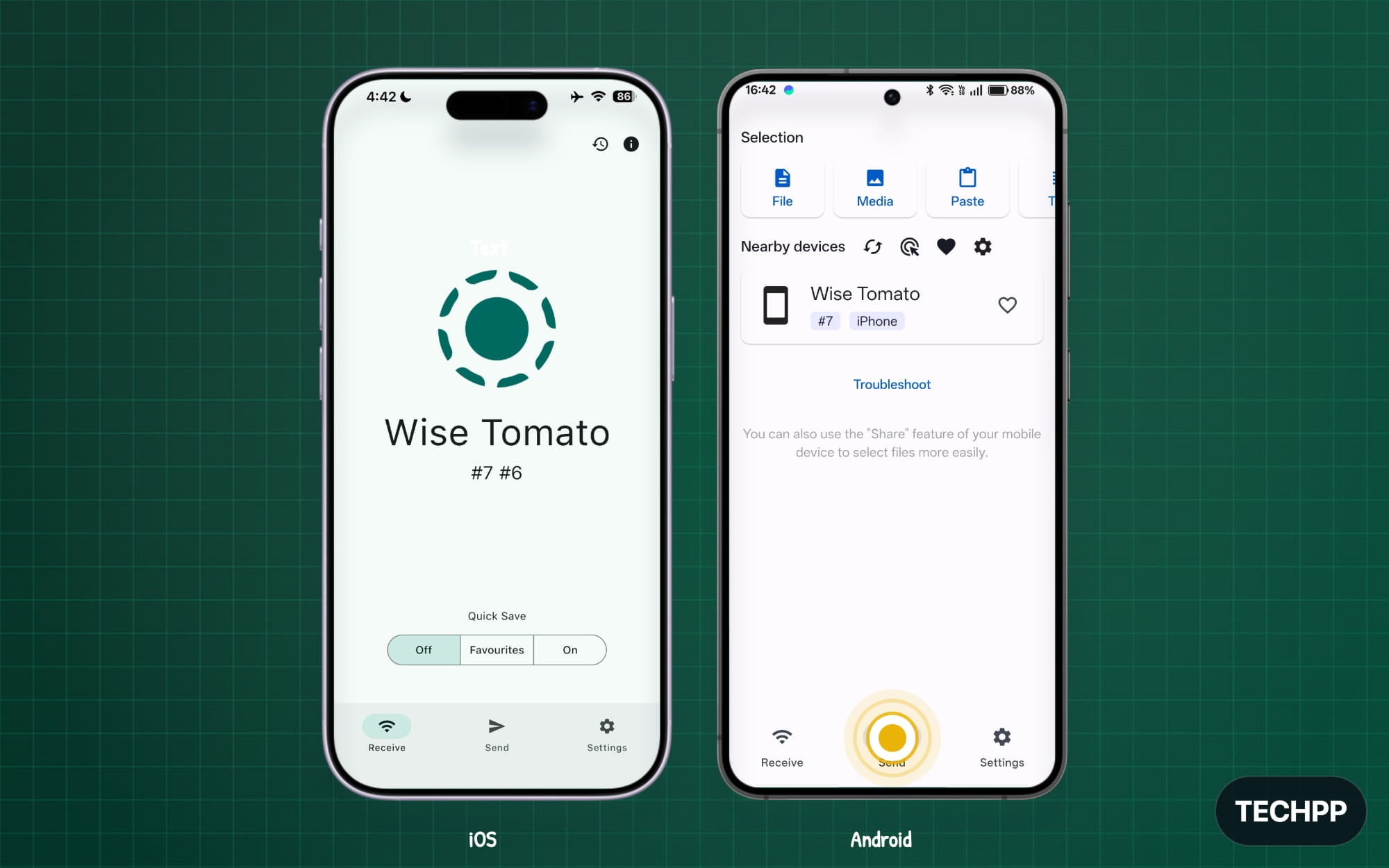
Step 4: Now tap on the file, media, or paste option. You can scroll right for more apps, or you can directly share apps. In this case, I am selecting a file.
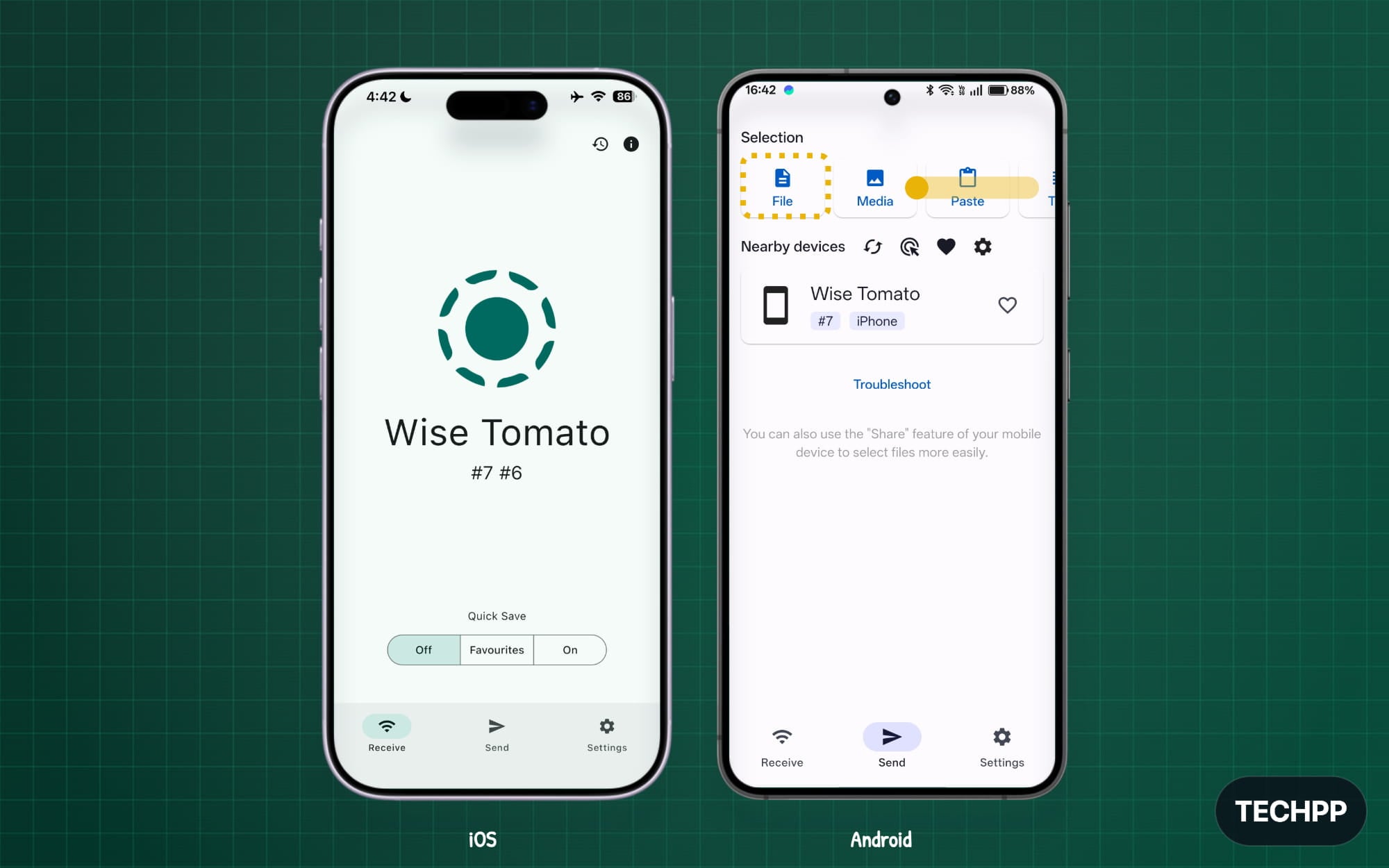
Step 5: Now select the file you want to share.
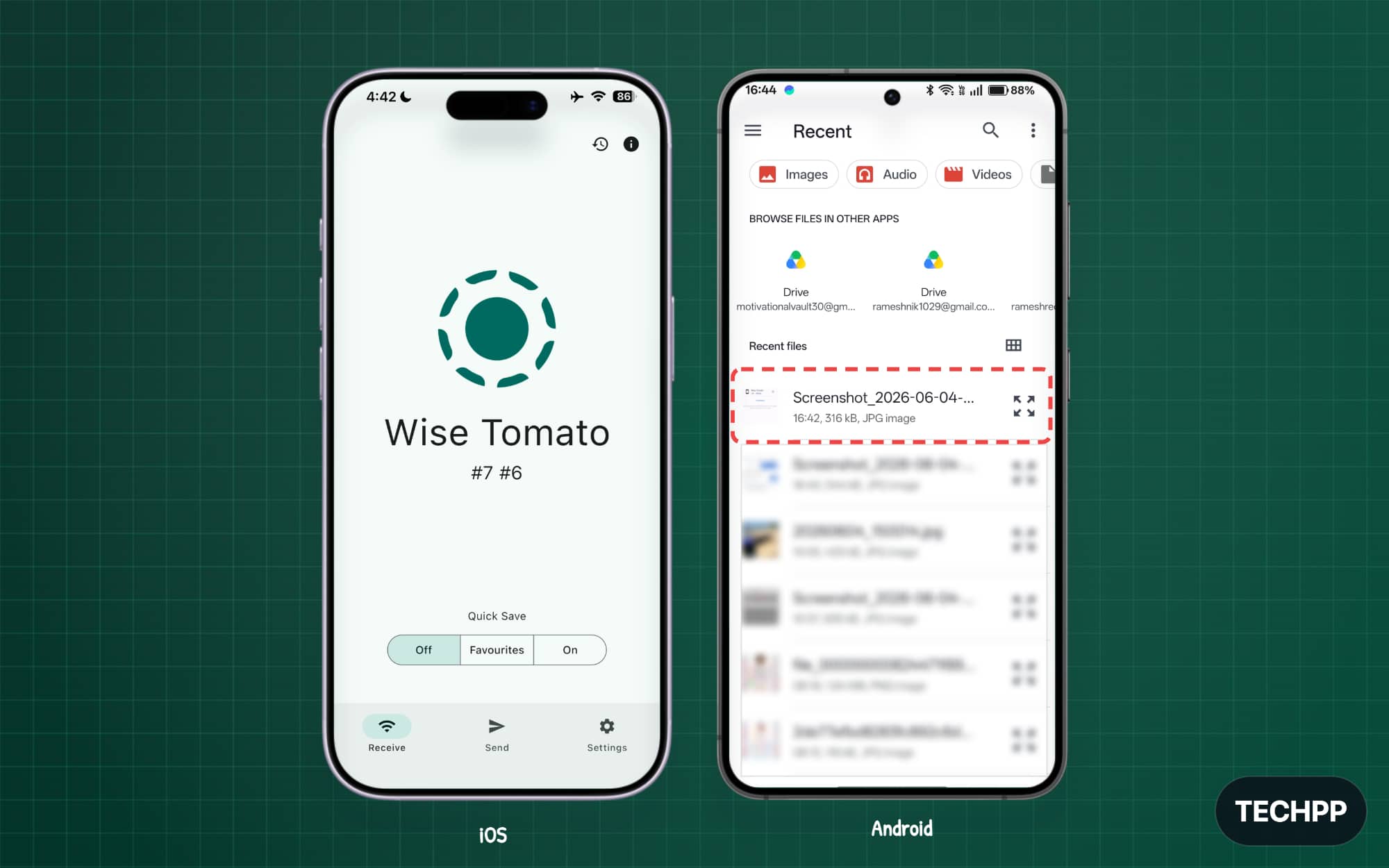
Step 6: Under Nearby Devices, you will see the device name. You can cross-check the name by seeing it on the other device’s received text. If you don’t see the devices, ensure they are connected to the same network and tap on the refresh.
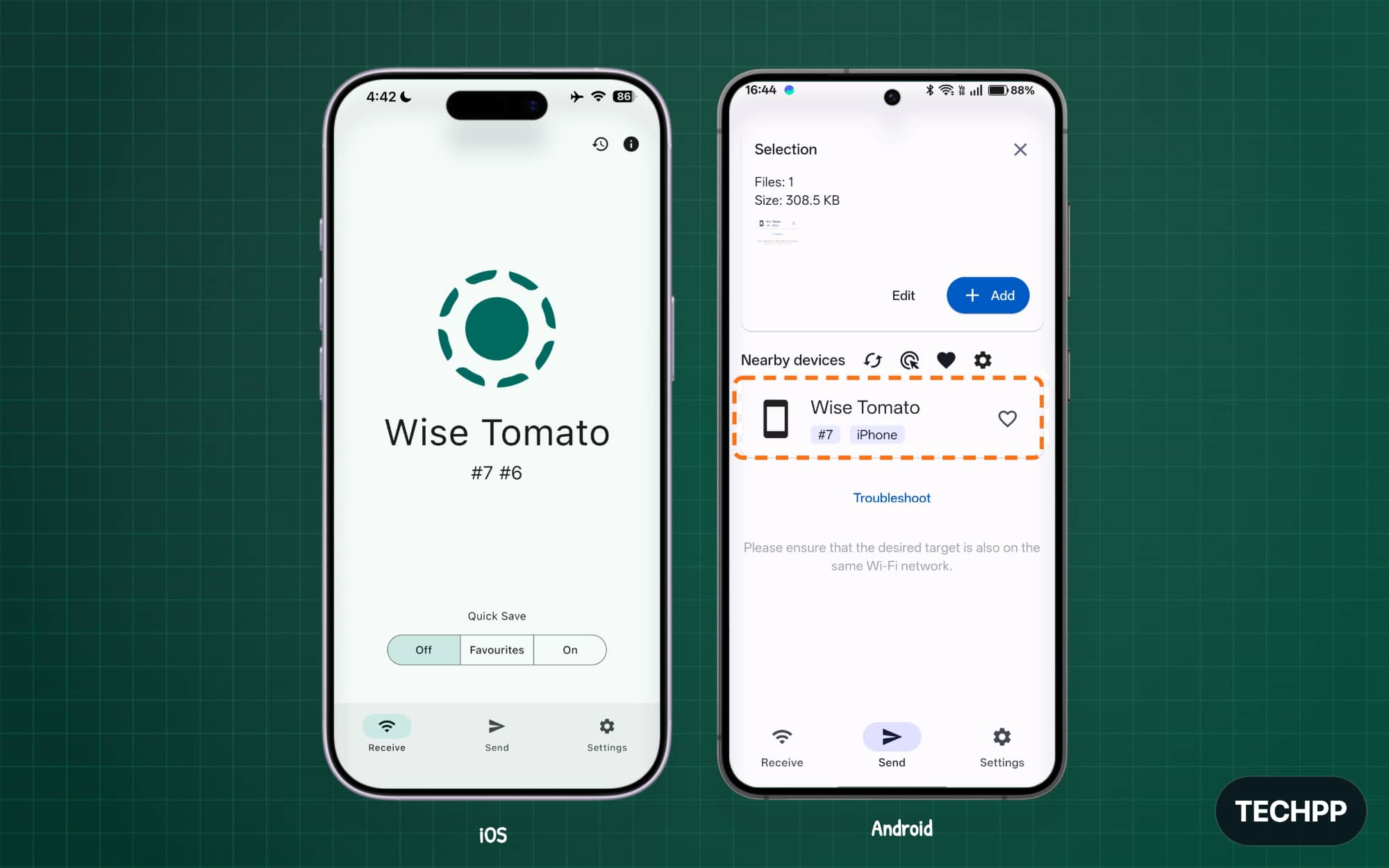
Step 7: Tap on the device you want to share files with.
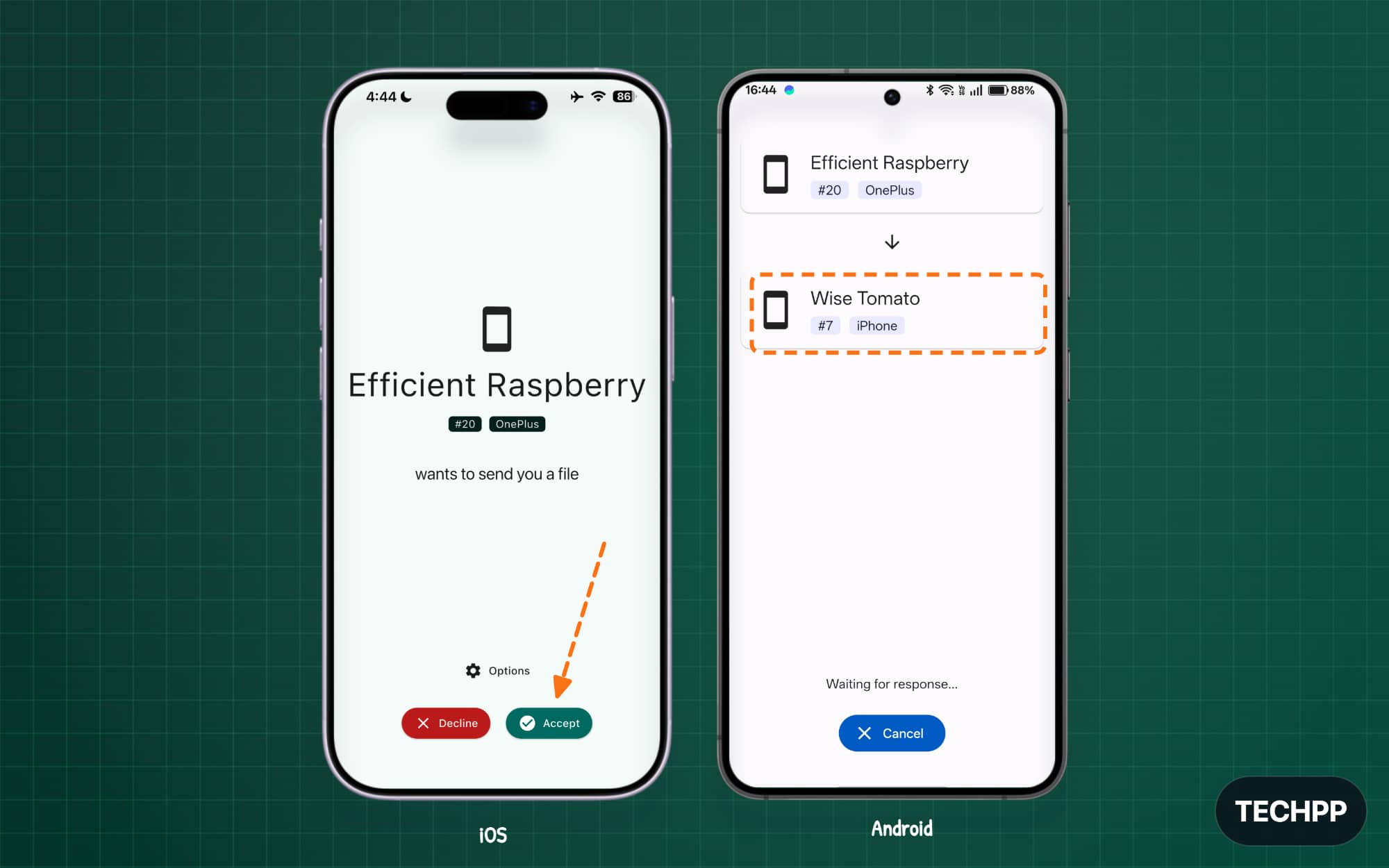
Step 8: Now, on the other device, accept the file. Once the file is accepted, you will see the files being transferred. Depending on the file length, you will see a success message. Once it is finished, you can tap on the Done option.
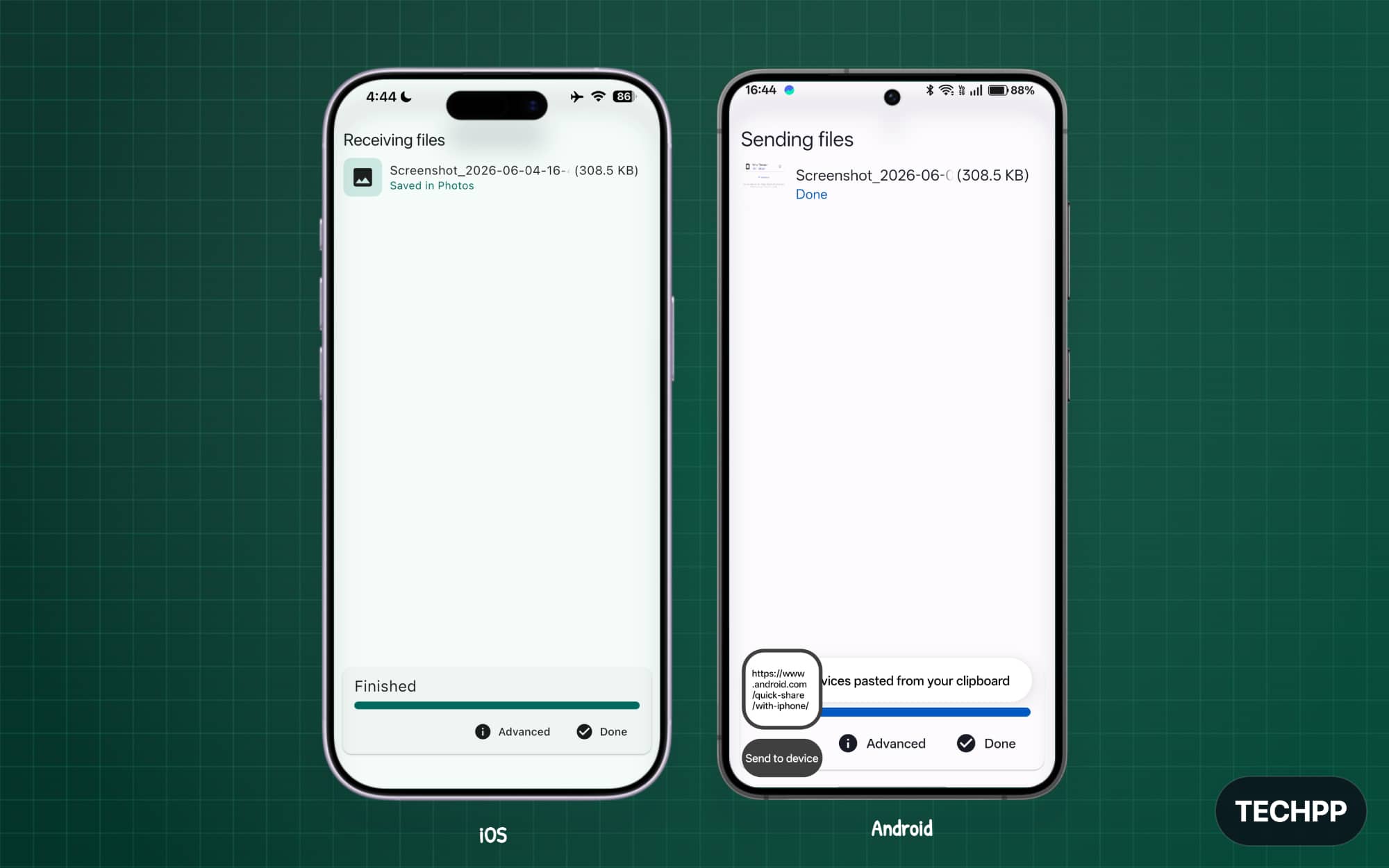
Pros and limitations of using LocalSend:
Pros
- Works without an internet connection.
- More privacy.
- Supports Android, iPhone, Windows, macOS, and Linux.
- Supports large files and folders.
- Free, open source, and has no ads.
- Very fast.
Limitations
- The LocalSend app must be installed on both devices.
- Both devices must be connected to the same Wi-Fi network.
- The app must be open on both devices.
- You cannot send files to someone in another location over the internet.
PairDrop
Best for: If you don’t want to install any apps or want to share files between borrowed devices.
PairDrop is a great alternative to Snapdrop for sharing files, which was recently acquired by LimeWire.
PairDrop works differently compared to localSend. It is a browser-based sharing system. You don’t need to install any apps or sign up; you can simply open a browser on any device and start sharing files.
Sharing files through a browser is more convenient than installing apps on your device, especially if you want to send a file from a borrowed laptop or from someone else’s device, where you cannot install apps.
PairDrop supports all file formats, including links and text, and also has no file size limit. But since it is browser-based, sharing very large files isn’t recommended. Similar to LocalSend, both devices should be active with the PairDrop.net tab open, and they need to run on the same network to transfer the files.
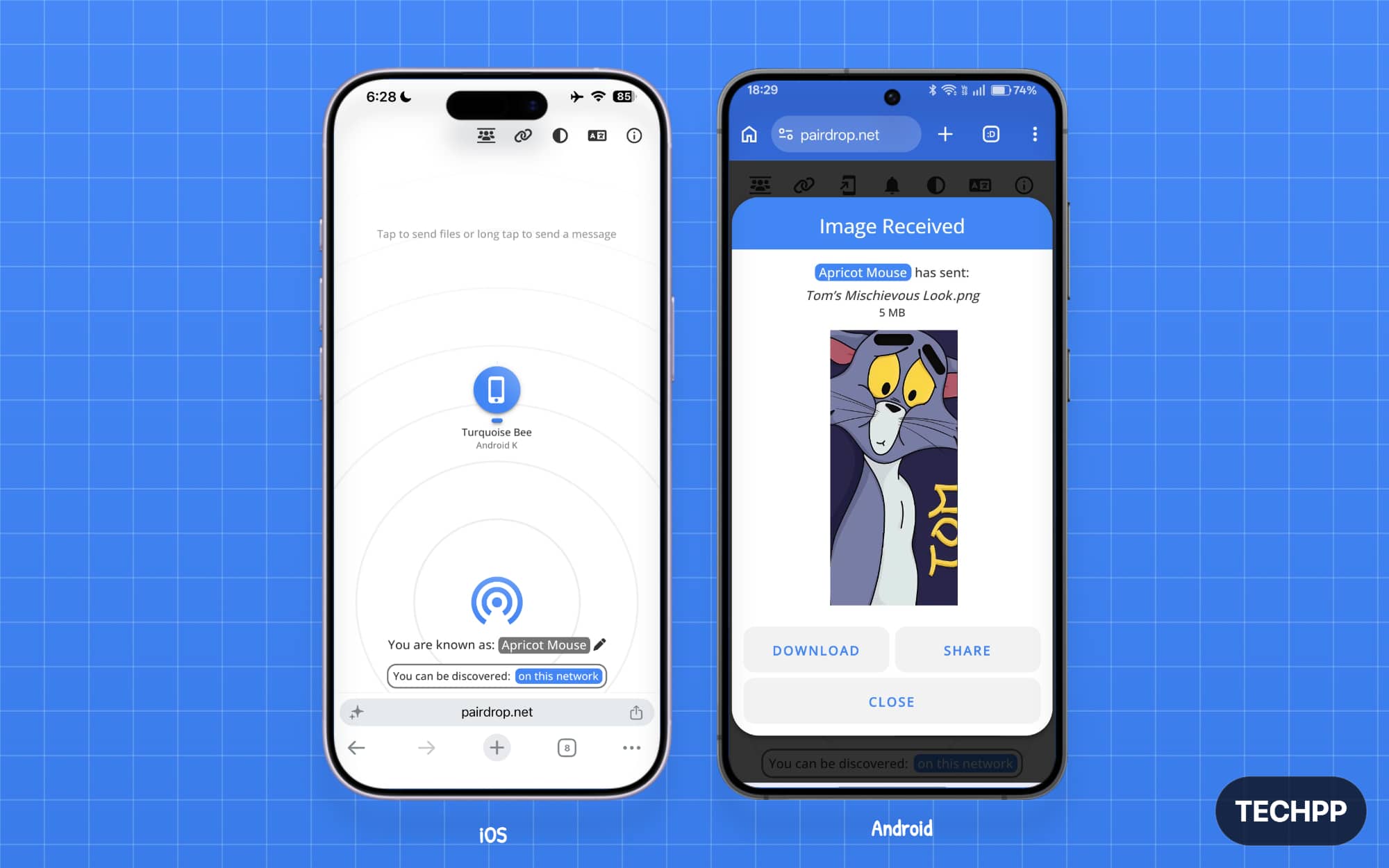
The user interface is also very simple. On the browser page, you can directly find the option to upload or drag and drop the files you want to share. Once done, you can see the other users using Pairdrop on your screen. You can simply tap on it.
How to use Paidrop to share files:
Step 1: Open PairDrop.net on both Android and iPhone.
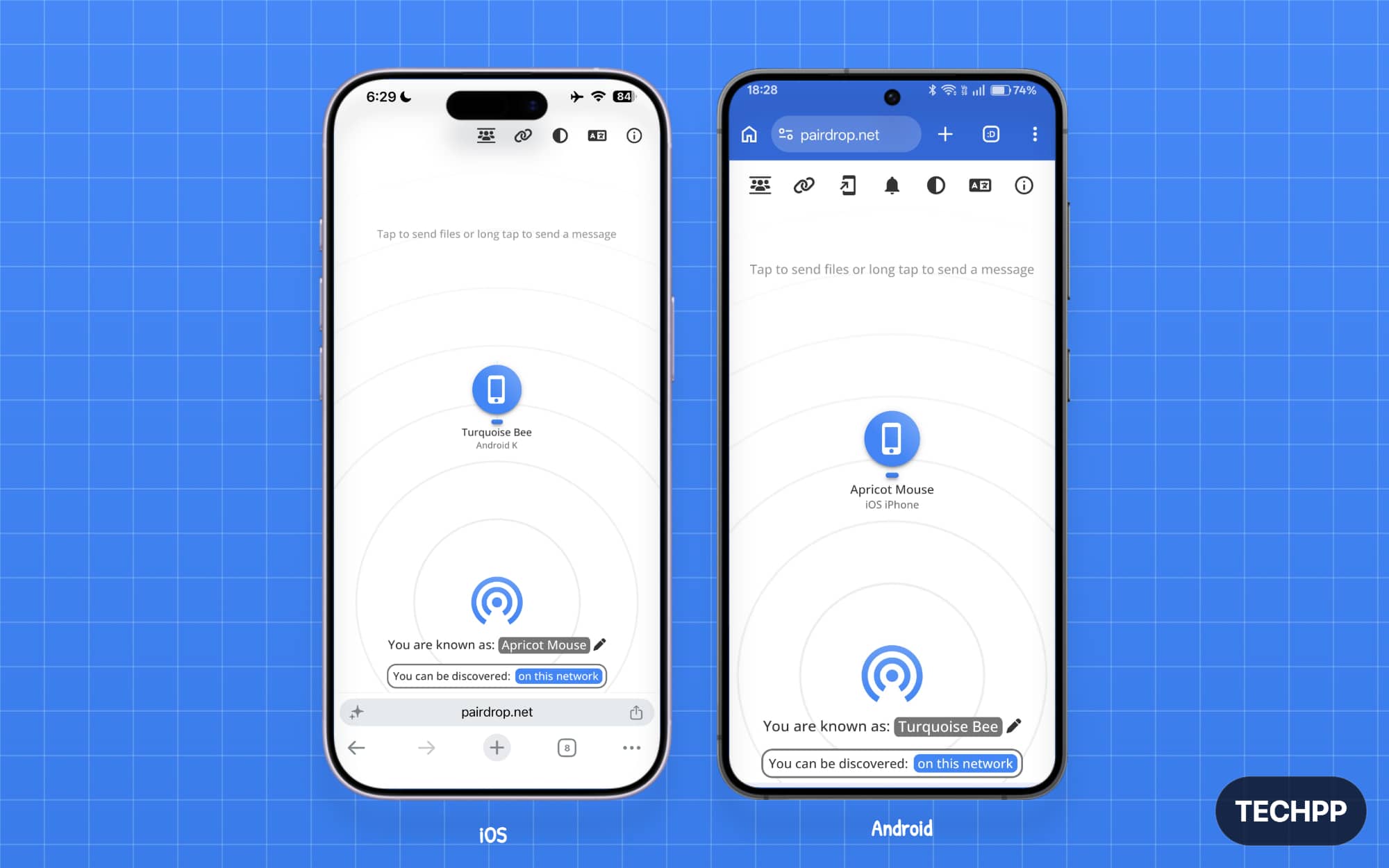
Step 2: Ensure both devices are connected to the same network, and you will see each other’s devices on the home screen itself.
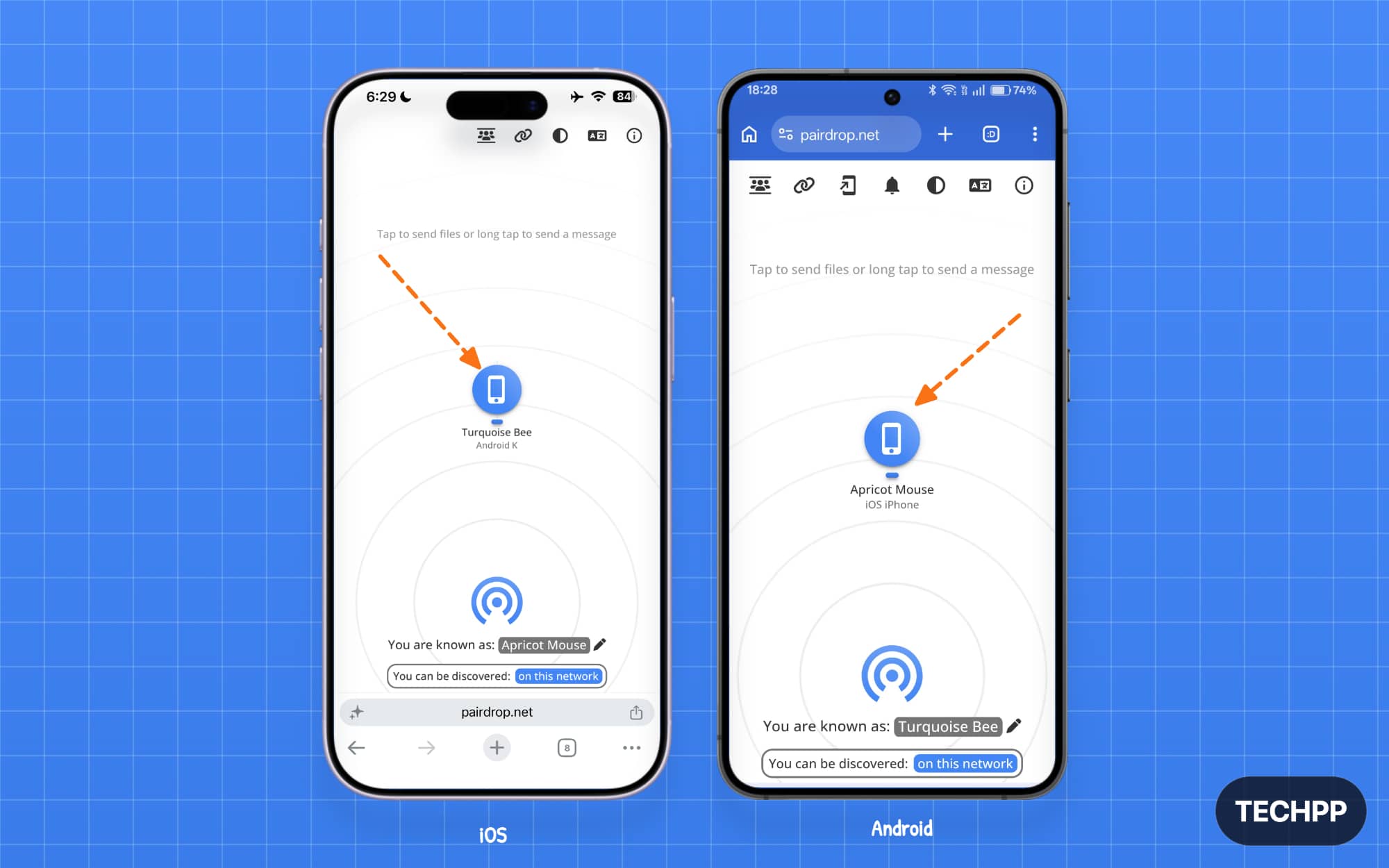
Step 3: Now, tap on the device name on either an Android or an iPhone to share files.
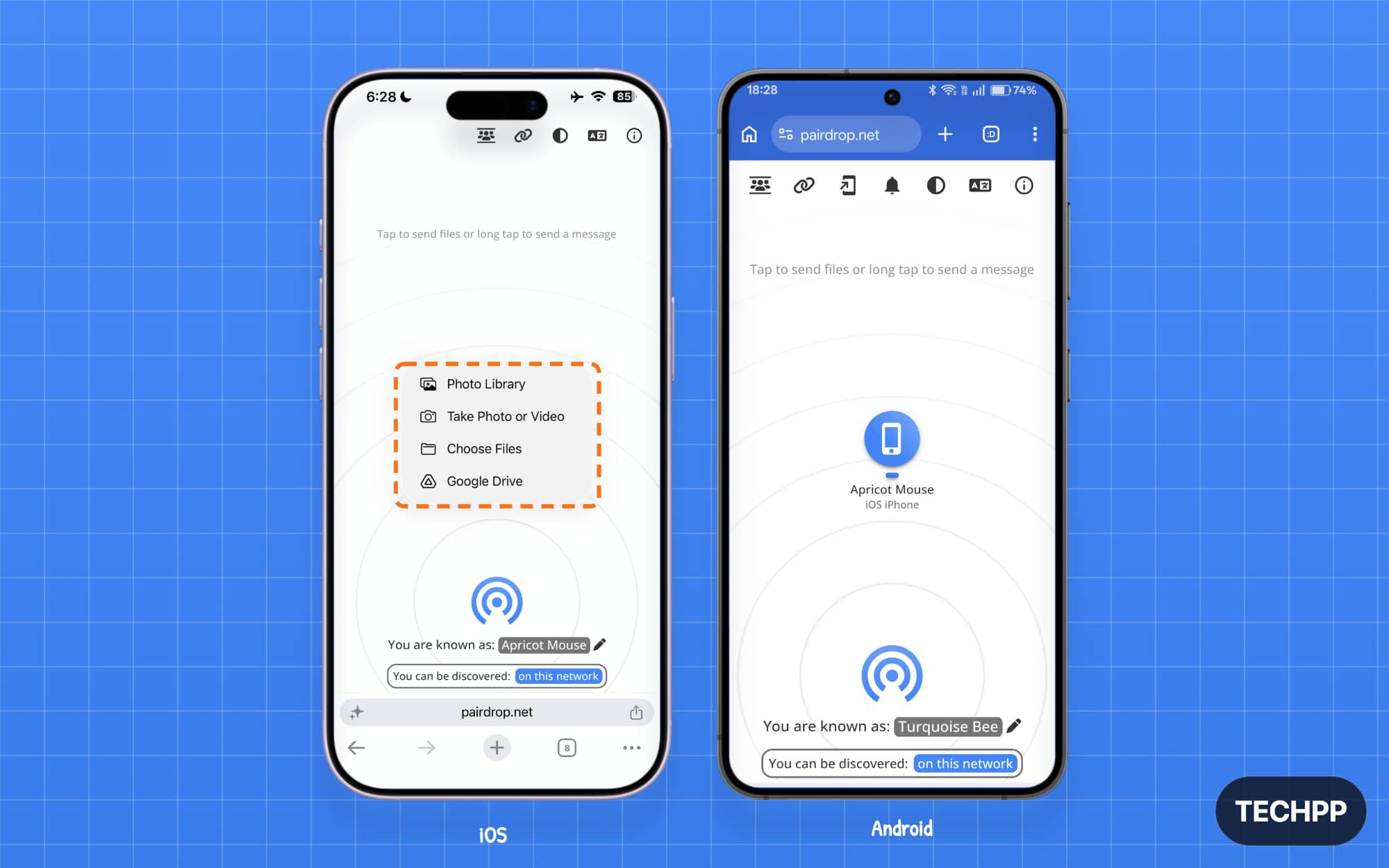
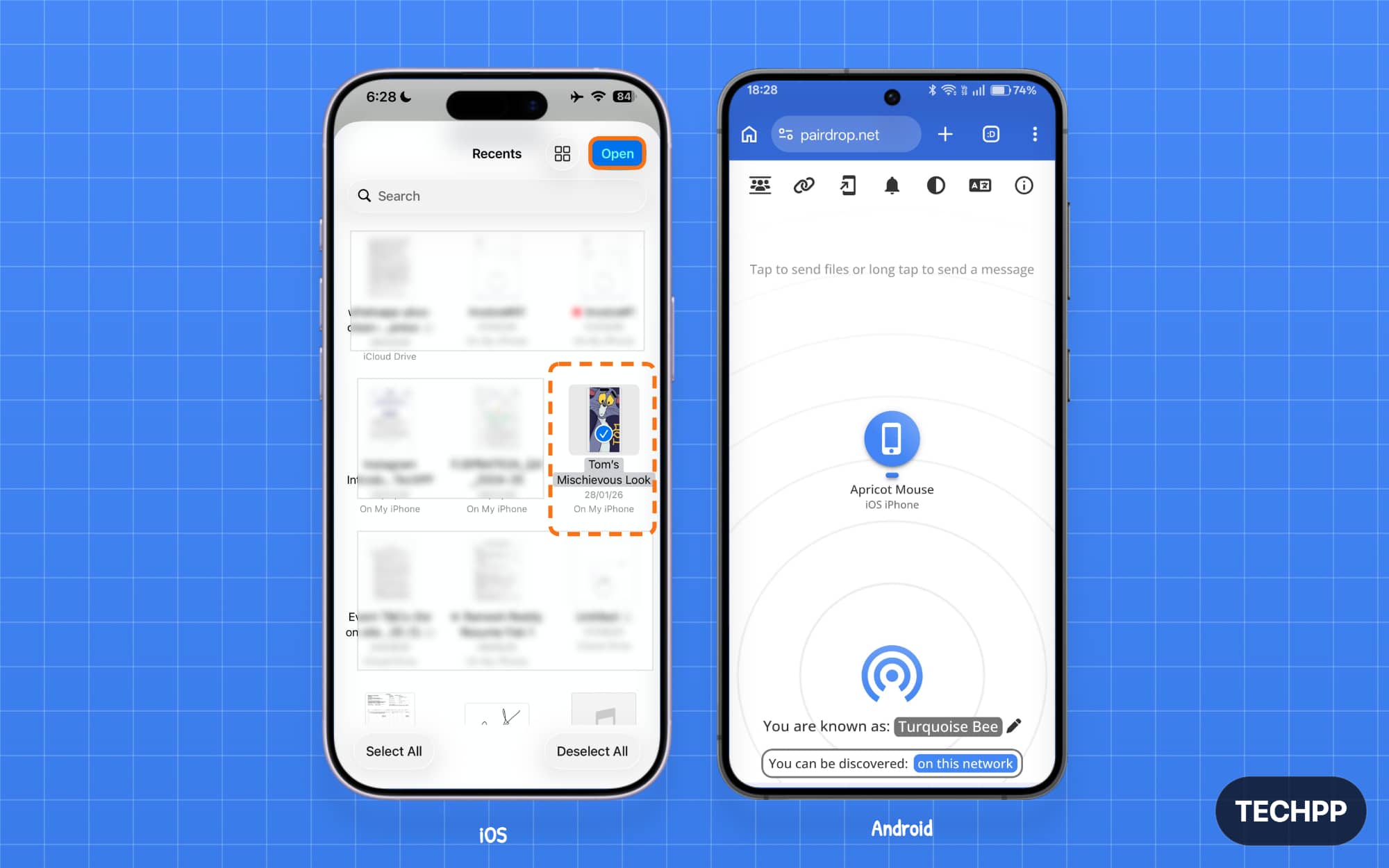
Step 4: Select the file you want to share and tap on the open button.
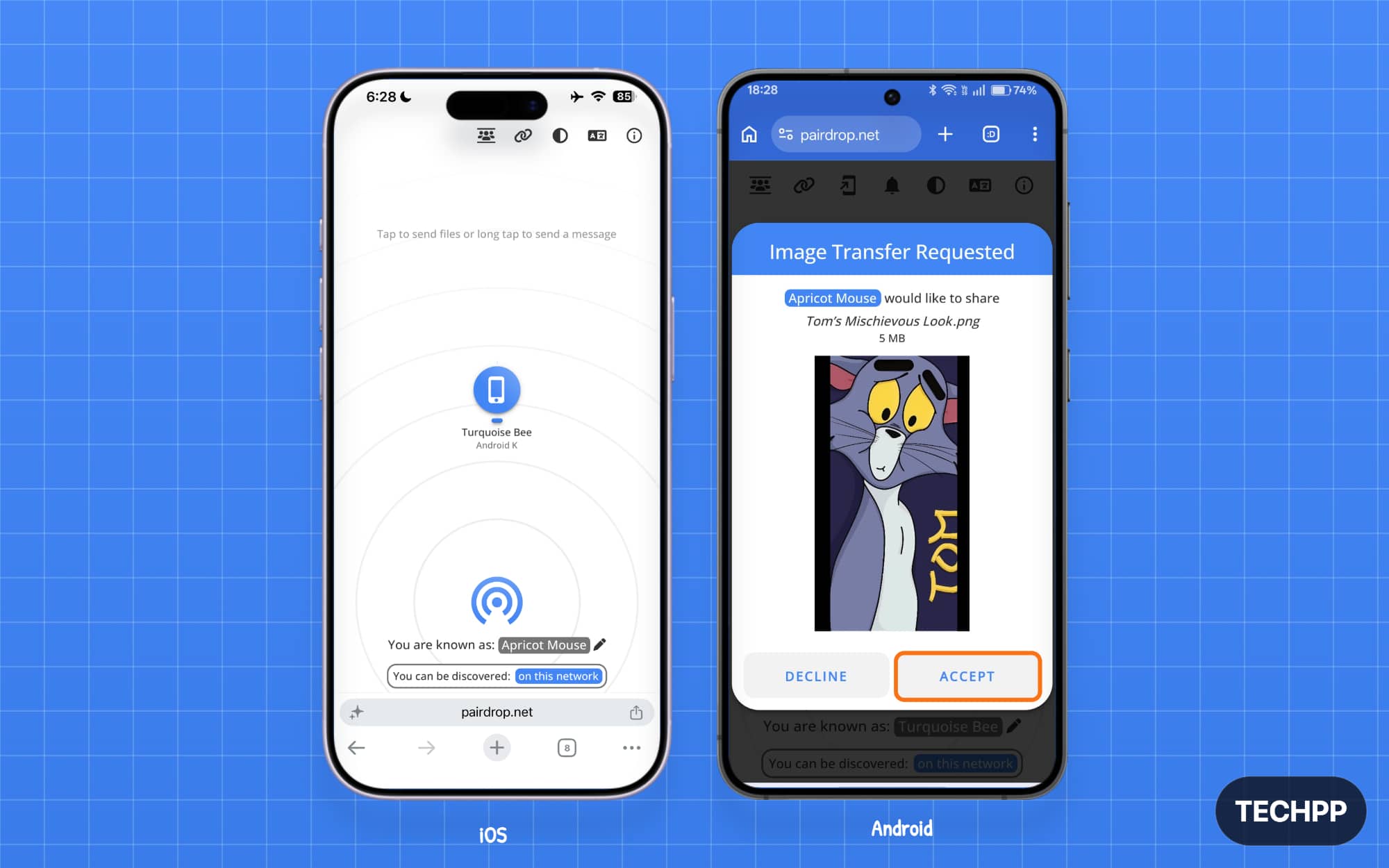
Step 5: Tap on the receiver on the other device.
Step 6: That’s it. The file is successfully transferred to the other device.
Pros and limitations of using Pairdrop:
Pros
- No app installation is required.
- No account or sign-up is needed.
- Works inside a browser.
- Supports files, text, and links.
- Best tool to use for borrowed or restricted devices.
Limitations
- Both devices must keep the PairDrop page open.
- Devices normally need to be on the same network.
- Not reliable for sharing large files.
- The transfer stops if the browser closes or reloads.
- Performance depends on the browser and available memory.
Wormhole
Best for: If you want to share files over the internet or with users in another location.
If you want to share files with someone who is not nearby or not connected to the same Wi-Fi network, then you can use wormhole.app.
Wormhole supports file sharing through the internet. Once the file is uploaded, Wormhole generates a link that you can share with someone on another network to download over the internet. This method works similarly to Google Drive.
However, Wormhole uses a straightforward approach. You don’t need to create an account. You can simply visit Wormhole and upload the file or folder, get a link, and share it with someone you want to share it with. You can also set an expiry date and restrict it to a certain number of downloads.
For privacy, Wormhole encrypts your files in your browser before they leave your device. So, website owners cannot read your files. Once the file is uploaded, it will automatically expire after 24 hours.
However, you can only share a maximum file size of 10GB, which is again further split into two 5GB files. If the file is less than 5GB, the sender need not be active. The receiver can open the link and download the file instantly. However, if the file is more than 5GB, the sender needs to keep the active wormhole browser tab open until the receiver downloads the file fully.
Wormhole is a great option to share files with someone who is not on the same local network or nearby. The temporary 24-hour file limit also enhances your privacy, so you don’t need to worry about storing your files on the cloud forever.
How to share files using Warmhole
Step 1: Open the Wormhole.app on either of the devices, either an Android or an iPhone.
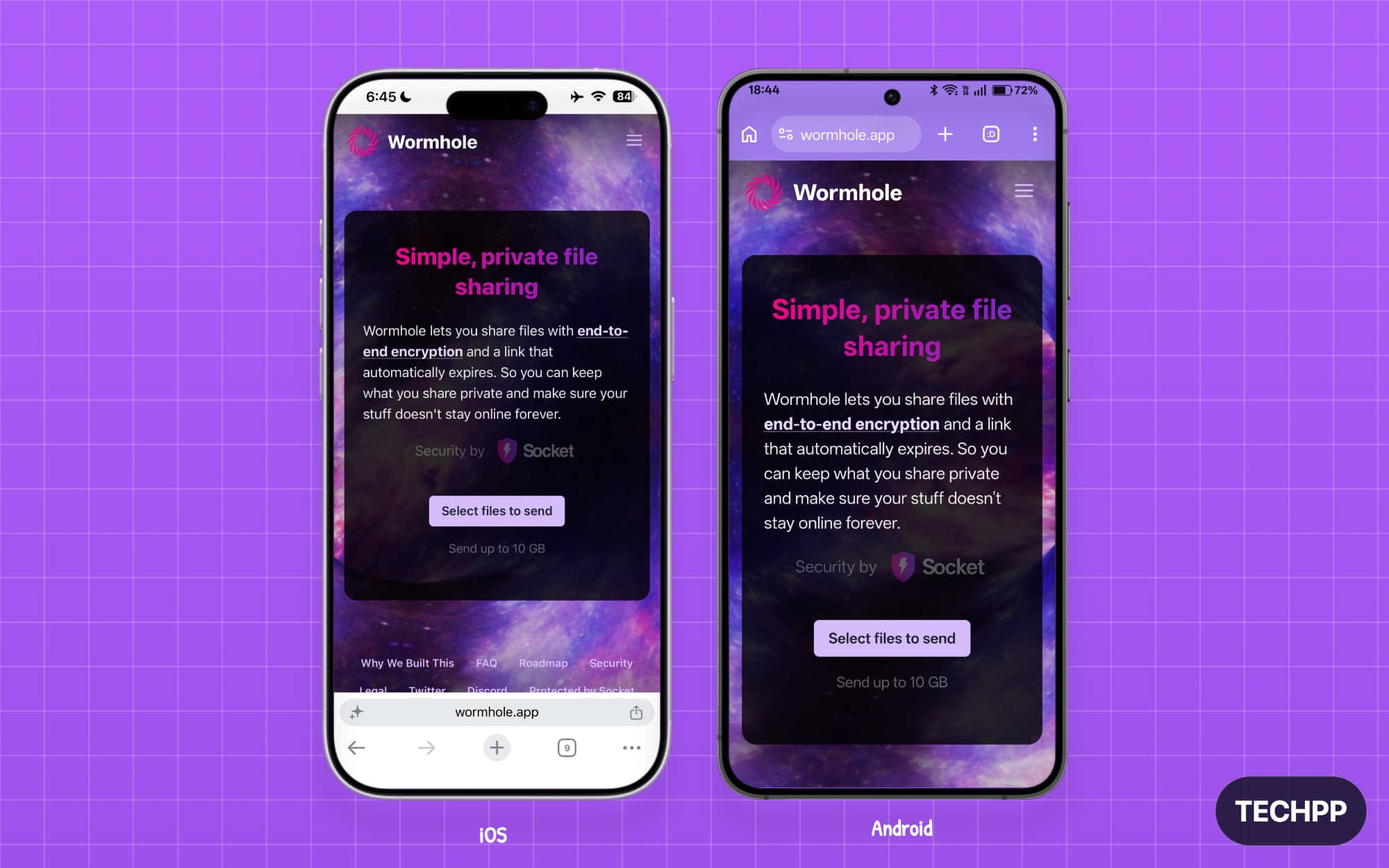
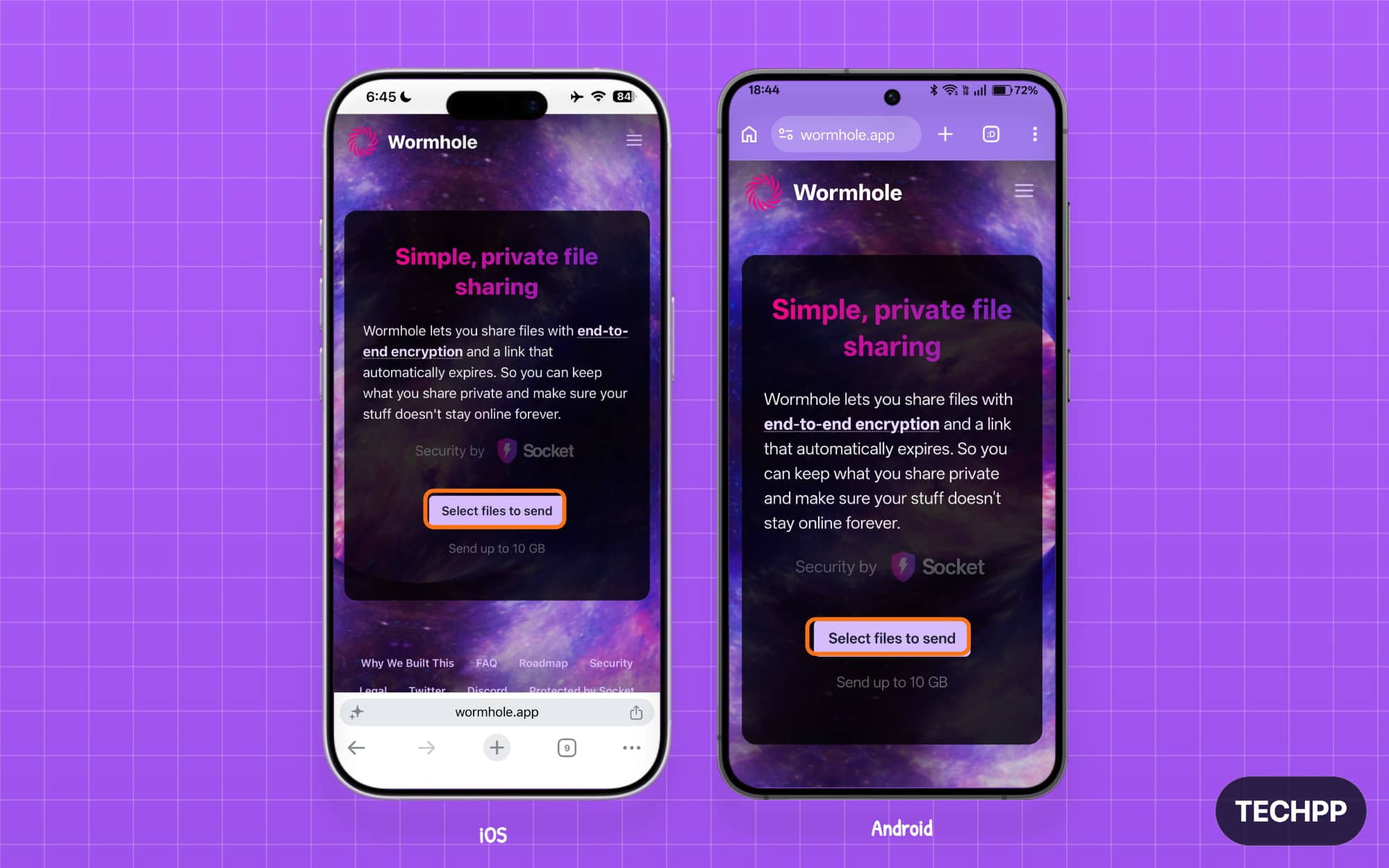
Step 2: Since we are uploading files directly to the cloud storage, there is no need for both devices to be active. Tap on the “Select files to send” option.
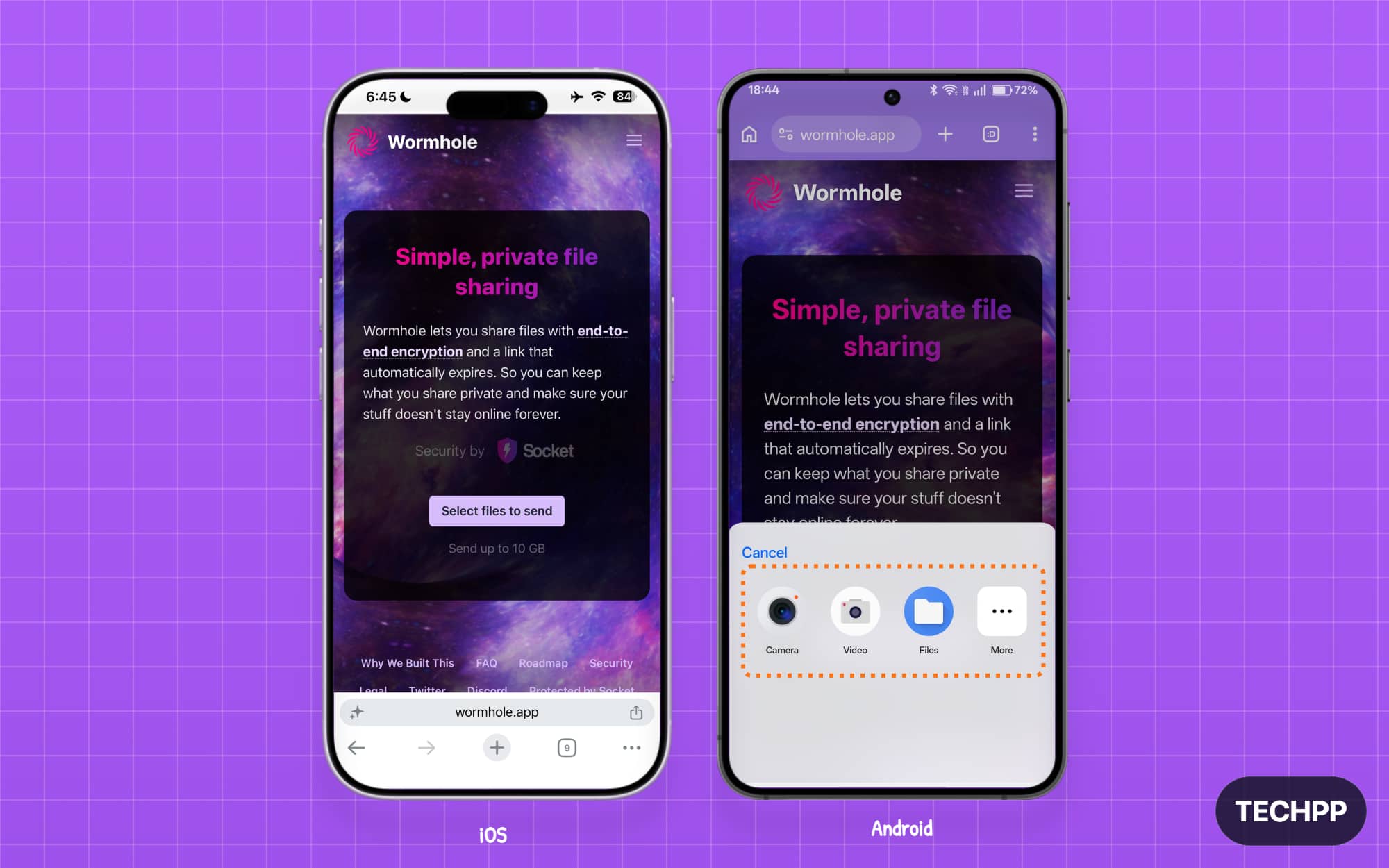
Step 3: Now, select the files from your device.
Step 4: Once uploaded, a link will be automatically generated. Copy the link and share it with the other device you want to send to.
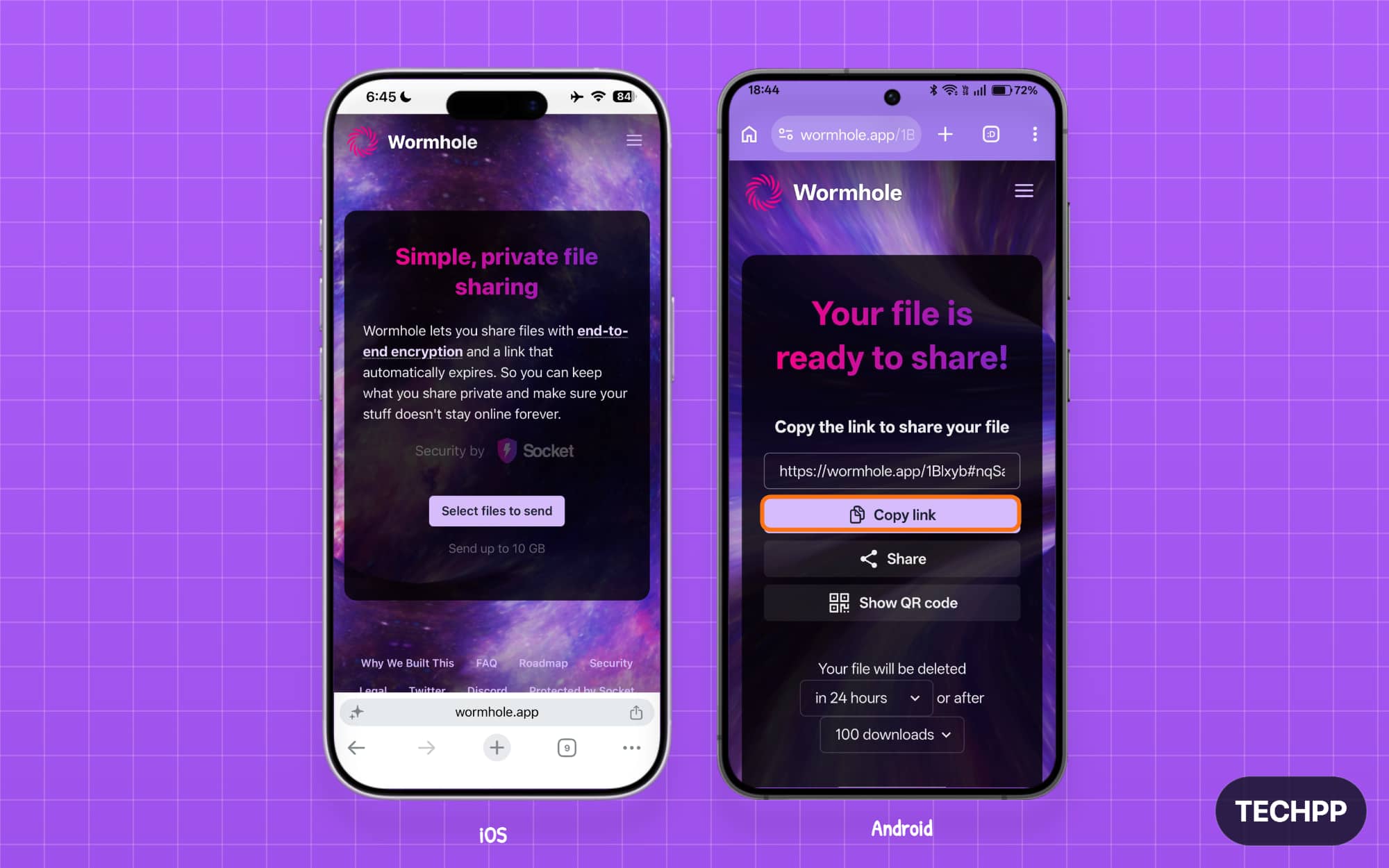
Step 5: On the other device, open the link and tap on the download option.
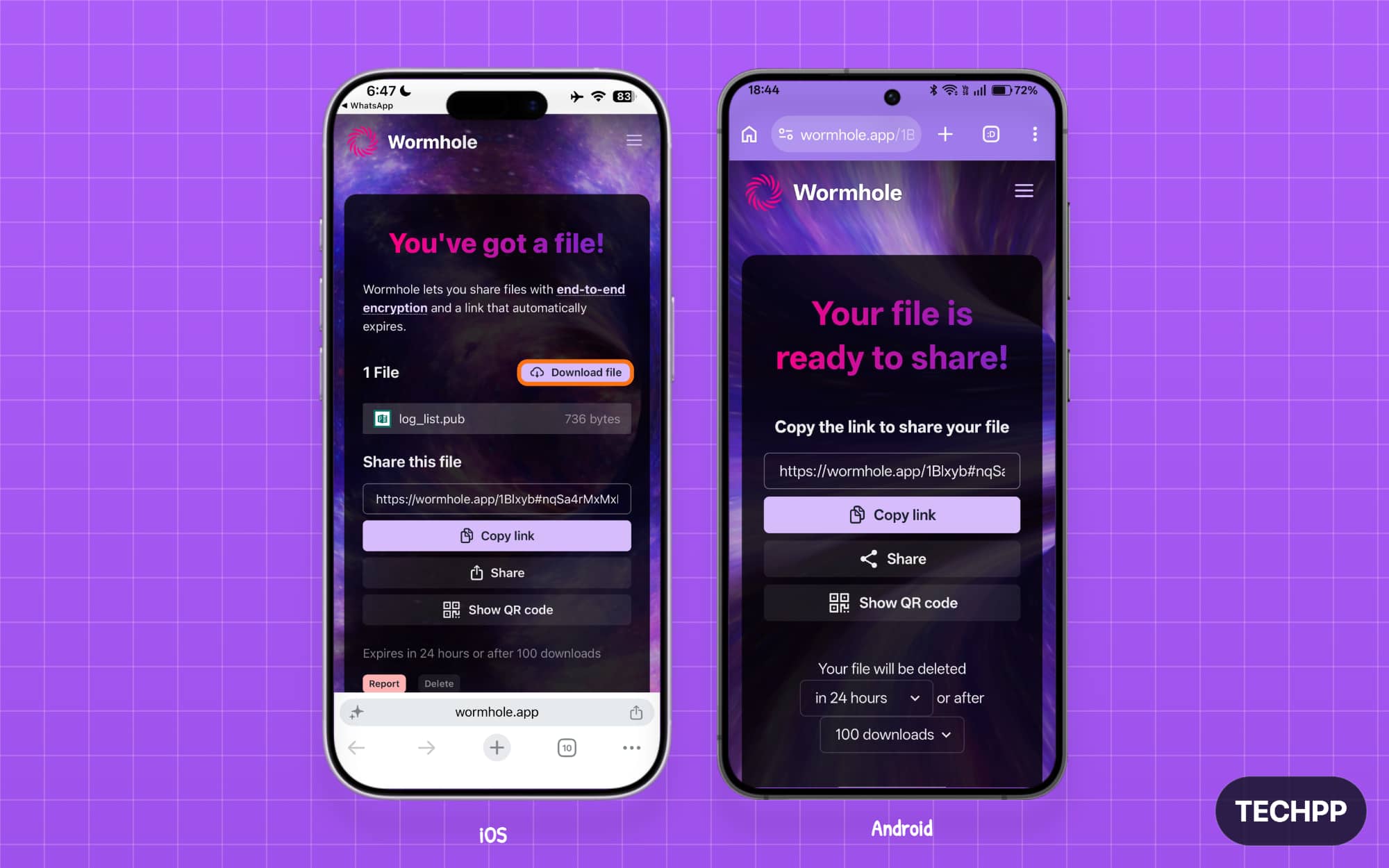
Step 6: That’s it. The file will be successfully downloaded onto your device.
Pros and limitations of using Wormhole:
Pros
- Lets you share files with people in another location.
- No account is required.
- Creates a simple download link.
- Uses end-to-end encryption.
- Files automatically expire after 24 hours.
- Files under 5GB can be downloaded after the sender leaves.
Limitations
- An internet connection is required.
- The maximum total transfer size is 10GB.
- For files above 5GB, the sender must keep the browser open.
- It is not suitable for long-term file storage
- The link must be protected because anyone with it may access the file.
Send Anywhere
Best for: If you want to share files with a user in another location and want more flexible options.
Send Anywhere gives you more flexibility and control to share files over the internet or with a person in another place. First, it doesn’t support P2P, so you cannot share files locally. Every file you share goes through the internet. But it gives you three different options to send files.
When you upload files to Send Anywhere, it provides a temporary six-digit code that you can share with the receiver. The receiver from the other end can enter the code and download the file you share locally onto the device. This method doesn’t store any files in the Send Anywhere servers, and the file expires within 10 min. and the 6-digit code expires once the receiver enters it. Using this method, you can share up to a 50 GB file.
Next is sharing files through a link, similar to Wormhole. When you upload the file, you get a shareable link to send to the receiver. The file will be temporarily stored on the Send Anywhere servers for 48 hours, and the receiver can download the file anytime before this time period expires. The free version allows you to share up to 10GB of files, with paid options offering 20-30GB.
Next, you can also share files directly to your devices. If you signed up for Send Anywhere on your other devices, you can also share files directly to those devices from your current device. You can simply select your device from your device list and send the file to the device. Remember that using direct-to-device also uploads the files to the server, for which the free version is limited to 10 GB. It also expires after 48 hours.
Finally, Send Anywhere also supports local Wi-Fi Direct P2P transfer; however, it is limited to Android-to-Android only.
How to share files using Sendanywhere:
Step 1: Download the Send Anywhere app on both Android and iPhone.
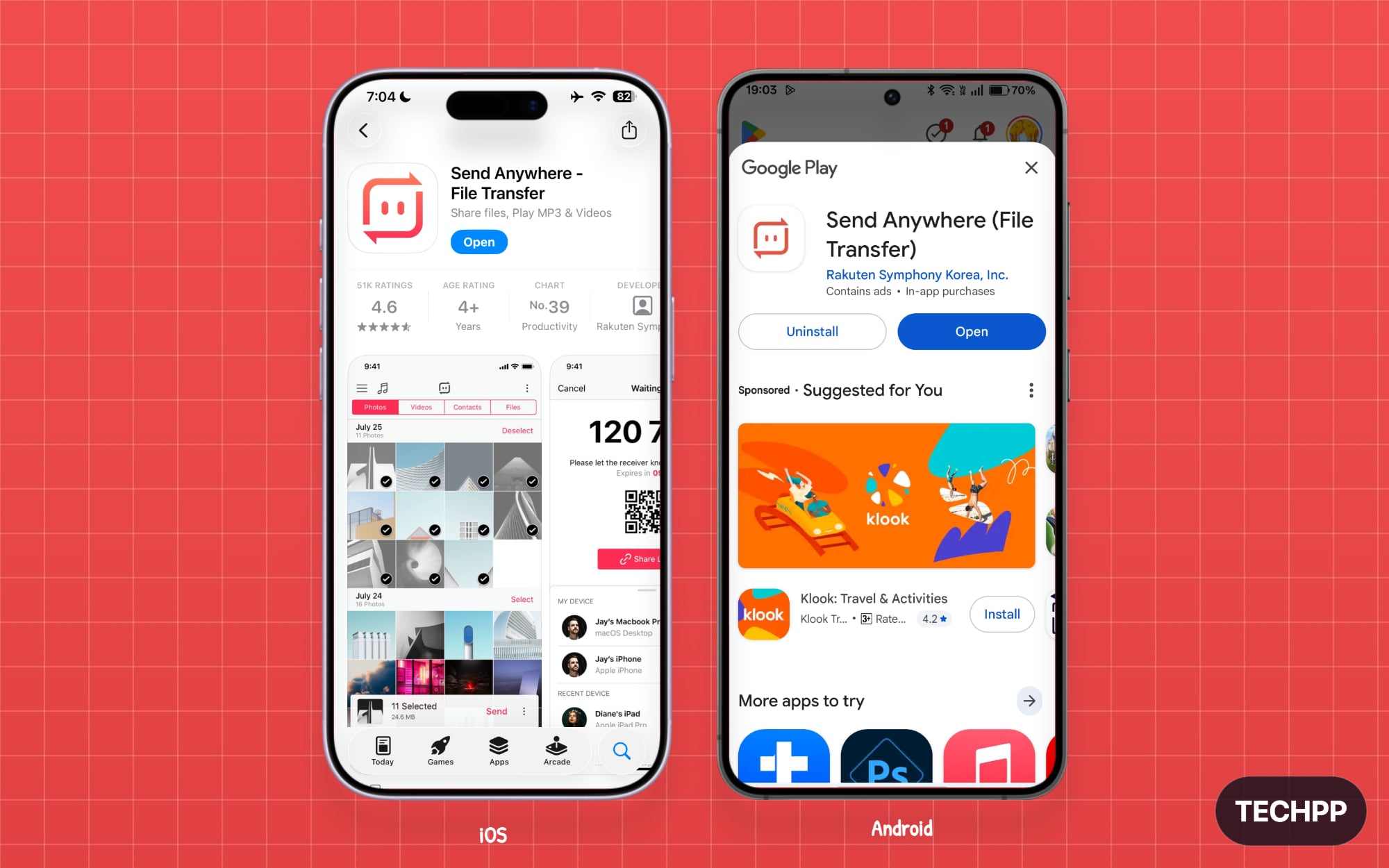
Step 2: Open the app on either an Android or an iPhone to start sending files.
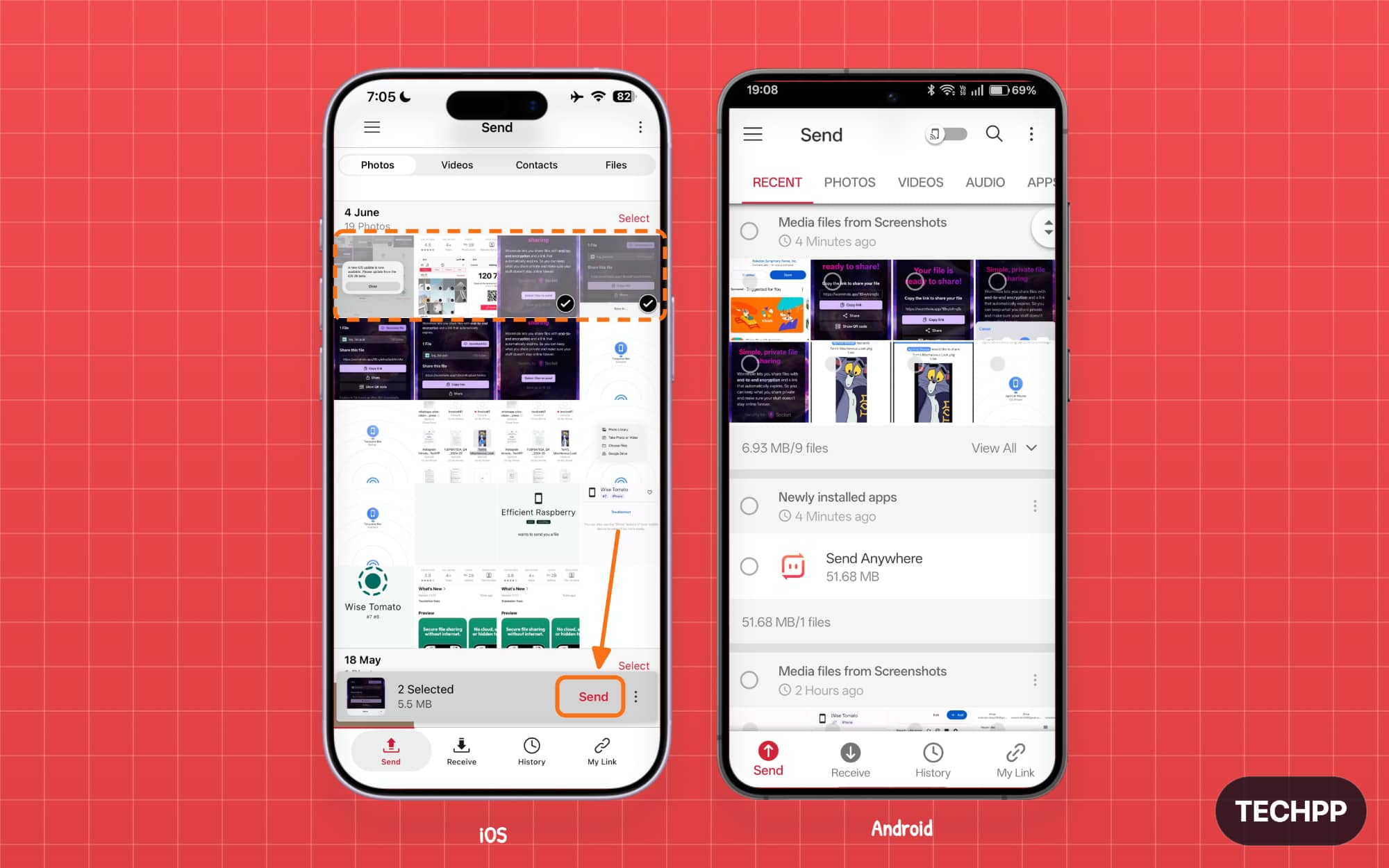
Step 3: Now select the files you want to share.
Step 4: Once done, tap on the “Send” option in the bottom right.
Step 5: Here you will find multiple options, including the code, the QR, and the share link option. If you want to share your code, you can share the code directly; alternatively, if you want to share the link, tap on the “share link” and share the link with the other device.
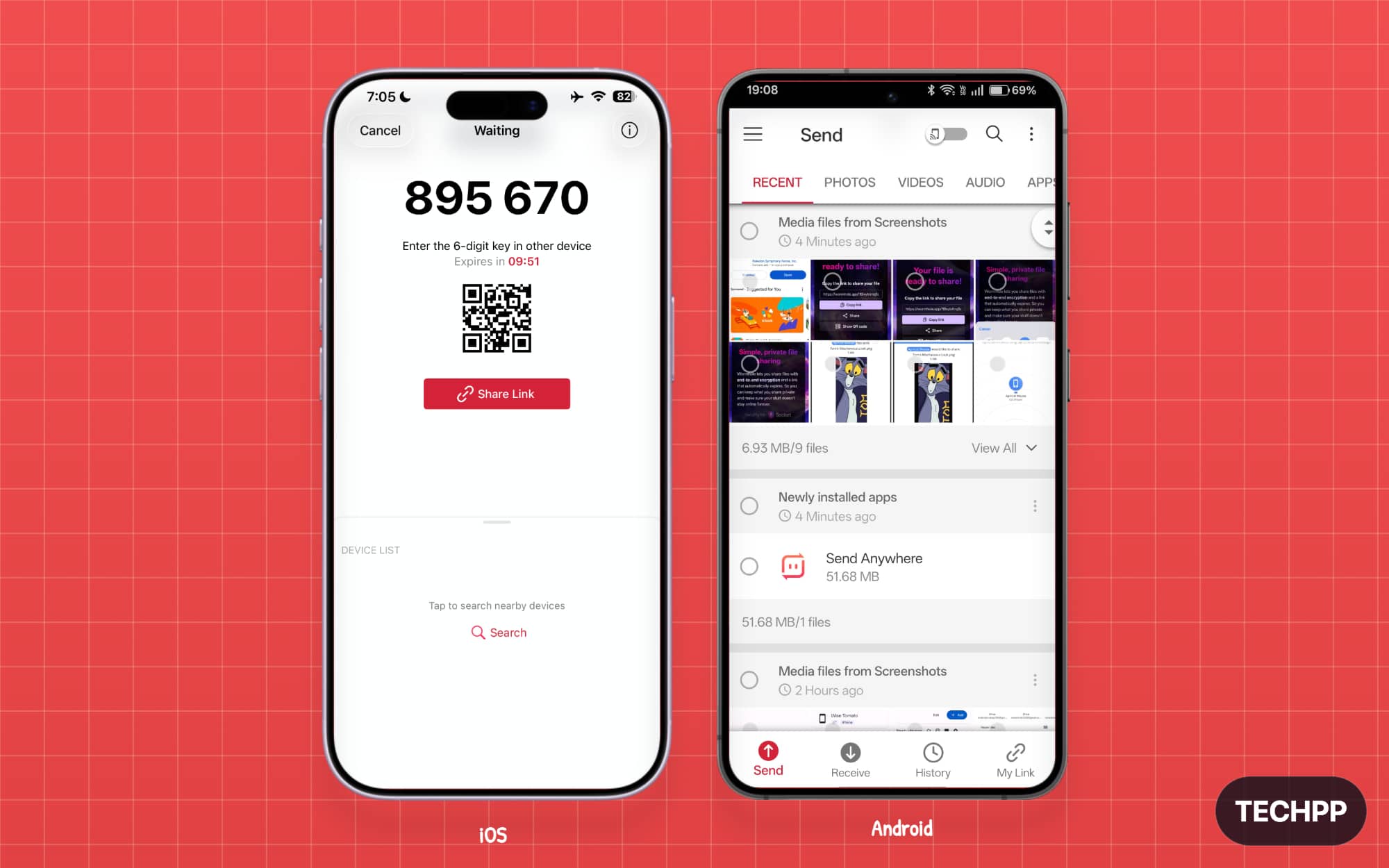
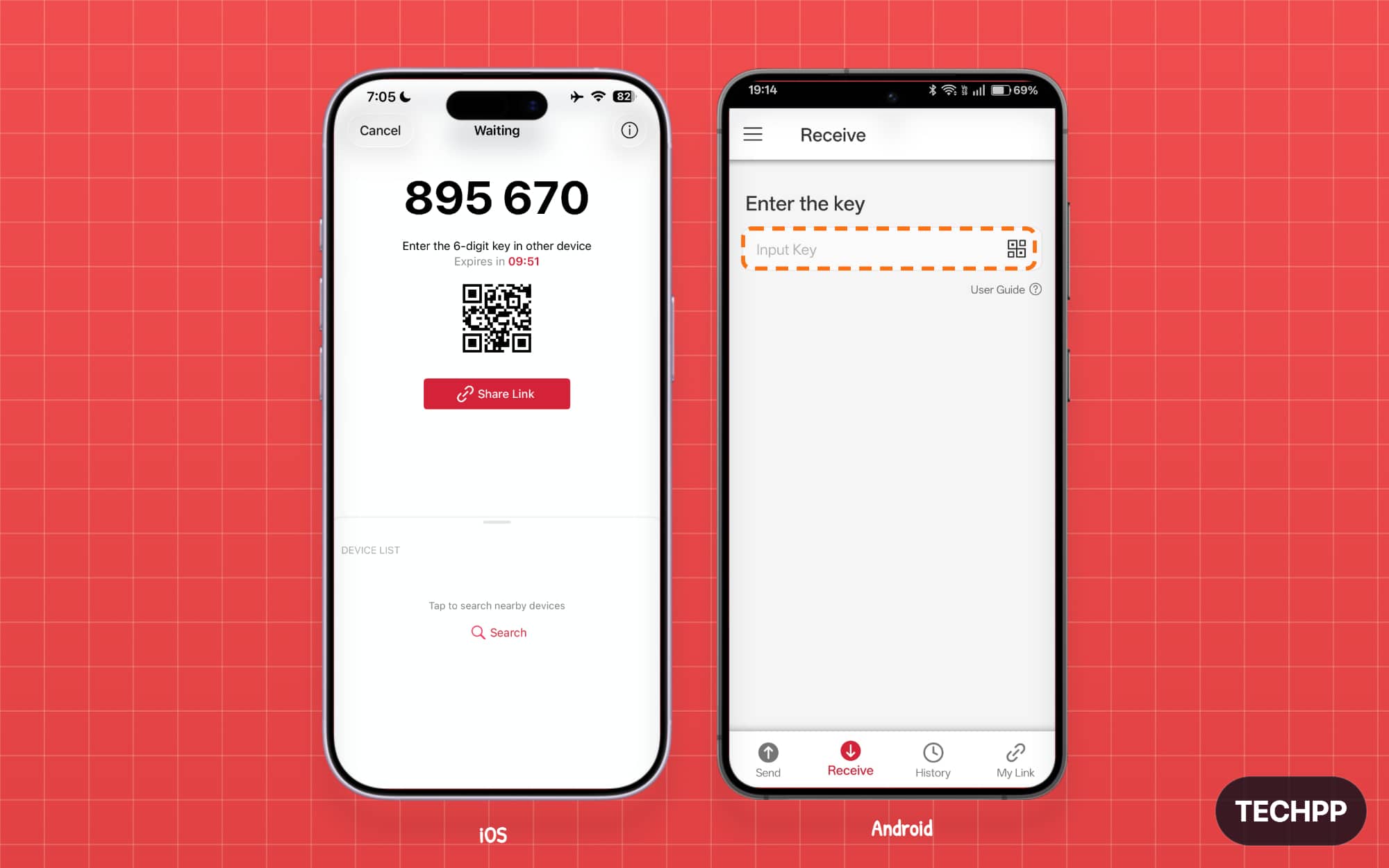
Step 6: Now, open the file on the other phone. Open the app and go to the “Receive” tab. Here you can enter the code.
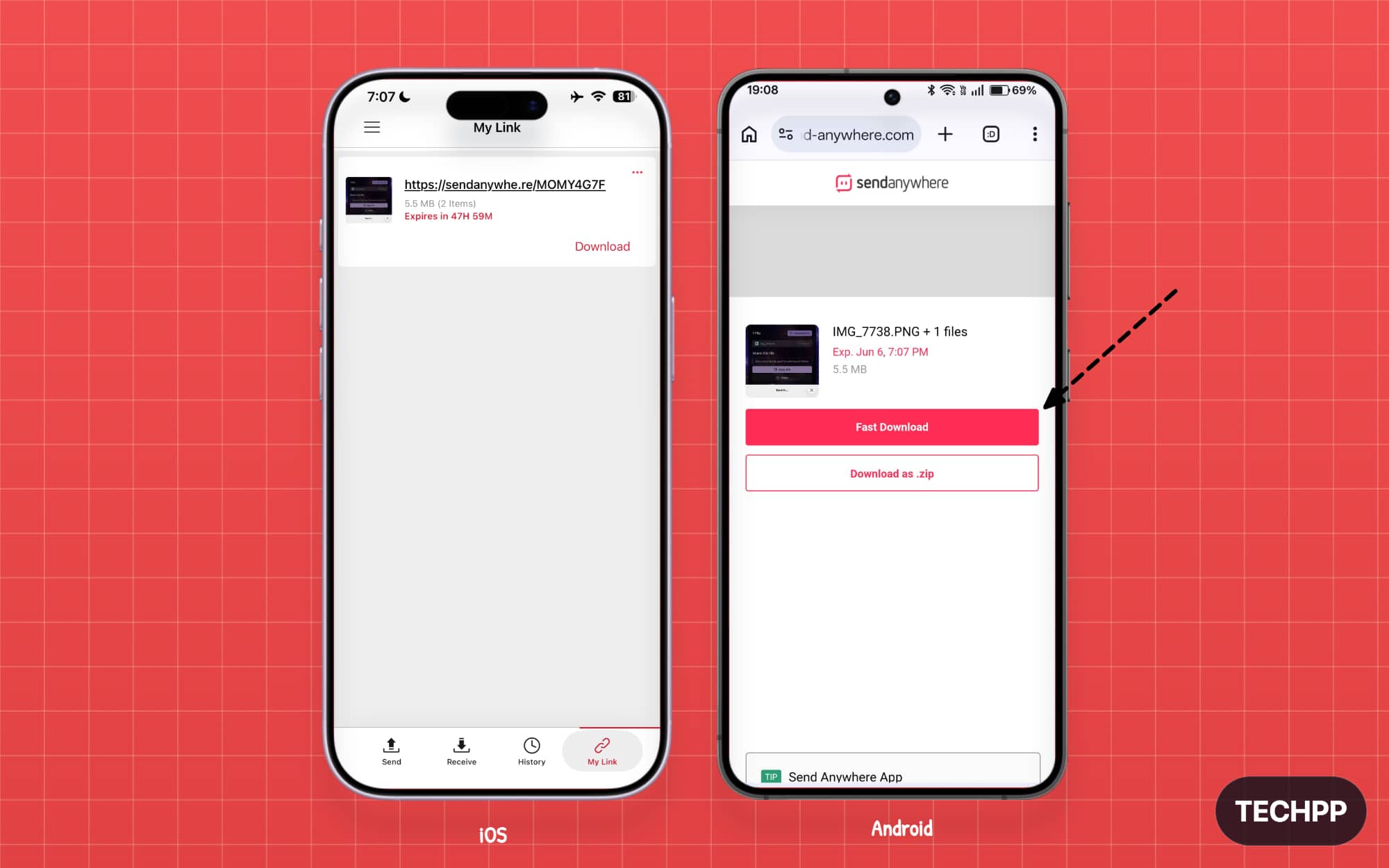
Step 7: Alternatively, if you used a link to share the file, open the link directly on the other phone, and you will be redirected to the website. From there, you can tap on the download option.
Pros and limitations of using Send Anywhere:
Pros
- Supports several sharing methods.
- The 6-digit key method supports files up to 50GB.
- Shared links can be downloaded for up to 48 hours.
- Users can send files directly to their registered devices.
- You can send a file to anyone
- Android users can also use Wi-Fi Direct without an internet connection.
Limitations
- Requires an internet connection for internet transfers
- Offline Wi-Fi Direct works only between supported Android devices.
- Both users must stay active during key-based transfers.
- Free share links support up to 10GB.
- Link and Directly To Device files are temporarily stored on its servers.
O+ Connect App for OnePlus and OPPO
Best for: If you own a OnePlus or OPPO device
Before Google, many Chinese brands had announced the ability to share files directly to iPhones using third-party methods. Oppo and OnePlus devices come with the O+ Connect app, which you can install on your iPhone to share files with it. I have a detailed guide explaining how you can share files between Android and iPhone on OnePlus devices. You can also follow similar steps on Oppo to share files between Oppo, OnePlus, and iPhone devices.
However, it’s very different from Google’s Quick Share with AirDrop support approach. The user needs to download the OPlus Connect app on their iPhone; there is no need to install any app on Oppo or OnePlus devices. Similarly, Vivo has a similar approach where you can download the Vivo Suite app on your iPhone and share files.
If you are using a Vivo, Oppo, or other OnePlus device, you still have one extra option to share files with your iPhone friend.
How to share files using the O+ Connect app on Oppo and OnePlus Phones:
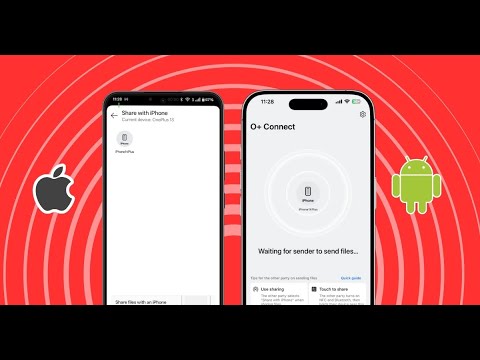
Step 1: Download the free O+ Connect app on your iPhone and install it.
Step 2: To share files, open the OnePlus Connect app on your iPhone or your OnePlus device, select the file, and tap on Share.
Step 3: You will see a LocalSend option on your iPhone. Tap on the sender profile.
Step 4: Finally, accept the file. Once that’s out. The file will be shared to your iPhone; you can also share files to Android and iPhone by following similar steps.
Pros and limitations of using O+ Connect:
Pros
- Best for OPPO and OnePlus users.
- The Android phone does not need an extra third-party sharing app.
- Supports sharing between supported Android phones and iPhones.
- Works in both directions.
- You can always have another option when Quick Share and AirDrop integration are unavailable.
Limitations
- The iPhone user must install the O+ Connect app.
- Mainly useful for supported OPPO and OnePlus devices.
- Both devices must be nearby.
- Requires initial setup.
Those are the six methods that are most relevant and currently working to share files with your iPhone and Android. If your device supports Quick Share or AirDrop, you don’t need to install any apps to directly share files to your iPhone and Android. Otherwise, using LocalSend is the best method, even though it requires a one-time installation of the app.
Otherwise, if you want to quickly share files and don’t want to install apps, PairDrop is the best option. It is browser-based and works great for sharing smaller file sizes. Both Wormhole and Send Anywhere are the best options if you want to share files with any user over the internet in another location.
Send Anywhere offers more flexible options and a higher file size limit. And if you are using OPPO, Vivo, and OnePlus devices, you can use the Oplus Connect app to share files from your devices to any iPhone user. Remember that users need to install Oplus Connect to use this method. Let me know which method works best for you.
I hope you find this guide helpful. Let me know in the comments below which method you are going to use.
Read: How to Share Files Between Android and iPhone Using Every Reliable Method

