

With console emulators, you can enjoy a variety of console games, from classic to modern systems, without needing the game console. There are various console emulators for the Mac, each tailored to different gaming systems. Some emulators also offer features such as high-resolution rendering, network gaming and controller support to enhance the gaming experience.

In this guide, you’ll learn about the eleven best console emulators for Mac, including OpenEMU for multiple console games, RPCS3 for PlayStation 3, Xemu for Xbox, Fly Cast for Sega games and more. With these emulators, you can play a wide range of console games on your Mac.
Table of Contents
What Is a Mac Console Emulator?
A console emulator is software that runs on your Mac and mimics the functions of a game console. Simply put, the emulator creates a virtual version or environment of a video game console and allows you to play console games. For example, if you have a Nintendo 64 console emulator on your Mac, you can play Nintendo 64 games on your Mac without the need for additional hardware.
How Console Emulators Work on a Mac
The console emulator works by imitating the hardware of a gaming console. The games are stored in a ROM. This ROM contains everything about the game, such as the game story, graphics, sounds and everything needed to run the game. When you download the game and run it on your Mac. The emulator converts the game’s code, graphics and sound into something that is compatible with your Mac’s hardware.
Console emulators are popular with gamers who want to play console games on other devices such as the Mac. Using an emulator also has advantages, such as the ability to play different games from different consoles on one device; some emulators also offer additional features such as saving games at any point, enhancing graphics and more. Not only for gamers, but also for developers, console emulators are used to test and play games on different platforms without the need for the actual hardware of each console.
Legal Considerations of Using Emulators
Note that using emulators to play games on your Mac is legal, but downloading game files (ROMs) without owning the original game may be illegal. This can lead to heavy fines.
Best Console emulators for the Mac
- OpenEMU: Best multi-system console emulator for Mac, offering a seamless gaming experience.
- RPCS3: Premier emulator for playing PlayStation 3 games on Windows, Linux, and macOS.
- Xemu: Specialized emulator for experiencing original Xbox games on modern computers.
- Fly Cast: Versatile emulator for Sega Dreamcast, Naomi, and Atomiswave games, compatible across multiple platforms.
- Sixtyforce: Dedicated Nintendo 64 emulator designed specifically for macOS users.
- Windows Emulator: Ideal for running Windows-based games and software on your Mac.
- Dolphin: Advanced emulator for playing Nintendo GameCube and Wii games, with support for high-definition graphics.
- PlayOnMac: Convenient solution for Mac users to run Windows games and software without a Windows license.
- DeSmuME: Optimal choice for emulating Nintendo DS games on various operating systems.
- Visual Boy Advance: A comprehensive emulator for Game Boy, Game Boy Color, and Game Boy Advance games, available on multiple platforms.
- Higan: A multi-system emulator that supports a wide range of systems, including NES, SNES, and Game Boy.
Open EMU

- Platform: macOS
- Game Support: Wide range of consoles
- Features: Organized library, controller support
- Ease of Use: User-friendly
OpenEmu is the best choice if you want to run multiple console emulators on one Mac. It supports a variety of game consoles and offers plugins for different game engines. From classic consoles like the Atari 2600, Nintendo NES and Sega Genesis to newer systems like the Nintendo 64 and GameCube, OpenEMU lets you run a huge library of games from different console emulators in one place.
One of the outstanding features of OpenEmu is its user-friendly interface. The simple interface makes adding, browsing and organizing games extremely easy.
Speaking of performance, the OpenEMU console emulators utilize modern macOS technologies such as Metal and Core Animation. This allows games to run smoother by providing better graphics and making the most of your Mac’s capabilities. Whether you’re playing a fast-paced action game or an intricate RPG, OpenEmu offers a smooth gaming experience.
OpenEmu also offers the ability to automatically assign buttons to your game controller and organize your games with original packaging in the library. You can also create custom collections from different consoles and organize your games more easily.
OpenEMU is open-source and legal to use. It is important to remember the legal implications of using ROI would be best if you only used use ROMs for games that you legally own to avoid copyright infringement. You can download the OpenEMU for free from the official website. We also shared a video on how to install it on your Mac.
![[Updated] How to Use/Install OpenEmu on Mac - Run Roms/Games on Mac | OpenEMU Mac Setup [Updated]](https://techpp.com/wp-content/cache/warp-performance/EEISLhzq3bY-hqdefault.jpg)
Download OpenEMU (Min Requirements macOS Mojave 10.14.4). You can watch the video above and learn how to download and install OpenEMU on your Mac.
RPCS3 – Play Station 3

- Platform: Windows, Linux, macOS
- Game Support: PlayStation 3 games
- Features: High-resolution rendering, adjustable settings
- Ease of Use: Requires setup, user-friendly for those familiar with emulation
RPCS3 is a versatile console emulator that is compatible with multiple operating systems, including Windows, Linux, macOS and FreeBSD. It is an excellent choice for anyone who wants to play PlayStation 3 games on their Mac.
RPCS3 2emulator supports numerous PlayStation 3 games and offers a user-friendly experience when installing and running the games. The emulator is supported on Windows, Linux and Mac. You can install and download the emulator from the official website.
RPCS3 currently supports a large number of PlayStation 3 games, namely more than 3000 games. The list includes a wide range of titles, from popular to niche games, including the 2010 FIFA World Cup, 50 Cent: Blood On The Sand, Air Conflicts: Secret Wars and more.
Performance may vary depending on the game and your Mac’s hardware. The emulator is constantly updated and optimized to improve playability and the overall experience. There are also various settings for high-resolution rendering and more. RPCS3 is legal to use, but you must ensure that you have purchased a copy of the PlayStation 3 game. You can download the emulator for free from the official website.
Xemu for Xbox
- Platform: Windows, macOS, Linux
- Game Support: Original Xbox games
- Features: Controller support, save states, network connectivity
- Ease of Use: Designed for ease, but experience varies
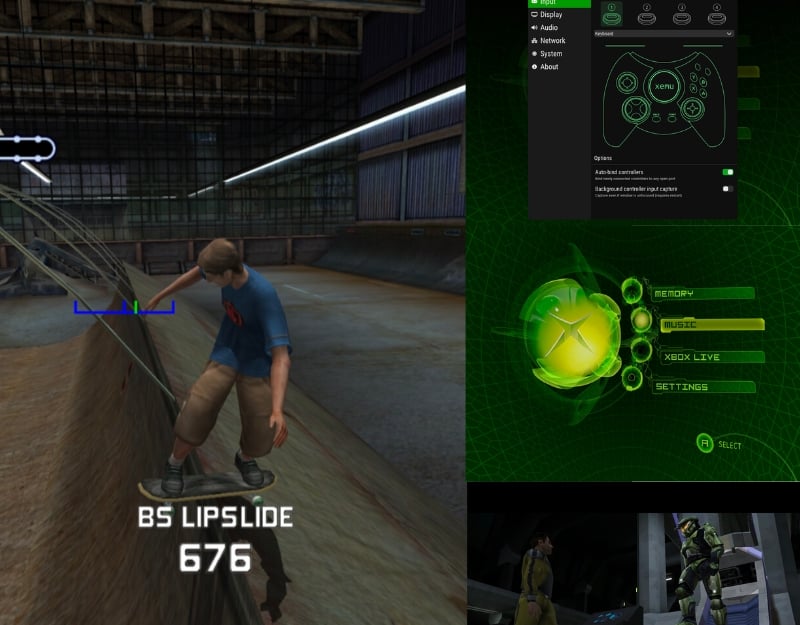
Xemu is a free open source emulator specifically for the original Xbox console from Microsoft. The console emulator lets you play Xbox games on Windows, macOS and Linux systems. Xemu is compatible with multiple operating systems and runs natively on Windows, macOS and Linux.
The emulator focuses on emulating the hardware of the original Xbox. It supports more than 1000 games. You can find the full list of supported games on their website. You can select the game you want and play it on your Mac. The emulator is user-friendly and aims to recreate the old Xbox experience, but keep in mind the ease of use. Also note that the ease of use may vary depending on your familiarity with emulation and individual system configuration.
Speaking of performance. Xemiu offers a faithful emulation of the Xbox console. Performance may also vary and depend on the user’s hardware configuration.
Xemu also supports a number of features, including support for virtually all controllers (up to four simultaneously), the ability to save and load the current game state, improved resolution upscaling for games and networking capabilities to connect to other Xemu instances and real Xboxes, and more. Xemu is legal and ensures that you get legal Xbox game copies with Xemu. You can download Xemu from the official website. It is supported by Macs with Intel and M1 silicon processors.
Related Read: 9 Best GBA Emulators for Windows PC
Fly Cast

- Platform: Windows, macOS, Linux, Android, iOS
- Game Support: Sega Dreamcast, Naomi, Naomi 2, Atomiswave
- Features: Network support, resolution upscaling
- Ease of Use: User-friendly with documentation
Flycast is a multiplatform emulator that lets you play Sega Dreamcast, Naomi, Naomi 2 and Atomiswave games on your Mac. It is compatible with many operating systems and runs natively on Windows, macOS (both Intel and ARM), Linux (64-bit) and mobile devices (Android and iOS).
The emulator is compatible with most Dreamcast, NAOMI, NAOMI 2 and Atomiswave games. You can play games like KOF Neowave, The Rumble Fish, Maximum Speeds and many more. It offers a user-friendly interface, especially for those who already have some experience with emulation.
For better performance, the emulator requires a graphics processor that supports OpenGL 3.0 or OpenGL ES 2.0. It is capable of running most supported games smoothly, but performance may vary depending on the Mac’s hardware. The emulator also offers the possibility to improve gameplay. It supports upscaling of resolution and textures, improving the visual quality of games. It also supports networked Dreamcast and NAOMI games, both locally and online, via services such as Dreamcast Live.
Flycast is open source and can be used legally. However, as with other emulators, you need to make sure you have legal copies of the games you’re playing. You can download Flycast from the GitHub repository. To download the emulator to your Mac, you can follow the installation steps provided by the author.
Sixtyforce

- Platform: macOS
- Game Support: Nintendo 64 games
- Features: PPC architecture support, controller compatibility
- Ease of Use: Free and paid versions, straightforward for Mac users
Sixtyforce is a Nintendo 64 emulator designed specifically for macOS. It offers a customized emulation experience for Mac users. While Sixtyforce does not support as many Nintendo 64 games as other emulators such as Mupen64Plus, it still delivers playable speeds for most supported games, especially on G4 and all G5 processors.
Sixtyforce supports a wide variety of Nintendo 64 games; a full list of compatible games can be found on its website. All supported games are listed on this page, along with detailed information on how well each game runs on the emulator. These include popular Nintendo titles such as Army Men: Sarge’s Heroes, Disney’s Tarzan, Gex 3: Deep Cover Gecko and many more. You can see the full list of compatible games here.
Sixtyforce is available in both a free and a paid version. The free version lacks certain features such as saves and the Sixtyforce logo is displayed during gameplay. The paid version, which costs 15 US dollars, includes saves and removes the logo to provide an optimized gaming experience. And while we’re on the subject of the emulator’s performance. As mentioned above, it is optimized for macOS and ensures that most games run at playable speeds, especially on more powerful Mac modelsSixtyforce is compatible with the PowerPC (PPC) architecture, which is especially beneficial for users with older Mac models.
As of version 0.9.2, Sixtyforce is proprietary software. Make sure you have legal copies of the games you play on Sixtyforce to comply with copyright laws. You can download the emulator from the official website.
Dolphin

- Platform: Windows, macOS, Linux, Android
- Game Support: Nintendo GameCube and Wii games
- Features: High-definition graphics, online multiplayer
- Ease of Use: User-friendly with active community support
Dolphin is another good emulator to play console games on your Mac. It is designed for multiple platforms, including Windows, Linux, macOS and Android. It supports a wide range of GameCube and Wii games with a high compatibility rate. It currently supports more than 3000 g, James, including Nintendo and Wii games such as EVO 2, Solitaire, Spots Party and more.
The emulator has a user-friendly interface and offers various features that enhance the gaming experience. It offers options for widescreen output and aspect ratio switching, netplay for online games and VR support. Dolphin also allows users to delete game textures and replace them with their own, allowing for a degree of personalization and visual enhancement.
The performance of the Dolphin emulator can vary depending on the game and the hardware of the user’s device. It also offers support for widescreen output, netplay for online games, VR support and the ability to customize game textures. These features enhance both the visual and interactive aspects of the gaming and provide an even more immersive experience.
Dolphin is a legal emulator, but you must ensure that you are using legally purchased copies of games. You can download it for free from the official website.
Windows Emulator

- Platform: Various, including Mac (via emulation)
- Game Support: All Windows games
- Features: Dependent on the specific emulator used
- Ease of Use: Varies based on the emulator
You can use a Windows emulator to play console games on your Mac. Console emulation is about playing console games (e.g. for PlayStation or Nintendo) on your Mac. With a Windows emulator on your Mac, you can also play games that were developed for Windows. We have listed the best Windows emulators for the Mac in a detailed article. You can choose the best emulator that suits your needs and install it on your Mac. Another advantage of a Windows emulator is that you can install a Windows console emulator that allows you to run console games on the Windows emulator on the Mac.
How to download and use Windows emulator for Mac
- Download the Windows emulator (like Parallels or Boot Camp) and install it on your Mac.
- After you have installed the Windows emulator, you can switch your Mac to Windows.
- Now, You can download and run the Windows games on your Mac.
- You can also install a console emulator in Windows. Now you can use this console emulator to play games just like on a normal Windows PC.
PlayOnMac – Play Windows Games

- Platform: macOS
- Game Support: Windows games
- Features: Runs Windows applications on Mac
- Ease of Use: Simplifies running Windows games on Mac
PlayOnMac is free and the best alternative for Windows emulators on Mac. It allows you to install and run games and applications designed for Windows on your macOS. It’s easy to use and an alternative to more complex methods like Bootcamp or virtual machines.
Unlike Windows emulators, PlayOnMac doesn’t require a Windows license. It offers good system integration without the need for a reboot. This makes it a very accessible option for Mac users who want to run Windows applications.
PlayOnMac supports a wide range of software, not just games. This includes development tools, educational software, various utilities (functions), graphic design programs, Internet tools, multimedia applications, office software and much more. You can also run Windows-compatible games on the Mac. One of the main advantages of PlayOnMac is that it doesn’t affect performance, a common problem with virtual machines. This is especially beneficial for games and resource-intensive applications and ensures optimal performance.
PlayOnMac itself is legal and free, but make sure you’re using the legal version of the Windows software. You can download PlayonMac from the official website and install it on your Mac.
DeSmuME

- Platform: Windows, macOS, Linux
- Game Support: Nintendo DS games
- Features: Save states, cheat code support
- Ease of Use: User-friendly interface
DeSmuME is an open source emulator for the Nintendo DS with multi-platform support. It is compatible with various operating systems, including Windows, macOS and Linux. You can play Nintendo DS games with the emulator on Mac. It supports a wide range of DS titles, but features such as DS Download Play, DS Local Play and DSi emulation are not supported.
You can use the emulator from the command line or as a graphical interface. It is available in both free and Libretto Core versions for RetroArch. The emulator offers solid performance, but the performance also depends on the hardware. You can optimize performance through settings such as enabling a dynamic recompiler.
It has features to increase the resolution for better visual quality, Wi-Fi/online support in later versions and various renderer options in the 3D settings for improved graphical output. It also supports texture filters, reduced pixelation and much more. The use of DeSmuME is legal. However, you should ensure that you use legally purchased copies of the game to comply with copyright laws.
Visual Boy Advance
- Platform: Windows, macOS, Linux
- Game Support: Game Boy, Game Boy Color, Game Boy Advance
- Features: Cheat support, save states
- Ease of Use: Simple Interface, easy to use
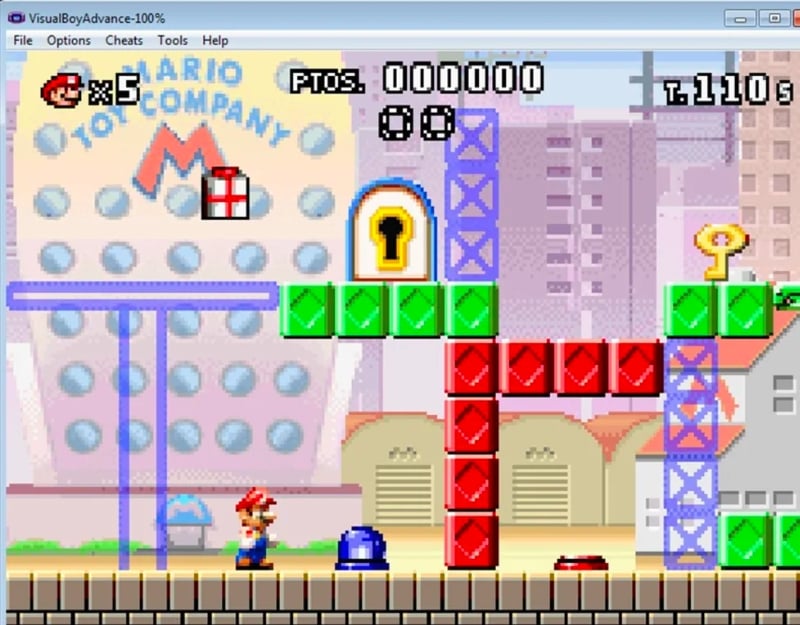
Visual Boy Advance (VBA-M) for Mac is an enhanced version of the original Game Boy Advance emulator. It was developed for macOS and offers support for GameBoy, GameBoy Color and GameBoy Advance ROMs.
VBA-M supports a large library of games from the GameBoy series. The installation process is simple. You can download VisualBoyAdvance from the official website and simply install it on your Mac. You can expect good performance. Again, performance may vary depending on your Mac’s hardware.
VBA-M offers joystick support, speed-up key, autofire, screen capture and full save state support. It also includes graphics filters to enhance the display, GUI skinning support and newly added HQ3x/4x pixel filters. It also features GameBoy connections over LAN and the Internet, a GameBoy printer emulator, real-time IPS patching and audio/video recording. It also includes hacking and debugging tools and supports various cheat codes.
Visual Boy Advance can be used legally. You can download it from the official website, install it and install it on your Mac.
Higan

- Platform: Windows, macOS, Linux
- Game Support: Multiple systems, including NES, SNES, and Game Boy
- Features: Emphasizes accuracy, supports numerous systems
- Ease of Use: More complex due to the focus on accuracy
Higan is a multi-system emulator that is compatible with various operating systems, including Windows, macOS, Linux and OpenBSD. The emulator supports Bones (Super Nintendo) and BGBA (Game Boy Advance) console games.
Higan is one of the console emulators offered on the emulator.net website. The website offers a large collection of free emulator games and video game ROMs.
Higan allows you to organize games into folders. These folders contain the game’s metadata, including SRAM, cheats, input settings, emulator metadata and more. This makes managing all your games easy.
Higan offers solid performance. Higan is legal to use. However, it is recommended to use legally purchased game copies to comply with copyright laws. On the website, you can also find web-based browser emulator games that you can play online. Similarly, you can also use Emulatorzone to find different emulators.
How To Choose the Best Console Emulator for the Mac
- Compatibility: First make sure that the emulator works with your Mac. Check if it is compatible with your macOS version.
- Game Support: Think about what you want to play. Some emulators are suitable for certain console games, others are not. Choose one that supports the games you love.
- Ease of Use: Look for an emulator that is easy to set up and use.
- Performance: Performance is the most important thing. Good emulators run games smoothly and without glitches. You can consider the parameters of how much CPU, GPU and RAM the emulator needs.
- Features: Some emulators offer cool features like saving games at any time or improving graphics. Decide which features are important to you.
- Legal Aspects: Last but not least, you should consider the legal aspects of using the emulator
Side-by-Side Comparison of All the Console Emulators Listed in This Post
Feature/Emulator | Windows Emulator | OpenEMU | RPCS3 | Xemu | Fly Cast | Sixtyforce | Dolphin | PlayOnMac | DeSmuME | Visual Boy Advance | Higan |
|---|---|---|---|---|---|---|---|---|---|---|---|
Emulator Type | General Windows | Multi-system | PlayStation 3 | Xbox | Sega platforms | Nintendo 64 | GameCube/Wii | Windows games on Mac | Nintendo DS | Game Boy series | Multi-system |
Supported Games | Various Windows games | Wide console range | PS3 titles | Original Xbox games | Dreamcast, Naomi | Nintendo 64 games | GameCube, Wii | Various Windows games | Nintendo DS | Game Boy, Color, Advance | NES, SNES, Game Boy, etc. |
Price | Varies | Free | Free | Free | Free | Free/Paid | Free | Free | Free | Free | Free |
Operating System | Various | macOS | Windows, Linux, macOS | Windows, macOS, Linux | Multi-platform | macOS | Multi-platform | macOS | Multi-platform | Multi-platform | Multi-platform |
Resolution Upscaling | Varies | Yes | Yes | Yes | Yes | Yes | Yes | Varies | No | Yes | Yes |
Controller Support | Varies | Yes | Yes | Yes | Yes | Yes | Yes | Varies | Yes | Yes | Yes |
Online Multiplayer | Varies | No | Yes | No | Yes | No | Yes | Varies | No | No | No |
Save State Feature | Varies | Yes | Yes | Yes | Yes | Paid version only | Yes | Varies | Yes | Yes | Yes |
Customizability | High | High | High | Moderate | High | Moderate | High | High | Moderate | High | High |
Ease of Use | Varies | User-friendly | Moderate | User-friendly | User-friendly | User-friendly | User-friendly | User-friendly | User-friendly | User-friendly | Moderate |
FAQs about Best Console Emulators for Mac
1. How do I improve emulator performance on my Mac?
You can improve the performance of the emulator in many ways. Here are the most common and easiest ways to enhance performance. Remember that the most important factor that can enhance performance is your Mac hardware and the emulator you choose.
- Update Your Mac: Make sure your macOS is up to date. This can improve overall performance and compatibility.
- Upgrade Hardware: If possible, you can upgrade your Mac’s hardware to improve its performance.
- Optimize Emulator Settings: Adjust the emulator settings. Lower the graphics settings or reduce the resolution to increase speed.
- Close Background Applications: If too many programs are running in the background, your Mac may slow down. Close unnecessary applications to free up resources for the emulator.
- Keep Your Emulator Updated: Update your emulator regularly to the latest version to get improvements and bug fixes.
- Check for Compatibility: Some emulators work better with certain system configurations. Make sure your emulator is compatible with your Mac model.
2. Are there any risks in using emulators?
Using an emulator is legal, but downloading and using ROMs of games you don’t own is illegal. This can lead to legal problems. There are also a few other risks you should be aware of.
- Malware Risks: Some websites that offer emulators and ROMs may contain malware. This can harm your computer.
- Performance Issues: Emulators can slow down your Mac, especially if your Mac’s hardware is not powerful.
- Compatibility Problems: Some emulators may not work well with your system and cause crashes or errors.
3. Can I play multiplayer games through emulators?
Yes, you can play multiplayer games on your Mac. Many emulators support local multiplayer mode and let you play with other players on the same computer. Some emulators also offer online games that allow you to connect with friends over the internet. Make sure that the game supports multiplayer and make sure you have a stable internet connection.
4. Can I legally download ROMs for games I own?
Yes, you can legally download ROMs for games you own.
5. What is the best overall emulator for Mac?
The best emulator for Mac can vary depending on your needs, but a popular choice is OpenEmu. You can consider parameters such as a user-friendly interface, support for many consoles, controller support, regular updates and more.

