

Quick Answer
Switching from Windows to Mac gets easier with apps like Command X, DockDoor, LinearMouse, and uBar that restore familiar Windows-style shortcuts, taskbar controls, clipboard history, audio mixing, and better mouse support on macOS.
As often associated with tech, it’s the switching of devices that haunts the most. No matter how worthy an upgrade may feel, setting up the new device and transferring data from the old one takes up and ruins a whole afternoon, if not more. Dismally, that’s not where the inconvenience ends, as the new device almost certainly doesn’t do things the same way the old one did. It is particularly evident when you switch devices running different operating systems, such as Windows and macOS, which are different enough to be incredibly frustrating. For long-time Windows users, the macOS transition can feel less like an upgrade and more like starting from scratch.
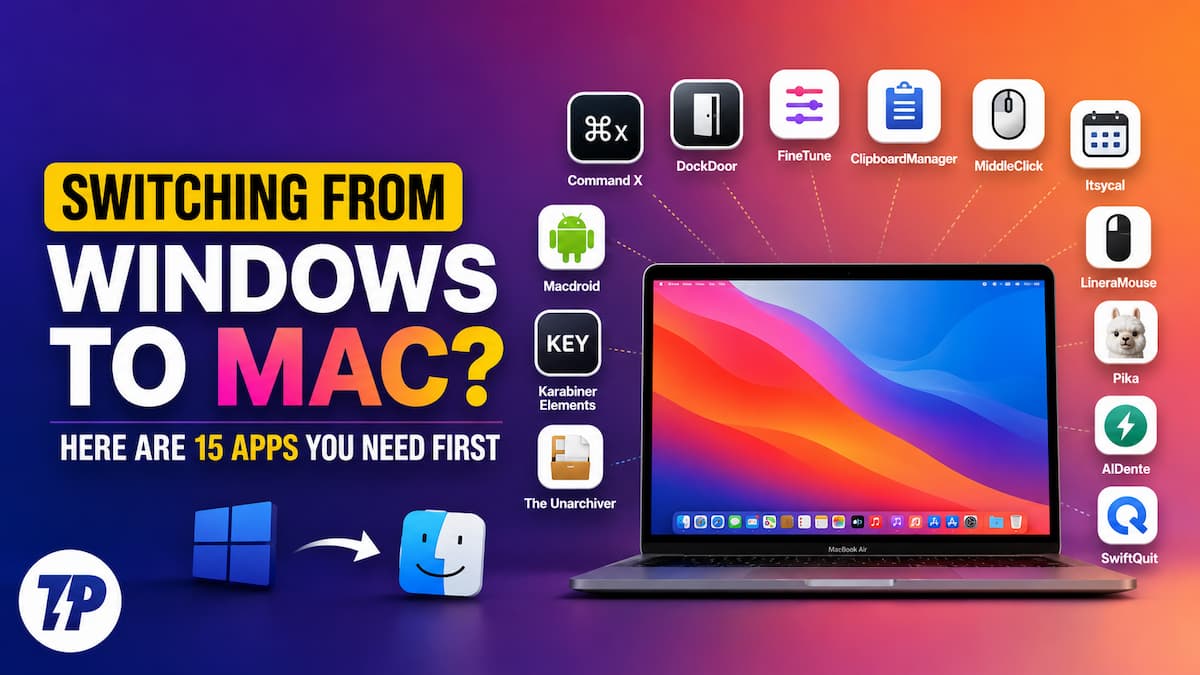
You are far from alone in making this move, by the way. Mac shipments grew 14.9% year-on-year in Q3 2025, driven in large part by the end of Windows 10 support, which pushed a wave of long-time Windows users to consider Apple for the first time.
There is no denying that most, if not all, Macs offer a fantastic user experience. However, the Windows to macOS migration becomes a nightmare for users who have developed habits of their own with respect to Windows. Fret not if you feel the same way, as several godsend applications bring back useful Windows-specific features and serve as the Mac equivalent of Windows tools you already rely on. Trust us, they replicate the functionalities with near-perfection, so much so that you won’t miss them coming from Windows. This article outlines 15 such Mac apps for Windows switchers that make the move an easy affair. Let’s begin!
Table of Contents
What to Expect When You Switch to Mac from Windows
Before getting into the apps, it helps to know what you are walking into. Switching from Windows to macOS is not just a change of software; it is a change of habits. Here is a quick rundown of the biggest differences you will notice in the first week.
The keyboard feels different
There is no Windows key on a Mac; the Command key takes its place for most shortcuts. The Alt key becomes the Option key. Copy-paste works largely the same (Command + C and Command + V), but cut-paste does not, which is the first thing to trip up almost every Windows switcher. Karabiner-Elements, listed further below, is the go-to app for remapping keys on a third-party keyboard to match your Windows layout.
Finder is not File Explorer
Finder is macOS’ file manager, and while it covers the basics well, it behaves differently from Windows’ File Explorer. There is no address bar you can type into by default (though you can enable one via Go > Go to Folder). You cannot cut and paste files the way you would on Windows, and double-clicking a folder opens it in the same window rather than a new one. It takes some getting used to, but once it clicks, it is perfectly workable.
Apps do not quit when you close them
On Windows, clicking the red X closes and quits the application. On Mac, clicking the red dot only closes the window; the app itself keeps running in the background, as shown by the small dot under its dock icon. You need to either press Command + Q or right-click the dock icon and select Quit. SwiftQuit, covered below, fixes this to behave more like Windows.
Trackpad gestures are a game-changer
If you are on a MacBook, the trackpad is genuinely one of the best parts of the experience. Two-finger scrolling, three-finger swiping between desktops, and pinch-to-zoom all work intuitively out of the box. Spend 10 minutes in System Settings under Trackpad to explore all the gestures available. It is one area where macOS pulls ahead of Windows significantly. Spend 10 minutes in System Settings under Trackpad to explore all the gestures available. If you want to go further, we have a dedicated guide on the best window manager apps for Mac that pairs well with everything covered below.
macOS updates are smoother
Unlike Windows updates, which often require a restart mid-session or interrupt your workflow, macOS updates are typically faster and less intrusive. Keeping macOS up to date is also important for security, as Apple patches vulnerabilities quickly and the process requires very little effort on your part.
Once the basics feel familiar, our guide on how to set up a new MacBook like a pro is the natural next step.
15 apps every Windows switcher needs
Before diving in, a quick note: all of the apps below were tested hands-on on an M-series Mac running macOS Sequoia over several weeks of daily use. Most are free and open-source, and a few are paid but well worth the asking price. Whether you are looking for a Mac setup checklist or just want specific Windows PowerToys alternatives for Mac, this list covers the full spectrum of what you are likely to miss.
Command X
The app’s name couldn’t have been simpler to understand. Command X is an app that brings back the good old, and frankly miles better, Windows’ cut-paste shortcuts to Mac. In case you haven’t stumbled upon it, Mac handles the cut-paste functionality slightly differently. While the copy-paste functionality is largely the same as in Windows: command + C to copy, followed by command + V to paste, the cut-paste functionality requires you to press command + C to copy the item first, then press option + command + V to cut and paste the item to the desired location.
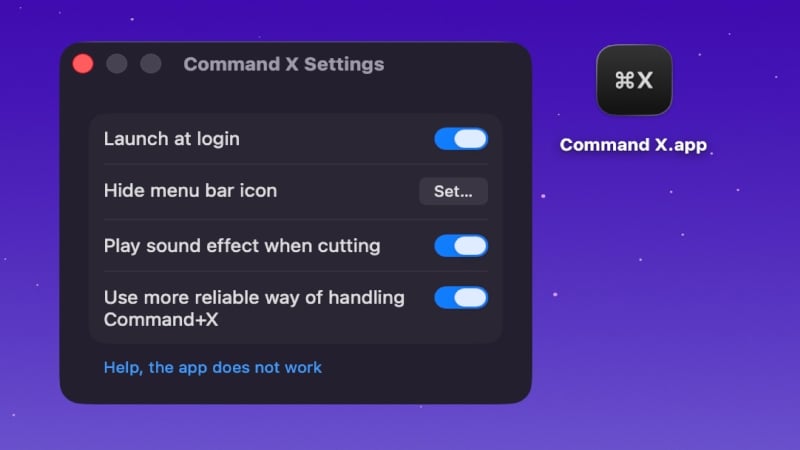
Command X is fairly easy to install and set up, after which it’s another one of those set-it-and-forget-it applications that handle the rest on their own. Now, you can simply use the keyboard shortcut command + X, followed by command + V to cut and paste an entity. Despite occasional hiccups due to limitations imposed by Apple on apps downloaded via the App Store, Command X works wonders across all the places you would expect: Finder, text selection, and more. For $4.00 on the App Store, you can’t find a more no-nonsense app that replicates this functionality so effortlessly.
If you are still getting used to Mac keyboard shortcuts in general, Command X is the single best place to start, since cut-paste on Mac is the one thing that catches almost every Windows switcher off guard on day one. We tested Command X daily across Finder and text fields, and it held up without a single missed input over several weeks.
DockDoor
DockDoor is among the most all-in-one utility apps you can download when switching from Windows. If window management on Mac has been giving you grief, or you desperately miss a proper Alt-Tab for Mac, DockDoor is the app to install first. The app’s entire feature set is largely focused on replicating Windows-specific features, some of which are genuinely worth trying. DockDoor’s holy trinity includes live dock previews to show thumbnails of all open windows for an app, option-tab functionality to replicate Windows’ famously useful Alt-Tab controls, and an additional command+tab functionality that elevates Mac’s native window management. DockDoor makes your workflow a lot more efficient, all while being free and open-source.
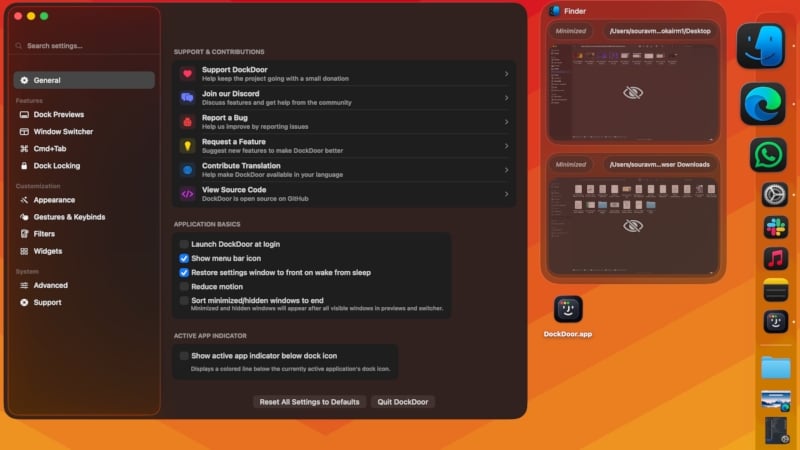
Not just that, DockDoor adds a lot more functionalities, including middle-click to close an active window, Aero Shake to close or minimize other open windows, drag and drop windows directly from dock previews, control windows using trackpad gestures or scroll wheel, dock locking to fix the dock to a particular monitor, and improved ways of quitting, closing, and minimizing apps. Similar to Windows’ interactive app previews, DockDoor lets you interact with specific apps directly from the dock, such as controlling media playback of Spotify and Apple Music, accessing calendar events, and more. It’s a Swiss-Army knife for Windows switchers. After using DockDoor for a few weeks, it became one of those apps that is genuinely hard to imagine working without on Mac.
FineTune
The most prominent thing that you ought to miss on a Mac as an ex-Windows user is the lack of a native volume mixer. Like how you could change the volume on a per-app basis on Windows, FineTune is a free and open-source Mac app that does the same, plus more. In addition to per-app volume control, FineTune also enables volume boost up to 400%, audio routing to multiple devices, setting different outputs for apps, and more. For instance, you could have the Spotify app play audio through external speakers while routing the sound from a Zoom meeting to your AirPods. FineTune can even remember the settings.
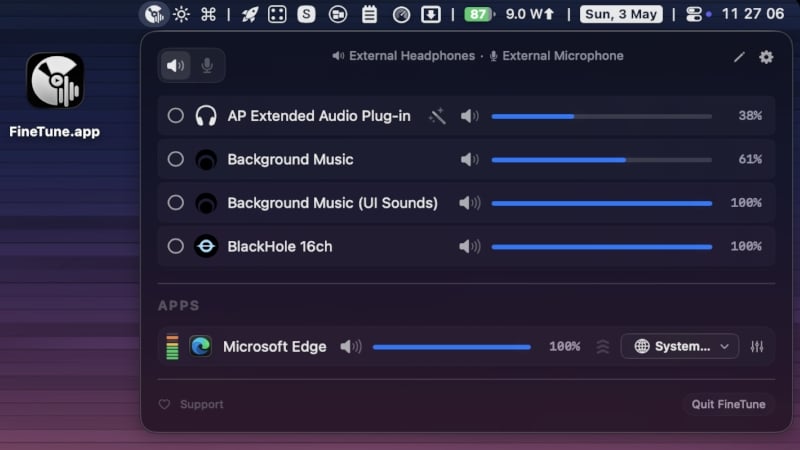
In addition, it also includes a 10-band equalizer to tune your audio gear. There are 20 audio presets to choose from, and you can also correct your headphones’ EQ using FineTune’s collection of thousands of headphone profiles, thanks to AutoEQ integration. Not just that, you can automate and assign keyboard shortcuts to functionalities, manage connected Bluetooth audio devices, control external monitor speakers, and more. We found FineTune to be quite reliable and lightweight. It’s a must-have app if you juggle between various audio devices or want granular control over your Mac’s audio output.
As an alternative, you can check out Background Music on GitHub.
ClipboardManager
If you have used Windows for long enough, it may come as a surprise that macOS doesn’t have a built-in clipboard history tool. On Windows, you can press Windows + V to access your entire clipboard history; on Mac, no such native option exists. Despite such a productivity-focused approach, the best you can do is paste the item you have just copied and nothing else. As the name suggests, ClipboardManager is an app that has all you’d require from a clipboard manager. For starters, it can store well over a thousand entries and automatically delete older entries when a user-defined limit or duration is reached. It can not only copy text, but also images, links, rich text, and more.
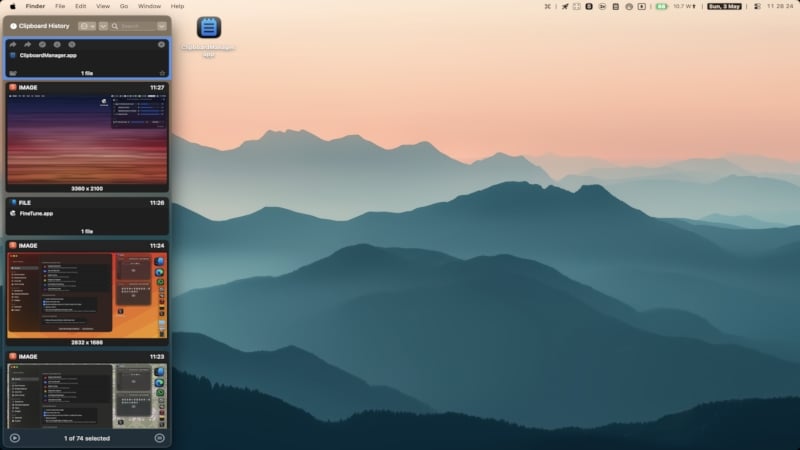
You can organize copied content by segregating it into folders, giving it a title, highlighting it, or favoriting it as needed. ClipboardManager also includes a search and filter functionality to help you find the required content quickly. We recommend setting a familiar keyboard shortcut to access the app, preferably control + V, so as to retain your muscle memory from Windows. ClipboardManager supports paste, paste as plain text, and paste with edit, making it highly versatile. It offers quite a few useful features, including swipe gestures, customizable keyboard shortcuts for actions, drag-and-drop, sharing copied content directly, and more, for just $3.99.
As an alternative, you can check out Maccy.
MiddleClick
Another annoying omission in macOS is the lack of support for three-finger clicks. Whether you are using your MacBook’s trackpad or the Magic Mouse, macOS doesn’t register a three-finger click. If you are accustomed to the use of a three-finger click, MiddleClick can help restore the functionality flawlessly. For starters, it works with both the trackpad and the Magic Mouse and supports both tap and click inputs. It sits in your Mac’s menu bar and runs in the background without using much system resources, so that it won’t slow your system down.
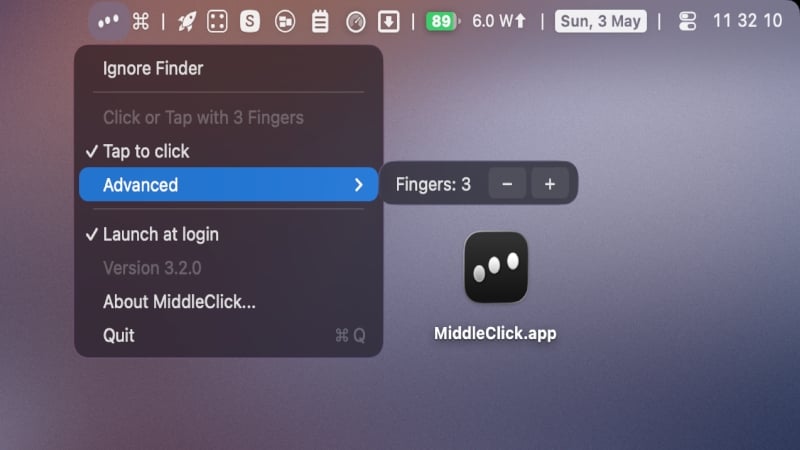
A triple-finger click enables quite a few useful features, such as opening a link in a new browser tab directly, hovering the cursor over open tabs to close them without aiming for the cross icon, pasting the selected text directly within a Terminal window, and more. If you use software such as Autodesk Fusion 360, AutoCAD, SketchUp, and more to create CAD models, you’d appreciate MiddleClick even more, as it lets you pan the model view using a three-finger input. The app is fairly customizable: you can set custom finger counts instead of the usual three, change the tap-to-click delay, and more. Above all, the app is free to use and open-source, making it a no-brainer.
Itsycal
Windows sometimes does things a lot more logically and in the right way. For instance, the calendar in the macOS menu bar doesn’t open the calendar; it opens the notification panel instead, which is different and worse than how Windows does it with the taskbar. It’s one of those things you would like to question the developers for, but we have what we have. However, to replace it with a more logical calendar view, you can use Itsycal, a free and open-source menu bar app for Mac. Once you hide macOS date elements in the settings, Itsycal replaces them with much more customization and visual appeal.
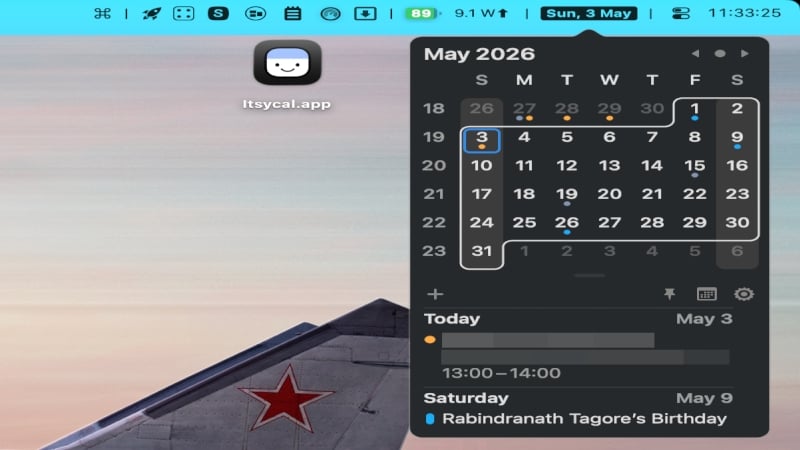
You can cherry-pick the elements you wish to see in the menu bar, including the date, month, day, time, and more. Itsycal also shows calendar events from your Google and iCloud accounts, and you can also create new events directly. It pulls meeting links from events so you can join them in no time. Some other features include pinning the calendar over all active Windows, an hourly beep, the ability to show week numbers, and more. It is much more customizable than you might think, and with keyboard shortcuts to perform functions, it is among our favorite macOS apps, especially because it’s free and open-source.
MacDroid
If you are coming from Windows, we assume you must also be an Android user. If that’s so, you would surely miss the ease of connecting an Android device to a Windows PC, something that is not even remotely possible on a Mac. In fact, macOS doesn’t even detect a connected Android device as a readable mount. Thankfully, MacDroid can help you bypass the limitation while offering a plethora of other handy features. You can do so not just through wired means but also wirelessly, making it that much more convenient. All of it happens natively within Finder, so you don’t have to fiddle with anything else.
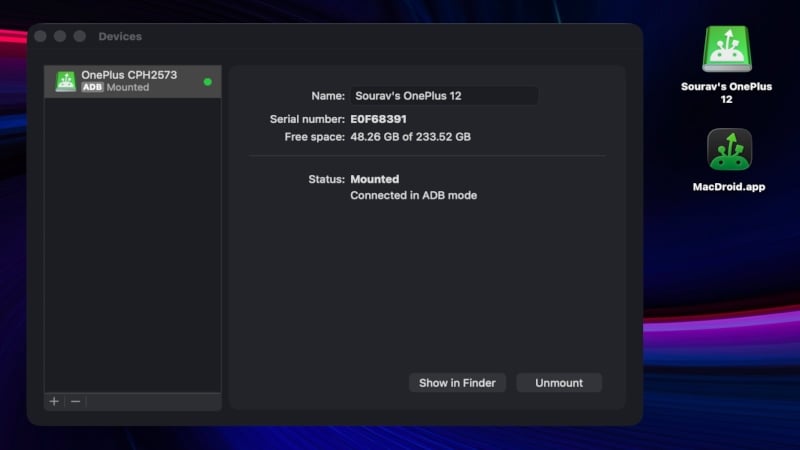
The wired connection is made via ADB (Android Debug Bridge – recommended) or MTP (Media Transfer Protocol), the latter of which also allows other MTP-compatible devices to connect to your Mac, including Oculus VR headsets, Garmin watches, GoPros, and more. While the free version only allows file transfer from Android to Mac, the Pro version, for $19.99 a year, removes the limitation and enables two-way file transfer. It also allows you to edit Android files directly on a Mac without copying, which is a good quality-of-life feature. MacDroid retains all of Finder’s functions, such as drag-and-drop, QuickLook, keyboard shortcuts, and more.
Karabiner-Elements
The most prominent difference between a Mac and a Windows device is the arrangement of specific keyboard keys. If you use a third-party keyboard on Mac and need to remap keys on Mac to match your Windows muscle memory, Karabiner-Elements is the definitive solution. Of course, there’s no Windows key on a Mac; instead, a command key replaces it. There’s no Alt key, either, which is replaced by the option key on a Mac. This would leave most third-party keyboards handicapped, but thankfully, Karabiner-Elements comes to the rescue. For starters, it can remap any keys on a keyboard, including the useless ones, such as the Caps Lock key, to anything else of your liking. Karabiner-Elements ensures that settings apply only to a particular device, preventing input mismatches.
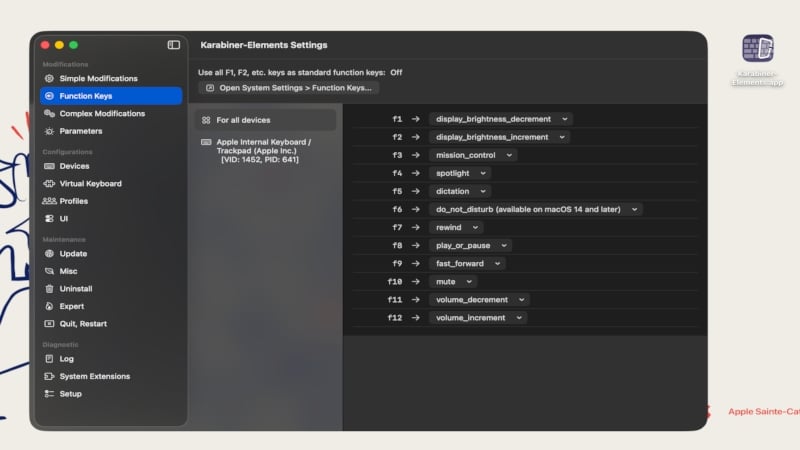
The customizations don’t end there; it also allows setting key combinations to a specific key. For instance, you can set the Caps Lock key to register shift + control + option + command, all at once, which would have otherwise been done using some intricate finger gymnastics. Not just that, Karabiner-Elements allows setting app-specific keyboard shortcuts, multi-stage shortcuts to launch apps or execute shell commands, remap side buttons of a computer mouse, force the function keys on a third-party keyboard to control media and brightness like that on a Mac, add extra keys, such as Insert and Print Screen, and more, while being free and open-source.
The Unarchiver
Among the things that Windows does better, we have compressed files, which are handled objectively better by a Windows PC. In fact, the default macOS Archive Utility is only good for extracting and accessing .zip files, not other common file compression formats, such as .7z or .rar. The Unarchiver is a great replacement for Archive Utility, and it’s free and open-source, too!
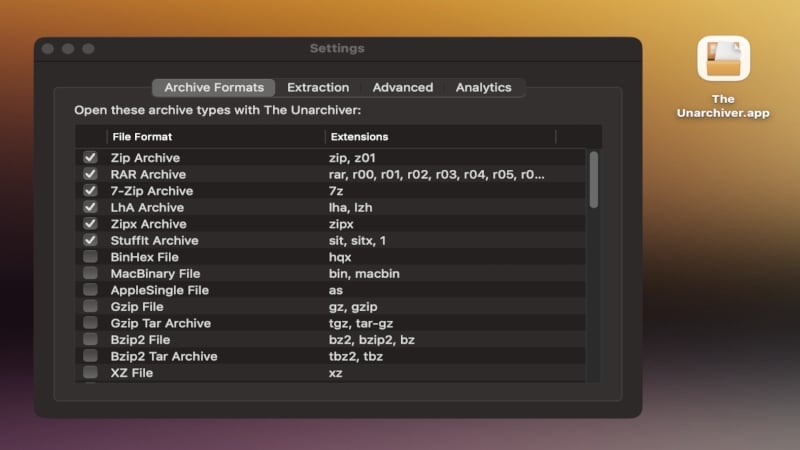
In addition to the mentioned file formats, The Unarchiver can extract files compressed using dozens of other popular, legacy, or unusual formats. Unfortunately, you cannot view the files until you extract them. The Unarchiver is a set-it-and-forget-it application, so you don’t need to do anything after configuring it and setting it as the default app to open compressed files. It can even automatically trash the leftover archive!
As an alternative, you can check out Keka.
LinearMouse
Truth be told, no one does trackpads better than Apple. Be it the trackpad found on MacBooks or the Magic Trackpad, they are in a different league altogether. However, the fun ends when you use a third-party mouse with your Mac. It starts to feel awkward the second you use it, and macOS is to blame. Fortunately, there’s a fix in the form of a brilliant, free, open-source app: LinearMouse. The thing is, trackpad configurations, such as tracking speed and scroll direction, are automatically applied to an external mouse, which is usually not ideal. LinearMouse lets you configure the settings on a per-device basis.
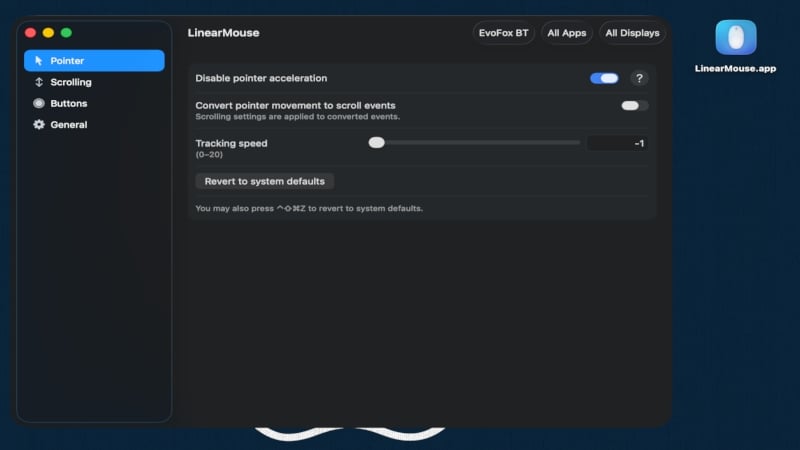
On the other hand, macOS applies a certain acceleration to all mice by default, which causes the cursor to fly off more than it should. LinearMouse helps you turn off pointer acceleration, which enables a more precise and predictable cursor feedback. It also fixes Mac’s annoying scroll direction dilemma, letting you retain Natural Scrolling on the trackpad while reversing the direction exclusively for the mouse. A few more power-user features include disabling scroll acceleration to eliminate jerky scrolling, remapping mouse buttons to run keyboard shortcuts or execute actions, setting modifier key combinations, and more.
As an alternative, consider checking out Mos, which, as a standout feature, also enables smooth scrolling for external mice, similar to that on Apple trackpads.
Pika
This app is geared towards power users, especially designers and those involved with creative work. If you have used Microsoft PowerToys on your Windows PC, you would have come across a highly popular utility: PowerToys Color Picker. It can be summoned with a preset keyboard shortcut to instantly display the color code of any visual element on the screen. Pika replicates the functionality to the tee, all while being free and open-source.
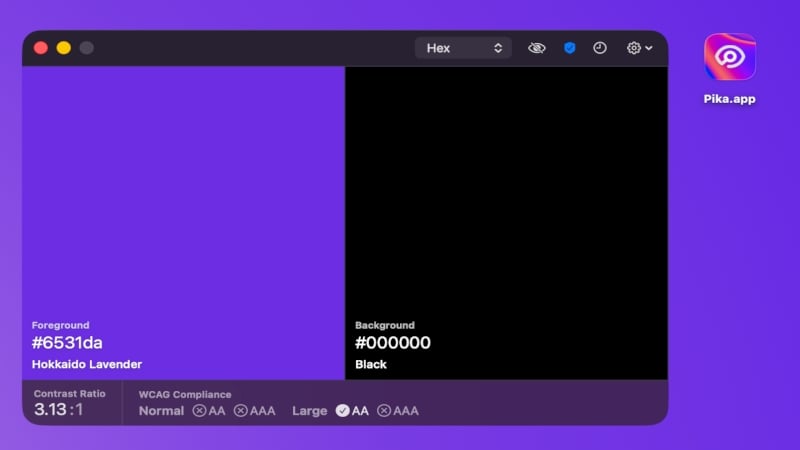
Similar to the PowerToys Color Picker tool, Pika, too, can be summoned using a preset keyboard shortcut, and it includes dozens more keyboard shortcuts to copy, pick, and change selected colors. There are multiple color formats to choose from, such as Hex, RGB, HSB, HSL, LAB, and OpenGL. Pika can showcase both the foreground and background at once, and also calculate their contrast ratio. It saves the last 20 colors in its history, and you can also organize them as needed.
AlDente
More than just restoring features you would miss from a Windows PC, AlDente is a highly recommended app for safeguarding your MacBook battery health. Setting a charge limit on Mac is something Windows laptop users from Asus or Lenovo are already familiar with, and AlDente finally brings that to macOS. Most Windows laptop manufacturers, such as Asus and Lenovo, include charger limiters to stop charging beyond a set limit. It’s done to protect battery health, which deteriorates faster when the battery is charged and discharged to extremes (100% and 0%). AlDente enables this missing feature on Mac while also including many more useful add-ons. The free version also includes the Discharge feature, which kicks in when the battery is charged above the set limit, allowing it to discharge even when connected to a charger.
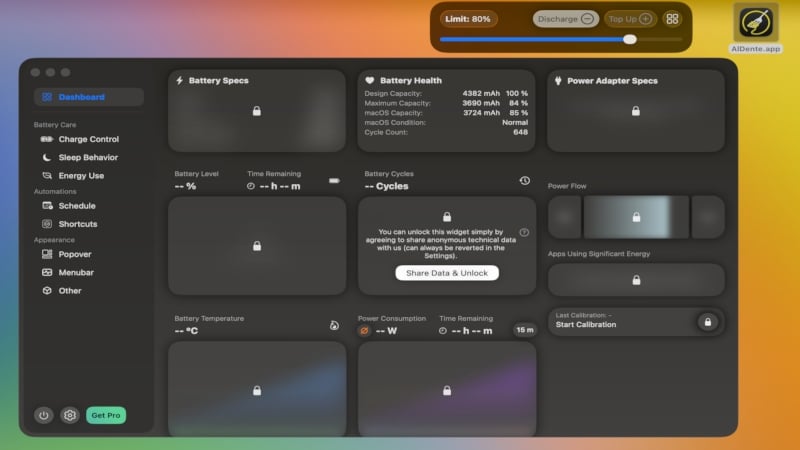
On the other hand, the Pro version has a lot more features. AlDente’s Pro version can pause charging if the battery temperature exceeds a safe, preset limit, automatically calibrate the battery’s internal sensors, temporarily override the charging limit to top up the battery fully when needed, control the MagSafe LED to show when the battery limit is reached, and more. We found Sailing Mode to be a standout feature that lets your Mac’s battery drain gradually to a set limit before charging back to the usual charge limit. Power users can also automate the app’s functionalities using the Shortcuts app. Overall, AlDente is a must-have app for MacBooks.
As an alternative, consider checking out Battery Toolkit, a free and open-source offering. If you want a broader look at maximizing your Mac’s performance and battery longevity, our roundup of essential Mac productivity apps is worth bookmarking.
SwiftQuit
It may come as a surprise to you, but closing an app by clicking the red cross icon in the top-left corner doesn’t quit it. Instead, it stays active in the background, as evident by the small white dot under the app icon in the dock, which stays even after you do so. The only feasible ways to quit an app are via the menu bar or using the keyboard shortcut command + Q, both of which are far less simple than how you would do so on a Windows PC, that is, by clicking the red cross icon.
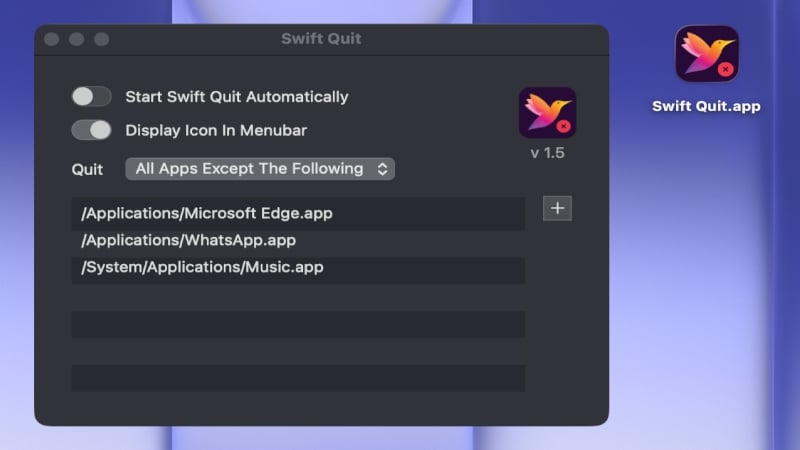
SwiftQuite is a simple, no-nonsense app to make things straightforward again. While the app’s core functionality ends there, it includes a few more tricks up its sleeve. For instance, you can whitelist certain apps so they do not quit automatically. It is particularly helpful for music apps and browsers. The app resides unobtrusively in the macOS menu bar, from which you can instantly quit windowless or unresponsive apps without needing to fiddle with Activity Monitor. SwiftQuit is free and open-source.
MonitorControl
If you connect your MacBook to external monitors regularly, you must have noticed that the media and brightness controls suddenly stop functioning. That’s because macOS is known to disable brightness and volume controls for almost all third-party displays, so you will have to resort to the finicky monitor input buttons. While Windows, too, disables brightness controls for an external monitor, it at least retains the native volume controls. Thankfully, MonitorControl fixes the issue on Mac and clearly shows how it should be done. To top it off, MonitorControl is free and open-source.
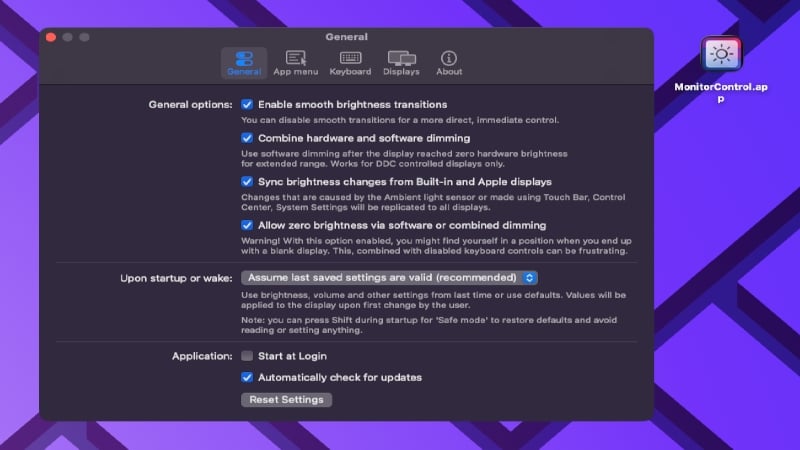
It acts like a native macOS setting, and you can adjust the brightness or volume of the built-in display and the external display simultaneously or separately, depending on where the cursor is. Not just the brightness and volume, you can also control the contrast using a slider or customizable keyboard shortcuts. MonitorControl also enabled dimming to full black, which helps in low-light conditions and puts less strain on your eyes. It’s a surprisingly advanced bit of kit: you can configure exactly how the displays behave based on your changes, making it perfect for power users. We used MonitorControl with a 27-inch external display and a MacBook, and the simultaneous brightness adjustment across both screens worked exactly as advertised.
uBar
While there’s no inherent problem with the macOS dock, it sure is a lot different than the taskbar found on Windows. We can certainly see why someone would be annoyed by it, which is why uBar makes it to the list. It mimics the Windows taskbar on Mac while retaining Windows’ feature set and macOS’ aesthetics. For starters, you can pin it to any edge of the screen. It typically contains a quick-launch uBar icon on the left, followed by your pinned/favorite apps, files, and folders, and finished with active application windows. You can choose to group all the open windows of an app and preview them by clicking or hovering the cursor over them.
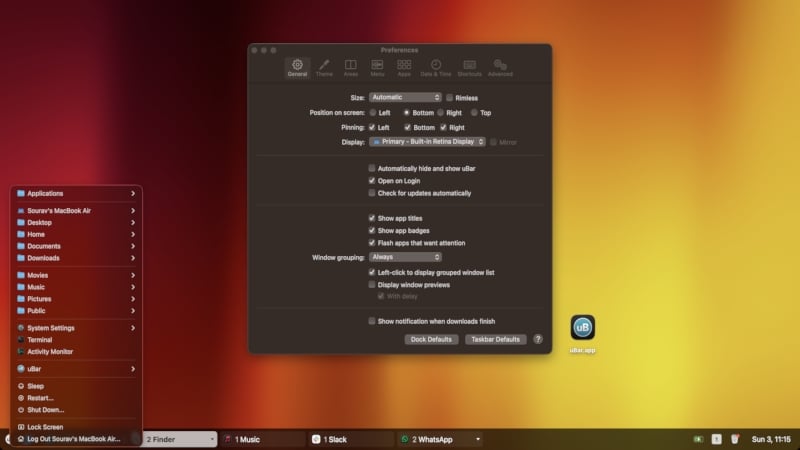
If you use multiple monitors, the taskbar can be configured to show only the apps associated with each monitor, or to mirror across all monitors for a uniform look. What we feel sets uBar apart is live app tiles. Without opening the app, you can view the file download progress, music playback, app status, app activity, and app badges to check for unread notifications. uBar also includes a battery status icon, clock, calendar, and trash icon on the right-hand side, similar to the Windows taskbar. You can also customize the taskbar’s size and theme. The quick-launch uBar icon contains the rather useful shutdown, restart, and sleep options, among others. Albeit the asking price of $30, we highly recommend uBar.
Make Switching From Windows Less Daunting With These Apps
Switching from a familiar operating system to an entirely new one is riddled with challenges and inconveniences. Thanks to the developers, many apps help bring back certain Windows functionalities on macOS, so you don’t lose the sense of familiarity. A few of the must-have applications on this list are Command X, ClipboardManager, LinearMouse, SwiftQuit, AlDente, and The Unarchiver. Together, they cover the most common pain points of the Windows to macOS migration.
Other apps, including uBar, Pika, Itsycal, DockDoor, and more, replicate their respective Windows functionalities flawlessly, so do consider giving them a try. Once you have these set up, head over to our list of useful Mac commands to take things even further. Other apps, including uBar, Pika, Itsycal, DockDoor, and more, replicate their respective Windows functionalities flawlessly, so do consider giving them a try.
Which of these apps did you find most useful? Did we miss a Windows feature you are still hunting for a Mac replacement for? Drop a comment below and let us know. If this article helped, share it with someone who is mid-switch and pulling their hair out.
FAQs About Switching from Windows to Mac
How long does it take to get used to a Mac after Windows?
Most users find their footing within one to two weeks for everyday tasks. Becoming truly comfortable, including picking up macOS keyboard shortcuts and understanding Finder's quirks, typically takes about a month of regular use. Power users who rely on specific Windows tools or workflows may take a little longer, but apps like Karabiner-Elements, DockDoor, and Command X shorten that curve significantly.
Can you run Windows apps on a Mac?
Yes, in a few ways. The most reliable option is to use virtualization software like Parallels Desktop or VMware Fusion, which lets you run a full Windows environment alongside macOS. Apple Silicon Macs can also use the free and built-in Boot Camp alternative via virtualization. For individual apps, many popular Windows applications, including Microsoft Office, Adobe Creative Suite, and Chrome, have native macOS versions, so you may not need to run Windows at all.
What Windows features are missing on Mac?
The most commonly missed features include cut-paste with Command + X, a built-in clipboard history manager (Windows + V equivalent), per-app volume control, a taskbar-style dock, Alt-Tab window previews, and support for third-party mice without heavy acceleration. Most of these, as covered in this article, can be restored using free or affordable apps.
What should I do with my files when switching from Windows to Mac?
The easiest approach is to use a cloud storage service like iCloud Drive, Google Drive, or OneDrive, which syncs your files automatically across both platforms. For direct transfer, an external hard drive formatted in exFAT works seamlessly with both Windows and macOS. If you are also an Android user, MacDroid (covered above) handles Android-to-Mac file transfers natively within Finder.
Is Mac better than Windows for productivity?
It comes down to your workflow. Mac has a strong edge in battery life (especially on Apple Silicon), build quality, and a tightly integrated software ecosystem. Windows, on the other hand, offers more hardware flexibility, better gaming support, and broader compatibility with enterprise software. For creative professionals and developers, Mac tends to win out. For gamers and power users who rely on specific Windows-only tools, the answer is less clear-cut.
Do I need antivirus software on a Mac?
macOS includes several built-in security layers, including XProtect, Gatekeeper, and sandboxing, that handle most common threats without additional software. You can read more about how these work in Apple's platform security overview. For most users, the built-in protections are sufficient, though a reputable antivirus app is a reasonable precaution if you frequently download files from the web.

