

Quick Answer
Want to watch YouTube on Android Auto? While Google blocks video apps for safety reasons, tools like AAAD can sideload apps such as CarStream and Fermata Auto, letting you watch YouTube on Android Auto without rooting your phone or needing a PC. Just remember: these workarounds should only be used when the vehicle is safely parked, never while driving.
YouTube is one of the best sources of entertainment for millions across the globe. Be it on a smartphone, smart TV, or a desktop, more than 2.70 billion people worldwide use YouTube every month. However, one bit of contradiction is that although you can normally watch YouTube on your smartphone, once you connect it to your car via Android Auto, you cannot access it. Of course, watching videos in a car can be dangerous, which is why Google omitted support for YouTube in Android Auto.
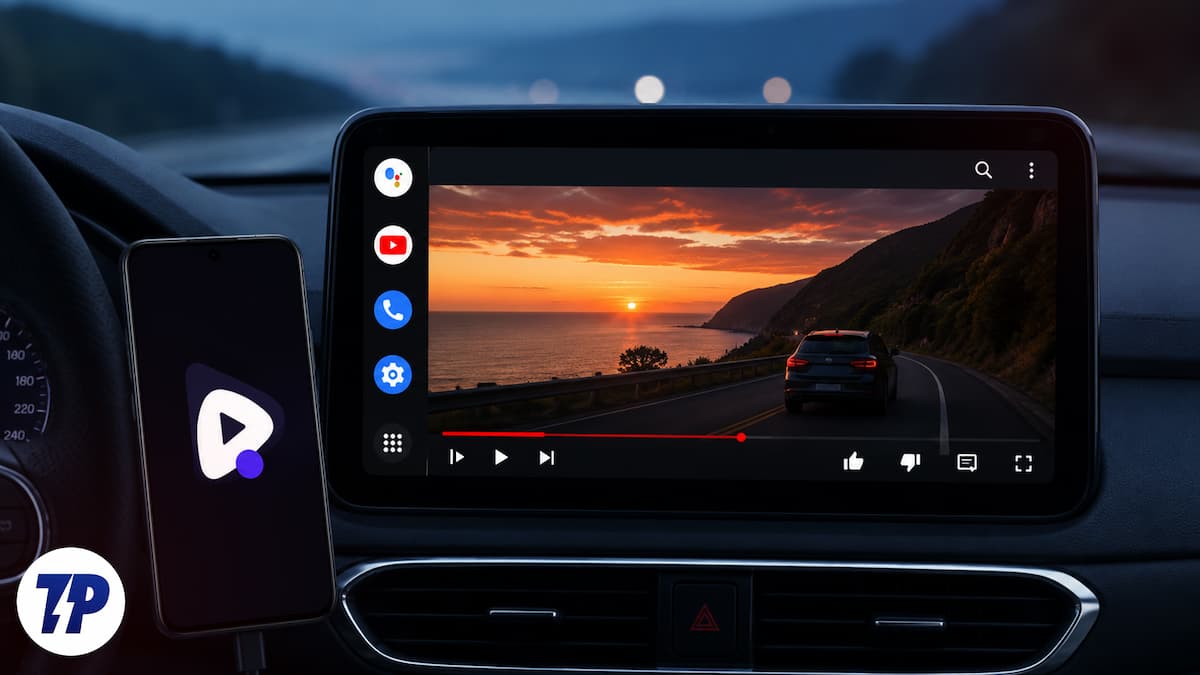
But what if you are sitting in a parked car, and waiting for someone to finish their grocery shopping? Yes, you have your smartphone, but modern cars come with an infotainment display that can give the latest tablets a good competition. While there is no official way to watch YouTube on Android Auto, we at TechPP have found an app that lets you do exactly that — no rooting required. Let us check it out.
Table of Contents
Google blocks video apps natively
If you are an Android Auto user, you know that there aren’t that many apps that you can use with Android Auto. While there is great flexibility in using official Play Store apps along with open-source apps on an Android smartphone or tablet, the same isn’t true for Android Auto. The platform has a strict app whitelist, which means only Google-approved apps show up on your car’s infotainment display. You shouldn’t resort to warranty-voiding tricks such as rooting your smartphone just to get around this.
Google’s design philosophy for Android Auto is built around the driver’s safety. The platform exists to let the driver keep their eyes on the road while enjoying their music. You can have your map set up on your car’s dashboard and keep your eyes where they need to be. You can pair that experience with your favorite song, place, or attend a call, get notified about messages, all without taking your hands off your steering wheel.
Video streaming apps like Netflix, YouTube, or even Amazon Prime Video fundamentally violate this safety directive. Google cannot guarantee that the driver won’t try to watch a vlog or a documentary while cruising down the highway at seventy miles per hour. This is the reason why they have blocked video apps on Android Auto.
The magic key is AAAD

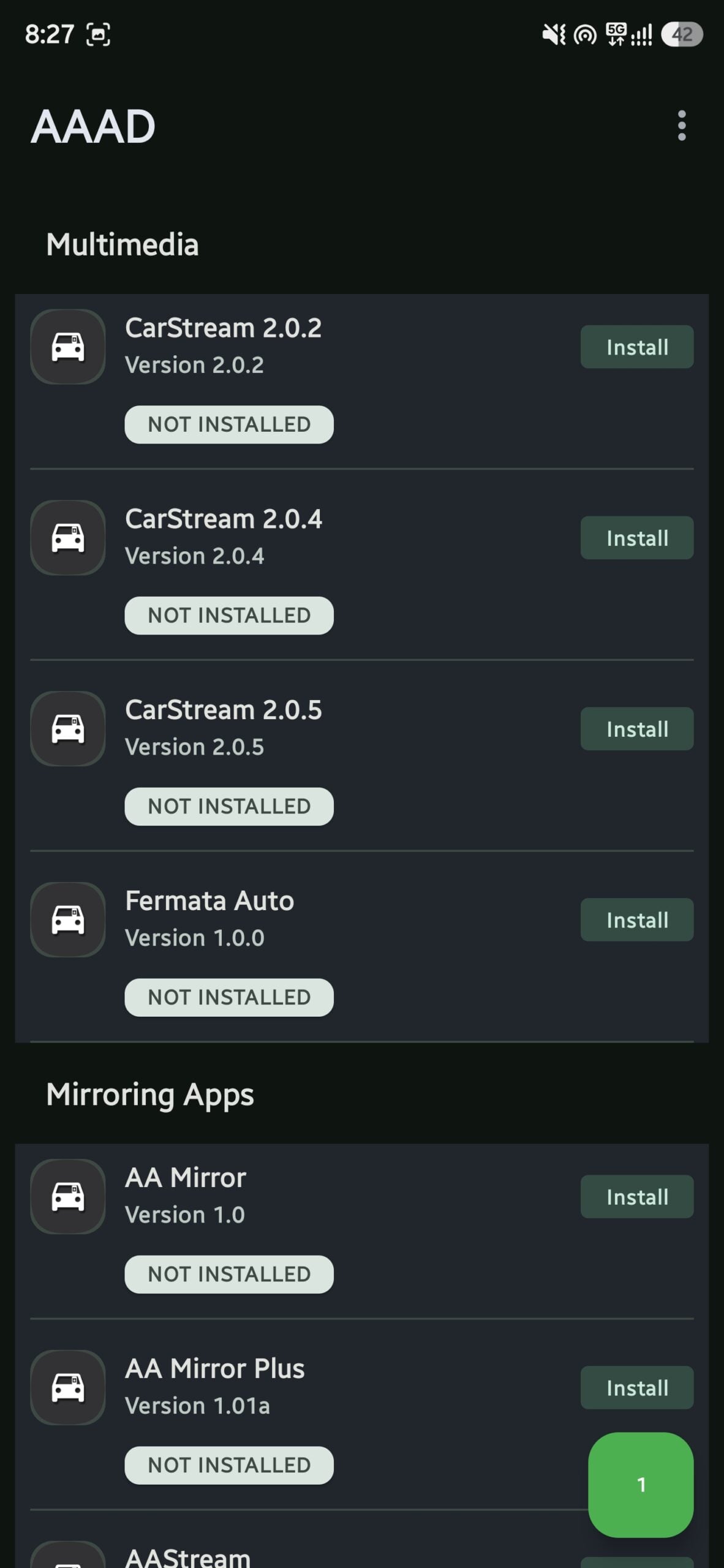
To stream YouTube videos or any video, for that matter, on your car’s dashboard, you need a specialized tool called AAAD, which stands for Android Auto Apps Downloader. Think of it as a sideloading tool that gets unofficial apps past Android Auto’s restrictions, without needing any PC or root access. AAAD is a standalone application that acts as an app store specifically designed for Android Auto. Here, you will find apps only for Android Auto. Meaning, you don’t have to search for apps and then check if they support Android Auto or not. The best part is that AAAD doesn’t require rooting your phone.
Previously, rooting was necessary for unlocking deep administrative privileges. But AAAD bypasses the need for root access by copying the digital signatures that Android Auto looks for. It tricks the car system into believing that the app you’ve installed was downloaded from the Google Play Store and approved for automotive use. You should remember one thing, though. When you open the Google Play Store and search for AAAD, you will see dozens of fake apps impersonating the original one.
DO NOT DOWNLOAD THEM.
The only safe place for the AAAD app download is the official GitHub link below. Everything else you see on the Play Store is a fake. The apps that you otherwise see are ad-filled and scams that may take away your data. If you are in the process of watching YouTube on Android Auto, then you should get AAAD from the GitHub link below.
Warning: TechPP does not encourage people to watch videos while driving a car. This guide is just for educational purposes and at best useful when you have safely parked your car.
You still have two options
AAAD is not the full picture; it is just a delivery truck and not the player itself. When you open AAAD, you will be presented with a list of apps that Android Auto supports. For watching YouTube and videos in general, you have two options:
- CarStream: If you only want to watch YouTube on your car’s infotainment display, then CarStream is the app you should go for. It is essentially a custom WebView browser formatted for your car’s display. Since it loads a full YouTube web player, you can log into your account, access your watch history, playlists, and play videos in full screen on the car’s dashboard. When you open this app, it loads the desktop or mobile version of the YouTube app, which lets you search, log in to your account, access your playlists, and play videos in full screen.
- Fermata Auto: If you want to watch YouTube plus want to watch local videos, then Fermata Auto is the one that you need. On top of playing YouTube and your local videos, you can also stream IPTV channels and browse other websites. Do note that setting up Fermata Auto is a bit more complex to set up than CarStream, but it offers far more features for power users.
The CarStream vs Fermata Auto choice really comes down to one thing: if YouTube is all you need, go with CarStream. If you want a proper video player for Android Auto that handles local files and IPTV too, Fermata Auto is worth the slightly longer setup.
Since we are talking about videos, which don’t specifically mean YouTube videos, we will walk you through the steps to install Fermata Auto in your car, as that is the most viable option available.
Bringing YouTube to your car’s dashboard
Here are the steps that you need to follow to watch YouTube on Android Auto using Fermata Auto.
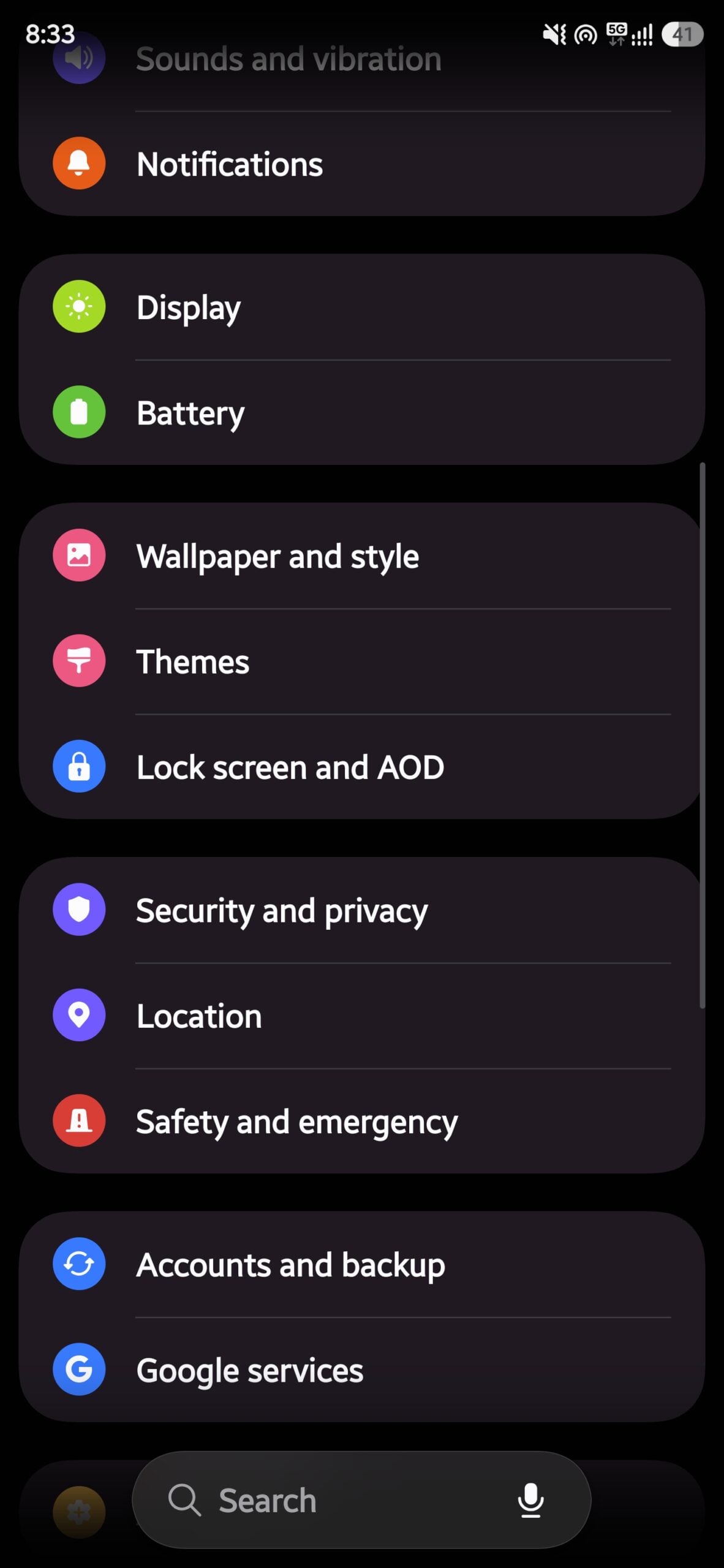
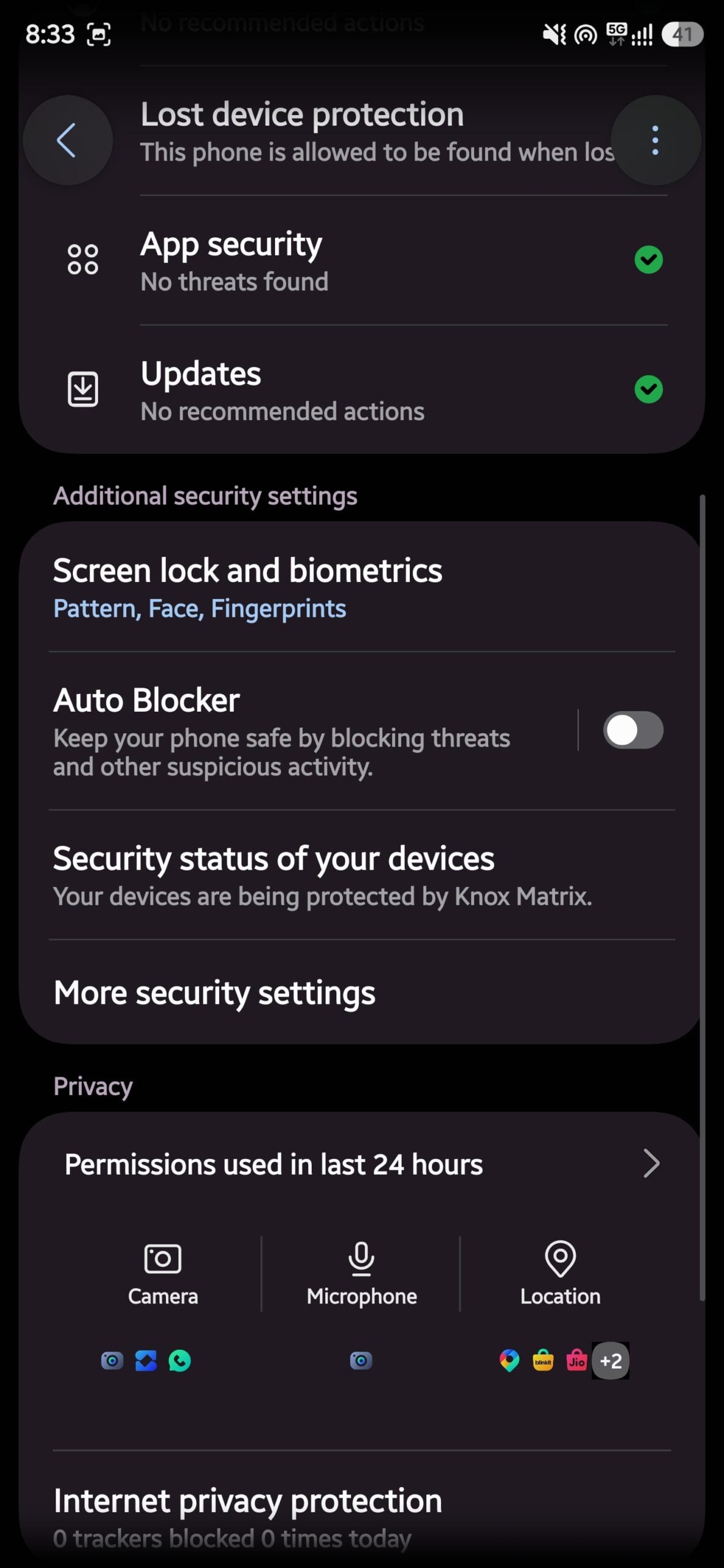
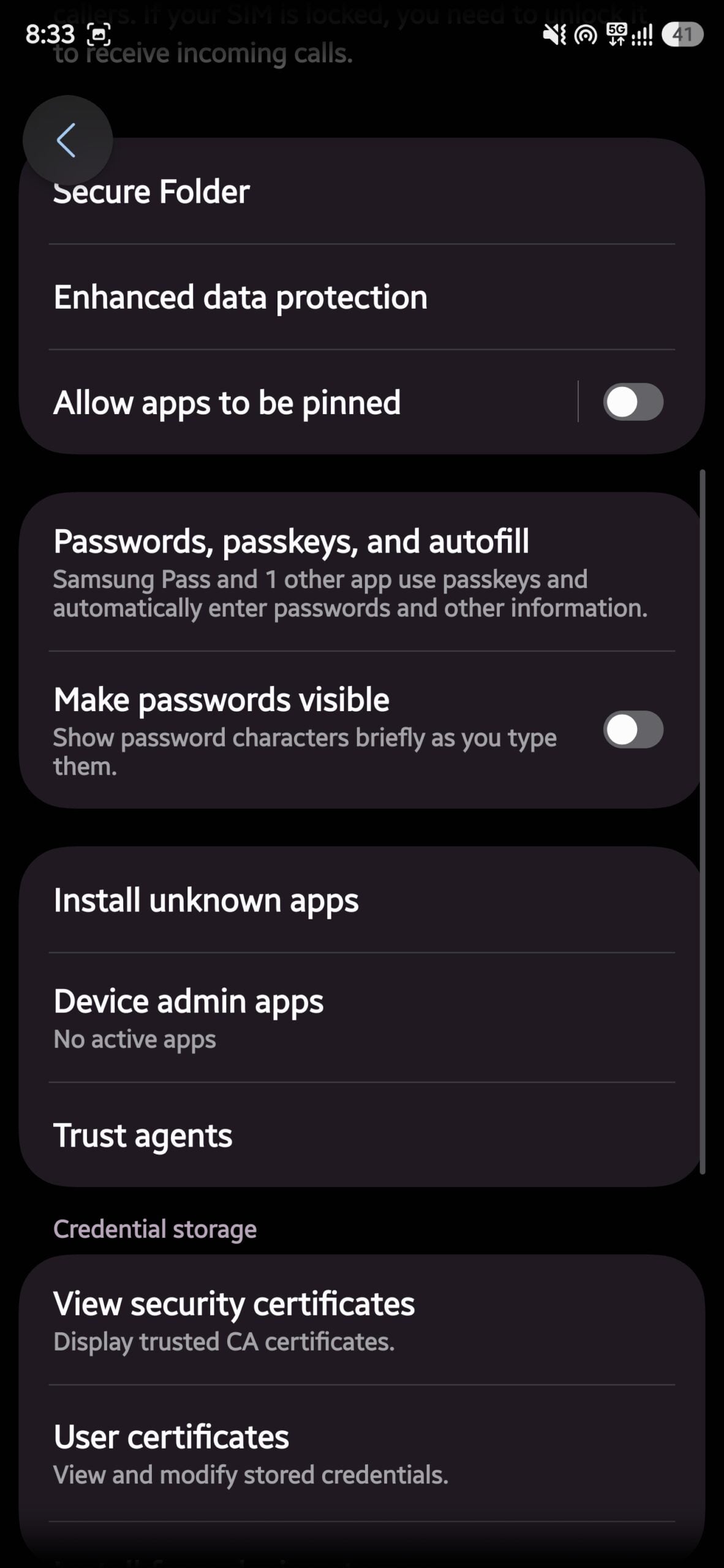
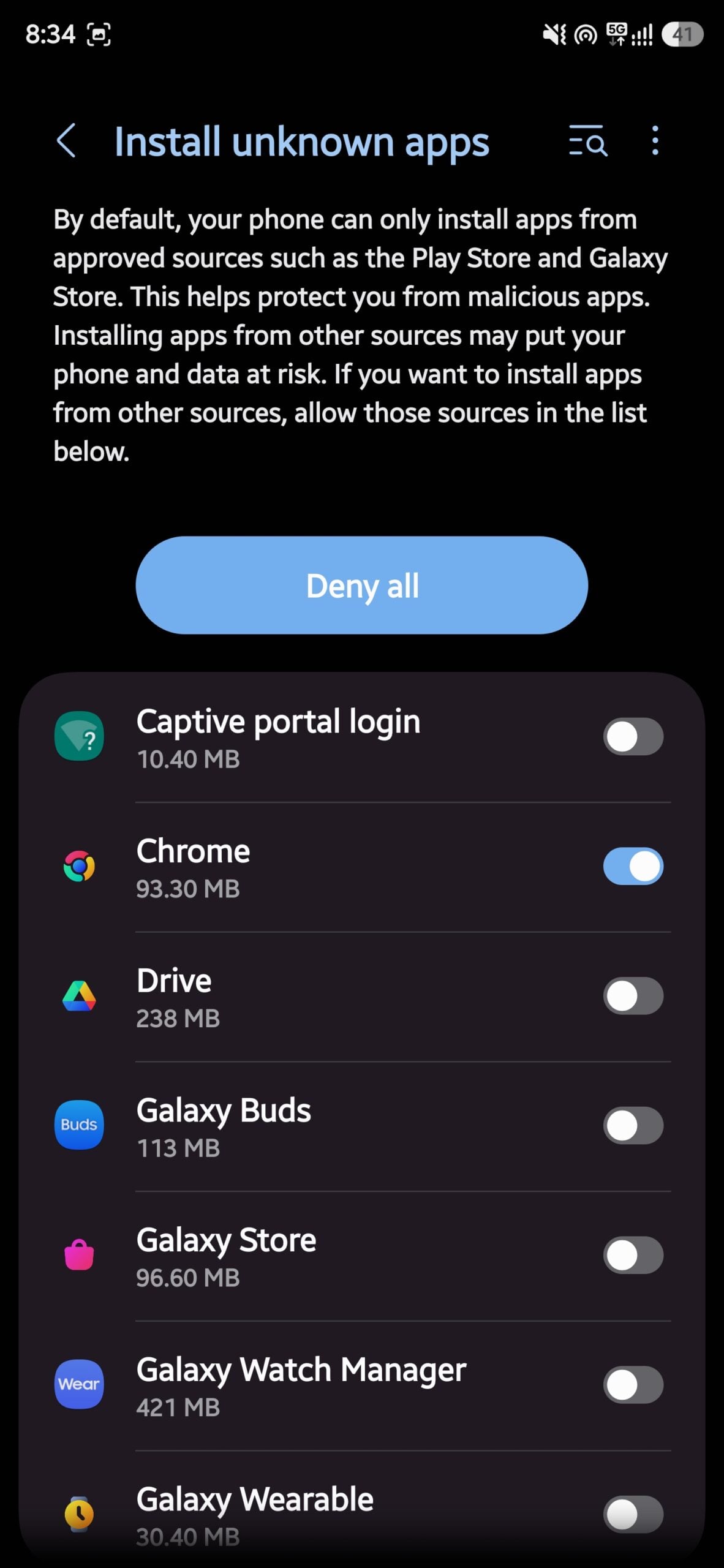
- If this is the first time you are side-loading an app, you need to enable Unknown sources on your phone. To do that:
- Open Settings on your phone.
- Head over to Security and privacy.
- Tap on More security settings.
- Look for the option labeled Install Unknown Apps.
- Find the browser on your phone and toggle the switch to Allow.
- Head over to the AAAD GitHub link provided above and download the APK file on your phone.
- Tap the file and install it on your phone. If you see a Google Play Protect warning, then tap More Details and select Install Anyway.
- Open the AAAD app on your phone.
- Give all the required permissions, select Fermata Auto.
- Select a version and install the app on your phone.
One important thing to note here is that the free version of the AAAD app only allows you to download and install one application every 30 days. So, be sure that which app you want: CarStream or Fermata Auto. If YouTube is the only source you want to view videos from, then CarStream is best. But if you also wish to play local videos so that entertainment doesn’t depend on your network, then Fermata Auto is the best.
Now, let us bring videos to your car’s dashboard:
- Turn on your car’s ignition.
- Connect your phone via Android Auto, wirelessly, or through a wire.
- Open the Android Auto app drawer on your dashboard.
- You should see Fermata Auto. Tap on it and enjoy.
You can stream the videos on your phone and watch them in your car. On the other hand, you can open YouTube, search for your favorite content creator, and watch videos.
A caveat
New Android updates have brought some hurdles to this process. Starting with Android 14, Google has tightened the security restrictions around Android Auto. If your phone is running Android 14 or later, there is a chance that Fermata Auto or CarStream apps won’t show up in the Android Auto app drawer. This happens because Android 14 enforces stricter app compatibility checks for the platform. If that is the case, then you will have to purchase a wireless Android Auto adapter, specifically the AAWireless dongle.
Is there an official way to watch YouTube on Android Auto?
If you would rather wait for an official solution than rely on third-party workarounds, there is some good news. Google has confirmed that native YouTube support is coming to Android Auto. The catch is that it requires Android 17, which means older phones will not be eligible. On top of that, video playback will only be allowed when the car is parked, and the feature is initially limited to a handful of supported car models from brands like BMW, Ford, and Kia.
Once your car shifts into drive, the video will automatically switch to audio only, similar to how YouTube Premium works on a locked phone screen. So the experience is not entirely hands-free yet, but it is a step in the right direction. For everyone else running Android 14, 15, or 16, the AAAD route described above remains the most practical option for now.
Do you need YouTube Premium to use this?
For the AAAD workaround using CarStream or Fermata Auto, you do not need YouTube Premium. You are essentially loading the regular YouTube website inside a car-friendly browser, so a free account works just fine. However, if you are waiting for the official Google implementation, that is a different story. The native YouTube audio player rolling out with Android Auto requires a YouTube Premium subscription, which starts at around $7.99 per month for the Lite plan.
So if budget is a factor, the AAAD route gives you the full YouTube experience on your car screen for free, which is honestly a pretty solid deal.
Safety first
We cannot conclude and highlight once again the one important factor: driving safety. When you use such workarounds to do something that is not officially supported, then you take safety into your own hands. You should never, under any circumstances, watch a video when you are on the road. These tools are meant to enhance your experience while the vehicle is parked. If you want to make the most of your car’s display even without an internet connection, you should check out this guide on how to download multiple videos from YouTube and build an offline playlist. And if you have run into any issues setting up AAAD or Fermata Auto, drop your question in the comments below and we will do our best to help.
FAQs about Watching YouTube on Android Auto
Is AAAD safe to use?
The official AAAD app, downloaded from its GitHub repository, is safe. The problem is that the Play Store is flooded with fake apps using the same name. These are scams. Always use the GitHub link provided in this article and avoid anything you find by searching "AAAD" on the Play Store.
Does watching YouTube on Android Auto require rooting my phone?
No. AAAD was specifically built to get around the need for root access. It works by mimicking the digital signatures that Android Auto expects, which means your phone warranty stays intact and you do not need to unlock any bootloaders.
Why is CarStream or Fermata Auto not showing up on my Android Auto?
This is most likely because you are running Android 14 or a later version. Google tightened Android Auto's security with that update. In that case, you will need a wireless Android Auto adapter like the AAWireless dongle to get these apps working again.
Will Google officially support YouTube on Android Auto?
Yes, Google has announced native YouTube support for Android Auto. However, it requires Android 17 and a compatible car model. Playback is restricted to when the vehicle is parked, and a YouTube Premium subscription is needed for the official implementation.

