

Quick Answer
Zen Browser is a lifesaver for tab hoarders, offering vertical tabs, smart workspaces, split-view grids, and glance previews that keep 20+ tabs organized without killing performance. Built on Firefox, it’s fast, private, and far better than Chrome for heavy research.
As a content writer and technology reviewer, I have to conduct extensive research. A lot of research means a chaotic timeline of research — 50+ microscopic tabs squeezed so tight you can’t even see the name of the website or the icon. If you are also in the same line of field, which involves a lot of research, then you are my friend, a “Tab Hoarder.” We don’t close tabs because we might need them, but sometimes end up not using them at all.

Tab management has evolved on Google Chrome, but it is still not the best. It pushes the RAM and processor to the limit and just makes your PC stutter. Thankfully, I found a solution: Zen Browser. It’s a great browser, especially for tab hoarders. In this guide, we will walk you through the Zen Browser and explain why it is the holy grail for power users.
Table of Contents
Features that make Zen Browser the best in tab management
There are a bunch of features that make Zen Browser the perfect replacement for Google Chrome, FireFox and other Chromium browsers. But before we get to that, you should know that Zen itself is a Firefox-based browser, which basically brings the privacy engine of Firefox. This was mainly possible because Firefox is an open-source browser, which allows developers to come up with different takes on the browser.
But that brings us to the main highlights of this Zen browser, which were so compelling that it has lured me, a hardcore Google Chrome browser user, into using it.
Vertical tabs that actually make sense
The first thing that you will instantly notice as soon as you install Zen Browser is that all of your tabs will be moved from the top. They are placed in a sidebar on the left. Frankly, at first, I was a bit uncomfortable, and would always reach out the top for my tabs only to find them resting on the side. But to my surprise, as I started using Zen Browser, all of the tabs were in my vicinity (for some reason, side panels are more visible than the top bar). There I was using Zen like a pro and in the process also understanding why vertical tabs make more sense.
[videojs_video url=”https://techpp.com/wp-content/uploads/2026/01/video.webm”]Apart from visibility, vertical tabs let you read the full title of the page, even if you have a hundred tabs open. Youcan scroll through them and have the title visible without shrinking them. If you want to minimize the clutter, then you can make use of the “Compact Mode.” In this mode, the sidebar appears only when you hover your mouse over it. The benefit is that you get 100% of your screen real estate.
Workspaces for tab organization
Another killer feature that makes Zen Browser one of the best for tab hoarders is the “Workspaces” feature. In Chrome, whether you are browsing the web for shopping, work, or YouTube, all of your tabs are hoarded on the top in a messy pile. No organization whatsoever. With Zen Workspaces, you can organize them and assign an icon to easily distinguish them.
[videojs_video url=”https://techpp.com/wp-content/uploads/2026/01/video-1.webm”]How does that work? You create a Workspace named “Work” and another named “Chill.” Now, all you need to do is assign all of the tabs under each category. So, the next time you click on the “Work” workspace, all of your work-related tabs will get populated. Same with the “Chill” and other workspaces you have created.
You can even assign specific profiles to workspaces. Want to be logged into your work Gmail in one workspace and personal Gmail on the other? Zen handles that natively without needing incognito windows.
Split View makes browsing fun
When you try to resize Chrome windows to view or use them side by side? It is clunky. Zen Browser makes it smooth and fluid. Side-by-side viewing tabs make it easier to cross-reference stuff or add details from an official source. You can also use this feature to compare stuff. With Zen Browser, the native Split View feature lets you select multiple tabs by pressing Ctrl + click and right-clicking to Split View. This separates the windows into two sections.
[videojs_video url=”https://techpp.com/wp-content/uploads/2026/01/video-2.webm”]Here comes the good stuff. While most browsers allow for vertical splits, Zen supports grids. You can have up to four tabs tiled in a grid. While that may not be a good idea with small monitors or laptops, if you have a wide-screen laptop, you can have four tabs fill the screen and easily access information from each other.
Zen Glance lets you switch between your most-used tabs
While this may be a small feature, it is quite important. It saves you a lot of time espeically when you’re working on a project. How many time you pressed Ctrl and clicked on the link to open the window in a new tab, only to leave it there for the next 5-10 days? With Zen Glance, things get a bit clutter-free.
[videojs_video url=”https://techpp.com/wp-content/uploads/2026/01/video-3.webm”]With this feature, you can preview the link without clicking it and opening it in a new tab. It opens the link in a temporary window, using which you can check for info, note it down, and when done, click away. It prevents tabs from unneccessary tabs from occupying space.
Zen Mods unleashes the beast within
Just like Google Chrome and Firefox have their own respective extension stores, that adds a lot of features that are otherwise not available officially, Zen also has a small but great store called Zen Mods. There are several mods that you can install for the Zen Browser and get community-created modifications with one click.
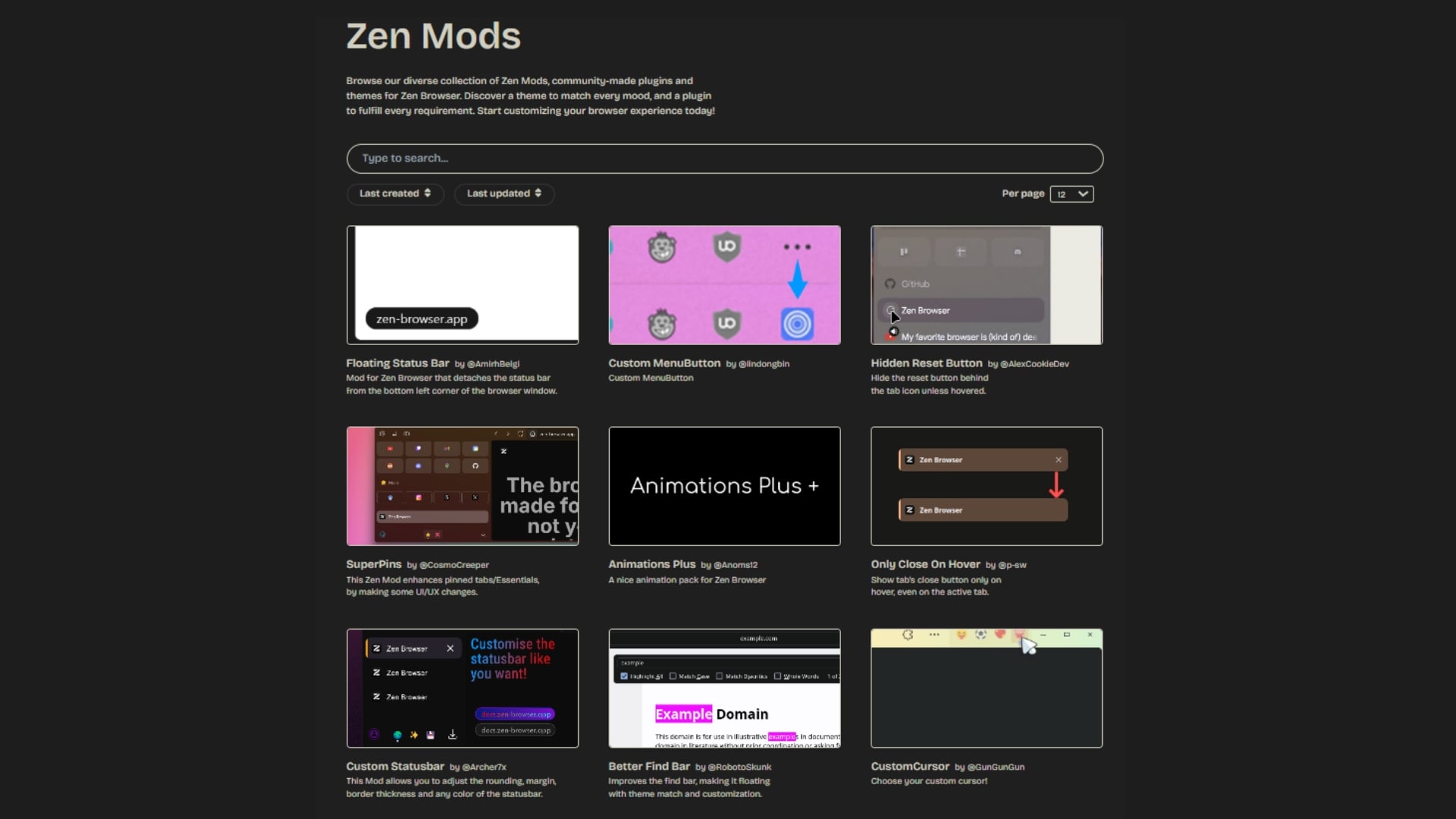
There are a lot of fun mods available on the store, but there are a few that I am personally using. This includes the Super URL Bar, which gives you better search predictions and visuals. Then there isa Floating Status Bar that hides the URL preview at the bottom of the screen until you hover over it. If you love customizations, then you can install the Custom Themes mod that lets you completely change the color and vibe of the browser.
Is it worth the switch?
Zen Browser is currently in beta, which means updates will be pushed frequently, and you may experience hiccups here and there. However, for a tab hoarder, which is one of the most brutal tasks a browser has to handle, Zen Browser did not disappoint me as of now. Here are a few reasons why I believe you should also make the switch from Google Chrome or Firefox to Zen, or at least give it a try:
- It easily and very smoothly manages 20+ tabs and even more.
- I have been using this regularly for quite a while, and there have been no issues.
- If you are overwhelmed by how other browsers handle tabs that hog resources, Zen is your best solution.
- Privacy is at the core of Zen as it is based on the Firefox engine. So, no Google Chrome-like data scraping.
- Zen Mods are great and have a lot of fun tools that are expected to only mature with time.
Zen Browser is best for tab management
I ditched Google Chrome a while back and am currently using the Samsung Internet browser on my desktop and on my Android phone. Even on my iPhone, I have stuck with Safari instead of Google Chrome. The reason is simple: the Samsung Internet browser gives you better options and an AI experience than Google Chrome. However, for tabs, Zen Browser is my choice, and you should also give it a try.

