

Quick Answer
There are plenty of image downloader extensions for Chrome. Imageye is the best overall option for converting and downloading images, Download All Images is ideal for users who require advanced filtering options for mass downloads, and Image Download for YouTube lets you download YouTube thumbnails.
The traditional method of saving images on Google Chrome is limited and sometimes it can be difficult for users to save multiple images at once, organize them, and more. With the help of image downloader extensions on Google Chrome, users can easily download images, even more, along with other benefits like multiple image downloads at once, changing image format, organizing them into formats, and much more.

Extensions are the best way to add additional features to web browsers. These small software programs allow users to add new features and improve their browsing experience by changing the appearance of the browser, blocking ads, saving passwords, and much more. In this post, we will take a look at the list of the best image downloader extensions for Google Chrome.
Table of Contents
Best Image Downloader Chrome Extensions for Chrome
| Extension Name | Best For | Get Extension |
| 1. Imageye | Overall best extension for downloading images and comes with a built-in Webp to JPG converter. | Get Extension |
| 2. Image Downloader by Pact Interactive | Supports folders, best for users who want to organize images into different categories. | Get Extension |
| 3. Download All Images | Best for users looking to bulk downloads with extensive filter options. | Get Extension |
| 4. Image Download for YouTube | Best for users who want to download YouTube thumbnails. | Get Extension |
| 5. Loadify – Smart Image Downloader | Best for designers who want to reuse icons and images on a website. Also displays primary color patterns for a website. | Get Extension |
| 6. Unsplash For Chrome | Best for accessing High-quality images from Unsplash from any website. | Get Extension |
| 7. Lightshot | Best for users who need a quick and easy tool to save images on the webpage. | Get Extension |
| 8. Awesome Screenshot and Screen Recorder | Best for users who need to capture both screenshots and video recordings with editing tools. | Get Extension |
| 9. ImageAssistant Batch Image Downloader | Best for users who need detailed control over batch downloads, including resolution settings. | Get Extension |
| 10. Double-click Image Downloader | Best for users who prefer a simple and fast method to download images. | Get Extension |
Image downloader – Imageye
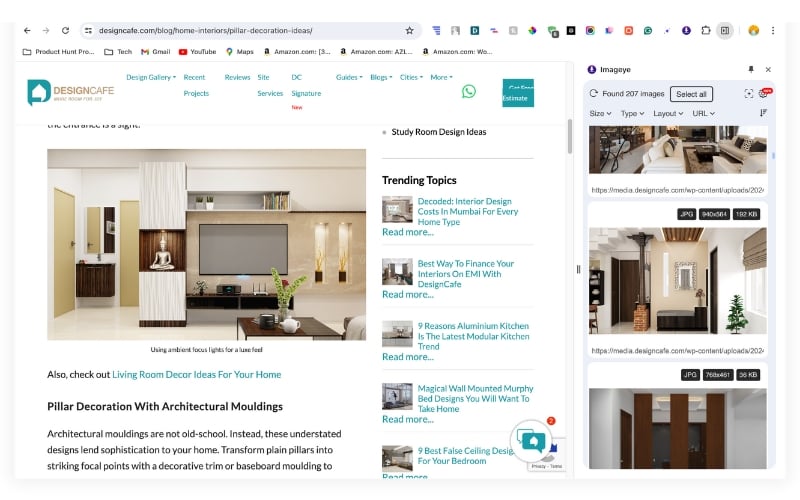
- Unique Feature: Built-in feature to convert Webp to JPG for bulk saves.
- Bulk Downloading: Download multiple images at once.
- Filter Images: Sort images by size, type, and URL.
- Download Quality: Can convert Webp images to JPG.
- Customize Option: Customizable columns and settings view.
Image Downloader by Imageye is easy to use and offers several useful options for downloading images. The extension lists all the images on a website that are available to download. You can sort the images by size, type (including JPG, PNG, webp, etc.), layout, and URL and download them instantly with a single click. You can also select multiple images at once for download. The extension works for all websites including social media sites and YouTube.
One of the features we like about this plugin is the ability to convert webp images to JPG for downloads. Many websites now use the web image format. In addition, you can also change the view of the settings, customize columns, and much more. If you are looking for a lightweight plugin with the best features, Image Downloader by Image Eye is the best option for you.
Image Downloader by Pact Interactive

- Unique Feature: Save images in subfolders and rename them, which helps organize downloads efficiently.
- Bulk Downloading: Download multiple images.
- Filter Images: Exclude unwanted images.
- Download Quality: Good
- Customize Option: No customization options.
The next extension on our list is Image Downloader by Pact Interactive. This is another powerful image downloader extension for Chrome. The best thing about this extension is the ability to save images in subfolders and rename them.
After adding it to your Google Chrome browser, you can visit the website from which you want to download images. Then click on the plugin to see the list of images available for download. You can select an image or select the images as a whole and download them. There is no option to filter the images by JPG or webp, which makes it harder to hide unwanted images like logos and others in the list.
Also, there is no way to convert webp images to JPG. You will have to convert webp images to JPG manually if you want to change the image format. Speaking of other features: You can select an image by URL and download it, and you can download YouTube video thumbnails.
If you are looking for an image download that offers the possibility to create folders and organize your images, an Image download from Pact Interactive is the best option for you.
Image Downloader by Pact Interactive
Download All Images
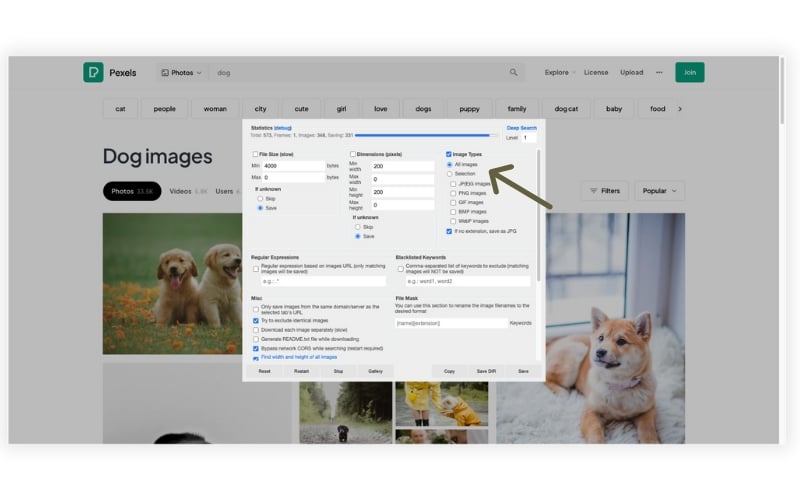
- Unique Feature: Bulk downloads all images from a webpage.
- Filter Images: Filters by size, dimensions, and type.
- Download Quality: Good
- Customize Option: Includes settings to specify which images to download based on set criteria.
Download All Images extension allows you to download large amounts of images at once. If you are someone looking for the best bull download extension for Chrome, this is the best option for you.
If you add this extension to your Google Chrome extension list, you will be able to tap on it as soon as you visit the website from which you want to download the images. The extension will start scanning the images on the website and let you filter the images by size, dimensions, and type of images. The status bar at the top shows you the number of images found on the web page. Depending on your preference, you can rescan the page or stop scanning.
Once you have selected all the images, you can click the “Save” button to save them. You can also create a new folder directly from the extension by clicking the Save Dir option.
If you are looking for a bulk image downloader for Google Chrome, the Download All Images plugin is the best option for you. With its powerful features, you’ll be able to customize the type of images and save all of them with a single click.
Image Download for YouTube

- Unique Feature: Specialized for downloading YouTube video thumbnails easily.
- Bulk Downloading: Specifically for downloading YouTube video thumbnails, not applicable to bulk image downloads.
- Filter Images: No filtering options.
- Download Quality: Standard quality for thumbnails.
- Customize Option: Minimal customization; straightforward functionality.
The next pick on the list is Image downloads for YouTube. With this extension, you can easily download YouTube thumbnails. Whenever you watch a YouTube video, just click on this extension to get the option to download the video thumbnail or cover image. Because of the minimal options, there is no way to customize the size or type of the image. The images are downloaded in JPG format by default.
Loadify – Smart Image downloader

- Unique Feature: Offers an intuitive interface that lists all images used on a webpage.
- Bulk Downloading: Supports bulk downloading.
- Filter Images: Basic Filter options.
- Download Quality: Downloads images as they appear (JPG format).
- Customize Option: Limited customization options.
Loadify smart image downloader offers an intuitive experience when using the plugin. Once the extension is added to your Chrome extensions, you can visit any website to download the images.
The extension will open the web page in a new folder that lists all the images and removes other elements like text, videos, and more. You can hover over the image and download the images. The images are downloaded in JPG format and according to the size specified under the image. You can also download images in bulk by clicking the “Download” button above.
In addition, the extension also allows you to view all the colors used on a particular web page. You can access this by tapping on the “Color Palette” option in the list of options above. This is a very useful add-on if you are a graphic or web designer. If you want to download the best image downloader extension for Google Chrome that also shows you color palettes on a website, Loadify Image Downloader is the best option.
Loadify – Smart Image downloader
Unsplash For Chrome

- Unique Feature: Direct access to Unsplash’s image library from any website.
- Bulk Downloading: Access to a vast library of images for direct download.
- Filter Images: Search for the image you want.
- Download Quality: High-quality images from Unsplash.
- Customize Option: No customization is offered, you can specify the image in the search for personalized results.
Unsplash is a popular stock footage website that offers an extensive collection of images. It comes with a Google Chrome extension that lets you instantly search and download any Unsplash image from any website. If you want to instantly download images for your projects, blog posts, and social media. Instead of downloading images from websites, Unsplash lists images from all web sources in one place that can be downloaded for free.
To download images, add the extension to Google Chrome and click on it. Tap on the search bar, enter the keyword, and click on the search icon. The extension will immediately list images. You can right-click on the image and click “Save” to download the images.
You can use the downloaded images in your blog posts or for your project. There is no option to filter images by type, size, or dimensions. If you are looking for a quick way to download royalty-free images in a few clicks, Unsplash for Google Chrome is the best option for you.
Lightshot

- Unique Feature: Quickly capture and download images from any webpage.
- Bulk Downloading: Capture a single image at once.
- Filter Images: No image download filters.
- Download Quality: Capture screenshots in the quality displayed on the screen.
- Customize Option: Includes simple editing tools post-capture.
Lightshot is a screenshot creation tool that allows you to take a screenshot of the web page or any image on the web page and download it instantly. The extension allows you to take screenshots and save them directly to the clipboard. This makes it ideal for users who need to quickly capture and share screenshots for work, research, or projects.
Once you have added the extension to Google Chrome, visit any web page from which you want to take screenshots. Now click on the extension. With the extension, you can take screenshots of the entire web application or a selected area. You save the screenshots by changing the format (PNG, JPG, or BMP), quality, and size.
Lightshot also provides tools for image editing and annotation. Users can add text, shapes, and drawings to their screenshots to highlight important information or explain their thoughts. The annotated screenshots can then be saved or shared with others.
Awesome Screenshot and Screen Recorder

- Unique Feature: Combines screenshot capture with video recording capabilities.
- Bulk Downloading: Capture multiple images at once and download them.
- Filter Images: No filtering options for downloads.
- Download Quality: High-quality screenshots and recordings.
- Customize Option: Offers simple editing tools for screenshots and videos.
Awesome screenshot is another tool for taking screenshots. The extension allows you to take a screenshot of the web page or any image on the web page and download it instantly. Users can take screenshots with just two clicks, and the screenshot will be saved directly to the clipboard.
Once you have added the extension to Google Chrome, visit any web page from which you want to take a screenshot. Now click on the extension. With the extension, you can take screenshots of the entire web application or a selected area. You save the screenshots by changing the format (PNG, JPG, or BMP), quality, and size.
Besides the images, users can also record the screen and save it as a video. The free version of this plugin offers up to 5 minutes of recording time. Similar to Lightshot, Awesome Screenshot also offers image editing and annotation tools. Users can add text, shapes, and drawings to their screenshots to highlight important information, change image-saving options, and more.
Awesome Screenshot and Screen Recorder
ImageAssistant Batch Image Downloader
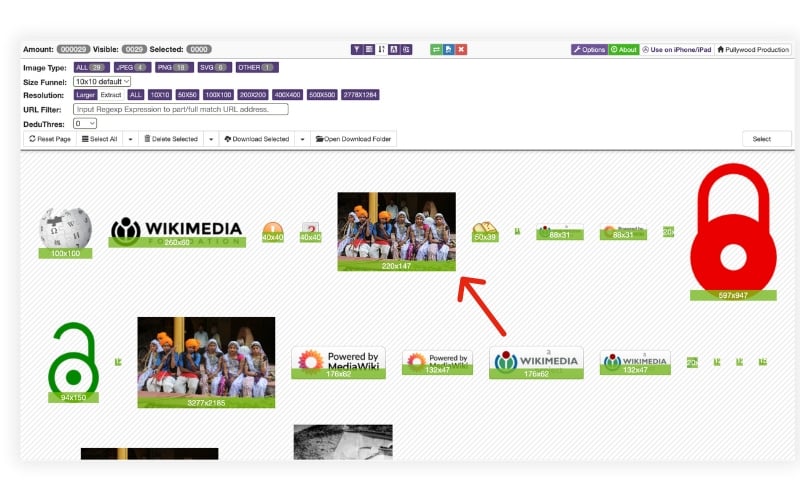
- Unique Feature: Advanced bulk images download extension.
- Bulk Downloading: Designed for batch image downloads.
- Filter Images: Advanced filtering options. Select images by resolution, size, and more.
- Download Quality: Standard.
- Customize Option: Detailed customization options for sorting and filtering during downloads.
Image Assistant is the best option if you are looking for a powerful image downloader extension for Google Chrome. With the extension, you can download images in bulk and also edit them with the powerful editor.
Once you have added the Chrome extension to your list, visit any website and click on the extension. A new page will be created that contains all the images that can be downloaded, along with the powerful filtering options. You can also download the images in bulk, directly open the folder where the images are located, and much more.
Apart from the image editing tools, the extension also offers additional features like adding watermarks to the images. Moreover, you can also create a website QR, customize extensions in the settings, and much more.
ImageAssistant Batch Image Downloader
Double-click Image Downloader
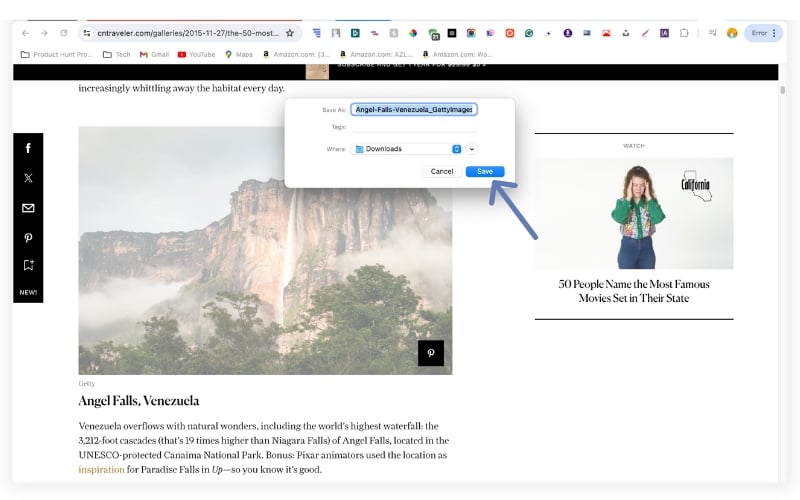
- Unique Feature: Download images with a double-click.
- Bulk Downloading: Download multiple images using double-click.
- Filter Images: Basic filtering capabilities.
- Download Quality: Standard quality based on image shown on the web.
- Customize Option: No customization.
Double-click Image Downloader allows you to download any image with a double-click. You can also set other interactions, such as staying on the button, drag-and-drop support, hotkey, and more. If you want to save a web page with ease without following the traditional method, the double-click image downloader is the best option for you.
Things to Note Before Choosing the Best Image Downloader for Google:
Before you decide on the best image downloader plugin, there are a few things you should consider to choose the best image downloader for your Google Chrome.
- Compatibility: check if the extension is compatible with the latest version of Chrome.
- Functionality: Make sure that the extension supports the image format you need and can easily save images from websites.
- Speed: Choose an extension that can download images quickly without slowing down your browser.
- Privacy: Ensure the extension respects your privacy and does not collect or share personal information.
- Ease of use: Look for an extension with a simple, user-friendly interface that makes downloading images easy.
- Additional features: Some extensions offer additional features like batch downloads, image editing, and more. Consider your specific needs and choose an extension that offers the features you need.
FAQs on Best Image Downloader Chrome Extensions

How can I download the Chrome theme as a picture?
You can download the Google Chrome theme as a picture by following these steps:
- Open Google Chrome and go to the Chrome Web Store.
- Search for the theme you want to download and click on it to open the theme details page.
- Right-click on the theme image and select "Save image as..." or "Save picture as..." depending on your browser.
- Choose a location to save the image and click "Save."
- Alternatively, you can also use a screenshot tool to capture the image of the theme. Simply open the theme details page, take a screenshot of the theme image, and save it as an image file.
How to control the bad pictures coming from Chrome?
You can adjust Google Chrome's privacy settings to control the display of bad or unwanted images in Chrome by following these steps:
- Open Google Chrome and click on the three dots in the top-right corner of the window to access the menu.
- Select "Settings" and then click on "Advanced."
- Scroll down to the "Privacy and security" section and click on "Content settings."
- Scroll down to the "Images" section and select "Show all."
- Toggle the switch next to "Blocked images" to turn it on.
With this setting enabled, Chrome will block the display of images that are considered harmful or unwanted and replace them with a placeholder instead.
If you view a Google image, is it downloaded automatically?
No, when you view an image on Google, it is not automatically downloaded to your device. When you view an image on Google, the image is loaded from the server and displayed in your browser. However, it is not stored on your device unless you specifically download it.
To download an image from Google, you can right-click the image and choose "Save Image As..." or "Save Image As..." depending on your browser. This will allow you to save a copy of the image to your device's hard drive.
To make this process even easier, you can download the Google Chrome extension and add it to your list.
- Open Google Chrome and go to the Chrome Web Store.
- Search for "image downloader" and choose an extension that suits your needs.
- Install the extension by clicking the "Add to Chrome" button.
- Visit the website that contains the images you want to download, and the extension should download them automatically.
- We have listed some of the most popular Google Chrome extensions for downloading images. You can choose one of the extensions from the list according to your needs.
How to download an image without WEBP?
To download an image without the WEBP format, you can follow these steps:
- Right-click on the image and select "Save image as..." or "Save picture as..." depending on your browser.
- Change the file format to JPG, PNG, or any other desired format.
- Choose a location to save the image and click "Save."
- You can also use Google Chrome extensions like Image Eye to convert images to JPG even before they are downloaded.
Alternatively, you can also use an online image conversion tool to convert the WEBP image to another format before downloading it. Simply upload the WEBP image to the conversion tool, select the desired format, and download the converted image.
How can I download the image through inspect element?
To download an image using the "Inspect Element" feature in Google Chrome, you can follow these steps:
- Right-click the image you want to download and select "Inspect."
- The Inspect Element window opens and displays the HTML code of the page.
- Find the line of code that corresponds to the image you want to download. It should look something like this:
< img src="https://example.com/image.jpg" />There can be many images. To view the image name, you can hover over the image using the pointer. - Right-click on the image URL (
https://example.com/image.jpg) and select "Open image in new tab." - The image will open in a new tab, and you can right-click on the image and select "Save image as..." or "Save picture as..." depending on your browser.
- Choose a location to save the image and click "Save."
- The image will now be saved.
What are the benefits of using a Chrome extension for downloading images?
The benefits of using a Chrome extension for downloading images include the ability to quickly and easily save images from websites, the ability to download multiple images at once, and the ability to choose the resolution of the images.
Can I use image downloader extensions to download copyrighted images?
No, downloading copyrighted images without permission is illegal, no matter which extension you use. Always make sure you have the right to use an image before downloading it.

