

Quick Answer
Cloud storage services like Google Drive and Dropbox encrypt your files but keep the decryption keys, meaning your data could still be accessed. Cryptomator fixes this by encrypting files on your device before upload, giving only you the key while continuing to work with your existing cloud storage.
When you upload your personal files to cloud storage services like Google Drive or OneDrive, you will find that the safety mechanisms these services have are enough to keep your files private. They have a lock icon on it, so it feels private. Sadly, that is not the truth. Both services encrypt files on their servers, but they hold the keys to open them, and not you. This simply means any employee, a court order, or a data breach could expose your data.
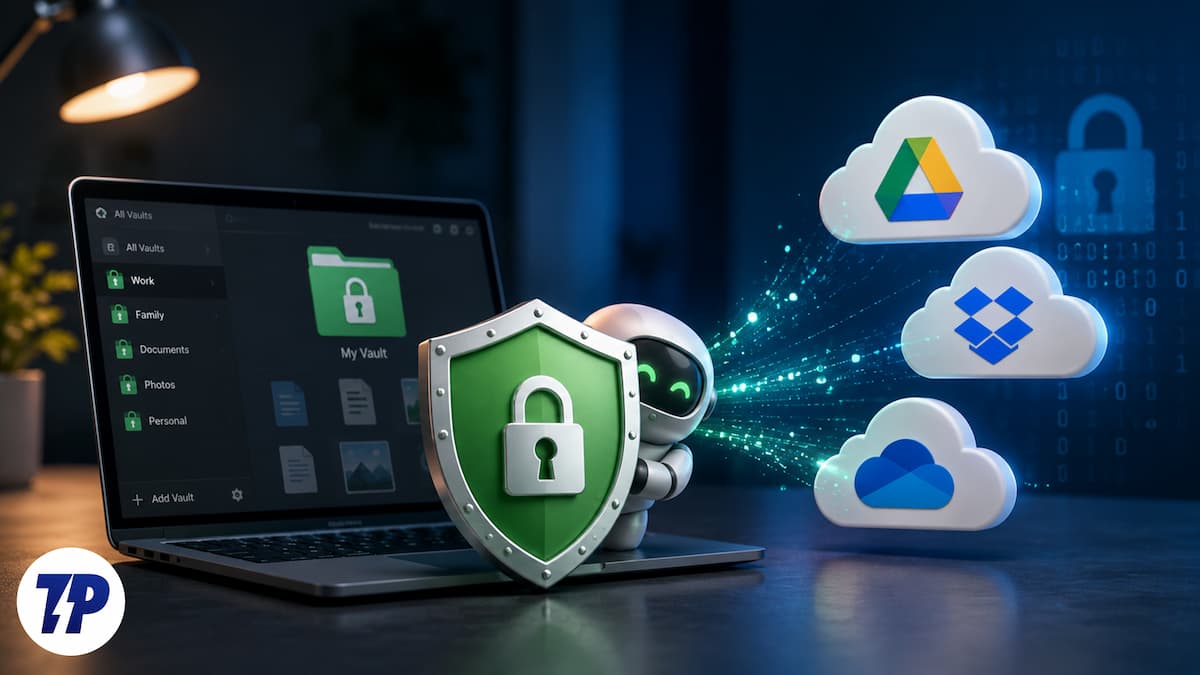
Dropbox’s own privacy policy confirms it uses automated technology to scan for abusive content and can disclose your data to comply with government requests. The answer to this is Cryptomator, which is a free, open-source tool that encrypts your files on your device even before they touch the cloud. Let us know more about Cryptomator.
Encrypted cloud storage isn’t as private as it sounds
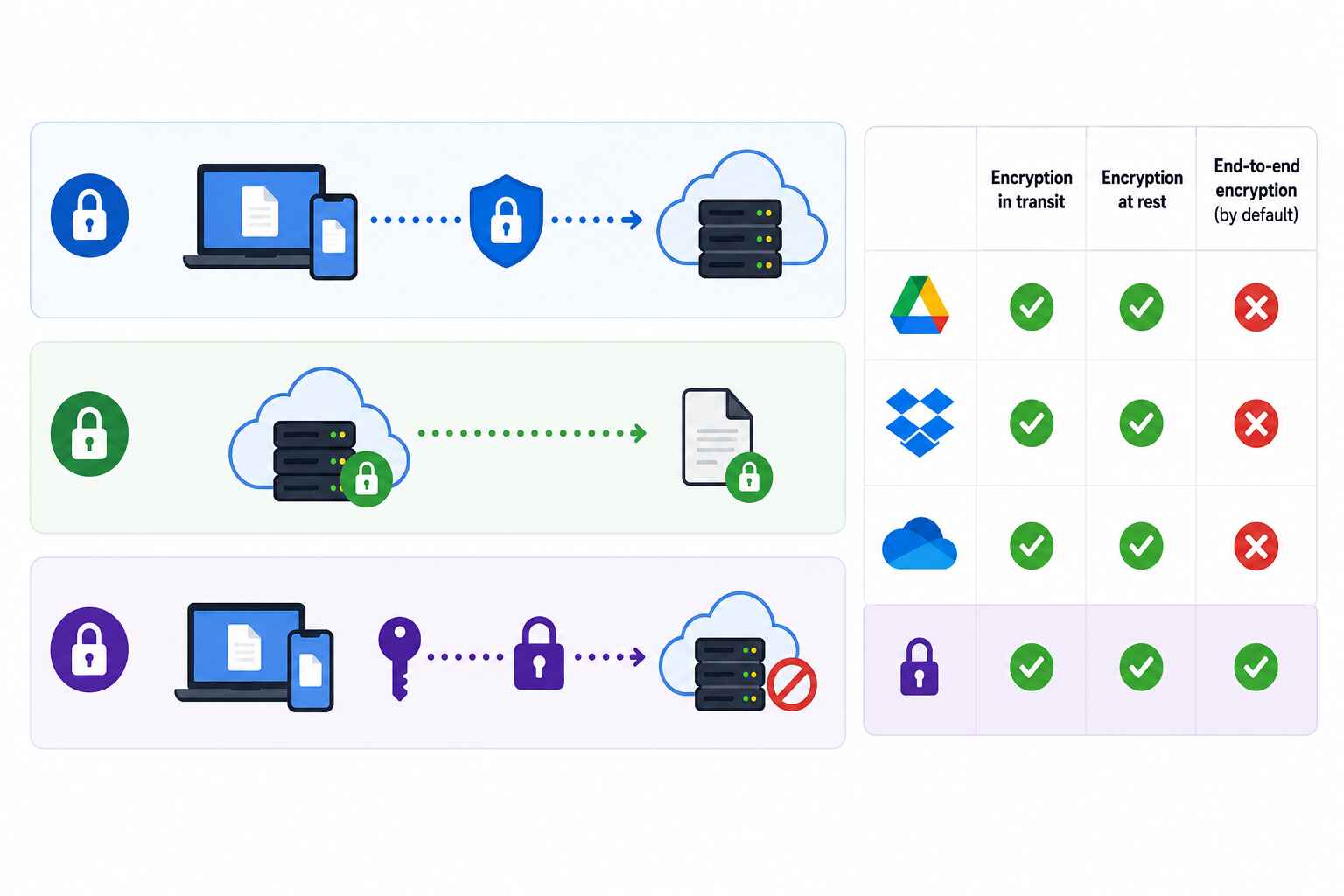
Most of us, when we see “encrypted cloud storage,” immediately think that our files will be safe and sound there. But little do they know that there are differences where the word “encryption” is used. There is a stark difference between encryption in transit, encryption at rest, and true end-to-end encryption. Here is what each means:
- In transit encryption means that your file is protected while it travels from your phone or desktop to the cloud server. Almost every service uses this method.
- Encryption at rest means the file is encrypted while it is sitting on the provider’s servers. Google Drive and Dropbox both do this, too.
- End-to-end encryption means the provider never has the key to unlock your files. Only you do.
Most services check the above two boxes, but when it comes to the last one, they usually skip that. Digging through their policies only reveals that neither service offers the client true end-to-end encryption by default. Meaning these cloud storage services can access your files if they choose to or if they’re compelled to.
That doesn’t mean that cloud services like Google Drive or Dropbox are villains. It is just that they use a different form of encryption on their platforms, and they are quite open to this, provided that you go through their policies.
Cryptomator gives you clarity
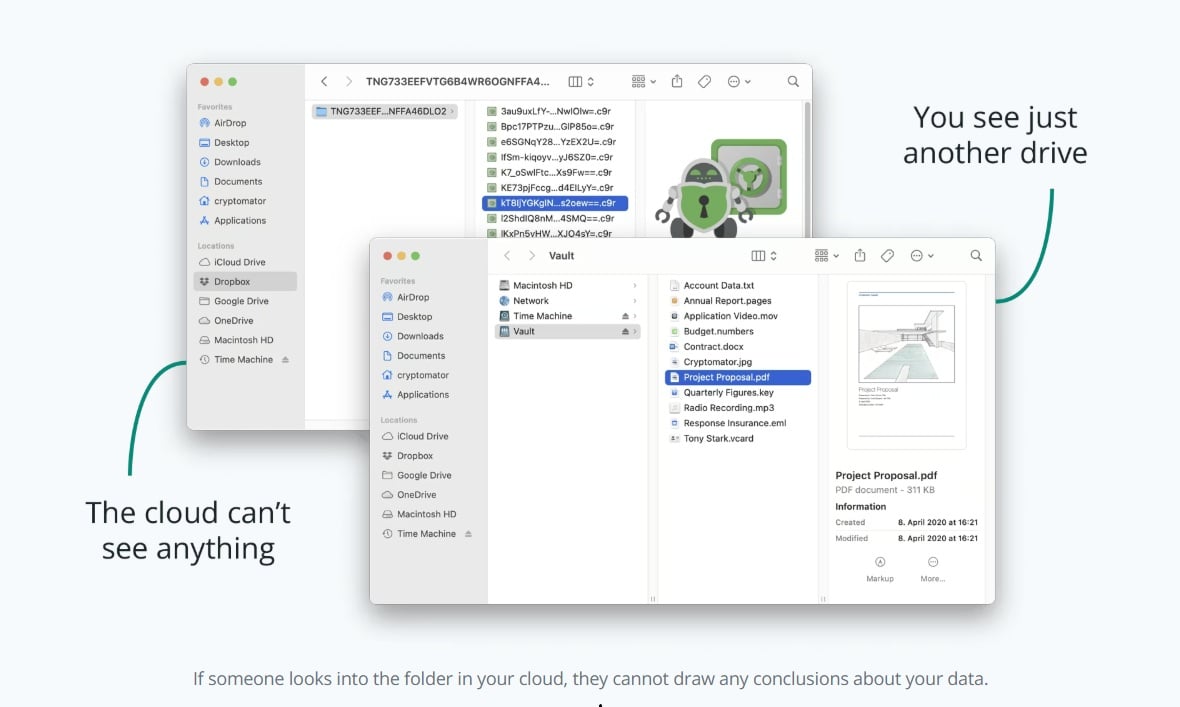
Cryptomator is the tool that you would need if you are looking to keep access to your files to yourself. It adds the missing piece of providing client-side encryption. This encryption is done locally, even before your file leaves your device. This means that your files are already scrambled before they even leave your device and get uploaded to a cloud storage. You create something what is called a “vault,” which is a special encrypted folder inside your cloud storage.
Anything that you drag or drop into this folder gets automatically encrypted with AES-256, the same encryption standard banks and governments rely on. Additionally, you are getting this protection both on your file content and on the file name. Noticeably, the file name also gets randomized. So, if anyone ever peeked into your cloud storage, or if the cloud storage itself is compromised, all the attacker would see is a pile of garbled file names and unreadable data. No “Bank_statement_2026.pdf” is fed to them on a platter.
The clever part is that the Cryptomator doesn’t replace your cloud storage. This way, you can continue to use your recommended cloud services, for which you have paid, and add a secure layer of protection for your files. The best part about Cryptomator is that it works with basically anything that syncs to a local folder on your computer or phone — Dropbox, Google Drive, OneDrive, pCloud, Nextcloud, iCloud Drive, even plain WebDAV or S3 storage.
Setting up Cryptomator is easy
This isn’t one of those tools that demands you to have a computer science degree to set up. This is quite easy, and since I also prefer easy-to-use apps, you would love how easily you can set up Cryptomator and protect your files.
- Head over to the official Cryptomator website and download the tool. It is available for Windows, Linux, macOS, Android, and iOS.
- Open the Cryptomator app.
- Click the Plus(+) icon to create a vault, which will be highlighted the first time you open the tool.
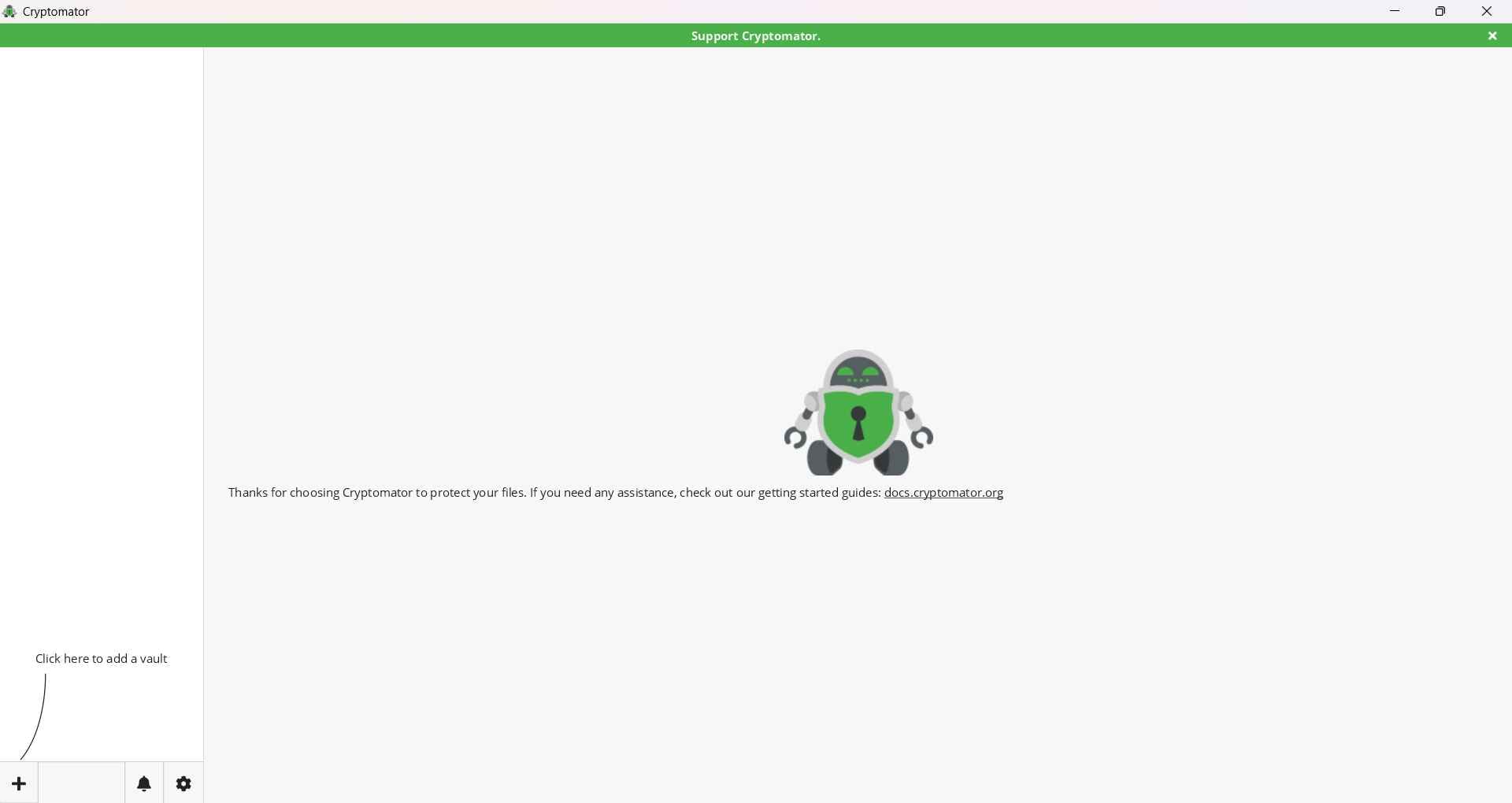
- Select Create a new vault from the drop-down menu.
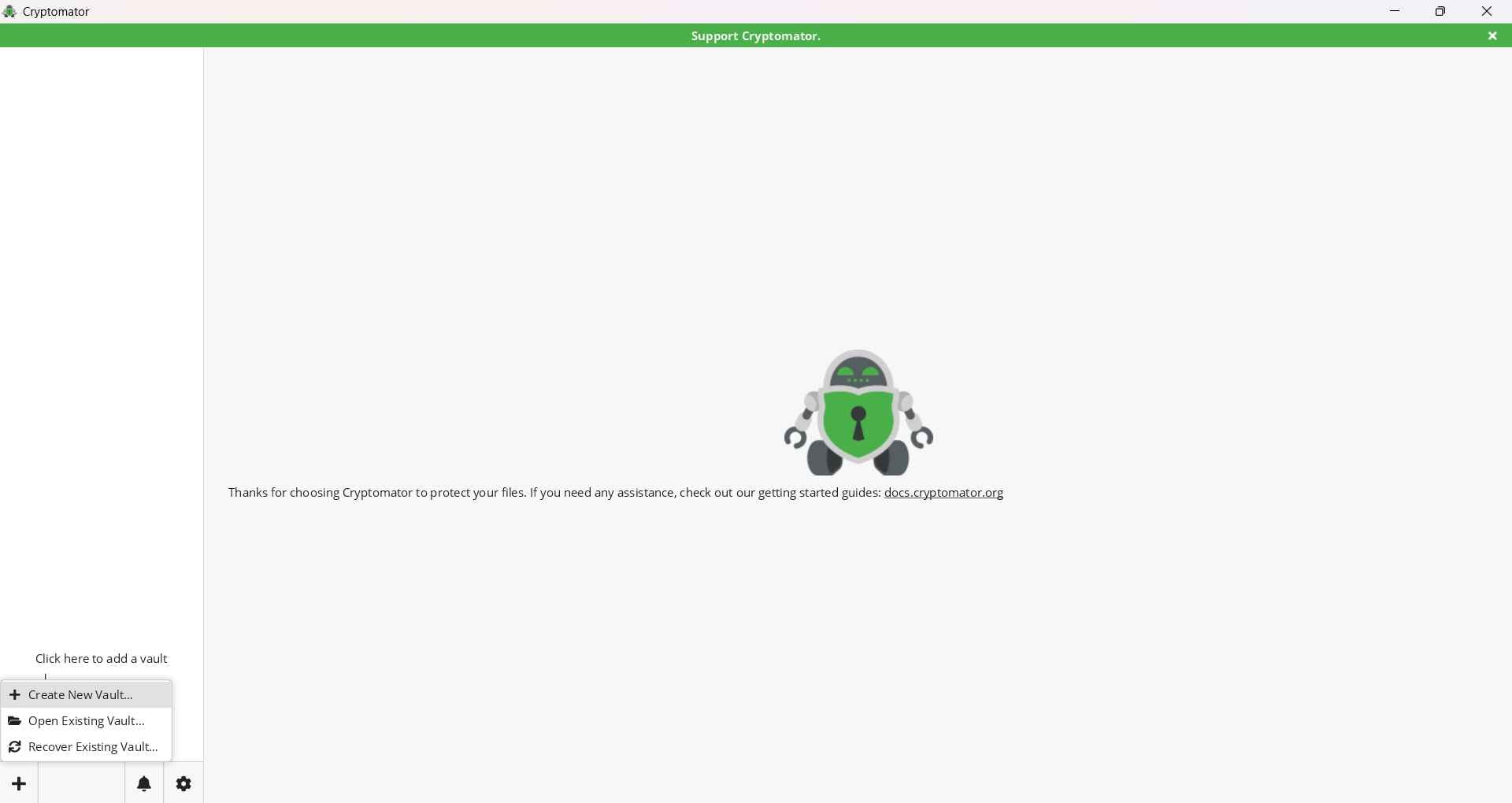
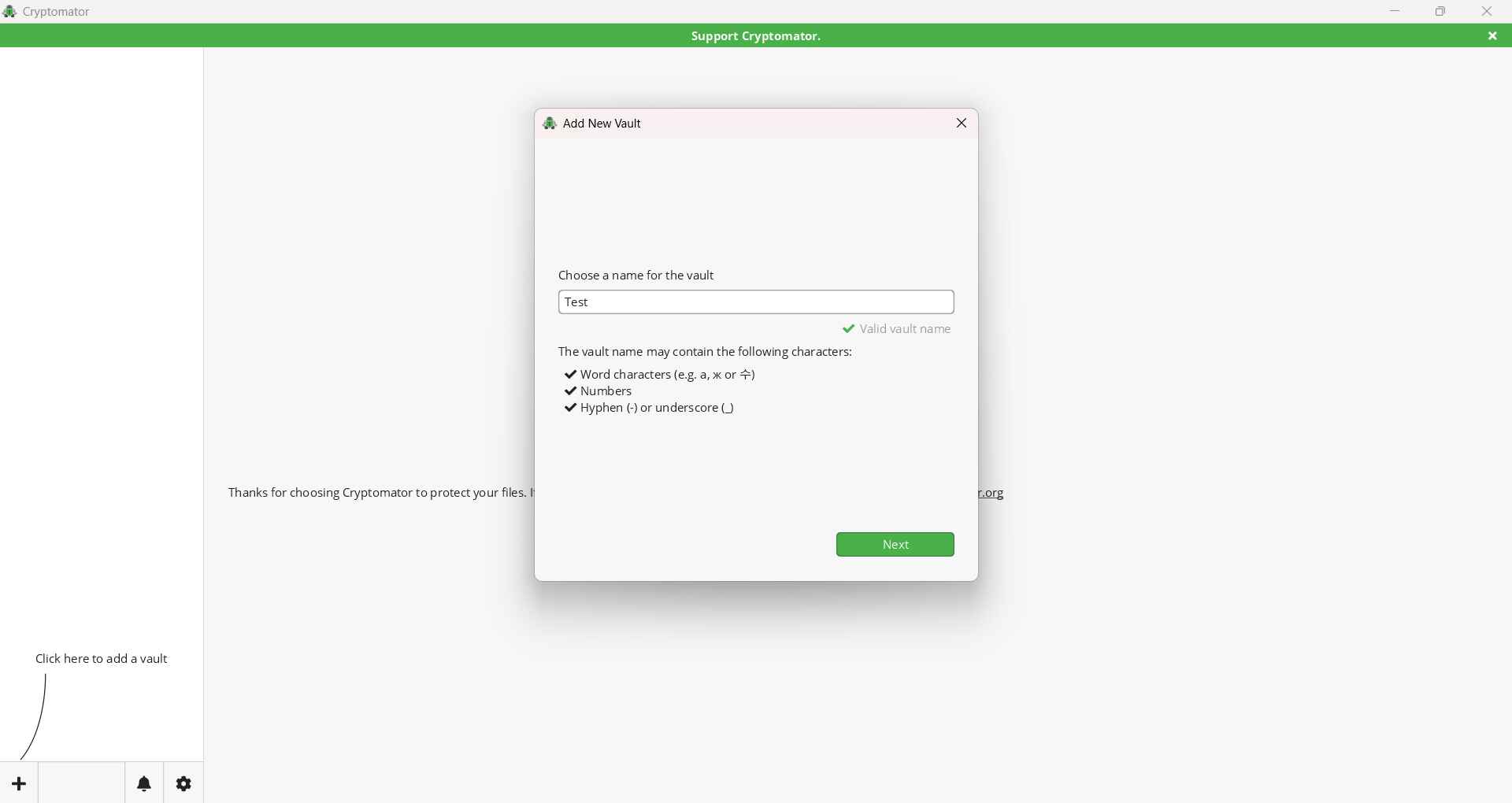
- Now, you have to enter the name for the vault you want to create in the “Choose a name for the vault” field. Follow the instructions required for naming the vault and press Next.
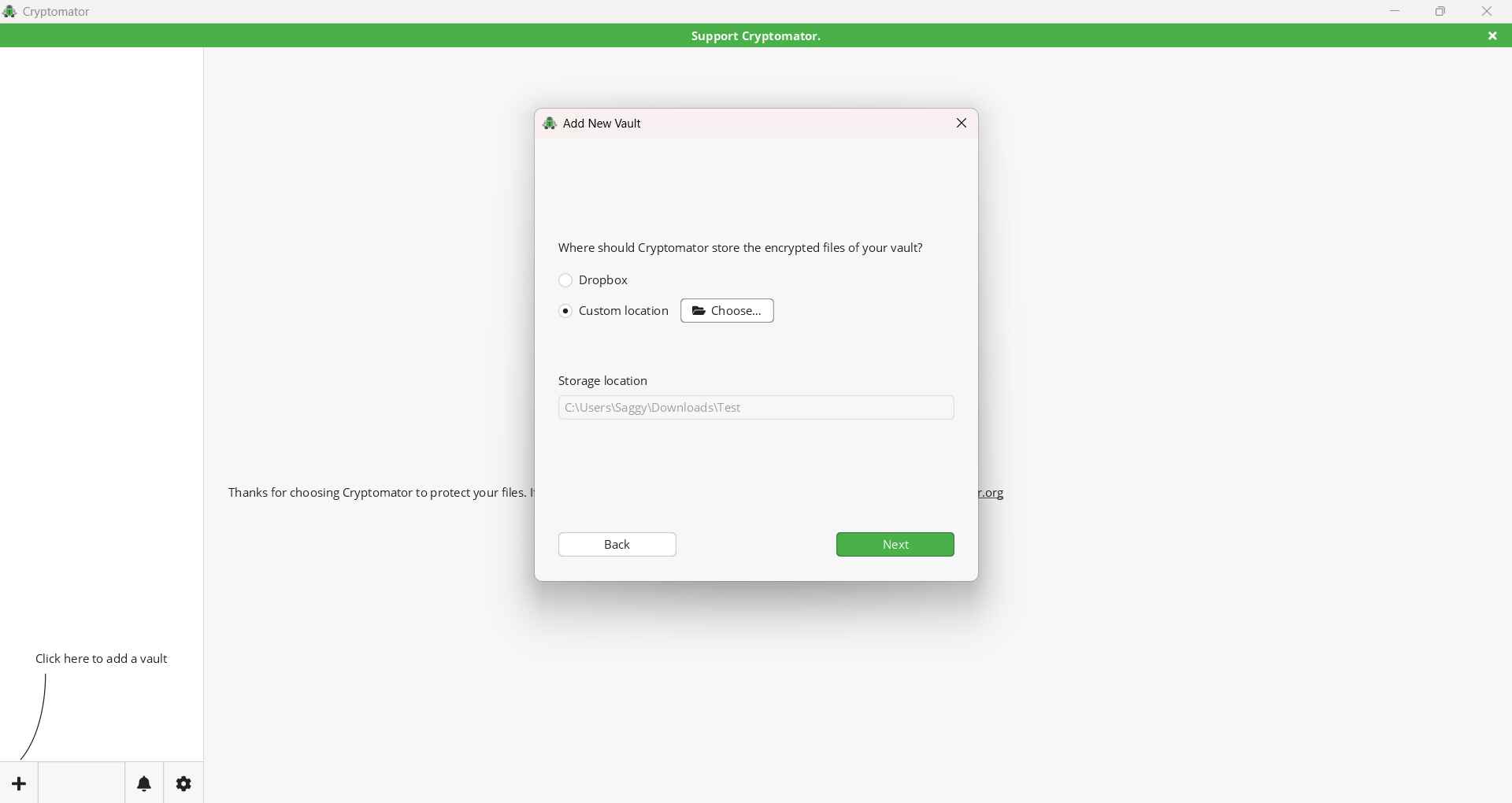
- You will be asked where you want to create your vault — Dropbox, or any custom location. For our case, I have chosen to have the vault created locally. Press Next.
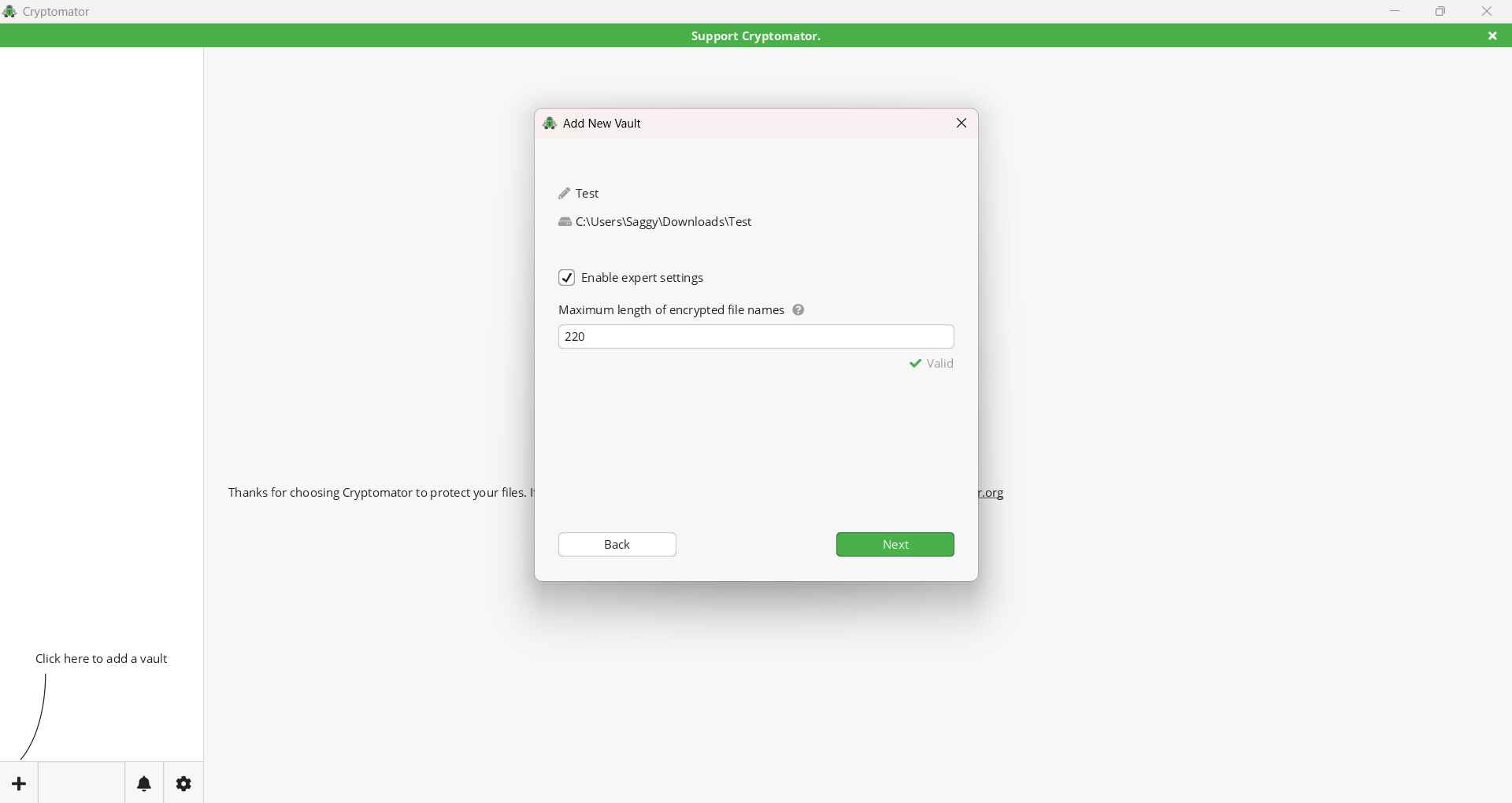
- The next page will ask you if you want to enable Expert Settings, which lets you set the maximum length of the encrypted file name. After your selection, simply hit Next.
- Enter the password that you would like for your vault and click Next.
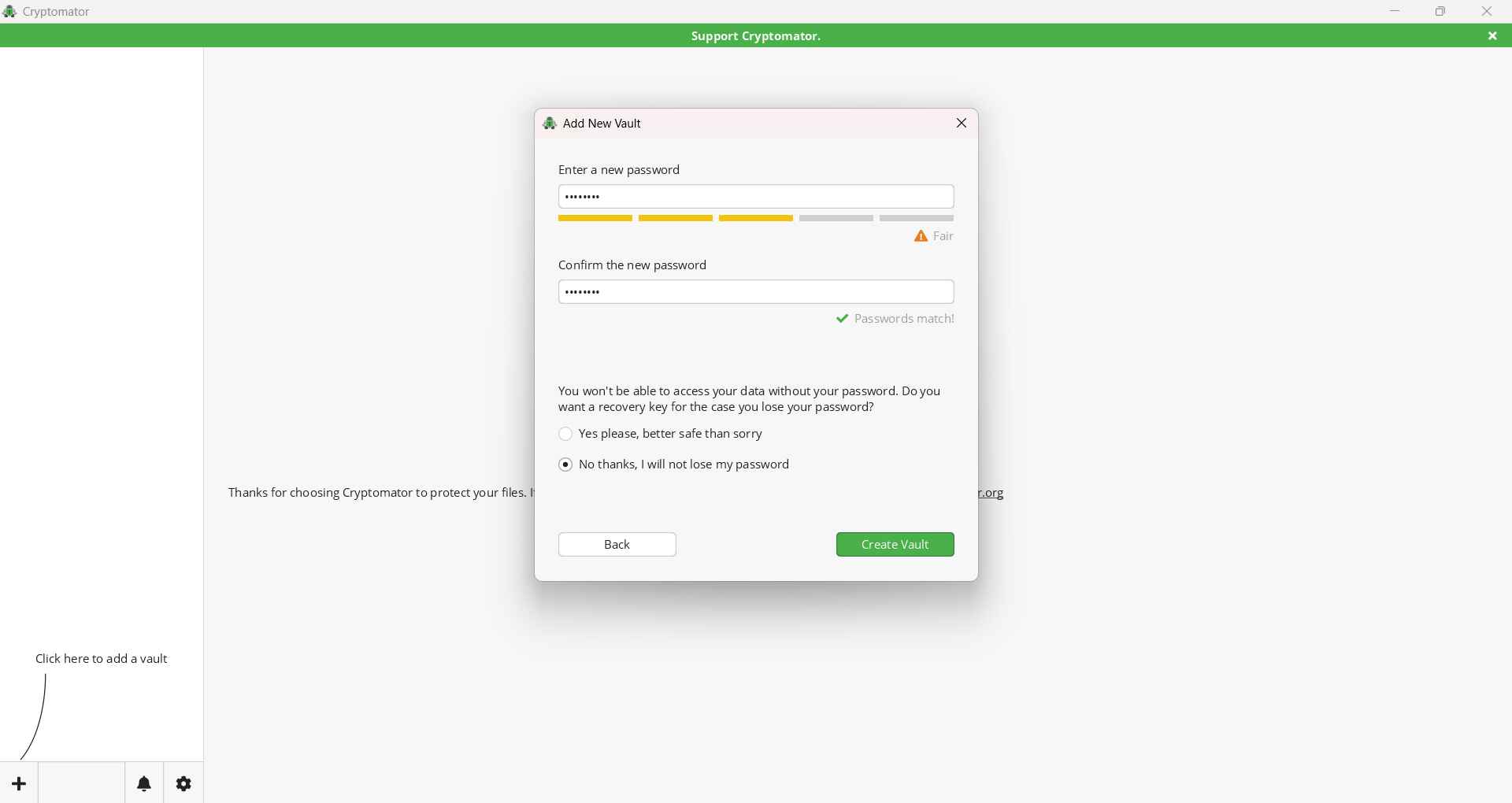
- You can set a recovery key for your password because the moment you forget the password, all your files will be lost. Once you choose the option, click Create Vault.
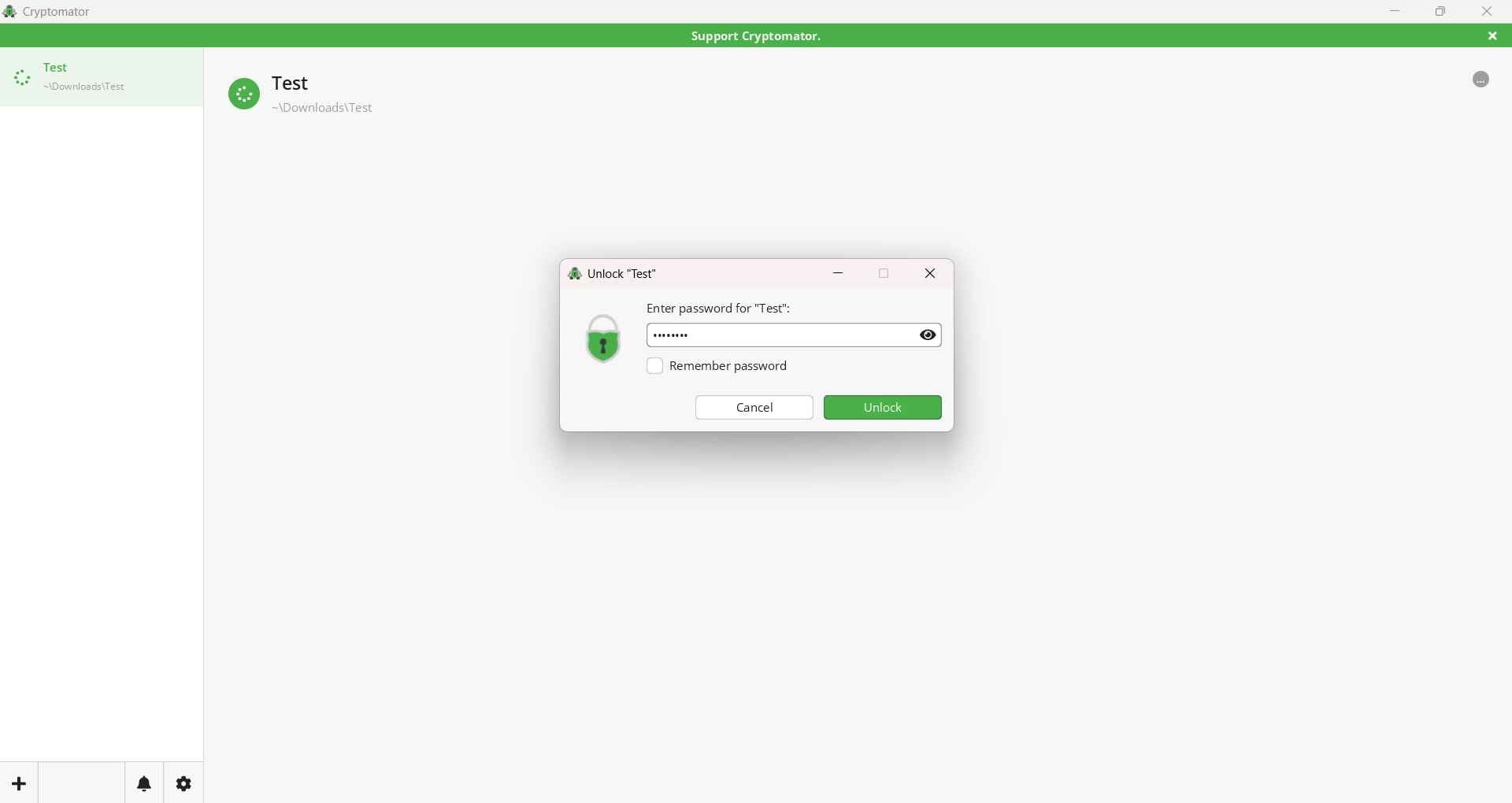
- You will be asked to unlock the vault to access the files. Enter the password you just set to access the vault.
That is it! That’s how you can encrypt your files on any cloud storage or even on your device locally. Once you set it up, it barely feels different, but make sure that you remember the password to your vault or have a backup key created and securely saved when things go south.
Matters for those who need it
If you are someone who stores general files like attendance sheets, work drafts, or even memes, you might not want to take this extra step to protect your files. But if you deal with something very important and confidential, having a layer of protection, even before your cloud services take charge, is a good thing to have. Aside from keeping your files protected, you should also have a protective layer over the passwords that you use to access them. TechPP experts recommend this password manager to keep passwords safe and secure.

