

Quick Answer
For sharing your screen on Windows, Microsoft Teams is the best option with integration with Microsoft apps. TeamViewer is best for remote support. Google Meet is great for beginners with its easy-to-use interface. Zoom is great for teams, Loom is great for sharing presentations, and more. Windows Remote Desktop, Chrome Remote Desktop, Mikago, and GoToMeeting are also great options in their respective categories.
Since the pandemic, the culture of working from home has taken hold among many individuals and organizations. With the rise of WFH, the number of conferencing apps and screen-sharing apps has also increased. While the incumbents are still going well, there has been a surge in new screen-sharing tools with more interesting features.

Apart from work, screen-sharing apps are very useful when you want to help your friends or family members with something. Either way, you can improve your productivity with the right software.
Since many own Windows PCs and laptops, and chances are that many are looking for the best screen-sharing tools for Windows, let us take a look at our picks.
Table of Contents
10 Best Screen Sharing Tools for Windows
Tool | Pricing | Screen Sharing Options | Other Key Features |
|---|---|---|---|
Microsoft Teams | Free; Premium from $4 | Entire screen or specific windows, with sound | Chat, video, voice calls, meeting scheduling |
Teamviewer | Free for personal use; Premium from $24.90 | Entire screen | Remote control, pause sharing, file transfer, AR mode. |
Google Meet | Free; Google Workspace plans start at $6 | Entire screen, specific window, browser tab | Simple interface, app/web access. |
Zoom | Free; Pro from $14.99 | Entire screen, specific windows, whiteboard, iPhone screen | Advanced sharing options, secure login, file integration. |
Loom | Free; Business from $10 | Pre-recorded sharing, with/without webcam | Speaker notes, custom canvas, high-quality recordings. |
Windows Remote Desktop | Included Free with Windows Pro versions | The entire screen with resolution control | No sign-in, advanced settings, or professional use |
Chrome Remote Desktop | Free | Entire screen | Quick setup, no cost, simple interface |
Dead Simple Screen Sharing | Free; Premium from $8 | Entire screen, specific window, browser tab | Limited to Chrome/Firefox screens. |
Mikogo | Free for 1 participant; Pro from $14/month | The specific application window, the entire screen | Multi-monitor, VoIP recording, file transfer, whiteboard |
GoToMeeting | Paid tool. Plans from $12 | Entire screen, specific windows, browser tab | Clean screen mode, drawing tools, remote control |
Microsoft Teams: Best for Work, School, and Group Collaboration
What it’s good for:
- Easy screen sharing for team meetings.
- Share your whole screen or just one window.
- Great for work and school presentations.
- High-quality screen sharing with video and audio supports.
- Schedule regular meetings with ease.
When searching for the best screen-sharing tool for Windows, you should always consider the tools from Microsoft at the top. Since Windows comes from the same roof, Microsoft can optimise its software and tools while offering many features. Microsoft Teams also has no exception in getting these benefits, hence its position as the first.

Teams are primarily intended for work or training, and the functions are also tailored accordingly. Although it is a meeting app, Teams has an online screen-sharing tool that can help you share your screen easily.
You can either share your entire screen or, if privacy is important to you, just the current window. If you want, you can also turn on the sound of your computer when you share your screen. The free version allows you to make video and audio calls for up to 60 minutes and 100 participants.
Teams is primarily a video conference app with chat, video, and voice calls, while you can even use a custom background in video chat. Besides, you can schedule the next meeting in the calendar, which can be helpful for better communication when sharing screens or in a meeting.
One downside is that you can not hold meetings that last longer than 60 minutes (For teams), and there is no limit for one-on-one calls. Microsoft Teams is a great app, especially if you want screen-sharing software for business and educational purposes.
Pros:
- Share either the entire screen or a particular window
- The free version offers meetings for up to 100 participants
- Useful business purpose
Cons:
- Requires Microsoft account to use
- Can only conduct conference sessions for up to 60 minutes on the Free version
Teamviewer: Perfect for Remote Support and Control
What it’s good for:
- Perfect for remote support and help.
- Smooth screen sharing even with slow internet.
- Control other screens to fix issues.
- Share screens and files for presentations.
- Safe and easy to connect with others.
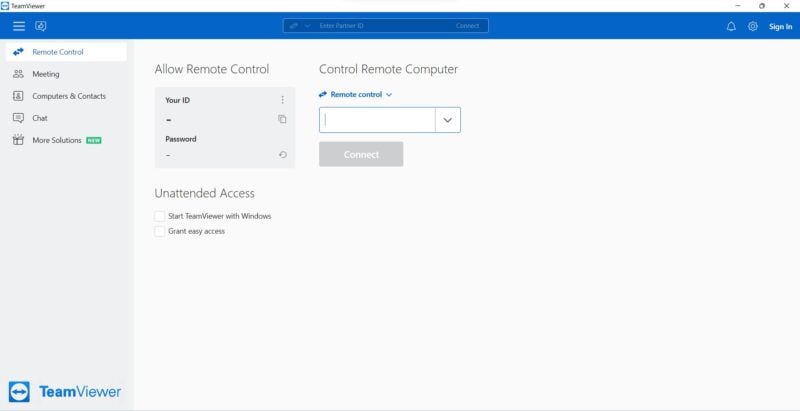
Teamviewer is a software that has been helping users share screens for years. Thanks to its years of experience, Teamviewer offers a seamless experience with many useful features. Let us first talk about the screen-sharing feature.
Once you start a meeting, you can use the “Share my screen” feature to start screen sharing. You cannot share the current window, but you can pause the sharing if necessary. You can also use Teamviewer’s remote control feature to see what the other person is seeing on their screen and take control of their screen. In addition to these tools, you can also use the built-in file transfer function.
Pros:
- Remotely control desktop
- Pause screen sharing
- File transfer
- Augmented Reality mode
Cons:
- Window-specific screen sharing is not available
- UI could have been improved
Google Meet: Simple Screen Sharing for Quick Meetings

What it’s good for:
- Quick and simple screen sharing.
- Share your whole screen, one window, or a tab.
- Access from any device, app, or web.
- For users with Google account.
Google has a competing product for almost every software service, including screen-sharing apps for Windows. One of these apps is Google Meet, which has a simple user interface that makes it easy to use. This is one of the main advantages of the app.
The icons also help non-technical people understand what each icon stands for. Once you start screen sharing, you can click the button to choose between the default screen sharing, a specific window, or even a specific tab. Google Meet can be used as an application and can be accessed online.
Regardless of the various screen-sharing features, if you think of it as a video conferencing application, it lacks many of the features that the competition offers. Even if you agree, you must log in using only Google ID, which could be a deal-breaker for some. If these drawbacks do not bother you, then Google Meet is a clear recommendation.
Pros:
- Simple and easy-to-use UI
- Multiple screen-sharing options
- Can be used both in-app as well as on the web
Cons:
- Requires Google ID to use
Zoom: Best for Teams With Lots of Features

What it’s good for:
- Lots of screen-sharing options.
- Share your screen, apps, or even your iPhone.
- Great for interactive meetings with whiteboards.
- Secure and reliable for big groups.
- Ideal for business and professional use.
Zoom, like many other options in this list, is a video conferencing tool but also has a screen-sharing option. Unlike the Microsoft and Google options, Zoom offers multiple ways to log in to the application.
Once you have signed in, you can easily start sharing your screen by selecting Share Screen from the app’s home screen. Zoom offers one of the most versatile screen-sharing options compared to the competition.
You can share the entire screen, one of the apps you currently use, a whiteboard, or even your iPhone screen! And that’s not all. If you choose the Advanced tab, you can share part of the screen, the computer’s audio, any video on your Windows computer, content from the second camera, or even a PowerPoint presentation as a virtual background.
There is also an option to share files from popular online file-sharing services. As for the other features, you can chat, schedule meetings, or even use app integrations, making this one of the most feature-rich video conferencing apps for Windows.
While the app is free, an optional premium subscription unlocks additional features, such as conducting video conferences with a much larger audience.
Pros:
- Feature-sharing options
- Can share iPhone screen using Windows
- Integrated file-sharing service
- Schedule meetings
Cons:
- Some users may be confused between the surplus features
- Premium subscription is on the premium side
Loom: Ideal for Recording and Sharing Presentations

What it’s good for:
- Record your screen to share later.
- Use your webcam for screen sharing.
- Perfect for tutorials and walkthroughs.
- For sharing high-quality videos easily.
- For viewing anytime.
Loom takes a completely different approach to screen sharing on Windows. While with other programs, you can only do this when the other members are online, you can click “Record” directly. Once you log in, you can start recording immediately and do not need to go through any other process.
Loom also allows users to use their Windows computer’s webcam while sharing the screen or camera. If you do not want to use the webcam, Loom allows sharing the screen without the camera. If you want to give a presentation, you can use the app’s built-in speaker notes to read out what you want and not leave out any points.
There’s even an option to share the screen via a custom canvas for those worried about privacy. You can also select the video quality using an unstable network. Once the screen recording is ready, you can share it with those who need it.
While the features of the free version are enough for many, the premium plan can offer more if someone is looking for more. The premium plan offers the ability to upload screen recordings of unlimited length and much higher quality, custom branding, password protection for the videos, and even embed links into a video.
Even though Loom does not offer as many features as the competition, it’s still a good app to check out, especially if you want to make pre-recorded screen recordings on Windows.
Pros:
- Share screen along with webcam
- Comes with speaker notes for presentations
- Pre-recorded screen sharing
Cons:
- Unable to share a particular window
- Premium plan doesn’t offer much value
Related Read: 7 Best Screen Recording Apps for Windows
Windows Remote Desktop: Great for Professional Remote Access

What it’s good for:
- Professional screen sharing for IT support.
- Customize your remote session.
- Secure and stable for long use.
- Ideal for office environments.
Windows Remote Desktop is a native screen-sharing tool for the professional version of Windows. Windows Remote Desktop is based on the proprietary Remote Desktop Protocol technology and can be used with any Windows PC without any problems.
Once you install the application, you can share your screen immediately. No registration is required except for the one needed to connect to the PC. It can be especially beneficial in workplaces where devices can be connected or controlled as needed.
In addition, you can also connect to a PC if you belong to a user group. There are features such as swapping mouse buttons, setting the resolution of the remote session, resizing the screen, resizing the remote session, accessing the clipboard, audio playback, recording, and many other functions to discover.
Even though the steps are simple, this app is best suited for those who are familiar with remote PC connection, and for normal people, it might be hard to understand.
Pros:
- No sign-in required
- Ability to control remote session resolution
- Useful for official purpose
Cons:
- Not easy to understand for normal users
- Requires a learning curve
Download Windows Remote Desktop
Chrome Remote Desktop: Best for One-on-One Help

What it’s good for:
- Fast screen sharing using Chrome browser.
- Perfect for helping friends or family.
- Secure with unique access codes.
- Easy setup, no extra software needed.
- Great for simple remote support.
Chrome Remote Desktop is the best tool if you are looking for a simple alternative to Teamviewer’s screen sharing with limitations. While you can install this tool on Windows, you still need a Chrome browser on your computer to run this tool.
Once you install the Chrome Remote Desktop tool, you can use this tool to remotely access, share, or even set up another computer. You need to connect both PCs with a randomly generated code to do this.
Chrome Remote Desktop is a free screen-sharing tool that lets you help friends or other people. However, you can only connect two devices simultaneously, so screen sharing with many devices simultaneously is impossible. You may have noticed that you can only use the tool between two devices simultaneously, greatly limiting its usability.
Moreover, the app’s limitation to Chrome may make many not consider this tool. If you can overlook this, you can still use this tool.
Pros:
- Quick log in
- Easy and simple to use
- Can remotely control Windows machine
Cons:
- Requires to have Google Chrome
- Can only connect with one user at a time
Download Chrome Remote Desktop
Dead Simple Screen Sharing: Simple Screen Sharing Tool

What it’s good for:
- Super easy screen sharing.
- Perfect for quick, on-the-fly sessions.
- Simple and easy to use.
- Great for small meetings or demos.
- Reliable and fast for basic needs.
As the name suggests, Dead Simple Screen simplifies screen sharing in Windows. The screen sharing tool lets you share the entire screen of your Windows computer or select a window or even the browser tab.
While the app offers basic screen-sharing features on Windows, it has also gone the easy route in supporting browsers and the number of participants. You can only use this screen-sharing tool for Windows with Google Chrome or Firefox, and even then, the total number of participants is limited to 4. Besides being a screen-sharing tool, you can also use Dead Simple Screen Sharing to conduct meetings since it has many basic features that you are looking for.
Pros:
- Easy-to-use UI
- Multiple options to share screen
- Can be used as a video conference app
Cons:
- Compatible only with Chrome and Firefox
- participant count is limited to 4
Download Dead Simple Screen Sharing
Mikogo: Best for Teamwork and Sharing Ideas

What it’s good for:
- Interactive screen sharing with drawing tools.
- Great for teaching and training.
- View multiple screens at once.
- Secure file sharing during sessions.
- Works on different platforms.
Mikogo offers features like screen sharing for Windows and video conferencing, a whiteboard for multiple users, and the ability to schedule a session. Most of the features of this tool are hidden behind the premium subscription, so the premium version is just an exhibition of the features that users miss out on if they do not subscribe.
Mikogo is available for macOS, iOS, and Android and supports cross-platform screen sharing and video conferencing. Screen sharing lets you choose which application window you want to share. There’s also a multi-monitor feature that lets you see up to four screens at once.
But that’s not the end of the feature set. You can record VoIP conversations, which can then be converted into a video. There is also a built-in chat function that lets you send files up to 200 MB. With the Standard subscription, you can only have sessions with one participant. On the other hand, a Professional or Team subscription can take up to 25 participants. That’s still not much compared to the competition’s offerings.
Pros:
- Offers Whiteboard to share ideas
- View four screens at the same time
- Share files
Cons:
- The free version only allows meeting with one participant
- The premium version doesn’t offer much value.
GoToMeeting: Best for Business Meetings

What it’s good for:
- Reliable screen sharing for meetings.
- Share your whole screen, a window, or a tab.
- For useful screen-sharing featuers.
- Record sessions to watch later.
GoToMeeting is a great option for small business tools and quick screen sharing with useful features. The tool lets you share the entire screen, a window, or even a Chrome tab.
For a clearer experience, you can hide the taskbar and other tabs on the screen. You can also annotate directly on the screen, especially when pointing out specific elements. In addition to these, you can also allow your participants to control your screen. Apart from screen sharing, as you can guess, Go-To-Meeting can also be used to conduct meetings.
Pros:
- Ability to share the screen in different ways
- Video conferencing with features
Cons:
- Requires to sign in to start a meeting
- No free plan other than the free trial
- Don’t have any stand-out feature
Securely Share Your Screen with Windows Screen Sharing Tools
In summary, these screen-sharing tools for Windows offer a range of options for sharing your computer screen with others. Whether you need to share your screen for a presentation, for collaboration, or for remote support, these tools have you covered. With various features and functions, including the ability to share specific windows or applications, real-time interaction, and support for different operating systems, these screen-sharing tools provide an easy and effective way to share your screen with others. The best part is that many of these tools are free (or have a free version), so you can easily find the right one for your needs.
FAQs about Windows Screen Sharing Tools

Can computers do screen mirroring?
Yes, computers are capable of screen mirroring, also known as screencasting. This allows the computer to display its screen on another display, such as a television or projector. Screen mirroring can be useful for presentations, sharing content, or displaying information from a computer on a larger screen.
Are there any free screen sharing tools available for Windows?
Yes, there are several free screen sharing tools available for Windows. Some examples include:
- Microsoft Teams
- Zoom
- Skype
- Google Meet
- Teamviewer
Can I share my Windows screen with someone on a different operating system, such as Mac or Linux?
In most cases, yes, you can share your screen with someone on a different operating system, such as Mac or Linux. Most screen sharing tools are designed to work across different platforms and operating systems, so you should be able to share your screen with someone on a different OS without any problems. Tools like Microsoft Teams and Google Meet are available across platforms.
Can I share specific windows or applications, or do I have to share my entire screen?
In most cases, you can share specific windows or applications instead of sharing your entire screen. Most screen sharing tools allow you to select which windows or applications you want to share. So you can share only the windows or applications you want the other person to see.
How do I ensure the security and privacy of my screen sharing session?
To ensure the security and privacy of your screen sharing session:
- Use a reputable and secure screen sharing tool
- Use a strong password
- Avoid sharing sensitive information
- Keep your computer and software up to date
Does Windows 10 allow screen sharing?
Yes, Windows 10 allows screen sharing. To share your screen in Windows 10, you need to use a screen sharing tool. Windows 10 includes a built-in screen sharing tool called Quick Assist that lets you share your screen with another person and even allows them to control your computer remotely.

