

Quick Answer
If you are looking for a Windows search alternative, Everything Search is a popular choice. Listary is a great alternative that brings Mac’s spotlight feature to Windows. Agent Ransack allows you to search content within files. We have six more options listed below.
I recently borrowed a Windows laptop from a friend. When I booted up the system, there was a system update. That’s fine because it’s Windows; the update took two hours and 45 minutes to complete. Once everything was set, I edited the document on the Windows laptop and saved it. Quickly, I wanted to share my document file on WhatsApp, so I searched for the file on the PC. And guess what? The same old problem I had three years ago before I switched to Mac popped up again.

It took forever for Windows to find the file in question. Windows search has improved over the years, but it still takes forever to find the file you’re looking for. I’ve also found that Windows search doesn’t search the contents of files by default; you have to enable it manually.
Fortunately, there are ways to fix this. After discovering several third-party tools for Windows Search, I was finally able to fix the biggest problem with Windows Search and was also surprised to find that the third-party tools work much better than the built-in Windows Search tools. I tested several tools and here are my top nine that should help you depending on your needs.
Table of Contents
Best File Search Tools for Windows
Sl No | Tool | Price | Best For | Unique Key Features |
|---|---|---|---|---|
1 | Everything | Free | Most popular search tool for Windows. | Direct MFT search, real-time results. |
2 | Listary | Free/Pro | If you want a search tool similar to Finder on Mac. | Instant search with double control button, Offers search directory |
3 | Agent Ransack | Free/Pro | Supports search within file contents and offers advanced filters. | Supports regular expressions, Boolean operators, detailed output, search content within the files. |
4 | SeekFast | Free/Pro | If you frequently search files within folders | Works by indexing folders and not just the file names, hence fast results. |
5 | UltraSearch | Free | If you want quick, real-time searches on NTFS drives. | Direct MFT access, no indexing needed, instant results |
6 | FileSeek | Free/Pro | For search customization and filter options. | Real-time suggestions, supports multiple formats, advanced search filters |
7 | Quick Search | Free | If you prefer a fast, simple tool that’s easy to use. | Fast search, supports FAT/exFAT/NTFS file types. |
8 | Fluent Search | Free | Search tool that feels like Windows search. | Similar to Windows search,Supports files/apps/processes/bookmarks/web search types. |
9 | WizFile | Free | Simple NTFS search tool. | Direct MFT access, real-time updates, customizable filters. |
10 | SearchMyFiles | Free | Best for finding duplicate files. | Advanced filters, duplicate search, portable, export search options. |
Everything: Popular Search Tool for Windows
Highlights:
- Price: Free
- Search Indexing Type: Direct MFT access
- Search Capabilities: File name search, real-time updates
- File Format Supported: All file types
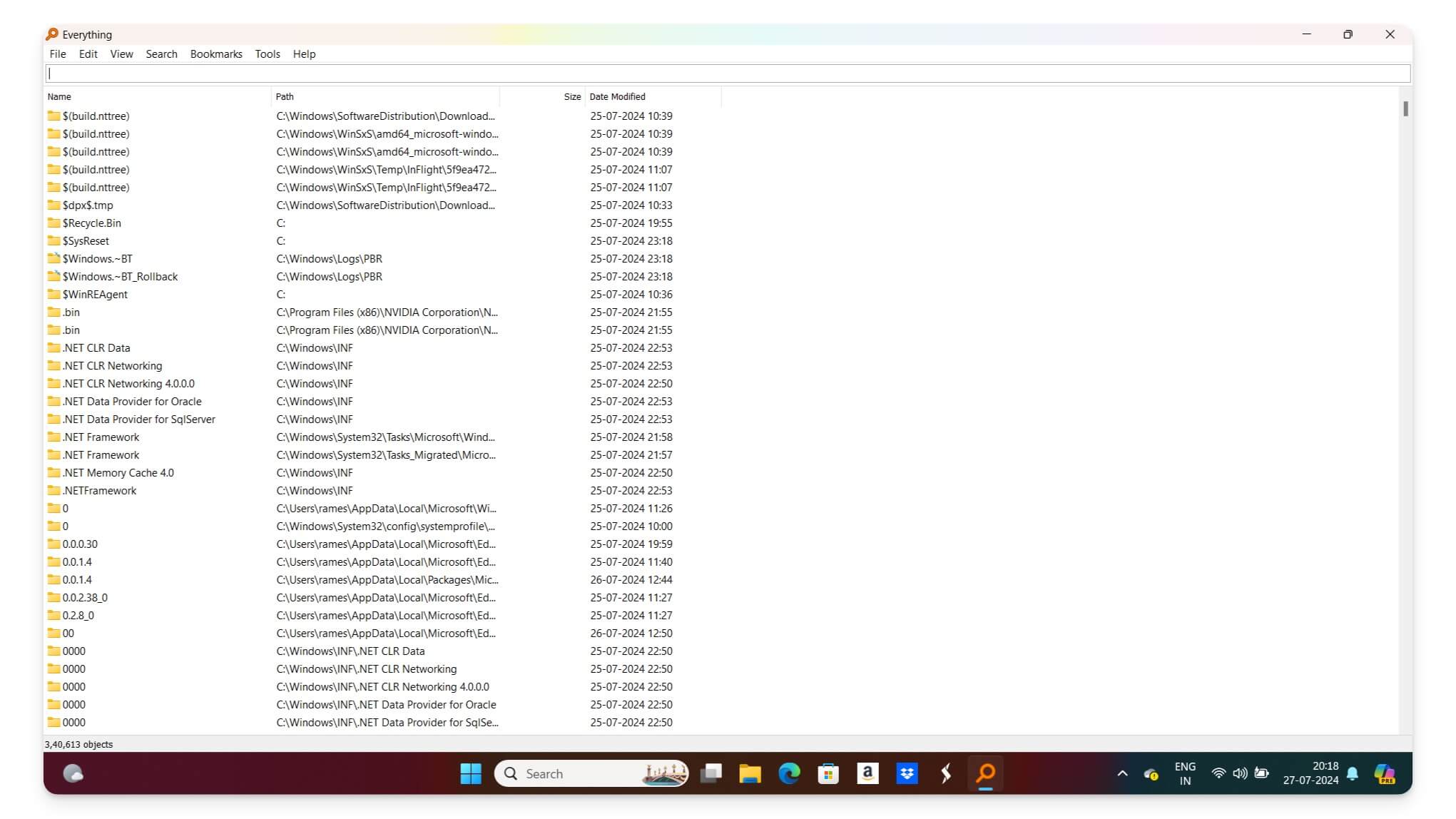
Everything solves my biggest problem with the current Windows search: speed. When I started researching the best search tools for Windows, Everything was almost at the top of the list for every user.
For me, it addresses almost all the issues I had with the default Windows search. However, it has one limitation that might be a dealbreaker for some people. First, it is extremely fast and lightweight, allowing you to search Windows file names easily.
The interface is simple and uncluttered. You can install the app for free and start searching for files immediately. It has limitations, such as not searching within the content of files. It is limited to file names only. It is a great option if you’re looking for a simple and fast search tool for Windows that doesn’t support content search, which may not be a problem for you. In that case, you can opt for Everything.
Pros:
- Extremely fast.
- Lightweight with minimal system impact.
- Simple, uncluttered interface.
- Real-time search results.
Cons:
- Cannot search within file contents.
- Limited to file name searches only.
Listary: Finder-Like Search Tool for Windows Users

Highlights:
- Price: Free, Pro version available
- Search Indexing Type: Custom indexing
- Search Capabilities: Real-time search, customizable, instant access
- File Format Supported: All file types
As someone coming from a Mac, my search for a simple and easy file search tool similar to Finder on Mac didn’t stop until I found Listary. Here are a few things to mention before discussing how it works. First, it is free to use, and the installation is straightforward. It’s one of the few search tools you can use without any learning curve.
If you have ever used Finder on Mac, Listary behaves similarly, but for Windows, it works great. If you haven’t used Finder, here is what Listaryoffers. It uses a spotlight search tab to help you search files from any tab. It also offers a separate search directory to filter searches with advanced features.

The free version is more than enough if you want a simple file directory finder for your Windows. A pro version also offers custom filters, advanced indexing, custom actions, and theme support if you want to match your dark or light Windows theme.
Pros:
- Fast and easy to use.
- Finder-like functionality for Windows.
- Instant search with the double control button.
- Customizable search directory.
- Modern Interface.
Cons:
- A pro version is required for advanced features.
Agent Ransack: Search Content Within the Files
Highlights:
- Price: Free, Pro version available
- Search Indexing Type: On-demand indexing
- Search Capabilities: Advanced filters, search within file contents, Boolean operators
- File Format Supported: Multiple file types
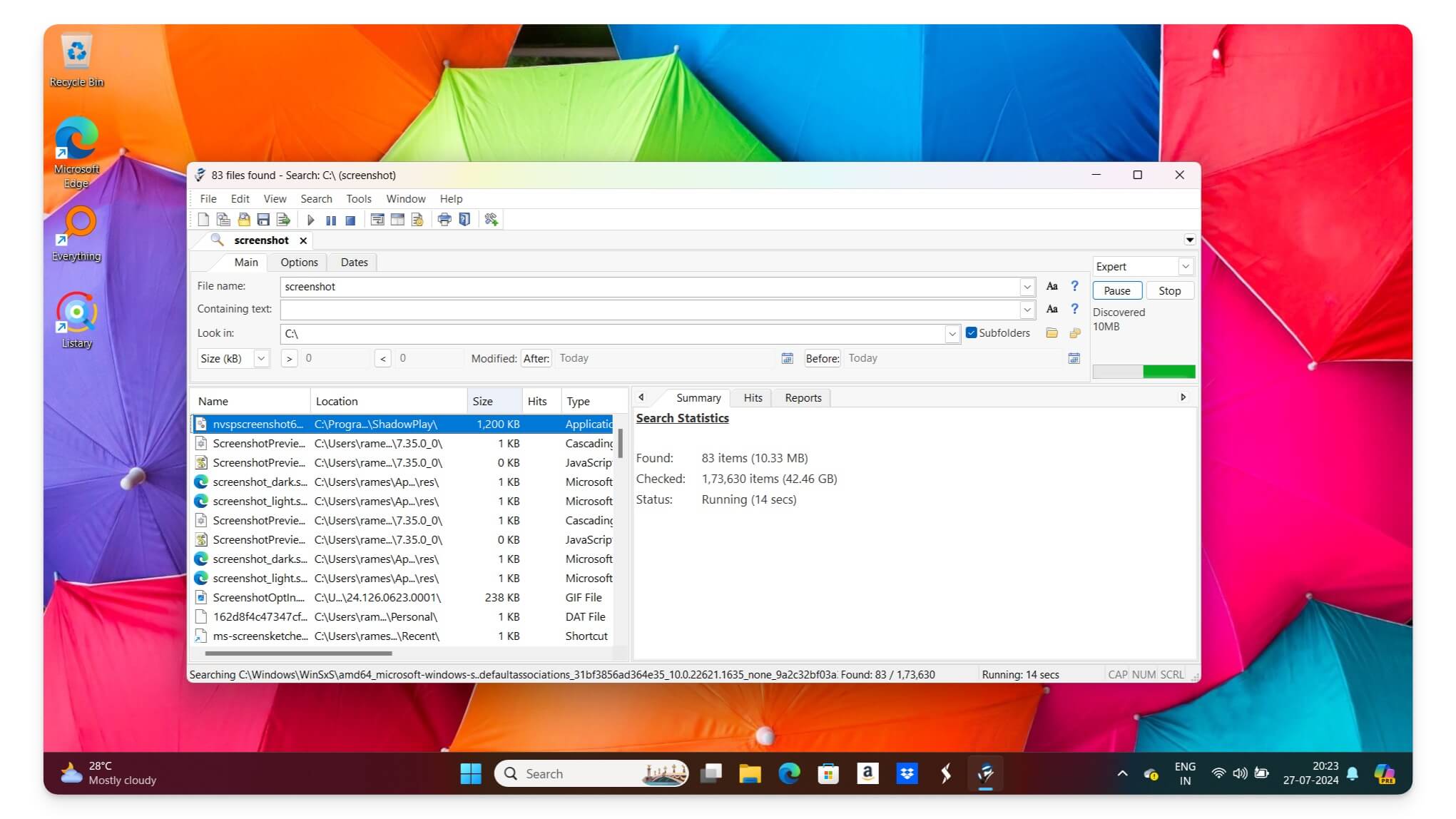
Agent Ransack is the best option if you are looking for a tool to search content within the files. It supports advanced search operations and filters and can search within file content.
The only concern with the app is its design, which can be overwhelming to use at first. When I first used the app, It took minutes to find the search button. The interface looks good, but finding functions might be hard if you use it for the first time. It doesn’t offer real-time search results. It displays results after clicking on the search icon.
It comes in both free and paid versions. The free version is enough for a regular user to search files, including file contents. It performs well. Searching within file content can take time and use system resources.
Pros:
- Powerful search capabilities.
- Can search within file contents.
- Free version available.
- Advanced filters and operators.
Cons:
- It can be resource-intensive during content search.
Seekfast: Instantly Search Files Within Folders

Highlights:
- Price: Free, Pro version available
- Search Indexing Type: Indexed file content search. Does not support real-time search.
- Search Capabilities: Customizable filters, search within file contents.
- File Format Supported: Multiple file types (doc, PDF, .xls and more)
If you frequently search files within a folder, Seekfast is the best option. Unlike other search tools, which only match the file names, Seekfast works by indexing the folders and displays relevant results, similar to Google search results. The search results are fast, However, the biggest downside of using this method is that it doesn’t support real-time file search. To find new files, You need to reload the selected folder and search for the file.
It offers advanced search options, including the ability to filter search results, find files using different file types, preview the files without opening them and more. The user interface is also minimal with simple search options and search history. The free version allows you to search for 50 files. If you want to search more files, you can opt for the premium version with a one-time fee and lifetime updates.
Pros:
- Relevant search results
- Instant search results within the folders.
- Advanced filters.
- One time subscription fee with life time updates.
- Preview files without opening them.
Cons:
- No realtime search
- Requires time to index large folders.
UltraSearch: Great for Quick Searches on NTFS Drives

Highlights:
- Price: Free
- Search Indexing Type: Direct MFT access
- Search Capabilities: Real-time search, file name search
- File Format Supported: NTFS only
If you are looking for a quick search tool for Windows, UltraSearch is the best option. The name doesn’t imply what UltraSearch is made for, so let me explain. Traditional search tools use an indexing search method, but UltraSearch uses the Master File Table (MFT) of the NTFS file system to search files directly. This direct access method allows UltraSearch to perform searches extremely fast without any delays that can occur with traditional indexing tools.
Due to its simplicity, it also has limitations, such as it doesn’t offer advanced search capabilities, which also results in ease of use. It is straightforward and user-friendly. As you type your query, you can see the results instantly. You can also preview the files on the side.
The interface is very beginner-friendly, and you can select filters to include or exclude files and search content within the files. You can also add filters to refine the search. However, there are some limitations you should have if you want advanced search options.
UltraSearch works by accessing the Master File Table specific to NTFS systems. It cannot search other file systems such as FAT32, exFAT, or ReFS. Due to direct access to the MFT, it doesn’t store any pre-indexed database, meaning you can only search files on disks currently connected to the computer. You cannot search for its contents if the device is disconnected or offline. Also, if you have USB or external devices formatted in other systems, files commonly used between Windows and Mac aren’t supported by Ultrasearch.
UltraSearch is more suitable for users who want to search locally with direct access and who don’t require advanced capabilities. It has some limitations, but the bright side of the tool is its speed and suitability for specific uses.
Pros:
- Extremely fast
- No need for indexing.
- Real-time results.
- Simple, user-friendly interface.
Cons:
- Limited to NTFS file systems.
- Cannot search within file contents.
File Seek: Best for Customizable and Filtered Searches

Highlights:
- Price: Free, Pro version $57 (one-time fee)
- Search Indexing Type: On-demand indexing
- Search Capabilities: Customizable filters, search within file contents, real-time suggestions
- File Format Supported: Multiple file types
If customized search filters are your top priority, you should consider FileSeek. This tool allows you to customize your file search with plenty of filters. You can include or exclude various terms, add date filters, and even filter based on file size. It also supports multiple formats and can search within files.
The search is generally fast most of the time; however, it sometimes shows completely different results. It supports real-time search results. You can use, stop, or add a new search instantly.
The tool is available in both free and paid versions. The free version is quite powerful, offering most of the essential features. However, the premium edition includes additional features and advanced filtering options.
Pros:
- Highly customizable
- Can search within file contents
- Real-time search suggestions
- Supports multiple formats
Cons:
- The interface is not fully modern
- Pro version required for advanced features
Quick Search from Glorysoft: Fast and Simple File Search for Windows

Highlights:
- Price: Free
- Search Indexing Type: Custom indexing
- Search Capabilities: Fast search, advanced mode
- File Format Supported: All file types
If simplicity is still your priority and you are looking for a straightforward tool, you might want to check out the Quick Search for Windows. It offers an easy-to-use interface and can instantly find files you are looking for. It offers a user-friendly experience. You can also preview the search results on the right side.
The tool also includes an advanced mode to narrow down results. However, there are a few instances where the tool went unresponsive while searching files; this happened several times and was quickly resolved after restarting my PC.
If you are trying this tool, restart your laptop if you face any errors while searching files. Apart from this issue, the app is great for beginners and people looking for a simple and instant search tool for Windows.
Pros:
- Fast and efficient.
- Simple, user-friendly interface.
- Advanced mode for detailed searches.
- Free to use.
Cons:
- Limited advanced functionality.
- Unresponsive in a few cases.
Fluent Search: Offer the Same Windows Search Experience
Highlights:
- Price: Free
- Search Indexing Type: Integrated with Windows elements
- Search Capabilities: File, app, process, bookmark, and web search, real-time updates
- File Format Supported: All file types
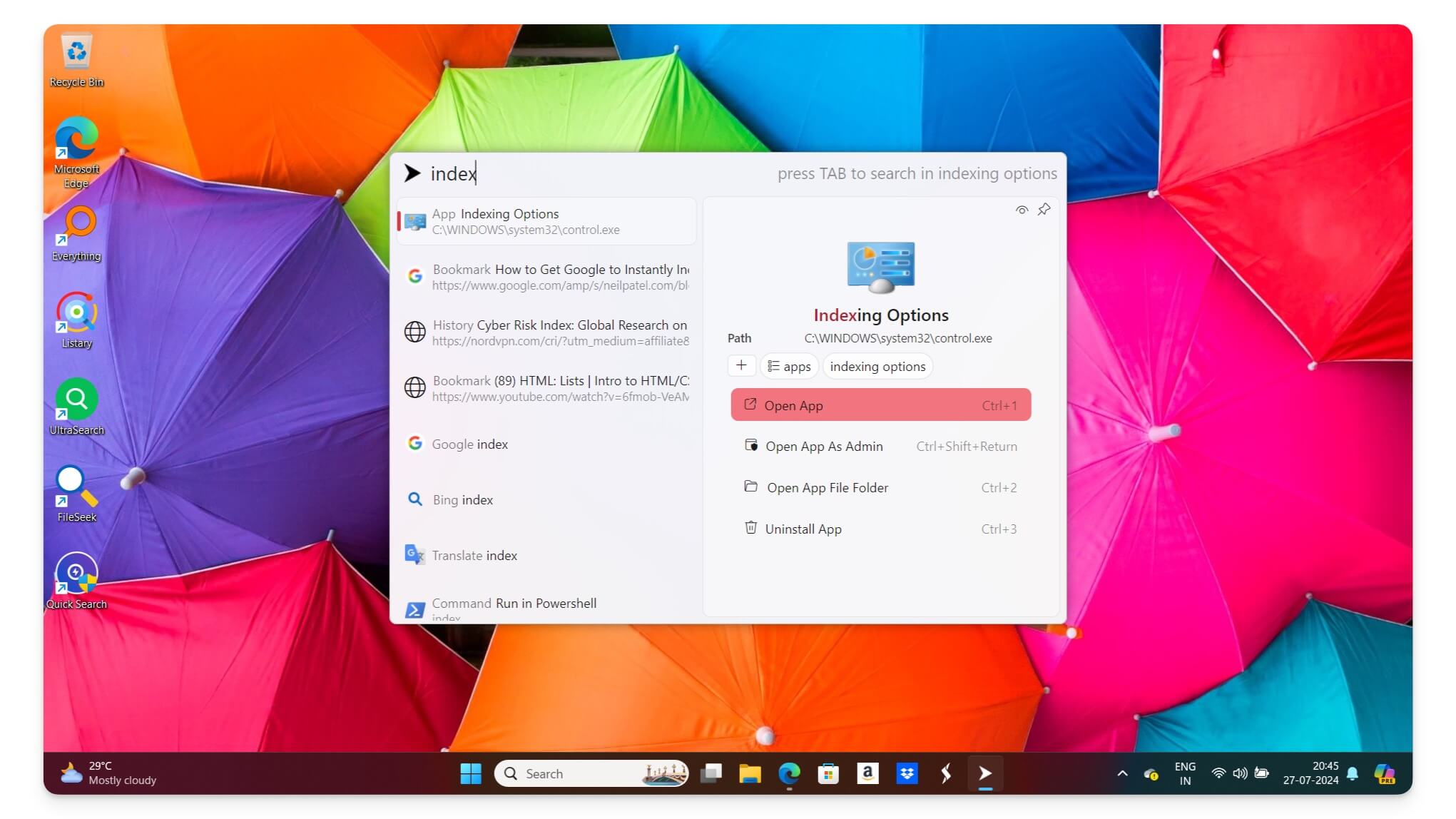
If you don’t want to deviate from your Windows Search experience, Fluent Search might be your better option. It looks and feels like Windows Search but fixes your device’s current Windows Search problems. It easily integrates with the elements of Windows 10/11. It looks exactly like a Windows search.
Using Fluent Search, you can search for files, running apps, processes, bookmarks, and even web results directly from the app. You can add filters to your search and customize the interface to your preference. It also has helpful built-in tools like a mini calculator that automatically displays mathematical results for quick calculations.
Fluent Search is open-source and free for Windows 10 and Windows 11. Remember that it does not replace the existing Windows Search (Like other tools); you must use it alongside the existing Windows Search. However, you won’t find any difference because it looks and feels almost the same as Windows 11, matching the modern Windows 11 experience elements.
Pros:
- Integrates well with Windows.
- Comprehensive search capabilities.
- Real-time updates.
- Free and Open-source.
Cons:
- Does not replace existing Windows Search.
- It may require some learning for customization.
Wizfile: Best Search Tool if You Often Modify Files

Highlights:
- Price: Free
- Search Indexing Type: Direct MFT access
- Search Capabilities: Real-time updates, customizable filters
- File Format Supported: NTFS only
If you often modify files and need a search tool that offers updates and real-time search results, Wizfile is the best option. Wizfile uses direct MFT (Master File Table) access, which reads the Master File Table from NTFS file systems to offer fast search results. You can also customize the results with filters, date created, modified, and more.
However, there are some limitations due to its reliance on MFT access. Wizfile cannot search files on FAT32 or other non-NTFS file systems. It requires administrator rights to search files. Additionally, it doesn’t have a built-in search to find content within the files. If those features don’t limit you and you are looking for a simple tool to search modified files instantly, Wizfile is the best option.
Pros:
- Extremely fast.
- Real-time updates.
- Low resource usage.
- Customizable filters.
Cons:
- Limited to NTFS file systems.
- Requires administrator rights.
SearchMyFiles by NirSoft: Find and Remove Duplicate Files

Highlights:
- Price: Free
- Search Indexing Type: On-demand indexing
- Search Capabilities: Advanced filters, search within contents, duplicate search
- File Format Supported: All file types
I initially considered recommending a complete duplicate file finder at the end, as managing duplicate files from the built-in search can be harder. However, I was skeptical about whether to recommend this. However, while researching, I found SearchMyFiles by NirSoft, and I was surprised by the number of features this tool offers.
First, it has advanced search features to find files using wildcards, date modified, date created, and access time. There is an option called duplicate search, which helps you find duplicate files based on content or name. You can add detailed filters to find exactly what you’re looking for. If you want, you can also export the search results, share them with others, and generate reports on your results.
Pros:
- Advanced search options
- Can find duplicates
- Portable
- Detailed filtering
Cons:
- Basic interface
- It may require initial learning for advanced features
Quickly Find Files and Folders Without Long Wait Times
You can use These nine tools to improve your search under Windows. Most are free and work much better than the standard Windows search. However, one big problem with these tools is that you have to use them alongside the Windows search; there’s no way to set them as the default search for Windows.

You can also improve the current Windows search by going to Settings > Search and enabling the option to search within file contents and other optimizations. This way you can improve your search if you accidentally use the default Windows search. Let me know how helpful you find this list and if you have any solutions or suggestions, feel free to comment below. I’m happy to help and hear from you.

