

Threads, a social media platform developed by Instagram, took the world by storm, with 100 million signups in just one week after its launch. This rapid success is due to Instagram’s effective promotional efforts. Much like Twitter allows you to share your thoughts, photos, and videos, Threads provides a similar platform for sharing. The Threads app can basically be considered a competitor to Twitter, as it was launched with a similar vision.

Online discussions in Threads have become an important source of valuable information and stimulating conversations. Often, these discussions also include multimedia content such as videos, which can be a real treasure trove of knowledge. Therefore, there is a desire among many people to download these videos.
Although the app is excellent in many ways, it has one limitation: there is no easy video download feature. If you are facing this challenge, you don’t need to worry. In this article, we will introduce you to five smart ways to download videos from the Threads app. Also, we’ve explained a bonus method you can use to download Threads videos from a Telegram bot.
So, without further ado, let’s dive in.
Table of Contents
How to Download Videos From Threads
If you’re interested in downloading tutorials, entertaining clips, or motivational videos, you can effortlessly expand your video collection with these methods.
Download Videos From Third-Party Apps
Whether you use an Android smartphone or an iPhone, you can download videos from Threads using third-party apps. We’ve provided recommendations for apps that are suitable for each device and instructions on how to download videos using those apps.
For Android Users
If you have an Android device, you can download videos using apps like Video Downloader for Threads. However, it’s important to remember that these apps contain ads that can interfere with your experience. If you find the ads annoying, you should look for an alternative app that offers an ad-free experience or consider paying for the premium edition of these apps to eliminate the ads and enjoy downloading videos continuously. Now follow the general steps to download videos from third-party apps.
- Install the Video Downloader for Threads app or any other app from the Google Play Store that you prefer.
- Launch the Threads app on your Android device and locate the video you want to download.
- Tap the Share option in the video you want to download. A list of menus will open.
- Now tap Copy Link and open the Video Downloader app.
- Paste the link in the “Enter Thread link” field and tap Download.
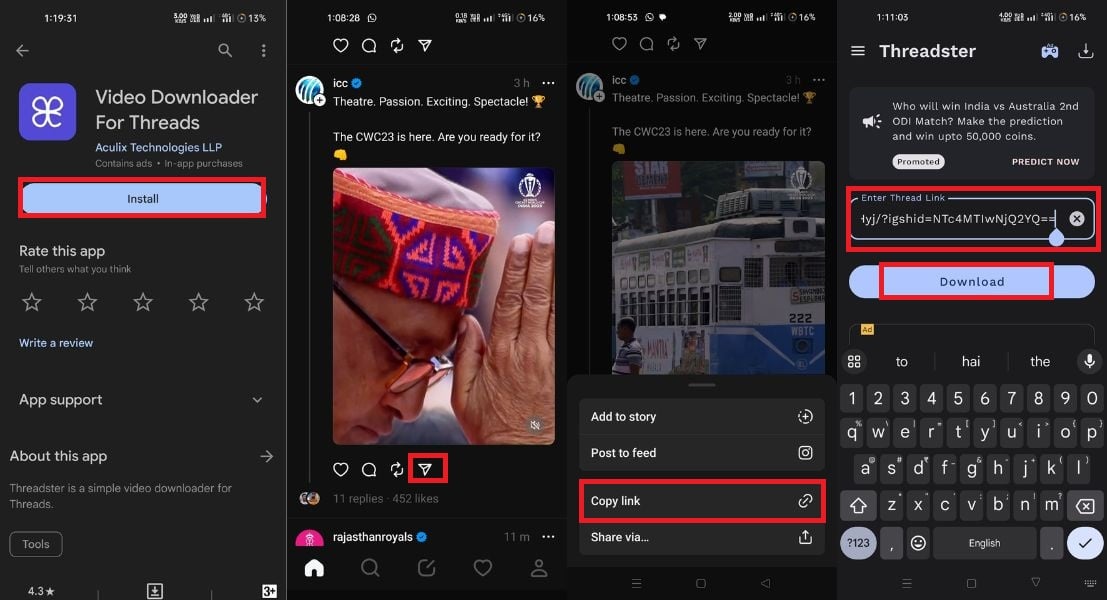
- Now, you can access the downloaded video in the gallery of your device.
For iPhone Users
iPhone users have access to handy apps like All Video Saver to download videos from various sources. If you frequently use Threads and various social media apps and want to download videos from these platforms, All Video Saver is an excellent choice. With this app, you can not only download videos from Threads but also save videos from a variety of social media platforms. Whether it’s Facebook, Instagram, or Twitter, you can even download videos from popular platforms like YouTube. Let’s go through the steps to download videos from the All Video Savers app.
- Open the App Store on your iPhone.
- Search for the All Video Saver app and download it.
- Launch the Threads app on your iPhone.
- Find the video you want to download.
- Click the “Share” button and then click the “Copy Link” icon.
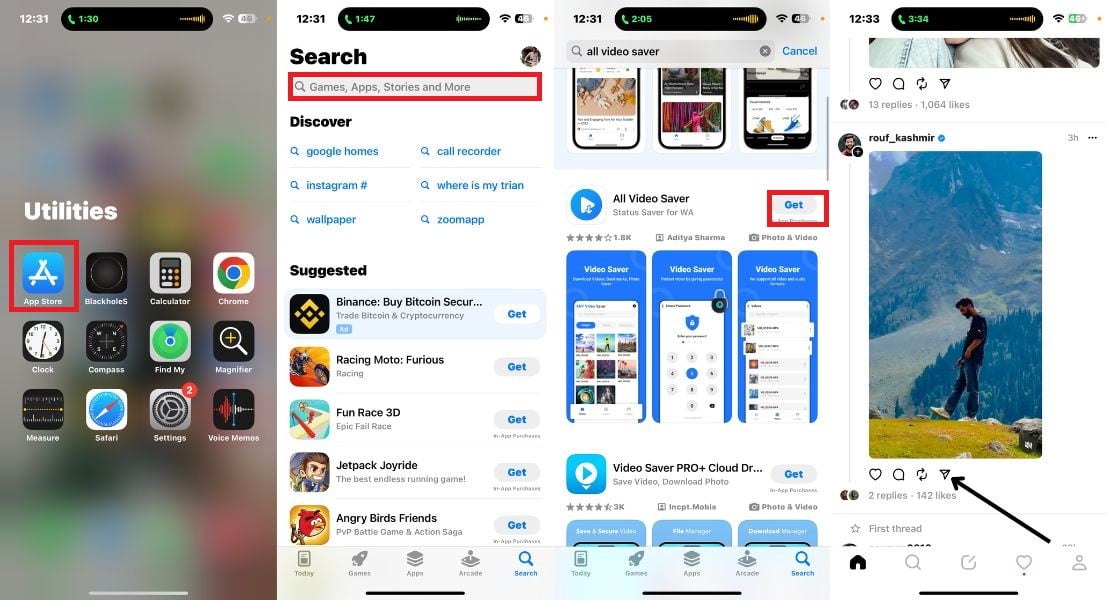
- Open the All Video Saver app.
- Paste the copied video link and click the Download button.
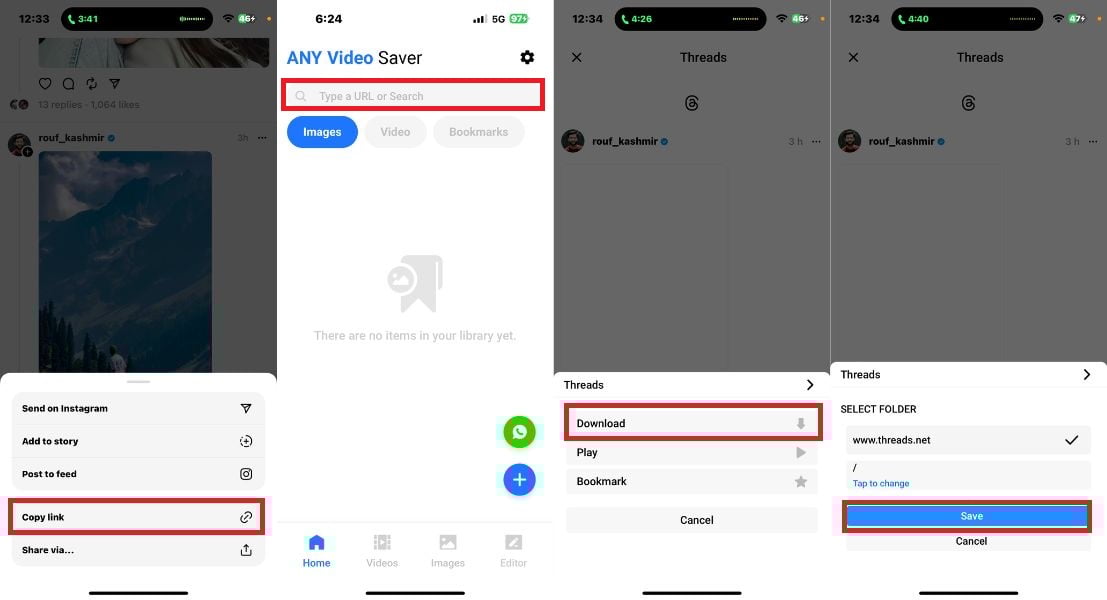
- Pull up your downloaded videos in the Video section.
- Tap on the video and click on the three dots icon in the bottom left corner. Then select Download.
- The downloaded video will now be saved in the Files app of your iPhone under the Downloads folder.
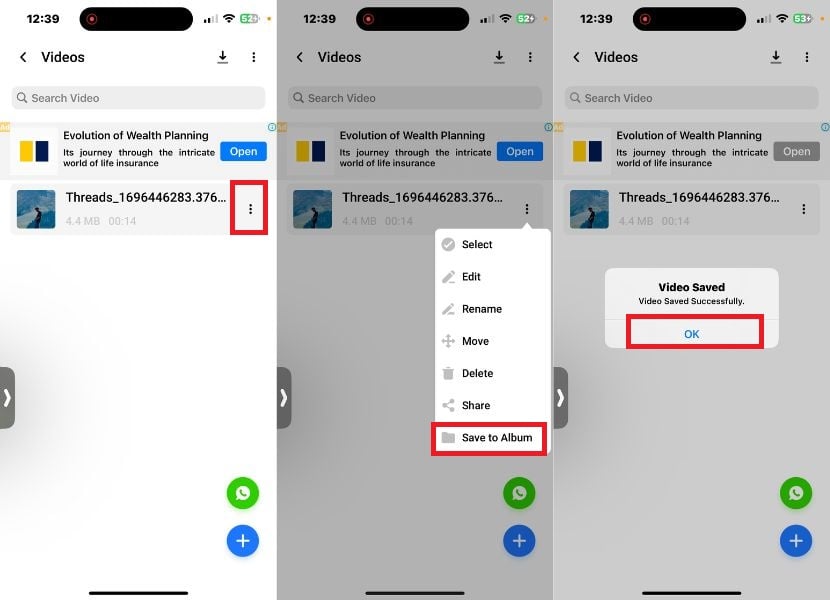
Download Videos From Third Party Websites
If you don’t want to install additional apps to download videos from Threads or find the app experience less appealing, there is an alternative solution: threadster.app. This website offers a hassle-free way to download videos from the Threads. Whether you use an Android device, iPhone, Windows PC, or MacBook, you can use this website to download your favorite videos from Threads. Now, let’s go through the simple steps to download videos from Threads via the threadster.app website, which is a convenient choice for users of various devices.
- Open the Threads app or website on your device.
- In Threads, navigate to the video you want to download.
- Tap the share icon and select Copy Link. This will copy the URL of the video to your clipboard.
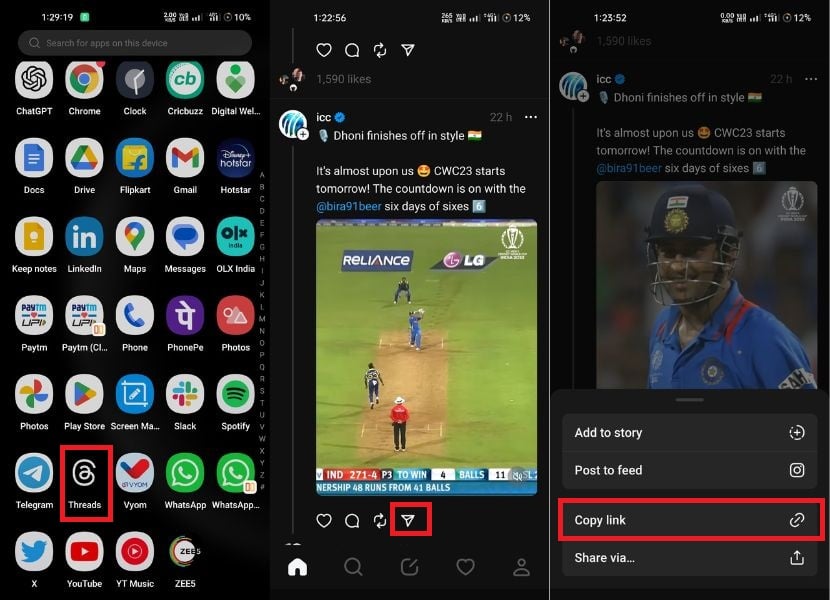
- Open a secure and well-functioning browser on your device and go to the threadster.app website.
- On the website, you’ll find a search box. Tap on it and paste the URL you copied.
- After you have pasted the URL, just tap the Download button.
- Now select the resolution and tap Download.
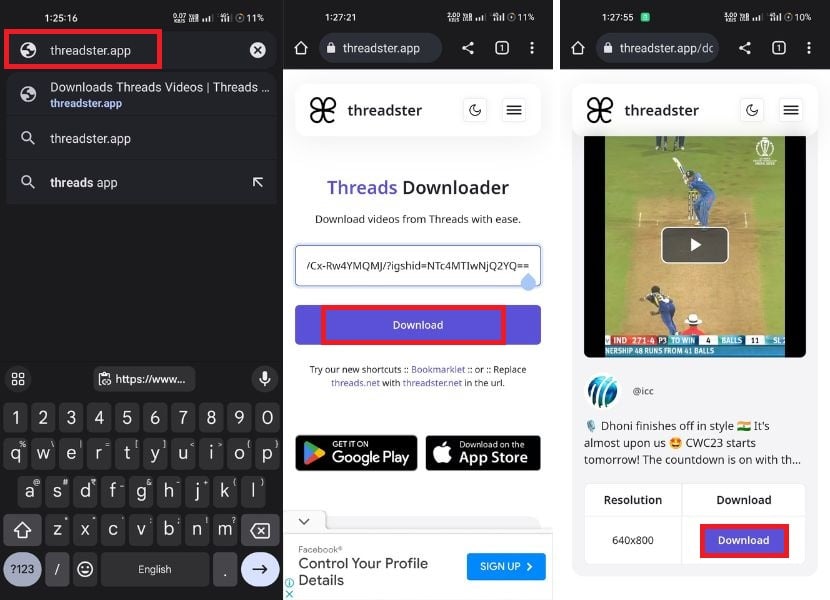
- After the process is complete, you’ll find the downloaded video on your device, either in your browser’s default download folder or in a location set in your browser’s settings.
Use Extention to Download Threads Video on PC
For PC users, whether you’re using Windows or Mac, downloading videos from threads becomes easy with a simple Chrome extension. This method eliminates the need for third-party applications and is compatible with almost any browser. By installing the Threads Video Downloader extension from the Chrome Web Store, you can conveniently download Threads videos directly from the Threads app. Follow the steps below to do so.
- Open a Chromium browser of your choice.
- Download and install the Threads Video Downloader – Threadster extension.

- Once you click Add to Chrome, a small confirmation popup will appear where you tap Add Extension.

- Now open the Threads website and search for a video you want to download.
- You’ll see a download icon near the share button. Click on the icon.

- This will redirect you to the threadster.app website.
- Choose the video resolution that suits your needs.
- Tap the Download button to start the download process.

- The video will be downloaded to your PC. You can find it in the download folder of your browser.
- Alternatively, you can search for the downloaded video in the file manager of your system.
Use Screen Recording
If you’re looking for a straightforward way to download Threads videos without having to do much more, you can use your device’s built-in screen capture feature. Follow the steps below to do so.
For Android
Most Android smartphones come with a built-in screen recording feature. This feature can be accessed directly from your device’s notification panel and allows you to record videos. Below, you will learn how to use the screen recording feature on your Android device to record Threads videos.
- Open the Threads app and capture the video you want to record on your screen.
- Swipe down from the top to access the notification panel.
- Look for the screen recording icon and tap on it.

- Now click on the red icon that is usually located in one of the corners of the screen (either right or left). This indicates that the screen recording has started.
- To end the recording, simply tap the red button again.
- To access the recorded video, navigate to your smartphone’s gallery app or file manager. You can usually find the video there.
Depending on the device, screen recording may include additional content before and after the recording. You can trim or adjust the video using editing apps if needed.
For iPhonе
Similar to Android devices, iPhonеs also offer a built-in recording feature that lets you record Threads videos without the need for additional apps or websites. With this feature, you can record both video and audio.
- Launch the Threads app, and the video you want to record should be on your phone.
- Now swipe down from the top right corner to opеn thе Control Cеntеr.
- Tap on thе scrееn rеcording icon. It will look likе a circlе insidе anothеr circlе.
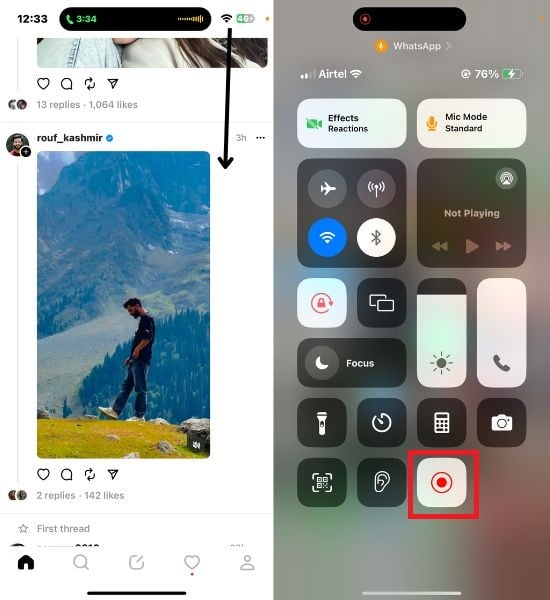
- If you can’t find it, you can add it to the Control Center in your iPhonе’s settings.
- To add it, go to Settings > Control Cеntеr > Customizе Controls, then tap the green plus icon next to Scrееn Rеcording.
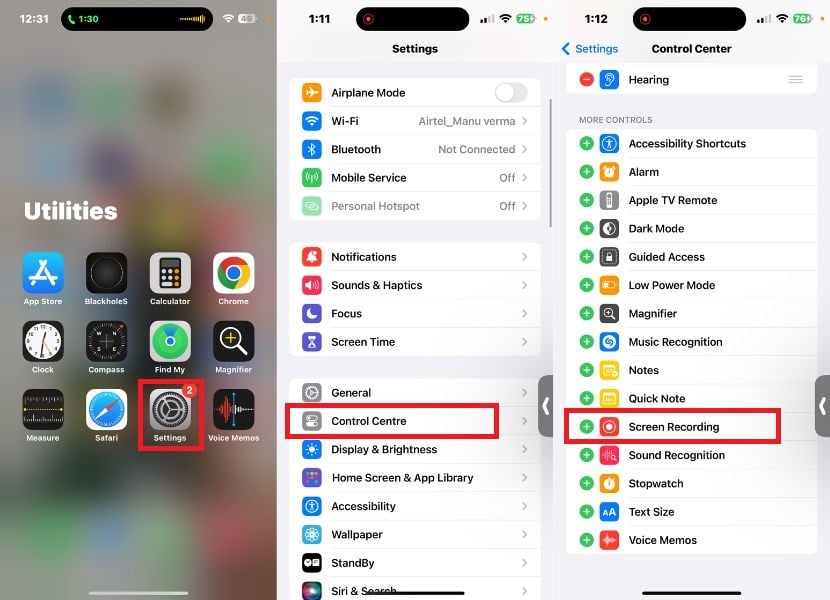
- After you tap the icon, a countdown will appear, giving you a few seconds to get ready.
- Once the countdown is over, your iPhone will start recording everything on your screen, including the Threads video.
- To stop recording, tap the red status bar at the top of the screen. You’ll get a confirmation message; tap Stop to stop recording.
- Your recorded video will be saved in the Photos app on your iPhone.
Use the Inspect Element Tool Method
If you’re looking for a way to download Threads videos to your PC and have already tried other methods, such as third-party websites and Chrome extensions, but are still looking for an alternative, the Inspect Element method might be your answer. With this method, you can explore the inner workings of websites and download Threads videos with ease. Below, we’ll guide you through the necessary steps to use this method and download Threads videos to your computer. Follow the same steps to do that.
1. Open threads.net in your browser.
2. Find the video you want to download.
To download the video, you need to go to the profile of the user who posted it. This means that even if you refresh the browser after opening the Inspect Item tool, you’ll be prompted to go to the same handle. After that, you’ll have to scroll through the handle again to find the video you want to download.
3. Find the video you want to download from the handle.
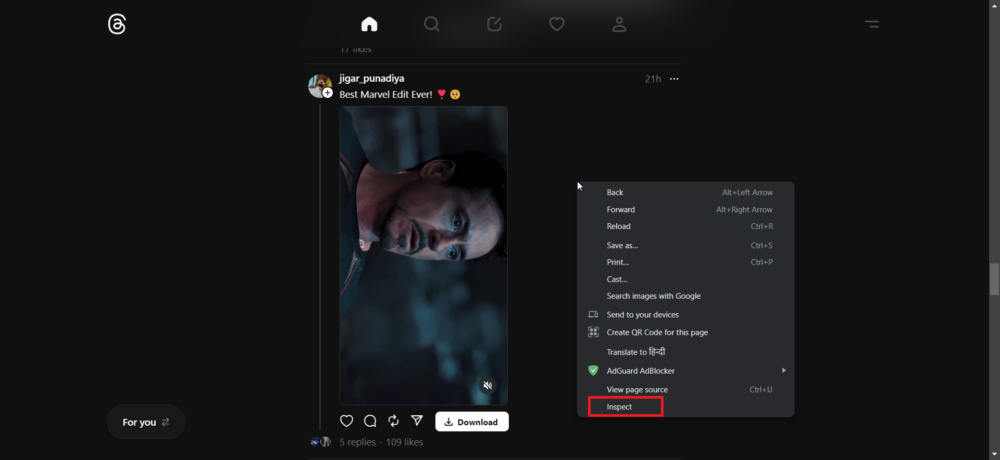
4. To access the video’s code, simply right-click on the video, which will bring up a small menu. In this menu, select the Inspect option. Alternatively, you can use the following keyboard shortcuts: On Windows, press Ctrl+Shift+C and on macOS, press Cmd+Option+C.
5. Navigate to the Network tab in the Inspect Item section and refresh the web page so that the browser can reload the resources.
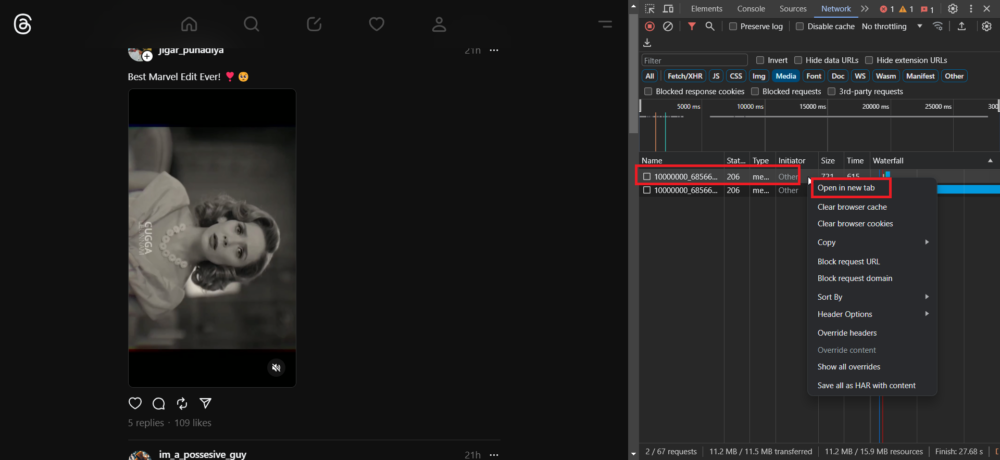
6. Among the available resources, you can narrow down your selection to those that are marked as media. There may be several resources that fall into this category. Open each resource until you find the one with the video link you want to download.

7. Once you find the video you want to download, right-click the resource and choose Open in New Tab from the available options to open the video in a new browser tab.
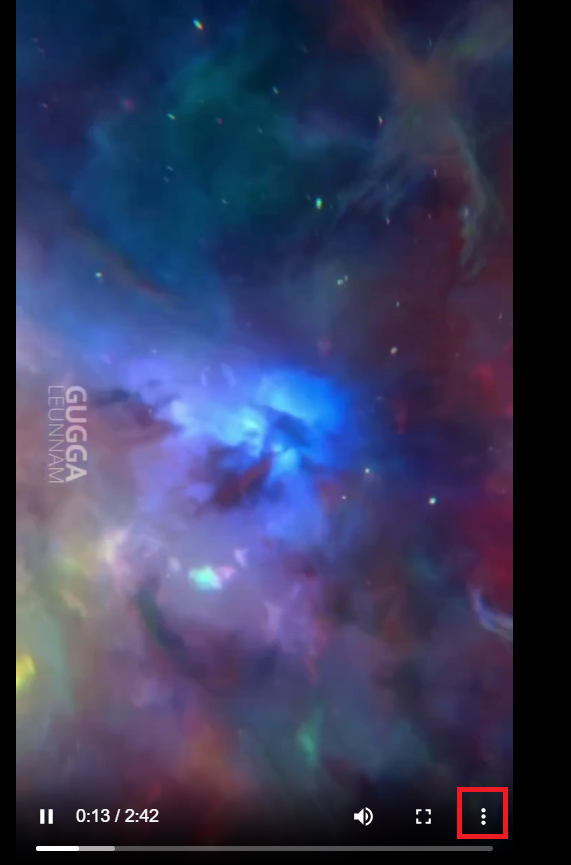
8. Once the video opens in a new tab, you’ll see three dots in the bottom right corner of the video player. Just click on these dots, and when a small menu appears, select the “Download” option to start downloading the video.
Bonus: Download Threads Videos Using Telegram Bot
Telegram is a customizable messaging platform that offers several features, including bots that can help you manage and access content. If you’re already a user of the Telegram app, you don’t need to install any additional software. Our team did some research and found a Telegram bot that lets you download videos from Threads effortlessly.
If you’re a content creator, a media enthusiast, or just want to save interesting videos for later, this guide will give you the know-how you need to make the most of Telegram’s capabilities. Follow the steps below to download videos from threads using the Telegram bot.
- Open the Telegram app on your phone.
- Tap on the search icon and search for @InstaPicoBot.
- Find the bot and open it.
- Click Start to begin the chat.
- When you click the Start button, you’ll immediately receive a message from the bot asking you to join the sponsored channel to get free access to the bot.

- If you want to download Thread videos through this bot, you have two options: Click the ‘Join the channel’ button to take over the sponsored channel and download the desired video for free, or select ‘Use the bot without joining the channel’ to make payment in Rial or crypto.
- If you choose ‘Use the bot without joining the channel”, the bot will prompt you to select a payment method, with options like ‘Pay with Rial’ and ‘Pay with Crypto.’ You can then proceed with your preferred payment method.
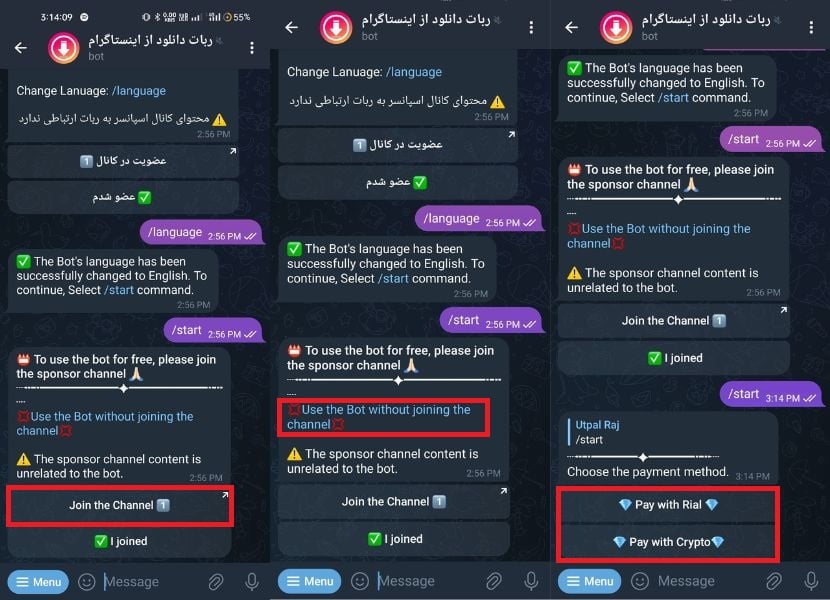
- If you don’t want to make a payment, you can also select ‘Join the channel’ to become a member of the channel. After that, return to the bot and click the “I’ve joined’ button to continue.
- You’ll then receive a welcome message from the bot and detailed instructions on how to copy and send the link of the post or story you want to download.

- After you send the video link from the Threads app, you should be patient because the processing time depends on the quality and duration of the video.
- After that, the bot will send you the same video. To access different options and perform the desired action, such as downloading the video to your download folder or directly to your gallery, click the three dots in the upper-right corner of the video.

Threads Video Download Made Easy
We have presented five working ways to download videos from the Threads app. We also presented an additional method for downloading Threads videos using a Telegram bot. These methods provide users with a number of options to effortlessly save their favorite content and enhance their experience with the Threads app. We hope this will help you download videos from Threads.
FAQs about Threads Video Download
1. Is it possible to download videos from Threads if the user has set their profile to private?
If a user’s profile in Threads is set to private, you cannot download their videos using the usual methods.
2. Are there any risks of malware or viruses associated with third-party video downloaders or websites for Threads videos?
There is some risk of malware or viruses with third-party video downloaders or threaded video websites. Third-party video downloaders aren’t affiliated with Threads and may not be as secure as the official Threads app.
3. Can I download Threads videos with subtitles or captions?
Downloading Threads videos with subtitles or captions depends on whether or not the original video contains them. However, if the video doesn’t have subtitles, they’ll not be added during download.
Further Reading:
- How to Block/Unblock Someone on Threads App
- How to Mute or Unmute Someone on Threads
- How to Deactivate or Delete Threads Account
- Best Ways to Save Twitter Threads/strong>

