

Quick Answer
If Meta starts using your off-site activity in July 2026 to personalize Facebook and Instagram content, you can opt out via Accounts Center. Just go to Your Information & Permissions → Activity from Other Businesses and select “Don’t allow Meta to use this activity to show your relevant content.” This stops Meta from using data from third-party websites and apps to tailor your feed.
Starting in July 2026, Meta is going to use your offsite activities to personalize your Instagram and Facebook feeds.

If you visit businesses’ websites, apps, and services that use Meta’s tracking tools like Pixel, you will share your activity on their services with Meta.
Meta will use that activity data to recommend posts and reels on your Instagram or Facebook.
Meta already uses that data to offer personalized ads on Meta platforms and now plans to use it to suggest content.
Table of Contents
How Meta Collects and Uses Your Offsite Activity
For instance, let’s say you are searching for a camping tent on any website that uses Meta Pixel tracking activity; the website collects your activity and shares it with Meta. Meta can then read that data to suggest Reels or posts related to camping or other relevant posts related to tents.
In addition, Meta also uses data for Meta AI responses. If you ask any camping questions, it can use the data from those websites to answer your queries. Basically, with all this data, all of your Instagram and Facebook Reels and posts are just organic ads.
This comes before Instagram began letting you adjust your algorithm, though we should see how well the new algorithm tweaking actually works.
Fortunately, for now, there is an easy way to prevent Meta from tracking your activity outside Meta platforms.
You can easily turn this off in both the Instagram and Facebook account center settings. I am going to show you how to do it in both of these apps.
Remember, turning off the setting on one app also disables it on the other app. If they are connected to the same Meta Accounts Center, otherwise, you need to individually turn off the settings on both platforms if you use separate accounts.
How to Disable Activity From Other Businesses on Meta
How to Turn Off Offsite Activity Tracking on Facebook
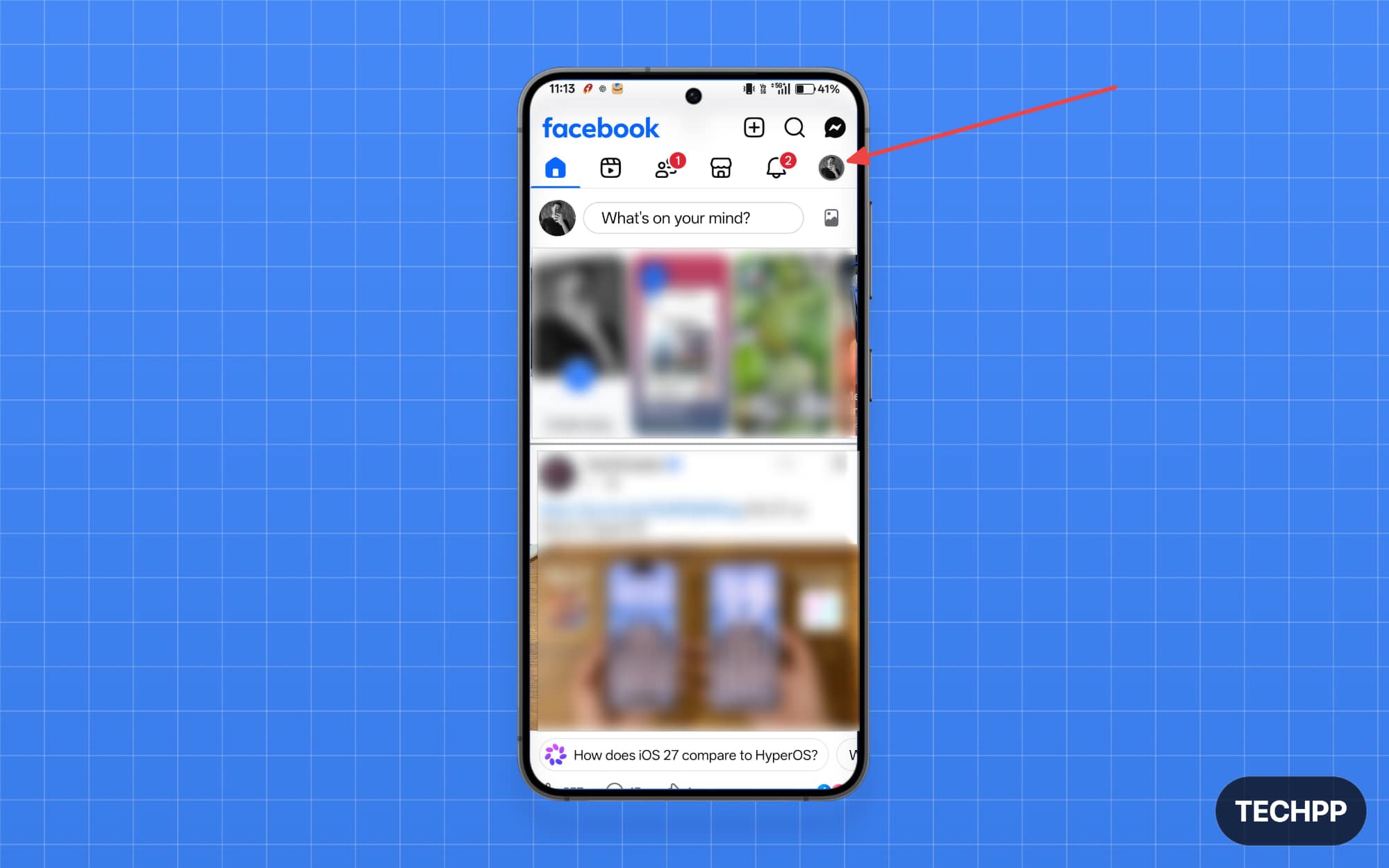
Step 1: Open the Facebook app and sign in with your account. Tap on your profile picture in the top right corner of the screen.
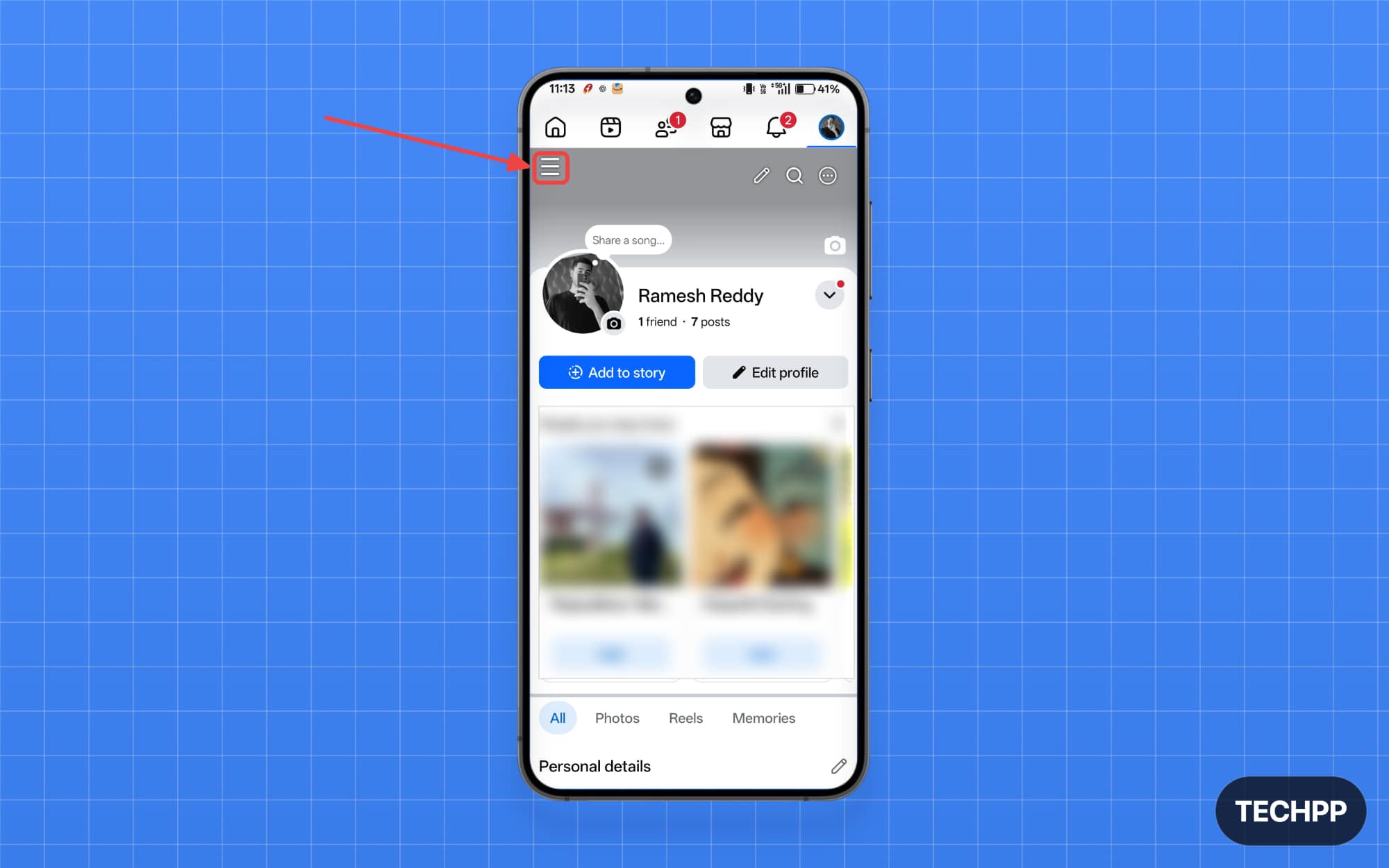
Step 2: Tap on the main menu.
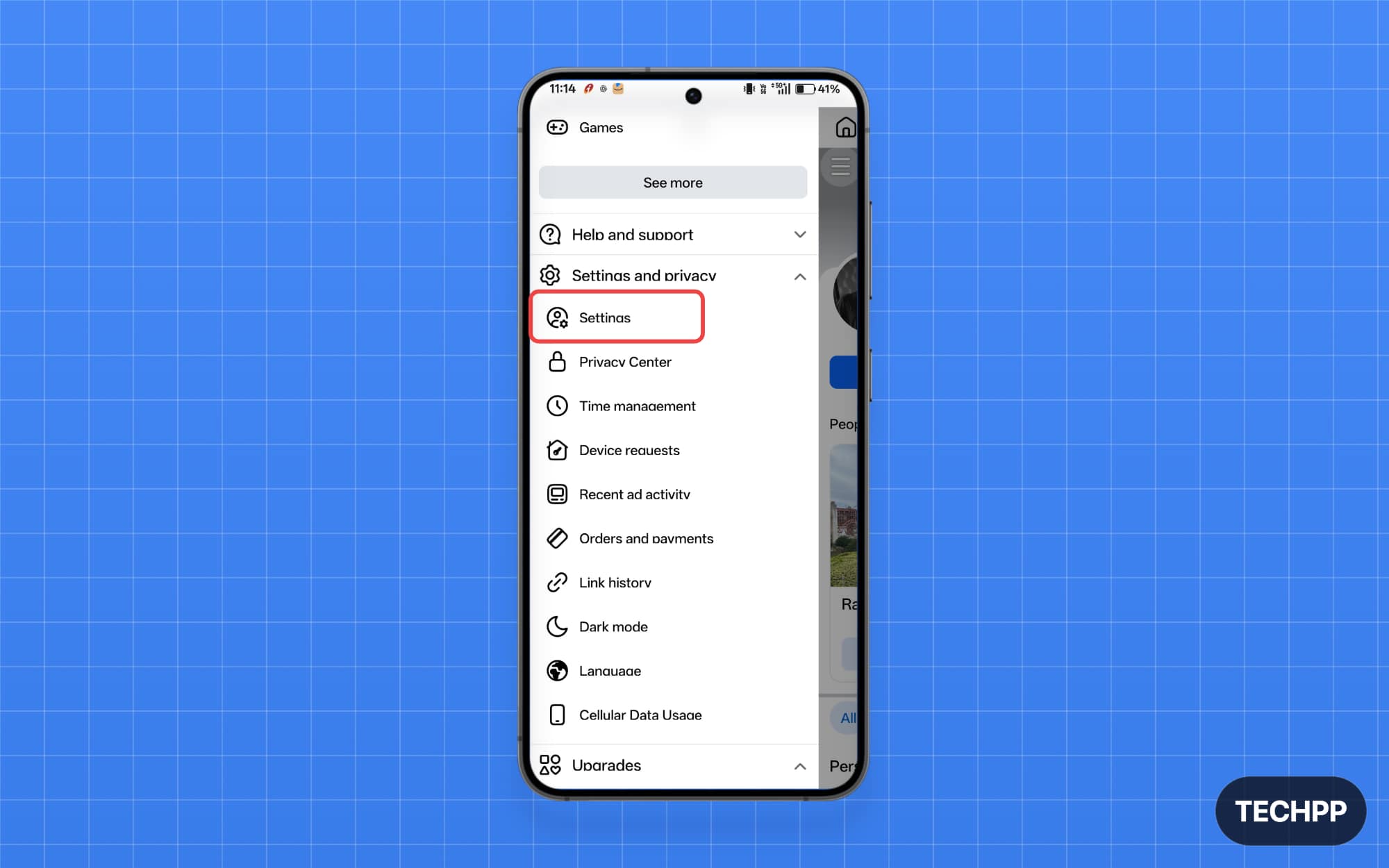
Step 3: From the sidebar, tap on Settings and Privacy, and from the drop-down menu, tap on Settings.
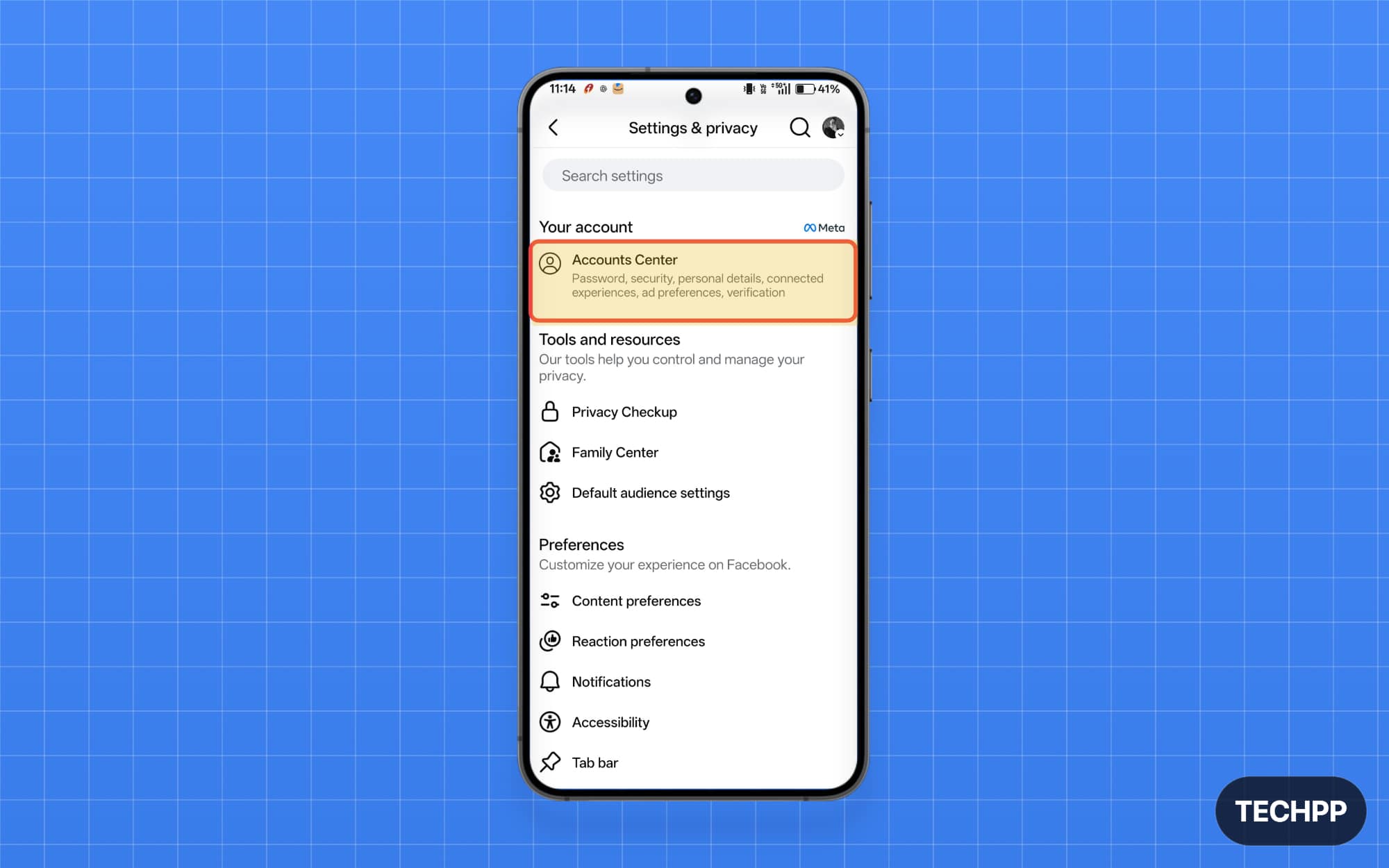
Step 4: Tap on the Account Center option
Step 5: Tap on Your information and permissions option.
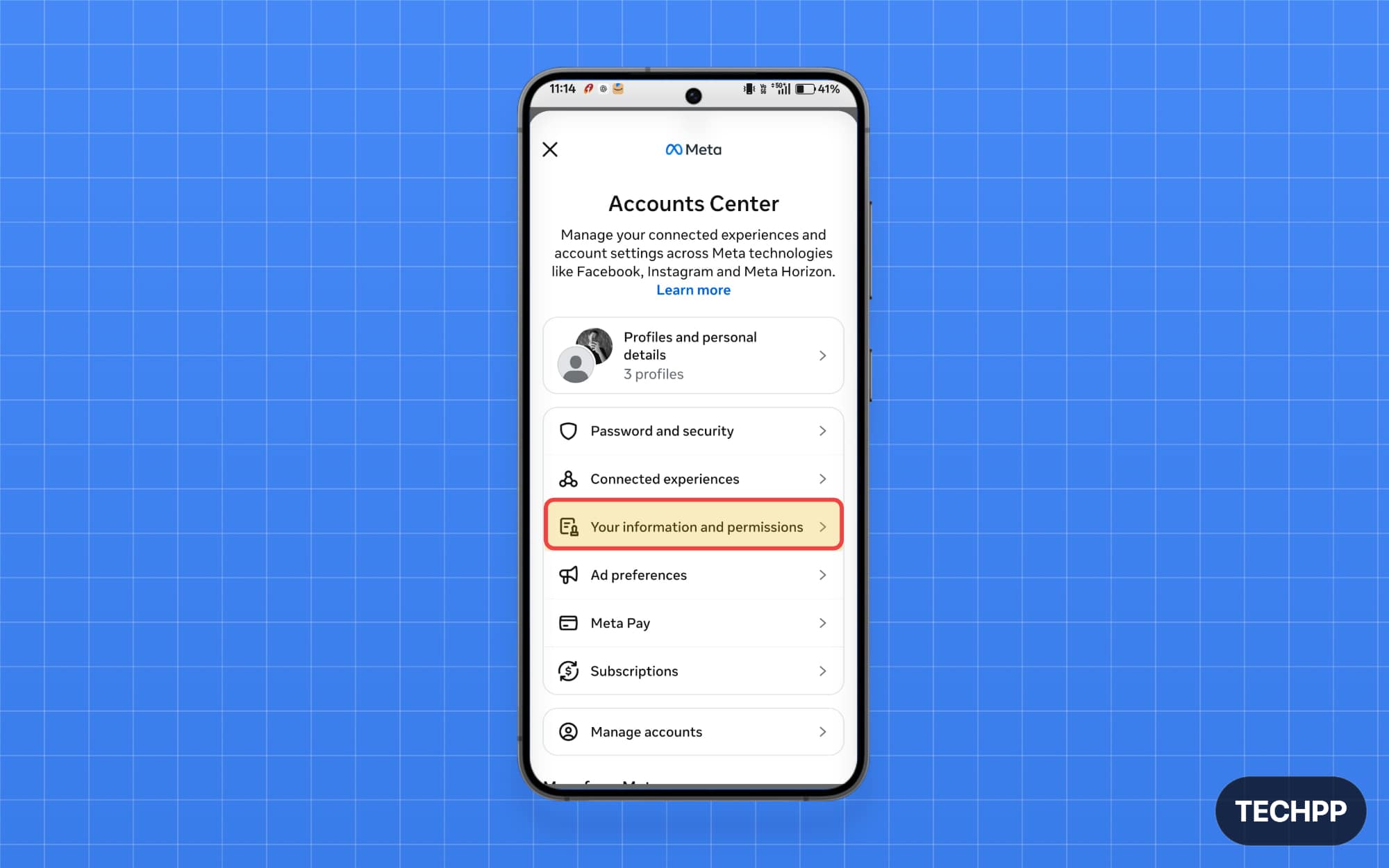
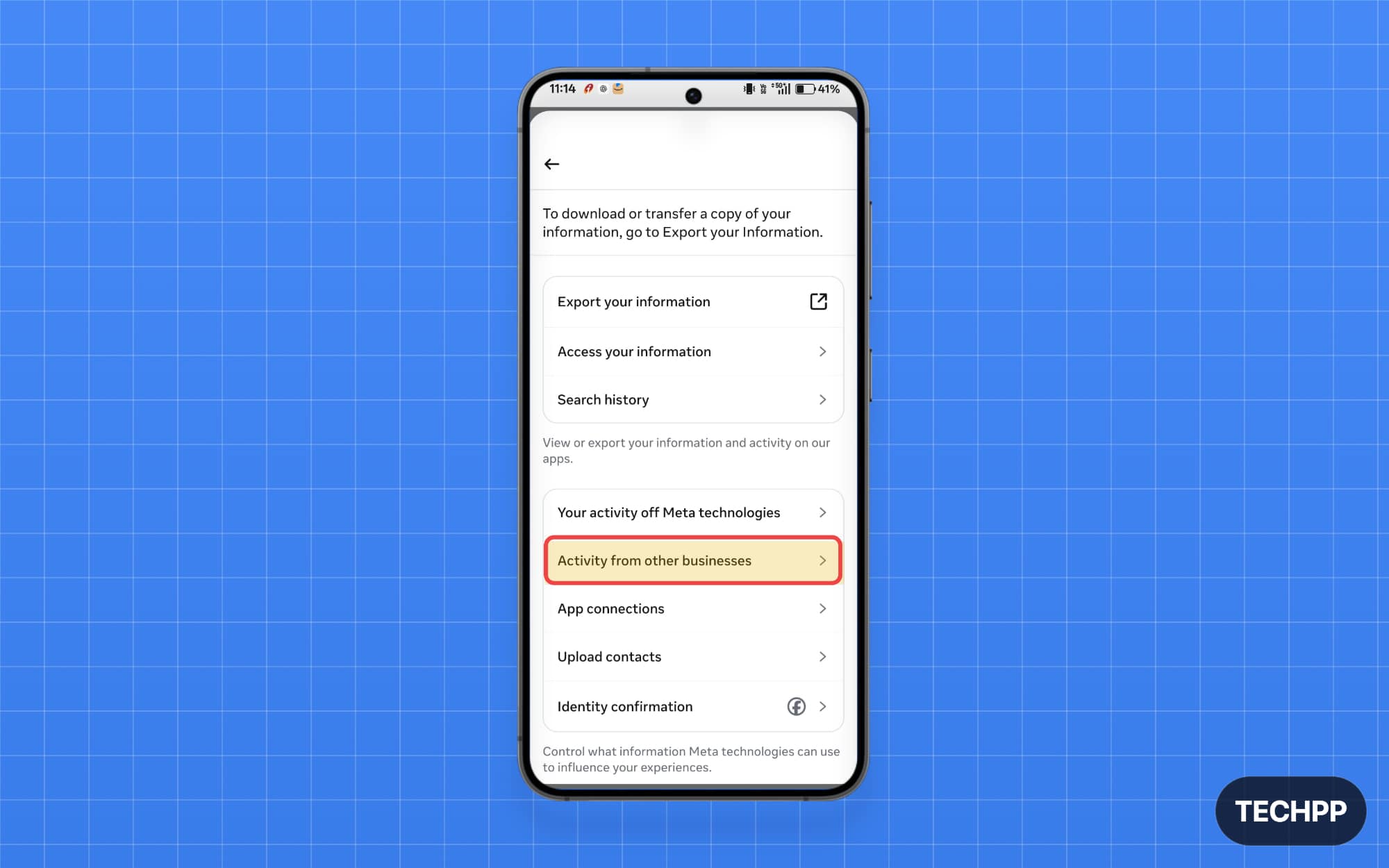
Step 6: Tap on the Activity from other businesses option settings.
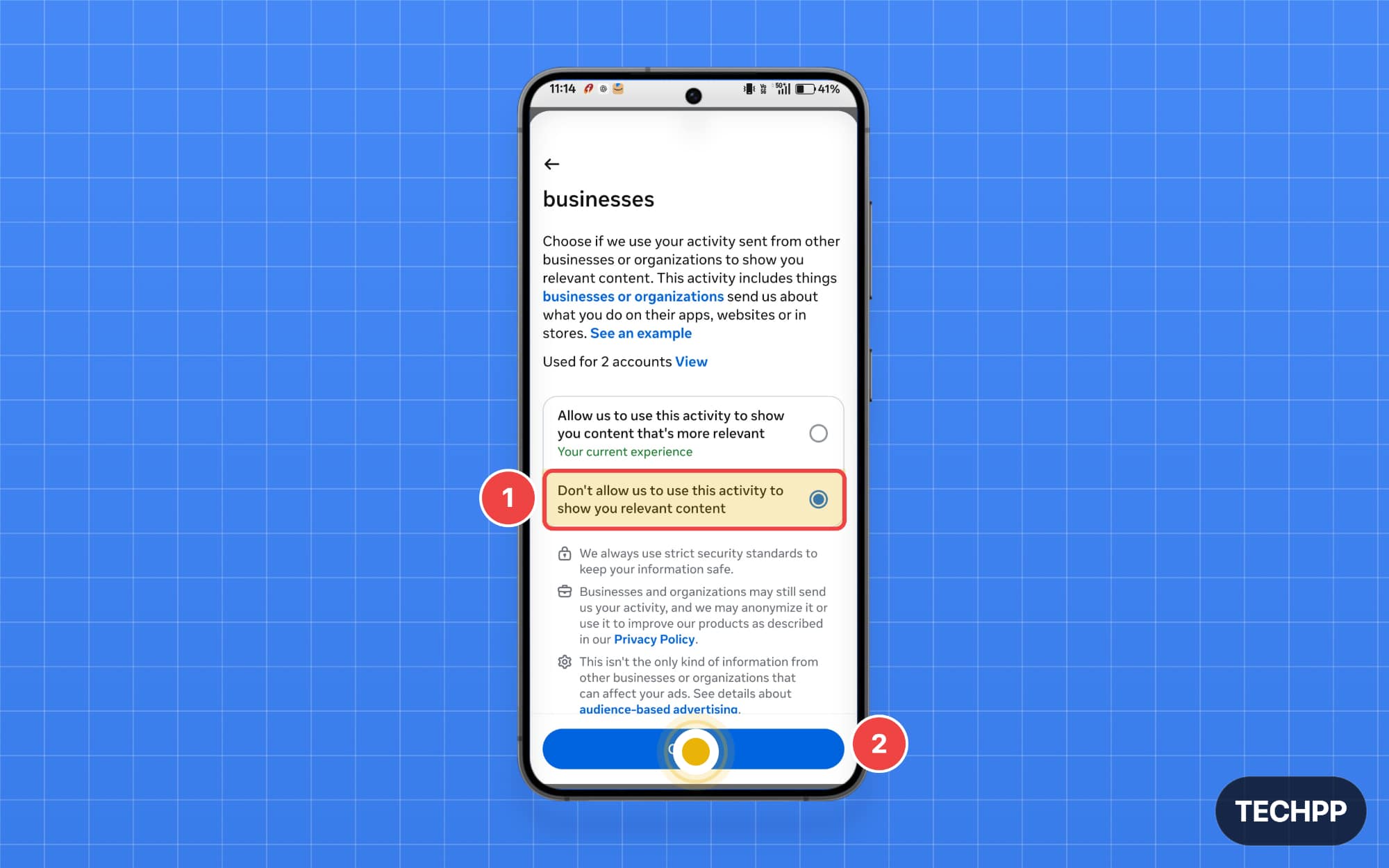
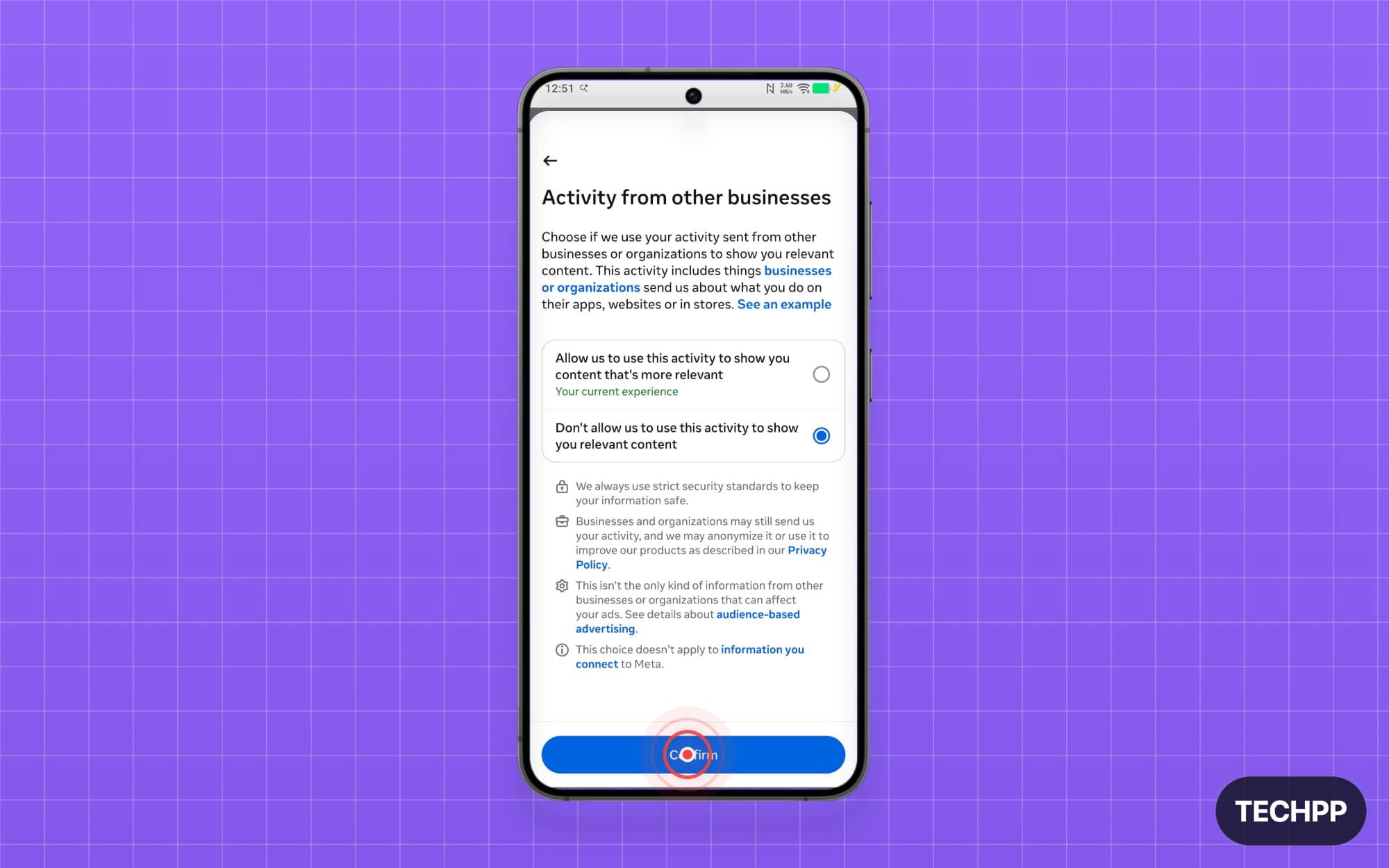
Step 7: Now select Don’t allow Meta to use this activity to show your relevant content option, and tap on the Confirm button.
How to Turn Off Offsite Activity Tracking on Instagram
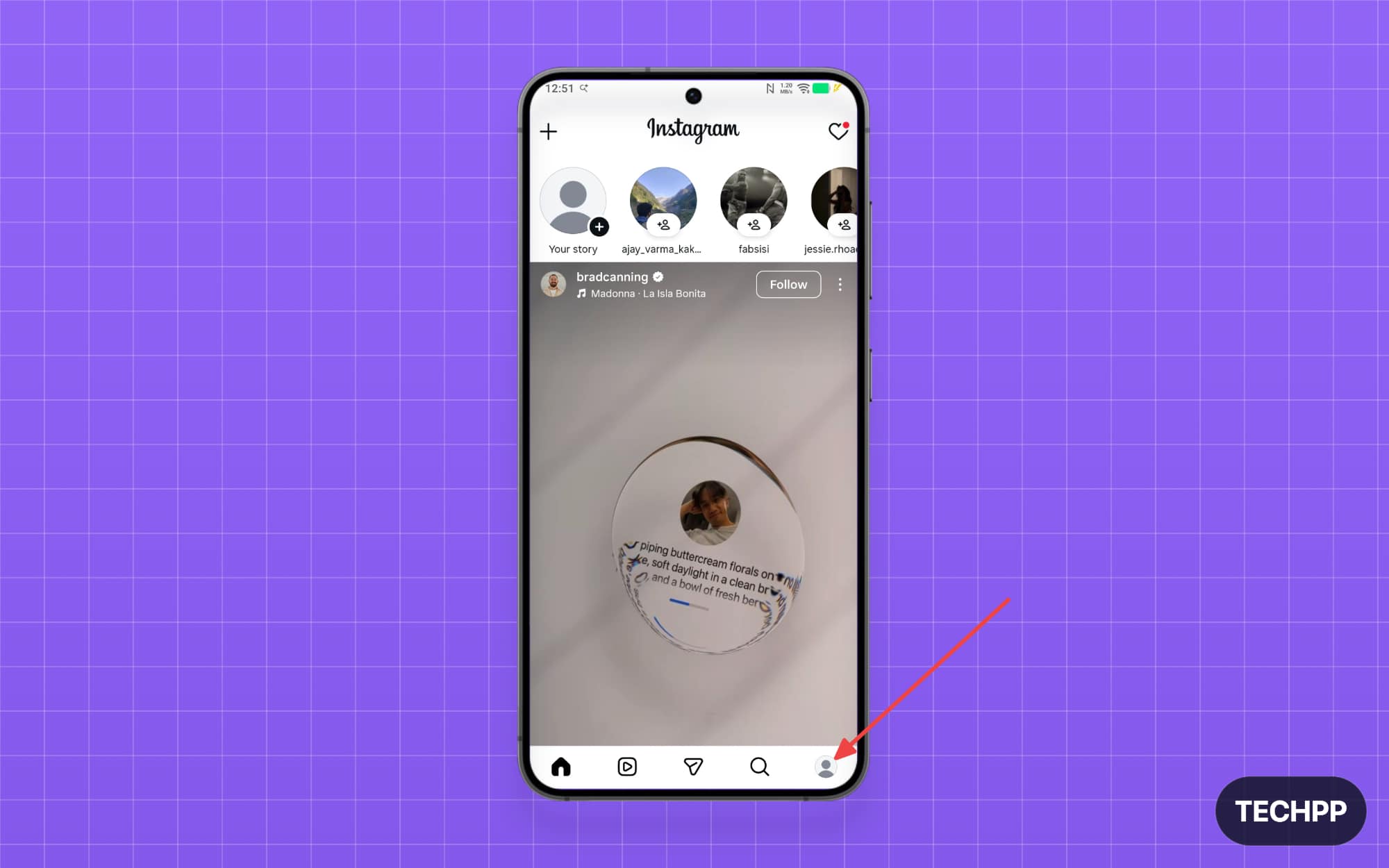
Step 1: Open the Instagram app and tap on your Profile picture.
Step 2: Tap on the three-line menu.
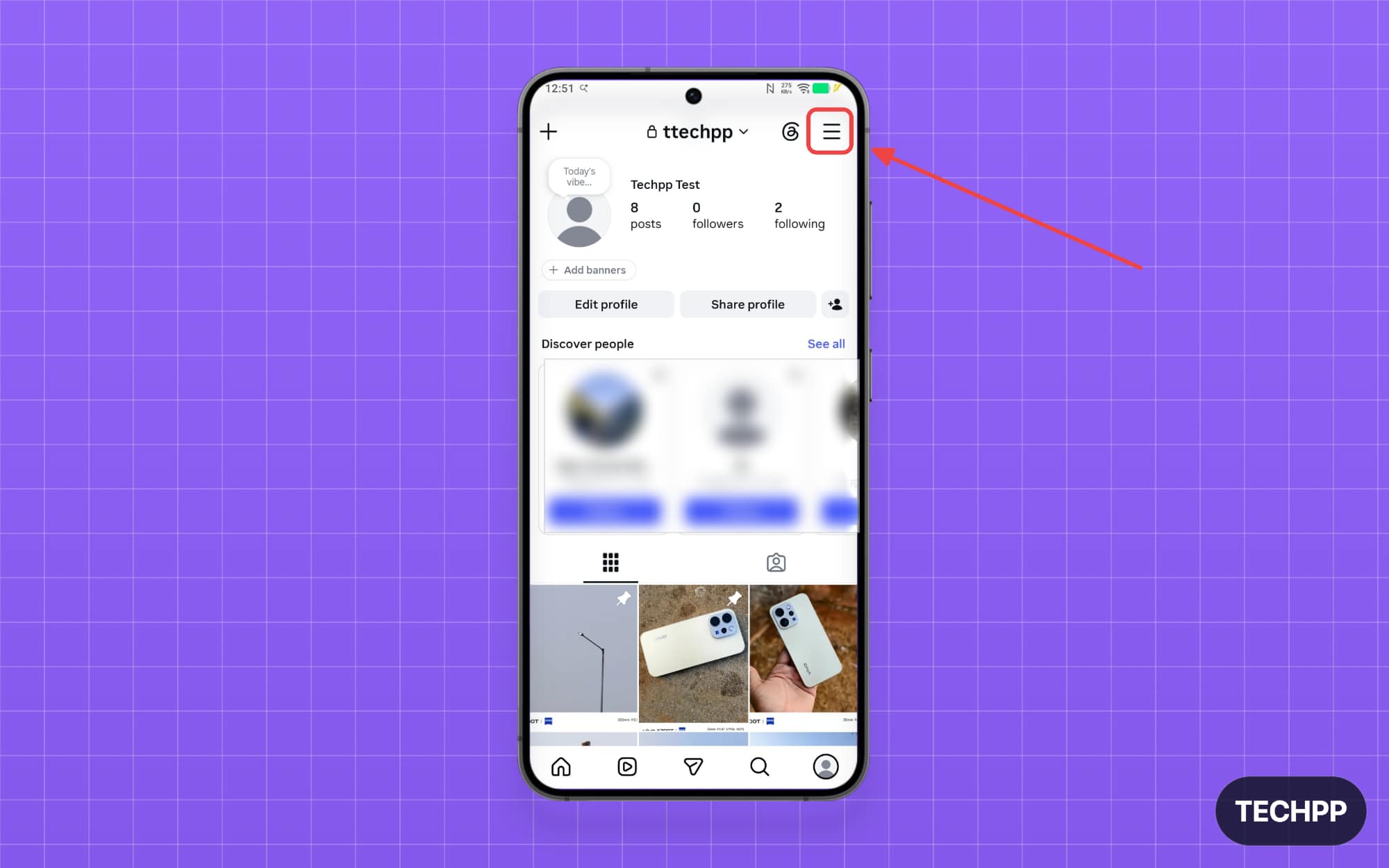
Step 3: Tap on the Accounts Center option
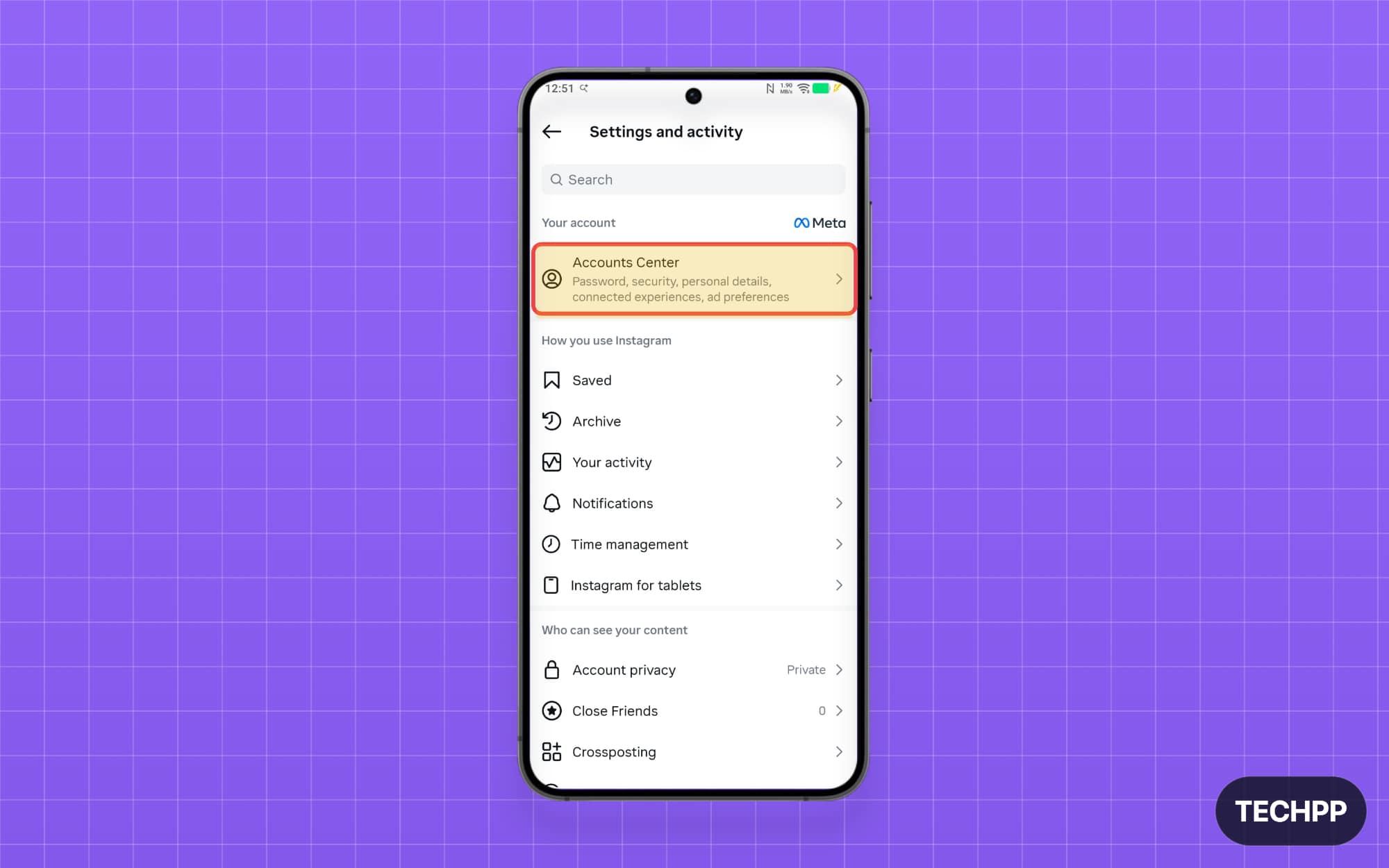
Step 4: Next, tap on the Your information and permissions option
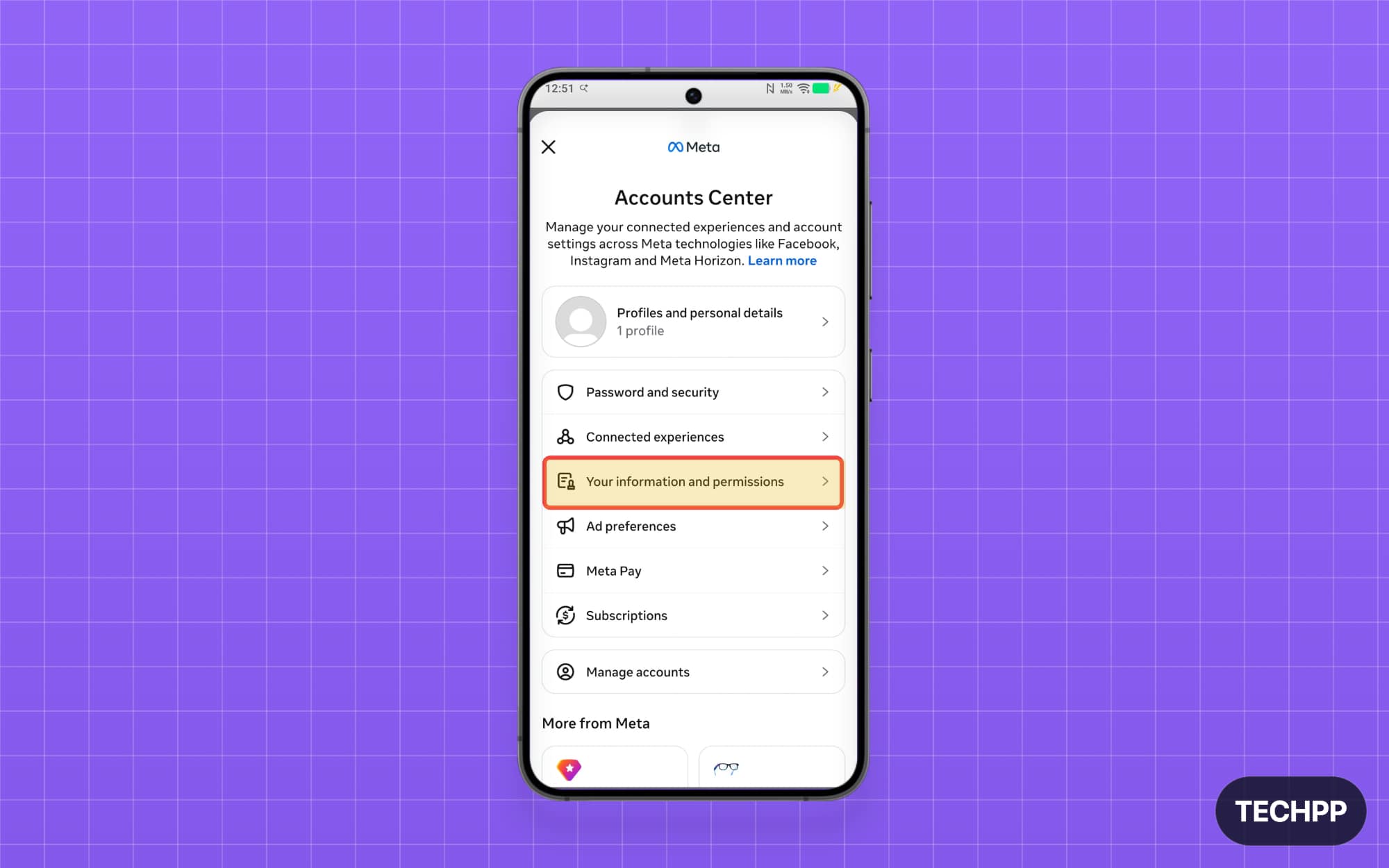
Step 5: Tap on the Activity from other businesses option.
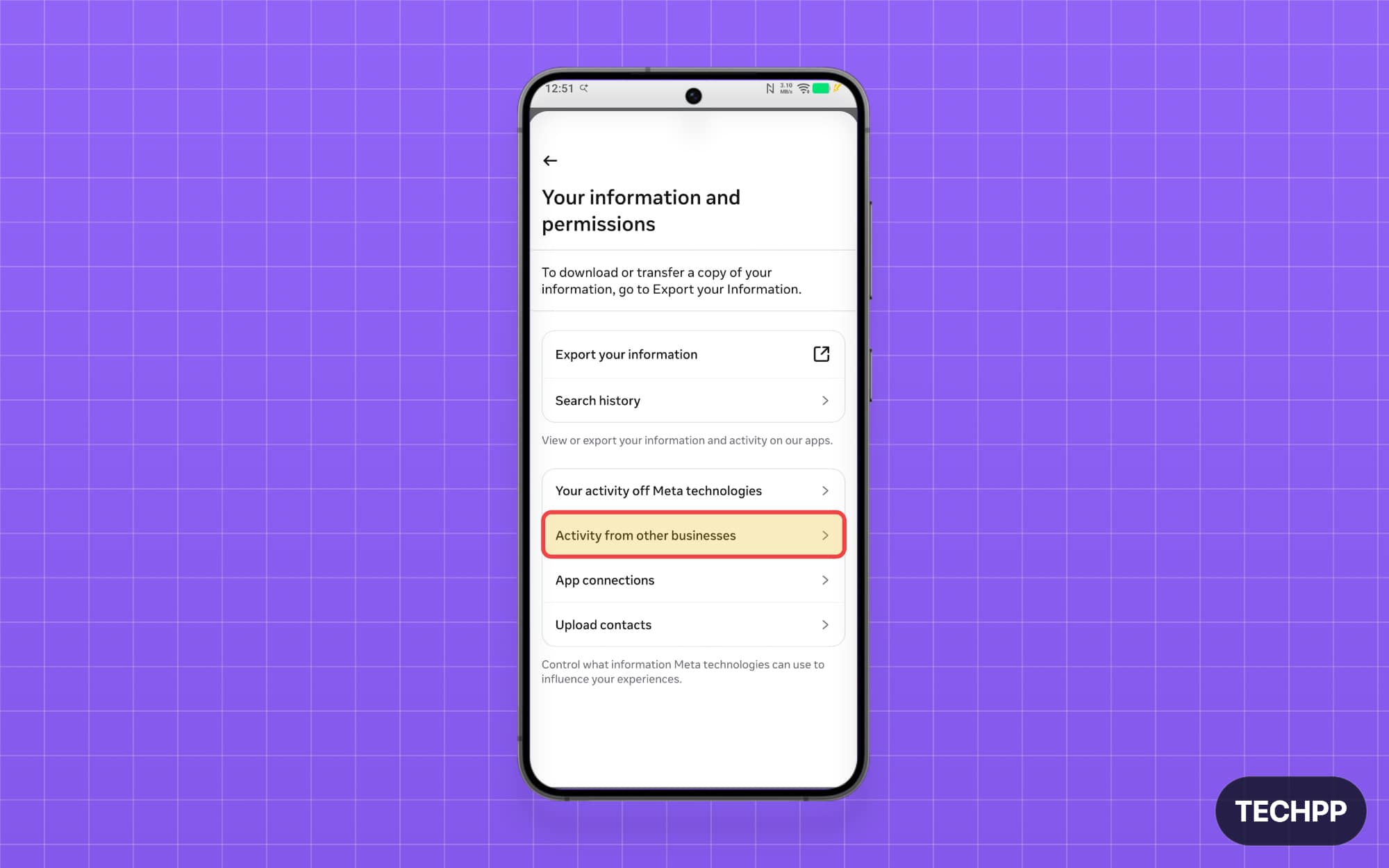
Step 6: Select Don’t allow Meta to use this activity to show your relevant content option
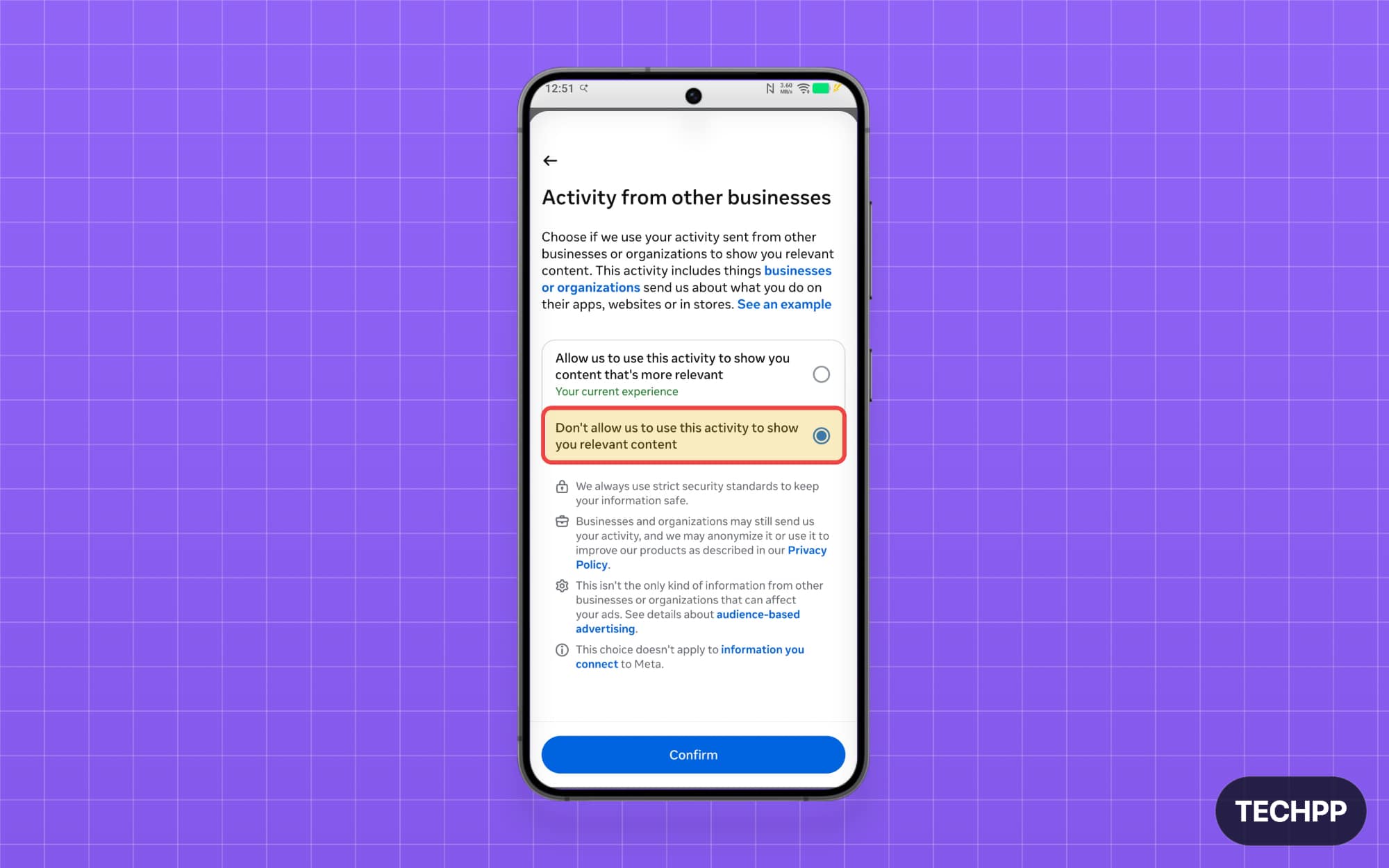
Step 7: Tap on the Confirm button.
If you don’t see these settings right away, Meta has announced that this will begin rolling out in July 2026. Wait for a few days until the setting arrives.
This is how you can turn off and prevent Meta from tracking you outside the Meta platforms.
Meta already uses your activity from Instagram aggressively (like the likes and the Reels you watch) for your ads on all Meta platforms. Collecting your offsite activity is a very aggressive approach that can turn your content into organic ads without you explicitly knowing it.
The problem is that most of these settings are buried deep in the settings, and many people are not aware of this move.
So, if you are an Instagram or Facebook user, I highly recommend you turn these settings off immediately. If you don’t see the setting yet or if you have any issues while turning it off, let me know in the comments below, and I will help you.
FAQs on Turning Off Meta Offsite Activity Tracking
1. Does turning off this setting also stop Meta from using my activity for personalized ads?
Turning off this setting will prevent Meta from using your activity from third-party websites. However, Meta can still use your reels, watch history, search history, and your likes and ad ID to show personalized ads.
2. Will disabling the setting delete the activity Meta has already collected?
Turning off these settings will not delete your activity on Meta.
3. Can websites and apps still send my activity to Meta after I turn this setting off?
Turning off the setting only stops Meta from using that activity. However, websites can still send data to Meta.
4. Will turning off this option affect how Meta AI answers my questions?
Not entirely, but it does affect some of the responses, especially related to questions that contain purchase history or any other activities that you do on third-party websites.
5. Can I turn this setting back on later?
Yes, you can turn this feature back on anytime if you wish Meta to use the data for personalization.

