

PDFs are undoubtedly the most popular file type, so much so that you could come across a dozen of them in a day or two. Not only are PDFs widely accepted and preferred, but they’re also effortless to create and share, making them extremely versatile. Still, you’ll agree with us when we say that Word documents are unbeatable when it comes to editability and compatibility. Another reason why PDFs are inferior in comparison is that they aren’t inherently editable.

Converting a file type from PDF to Word isn’t tedious; you can do it in a matter of minutes. So if you’re a Mac user who wants to convert your PDFs to Word for free, read on to learn more about the conversion.
Table of Contents
Advantages of Working With a Word File Instead of a PDF
Nobody is a stranger to Word files, which proves their popularity. While PDFs are primarily intended for viewing only, Word files, on the other hand, are more geared towards editability. You create a Word file with the intention of updating its content when needed, which isn’t the case with a PDF file.
Word documents prove exceptional if the content is mainly text forward, as Word allows easy text editing. A fundamental advantage of Word files is the fact that they are creatable. In simple terms, you cannot go out and generate a PDF from scratch, which is possible in the case of Word files, where you can start from ground level by typing, adding pictures, and more.
Since PDF is merely a purpose-built file type to be easily shareable and printable, you can only convert other file types to PDF or create PDFs out of already-present contents, like images, Word files, HTML files, webpages, and more.
While Microsoft Word is a universally-renowned Word file-accessing software, it doesn’t come for free on Mac like on many Windows PCs. Unless you have purchased its licensed version, we recommend installing Pages – Apple’s official offering for Macs to view, edit, and create Word files. Being a first-party offering, it’s void of adverts and is entirely free to use on a Mac.
7 Ways to Convert PDF to Word on Mac for Free
How to Convert PDF to Word on Mac Using Preview App
Hate to break it to you, but this method no longer works on macOS versions newer than macOS Catalina. However, it works wonders if you are still rocking an older macOS version. Otherwise, if you are dealing with a primarily text-based document, you can copy its text and create a new Word file out of it. Let us guide you through both methods.
- Open Finder and right-click on the PDF file you want to convert.

- Hover the cursor over Open With and select Preview.app.

- Once the document opens, click on File from the status bar.

- Select Export.

- Pick the folder in which you prefer to save the file and change the format from PDF to DOC.

The Preview app can be used to create a new Word file by copying the contents of the PDF document and pasting it into a blank Word document. To select everything in the file, use the keyboard shortcut command + A. Alternatively, you can drag and select the required lines of text, copy them using the keyboard shortcut command + C, and paste them accordingly in a blank Word document.
As for the blank Word document, you can use Microsoft Word or Pages to create a new one and paste the copied content there using the keyboard shortcut command + V. The option of working with a fresh blank document should appear on the app’s home page itself, be it for Microsoft Word or Pages. Again, if you haven’t purchased the licensed version of Microsoft Word, you can stick with Apple’s free Word processor – Pages.
Related Read: How to Convert PDF to Image on Mac [Guide]
How to Convert PDF to docx Using Automator
Continuing the previous method of copying text from a PDF file and creating a Word file out of it, we have Automator to ease the procedure. Automator is an in-built macOS utility that can do repetitive tasks for you. Once you have created the required routine, Automator will do all the assigned work without further user input. As you might have guessed, Automator can extract text from a PDF file, saving valuable time. Here’s how you can do it,
- Open Automator using Spotlight Search (command + space) or from the Launchpad.

- Select Cancel in the dialog box that asks to select a file.

- Select Workflow as a type for your document in the following dialog box and click on Choose.
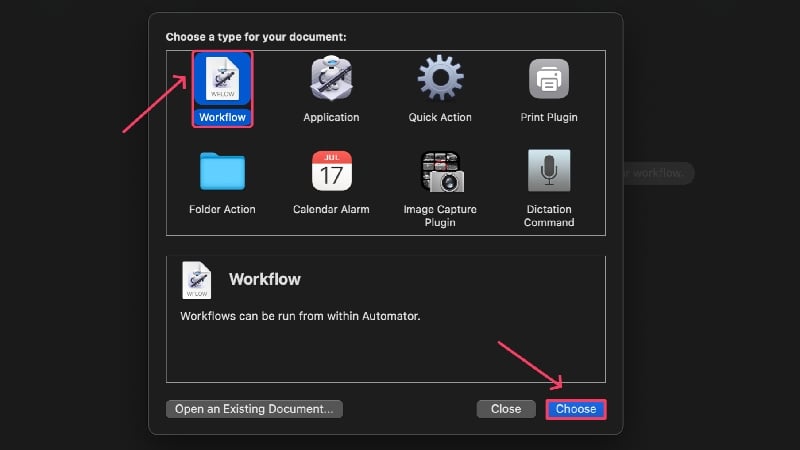
- Drag and drop the PDF file from which you want to extract text in the empty region. You can also stack multiple PDFs one after another to extract text from all of them in a single workflow.

- Type Extract PDF Text in the search box and select it.

- Drag and drop the selected action below the PDF file(s) you added earlier.

- Select Rich Text as the output to retain all the text formatting. You can change where the file gets saved besides the Save Output to option and change its name beside the Custom Name option.
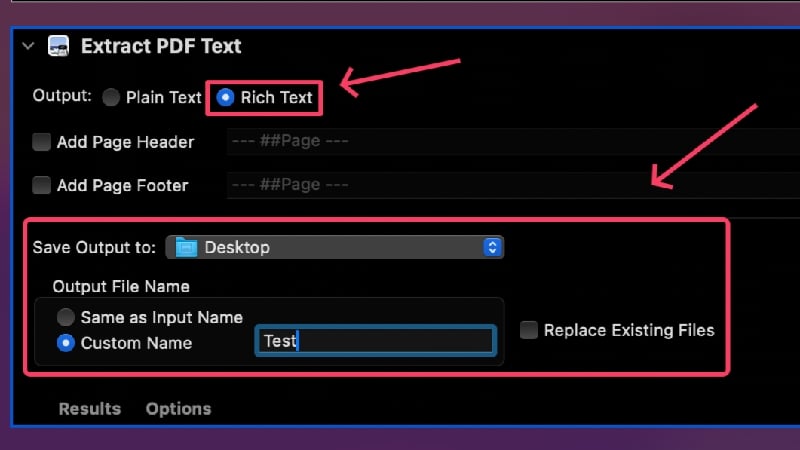
- Hit Run in the top-right corner to execute the workflow.

The file will get saved at the set location as a text file with the extension .rtf. You can open the file and copy text from it directly. If this method is complicated, you can use online OCR (optical character recognition) tools like New OCR and Online OCR to extract text from PDFs effortlessly.
Related Read: How to Password Protect a PDF on Mac
How to Convert PDF to Word on Mac Using Google Docs
If you have a Google account, which you obviously do, converting PDFs to Word using Google Docs is the best way. It’s not only entirely free to use but is also fail-proof and a child’s play to get right. Plus, since this method requires you to upload files to Google Drive first, you can rest assured that your files are safe forever and stored in the cloud. Follow the procedure below for the how-to.
- Open your Google Drive dashboard by visiting here.
- Select New from the top-left corner.

- Click on File upload.

- A Finder window will open where you must select the PDF files you want to upload. You can also select multiple files by holding the Shift key. Click on Open after you’re done selecting the files.
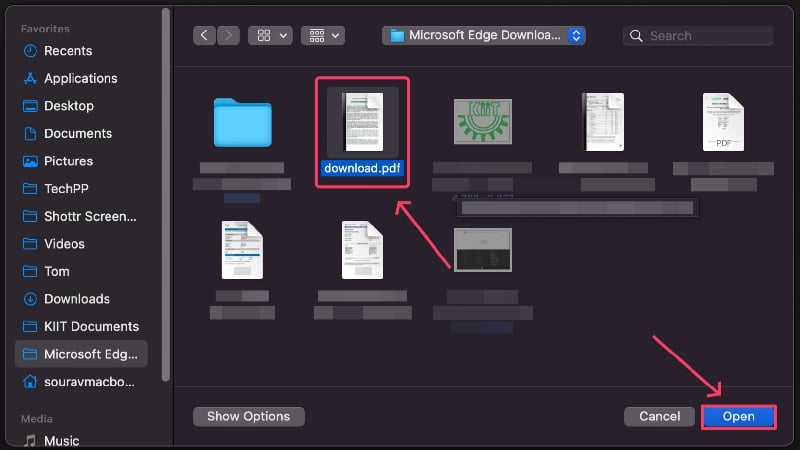
- The selected will be uploaded to Google Drive and should appear on the home page. Locate the file.

- Click on the kebab menu (︙) in the top-right corner of the file and hover the cursor over Open with. Select Google Docs from the menu that appears.

- Your file should open in Google Docs. Select File from the upper-left corner.

- Hover the cursor over Download and click on Microsoft Word (.docx) to save the file as a Word document.

- Choose your preferred location and save the file to your device.
Related Read: How to Combine PDFs on Mac using Preview or Third-Party Tools
How to Convert PDF to Word Using Adobe Acrobat Reader
How can we forget the creators of PDF – Adobe? If there’s one app that accomplishes the task in the best possible way, it has to be Adobe Acrobat Reader. You might even already have this on your Mac, which speaks volumes of its popularity. Unfortunately, converting a file format from PDF to Word on Adobe Acrobat Reader is locked behind a paywall. Since many Mac users use Adobe already, it only makes sense to cover this method too.
- Download Adobe Acrobat Reader by visiting here.
- Open Adobe Acrobat Reader after it’s installed using Spotlight Search (command + space) or from Launchpad.

- Click on Export a PDF.

- Click on Select a file and select the PDF file you wish to convert from the Finder window.

- Hit Convert at the bottom-left corner to convert your PDF file to Word.
How to Convert PDF to Word on Mac Using Microsoft Word
While most Windows PCs get complimentary access to Microsoft Office 365’s suite of tools, like Word, PowerPoint, and Excel, Mac users must purchase its license. Since most users were Windows users at some point, and also due to its sheer popularity, you are more likely to have Microsoft Word than Adobe Acrobat Reader. Here’s how to convert PDFs to Word using Microsoft Word,
- Install Microsoft Word from the App Store.
- Open the app using Spotlight Search (command + space) or from the Launchpad.

- Click on Open from the left pane.

- Select On My Mac.
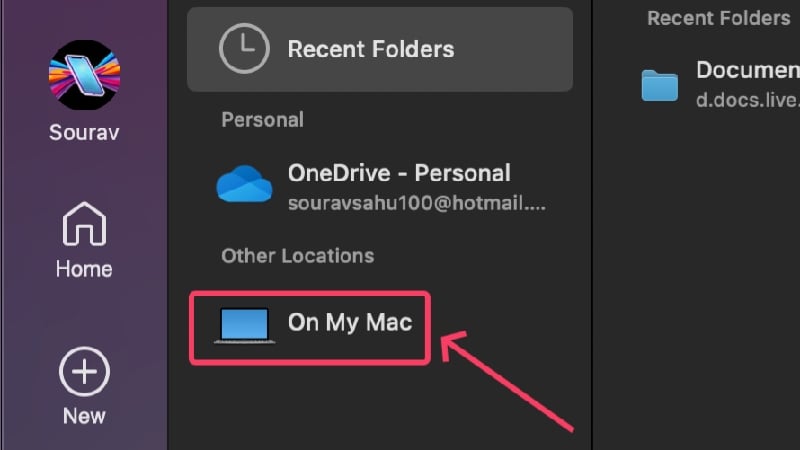
- Choose the PDF file you wish to convert to Word and select Open.

- Microsoft Word will convert the file format from PDF to Word, after which you can edit the document if needed.
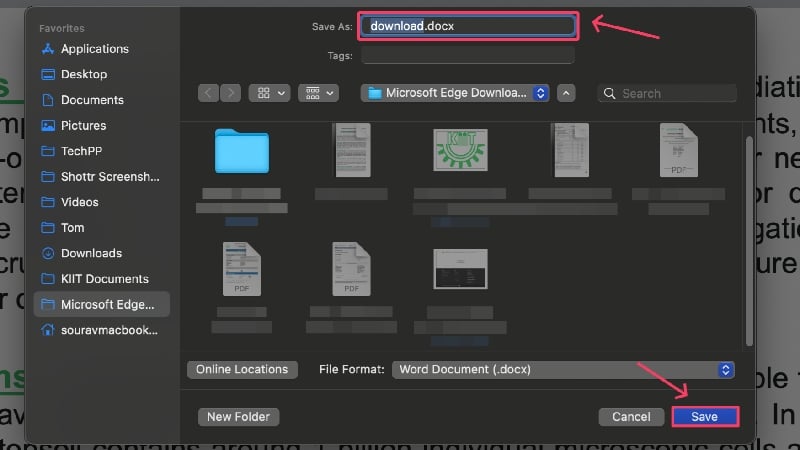
- Select File from the status bar and click on Save As.

- Choose where you want to save the file and hit Save.
Related Read: How to Electronically Sign PDF Documents on Mac
How to Convert PDF to Word on Mac Using PDFgear
In case you’re wondering about PDFgear, it’s an underrated app that’s free of charge for starters and offers a suite of tools related to various file formats, including PDF, Word, and many more. PDFgear can comfortably be the best app to convert PDF to Word, as offerings from Microsoft and Adobe are locked behind a paywall. Other tools are handy, too, and are an added bonus, to say the least. Here’s how you can use the app,
- Install PDFgear from the App Store.
- Open the app and select the first tool under Hot Tools – PDF to Word.

- Select Add Files from the top pane.

- Select the required files from the Finder window and hit Open. You select multiple files in the same manner.

- Set the location where you want to save the file in the dropdown menu beside Output Path.

- Click on Convert.

Convert PDF to Word Online
TinyWow
TinyWow is the Swiss army knife of all the tools you would ever require. Be it image conversion or resizer, video compressor or trimmer, and other PDF or Word tools – TinyWow has got you covered. The best part? TinyWow is entirely free to use, and that too, without having you sign up or create an account. The website is beautifully designed, and it truly can’t get any better.
Converter App
Converter App should be your go-to website for converting everything possible. Be it currencies, units, media formats, or, in this case, files – Converter app can take care of it all. Just enter what you wish to convert, and hit enter. The website is easy to use and pleasantly designed, making it another compelling choice for converting PDFs to Word. Oh, and the website doesn’t charge a dime for anything.
Smallpdf
Smallpdf is a popular website that takes care of everything related to PDF. Smallpdf can perform various functions, including splitting, merging, scanning, or compressing a PDF. Not only that, but it can also edit PDFs and even convert them to other file formats, including Word. The free plan is well equipped with all the necessary tools, but advanced tools like OCR (optical character recognition), cloud storage, and digital seal protection on signatures require you to upgrade your free plan to the pro tier.
iLovePDF
As the name speaks for itself, iLovePDF is geared towards PDF lovers or those who often work with PDFs. You name the tool, and iLovePDF will pretty much satisfy you with its suite of tools. It sure is free for the most part; however, advanced tools like OCR (optical character recognition) and digital signing of a PDF, including other benefits like a desktop app and ad-free usage, are locked behind a paywall.
PDFocr
If you are working with a text-based PDF, PDFocr will shine through brilliantly. PDFocr uses OCR, or optical character recognition, technology to extract contents from a PDF. It’s a barebones website as a whole, but that’s what makes it simple and a child’s play to use. All the tools can be used free of charge, but the website only supports PDFs with twenty pages or less.
Free Convert
Free Convert is another all-in-one tool for all your conversion needs. Images, videos, files, or just about anything – Free Convert can convert it all, and that too for free. Although the processing speeds are a little slow, Free Convert never fails to accomplish the task. The website is well-designed, but it only allows 25 minutes of free conversion time per day, which can be concerning if you’re working with multiple PDFs.
Adobe Online
Being the creators of PDF, it only makes sense for Adobe to have an online tool for converting PDFs to Word documents. The no-nonsense website is purpose-built to convert PDFs to Word, and it excels at its job. It’s free of charge, so you need not worry about file size or conversion limit. It doesn’t offer the same feature set as other websites, but Adobe Online is the best choice for occasional PDF conversions.
PDFSimpli
PDFSimpli is another offering focused on PDFs, and just like Smallpdf, it offers a suite of PDF-related tools. The best part about PDFSimpli is that it’s entirely free to use, without any watermark or time restrictions. Besides a good-looking website, PDFSimpli excels at providing valuable tools, like a PDF merger, splitter, converter, and editor. Overall, it’s a great website to get the job done.
Convert PDF to Word on Mac Effortlessly
This pretty much sums up all the ways to convert a PDF to Word for free, and it’s indeed as easy as it gets. While your best bet is Google Docs, as it’s free, secure, and trustworthy, you can’t go wrong with offerings from Microsoft and Adobe, even though they’re paid. PDFGear is an underrated free app that gets the job done brilliantly. Websites like TinyWow, PDFSimpli, and Converter App are generous enough to offer the functionality for free, with the only caveat being the need for an active internet connection.
FAQs about converting PDF to Word on Mac for free
1. Can I convert PDFs to Word using Preview?
Short answer – No. Unfortunately, the Preview app doesn’t allow exporting PDF files to .docx (Word file format), so the conversion isn’t possible. You can still try your luck if you are rocking an older macOS version, but the newer macOS versions miss out on this helpful feature. This leaves this method pretty much useless.
2. What’s the best app to convert PDF files to Word?
While the obvious answer would be Adobe Acrobat Reader or Microsoft Word, you might hold yourself back since they’re paid offerings. PDFGear is a free app that can solve all your PDF-related problems – editing, conversion to other formats, or just about anything. PDFGear is fast, ad-free, and seriously well-designed, considering it’s a free offering.
3. Are websites as reliable as dedicated apps?
Besides requiring a stable internet connection, you will unlikely face issues with file conversion websites. Websites are best for occasional file conversion, as they are quick and easy to operate. Since many websites are free, your work ought to get done smoothly. Our recommendations for such websites are TinyWow, PDFSimpli, SmallPDF, and Adobe Online.

