

Quick Answer
Choosing the best MacBook for students depends on budget and usage: the MacBook Air offers the best balance of performance, portability, and battery life for most students, while the MacBook Neo is ideal for tight budgets and basic tasks, and the MacBook Pro suits demanding workloads like coding or video editing.
Choosing the best MacBook for students is no longer just about picking the cheapest option. With multiple choices like the MacBook Air, MacBook Pro, and the new MacBook Neo, students now need to balance performance, portability, and budget based on their actual needs. Whether you’re attending online classes, coding, editing videos, or just need a reliable laptop for daily college work, this guide breaks down which MacBook is right for you and why.

While Windows laptops are still catching up, MacBooks have always been preferred for this very reason. Some of MacBook’s peak highlights are immaculate build quality, bright and impeccable screens, spectacular battery life, fantastic speakers, stable software experience, and adequate enough performance to get through most tasks with ease and efficiency. This is precisely why they say, “Once you go Mac, you cannot go back.”
We’ve spent time using different MacBook models across everyday student tasks like note-taking, browsing, coding, and media editing to understand how they actually perform in real-world scenarios.
If you have made up your mind to get a MacBook for your student life, you might be overwhelmed with all the diverse options present in the MacBook portfolio, all looking more or less the same. Fret not; this guide will streamline decision-making and help you choose the best MacBook for students in 2026. Let’s get going!
Table of Contents
How We Selected These MacBooks
We didn’t just look at spec sheets. To figure out which MacBooks actually make sense for students, we considered a mix of real-world usability, value for money, and longevity. Each model was evaluated on five key parameters: performance for typical student workloads, battery life, portability, software compatibility, and total cost of ownership, including things like AppleCare and accessories. We also spent time with most of these machines hands-on, drawing from our first impressions and long-term experience using Apple Silicon Macs. The goal was simple: cut through the noise and tell you what we’d actually buy if we were in your shoes.
Things to Consider Before Buying a MacBook
1. Know Your Workload
This doesn’t hold true only when buying a MacBook, but you should have a thorough idea of what you will do with what you are about to purchase. Since MacBooks come in Air and Pro models that target different user bases all together, you should know which category you fall in. Getting a Pro model when you don’t need one is a waste of money, which is something no one appreciates.
If your workflow is that of a typical student – working with documents and presentations, browsing, streaming movies and web series, playing casual games, and other such activities, you need not think more. However, if your workflow is demanding, like video editing or 3D modeling, or includes other similarly heavy tasks, you should streamline your choices to Pro machines only. They are not only far more capable but also save a lot of time, something which is very important for students.
2. Fix Your Budget
Since you are a student, after all, fixing a budget is the next logical step you should take. While MacBooks start at a thousand dollars brand new, you can look out for refurbished or used models on eBay to save a couple hundred bucks. Apple’s certified refurbished models are of excellent quality and undergo intensive testing, so you can rest assured they are as good as new. Plus, you enjoy all the standard perks like one year of limited warranty, the latest software for the device, and a brand-new box to go along.
If refurbished models aren’t your cup of tea, you can stick to the usuals by fixing an appropriate budget. Don’t forget to keep a fraction of it for accessories and add-ons, some of which include dongles, sleeves, hardshell cases, software subscriptions, Apple Care, and more. Even if you are buying brand-new, always look out for sales and offers in order to grab the laptop at the lowest price possible. Waiting in such cases often proves to be fruitful.
3. Check if the Software You Need Works on Mac
Since most developers build apps and software with Windows in mind, solely because of their widespread popularity, it’s a good measure to check if there’s any specific software required in your workflow and whether or not it’s available for macOS. Buying something only to know it’s incompatible is the worst feeling, so it’s better to research beforehand.
If you are coming from a Mac, you must be aware of the software already and if they’re available for macOS. If not, visit the app’s website and look for its macOS versions in the downloads section. You can also search for the app’s macOS version directly on the App Store’s website and check if it’s available to download for macOS.
4. Check if a New Version is About To Release
Apple follows a periodic refresh cycle for MacBooks. While generational updates are mostly minor, you should still watch for potential releases, if any. In fact, you should hold your purchase, if feasible, if you hear rumors about a potential upgrade. Models due for an upgrade for a long time are apparent giveaways, and you should wait in such cases.
Scanning the internet for rumors is pretty effortless – search for your preferred MacBook on the internet and look out for articles covering upcoming features or potential updates. Social media sites like X (formerly Twitter) and Reddit are also quite helpful in such cases.
It also goes without saying that you should avoid older MacBooks at all costs. Models nearing their end of life should be overlooked, as you wouldn’t want to own a MacBook that stops receiving updates shortly after buying it. Thus, you should avoid getting older MacBooks, such as Intel MacBooks, and also the M1 series, which is soon nearing its end of life.
Best MacBook for Students
Now, to clear the confusion, here are all the MacBooks in Apple’s current portfolio and our opinions on each. Once you have decided upon the necessary requirements from the above points, you should be able to choose the right MacBook for you in no time.
Model | Best For | Performance | Battery Life | Key Features | Limitations | Price Range |
|---|---|---|---|---|---|---|
MacBook Neo (2026) | Budget students, basic tasks | Good for everyday use | Good | Affordable, lightweight, macOS experience | Limited power, fewer pro features | Budget |
MacBook Air M5 (13"/15") | Most students (all-rounder) | Excellent | Up to ~18 hours | Fanless, portable, powerful, great display | Not ideal for sustained heavy workloads | Mid-range |
MacBook Air M4 (13"/15") | Value seekers | Very good | Up to ~18 hours | Strong performance at lower price | Older chip vs M5 | Lower mid-range |
MacBook Pro M5 (14"/16") | Power users, creators | Exceptional | Up to ~24 hours | XDR display, top-tier performance, more ports | Expensive, overkill for most | Premium |
Mac mini (M4) | Desktop setup, budget power users | Excellent (MacBook-level) | N/A (desktop) | Compact, powerful, great value, flexible setup | Needs monitor, keyboard, no portability | Budget–mid |
MacBook Neo
Best for K-12 students and college students with light, everyday workflows on a tight budget
MacBook Neo is the newest addition to the Mac lineup. If you ask us, it will soon alter the sales trajectory of MacBooks and dent the sales of Chromebooks and budget Windows laptops. For starters, the standard price of $599 is nearly half that of the MacBook Air at $1,099, making it a lot more compelling for a student. In fact, the $499 education price makes it a no-brainer, but don’t rush to your nearest Apple store yet. We’ll soon let you know why, but to speak of the good things first, Apple hasn’t compromised a lot on the core fundamentals of a MacBook.
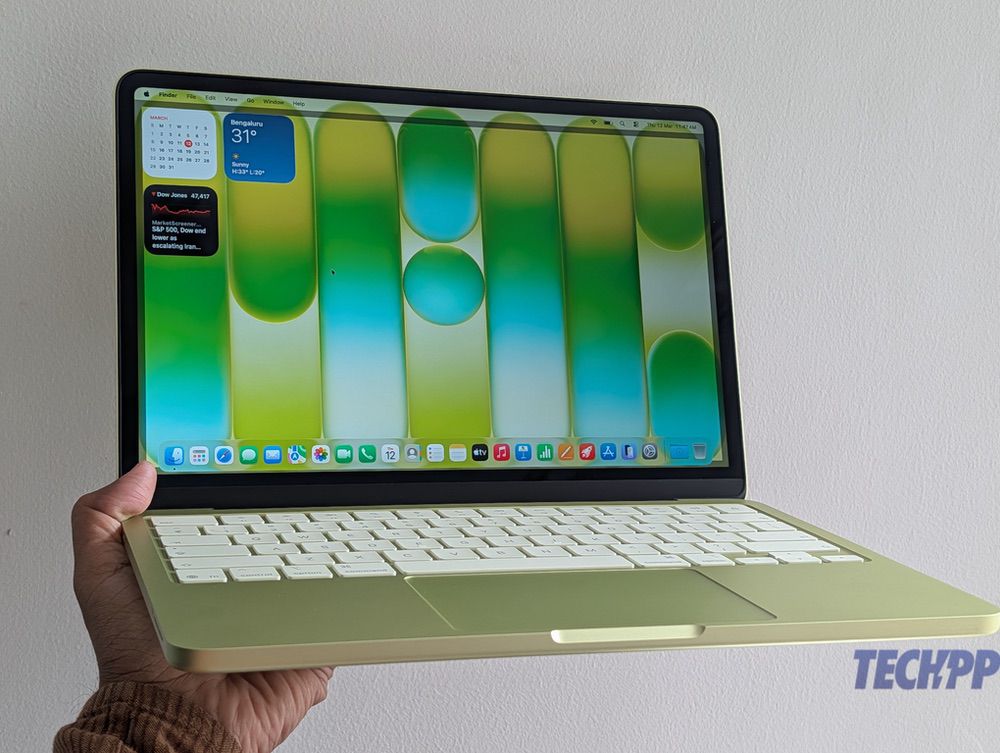
The MacBook Neo (buy link) retains the most unapologetic attribute of a MacBook: its understated yet professional look and all-aluminum build. Some other visual differences include its reduced 13-inch size compared to the MacBook Air’s 13.6-inch, and a handful of fresh new colors: Blush, Citrus, Indigo, and Silver. It still runs the macOS we all know and love, but is instead powered by the A18 Pro chip found inside the iPhone 16 Pro. In addition, the MacBook Neo boasts similarly impressive battery life despite its considerably smaller 36.5‑watt‑hour battery pack and a fantastic Liquid Retina display with peak brightness of 500 nits.
While it may all seem compelling, we must remind you that the MacBook Neo isn’t really meant for intensive tasks. The A18 Pro’s single-core performance is commendable, and, in fact, better than the likes of the M1, M2, and M3 MacBook Air, but it falls significantly short when you factor in its multi-core performance. If your work revolves around single-core tasks, such as browsing, switching between multiple apps, file transfer, light photo editing, and the like, you won’t need anything more than a MacBook Neo. However, if you perform more demanding tasks, such as rendering, multi-tasking, running heavy applications, software development, or more, the MacBook Neo isn’t meant for you.
If you also take into account the 8GB of unified memory, it’s sure to be a bottleneck a few years down the line, as it’s inadequate for anything beyond light to moderate tasks. Not to mention the omission of quality-of-life features, such as a backlit keyboard, Touch ID sensor on the base model, faster connectivity ports, haptic trackpad, and a fast charger. All these shortcomings leave the MacBook Neo suitable strictly for light users, such as K-12 students or university students with non-demanding workflows. For everyone else, the MacBook Air (M2 or later), even if refurbished, is strongly recommended. Remember, a cheap purchase will cost you more in the long run.
From what we observed, the MacBook Neo is best suited for basic workloads like browsing, assignments, and streaming, but it starts to show limits with heavier multitasking. Also, entry-level Apple silicon chips still perform well in standard benchmark tests, but they fall behind higher-tier chips in multi-core and graphics-heavy scenarios, which reflects in real-world multitasking limits.
Also See: MacBook Neo Accessories
M5 MacBook Air (13-inch and 15-inch)
Best for Most students: the perfect all-rounder for academics, casual coding, and everything in between
The M5 MacBook Air (buy link) is the safest bet for most students, assuming your workload exceeds or will soon surpass the capabilities of the budget MacBook Neo. Starting at $1,099 or $999 with education savings, the MacBook Air is all you can ask for from an all-rounder laptop. To start with, the best thing about it is the M5 chipset, which is nothing short of a powerhouse. Unless your workflow demands exceptional computing power, such as running intensive simulations, rendering complex 3D CAD models, compiling massive codebases, or editing long-duration 4K footage, the MacBook Air can handle the rest of the things without breaking a sweat.
Because of its fanless design, workflows that don’t require sustained performance can be handled fantastically. But the MacBook Air can’t offer the sustained performance of a MacBook Pro. With up to 32GB of unified memory and 4TB SSD, we still believe the M5 chip in the MacBook Air is more than most students would require. To highlight the rest of the attributes, we must complement the excellent Liquid Retina display. Depending on the size, the 13-inch and 15-inch screens offer class-leading quality, up to 500 nits of peak brightness, a high pixel density of 224 PPI, and commendable color accuracy. The battery life, too, is nothing to complain about.
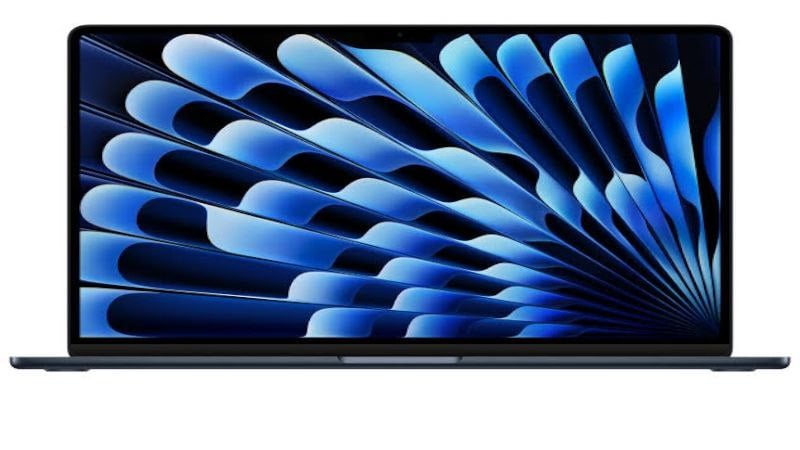
Other quality-of-life features not found on the cheaper MacBook Neo, such as a backlit keyboard, fingerprint scanner, and haptic trackpad, are all present on the M5 MacBook Air in full-fledged form. In addition, you get an awesome-sounding speaker setup, much faster connectivity options, a modern-looking front, support for Centre Stage, a better-quality microphone, updated Wi-Fi 7 capabilities, support for much faster charging, and more. All in all, if the MacBook Neo is even slightly underpowered for you, spending extra for the M5 MacBook Air is well worth it.
Although the differences compared to the past M4 MacBook Air are minor and largely on the performance front, the added performance jump of the M5 will ensure its long-term usability remains intact. Similar to previous models, the 15-inch M5 MacBook Air is a good option if you want a larger screen. It comes with a 10-core GPU as standard and has a six-speaker setup compared to four on the 13-inch MacBook Air. Surprisingly, despite the size and battery increment, the battery life is still rated at 18 hours of continuous video playback.
In our usage, the MacBook Air handled multiple browser tabs, documents, and even light editing without slowing down, making it the most reliable choice for everyday student workloads.
M4 MacBook Air (13-inch and 15-inch)
Best for Budget-conscious students who want full MacBook performance without paying for the latest model
Although not the latest one on offer, the M4 MacBook Air (buy link) still gets most of the stuff right. In fact, you’d struggle to identify the differences between the M4 and M5 MacBook Airs. If you go down the refurbished route, you can get it for as low as $929 from the Apple Certified Refurbished store, which is almost a $200 discount on an absolutely perfect laptop for most people. If you decide to buy it from another place, like Best Buy or Amazon, you can get it for as low as $949 brand-new or close to $900 for the open-box versions.
For the price, you are getting a design that’s visually indistinguishable from the latest MacBook Pro models. Yes, the bezels are comparatively more prominent in comparison, but that won’t bother your eyes after you have gotten used to it. Otherwise, the screen is of fantastic quality, measuring 13.6 or 15 inches diagonally, and features Apple’s signature Retina technology alongside 500 nits of brightness. Albeit not the latest versions like those on the M5 MacBook Air, the Wi-Fi 6E and Bluetooth 5.3 connectivity options on the M4 MacBook Air will function just as well.
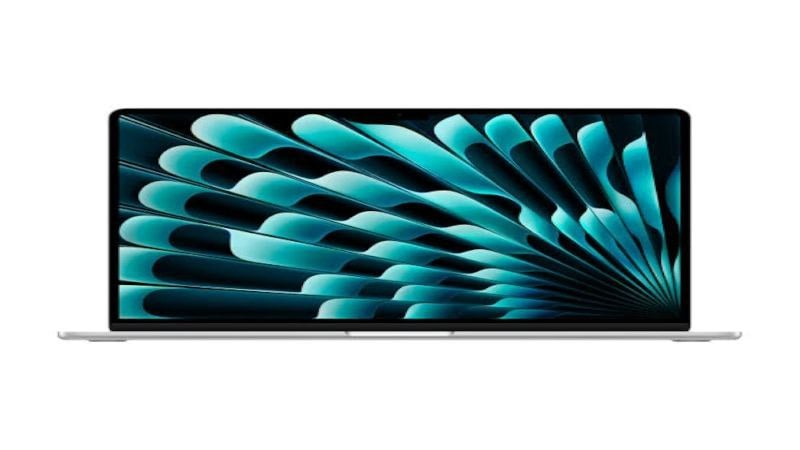
The battery life of the M4 MacBook Air, or any MacBook in general, is unquestionably superb. You get up to 18 hours of claimed battery life on a single charge, which reduces to about 8 to 12 hours depending on what you do, which is still great. The M4 chip inside should work like a breeze unless you have a demanding workflow, thanks to the 10-core CPU and up to 10-core GPU. For instance, the M5 MacBook Air is better by about 15-20% in comparable aspects based on synthetic benchmark scores, which is an incremental upgrade at best, so the M4 MacBook Air should last equally well for years to come.
Besides that, the M4 MacBook Air offers most of the good things about a MacBook – excellent build quality, superb speakers, and an unmatched software experience. All in all, it’s among the most recommended ways to get into the MacBook ecosystem, especially for students on a tight budget who can’t compromise their workflows by getting the MacBook Neo. The 15-inch model of the M4 MacBook Air offers a larger screen estate and marginally better-sounding speakers, but at a considerable price jump. In our testing, the MacBook Air easily lasted a full day of classes and light work without needing a charge.
M5/M5 Pro/M5 Max MacBook Pro (14-inch and 16-inch)
Best for Students with demanding workflows like video editing, 3D modelling, large-scale coding, or simulations
MacBook Pros (buy link) are the holy grail of MacBooks anyone can get. Above and beyond the fascination, it takes an equally exhaustive workload to appreciate the engineering marvel, which, in other words, means that you should only think of getting one if a MacBook Air won’t suffice your workload. Starting at $1,699, it’s about 50% more than the base MacBook Air, so the price needs justification from your end.
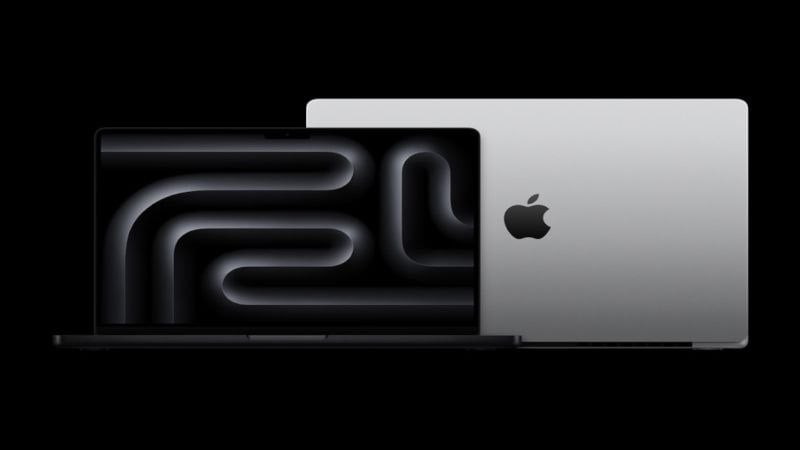
However, what you are getting for the price is unmatched. For starters, you get an even more gorgeous Liquid Retina XDR display with up to 1,600 nits of peak brightness surrounded by thinner bezels. It also supports ProMotion: Apple’s branding for a 120Hz adaptive refresh rate. You can also opt for Nano-Texture coating for an upcharge. The build remains largely the same, but the chassis is noticeably thicker and includes additional ports, namely, HDMI, an SDXC card reader, and a third Thunderbolt USB-C port instead of the usual two on the M5 MacBook Air.
During heavier tasks like video editing and prolonged coding sessions, the MacBook Pro maintained consistent performance without throttling, which is where it clearly stands apart.
Coming to the SoC, you can choose between the M5, M5 Pro, or M5 Max chipsets. While the 14-inch MacBook Pro can be configured with all three chipset options, you cannot pair the base M5 chipset with the 16-inch MacBook Pro. While the M5 chipset inside the MacBook Air is similar to the one found inside the MacBook Pro 14″ in terms of CPU cores and memory bandwidth, the latter comes with a 10-core GPU as standard. Compared to the MacBook Air’s fanless design, the M5 MacBook Pro has a single cooling fan for added thermal efficiency, whereas the M5 Pro and M5 Max variants get dual cooling fans. You can configure the M5 MacBook Pro with up to 32GB of unified memory and a 4TB SSD.
The M5 Pro and M5 Max chipsets are the real deal. To begin with the architecture, the M5 Pro boasts up to an 18-core CPU, a 20-core GPU, and a memory bandwidth of 307GB/. In contrast, the M5 Max goes a step further by integrating an 18-core CPU and a 40-core GPU, delivering a staggering 614GB/s of memory bandwidth. Compared to the M5 and M5 Pro chipsets, the M5 Max gets two video encode and ProRes encode/decode engines instead of one, which aids in the laptop’s video editing and processing performances. The M5 Pro chipset can be paired with up to 64GB of RAM and a 4TB SSD, whereas the M5 Max configuration on the MacBook Pro can go up to 128GB of RAM and 8TB SSD.
Benchmark trends show that Pro variants (with Pro/Max chips) deliver significantly better sustained performance under heavy workloads, especially in multi-core and GPU-intensive tasks like video editing and rendering.
Despite the crazy performance numbers, the MacBook Pro offers improved battery life. For instance, the MacBook Pro can offer up to 24 hours of continuous video playback depending on the configuration, whereas the MacBook Pro can only reach the ballpark of 18 hours. Thanks to other quality-of-life improvements like much-improved charging speeds, faster Thunderbolt 5 USB-C ports on the M5 Pro and M5 Max variants, better-sounding speakers, and more, the price jump is justified, provided you know you are getting to get the most out of it.
Bonus Recommendations
Best for Students who prefer a desk setup and don’t need portability
If you do not plan on spending a grand on a laptop, how about building a setup yourself? It’s the M4 Mac Mini (buy link) we are referring to, which, although not as portable as the MacBook, can still work like a charm if you are more of a desk-chair guy. If you try to, you can carry the Mac Mini around, connect it to any external display, and start working. You, of course, will also need a power source, which is a definite inconvenience. Furthermore, we suspect the M5 Mac Mini is just around the corner, so you might want to hold off on your purchase for a while.

It is among the cheapest ways to use a Mac, starting at $599 (or $499 with education savings) for the base model with 16GB of RAM and 256GB of unified memory. Granted, you will need to spend extra on an external monitor and a keyboard-mouse combo, but it will still be miles better than the much less powerful MacBook Neo and cheaper than the MacBook Air. You can configure the Mac Mini to upgrade to the M4 Pro chipset instead of the standard M4 chipset, or get additional storage and RAM, which would still cost considerably less.
In a desk setup, the Mac mini delivered performance similar to a MacBook at a lower cost, though the lack of portability makes it suitable only for fixed use.
Another recommendation would be to look for older MacBook models that Apple doesn’t produce anymore. For instance, the M3 or M4 MacBook Pro, which recently got discontinued, can be easily found at highly discounted rates on Apple’s Certified Refurbished website. They still pack a lot more power and are cheaper than you’d expect, making them a no-brainer compared to other options.
Related Read: M4 Mac Mini vs MacBook Air
Choose the Right MacBook For You
That wraps up our guide on picking the best MacBook for students right now. Based on our experience across these models, most students won’t need the extra power of the Pro, while the Air consistently strikes the best balance between performance, battery life, and portability. If your workflow is on the heavier side, the MacBook Pro will save you a lot of time in the long run, and that’s not something to take lightly. And if you’re just getting started or have a non-demanding workflow, the MacBook Neo at $499 with education pricing is hard to argue against. Whatever you decide, just make sure it matches your actual needs. A cheap purchase now can end up costing you a lot more later.
If you’re still confused, use this quick guide:
After testing and comparing these MacBook models across different student use cases, the MacBook Air remains the easiest recommendation for most users, unless your workload clearly demands more power.
- On a tight budget (< $800) → Go for MacBook Neo Best for notes, browsing, and assignments
- Want the best balance ($800–$1300)
→ Choose MacBook Air (M4/M5)
Perfect for most students, including coding and multitasking - Need serious power ($1500+)
→ Pick MacBook Pro
Ideal for video editing, heavy coding, and design work
Quick Rule: If you’re unsure, just buy the MacBook Air. It’s the safest and most future-proof option for most students.
MacBook for Each Type of Student
Not all students have the same needs. The right MacBook depends heavily on your coursework and daily usage.
For General Students (Arts, Commerce, School Use)
Best pick: MacBook Air
Ideal for writing, research, presentations, and online classes
Lightweight and easy to carry all day
Excellent battery life
The MacBook Air is widely considered perfect for everyday academic tasks and portability.
For Coding & Computer Science Students
Best pick: MacBook Air (M4/M5)
Upgrade to: MacBook Pro (for heavy workloads)
Handles IDEs, development tools, and multitasking smoothly
Most developers find MacBook Air powerful enough for coding, especially with higher RAM.
For Creative Students (Design, Video Editing, Media)
Best pick: MacBook Pro
Better display (XDR), GPU performance, and sustained power
Ideal for Adobe apps, video editing, and 3D work
Creative workloads benefit from the Pro’s stronger performance and display quality.
For Engineering & Architecture Students
Best pick: MacBook Pro
Handles simulations, rendering, and heavy software
Better for long, intensive workloads
Heavy computational tasks require sustained performance, where Pro models excel.
For Students Who Travel a Lot
Best pick: MacBook Air
Ultra-light and fanless
Long battery life for all-day use
The Air is designed for portability and everyday reliability.
For Students Who Prefer a Desk Setup
Best pick: Mac mini
More power for the price
Great if you already have a monitor and accessories
Offers MacBook-level performance at a lower cost for fixed setups.
Quick Summary
Most students → MacBook Air
Heavy workloads → MacBook Pro
Tight budget → MacBook Neo
Desk setup → Mac mini
Still unsure? Scroll up to our quick decision guide to pick the right MacBook in seconds.
FAQs about the best MacBook for students

Does Apple offer a student discount on MacBooks?
Yes, and it's a pretty solid one. Apple runs an education pricing program that knocks $100 off the MacBook Air and brings the MacBook Neo down to $499 from $599. You can access these deals through Apple's Education Store, which is available to students, teachers, and faculty. In addition to device discounts, students also get 20% off AppleCare+, which is worth considering given the cost of MacBook repairs otherwise.
MacBook Air or MacBook Pro — which one is better for students?
For most students, the MacBook Air is the right answer. It's lighter, fanless, more affordable, and handles the typical student workload like documents, browsing, coding, and light editing without any trouble. The MacBook Pro makes sense only if your workflow is genuinely demanding: think long-duration video editing, 3D modelling, running intensive simulations, or compiling large codebases. If you're unsure, go with the Air. You're unlikely to outgrow it anytime soon.
Can you run Windows on a MacBook?
Yes, you can, though not as natively as before. With Apple Silicon MacBooks (M-series and A-series), you can run Windows through virtualization software like Parallels Desktop. It works well for most use cases, but it's an added expense (Parallels costs around $100/year) and not as seamless as running macOS. If your course requires specific Windows-only software, it's worth checking whether a macOS or web-based alternative exists before investing in Parallels.
How long does a MacBook last for a student?
A MacBook, if well-maintained, can comfortably last 5–7 years for most students. Apple Silicon Macs, in particular, have outstanding longevity partly because the M-series chips are so efficient that they rarely feel slow even years down the line. The bigger long-term concern is battery health, which degrades over time. If you're buying new, make sure to avoid leaving your MacBook plugged in at 100% all the time. Enabling Optimized Battery Charging in settings helps a lot with this.
Which MacBook is best for coding students?
The MacBook Air (M4/M5) is sufficient for most coding tasks, including app and web development. However, students working on heavy projects may benefit from the MacBook Pro.
How much RAM do students need in a MacBook?
8GB RAM is enough for basic use, but 16GB is recommended for better multitasking, coding, and long-term performance.

