

The Instagram active status is helpful and shows when you or someone else is online or was last active on Instagram. It appears as a green dot next to the user’s profile picture when someone is active or shows the time since they were last active. This is good if you want to chat with friends and want to know when they’re available. This can make your conversations faster and more convenient.

However, the “Active Status” feature on Instagram can also have some drawbacks. For one, it can feel like you’re constantly being watched, which can be stressful. People might see that you’re online and expect you to respond to messages immediately, even if you’re busy. Also, if you see that someone is active but not replying to you, you may feel ignored. Some people might even use this feature to track your activity on Instagram.
To address these concerns, Instagram offers a built-in feature that allows you to hide your active status. If you want to hide your online status and want more privacy, check out this guide on how to hide your online status in the Instagram app.
Table of Contents
Difference Between Show Activity Status and Show When You’re Active Together
Instagram offers two different activity settings. The “Show activity status” and “Show when you’re active together.” These two settings are related but serve different purposes on Instagram.
- Show Activity Status: This feature allows people you follow and anyone you message to see when you were last active or are currently active on Instagram.
- Show When You’re Active Together: The shared activity status feature is specific to individual chats. When it’s activated, you and the other person can see if you’re in the same conversation. Simply put, when this feature is enabled, you and the other person can see if you’re looking at the same chat at the same time. This way, you both know that you’re active and will probably reply quickly.

How to Hide Online Status on the Instagram
You can hide your online status both via the Instagram app and via the web. In the web version, you can only hide the activity status, while in the Instagram app, you can hide the “Activity status” and the “Active together status” individually.
How to Hide the Online Status on Instagram App
Make sure you are using the latest version of the app. You can update the Instagram app in the Google Play and Apple App Store. These steps work for both Android and iPhone.
- Open the Instagram app and click on the profile picture in the screen’s bottom left corner.

- Click on the hamburger menu and click on the Settings and Privacy.

- Under the How others can interact with your section, click on the Messages and Story replies.
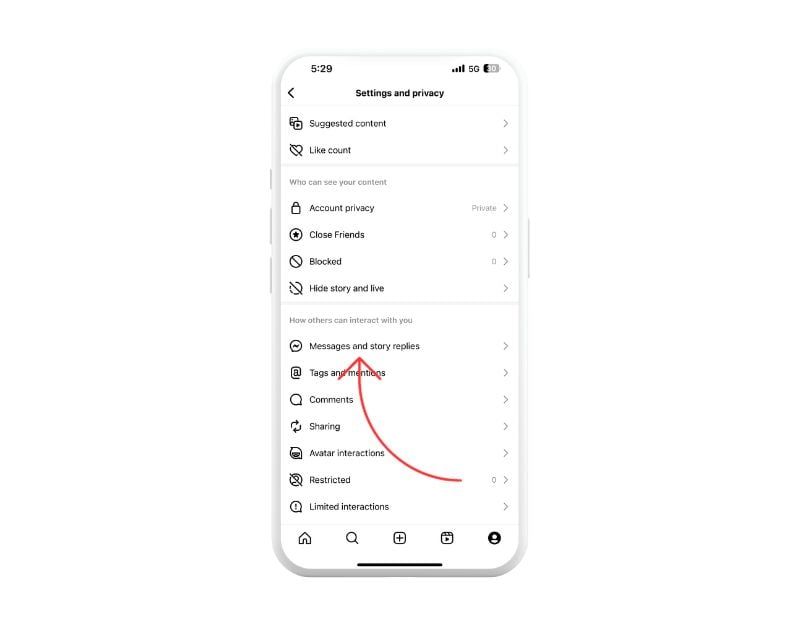
- Click the Show Activity Status under Who can see you’re Online.
- Click on the turn-off Show Activity Status. This will also disable Show when you are in Active Together Status settings. You can also individually turn off the Together active status.

Related Read: How to Hide Instagram Account and Stop People From Finding You
How to Hide Active Status on Instagram Desktop
You can also hide your online status via the web version of Instagram. You can follow the same steps on your mobile and desktop web.
- Open your favorite browser and visit Instagram.com or click on this URL: https://www.instagram.com/
- Sign into your account if you haven’t signed in.
- Click on the More tab located in the left sidebar
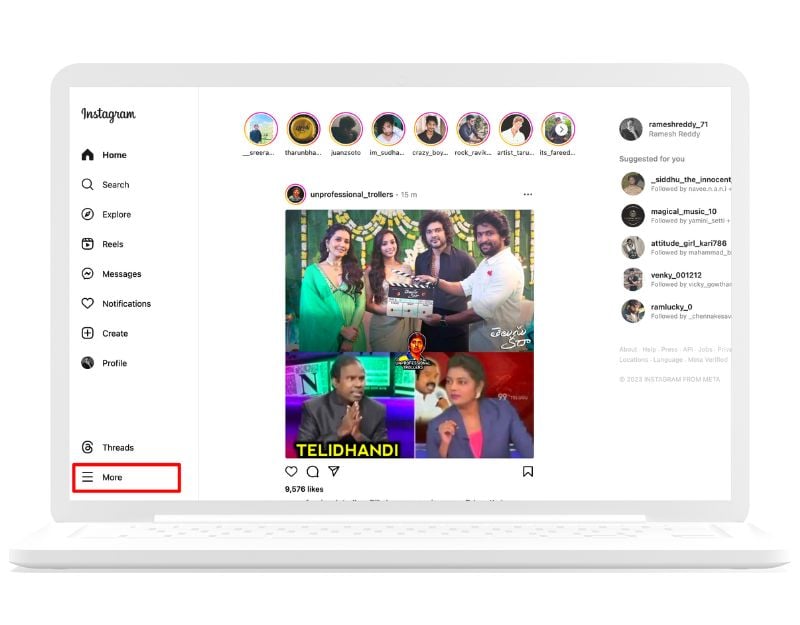
- Click on the Settings

- Scroll down and tap the option for How others can interact with you.

- At the top, you’ll find the activity status; turn off the settings for Show activity status. At the time of writing this article, Instagram doesn’t support activity status settings.
Related Read: How to Check Who Views Your Instagram Profile
How to Hide Online Status for Specific People on Instagram
Instagram doesn’t offer a built-in function to hide your activity status from certain people. However, there is a workaround: you can restrict the person you want to hide your activity status from. Here’s how it works:
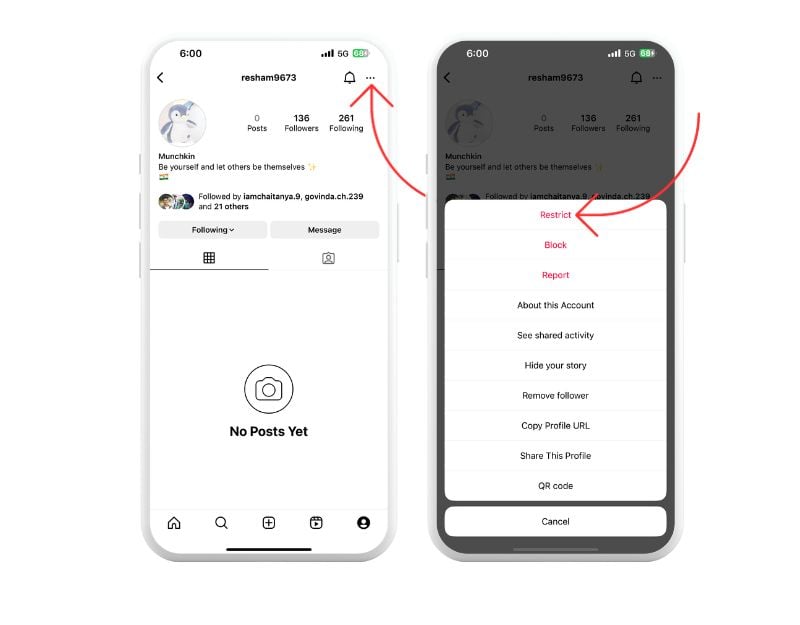
- Open the Instagram app and go to the profile you wish to restrict
- Click on the Menu on the top and tap on the Restrict.
- Alternatively, you can restrict someone from the chat screen. Tap on the messenger icon to access your Direct Messages.

- Scroll to find the chat with the person you want to hide your activity status from.

- At the top of the discussion, tap on the person’s name.
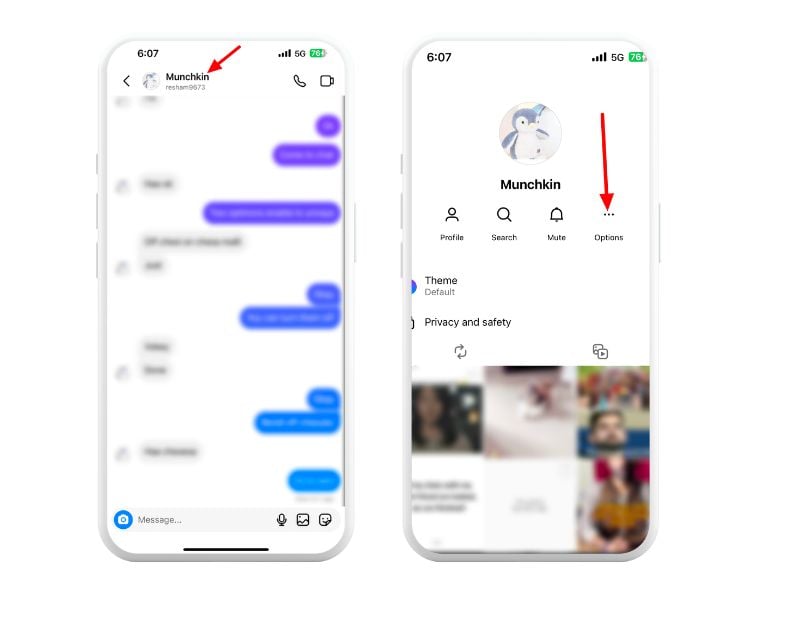
- Choose the Restrict option. The person won’t know they’ve been restricted and won’t receive any notification.
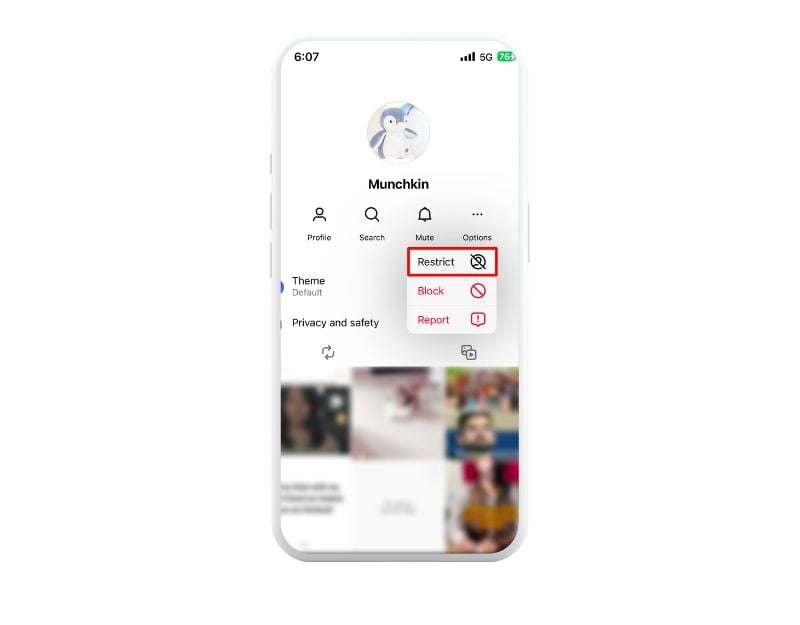
- Once you’re restricted, the person will no longer be able to see when you’re active or when you were last seen. In addition, their chat will be moved to your message requests.
Hide Your Status and Keep Your Privacy
The online status can be helpful to know whether you or someone else is currently active on Instagram. But it also has disadvantages: It violates your privacy, leads to unwanted messages when others see you online, makes it harder to ignore someone and more. To solve these problems, you can easily hide your online status on Instagram. We’ve also shown you how to hide your online status from certain people. I hope this was helpful to you. If you are facing any issues, feel free to leave a comment below. We’ll be happy to help you.
FAQs on Hiding Online Status on Instagram
1. Can I Hide My Online Status from Specific People?
No, unfortunately not. As I write this article, Instagram doesn’t offer the option to hide your online status from certain people in the app or on the website.
2. Does Hiding Online Status Affect Message Delivery?
No, hiding your online status doesn’t affect the delivery of the message. The participants can still receive and read your messages. You can also see the sent and viewed status of your message. The only thing that happens is that the other person cannot know that you were last seen and are currently online or in the chat options.
3. How to check if Someone Else’s Hidden Online Status?
There is no direct option to determine if someone has hidden their online status on Instagram. However, you can use different methods to check if someone has hidden their online status.
- Open the Instagram app on your phone and tap the messenger icon for your direct messages.
- Scroll through your messages to find the chat with the person whose online status you want to check.
- You’ll usually see a green dot next to the person’s profile picture or a “Now active” message if they’re online. If you don’t see this, the person may have hidden their online status.
- You can send them a message and see how quickly they reply. If they reply immediately but you can’t see their online status, they may have hidden it.
- You can also check the person’s general activity. Sometimes, someone likes or comments on a post even if their online status is hidden. If you see such activity but no online status, they’re probably hiding it.
4. Can I Schedule Times to Hide My Online Status?
Instagram doesn’t offer a scheduling function for this. You have to turn your online status on or off manually.
5. Is There a Way to Temporarily Show My Online Status?
You can temporarily show your online status by turning it back on in the settings. Don’t forget to turn it off again when you’re done.
6. Are there any apps to hide online status on the Instagram app?
There are no special apps that you can use to hide your online status on Instagram. You can manage your online status via the Instagram settings.

