

Quick Answer
You can rearrange your Instagram profile grid in any order by updating the Instagram app, opening your profile, long-pressing any post or Reel, and selecting Reorder Grid. Simply drag and drop posts to your preferred positions and tap Undo if needed. This only changes how posts appear on your profile, not their publish date, reach, or engagement.
Instagram is now finally letting you rearrange the grid in the order you like. This feature was announced last year, and until recently, it was only available to select test groups; now, Instagram is finally rolling it out to everyone through the Instagram app on Android and iPhone. It is already live for my personal profile, but it is still not live for my other testing account with limited posts.
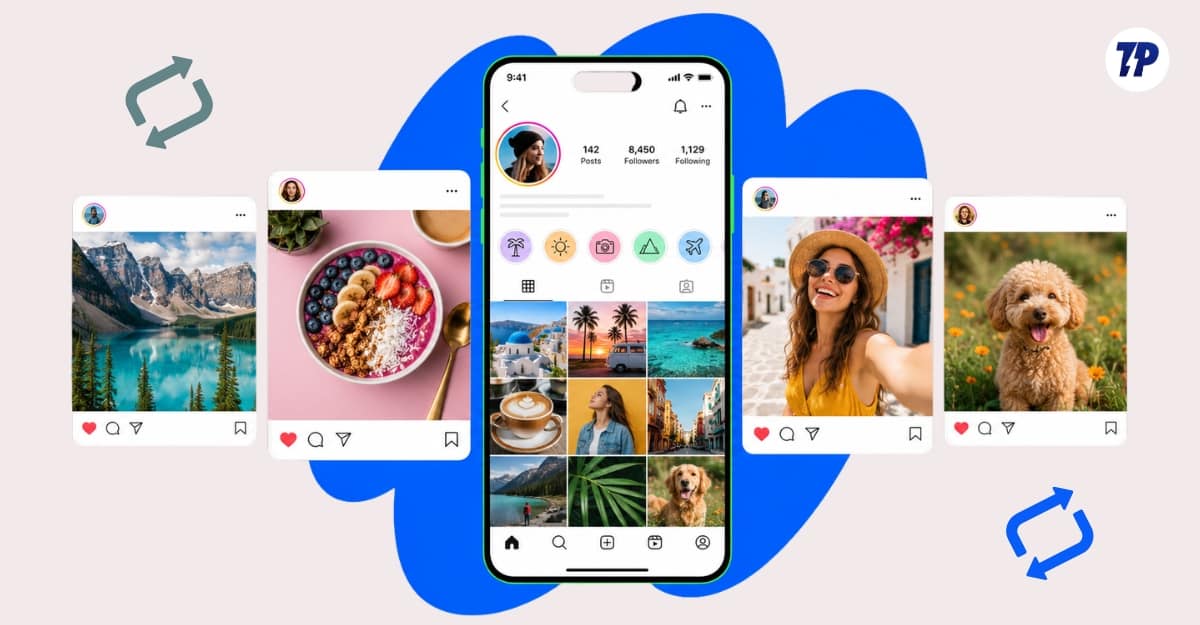
The ability to rearrange posts on the Instagram profile is the most requested feature by users. By default, posts are arranged in chronological order based on their publish date. To change the layout, users needed to archive, delete, or repost the content. In this guide, you will learn how to rearrange your grid on Instagram in simple steps.
Table of Contents
How to Rearrange Your Grids on Instagram
Things you need to know before rearranging your Instagram grid:
- At the time of writing this article, this feature is currently only available through the Instagram Android and iPhone apps. Not on desktop. You can also join the beta program for early access.
- Rearranging posts will not change their published date.
- You cannot change the position of the pinned posts. You need to first unpin the post and then rearrange it. The pinned post will still remain at the top.
- You can undo the changes while arranging your grid, but there is no option to reset all your changes. You need to manually arrange the posts.
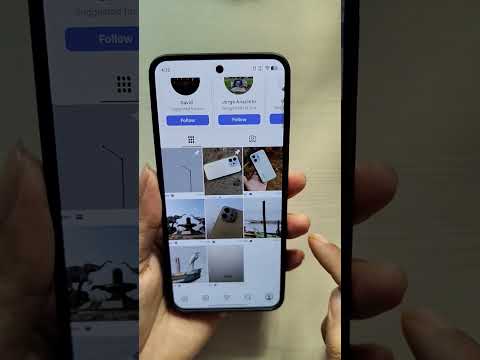
Step 1: Update your Instagram app to the latest version. On Android, you can visit the Google Play Store. On iOS, you can visit the Apple App Store.
Step 2: Open the Instagram app on iPhone or Android
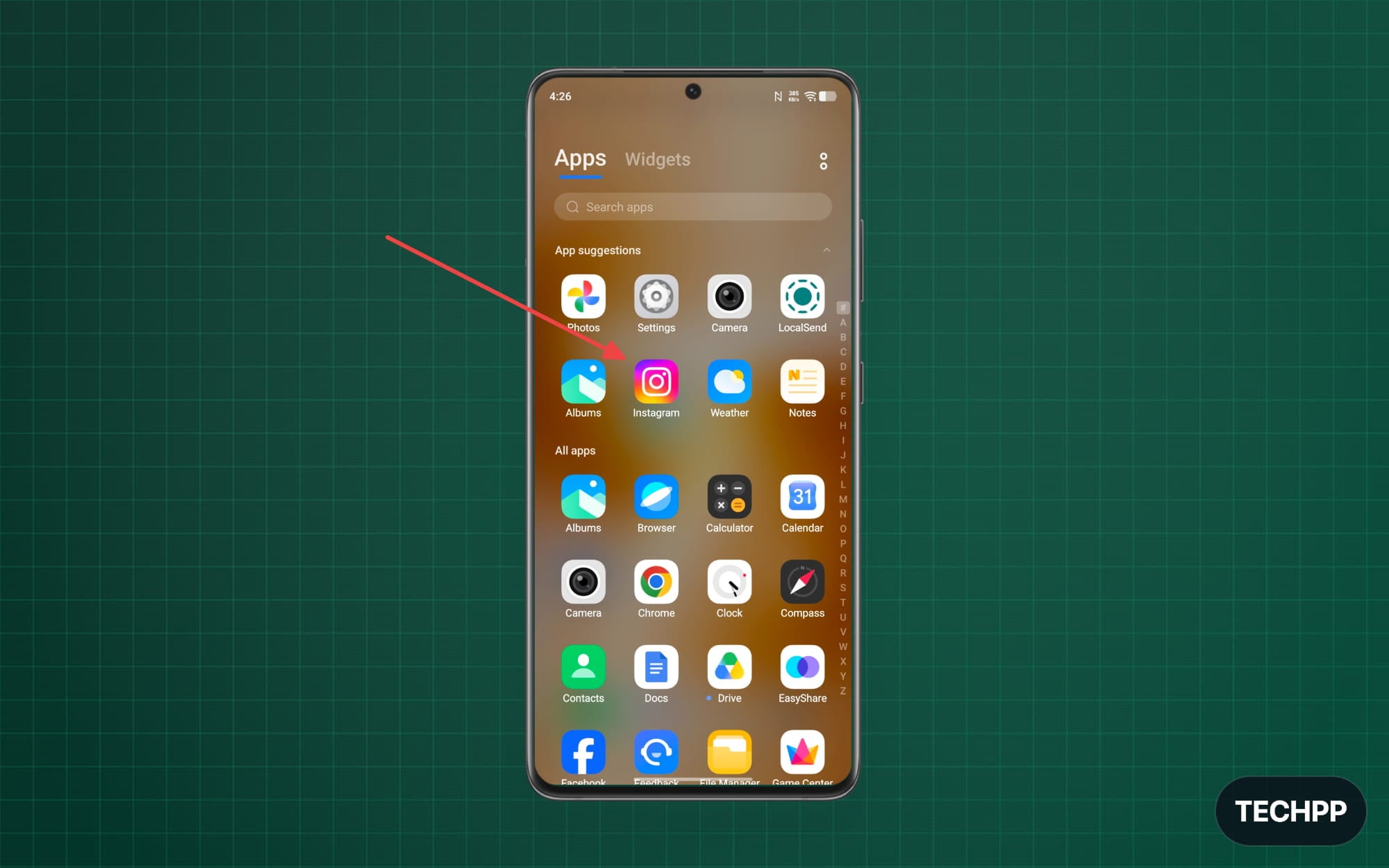
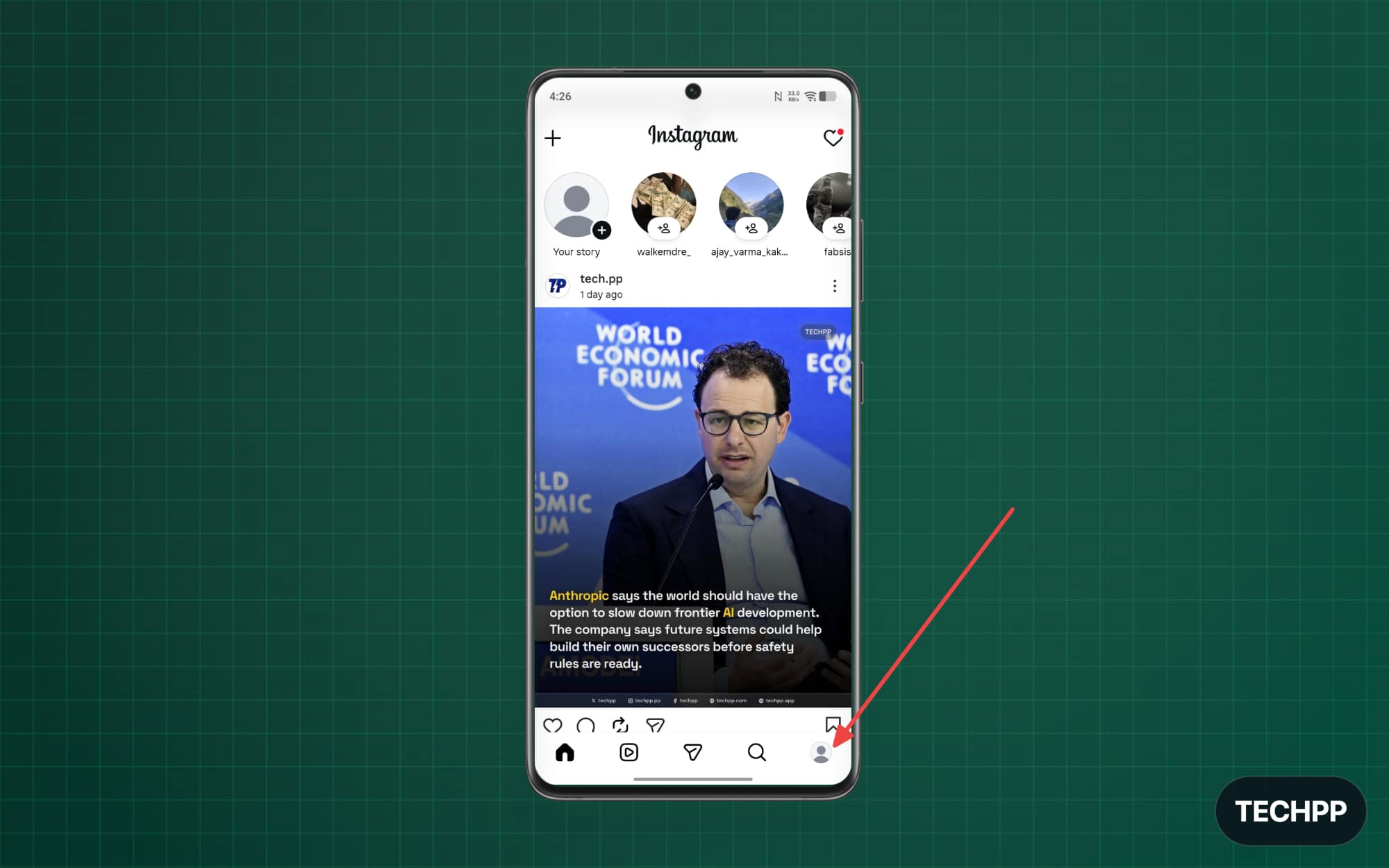
Step 3: Tap on your profile photo to go to your profile.
Step 4: Scroll down and long-press on any post or Instagram reel. Now you will see a new option called Reorder Grid. Tap on it.
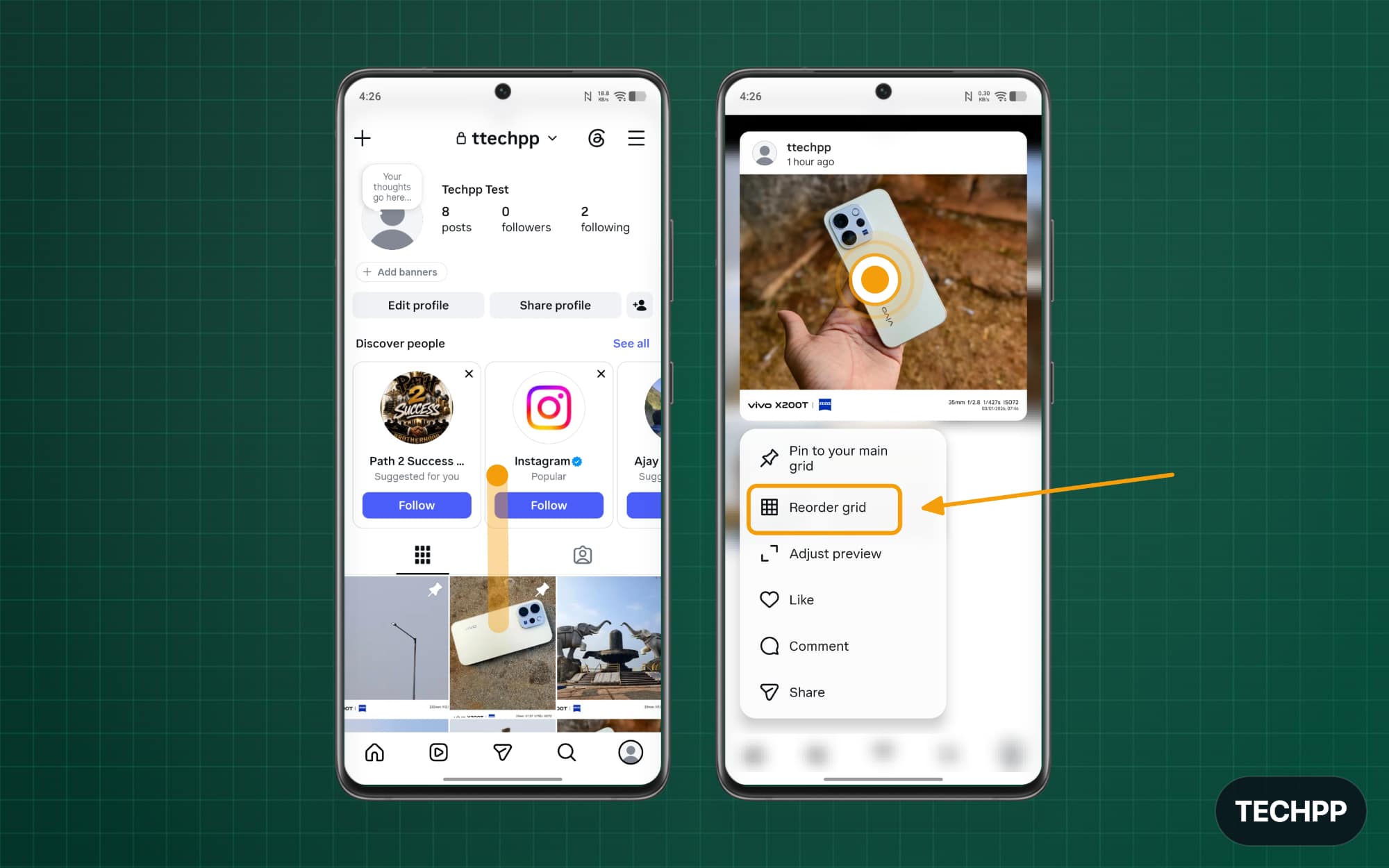
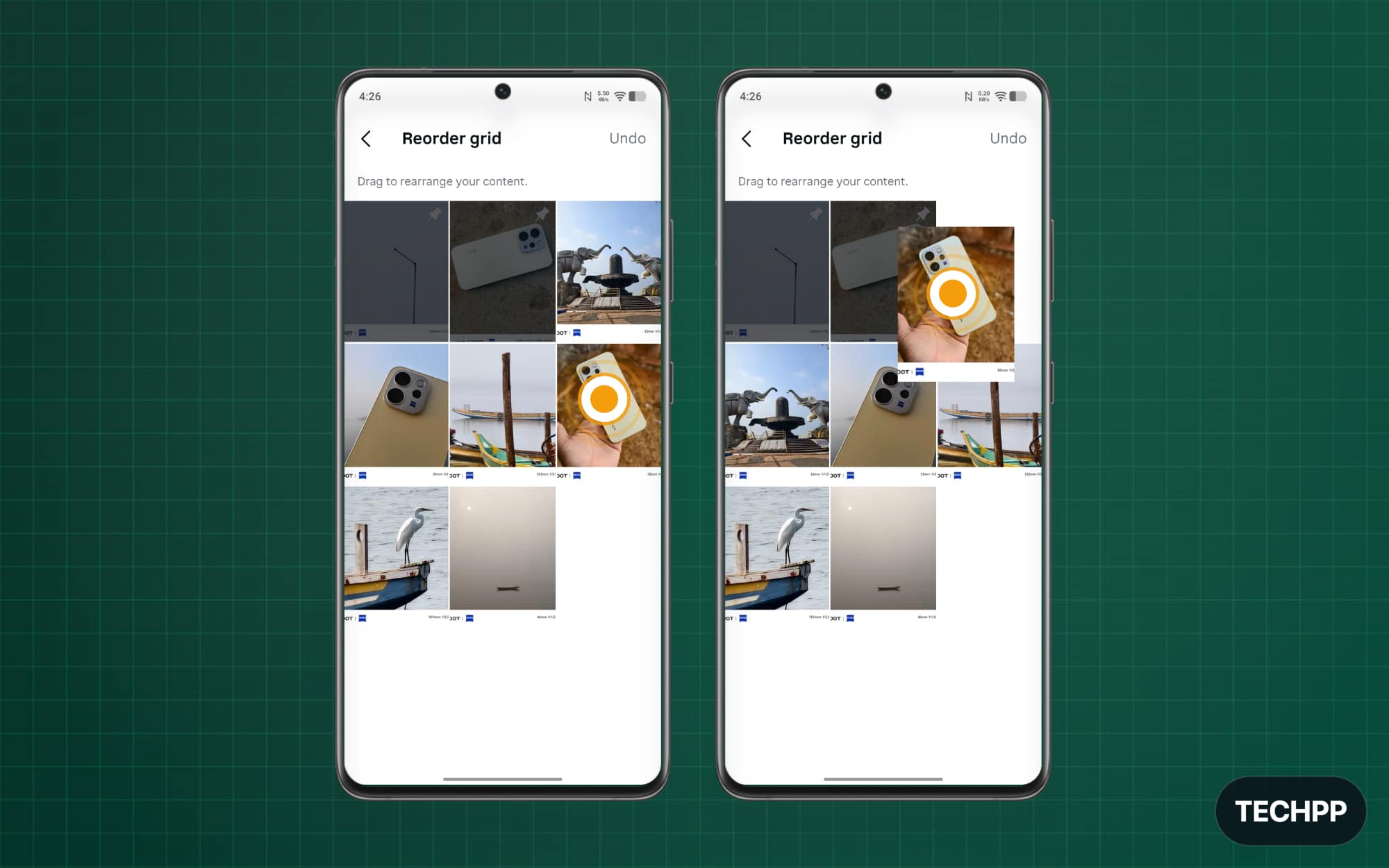
Step 5: From here, you can drag to rearrange your content. The changes will be applied in real time, and they will also work for all the posts.
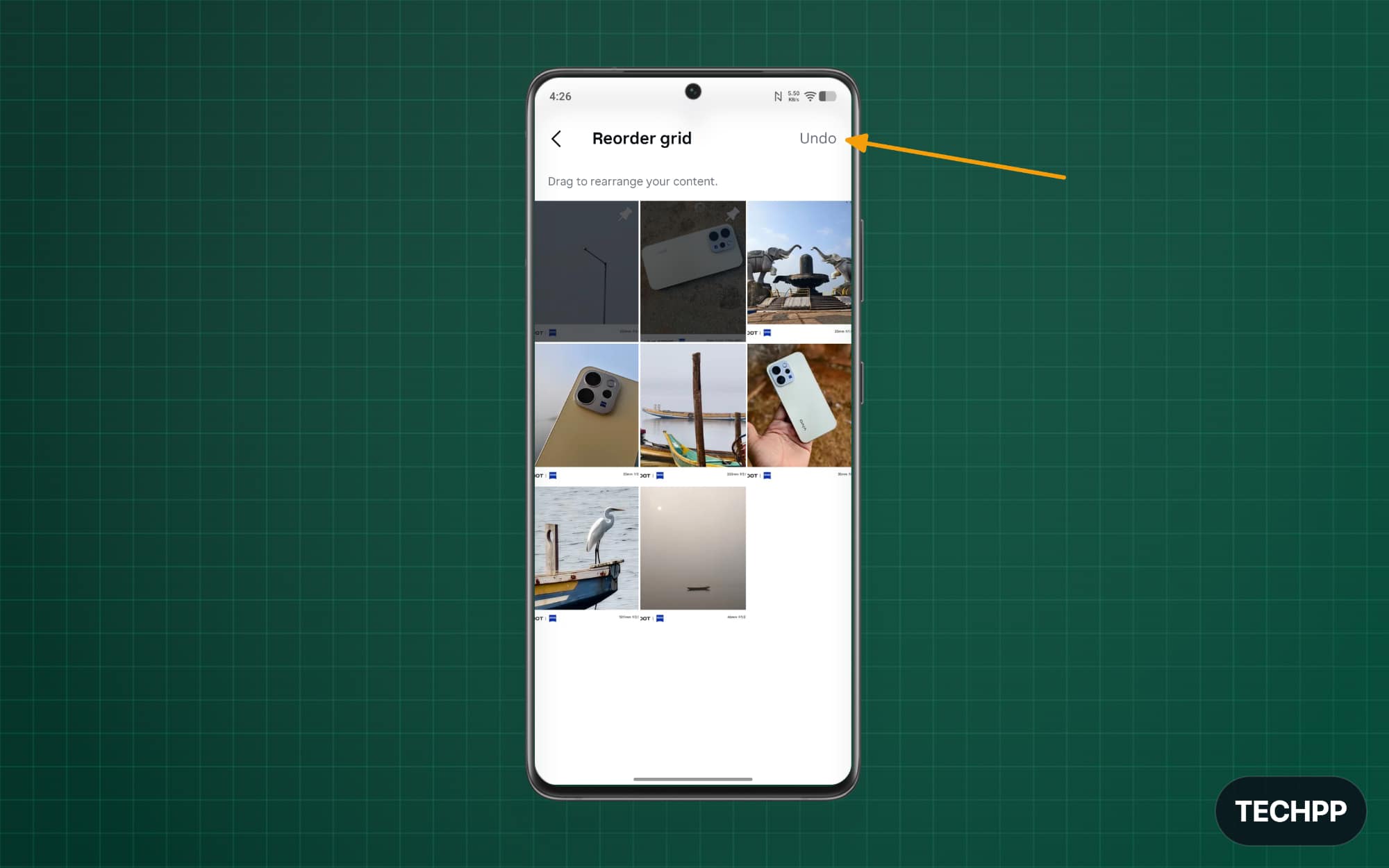
Step 6: If you want to undo any changes, tap on the Undo button in the top right corner of the page.
That’s it. This is how you can easily rearrange your Instagram grid. Instagram is rolling out several features to make your Instagram profile page personalized and more attractive to your followers. This works for both Instagram posts and Reels. With this new feature, you can decide which posts or reels appear first on your profile. Currently, there is no limitation on how many times you can rearrange your grid, and you can also rearrange your future posts.
FAQs on Rearranging Instagram Profile Grid
1. Will rearranging my Instagram grid affect the reach or engagement of my posts?
Rearranging your Instagram grid only changes the position of your posts on your Instagram profile. It won’t affect the reach or engagement of your posts on other pages. However, if you rearrange the posts and move them down, they will get fewer impressions from your followers who directly visit your profile. Fortunately, you can still pin up to three posts on top
2. Will my followers be notified when I rearrange my Instagram grid?
Instagram will not notify your followers when you rearrange your Instagram grid. However, your followers can instantly see those changes on your profile if you rearrange your grid.
3. What happens when I publish a new post after rearranging my grid?
The new post you publish still follows chronological order. It means it will appear at the beginning of your Instagram grid or after pinned posts.
4. Can I rearrange carousel, collaborative, and archived posts?
You can also rearrange carousel and collaborative posts, but not archived posts.
5. Will all profile visitors see the same rearranged order?
Yes, once you rearrange your grid, all your profile visitors see the updated grid.
6. Can I restore my grid to its original chronological order?
You need to manually reset the order. Currently, there is no option to reset all posts to chronological order.
7. Why can’t I see the Reorder Grid option even after updating Instagram?
This feature is currently rolling out to everyone in phases. If you don’t see this yet, wait for a few more days until it shows up on your app. Ensure you update the Instagram app to the latest version.

