

External solid-state drives (SSDs) are a work of art and an indispensable computer accessory. Older storage media like hard drives, CDs, and floppy disks came with so many compromises that people didn’t want to use them, especially not in this day and age. External SSDs are the perfect successors and the best way to store the heavy files we have to deal with today.

Thanks to Apple’s smart pricing strategies and clever tactics, choosing an external SSD for your Mac makes a lot more sense. With dozens of options to choose from, it’s hard to narrow it down to just one – the one that will serve you and your Mac best. But don’t worry. In this in-depth buying guide, you’ll find the best external SSDs for Mac, whether you’re a pro or a regular user. Read on to find out more.
Table of Contents
Why Should You Get an External SSD for Your Mac?
Purchasing an external SSD is much more advantageous than you think. Some of them are listed below.
Base Storage Capacities of Macs Are Just Not Enough in 2024
To put it bluntly, Apple still thinks 256GB of base storage capacity is enough in 2024, and frankly, it’s not. By comparison, the Mac Mini, iMac and MacBook Air ship with less than a quarter terabyte of usable storage space as standard. The Mac Studio and MacBook Pro base versions come standard with 512GB of SSD storage, which can become a bottleneck if you push the devices to their advertised limits.
Buying an External SSD for Mac Is Way Cheaper Than Going for a Storage Upgrade
Apple is notorious for tearing up your wallet if you want higher variants. The price ladder for upgrading base storage capacities is absurd, and that’s where external SSDs come in. Regardless of the Mac, you’ll have to spend at least $200 for the higher storage variant, and for the Mac Studio, it’s almost $2,000. In comparison, a standard 1TB external SSD will only cost around a hundred dollars. That’s almost four times the storage space of your Mac’s original capacity for almost half the price!
External SSDs Are Supremely Portable
A storage upgrade won’t make your Mac any heavier, but you certainly won’t mind carrying around an extra device that takes up hardly any space and weighs just as little. Most SSDs are small enough to fit in your jeans or shirt pocket, and you wouldn’t even notice them. Of course, you’ll need to carry the included cable set to get the maximum transfer speeds, but that’s about it.
Universally Compatible With Other Devices
Thanks to USB Type-C, external SSDs are compatible with pretty much every device you own. If you zoom out a little, professional cameras, desktop computers, game consoles, and other modern peripherals can be connected via USB Type-C ports. In addition to Macs and iPads, the recently announced iPhone 15 series also relies entirely on USB Type-C, whether for charging or data transfer. As the icing on the cake, external SSDs can be connected to an iPhone 15 Pro or Pro Max to record and save ProRes videos in real-time.
External SSDs Have Exceptionally Fast Transfer Speeds
Believe us when we say this – external SSDs can offer blazing fast transfer speeds; yes, they really do! Newer SSDs, even the regular ones, can theoretically reach speeds of up to 2,000 MB/s. That’s even faster than the internal SSD speeds of the base models of the M2 MacBook Air (13″ and 15″) and the M2 Mac Mini. Sure, other Macs, like the Mac Studio and MacBook Pro, have much faster SSDs, but the work that external SSDs are meant for can be done comfortably with the transfer speeds they offer.
Almost Every Mac Maxes Out at 1TB of Storage Capacity
Unless your wallet is deeper than the Mariana Trench and you want to buy a Mac Pro, you can’t get a Mac with more than a terabyte of internal storage. Not to mention that devices like the MacBook Air and Mac Mini only have up to 512 GB. On the other hand, an external SSD with 4 TB isn’t uncommon and, therefore, the only option if you want to have even more storage space available.
External SSDs Are Much More Protected Than Your Mac
Dropping your thousand-dollar computer isn’t something you can even think about. External SSDs, as tiny as they are, are much better protected. Most are drop-proof. Others even go a step further by receiving military certifications. What about dust and water resistance? You might be wondering. Thanks to IP certification, that’s no problem either. Plus, many SSDs offer software-based encryption tools to protect your data further. All of this is backed by a years-long limited warranty.
You Need an External Storage Device to Backup Your Mac
If you’ve ever tried backing up your Mac with Time Machine, you’ll know that the only way to do this is by connecting an external storage device. External SSDs are perfect for this purpose. Thanks to their high storage capacities, you can back up your Mac regularly and reliably without having to worry about losing your valuable data. And with the protection that external SSDs offer, there’s no better way to back up your Mac.
Cheaper Than Upgrading Your Old Mac Having Low Disk Space
Is your old Mac running out of storage space but otherwise working perfectly? Instead of replacing or buying a new one, you can transfer its contents to an external SSD. This way, you can organize your files and clear out your old Mac. Buying a new Mac’s much more practical than putting unnecessary strain on your wallet. It’s also a bit less e-waste for the planet, which is also important!
Macs Aren’t User-Upgradable Post-Purchase
The simple fact that Macs aren’t upgradeable makes them difficult to use in the long run. Apple doesn’t allow you to upgrade SSDs or RAM sticks, nor does it provide additional slots to do so. Aside from the Mac Pro, which can be configured to some extent after purchase, most Macs, including the Mac Mini, MacBooks, and iMacs, must rely on solutions such as external SSDs and cloud storage solutions to function optimally when there is no longer enough storage space.
Internal SSD Failures Are Pretty Much a Total Loss
Although it’s unlikely, the SSD in your Mac can also fail. In this case, your Mac would be unusable as there is no way to recover it. Even Apple wouldn’t be able to help you; you’d be left with a showpiece. There’s no denying that portable SSDs can have similar problems, but since they’re external, you can throw them away and buy a new one. You’ll have to back up your data somewhere, but at least you won’t have to deal with a total loss and throw away your shiny Mac.
How to Cherry-Pick the Perfect External SSD for Mac?
With so many external SSDs to choose from, it’s important to know how to pick the right one. There are a lot of things you should consider, which we list below.
Decide Upon a Storage Capacity
External SSDs come in different storage capacities – from 256 GB to a hundred terabytes. Of course, the average user wouldn’t go beyond one or two terabytes, but it’s still advisable to be clear about your requirements and decide on a suitable storage capacity. Anything less than a terabyte defeats the purpose, and the capacity would quickly be exhausted. 1TB is the sweet spot, but if you’re a creator, you shouldn’t have less than 2TB of storage capacity.
Don’t Overlook Transfer Speeds
Companies leave no stone unturned to market their products and make them appear attractive. Since the average user doesn’t necessarily know much about SSDs, brands can get away with marketing tactics, such as the transfer speed of SSDs. Pay attention to the numbers when choosing an SSD because they matter too – you could get twice the storage capacity for half the price but with worse transfer speeds. Anything below 500 MB/s isn’t recommended, while 1000 MB/s is a perfect middle ground. Anything above that, 2000 MB/s or more, is best for professionals.
Don’t Get Fooled by USB Protocols
The USB protocols are the most important thing to look out for. This requires a little research but is relatively easy to do. In fact, you need to make sure that the SSD you buy supports your Mac’s input protocols. Every new Mac comes with USB Type-C ports, but it’s important to know that these are Thunderbolt ports, which are marked with a lightning bolt symbol. Unfortunately, most external SSDs forgo the Thunderbolt protocol and opt for the more common USB 3.1 or 3.2 protocols.
Thunderbolt is a special variant of the USB Type-C interfaces and one of the fastest. Otherwise, Macs are perfectly compatible with the conventional standards – USB 3.1 Gen 2, USB 3.2 Gen 2, and USB 4. Note that the ports on your Mac may be different. Therefore, we recommend that you read the Apple Support guide to understand your Mac’s peripherals better. Therefore, you should pay close attention to whether the SSD supports the same USB protocols as your Mac.
Buying SSDs with a better protocol than your Mac makes no sense, as this won’t improve transfer speeds. For example, buying SSDs that support the USB 3.2 Gen 2X2 protocol wouldn’t be an advantage, as no new Mac currently supports this protocol. However, it’s recommended if you want to use the SSD with other devices supporting the protocol or to future-proof your purchase.
Notably, the wacky USB naming convention was probably decided by a toddler, resulting in absurd and confusing names. USB 3.0, USB 3.1 Gen 1, and USB 3.2 Gen 1, for example, claim a maximum bandwidth of 5 Gbit/s and are basically the same thing. The same applies to USB 3.1, USB 3.1 Gen 2 and USB 3.2 Gen 2, which each specify a maximum bandwidth of 10 Gbit/s. USB 3.2 Gen 2×2 is the ultimate, as it uses a multi-lane architecture to achieve bandwidths of up to 20 Gbit/s. Thunderbolt 3 and 4, on the other hand, achieve up to 40 Gbit/s.
Choose the Right Type of SSD
The choice is pretty simple. Apart from the ready-made external portable SSDs from brands like Samsung and SanDisk, you can also build your own. All you need is an SSD stick and an enclosure; the rest is simple DIY. Although pre-built SSDs are convenient, there are many advantages to building them yourself. However, there’s no denying that external SSDs are sufficient for most use cases, while homemade SSDs are more recommended for enthusiasts.
Give Equal Importance to Build Quality
Even though it’s pretty obvious, you shouldn’t disregard the build quality of SSDs. Gone are the days of fragile hard drives, as modern SSDs are much more resistant to drops, splashes, and dust. Some are even military-certified for additional protection. Software also plays an important role. Thanks to the ability to encrypt drives, you can prevent your data from being compromised by securing it with a password.
Related Read: A Comprehensive Guide to Buy SSD for PCs
Best External SSD for Mac – For Regular Users
Samsung T9 Portable SSD
Samsung is one of the first companies that comes up when you search for external storage drives. Based on NVMe technology, the portable Samsung T9 SSD isn’t much bigger than a credit card and, at 122 grams, can even undercut your wallet in terms of weight. The small but mighty metal casing is encased in a black, textured rubber coating, for which Samsung confidently claims a drop resistance of up to 3 meters.

With insane read and write speeds of up to 2,000 MB/s, the T9 portable SSD is one of the fastest you can get. It’s available in three storage variants – 1TB, 2TB and 4TB, all of which rely on the USB 3.2 Gen 2×2 interface. Unfortunately, there is no Thunderbolt support, which all newer Macs support. This also means that none of the Macs will enjoy the advertised transfer speeds of 2,000 MB/s – it’s only good for future-proofing if we talk about it now. Thanks to AES 256-bit hardware encryption, the T9 portable SSD can be locked behind a passcode using Samsung Magician software. All of this is covered by a 5-year warranty.
Samsung T7 Series
If you don’t consider yourself a power user and transferring heavy files is a rarity, the Samsung T7 portable SSD would be a smarter choice. Samsung’s T7 series of portable SSDs, which includes the T7, T7 Touch, and T7 Shield, fulfill all the requirements for an ideal SSD. The specified maximum read and write speeds of 1,050 MB/s and 1,000 MB/s respectively, and the credit card-sized housing are plus points. The software features such as AES 256-bit encryption, password protection via the Samsung Magician software, and much more aren’t neglected either. The T7 series is available with 500GB, 1TB, 2TB, and 4TB, which vary depending on the variant selected.
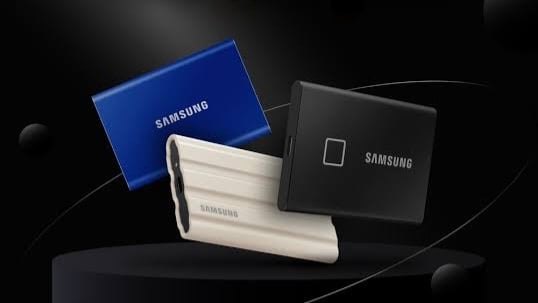
As a special feature, the T7 Touch has a physical fingerprint scanner that provides the ultimate protection for your stored data. The T7 Shield has a rubberized casing similar to its successor, the T9 portable SSD. Despite the same 3-meter drop resistance, the T7 Shield is IP65 dust and splash-resistant. The standard T7 portable SSD is drop-resistant up to 2 meters and housed in a metal enclosure with stunning colors. The T7 series relies on the proven USB 3.2 Gen 2 port to compensate for the lack of Thunderbolt support. T7 and T7 Touch have a 3-year warranty, while the T7 Shield has a limited 5-year warranty.
Buy Samsung T7
Buy Samsung T7 Shield
Buy Samsung T7 Touch
SanDisk Extreme and Extreme Pro Portable SSDs V2
SanDisk also has a cult following thanks to its extensive range of pen drives, SSDs, memory cards, and much more. The SanDisk Extreme Portable SSD is SanDisk’s answer to Samsung’s T7 Shield Portable SSD. The SSDs are literally neck and neck in terms of specifications. In terms of design, SanDisk opts for a slightly larger footprint and a soft silicone surface. However, it’s almost half the weight, although it’s equipped with a carabiner loop. Thanks to its robust construction and IP65 protection rating, the SSD is drop-proof from a height of up to 3 meters, although it’s equally protected against dust and splash water.

The differences end there, as the SanDisk Extreme’s USB 3.2 Gen 2 port offers similar transfer speeds – up to 1,050 MB/s write and 1,000 MB/s read. On the software side, the SSD benefits from the SanDisk Memory Zone app, a cross-platform file management software, and the SanDisk SecureAccess software, which uses 256‐bit AES hardware encryption to secure your data. The SSD is offered in a range of capacities, from 500GB to 4TB, and SanDisk offers a 5-year limited warranty on all data.
SanDisk also sells an even faster variant, the Extreme Pro Portable SSD V2, which offers transfer speeds of up to 2,000 MB/s thanks to USB 3.2 Gen 2×2 support. The rest of the specifications, including the body language, remain unchanged. To be fair, the SanDisk Extreme and Extreme Pro line of portable SSDs struggled with a data erasure issue early last year. Users reported sudden data loss on their SanDisk SSDs, with dire consequences. Fortunately, the problem was resolved shortly afterward with a firmware update. The affected SSDs included the 4TB versions of the SanDisk Extreme and all three storage variants – 1TB, 2TB, and 4TB of the Extreme Pro.
Buy SanDisk Extreme for Mac
Buy SanDisk Extreme Pro for Mac
Crucial X9 Pro and X10 Pro
Another well-known name in the industry is Crucial, and its X9 Pro Portable SSD is another great contender. What’s amazing is that the X9 Pro is lighter, even though it’s almost the same size as the AirPods Pro. The tiny accessory pushes the boundaries of compactness while being drop-proof from up to 2 meters and meeting the IP55 rating, which means it can withstand water splashes and dust.
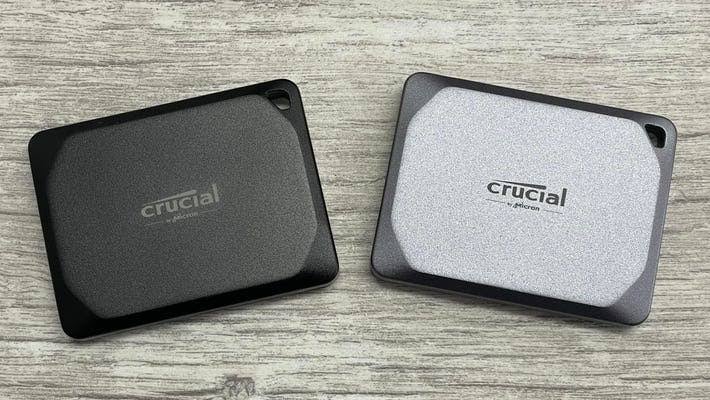
The Crucial X9 Pro is offered in 1TB, 2TB, and 4TB sizes and utilizes the same USB 3.2 Gen 2 protocol to achieve read speeds of up to 1,050MB/s and write speeds of up to 975MB/s. It also supports 256‐bit AES hardware encryption and comes with a 5-year limited warranty. Crucial also offers the X10 Pro portable SSD, which is identical to the X9 Pro but with a transfer speed of up to 2,100 MB/s thanks to USB 3.2 Gen 2×2.
Buy Crucial X9 Pro
Buy Crucial X10 Pro
Kingston XS1000 and XS2000
Are you looking for an external SSD for your Mac without breaking the bank? Then the Kingston XS1000 is just the thing for you. If you thought the Crucial X9 Pro was the smallest SSD you could get, the Kingston XS1000 will amaze you with its even smaller and lighter design. Although not as robust as other options, the SSD follows a safe and solid metal and plastic sandwich design. However, the SSD has no official IP rating and no drop resistance rating.

Other common specifications include a USB 3.2 Gen 2 port that supports transfer speeds of up to 1,000 MB/s and a 5-year limited warranty. If you haven’t had enough after the XS1000, Kingston has an answer with the XS2000 portable SSD. Highlights include a similarly impressive form factor, transfer speeds of up to 2,000 MB/s, and an IP55 rating. In addition to the 5-year warranty, an included rubber cover ensures dust, splash, and shock resistance. Kingston’s offerings are very affordable compared to others, even though they offer the same performance.
Buy Kingston XS1000
Buy Kingston XS2000
Related Read: Best Disk Speed Test Apps for Mac
Best External SSD for Mac – For Professional Users
Professional SSDs cater to users who absolutely cannot compromise on transfer speeds. Thus, you shouldn’t settle for anything less than Thunderbolt 3, especially in the case of a Mac. There’s no point in spending huge sums for a professional external SSD for Mac if it doesn’t support the Thunderbolt interface. As a bonus, most professional SSDs prioritize data protection and are much more robust than conventional SSDs.
SanDisk Professional Pro-G40 SSD
The Pro-G40 SSD from SanDisk is an ideal choice for professionals. The SSD complies with both the Thunderbolt 3 and USB 3.2 Gen 2 standards. Don’t be surprised by the performance figures: 3,000 MB/s read and 2,500 MB/s write speed via Thunderbolt 3. The speeds via the USB 3.2 Gen 2 connection are also not to be sneezed at, with 1,050 MB/s read and 1,000 MB/s write.

To prevent overheating, the SSD has opted for an aluminum housing that supports heat dissipation. With an IP68 rating, you can be sure that the Pro-G40 is waterproof and dustproof. In addition, the SSD is drop-proof up to 3 meters and can withstand weights of up to 4,000 pounds without being crushed. With 1TB, 2TB, and 4TB and a 5-year warranty, the SanDisk Pro-G40 is a great choice for professionals.
LaCie Rugged SSD Pro
LaCie and its unique international orange-colored SSDs are immensely popular and easily recognizable to the public. LaCie is a trusted brand, which is why Apple officially sells LaCie SSDs on its websites under “Essential Accessories for Mac.” Not only are they compatible with Thunderbolt 3, but they also include the Seagate FireCuda NVMe SSD, which reaches speeds of up to 2,800 MB/s. You can choose between storage capacities from 1 TB to 4 TB.
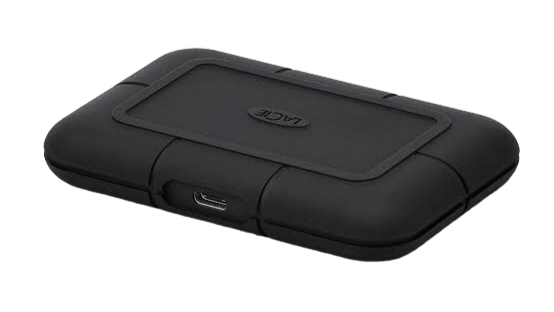
Unfortunately, this SSD forgoes the LaCie-exclusive orange design and is instead all-black. It’s still waterproof to IP67, drop-proof from up to 3 meters, and can withstand a 2-ton car. You’re not just paying for the hardware because in addition to a 5-year warranty, the LaCie Rugged Pro also includes free access to Rescue Data Recovery Services for five years.
LaCie Rugged Mini SSD
If you’re willing to sacrifice some features to get an even smaller SSD, you should check out the LaCie Rugged Mini SSD. You get the typical LaCie features – the bright orange casing and rubberized exterior – but in an even smaller format. The drive is IP54, protected against splashing water, and can withstand drops from up to 3 meters. You can choose between 500GB, 1TB, 2TB and 4TB.
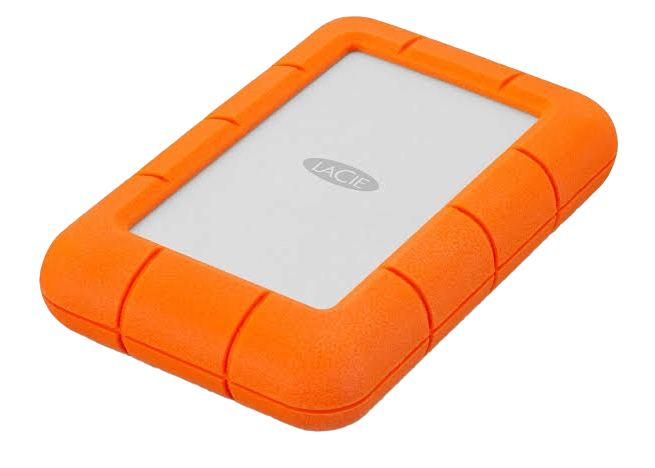
As an upgrade from Thunderbolt 3, the Rugged Mini supports the newer Thunderbolt 4 protocol with speeds of up to 2,000 MB/s. It is backward compatible with other USB standards, including Thunderbolt 3 and USB 3.2 Gen 2×2. A 3-year limited warranty backs the device with a free Rescue Data Recovery Service for up to 3 years. 30% of the materials used in the construction are recycled.
Build Your Own External SSD for Mac
True enthusiasts know the benefits of building the equipment themselves, and SSDs are no different. Trust us, building an SSD isn’t more complex than a school project, and you could be upgoing in a minute or two. All you need to do is place an SSD stick in the enclosure, tighten a screw or two in place, and place the thermal conducting pad on top of it (some enclosures have this done by default), and put the lid back in. That’s pretty much it!
Custom-built SSDs are highly recommended if you plan on going higher than a terabyte of storage, as you can better enjoy the perks of building the SSD yourself. For starters, you get to experience much faster transfer speeds. It’s not just peak performance; such SSDs are far more capable of maintaining the speeds than pre-built ones. You can all go all out and customize the SSD entirely how you want, as everything from the internal SSD stick, outer enclosure, and additional accessories, like a heatsink, are personalizable.
The most significant benefit that can never get on pre-built SSDs is upgradability. Since it’s not glued shut, you can pop the SSD out and replace it with a newer, faster one. SSDs are sure to get filled someday, but in this case, you can just go for an internal SSD upgrade instead of buying an entirely new one, like you would have to in the case of a pre-built external SSD. The same goes for the outer enclosure, thanks to the modular design. If you think from a broader perspective, this allows custom-built SSDs to be far more cost-effective than a pre-built one.

When you upgrade to a full-fledged PC in the future, you can use the internal SSD stick from your custom creation, plug it into your PC, and get your machine up and running. This flexibility and modularity is why professionals opt for an external SSD for Mac, as it’s almost a one-time investment. Most importantly, you don’t need to worry about the warranty, as most popular internal SSDs are equally generously covered by their manufacturers.
Choosing the right internal SSD is the key to building a flawless SSD. There are numerous SSD forms, interfaces, types, and so on, but this comprehensive SSD buying guide should help you. If you don’t have time to go through it, make sure you buy one that supports PCIe (Gen 4 is recommended), M.2, and NVMe. Another important point to consider is the TBW (Terabytes Written) value. It refers to the total amount of data that an SSD can write during its lifetime. It may be that an SSD offers similar specifications for less money but has a lower TBW value. Brands cover their SSDs based on TBW values along with time, meaning your warranty will expire when the SSD has exceeded the TBW values, even if it hasn’t finished its runtime yet. As a general rule of thumb, a 1TB SSD should have a TBW value of over 360.
Since it’s all custom, we recommend doing your own research and selecting the best one yourself. Choosing the right one is vital instead of blindly running behind numbers, as you are unlikely to witness mammoth transfer speed figures while using the SSD with your Mac. Regardless, here’s a rundown of the best NVMe SSDs and their key specifications for building a custom external SSD for Mac.
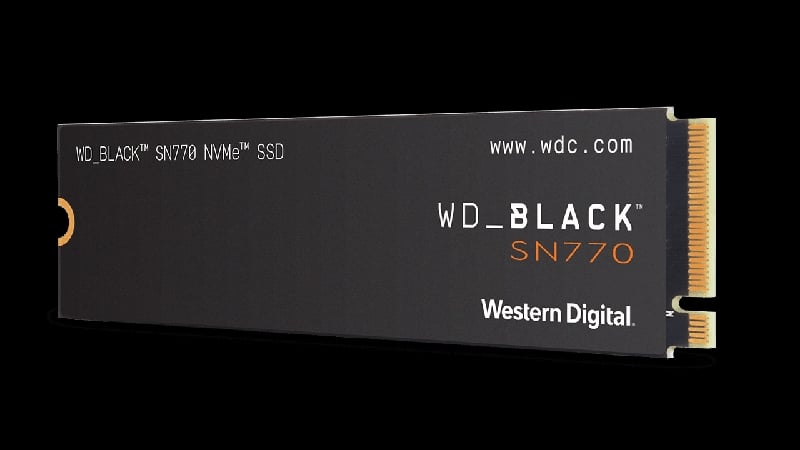
WD Black SN770 NVMe SSD
This PCIe Gen4 NVMe SSD from the established company Western Digital is a bestseller. The WD Black SN770 is available in storage variants from 250 GB to 2 TB and offers impressive transfer speeds of up to 5,150 MB/s in its highest variant. Unfortunately, the software that comes with the SN770 SSD is Windows-exclusive. Nevertheless, the product comes with a five-year warranty. The TBW value is a good 1,200 for the 2TB variant.
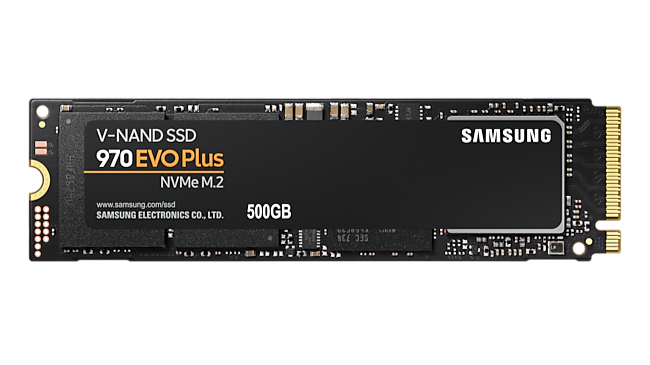
Samsung 970 Evo Plus
The Samsung 970 Evo Plus could be the best-rated internal SSD you can get. The Samsung 970 Evo Plus is based on PCIe 3.0×4 NVMe 1.3 technology and comes in 250GB, 500GB, 1TB, and 2TB configurations. It offers an amazing write speed of 3,500 MB/s and a read speed of 3,300 MB/s for the 1 TB and 2 TB variants. Together with the 5-year limited warranty and Samsung’s exclusive Magician software for SSD management, data security, and firmware updates, it is a compelling candidate. The endurance of the SSD is specified at 1,200 TBW for the 2TB variant.
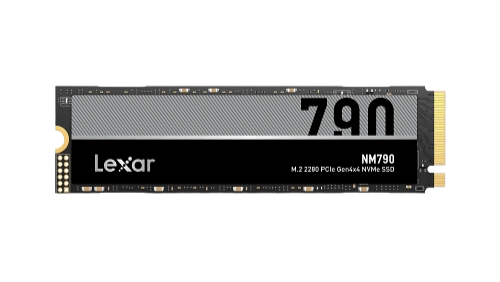
Lexar NM790 SSD
Lexar is a clear underdog in the industry. The NM790 SSD, which is based on PCIe Gen4x4, is incredibly affordable for the performance it offers. Even if Macs aren’t able to fully utilize the SSD, it’s hard not to recommend it, especially considering it’s cheaper than other SSDs from established manufacturers. For comparison, the SSD offers read speeds of up to 7,200 MB/s and write speeds of up to 6,500 MB/s. Unlike other SSDs that quote much lower speeds for their lower capacity models, the NM790 gives the exact figures for its 1TB, 2TB, and 4TB variants. The 512GB variant falls only slightly short of these figures. With a 5-year warranty and a TBW value of 3,000 for the 4TB variant, it’s the cheapest offering on our list.
Make sure the enclosure is compatible with Thunderbolt speeds, can accommodate high-capacity SSDs, is well made, and is heat resistant enough to withstand peak transfer speeds. Heat resistance can be improved with thermal pads, which are readily available. Some SSDs also have a built- in heatsink to improve heat dissipation further. It doesn’t matter which enclosure you buy; the important thing is that it’s compatible with the internal SSD you want to use it with. So, you can go all out, but still, our recommendations include the ORICO 40Gbps M.2 NVMe SSD Enclosure and the ACASIS Tool-free 40Gbps M.2 NVMe SSD Enclosure.

It’s Not Done (Yet)
Unlike pre-built SSDs that come programmed to work with Macs, the raw nature of a custom-built SSD means it won’t be recognized by your Mac when you plug in. Fret not; a simple formatting is enough to tackle this issue. Here’s how you can do it:
- Plug in the SSD to your Mac.
- A warning message should pop up. Click Initialize to start the process. Alternatively, you can open Disk Utility and select your external SSD in the left pane. If your SSD isn’t displayed, select View in the toolbar and activate Show all devices..
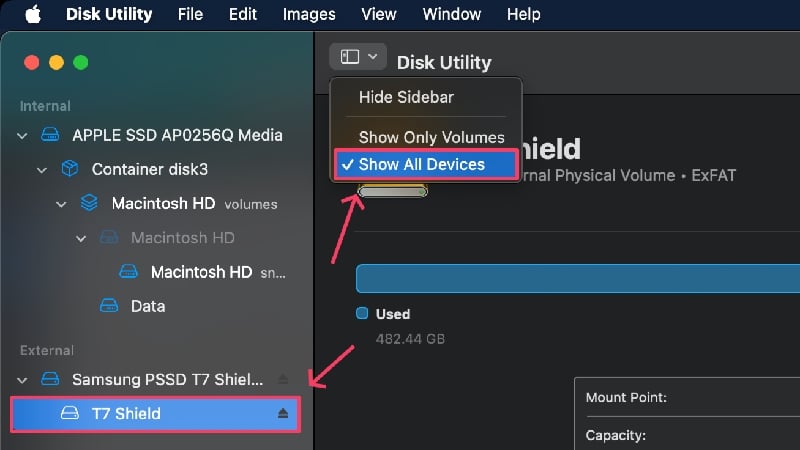
- Select Erase from the toolbar up top.
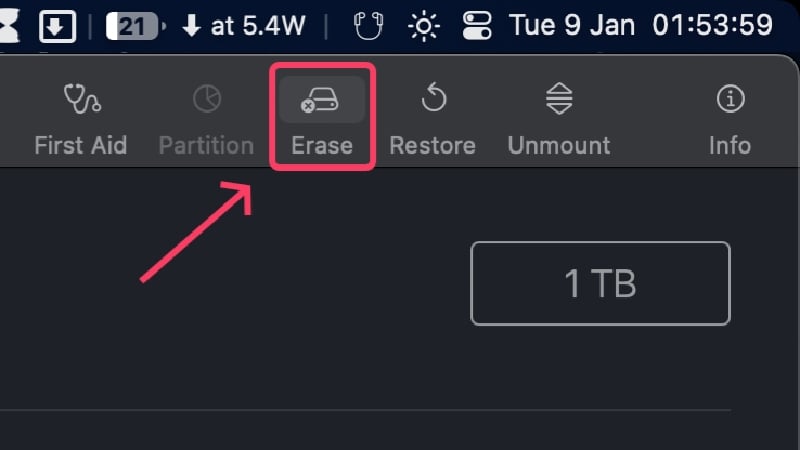
- Rename your SSD and select the dropdown menu beside Format.
- Select the APFS file format, which is well-suited for most users and recommended by Apple. Choose ExFAT if you plan on using the SSD on other platforms like Android and Windows. If you wish to explore other file formats, we recommend checking out Apple Support’s guide.

Image credits: Apple Support - Click on Erase. After it’s done, you’ll find your SSD’s name in the left pane, ready to be used.

Image credits: Apple Support
Don’t Make a Mistake Buying the Wrong External SSD for Mac
This wraps up our extremely elaborate external SSD buying guide. Mac users will immensely benefit from an external SSD, which is why you should surely get one if needed, be it a pre-built external SSD or a custom-built one. Low storage capacities, lack of upgradability, and expensive storage upgrades are enough reasons to favor one. Popular choices include the Samsung T9, T7 series, and SanDisk Extreme series. Kingston’s and Crucial’s offerings are equally captivating, thanks to their value proposition.
You have even more advantages if you decide to take the somewhat more difficult route of building a hard disk yourself. Faster and more stable transfer speeds, upgradeability, compatibility with more devices, and modularity – we’re just scraping the ice off a glacier. The real work is in choosing the right combination of enclosure and internal SSD, which is done accurately enough in this article. The Samsung 970 Evo Plus and the WD Black SN770 are the crowd favorites, while the Lexar NM790 will amaze you with its value.
FAQs about Best External SSD for Mac
1. Why am I not getting the advertised speeds with my SSD?
You may feel cheated when you realize that the speeds advertised by your SSD don’t come close to what you’re actually getting. That’s the hard truth you have to deal with. Manufacturers test their SSDs under ideal conditions and in specific scenarios so that they can deliver their peak performance. In the real world, this isn’t possible for various reasons, so it’s unlikely that you’ll achieve the advertised values. A modest expectation you can place on your SSD is to achieve more than two-thirds of the stated maximum transfer speeds.
So, an SSD that claims a write speed of 5,000 MB/s should usually be around the 3,500 MB/s mark. If your speed is alarmingly low in comparison, you should look for problems on your Mac’s side. The USB protocols may not match, causing the SSD to deliver significantly lower transfer speeds. Compatibility issues, old firmware, overheating, or even an unsuitable cable can cause your SSD to slow down drastically.
2. Why is my SSD overheating?
This isn’t an uncommon problem because SSDs tend to heat up. Their form factor is the biggest culprit, along with high transfer speeds, large file transfers, and ambient temperature, which can contribute to the problem and cause the SSD to overheat. Stop all file transfers, unplug the SSD, and leave it untouched for some time before using it again. It should now work again.
If your SSD is a custom build, your enclosure could be the cause of the problem. The enclosure is an important part of the SSD, and poor heat conduction can lead to overheating. Heat dissipation can be improved by placing thermal pads on the SSD in the enclosure. If the housing offers enough space, a separate heat sink can be used.
3. What are read and write speeds?
Read and write speeds are important parameters for testing an SSD. To explain it simply using examples: Read speed occurs when you transfer files from an external SSD to your Mac, while write speed is the exact opposite. The read speed refers to the speed at which an SSD can read the data stored on it, while the write speed refers to the speed at which files can be written.
Read and write speeds are different and, therefore, have different values. The latter is usually lower, so you don’t have to worry if you notice a slower transfer speed when copying a file from your computer to the SSD.
4. Where can I know more about the ports on my Mac, and how will it affect my external SSD’s performance?
Every Mac is unique, and therefore, different connectors aren’t uncommon. Newer Macs are equipped with Thunderbolt Type-C USB ports, which are backward compatible with other USB generations, such as USB 3.1 and USB 3.2. You should pay attention to this when buying an external SSD because a high-quality SSD can only develop its full potential if your Mac can handle it. Here’s the Apple Support guide to help you with your Mac’s ports.
5. Are custom-built SSDs safe?
Absolutely. Once you’ve overcome the hurdle of building an SSD by choosing the right components, you can use them on your Mac. Since they’re not programmed for your Mac by default, you’ll need to reformat them to a format supported by your Mac, such as APFS. This is a breeze and can be done with Disk Utility. Also, most internal NVMe SSD sticks come with the brand’s drive management software. An example of this is the Samsung Magician software with the 970 Evo Plus NVMe SSD.
6. Can I use the external SSD with other devices?
Thanks to USB Type-C, you can actually use your external SSD with other devices. It doesn’t matter whether it’s an Android or Windows device or even the new iPhone 15 series devices. However, due to USB compatibility issues, it’s unlikely that you’ll get the same performance from all devices. An SSD may feel slower on an iPhone 15 than on a MacBook because the iPhone 15 has a USB 2.0 port, which is slower than the Thunderbolt 4 port on the newer MacBooks.

