

Quick Answer
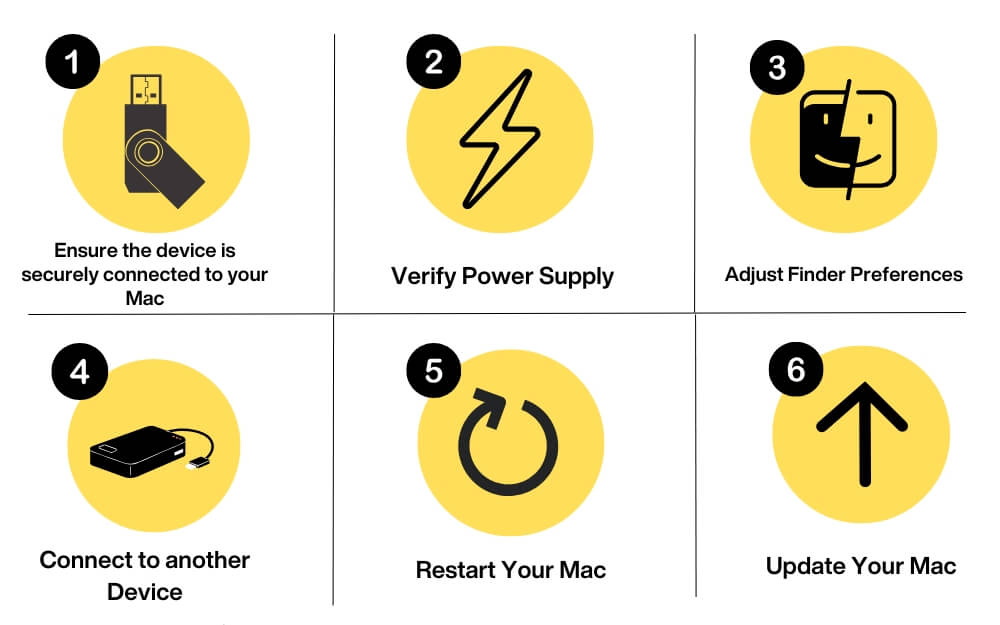
If your Mac is unable to detect external devices, Change the Finder preferences to show all connected devices, ensure the Mac supplies enough power to the device, and restart and update your Mac. Connect the device to another computer to determine if the issue is with your Mac or your external device. If these quick fixes don’t resolve the issue, find the root cause of the error using console logs and apply the relevant troubleshooting method.
I recently encountered a USB-disabled error on my Mac. After following a few troubleshooting steps, a simple update fixed my issue. I have written a complete guide to help you fix Mac-disabled errors on your Mac.
Since then, many of my friends have also asked me about other USB errors, like Mac not being able to recognize external devices. Since it is the most common error for Mac users, I have decided to share a detailed guide on how to fix the issue easily. If you are currently having these issues on your Mac, follow quick fixes that work for most people and advanced troubleshooting techniques that require a deep dive and fix the issue from the root.
Table of Contents
Try these Quick Fixes First
Ensure Proper connection
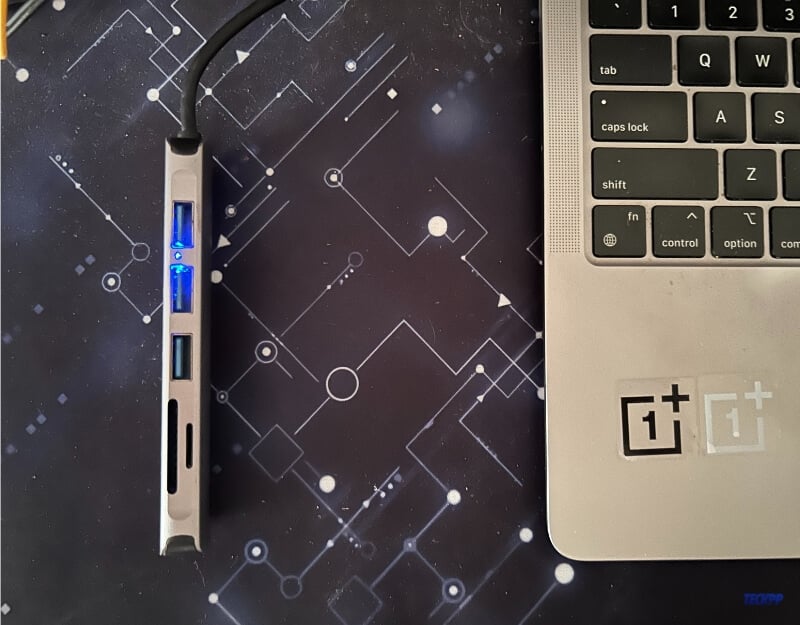
Although this sounds common, I found faulty cables and loose connections are the most common reason for this issue. Most Mac users rely on external USB HUBS to connect external devices because of the limited port availability. Ensure that you have plugged the device securely into the port.
If you are using a USB hub, try connecting the external device directly to the Mac port if it is compatible. If these don’t fix the issue, try using another device to ensure the problem might be with the device itself.
Check Finder Preferences
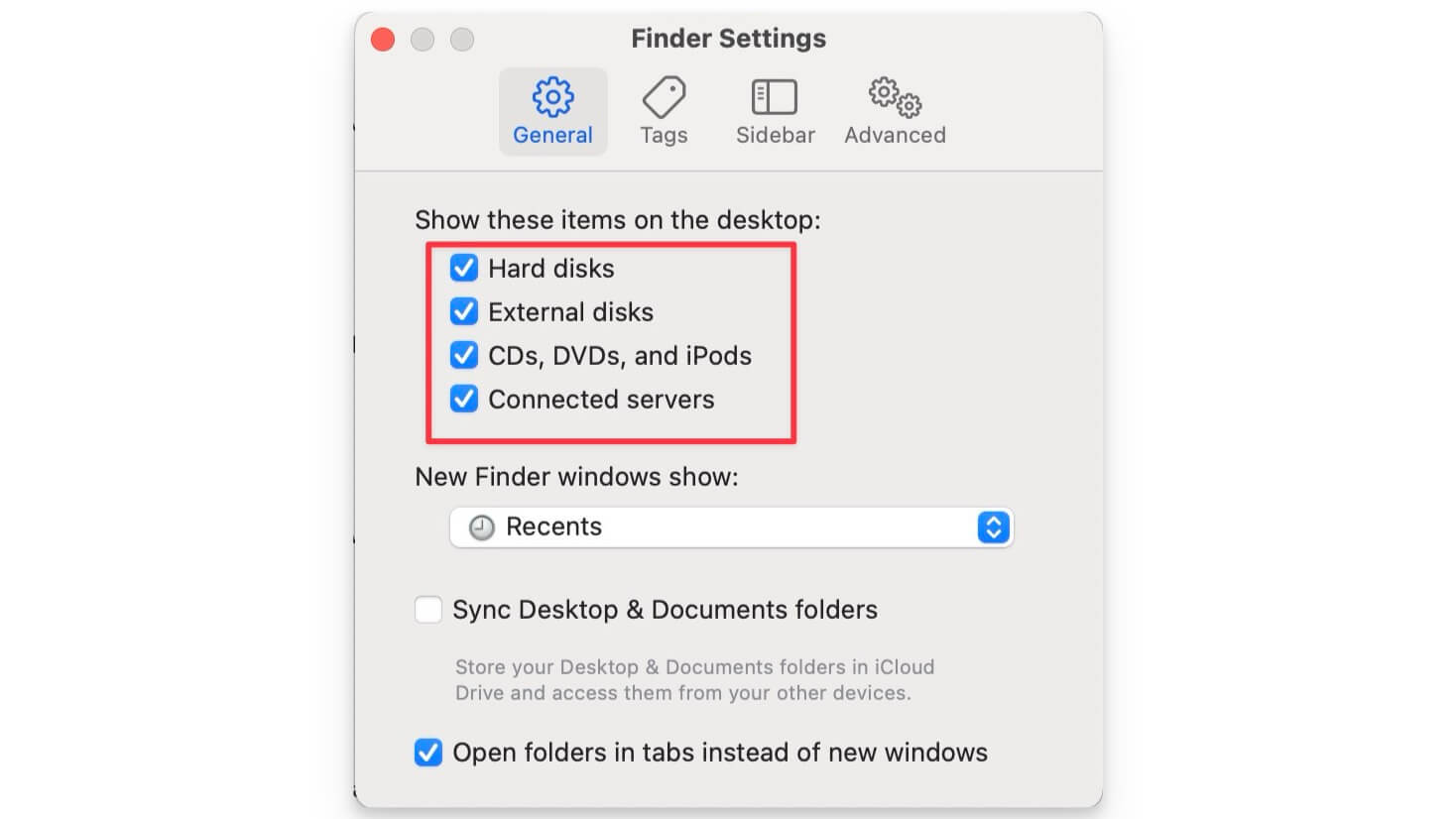
Check whether you accidentally changed Finder preferences on your Mac. MacOS Finder allows you to customize the information it displays for you. If you have disabled external devices, the Mac Finder won’t show the external connected devices. Finder preferences are usually set to show all devices, but if you have accidentally disabled this setting, you can enable it to help fix the issue.
- To enable it, open Finder on your macOS, click on the top-left menu bar, and select Settings.
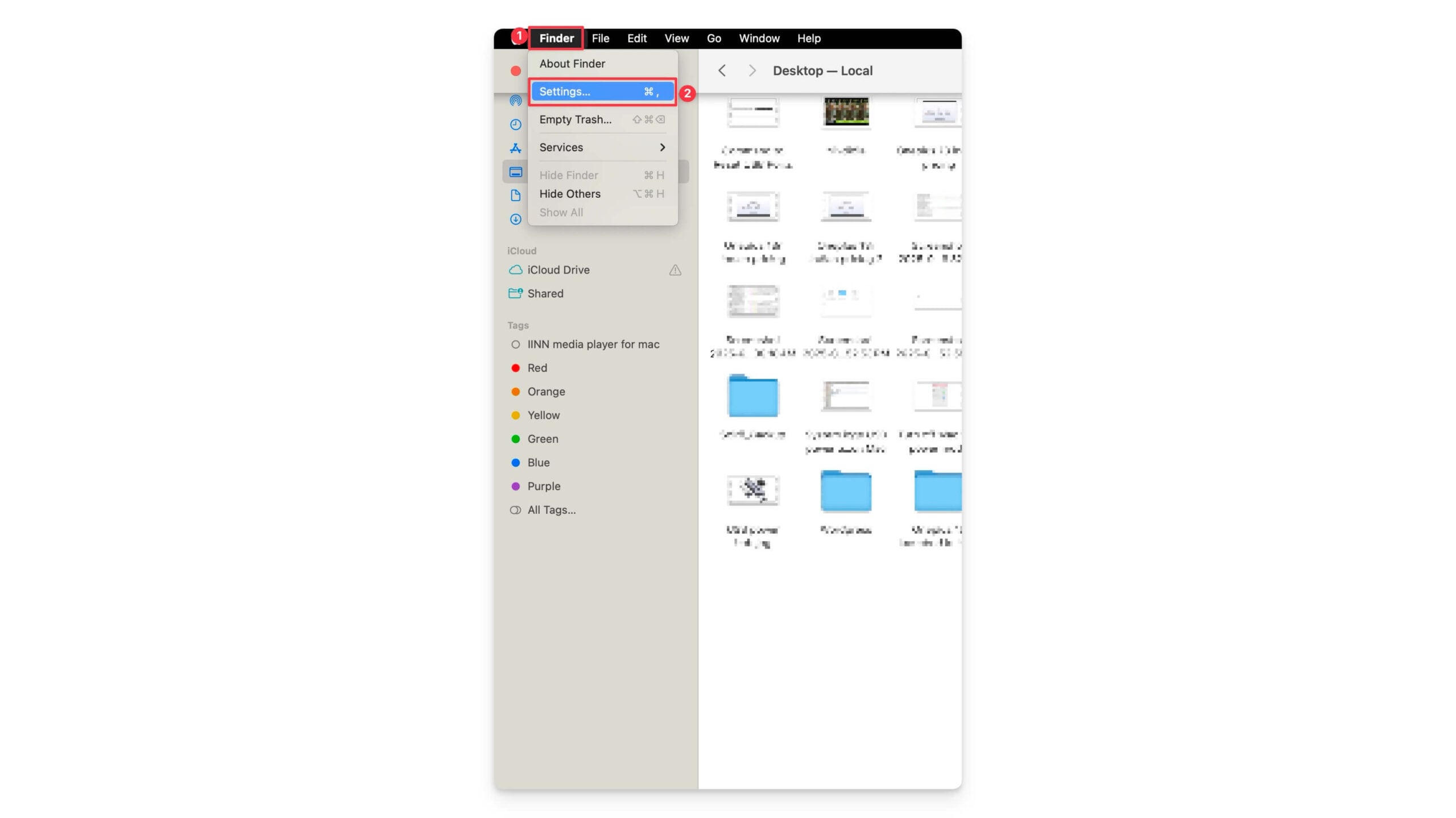
- Go to the General tab and ensure the following options are enabled: Hard Disks, External Disks, CDs, DVDs, and iOS Devices. If you still don’t see your connected device after enabling these options, follow the steps below.
Verify device power
Some external drives require more power than your Mac USB port can supply. Mac usually shows a ”USB disabled error” when the device needs more power than your Mac port can supply. To check, go to System Settings > About This Mac > System Report > Hardware > USB
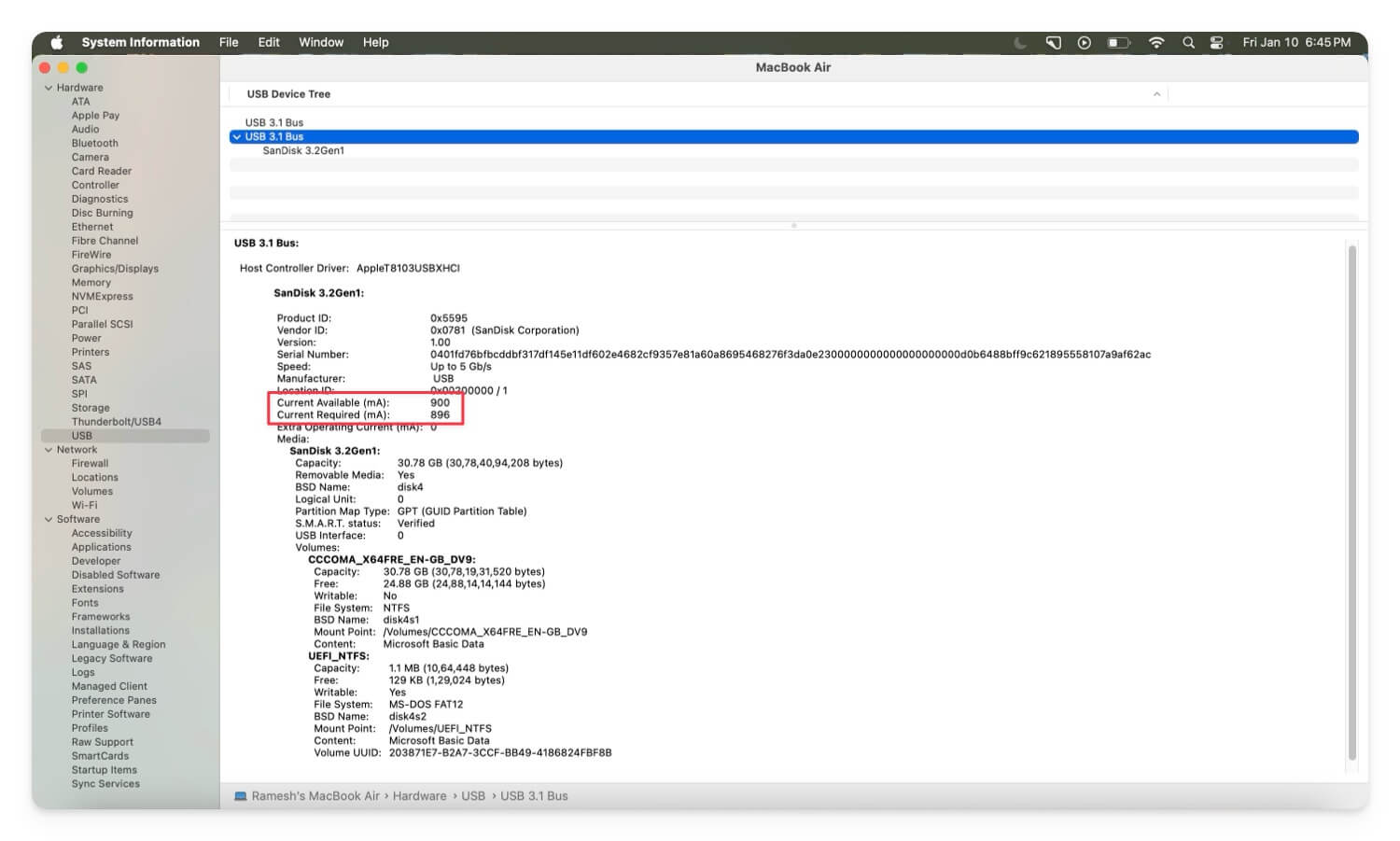
However, if this happens frequently and your device is not recognizable, ensure your device has enough power, especially if it’s an external device that requires an external power supply. Ensure the device is powered to the power source and has the required power to connect and use. You can check detailed steps on how to viewport power usage from our previous guide.
Restart Your Mac
Restarting your Mac is another easiest method that fixes the majority of problems, and it may come to the rescue and fix the USB device not recognized error on your Mac.
Sometimes, the software glitches or the USB power sources might not work as intended, leading to these errors. A simple restart resets all the systems, removes any temporary glitches with the device, and can easily fix the issue. First, restart your Mac and then reconnect your external device. If it still doesn’t work, follow the steps below.
Update Your Mac

While the ”external device not recognized error” might not be directly related to the software, if you are running an older version or using the beta version of macOS, this can be a reason for this error. To fix this, update your Mac to the latest version, install a stable version, and opt out of the beta software to fix the issue. To update, Go to System Settings > General > Software Update.
Inspect for Hardware Failures

Inspect the device for any hardware problems such as a broken cable, port connections, firmware corruption, and also primarily because of incompatible file systems. Check if there is a device-specific issue by connecting it to a different device.
Advanced Troubleshooting Techniques
If the quick fixes don’t fix the error on your Mac, try our advanced troubleshooting techniques. These methods help you to fix the specific issue that is causing the error on your Mac.
Use Disk Utility’s First Aid
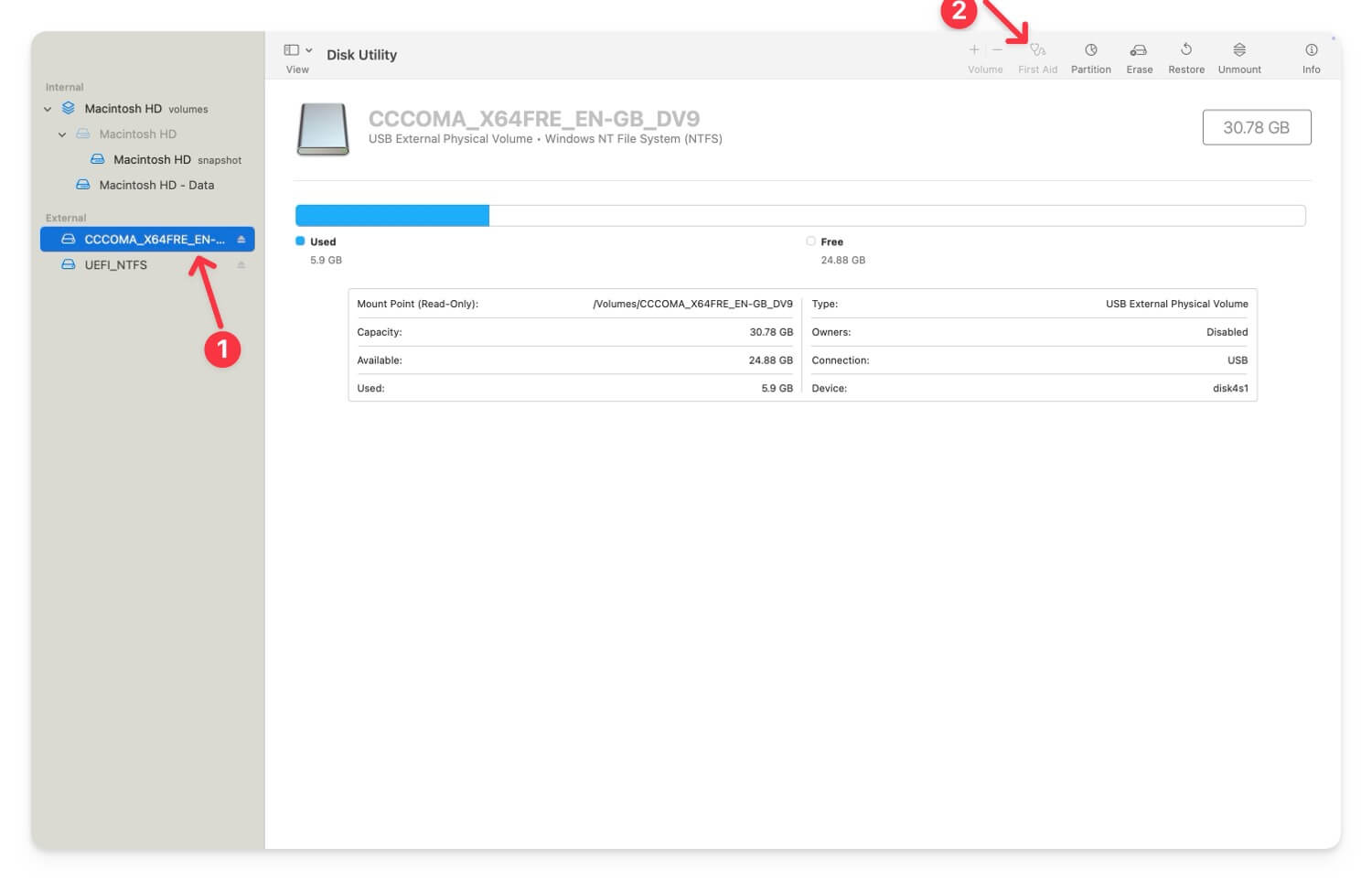
If your Mac fails to recognize external storage devices, such as a disk, USB, or hard disk, use the Disk Utility First Aid feature to repair any disk errors.
First Aid checks the disk for errors and fixes them automatically. It can help you easily resolve issues if the external device you’re connecting is corrupted or has a different file system that your macOS is failing to recognize.
To fix:
- Use Finder to locate the Disk Utility app or navigate to Applications > Utilities > Disk Utility.
- Connect your external device to your Mac.
- Select the device from the sidebar in Disk Utility.
- Click on First Aid and then run it.
This will fix the issue if the external storage device has any partition or file system errors and help your Mac recognize the device the next time you connect it.
Reset NVRAM/PRAM
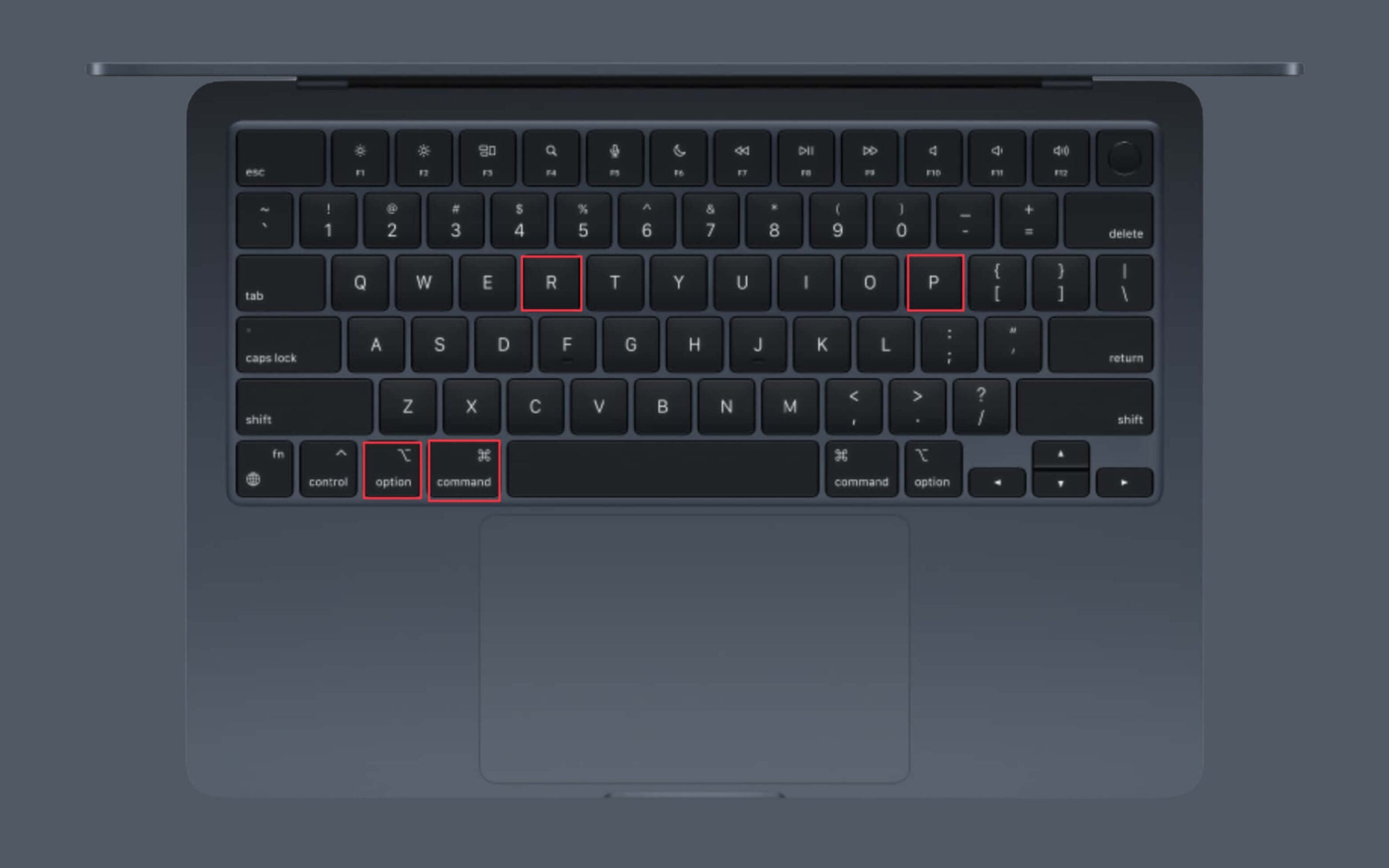
Non-volatile random access memory, also known as NVRAM, or parameter RAM, also known as PRAM, stores system configurations. If the data becomes corrupted or has incorrect configurations, this might result in errors such as “not recognized” errors. To fix this, you can reset the NVRAM and PRAM on your Mac and reset the settings to their default values.
How to to Reset NVRAM/PRAM:
- Shut down your Mac.
- Press the power button and immediately press and hold the Option + Command + P + R keys simultaneously.
- Release the keys after about 20 seconds or when the system boots up completely. This will reset NVRAM/PRAM on both Intel and silicon-powered Macs.
Reset the SMC (System Management Controller)
The System Management Controller (SMC) controls low-level hardware such as power management, thermal management, and USB connections on your Mac. If the external device is not recognized, it might be a glitch in the SMC that can be the reason causing this issue.
In this case, you can reset SMC. However, resetting SMC works differently on Intel Macs and the latest Apple Silicon Macs.
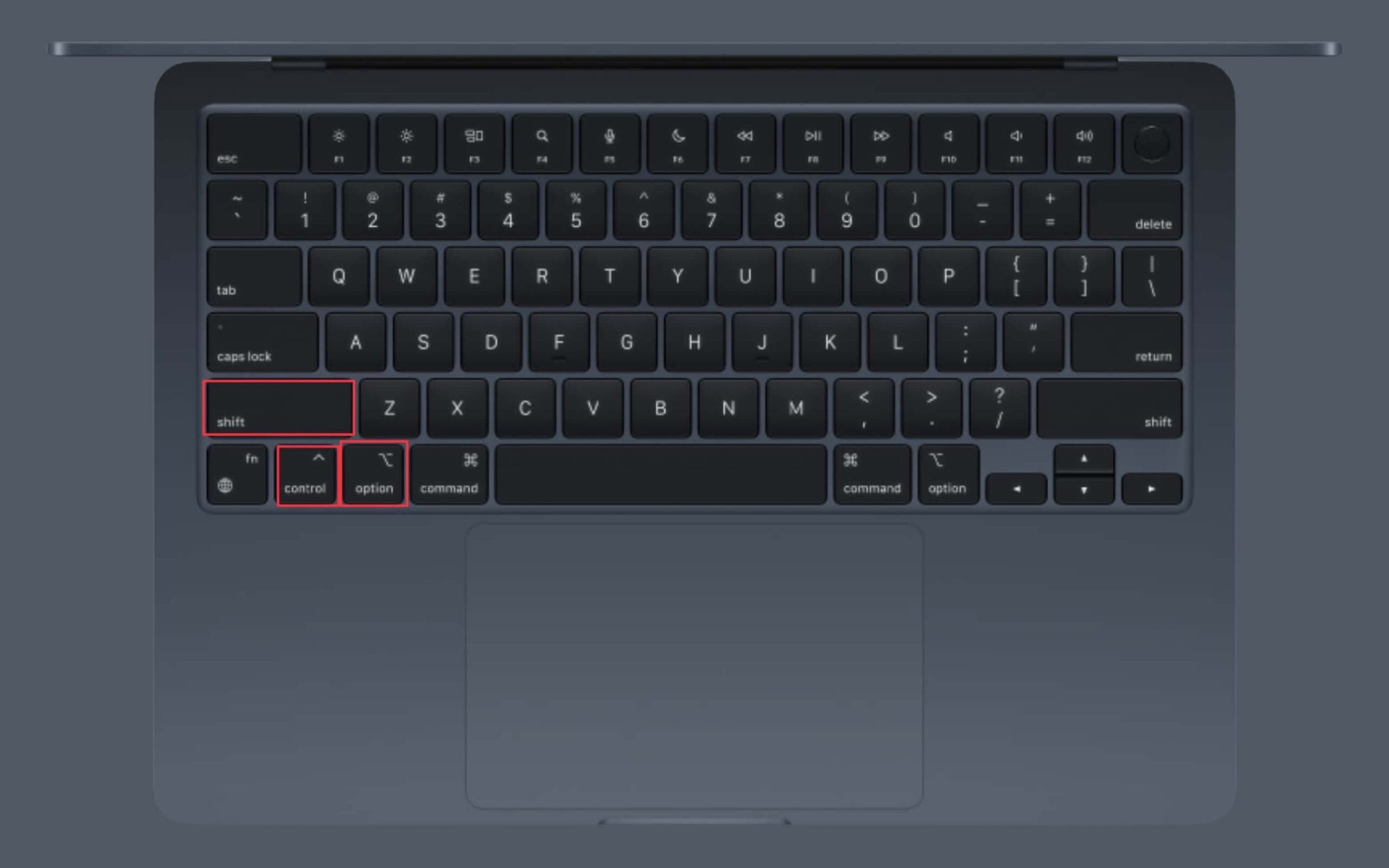
If you are using an Intel-based Mac, you can shut down your Mac, press and hold the Shift + Control + Option keys along with the Power button for 10 seconds, then release all the keys and turn on your Mac. This will reset SMC on Intel-powered Macs.
If you are using an Apple Silicon Mac, shut down your Mac and restart it. This will automatically reset SMC on your Apple Silicon-powered Mac. After resetting, try connecting your external device. This will fix the issue if the SMC caused the problem.
Reformat the External Drive
If the USB or external storage devices fail to be recognized by your Mac, it can be due to the device’s formatting issues. This is another common reason.
In this case, you can reformat your device using Mac’s Disk Utility software. However, reformatting will erase everything on your device. It is highly recommended that you back up your data before formatting your device. You can use this command in the terminal: diskutil info /dev/[enter your disk name here] to know which file system format the disk is using.
- To reformat, open Disk Utility and select the external drive. You can use Finder, navigate to Applications > Disk Utility, and open Disk Utility software.

- Click on Erase in the top right corner of the screen and choose a file system. Here, you can choose APFS or Mac OS Extended for macOS compatibility and click on Erase to reformat your drive.
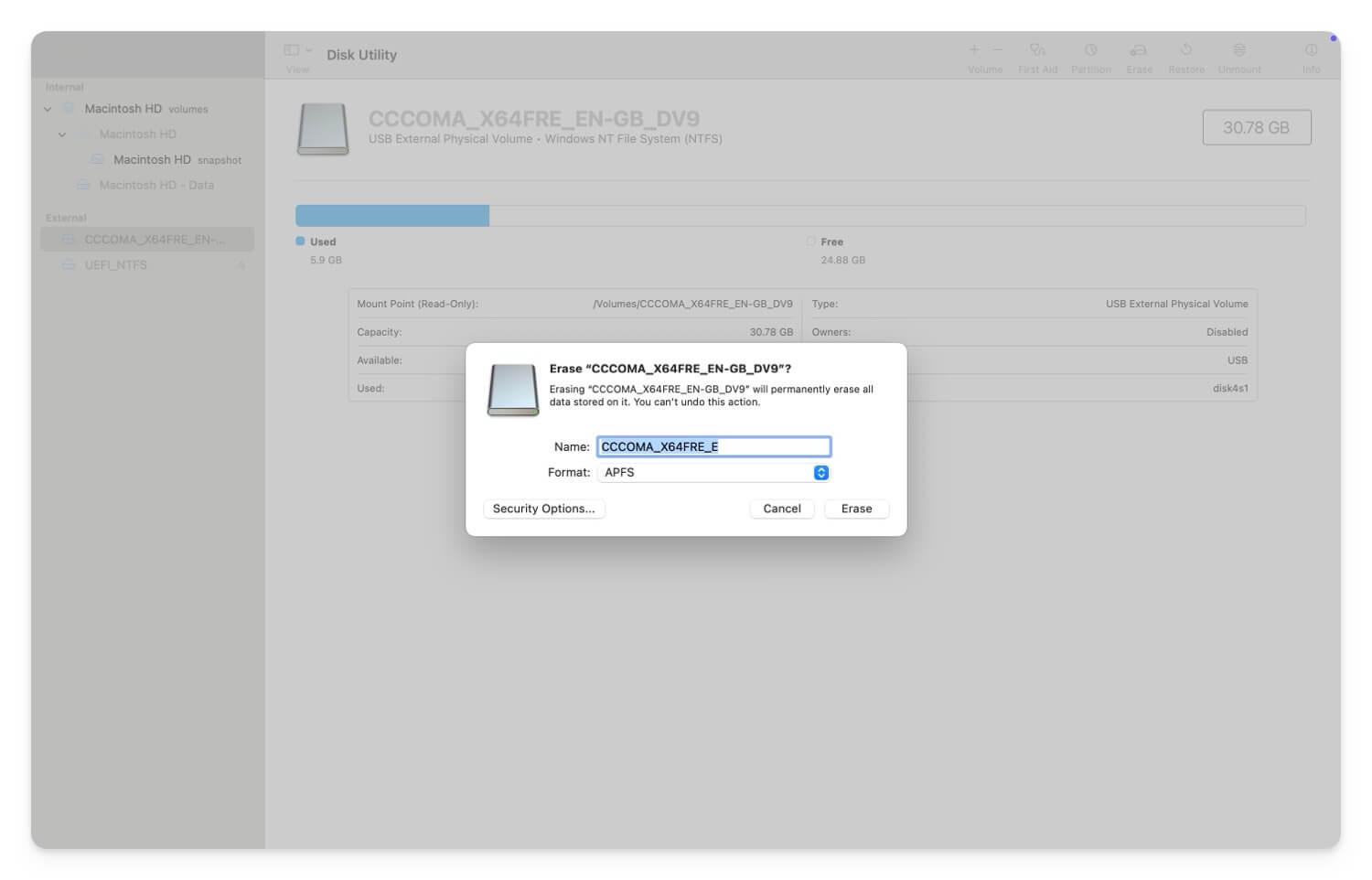
- You can also use third-party software or other devices to format the disk and then reconnect it to macOS.
Find the Root Cause of the Issue Using Error Logs
Finding the root cause of the error can help you easily and quickly fix the issue if those methods don’t fix the issue. Here are the most common errors that show up if the external device has issues or is not showing up on your Mac.
Error Message | Cause |
|---|---|
USB Device Not Recognized | Your Mac failed to initialize due to driver issues or hardware faults. |
The disk you inserted was not readable by this computer | The external device’s file system is corrupted or unsupported by macOS. |
Cannot Mount Disk | The disk is detected but cannot be mounted due to file system corruption or partition issues. |
Operation can't be completed because the item is in use | A file or some application is using the external device which prevents mounting or access. |
USBHubPort: Port disabled due to overcurrent condition | The external device is drawing more power, than your Mac can offer. |
DiskManagement: Cannot mount device, error code -50 | macOS is unable to mount the device due to file system corruption. |
Device failed to enumerate | macOS failed to initialize the external device due to firmware or hardware issues. |
Error: Disk not readable | The external device is formatted with an incompatible file system or damaged. |
Thunderbolt device not recognized | macOS cannot detect a Thunderbolt device due to faulty hardware, drivers, or other issues |
USB Accessories Disabled | The device is drawing too much power, disabling USB functionality on macOS. |
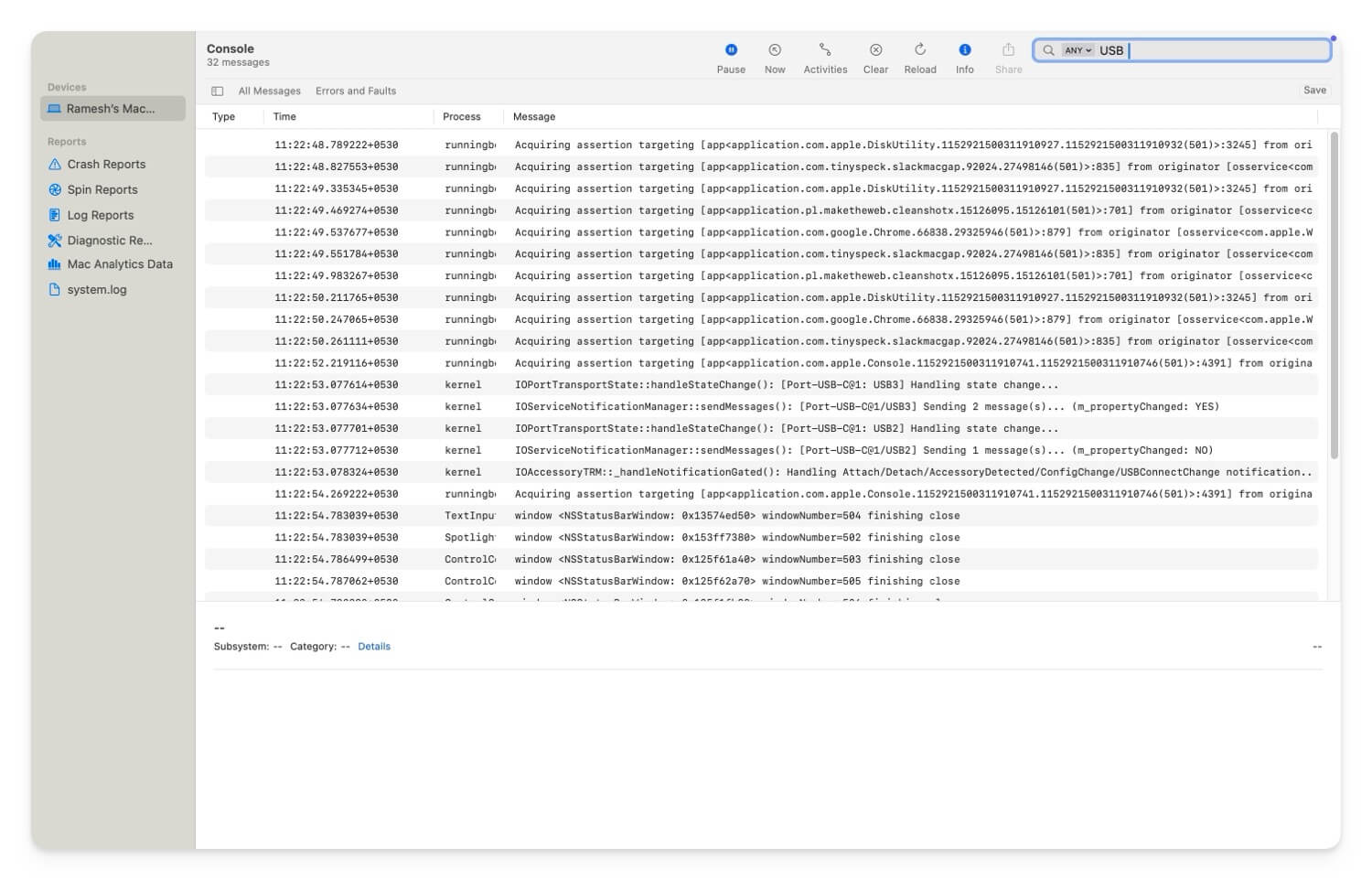
You can use Console to find these error logs on your Mac. To find it, open Console on your Mac. You can use Finder or navigate to Applications > Utilities > Console. Here, you can use the search bar to filter options such as USB, disk, or the device you are connecting.
Once you open the Console, connect the device to your Mac and watch the new logs in real time. Here, you can analyze the error. Follow the error codes that I have mentioned in the table and apply the relevant troubleshooting techniques to fix the issue.
- If you face an error with a USB device not recognized, you have to check if the device is working by testing it on another computer, trying a different port, and resetting the SMC and NVRAM/PRAM (follow the methods above for a step-by-step guide)
- If you see the ‘disk inserted was not readable by your computer‘ error, you can use the Disk Utility software on your Mac to repair the disk and reformat it to a macOS-compatible file system such as APFS or macOS Extended. Follow the troubleshooting steps above.
- If the error says ‘You cannot mount the disk‘, you can open the Disk Utility software and manually mount the disk. While doing the same, you can run First Aid to repair the disk and reformat it to macOS-compatible software.
- If you face ‘USB disabled due to overcurrent conditions‘, this says that your device is using more power than the USB can offer. Here, you can use a powered USB hub or an external power source to supply additional required power. Disconnect the other devices that are using high power. I have a detailed guide on this. You can check and fix this specific issue.
- If you face disk management and cannot mount device error, you can use the Disk Utility software and First Aid to repair the disk.
- If you face ‘disk failure to enumerate’, check if the USB device or the external device connected is working. Test it on another device or update the device, as this error occurs mostly due to hardware faults.
- If you see a disk not readable error, you can install third-party drivers, for example, NTFS for macOS, or you can reformat the disk to macOS-compatible file systems to make it compatible with your macOS.
- If you are using a Mac with a Thunderbolt device that is not recognized, you can check the port and Thunderbolt cable for damage and ensure your device is powered. Also, update the Mac to the latest version and test the same device with another Mac to ensure the device is working perfectly.
- Finally, if you see a USB access disabled error, this indicates that the device is drawing too much power from the macOS port. I have a detailed guide on fixing this error. You can view the guide and fix this error easily.
As a final resort, Try factory resetting your Mac. If these steps don’t fix the issue, you can contact Apple Support for further assistance. You can book a Genius Bar appointment for free, visit the store, or contact Apple Support online and specify your error in detail to get personal support from the Mac team.

FAQs on Fixing External Devices Not Showing on Mac
How can I tell if my external device has a hardware issue versus a software configuration problem on my Mac?
Try connecting the device to another computer; if you face the same issue, there is likely an issue with the hardware, or it might be a software configuration on your Mac. To fix this, you can format the drive and update your Mac to the latest version.
Are there any trusted third-party tools or software I can use to fix or diagnose my external device errors?
There are several third-party tools and alternatives to help fix external device errors on your Mac. The popular ones include DiskWarrior (Paid), which lets you repair external storage devices, and TechTool (Paid), which helps you perform hardware diagnostics on USB ports and drives. You can also use built-in drive utility tools, which work great for formatting and encrypted USB drives.
What are the best practices for using external devices with a Mac to avoid these issues in the first place?
Ensure your external devices are compatible with your Mac. Check how much power the device is using if you are connecting external power sources. Ensure the file system is macOS compatible if you are connecting storage devices to your Mac. Also, avoid overloading your Mac's USB ports with external hubs and multiple devices. Although macOS can support up to 10 external drives, it is always recommended that this usage be limited for better performance. Regularly update your Mac and also apply firmware updates for the third-party devices you are connecting. Use high-quality cables and avoid using damaged cables to ensure a stable connection.
What are my options if none of these solutions work and I still cannot access my external device?
If none of these steps works, try contacting Apple support for further assistance. You can book a Genius bar appointment for device inspection or contact Apple support online to get further personalized assistance from the experts.

