

Google Drive, which comes with Gmail, allows us to upload and share files with whoever we want. If the files are sensitive, we manually remove the sharing by altering its privacy features in the file settings on Google Drive. Sometimes, we share files and may forget about them after sharing them with someone. Unless you delete the file or change privacy settings, the file will be available through the link you shared with the other person.

Setting an expiration date for the shared file protects the files on Google Drive. There will be a time limit for the other person who got the link to access the file. After the preset time has expired, the access to the shared file does not work. You have to give access again or choose to ignore it. Let’s see how we can set an expiration date for shared files on Google Drive.
Table of Contents
How to Set an Expiration Date for Shared Files on Google Drive
It is easy to set an expiration date for shared files on Google Drive. This feature is only available to Google Workspace users. If you are using a free or normal account, you cannot set the expiration date to a shared file, as the feature is not yet available for non-Workspace users.
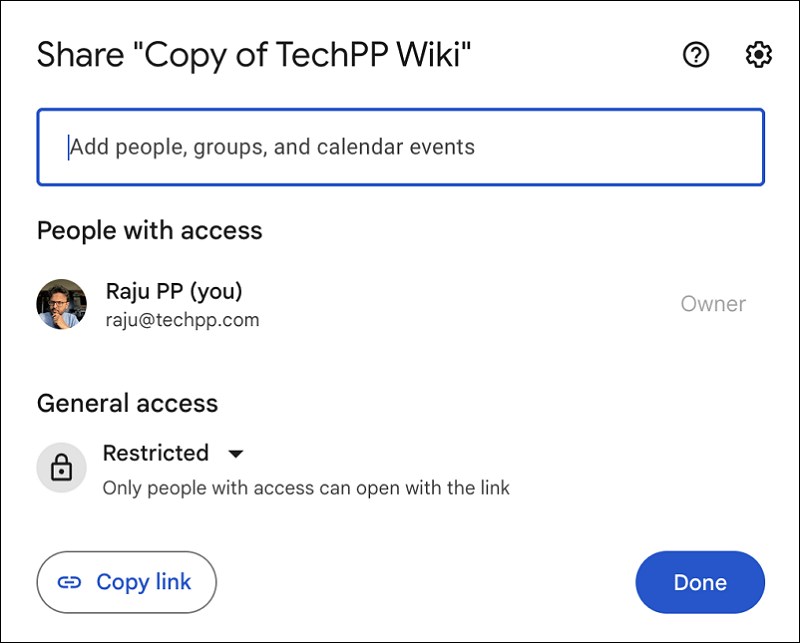
To set the expiration date for a shared file on Google Drive, open Google Drive and right-click on it. Select Share. Enter the email address of the person you want to share with, in the Add people, groups, and calendar events.
Now, click on the drop-down icon (which shows the role) beside the contact or email address and select Add Expiration.

Select the expiration date from the calendar that opens and click Done to save it.
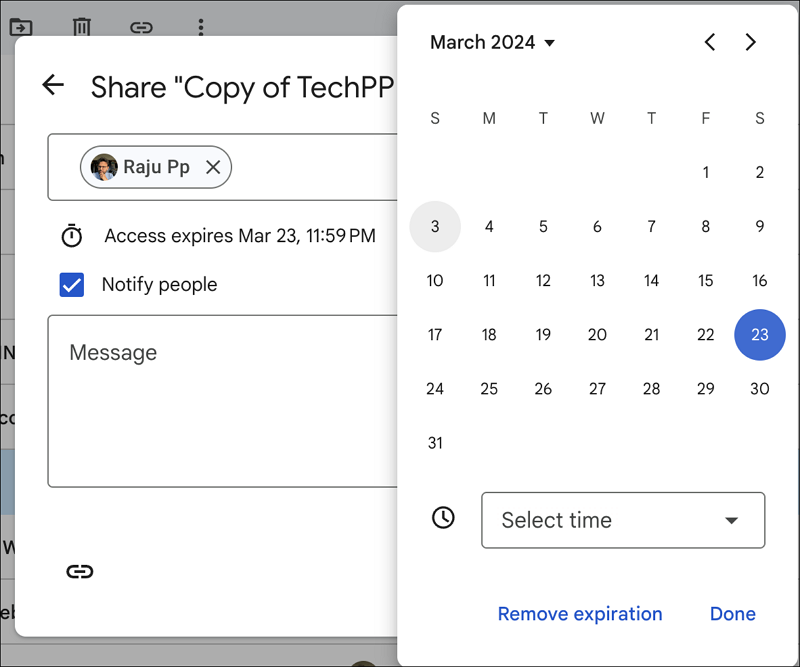
That’s it. You have just set an expiration date for a shared file on Google Drive. The other person cannot access the file once it expires. Just remember that you need to be the admin of Google Workspace or the owner of the file to be able to set the expiration date for files shared with others.
Related Read: 7 Google Drive Tips and Tricks to Enhance Productivity
Protect Your Files on Google Drive With an Expiration Date
Google Workspace comes with great options like being able to set up an expiration to a shared file on Google Drive. Using the expiration date feature, you can protect the data and privacy of your files and stop them from being misused. Set an expiration date for the files you share on Google Drive and get the benefits of it.
FAQs about Setting an Expiration Date for Shared Files on Google Drive
1. Does Google Drive shared links expire?
The links you share on Google Drive do not expire unless you set an expiration date to the file on the Google Workspace account. If you do not have a Google Workspace account, you have to manually change the permissions once the work with the shared file is done. To get additional features like setting an expiration date to a shared file on Google Drive, you have to subscribe to Google Workspace.
2. How long do shared files stay on Google Drive?
Shared files on Google Drive stay the same as long as you change the settings manually or delete the file altogether from the drive. If you are a Google Workspace user and set an expiration date to it while sharing with others, the file expires with the date to the other person with whom you have shared the file.
3. What do you do when Google Drive links expire?
When the Google Drive links expire, you should contact the admin or the file owner and ask them to extend the expiration date or share the file afresh. There is nothing much you can do other than contact them.

