

Quick Answer
To stop Google from using your search data to help train its AI, go to myactivity.google.com, open Search Services History, and turn off Save Media, Search History, and Personalized Recommendations. You can also choose “Turn off and delete activity” to remove past search data and prevent future searches, uploads, and recordings from being saved.
In our recent daily tech brief, we covered that Google is going to use your search interaction data to train its AI services and products.
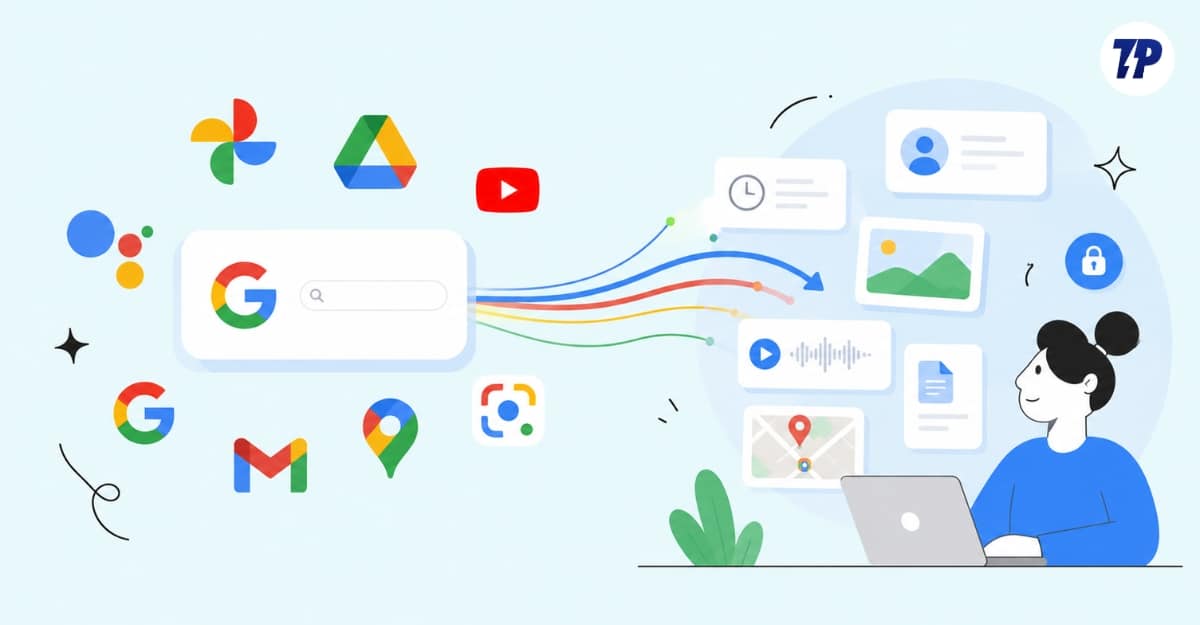
For those who are unaware, Google recently announced that it is going to save your search interaction data, including the images you uploaded to Google Lens, your voice recording data from real-time live search tools, photos used for the visual results, audio used in Google Translate, and all other such queries and interactions that come under a new, separate search history setting.
These search history settings were previously inside the Google app and web and app activity. Now Google separates it under the new Google Search History Settings and collects more data formats than before.
Google search services history is automatically enabled if your web and app activity is turned on. Google is notifying users by sending an email, but most miss it, and this option remains turned on for most accounts to Google’s advantage.
Information collection under this new setting from Google services can sometimes be sensitive. I see many people uploading their personal images and images containing sensitive information to Google Lens for visual search.
If you are really worried and don’t want Google to save your search history, you can easily turn it off from the Google account activity settings. You need to turn off three different controls to prevent Google from using your data for training its services and also using data for personalization.
How to Prevent Google From Using Your Data to Train AI
- Turn off the Save media option so that Google won’t save the data that you used for search.
- Turn off search history settings so Google won’t save your search activity.
- Turn off search personalization settings.
Turn off Save Media
Google search services history now has a sub-setting to save media you upload to those services. If this is enabled, all your media you uploaded to the Google search service products like Google Lens, your voice recording used for Google Search live, will be saved by Google and used for training its products and services.
You can only turn off save media settings; keep search history settings turned on to allow Google to save your activity, but not the media you upload. Here is how:
Step 1: On your mobile or desktop, visit myactivity.google.com/myactivity
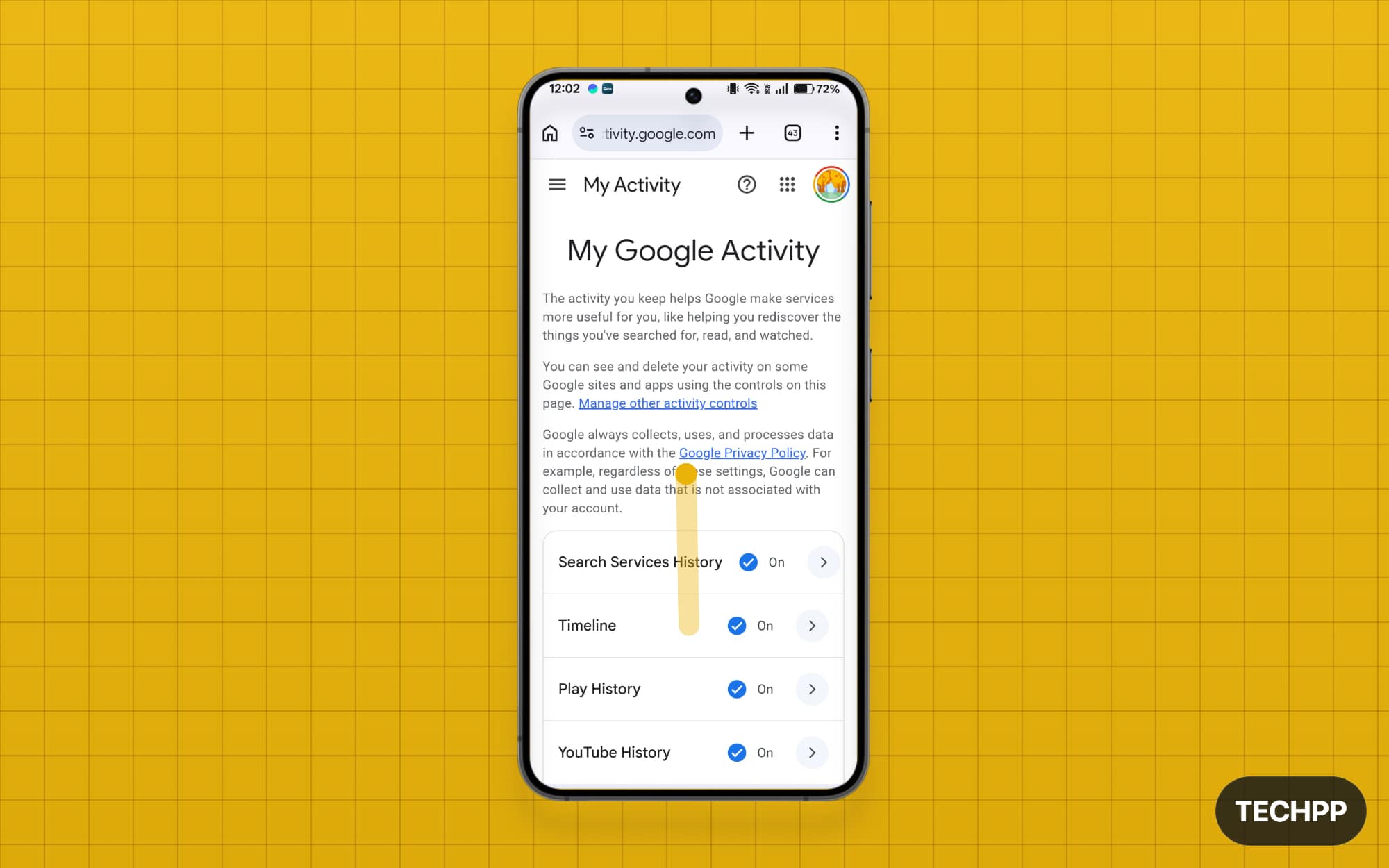
Step 2: Scroll down and tap on the Search Service History.
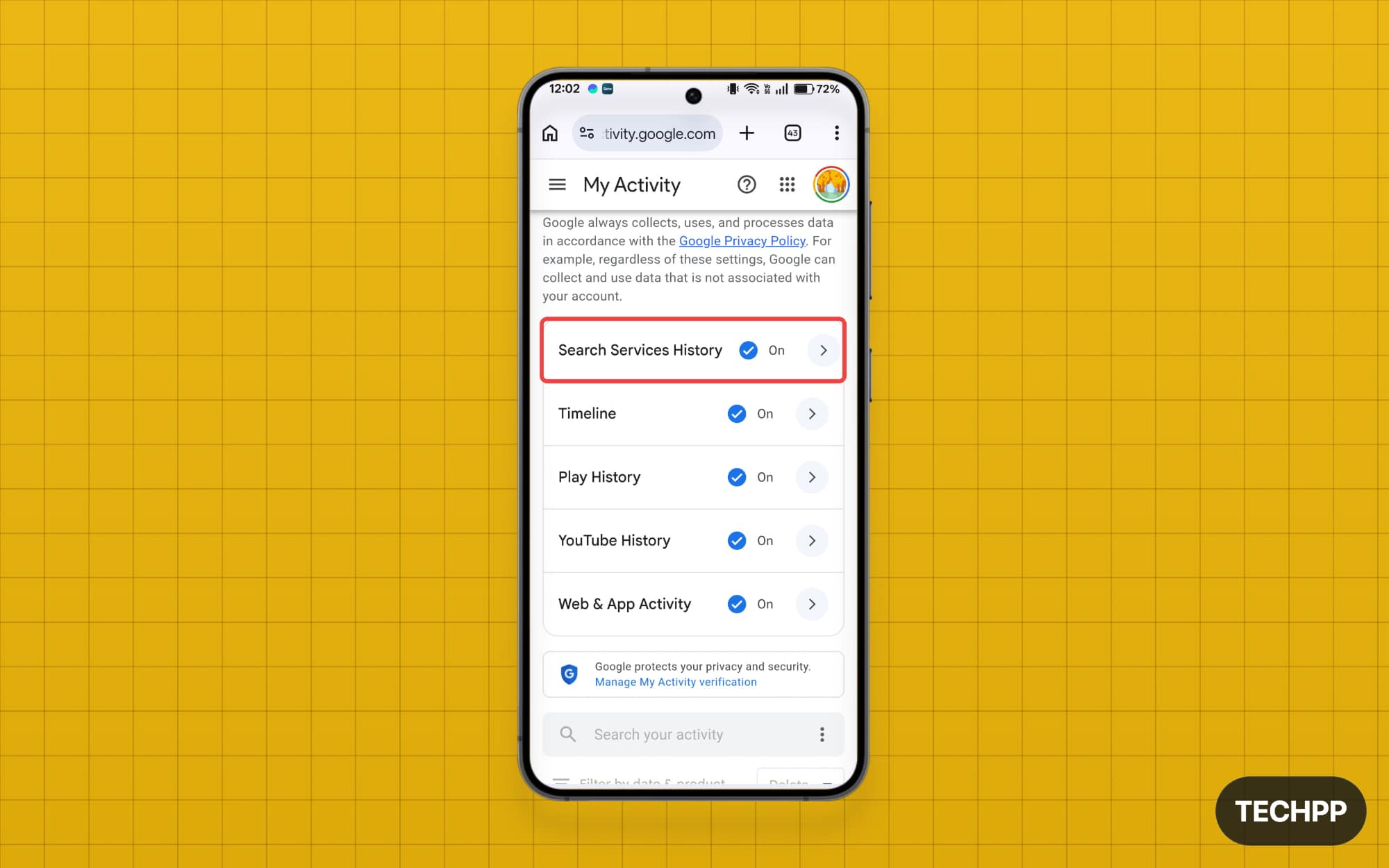
Step 3: Now scroll down, and under Search Services History settings, you will see the new Save Media option. If it’s enabled, uncheck the option to turn it off.
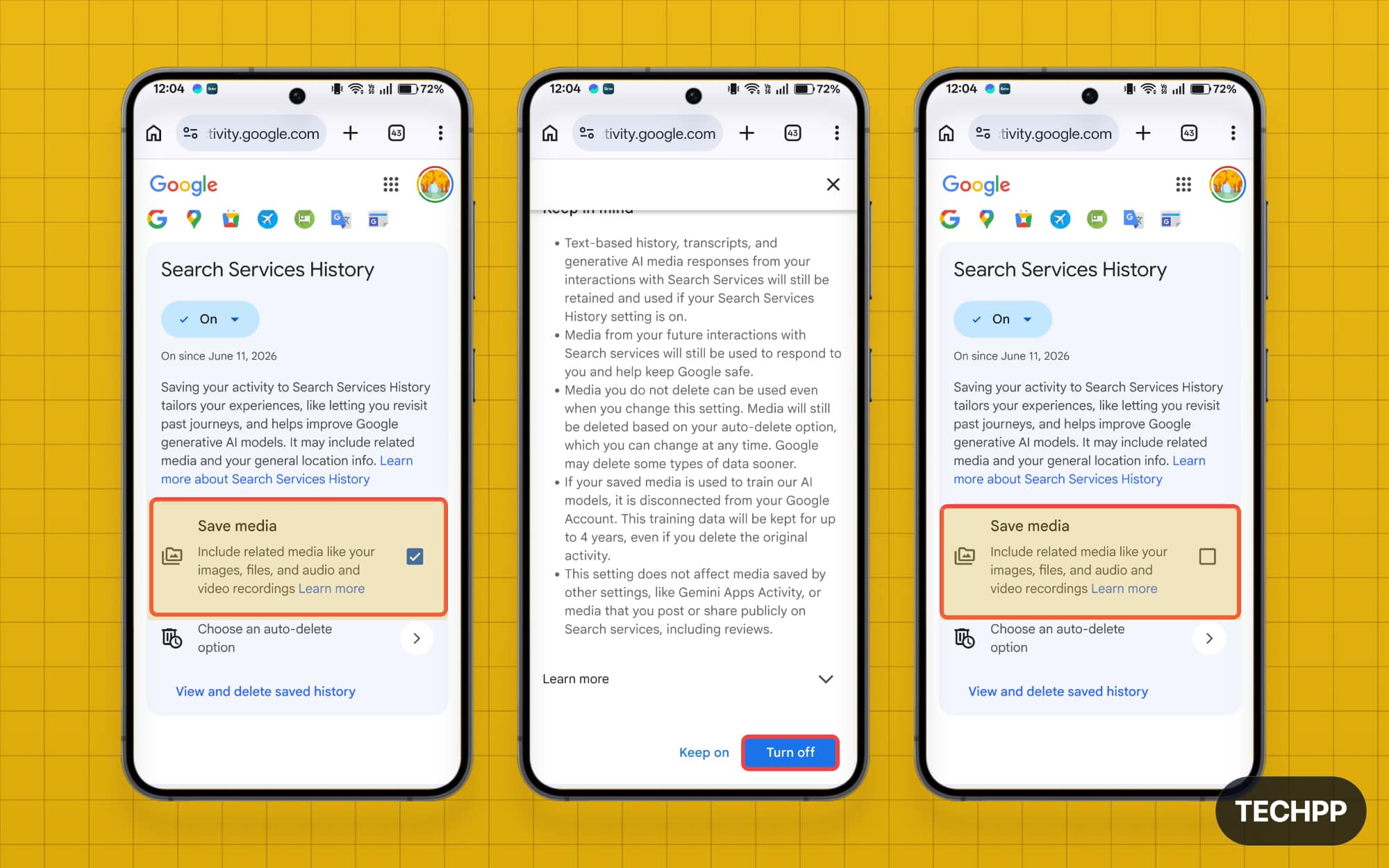
Google Search Services history
Next is the main Google Search Services history. When it’s enabled, Google saves all your search services activity. This includes data from Google Lens, Google Translate, and much more. If you turn this off, Google will stop saving your activity across these apps.
Turning off search history settings also disables saved media settings, so Google won’t save your data.
Step 1: On your mobile or desktop, visit myactivity.google.com/myactivity
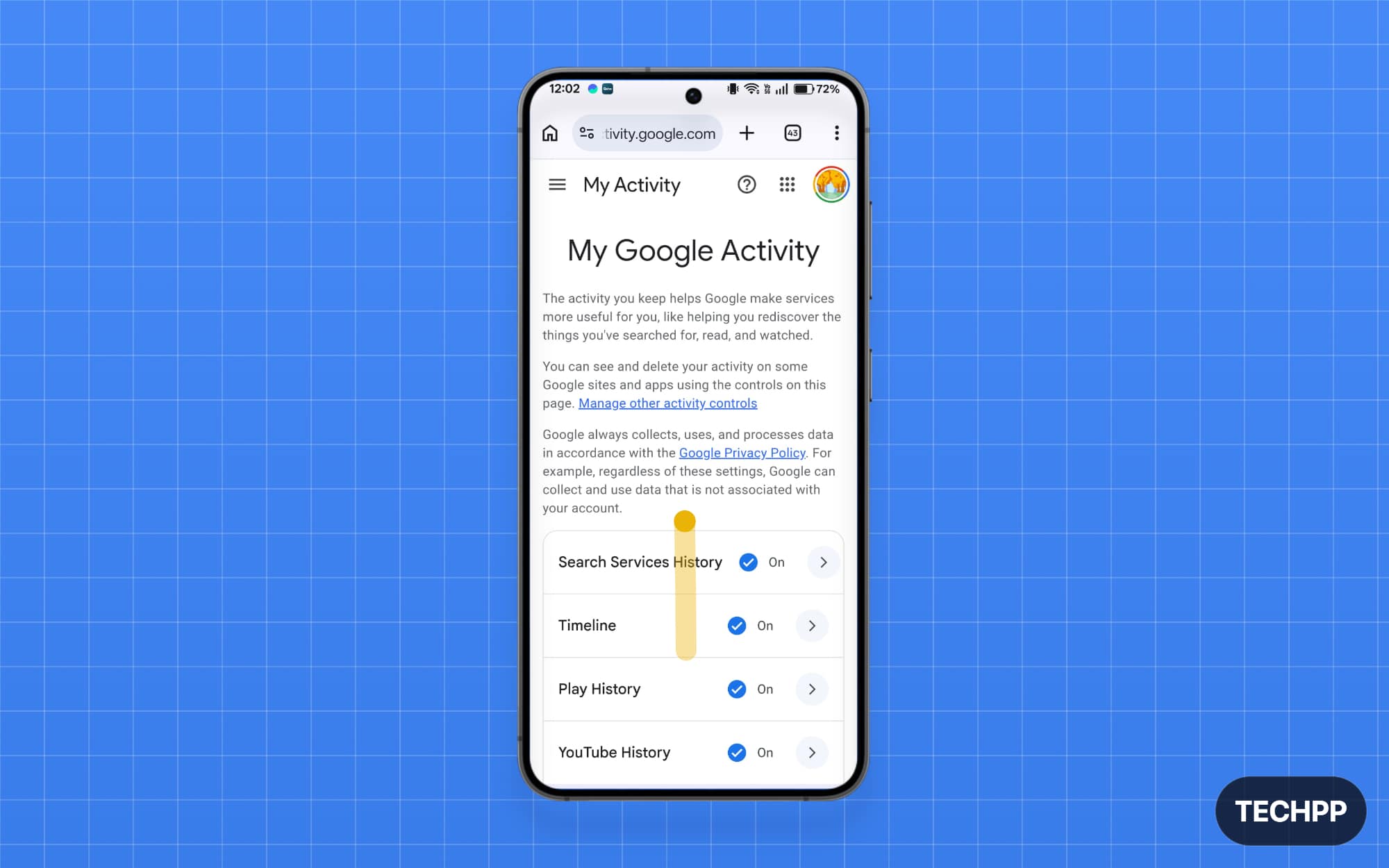
Step 2: Scroll down and tap on the Search Service History.
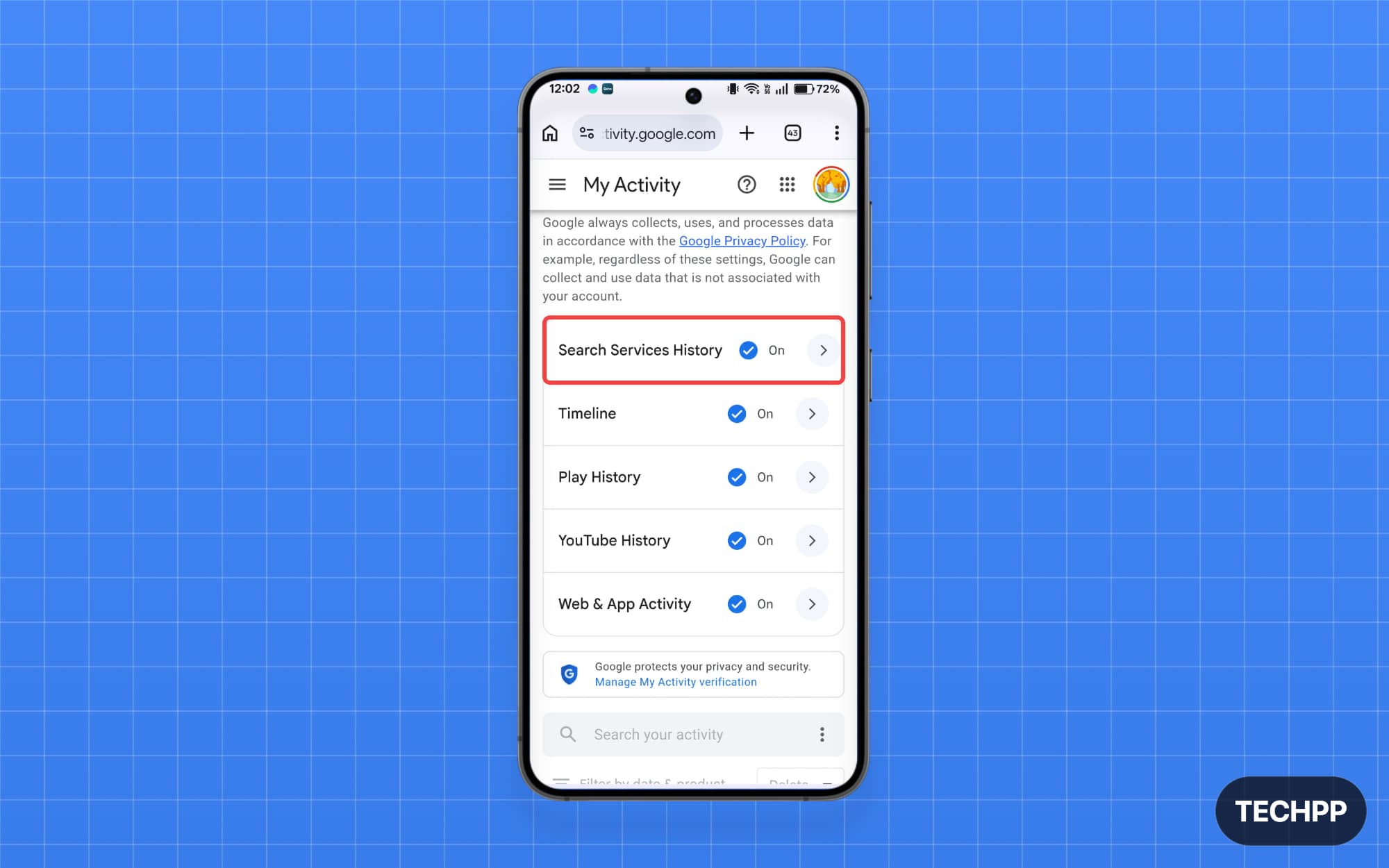
Step 3: Under Search Service History, tap on the drop-down and select the following options:
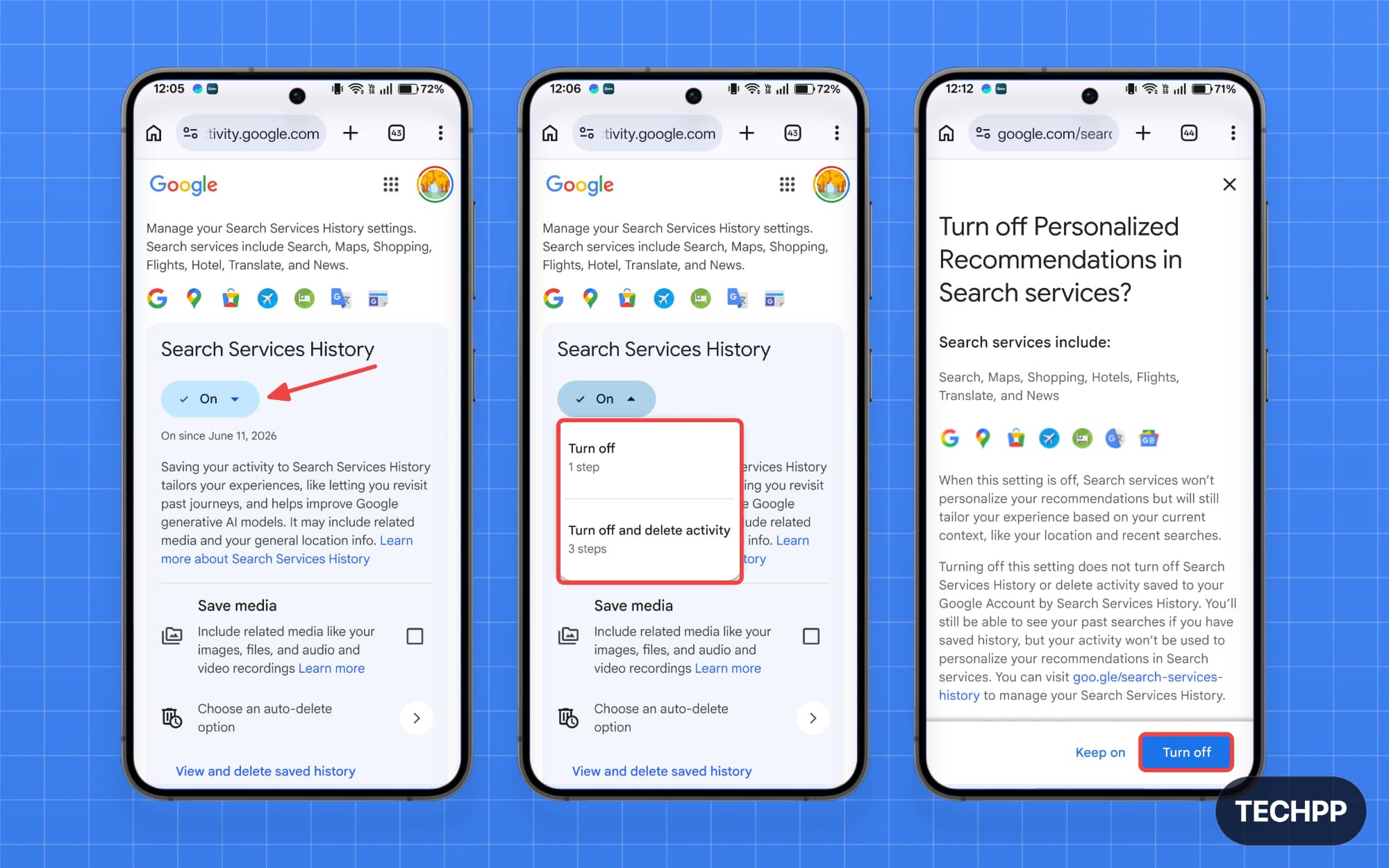
Turn off: From now on, Google won’t save your data
Turn off and delete activity: Google won’t save your search activity and will also delete your past search activity.
Personalized recommendations
Next are Personalized recommendations, where Google will use your collected search history and service data to offer personalized ads and recommendations.
If you turn this off, Google won’t use your search data to offer personalized recommendations. This is an independent setting, and it only disables those personalized recommendations. It won’t affect Google search services’ history settings. Google can still use your search data to train its services if you only turn off this setting and keep search services history settings turned on.
Step 1: On your mobile or desktop, visit myactivity.google.com/myactivity
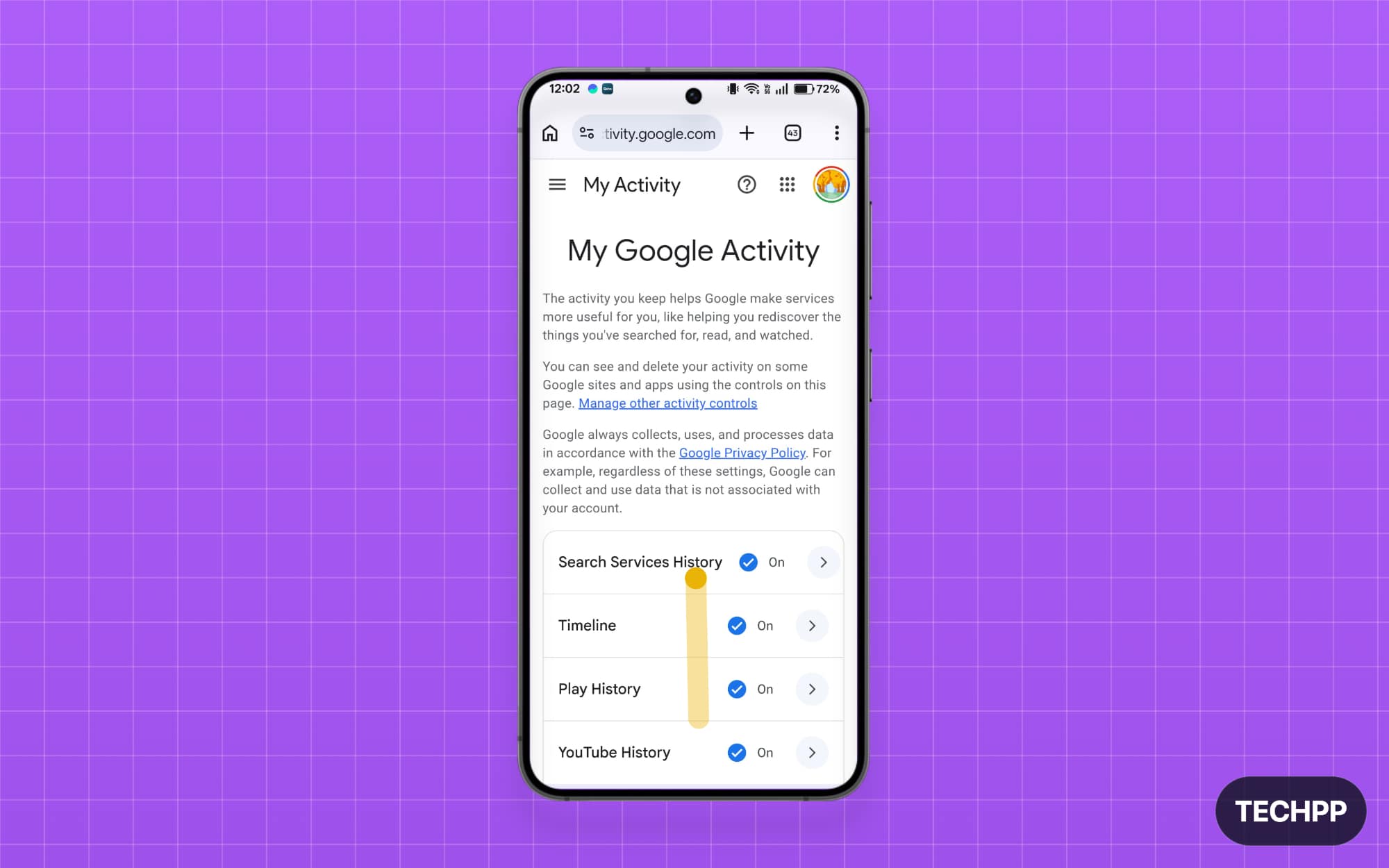
Step 2: Scroll down and tap on the Search Service History.
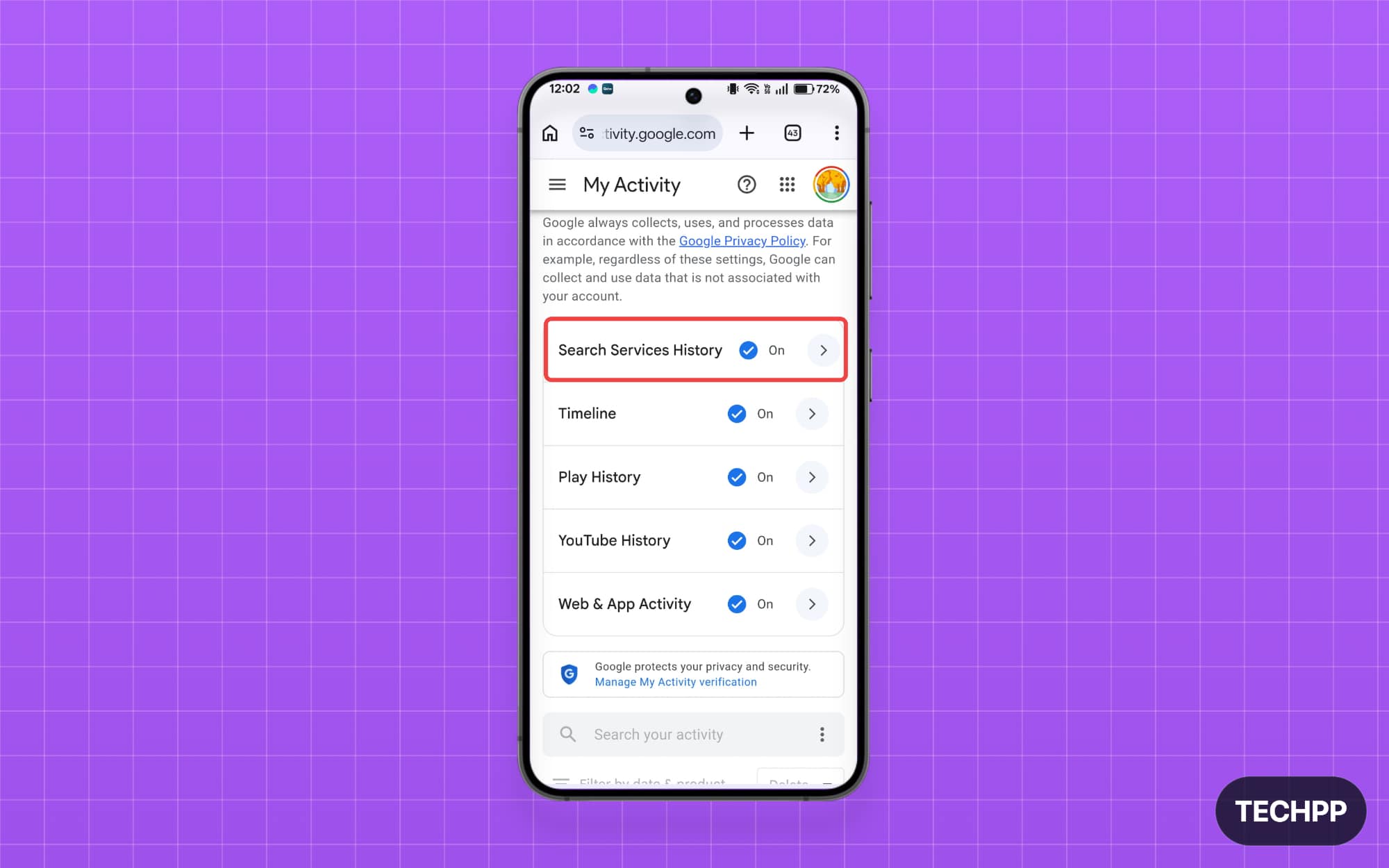
Step 3: Scroll down and tap on the Search Services Personalization settings
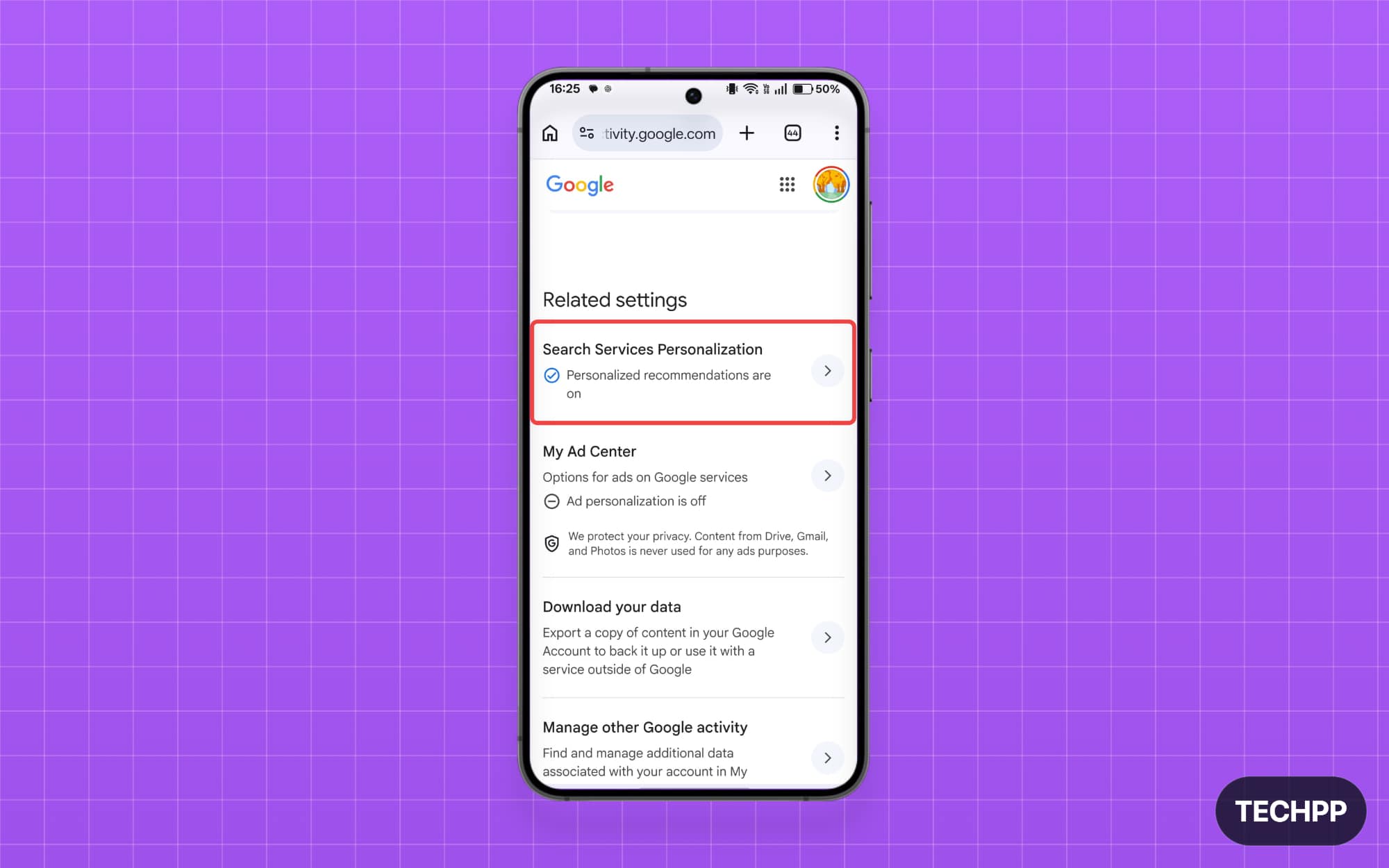
Step 4: Now tap on the Personalized Recommendations settings and tap on the turn off it off.
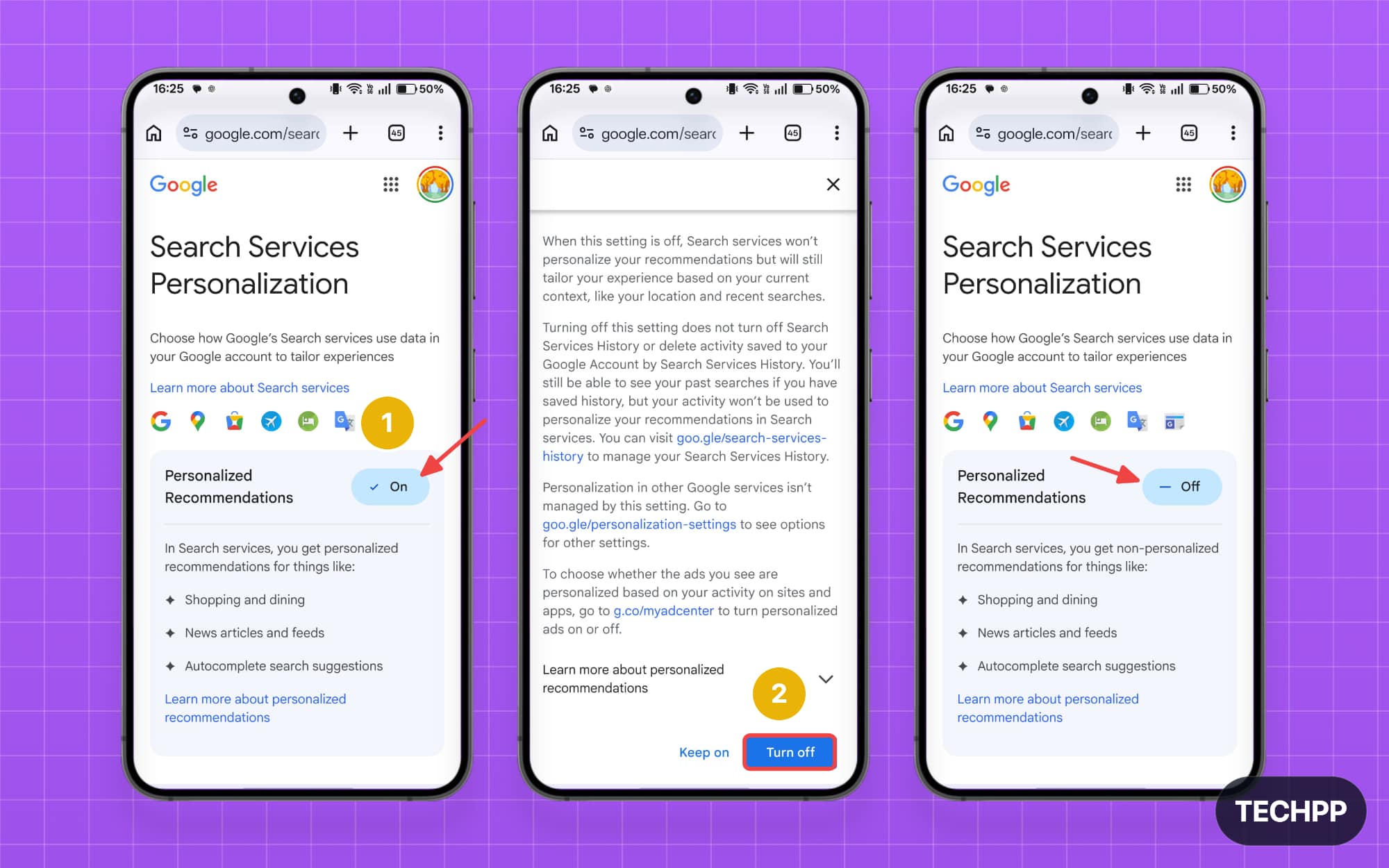
The search history setting used to be part of the Web and App Activity settings, but it has now moved to a different setting.
If you already turned off web and activity settings, or if you turned off Google Search History saving settings, the new option won’t be enabled by default.
Keep Your Search Activity Private
To train their AI models, many companies are aggressively collecting data from users. Recently, Meta also announced that they are going to use third-party website data to personalize the feed inside Meta apps.
Now Google, with this latest change, is collecting more data formats from users that were previously turned off by default.
Fortunately, Google allows you to turn off data sharing, giving you control over whether to turn it off. However, most people avoid reading privacy policies because they are too long; moreover, they use technical and legal terms that most people cannot understand.
I hope you find this guide helpful. If you want complete privacy and want to check what Google collects about you and how you can control it, you can visit our All Google Account Privacy Settings Explained for more details.

