

Even after having several feature-rich social media platforms, Facebook remains king among the masses. With over three billion monthly active users in the second quarter of 2023, Facebook remains the most used social media platform. Even though the company continues to struggle with privacy issues, people are still actively using the platform. Similar to other social media platforms, you can post content on Facebook, and once you do, it becomes visible to your friends and everyone else unless you have restricted someone.

Your posts can be shared. That means your friends or other people can pick up your posts and share them on Facebook. But did you know that Facebook gives you a bit of transparency and pings you when someone shares your posts? Also, you can check how many people have shared your post. This guide will help you understand who shared your post on Facebook. Let’s dive in.
Table of Contents
How do I see who shared my post on Facebook?
Facebook offers several ways to see who has shared your posts on the platform. The good thing is that you can see who has shared your posts on Facebook both on your computer and on your smartphone. Let’s take a look at the different methods you can use to find out who has shared your posts.
Check notifications
The easiest way to find out who has shared your Facebook post is to check your Facebook notifications. Facebook will notify you with a notification when someone shares your posts on Facebook.
- Click the bell icon on the top menu bar on the Facebook page.
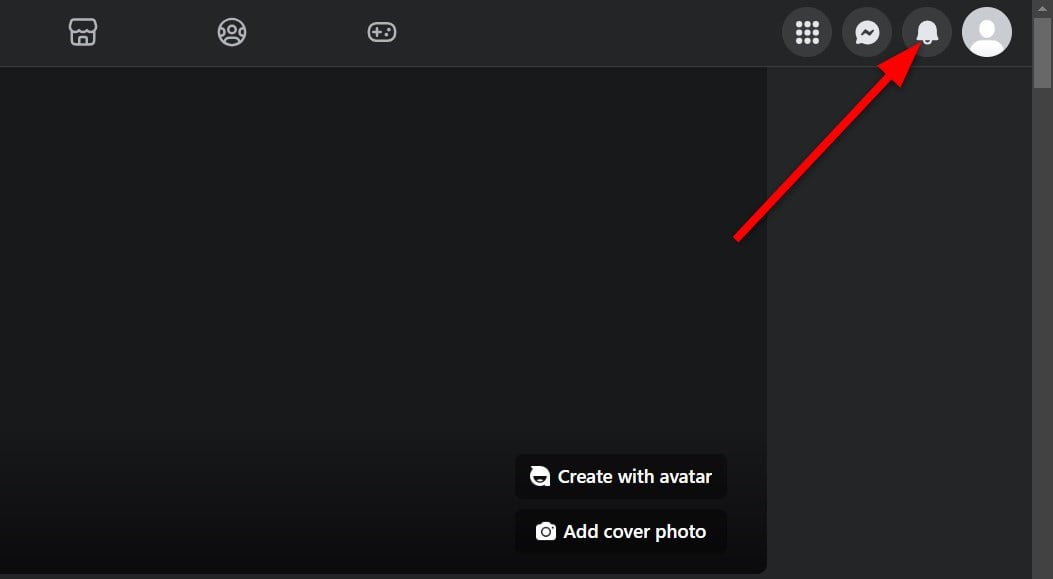
- Click See All to view all the notifications. By going through the notifications, you can easily find out who has shared your Facebook posts.
If your posts have been shared, the notification will show you the person’s name and how many hours ago the post was shared. You can also receive an email notifying you about it. However, for that, you need to enable the Email updates option.
Check the original post
Facebook also shows the number of shared posts directly in the original post in your Timeline. It shows you the details when someone shares your content.
- Select your name on the Facebook page.
- Scroll down to see your posts.
- You’ll see text that says something like “1 Share” (or more if the post went viral). That means your post has been shared.

- You can click the “1 share” button to know who shared your post.
You will be able to view the name of the person who has shared the post and anything extra that they have added, such as any comments they might have received from their friends, etc.
Go through your friend’s timeline
This method won’t give you the name of the friend who shared your post, but sometimes you may want to know if a particular friend shared your post or not. Just go to your friend’s Facebook profile and scroll through your friend’s timeline. If he or she has shared your post on Facebook, you will see it in their Timeline. You can also see how many likes it received, who commented on it, etc.
Wrapping up
Similar to how you can see how many people have shared your posts on Facebook, you can also see your activity and check all the liked posts on Facebook. Being on social media platforms is fun and a nice way to share what you love with the people you love and who love you back. Things can get ugly, however, if your personal information falls into the hands of someone with bad intentions.
To protect your privacy, you can hide your friends list on Facebook and even hide your last name on Facebook. You can also unlink your Facebook and Instagram accounts so that what you share on one platform stays there.
FAQs about checking who shared your post on Facebook
1. How do I allow people to share my Facebook posts?
It is very important to know that public posts are the ones that can be shared on Facebook. You can decide if you want the public, friends, specific friends, or a custom list of friends to be able to see and share your post by editing the privacy settings. Learn how to change the settings of your Facebook posts so they can be shared publicly.
- Find the post you want to make shareable and click the three-vertical-dot icon in the upper right corner of the post.
- Select Edit post from the menu that appears.

- Click the Friends button below your profile name to access the privacy settings for the post.

- You can select to allow your friends to see the post, block particular friends from seeing the post, make the post publicly available, etc., by selecting the appropriate option. For our case, choose Public.

- Hit the Save button to make your posts publicly available and shareable.
2. When someone shares my post, is it visible to the people I’ve restricted?
If someone shares your post by clicking the Share button, they won’t be able to share your photos, videos, or status updates with the people you’ve restricted. People who are restricted won’t be able to see your posts, even if they’re shared on someone else’s profile.
3. Can I share anyone’s posts on Facebook?
No, you can’t share someone else’s posts on Facebook. You can only share another person’s posts in their feed if the post is available to the public and the person has allowed their posts to be re-shared.
4. Is it illegal to share someone else’s post on Facebook?
Sharing someone else’s Facebook post is not illegal if you follow the rules. Facebook advises users to share content only if it doesn’t infringe on another party’s intellectual property rights. So, if someone has shared content that is theirs and you share it without giving them due credit, it could result in a copyright lawsuit. You should avoid sharing content on Facebook that was not created by you or that you do not have the right to share.
5. Why am I not able to see the names of the people who have shared my post on Facebook?
When you click the Share button on your post, it shows the name of the person who shared it on Facebook. However, if a person shares your post on Facebook that you are not friends with and they have their privacy set to “friends only,” you may not be able to see their name, depending on their privacy settings.

