

Quick Answer
To use Google Photos’ Video Remix AI tool, open the app, tap “Create” on the bottom bar, and select “Remix.” Browse the template library, pick a style like cinematic relighting or background swap, choose a backed-up video, and tap “Generate” to automatically process and save the stylized clip.
Google Photos has quietly been one of the most underrated editing apps on Android for years. But what I found was that while the photo editing offers a suite of features, the video editing side felt like the neglected sibling. You could trim a clip, apply a filter, stabilize the footage, but that is about it. If you wanted something more creative, then you had to rely on third-party video editing apps like CapCut. The problem is that these apps aren’t free and require you to pay to unlock tools.
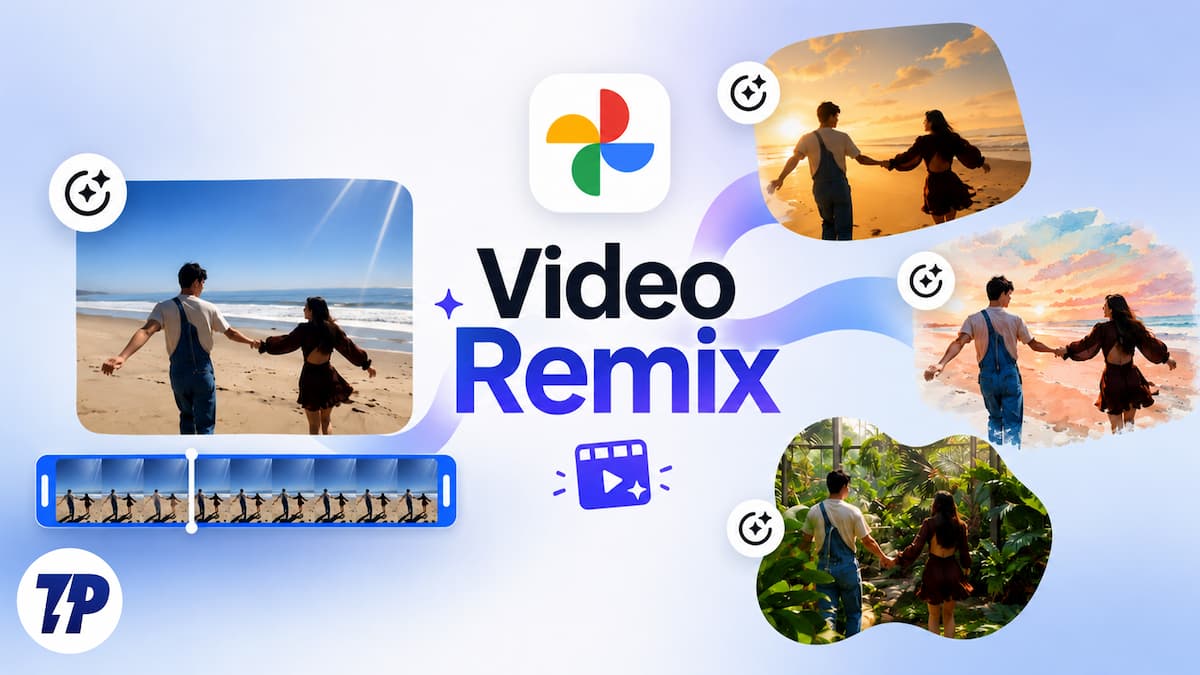
The gap has just been closed after Google rolled out the Video Remix AI tool inside the Google Photos app. Using this tool, you can do a whole lot more than you previously could to a video using the Photos app. It is powered by Gemini Omni, bringing Google’s AI muscle to the Photos app. Here’s everything about the Google Video Remix AI tool.
What is the Google Video Remix AI tool?
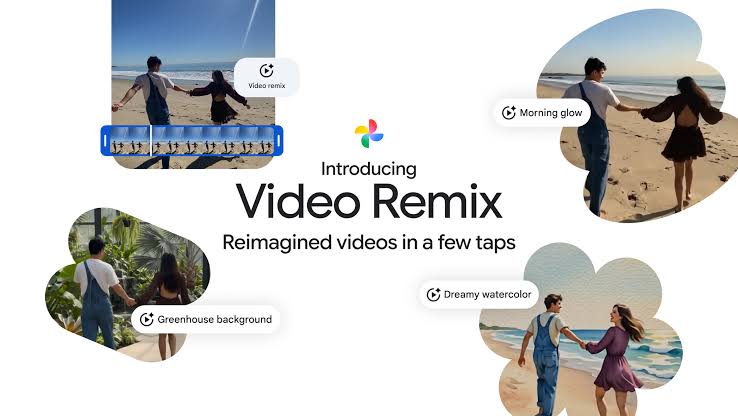
Video Remix is a new tool that is available inside the Create tab of Google Photos. It is the same tab where you have the option to go for collages, animations, or the Photo to Video tool. Think of it as a template-driven AI video editor. You don’t need to manually color grade your videos or try to add a new background yourself. Instead, you can pick a video from the library, choose a style, and let Google’s Gemini Omni model handle the transformation.
Using this AI tool, you can turn your videos into a stylized, shareable version in just a few taps. You can create genuinely good-looking videos using the Video Remix AI tool, which would have taken professional editing skills and a lot of patience. Google explicitly built Video Remix for that purpose. Of course, it won’t replace professional editors, but it gives you features that would turn your plain clip into something interesting.
The effects you get with the Video Remix tool
The Video Remix AI tool is genuinely great to play around with. Based on Google’s own rollout, the tool currently supports a handful of video effects, and there is a good mix of practical fixes and pure creative flair. Here are the effects that you get with the Video Remix tool:
- Cinematic relighting – This effect comes in handy when you have footage that you shot indoors or under low-light circumstances. Such clips look flat and grainy. Video Remix can apply cinematic relighting to your footage. This brightens up the video, so the video actually shows what is there in it.
- Background swaps – You might’ve shot a video explaining something with your plain wall. Or, you might have brilliant footage, but the background has the mess you have in your room. The Background swap tool lets you swap the background of the video for something more interesting.
- Artistic styles – If you want something less polished and something more artistic, then you can use this tool and apply effects such as watercolor, raw sketchbook, and oil painting effects to the entire video.
None of this requires any manual tweaking and just requires a tap. You are essentially choosing a template where your video gets processed, and effects get applied automatically.
How to use the Video Remix AI tool?
You get to use the Video Remix tool inside the same Remix experience it uses for AI photo templates. Here is where you will find and use the Video Remix AI tool in Google Photos. But before that, here are a few requirements that you need to have so that you can use this tool:
- Make sure that the Google Photos app is up to date with the latest version installed on your phone.
- You need a personal Google account, as Google Workspace or school accounts won’t work.
- Remix-based tools are restricted to users 18 years old or above, unlike other Photos’ AI features.
- The photos and videos that you want to edit need to be already backed up to Google Photos, and you will need an active internet connection for the processing. None of the processing happens locally.
- Google Video Remix is rolling out to eligible Google AI Plus, Pro, and Ultra subscribers. So a free Google account won’t cut it.
- The feature is limited to select countries, including the US, Argentina, Bangladesh, Brazil, Colombia, Egypt, India, Indonesia, Japan, Mexico, Pakistan, Philippines, South Korea, and Turkey.
Once the above is out of the way, here’s how to use the Google Video Remix AI tool:
- Open the Google Photos app.
- Tap on Create at the bottom menu bar.
- Look for the Remix option or scroll through the templates carousel if you would rather browse visually first.
- The first time you open it, you will see a pop-up explaining the feature. Tap on Try now to move past it.
- You can tap on View all to show the entire template library.
- Select the video you want to remix. Note that certain templates come with their own badge that signals these styles will suit your content.
- Once done, tap the Generate button, and Video Remix will start doing its thing.
Based on your internet speed, Video Remix will generate the video, and the output will be saved to your gallery. If the result feels glitchy or bad, you can tap the Send feedback option and explain your issue.
A few things to keep in mind
Before you jump into the Video Remix tool and convert all of your videos into something interesting, here are a few things you should know:
- There are daily generation limits. Google caps how many AI photos and videos you can generate in a day on a free account. Purchasing the AI plan increases the limit, which is the reason why it is locked with Plus, Pro, and Ultra accounts in the first place.
- Like any generative AI tool, results can be inconsistent. It may produce inaccurate results, especially with unusual lighting, fast motion, or busy backgrounds.
- Google says that templates will be rotated regularly. Meaning a style that you have used today might get replaced with a new one next month. If you find something good, then it is recommended that you remix a video with that style.
Try AI Video Remix once
Of course, the Video Remix feature is nice to have on your phone and a must-try if you love creating and posting content on social media. There is no learning curve involved, no rendering and waiting time of hours. You select a video, choose a template, and your output gets created. However, you do need to be in the country where the feature is available, and you should have the necessary requirements fulfilled before you can use this feature. Do note that it won’t replace the proper video editing app that you use, such as CapCut, etc., but it is a quick way to make a shaky and boring video into something interesting.

