

Quick Answer
If you are setting up the device or using it after an update, wait for the indexing to complete to fix the issue. Otherwise, Ensure you have a stable internet connection. Disable and re-enable iCloud Backup from Settings > Apple ID > iCloud. Toggle iMessage off and on (Settings > Messages). Finally, adjust your iPhone language to match your messages, and date and time settings are correct, and syncing messages from another device is turned on. If those don’t work try force restarting and updating your iPhone.
Are you an Apple user who uses iMessage as their primary messaging app? If so, you probably spend a lot of time chatting with friends and family on iMessage. You might also use the search feature regularly to find attachments, photos, and messages within your conversations.

However, suddenly, you find that the search function is not working properly. It’s struggling to load previous pages, attachments, and messages. This could be due to an issue with iPhone Messages Indexing.
If you’re looking for troubleshooting steps to fix iPhone Messages Indexing, Worry not; you’ve landed in the right spot. I’m going to explain everything about iPhone message indexing, like what it means, the reasons behind iPhone message indexing issues, and their key causes.
Following that, we’ll explore a range of potential solutions to help you address the problem effectively. So, without any further ado, let’s get started!
Table of Contents
14 Ways to Fix iPhone Messages Indexing
So far, we’ve gained an understanding of what iPhone Messages Indexing is and what potential reasons could cause issues with it. However this will help a bit in fixing this issue, but that’s not enough to fix it completely. So, let’s move on to basic troubleshooting steps to help identify and ultimately resolve the problem.
Wait Until Messages Finishes Indexing
While setting up a new iPhone, some tasks may take longer than expected, such as completing messages indexing. The duration of this process can vary depending on factors like internet speed and data mode settings. To expedite the process, try switching to a different Wi-Fi network or disabling low data mode. Allow some time for the indexing to finish, and if the problem persists, refer to the troubleshooting steps below.
Check Your Internet
Message indexing involves organizing your messages, which requires data processing. A stable and fast internet connection ensures smooth data transfer and efficient processing for timely indexing. If you use iCloud for Messages, indexing relies on syncing your messages with iCloud servers. Slow or unstable internet can disrupt this sync and lead to indexing problems. You can try these fixes to repair your internet connection quickly.
Disable and Enable iCloud Backup
Disabling and then re-enabling iCloud Backup refreshes the syncing process between your iPhone and iCloud, addressing minor issues. This can temporarily free up space on your iPhone, potentially improving indexing performance, especially if your storage is nearly full. Follow the below steps to do so.
- Open the Settings app on your iPhone.
- Tap your Apple ID at the top of the screen.
- Tap iCloud.
- Scroll down and tap iCloud Backup under DEVICE BACKUPS.
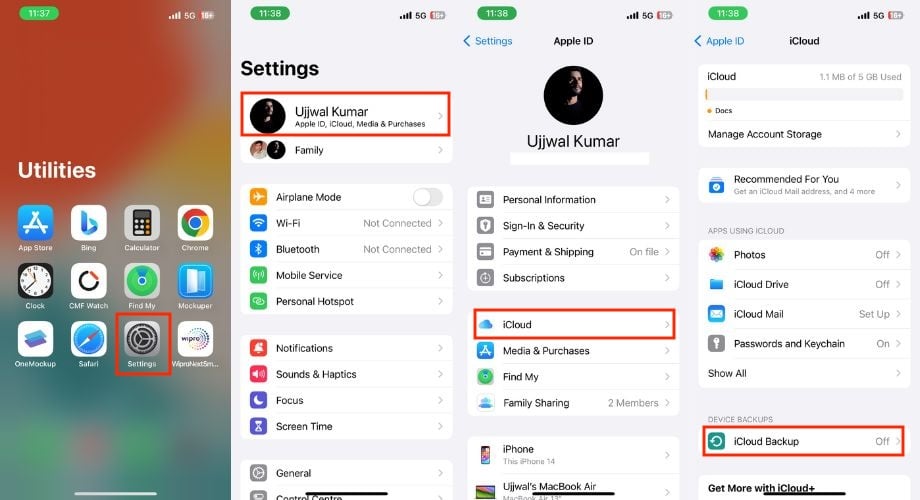
- Disable the toggle next to Back Up This iPhone.
- As soon as you toggle it off, a confirmation prompt will appear: Hit Turn Off.
- Restart your iPhone.
- When your iPhone switches on again, turn on the toggle next to Back Up This iPhone.

Disable and Enable iMessage
Apple’s iMessage uses the internet for messaging and is convenient. But, sometimes, it can cause glitches with your phone’s indexing system. Turning iMessage off and back on is like a quick reset, and it can help fix those indexing glitches. To do the same, follow the below steps.
- Open Settings on your iPhone.
- Scroll down and tap Messages.
- Toggle off the switch next to iMessage. This will disable iMessage for your iPhone.
- Restart your iPhone and turn on the toggle next to iMessage again.

Change iPhone Language Settings
If the language settings on your iPhone differ from the language used in your messages (for example, having English as the system language and receiving French messages), can lead to issues with iPhone messages indexing. Adjusting the language settings to match the predominant language in your messages may solve this issue.
This solution primarily targets indexing problems related to language specificity. It will not resolve indexing issues caused by other factors such as corrupted data, software glitches, inadequate storage space, etc.
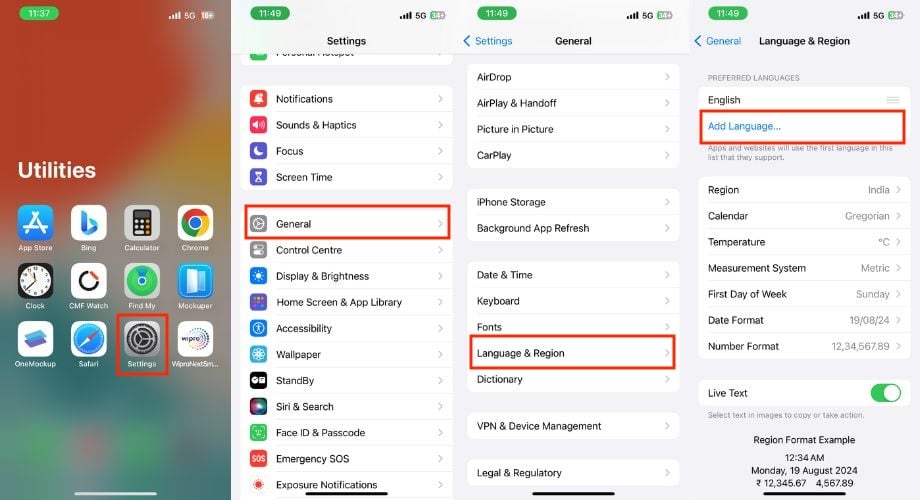
Follow the below steps to change the language in your iMessage:
- Launch Settings on your iPhone.
- Go to General.
- Click on Language & Region.
- Tap on Add Language
- Select the language you want to use from the list.
- You will be prompted to confirm your choice. Tap on Use [language] to confirm the change.
- Now, go back to the main Settings page.
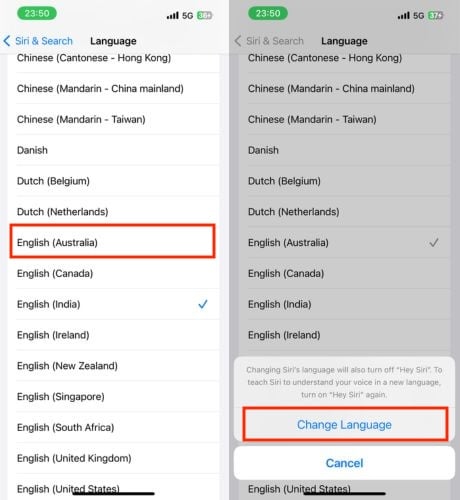
- Open Siri & Search.
- Tap Languages
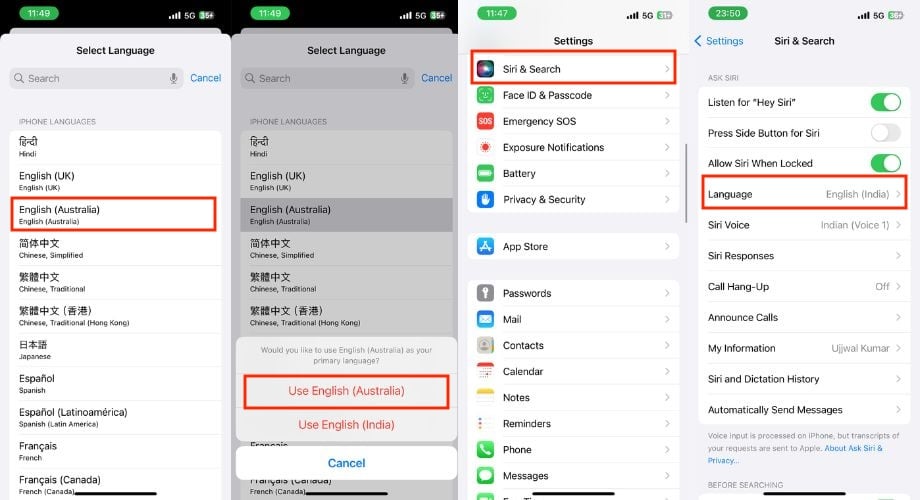
- Choose the same language you selected above.
- Hit Change Language to confirm your change.
Sync Messages From Your iPad or Mac
To resolve incomplete indexing on your iPhone, initiate a message sync between your devices, which can trigger a re-indexing process and fix temporary glitches. If only your iPhone has indexing issues, syncing with your other Apple devices (i.e., iPad and Mac) can help isolate the problem.
Since these devices share the same iCloud account, syncing forces your iPhone to compare its local message data with the cloud’s complete version, potentially resolving indexing issues and allowing you to see all your messages again.
Toggle On and Off Siri & Search in Settings
If you’re having trouble searching for your iPhone messages, toggling Siri & Search settings can potentially fix the issue. This feature allows for the indexing of messages and makes them searchable. By turning Siri & Search for Messages off and then back on, you essentially reset the indexing process. This can begin the indexing and allow your messages to become searchable again. To do so, follow the below steps.
- Open Settings on your iPhone.
- Scroll down and tap Messages.
- Tap Siri & Search.

- Under WHILE SEARCHING: Disable the toggle right to Show App in Search and Show Content in Search.
- Wait for a few minutes to allow Siri to refresh its index.
- Re-enable the toggles you disabled in the previous step.

Adjust the Search Indexing Settings
The Search Indexing settings define exactly which app data Siri & Search can access to provide relevant search results and suggestions. In the case of Messages, adjusting these settings can sometimes refresh the indexing process, potentially resolving the issue. To do so, follow the below steps.
1. Open the Settings app on your iPhone.
2. Tap Siri & Search.
3. Scroll down and find Messages in the list of apps.
4. You’ll see several toggles for different message search features:
- Learn from this App: Let Siri learn from how you use “Messages” to give helpful suggestions in other apps.
- Show App in Search and Show Content in Search under WHILE SEARCHING: Enable “Messages” to show up in Search results.
- Toggles under SUGGESTIONS: Enable app suggestions and content from “Messages” and Shortcuts to show up in the app, Search, widgets, and notifications. These suggestions and Shortcuts adapt to your app usage.
5. Turn off all the toggles related to Messages.

6. Restart your iPhone and re-enable the Message settings you want to use.
Check Date and Time/h3>
Checking and correcting the date and time settings on your iPhone can be a potential fix for iPhone Messages Indexing issues. While it might seem like a minor detail but it can do a lot. Messages are indexed based on their timestamps, which depend on the system clock. Inaccurate timestamps can disrupt the search functionality of the index. So the date and time must be correct. Follow the below steps to do the same.
- Open the Settings app on your iPhone.
- Tap General.
- Scroll down and tap Date & Time.
- Check if the Set Automatically switch is turned on.

- If it’s off, toggle it on. This option uses your location and network connection to set the correct date and time automatically.
- If it’s already on, toggle it off and then on again. This can sometimes refresh the connection and reset the automatic setting.
- Alternatively, you can manually set the date and time if you have a reliable source for accurate information. However, it’s generally recommended to use the automatic setting unless you have a specific reason not to.
Disable and Re-enable iCloud Messages
If you’re having trouble with iPhone Messages indexing, try turning iCloud Messages off and then back on. This can restart the indexing process. Just remember, you won’t see new messages on other Apple devices linked to your iCloud while Messages is disabled.
Consequently, you won’t receive or send new messages on those devices until you re-enable the feature. Furthermore, this process will leave your iPhone messages unaffected.
- Open Settings.
- Tap on Apple ID.
- Go to iCloud.
- Find Messages under APPS USING ICLOUD. If you don’t find the Messages option there, click on Show All.
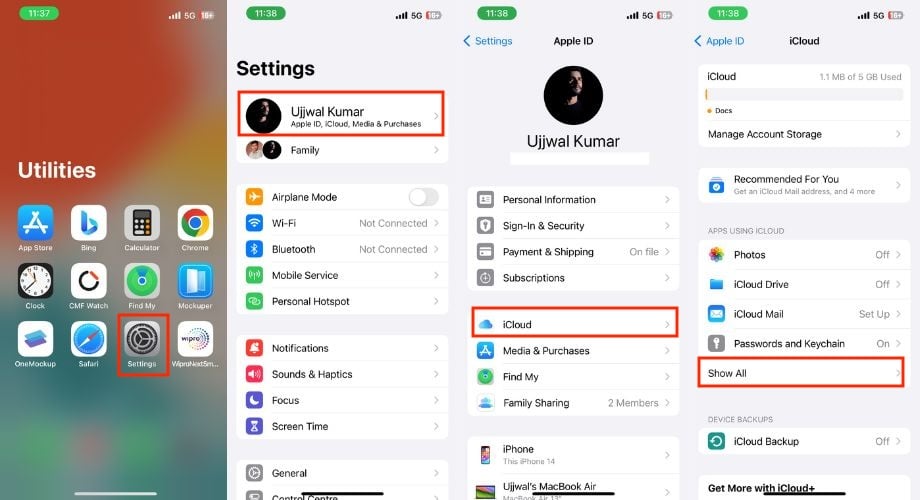
- Choose Messages in iCloud from the list of Apps using iCloud.
- Turn off the Toggle right to Use on this iPhone.
- Hit Disable and Download Messages when the confirmation pop-up prompts.
- Now, restart Your iPhone, and turn on the toggle next to Use on this iPhone.

Once activated, iCloud may require some time to re-sync your messages indexing. Till then, be patient and allow a few hours, particularly if your message history is extensive.
Double-check Your Storage
A full or nearly full iPhone can slow down various tasks, including message search. Indexing messages, which creates a database for faster searching, requires storage space to maintain the index properly. Consequently, make sure to double-check the storage space on your iPhone to see if it’s sufficient or not. If it’s insufficient, delete unnecessary data to free up space.
1. Check iPhone Storage:
- Open Settings.
- Go to General.
- Click on iPhone Storage.

- Here, you’ll see a breakdown of storage usage by different categories like Photos, Apps, Messages, etc.
- Identify categories consuming the most space and consider deleting unnecessary files.
- For example, you can delete large videos or photos, uninstall unused apps, or clear Safari cache.
2. Check iCloud Storage:
1. Open Settings.
2. Tap on Your Name.
3. Click on iCloud.
4. You’ll see a bar indicating your iCloud storage usage and available space.

5. If your iCloud storage is running low, you may consider:
- Upgrading your iCloud storage plan.
- Deleting unnecessary iCloud backups or files.
- Using iCloud storage optimization features.
Force Restart Your iPhone
If you are still having issues with your iPhone message indexing after following the above steps, then a simple restart could resolve the issue. Whether you own an iPhone 8 or a newer model, or even an iPhone 7 or 7 Plus, or perhaps an older iPhone 6 model, fret not – we’ve got solutions tailored for every model. Simply follow the below steps to restart your iPhone.
Force Restart iPhone 8 and Later Models
- Press and hold the Power button along with either Volume up or down buttons simultaneously.
- At the top of the screen, you’ll see a slider labeled ‘slide to power off.’ Simply slide it all the way to turn off your device.
- Wait for about a minute and turn your iPhone on by pressing the Power button until the Apple logo appears.
Force Restart iPhone 7 and iPhone 7 Plus
- Press and hold the volume down button and the power button simultaneously.
- Continue holding until you see the Apple logo.
- Wait for a while, and your iPhone will restart.
Force Restart iPhone 6s, Earlier Models (including iPhone SE first-generation)
- Press and hold the home button and the power button simultaneously.
- Continue holding until the Apple logo appears.
- Wait for a while, and your iPhone will restart.
Update Your iPhone
When was the last time you checked for an iOS update on your device? If it’s been a while, you should check for updates because the issue with messages indexing may be due to not using the latest iOS version for a long time. Over time, devices and apps can experience bugs and glitches, and developers release updates to fix these issues. Regularly updating your device is a good approach to ensure everything works smoothly on your device and to get rid of such issues.
Now, let’s proceed with the steps:
- Open the Settings app on your iPhone.
- Tap on General.
- Tap on Software Update.

- If there is an update available, tap on the Download and Install button to start the download.
- The update will download shortly, and after that, you can install it on your iPhone by tapping on the Install button.
Rеsеt All Sеttings
Modifications to your iPhone’s system settings may have caused issues with the iPhone message indexing. In such a situation, you should try resetting all settings. This won’t result in any loss of data, but it will revert all the custom settings you’ve performed back to their default. Follow the below steps to do so.
- Open the Settings app.
- Tap on General.
- Scroll down to the bottom to find Transfer or Reset iPhone, and tap on it.

- Select Reset.
- A popup menu will appear; choose “Reset All Settings” from it.
- Enter your iPhone passcode on a new window.
- Confirm the resetting setting by tapping Reset All Settings.

iPhone Messages Indexing: What Does it Mean?
iPhone Messages Indexing is a process on your iPhone that makes your message history searchable and accessible through features like Siri and Spotlight search. This process involves analyzing the content of your messages, including text, links, attachments, and metadata, to create an index that can be quickly inquired.
Indexing allows you to easily find specific messages through search, even if they’re deep in your history. Indexing turns out after updating iOS, enabling iCloud for Messages, restoring from backup, or adding a noteworthy number of new messages.
For example, after updating your iPhone, try searching for past messages using keywords (that can be keywords, specific numbers, or anything from the message you are looking for) in the Messages app. If the message promptly appears, the reindexing process is successful. However, if it delays and prompts, “More results will be shown once the messages finish indexing.” Don’t worry; your messages are still there; they are just not fully searchable yet.
To speed up the process, connect your iPhone to Wi-Fi, keep it plugged in and charging, and avoid using Low Power Mode. However, these are temporary problems and can be fixed with some troubleshooting steps above.
What Causes the iPhone Messages Indexing Issue?
There are several reasons why the iPhone causing issues with messages Indexing. Understanding them can help you to identify potential solutions and apply them to resolve the issue easily.
1. Slow or unreliable internet connections may cause delays, affecting the processes of messages Indexing.
2. Settings within iCloud or Siri & Search about message indexing may conflict, resulting in issues.
3. Occasionally, certain iOS updates may encounter issues, yet Apple typically releases subsequent updates to address any issues. Following a fresh update, everything should be resolved.
4. Restoring your iPhone from an incompatible backup, especially if it’s from a different iOS version, can lead to indexing problems.
Get Your Messages Back In Order
If your iPhone messages aren’t searching properly, it might be due to an incomplete indexing process. These simple troubleshooting steps that I have mentioned above, i.e., restarting your phone or disabling and re-enabling Messages in iCloud settings, for more complex cases, consider updating iOS or checking your language settings will definitely help you, and you must have succeeded in resolving your issue. If the issue persists, consult Apple Support for further assistance.
FAQs about iPhone Messages Indexing
1. How can I prevent future indexing problems?
Keep your iPhone updated, avoid overloading it with messages, and manage iCloud storage effectively. Regularly back up your data and consider enabling automatic updates for a smoother experience.
2. Are there third-party apps that can improve message indexing on iPhones?
Apple doesn’t officially support third-party apps for message indexing. While some apps claim to boost search functionality, their effectiveness and security are often questionable as they are not Apple officials.
3. What happens if I disable message indexing?
Searching messages will become slower and less accurate. You won’t be able to use keywords or specific content to find messages efficiently. Disabling indexing is not recommended unless you encounter specific issues you’re trying to troubleshoot.
4. Can I export indexed messages for backup or transfer?
Currently, there’s no direct way to export indexed message data. You can back up your entire device or transfer messages through iCloud or iTunes, but the exported data won’t be a standalone search-optimized index.
5. Can I pause or stop message indexing temporarily?
No, message indexing is an automatic process. However, you can disable Siri access to messages in Settings > Siri & Search > Messages to limit data analysis.
6. What if I’m experiencing indexing issues after switching to a new iPhone?
Ensure both devices are connected to Wi-Fi and that iCloud messages are enabled. Consider waiting 24-48 hours for indexing to complete on the new device.

