

If you’ve accidentally deleted a very important message, believe me, you’re not alone! We’ve all been there before. And it’s very annoying indeed. Well, you don’t have to worry anymore because there are a few ways you can recover deleted text messages on your Android smartphone.

In this article, we’ll explain how to recover deleted text messages on Android. We’ll also show you some practical ways to avoid such accidents and protect your important messages. By following these simple instructions, you can ensure that your important text messages are never lost again.
Table of Contents
How to Retrieve Deleted Text Messages on Android
While there are many ways to recover deleted text messages on Android, whether it works depends on your device and the messaging app you’re using.
To help you navigate this blog and find the help you need to recover deleted text messages on your device, we’ll discuss:
- Recovering Deleted Text Messages on Samsung Galaxy Phones
- Recovering Deleted Text Messages on Google Pixels
- Recovering Deleted Text Messages on Other Custom Androids
- Recovering Deleted Text Messages on Android Using Third-Party Apps
We’ll also discuss the best messaging apps to save your important text messages on Android, as well as some simple ways to protect your messages from loss or deletion.
Recovering Deleted Text Messages on Samsung Galaxy Phones
If you have a Samsung Galaxy device and use the Samsung Messages app as your default messaging app, you’re in luck: you can easily recover your deleted messages from the trash. The Samsung Messaging app has a special recycle bin that stores your deleted messages for 30 days before they are permanently deleted from your device.
To recover your deleted messages on your Samsung Galaxy phone, you need to follow the steps below:
- Open the Samsung Messages app on your Galaxy phone.
- Tap on the “Triple-Dot Menu” in the upper-right corner of your screen.
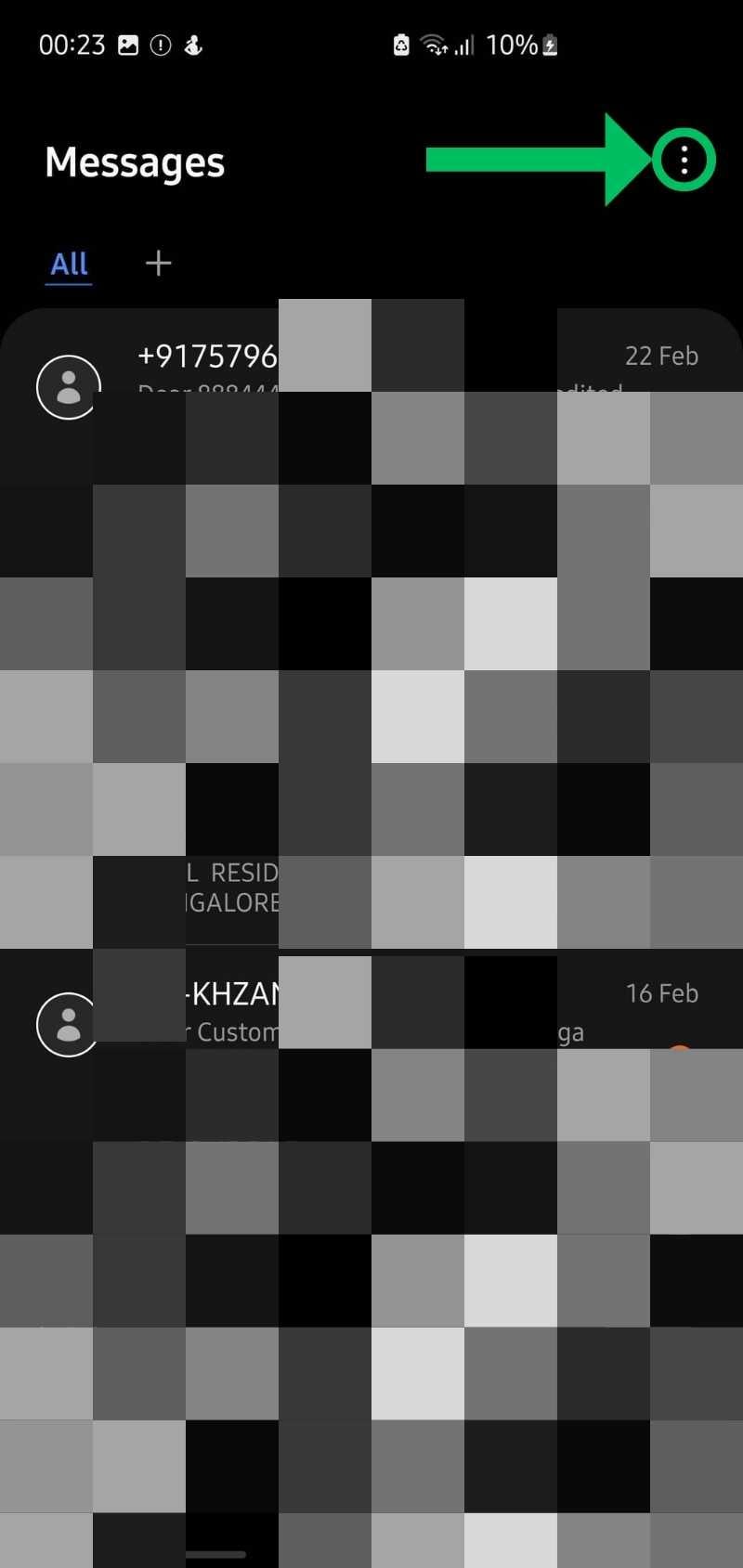
- Then, go to “Recycle Bin.”

- Now, “Long-Press on the Deleted Message” you want to recover.

- Press the “Restore” button at the bottom of your phone’s screen.

That’s it! By following these simple steps, you can recover your deleted text message on your Samsung phone.
Recovering Deleted Text Messages on Google Pixel
Google Pixel phones use the Google Messages app as the default messaging app. Unfortunately, there is no recycle bin in the Google Messaging app, but that doesn’t mean you can recover deleted text messages on the Pixel phone. There are a few things you can do to find your lost messages.
(a) Look into the Archive Folder
Most of the time, your lost messages end up in the “Archived folder” and are not permanently deleted. This is mainly due to the “Swipe Actions” function in the Google Messaging app. The function moves the message or conversation to the “Archived” folder if you accidentally swipe it to the left or right, and you may think that it has been permanently deleted.
So before you freak out, check the Archive folder in the Google Messaging app to see if your deleted text messages are there. To access the Archive folder on your Pixel device, follow the steps below:
- Open the Google Messages app, and tap on your “Profile Icon” in the top left corner.

- Select “Archived,” and check if your lost message is there.

- If you find your lost text message in the “Archived Folder” long press to select the text message and tap on the “Unarchive Button (represented by an upper arrow in the box)” at the top right of your phone’s screen.

If you have accidentally moved your text message to the archive folder, the steps above will help you. If you still can’t find your lost text message, you can check your Google Drive backup.
(b) Look into Google Drive Backup
You can get back your deleted message if the Google Drive backup setting is enabled. When the backup is enabled, your app data, media files, call logs, text messages, and other files are stored on your Google Drive. So, if your Google Drive backup is enabled, you can access it to retrieve the deleted text message on your Pixel device.
However, the process is tedious as you have to reset your device to factory settings and then restore the Google Drive backup during the setup process. So make sure you back up all important data before resetting the device to factory settings.
Here’s how you can restore text messages from your Google Drive backup:
- Launch the “Settings App” on your Pixel and go to “Google.”
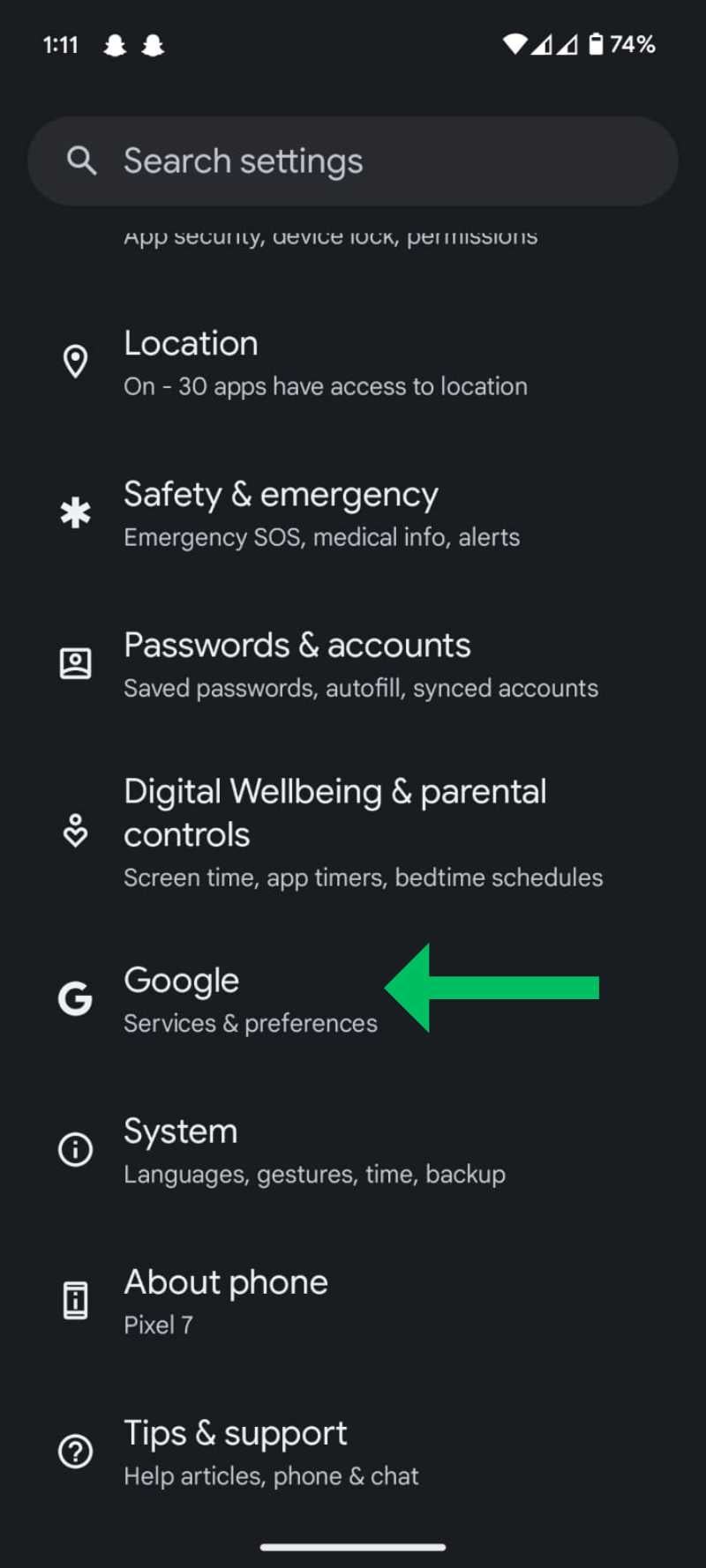
- Now, tap on “Backup,” and look for the timestamp of the last backup. If you are certain that the last backup contains the message you are looking for, you can take the hard step of resetting your device. Ensure that you back up your data before you factory reset your device.

- To factory reset your device, open “Settings” and go to “System.”

- Scroll down to “Reset Options.”

- Now, tap on “Erase All Data (Factory Reset).”

- After erasing your data, when the phone restarts, you can choose the last backup you wish to receive.
If this backup contains the text messages you lost, you can restore them and get those important text messages back. However, if you are not sure whether your last backup contains the deleted text messages or not, we advise you not to take this drastic step. You could lose even more data if it’s not backed up to your Google Drive. In addition, the backup is at the expense of your Google Drive limit. Therefore, you should consider whether the text messages are worth the risk of losing other data.
Recovering Deleted Text Messages on Other Android Phones
If you have an Android phone other than the Google Pixel, there’s a good chance that your device is using a skin on top of the Android operating system. In this case, the search for the deleted text message will depend on the default messaging app on your device.
If your device uses the “Google Messages App” as the default messaging app, you will need to follow the steps described in the Pixel section. Check if the deleted texts were accidentally moved to the archive or if there is an option to restore them from a backup. If your device uses a different messaging app, you may need to investigate the settings of that specific app to recover deleted messages. Most custom Androids have a dedicated messaging app with the trash function enabled.
Retrieve Deleted Text Messages on Android Using Third-Party Apps
There are a variety of third-party apps and software that claim to be able to recover deleted text messages on Android. However, very few of them are effective. Notable options include FoneDog, PhoneRescue, and Dr.Fone. It is important to note that these software require a subscription to use all the data recovery features. Also, there is no guarantee that these apps will work, and their effectiveness depends on your specific situation.
The biggest problem with using third-party apps to recover deleted text messages is that you need to enable USB debugging mode or root your smartphone. This can void the warranty and pose security risks, so it’s important to check your situation.
How to Prevent Your Text Messages from Getting Accidentally Deleted
Losing your important data can be devastating. But you can take precautions to protect yourself from such situations and prevent your important text messages from being accidentally deleted.
If you are an Android user and have a device that uses the Google Message app as the default messaging app, make sure you have the correct swipe actions set.
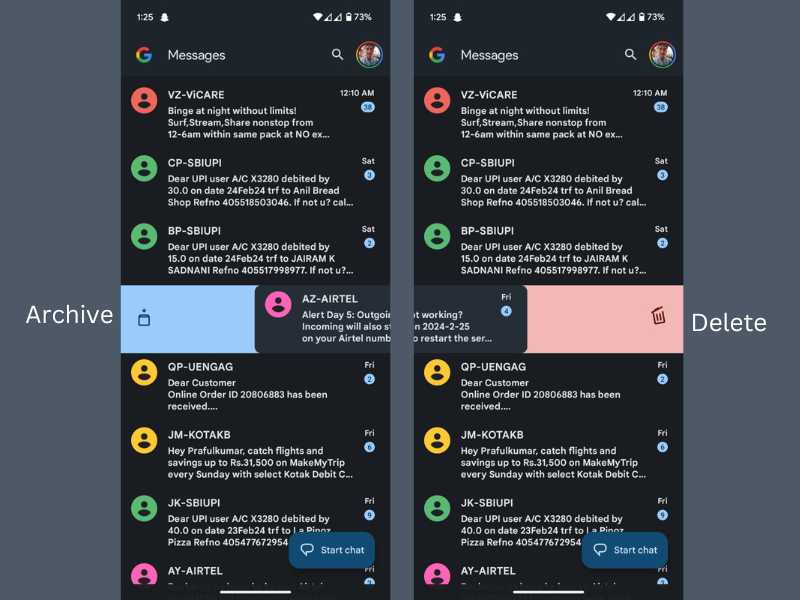
If your swipe actions are set to delete the message or a conversation, there is a high chance that your text messages will be lost. Instead, you can set the swipe actions to archive. This way, you can prevent your messages from being accidentally deleted. So the next time you accidentally swipe over your text message, it’ll be archived instead of deleted.
Third-Party Apps to Manage Messages
Another way to prevent your text messages from being accidentally deleted is to use a third-party app that has either a cloud backup or a trash function. This way, you can easily retrieve an accidentally deleted message from the app’s backup or recycle bin.
Some of the best third-party apps to manage messages include:
Wrap-Up: Recover Your Important Text Messages

If you have accidentally deleted an important text message on your Android device, you now know how to recover it. Follow the steps in our guide to recover your accidentally deleted text messages. To avoid such a situation in the future, you should use a third-party messaging app with backup or recycle bin features. This offers additional protection for your important messages.
That’s it for today. Let us know in the comments which method worked best for you to recover your deleted text messages!
FAQs about Retrieving Deleted Text Messages on Android
1. How can I restore deleted text messages from a Google One backup?
You can restore your deleted text messages by performing a factory reset on your phone and then restoring your backup from Google One. However, this will erase all the data on your phone, so make sure you back up your important files before doing this.
- Go to Settings > System > Reset options > Erase all data (factory reset).
- Tap Reset phone and enter your PIN, pattern, or password if asked.
- Tap “Erase everything” to confirm.
- After your phone restarts, follow the on-screen instructions to set up your phone again.
- When you see the option to restore from a backup, make sure you choose the one from Google One that contains your text messages.
- Wait for the restore process to finish and check your messages app.
2. How can I recover deleted text messages without a backup?
You can try using Android data recovery apps like Dr. Fone or PhoneRescue to scan your phone and recover your messages. Download a data recovery app like Dr. Fone or PhoneRescue and install it on your computer. Then, you need to connect your phone to your computer via USB and enable USB debugging on your phone. Next, you need to follow the app’s instructions to scan your phone for deleted messages and select the messages you want to recover. Finally, you need to save the recovered messages to your computer or restore them to your phone.
However, there is no guarantee that these apps will work, and they may pose security risks or require root access.
3. How can I unarchive text messages in Google Messages?
You can unarchive text messages in Google Messages by tapping your profile icon, selecting “Archived,” and then tapping the “Unarchive” button next to the messages you want to retrieve.
- On your phone, open the “Google Messages app” and tap your “Profile Icon” at the top right corner.
- Tap on “Archived” to see the list of archived conversations.
- Tap the “Unarchive Button” (the one with an arrow pointing up) on the conversation you want to unarchive. You can also long-press the conversation and tap Unarchive from the menu. The conversation will move back to your main inbox.
- You can also do this on your computer by going to messages.google.com and clicking the menu icon, Archived, and Unarchive.
4. How can I enable or disable the trash bin feature in Samsung Messages?
You can enable or disable the trash bin feature in Samsung Messages by tapping the menu icon, Settings, More Settings, and then Delete Messages. You can then toggle on or off the option to Keep Messages in Trash for 30 Days.

