

Formatting messages in WhatsApp has long been limited to four styles: bold, italic, strikethrough, and monospace. But with its latest update, Meta has introduced four more text formatting options on WhatsApp to help you stylize your messages and communicate more effectively on the platform.

Let’s check out the new WhatsApp text formatting options and how to use them.
Bulleted List
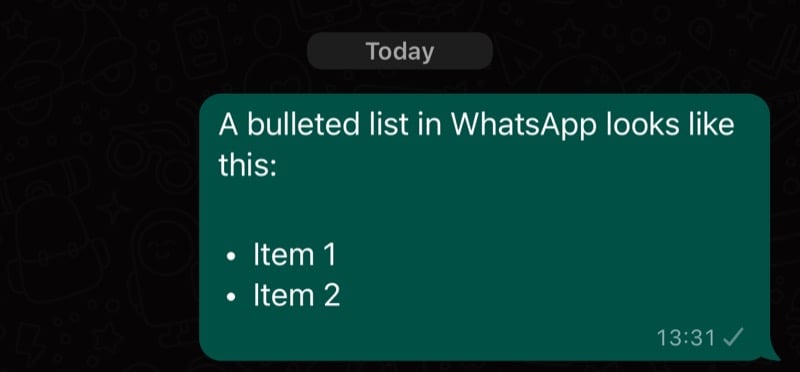
For all those times when you want to draw the reader’s attention to a bunch of points, and their order of appearance doesn’t matter, you can put them in a bulleted list (also called an unordered list.) Creating a shopping list, for example, is a good use case for this.
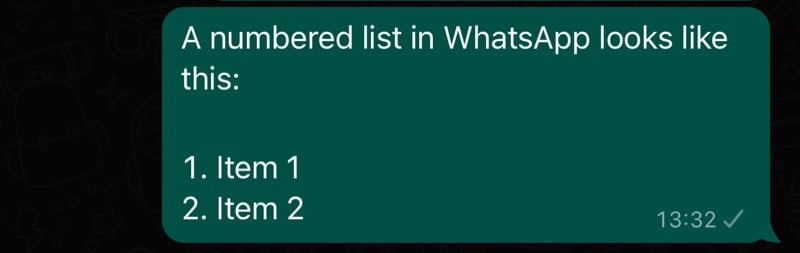
To create a numbered list in WhatsApp, type a number and put a period (.) beside it. Then, add a space and start typing your text. As soon as you do this, it’ll begin the list. Subsequently, hit the Enter or Return key to create the second point in the list, and so on.
Numbered List
Sometimes, listing items in an unordered list isn’t ideal, and you may want to present your points in a specific order. WhatsApp’s numbered list formatting is ideal for such situations. Sharing steps in a procedure or listing meeting minutes are a couple of use cases where you can use a numbered list in WhatsApp.
Creating a bulleted list in WhatsApp is easy enough. Simply add an asterisk (*) or a hyphen (–) in the text field. Then, add space and start typing your text to add it as the first item in the list. Press Enter or Return to create subsequent list items.
Block Quote

If you want to quote someone or add an excerpt or citation in your message, block quoting it will make it stand out from the rest of the text, allowing the reader to get to it directly. Mind you, you can’t create a block quote in between a sentence, as it’s meant to always starts on a new line.
To create a block quote, type the angled bracket (>) and add a space. Then, begin typing or pasting your text, and WhatsApp will block quote it.
Inline Code

As the name implies, the inline code formatting lets you highlight code snippets in your messages. However, the use case isn’t limited to just code snippets. You can also use this formatting option to highlight some other text in your messages you think is important and needs the reader’s attention.
To add inline code, you need to put the text you want to highlight between two backticks. Start by typing the backtick character (`), enter your message or code, and then place the backtick again. For example, `code`.
Use Text Formatting for Effective Communication
With the addition of the bulleted list, numbered list, block quote, and inline code styles, WhatsApp now provides eight text formatting options as of the time of writing. If you use WhatsApp beyond informal communication, using these formatting options will improve the readability of your messages and help you get them across more effectively.
All the formatting options are available on WhatsApp for Android, iOS, web, and macOS. Windows, for some reason, is out of this list.

