

While most of us know our shiny metal workhorses are incapable of surviving a splash, we still put a little too much faith in them when it comes to water resistance. Indeed, we are referring to the most popular portable computing machine – the MacBook. Despite being the epitome of laptop construction, thanks to an all-metal architecture and a flushed design, MacBooks are helpless in saving themselves from water damage, but you can.

Whether you have suffered the consequences or don’t want to imagine yourself in this horrifying situation, read along as we outline the recommended methods to deal with water damage and helpful tips to safeguard your Mac from suffering the sequels of water damage.
Table of Contents
Are MacBooks Waterproof?
It should come as a surprise to nobody, but the straightforward answer is no. Don’t discount sleek looks for functionality; MacBooks, despite being called out for not having enough connectivity ports to maintain their aesthetics, aren’t sealed shut for protection against water damage.
The minuscule speaker grills, charging connectors, keyboard, trackpad, and connectivity ports are easy entry points for water. Not to mention the cooling vents that are cunningly placed below the display and hidden from plain sight to maintain the MacBook’s uninterrupted design.
Since a laptop’s internal components can’t be waterproofed, exposure to water or even moisture can lead to component failure, data loss, short-circuiting, or, worst case, total loss. Thus, it is recommended to keep MacBooks away from liquids such as water or coffee. As a matter of fact, water damage isn’t covered under Apple’s limited warranty for MacBooks.
How To Know if Your MacBook Has Suffered From Water Damage?
Knowing whether or not your MacBook has been exposed to water damage is a crucial step before enacting. Sometimes, you may not know if your water or moisture has seeped into your MacBook’s chassis, which can harm your machine’s internals. Here are a few things to check if the damage has been done:
Check for Physical Traces of Liquid
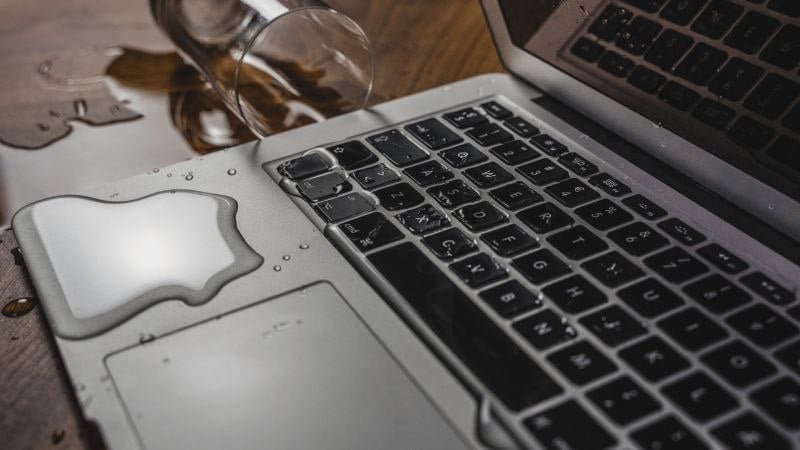
The foremost thing to check for is physical traces of liquid, whether in the form of splashes, droplets, or stains left by fluids. Physical traces are sure-shot indicators of water damage, so be sure to inspect your MacBook throughout before proceeding with the remedies.
Scan Your MacBook’s Connectivity Ports
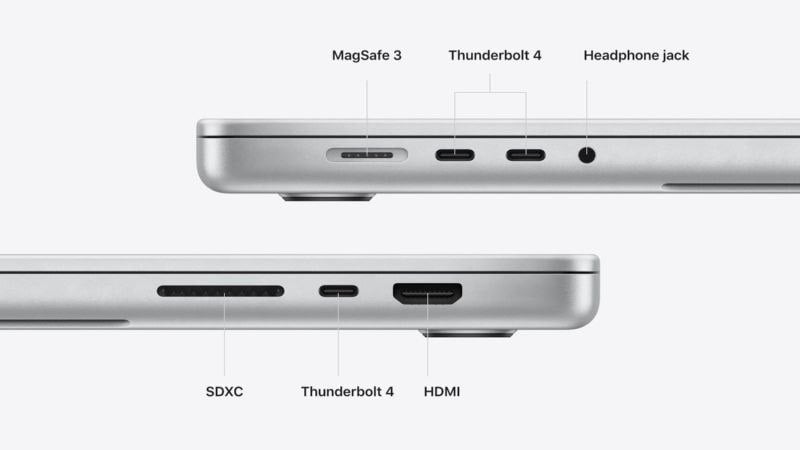
Being an easy access point, ports shouldn’t be left unchecked for water damage. If you find water droplets, moisture, or sticky residue left by drinks, your MacBook has been exposed to liquid damage. Left unattended, water can damage and corrode the insides of ports, which may even result in your MacBook refusing to accept connections through the port. The same goes for the charging connector of your MacBook.
Check for Signs of Water Damage on the Inner Side of the Display
Liquid has every chance to enter through the frame of the upper lid inside the screen, thereby leaving signs of water damage, including discoloration and patches. The display cables can also corrode under the presence of moisture, so you might end up with a blank or blurry screen, dead pixels, or constant flickers.

Uncommon Battery Drain Issues
Battery components and water don’t go well together, ever. Your MacBook’s battery may start behaving weirdly if exposed to liquids or moisture. As a result, you might witness a sudden reduction in battery percentages, inability to hold charge for long, and abrupt system shutdowns. In such cases, getting your MacBook’s battery checked for damages or corrosion caused by water damage is recommended.
Malfunctioning or Unresponsive Components
If your MacBook’s keyboard, trackpad, or other components stop working out of the blue, you can suspect water damage to be the cause. It’s tough to confirm the cause, but water or moisture is absolutely capable of damaging such crucial components, thereby malfunctioning or even disabling them from working appropriately.
Muffled Speakers
Since speaker grills are the perfect spots for water to enter, they can end up getting blocked, causing the speakers to sound muffled even at maximum volumes. While dust and debris can also be potential culprits in this case, they should not be if the issue was caused in a short span of time. Imbalanced sound output from either side can also be indicative of water damage.
Your MacBook Won’t Power On, Even When Plugged In
Water damage could be a probable cause of your MacBook not turning on, even after it’s plugged in. If this is what you witness, chances are that your MacBook has suffered from some severe internal damage. But don’t lose hope yet!
Open Up Your MacBook To Check for Water Damage
If you suspect your MacBook was compromised, there is no harm in checking its internals for water damage. It’s as simple as unscrewing the back panel of your MacBook and lifting it to check for signs of water damage. MacBooks have tiny liquid contact indicators inside them that change color upon coming in contact with moisture.
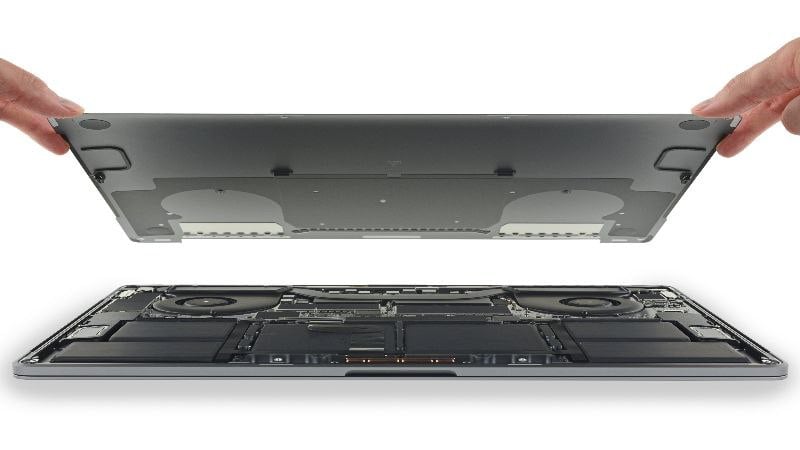
As a fair warning, do not play around with the cables or other components, as you might end up ruining the connections or components.
Do’s and Don’ts After the Damage Has Occurred
Now that the damage is done, it’s time to act accordingly and with patience. If you hurry and end up amplifying the damage instead, your precious metal slab will be no more valuable than a tabletop showpiece. Fret not; here is what you should and shouldn’t do if your MacBook has met with water damage.
Power Off Your MacBook Immediately
Starting with the do’s, the foremost thing you must do without a second thought is shut down your Mac. Just don’t overthink it and act quickly. If your MacBook shut down on its own, don’t try turning it on recklessly. It goes without saying that you must also clear off your station and prevent liquid from spilling further.
Disconnect All Connected Accessories
The next thing in your action plan must be unplugging all the accessories connected to your MacBook. With no exceptions, disconnect everything, including the charging connector, storage drives, audio gear, or even SD cards. Not just connected accessories; don’t forget to remove the keyboard covers or protection cases that you might have on your MacBook, as they can trap water droplets and prevent them from drying out.
Begin the Cleaning Procedure
Not that you have done the prerequisites; it’s time to get your MacBook cleaned up. Begin by wiping off the water contents present on the outer surfaces of your MacBook, such as the lid, around the trackpad, or on the screen. We recommend using paper towels or a soft microfiber cloth, as they are effective yet harmless to the display.
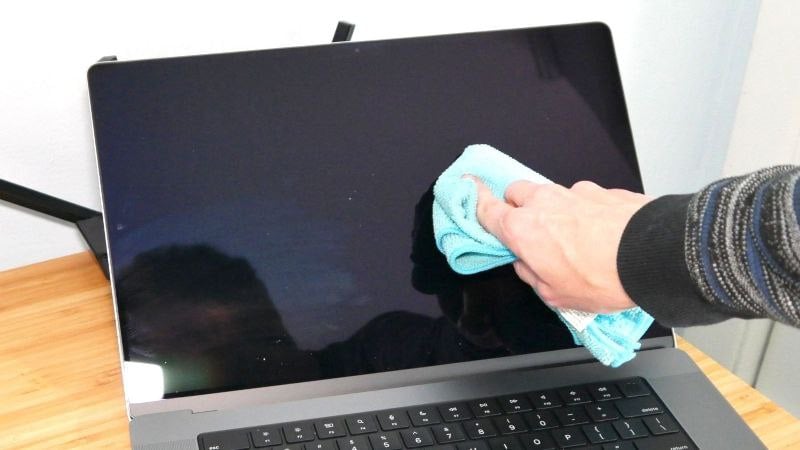
Cotton ear swabs can be used for areas that are difficult to reach, such as the ports, underside of the hinge, or between the keycaps. If the liquid has left a stain behind, clean it using a damp cloth or a wet wipe. Be careful not to spread the liquid further, as it can seep into your MacBook’s internals. A simple cleanup has been known to prevent water damage miraculously.
After you have cleaned the outer surfaces of your MacBook, clean the insides only if you are confident enough to do it yourself. Before you begin, remember to keep yourself grounded for added protection from static electricity and be very careful when dealing with the internal components. Stick to the trusty cotton swabs for cleaning the insides to ensure an efficient cleanup. You can also resort to isopropyl alcohol (with a concentration of over 90%), a popular cleaning chemical that dries itself off after removing dirt and excess water.
Leave Your MacBook Idle To Dry Out Itself
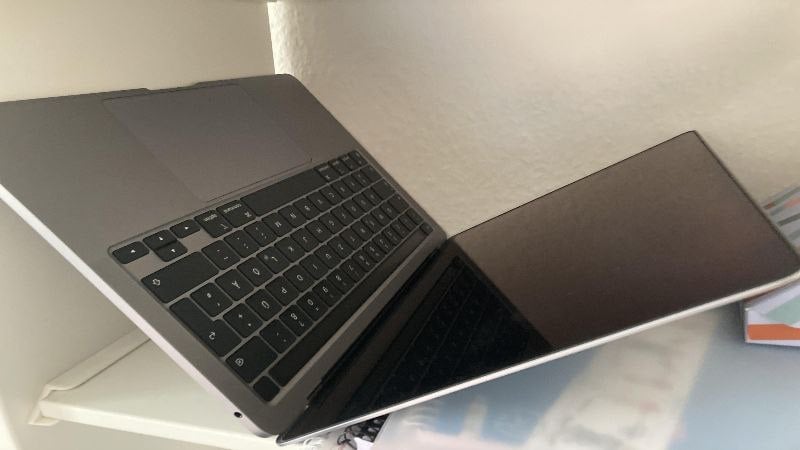
Now is the time to muster your patience and leave your MacBook in a dry and airy environment to let it dry itself. This process can take hours to a day or two to complete, so take your time out, open your MacBook’s lid, and leave it idle. Be careful not to keep it under direct sunlight or in a place with high ambient temperature, as it can harm your laptop. The wonderful phenomenon of evaporation will do the rest of the magic.
Visit an Apple Service Center
If the remedies mentioned above don’t work for your MacBook, it’s better not to wait long and leave the rest to the experts. MacBooks damaged from liquid spillage are common sightings at Apple service centers, so it wouldn’t be a tough job for them to diagnose the problem and provide you with an appropriate resolution.
Now for the don’ts, here is what you shouldn’t do to your MacBook in the case of water damage.
Keeping Your MacBook in a Bag of Rice
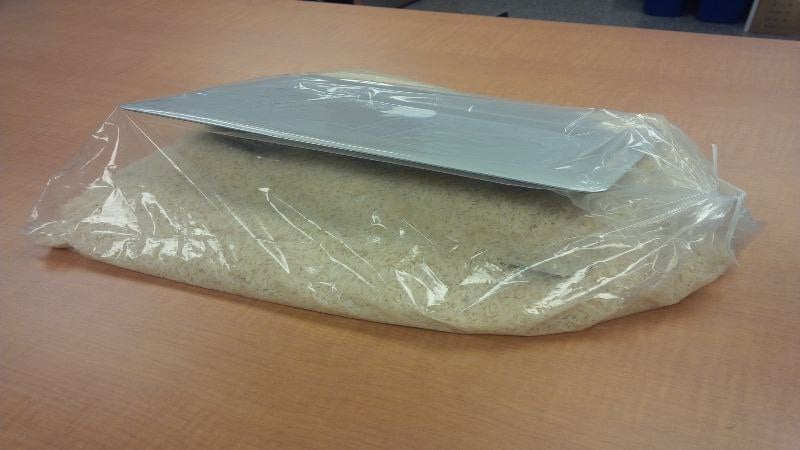
This will never help your MacBook. While it’s a popular method of fixing this issue, it simply doesn’t work. In turn, it can harm your shiny MacBook by blocking the connectivity ports and jingling inside the laptop’s body. Plus, rice isn’t very good at absorbing moisture in such cases, so you shouldn’t try out your luck with this myth on your MacBook.
Shaking Your MacBook To Throw Out Excess Water
Your instinct will tell you to do it, but you should avoid tilting or shaking your MacBook rigorously to eject excess water. The reason is simple: the water inside the laptop will spread out to other areas, which can damage crucial internal components. Thus, it’s best to leave the MacBook as it is in a dry and airy environment.
Hairdryers Are a No-Go
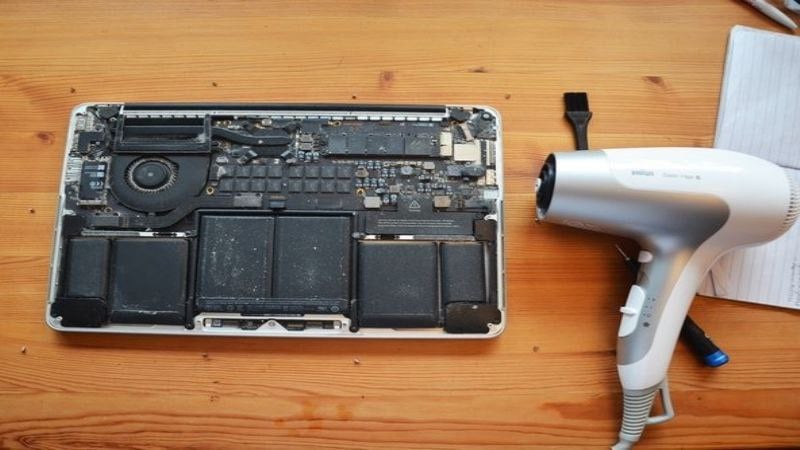
Your trusty hairdryer might be your hair’s best friend, but it won’t get along with your MacBook. Hot air will only cause harm to your MacBook, more specifically its internal components like battery and circuits, so using a hairdryer to dry out the water inside is not recommended. Be patient and leave your MacBook to dry under a fan or in an airy environment.
Turning Your MacBook On or Charging It
No matter how strong the urge is, please don’t turn on your MacBook before the water dries. Because water and electric charges don’t go well with each other, your MacBook may suffer from unrecoverable damages. Turn it on once you are confident that no further traces of liquid or water are left. Avoid charging your MacBook at all costs, as you may get an electric shock.
Accessories To Prevent MacBook Water Damage
The good old saying: Precaution is better than cure, applies here, too. Being the most popular laptops, accessories for MacBooks are pretty easy to find. The accessories below can prevent water from damaging your MacBook, so it’s worth investing in them.
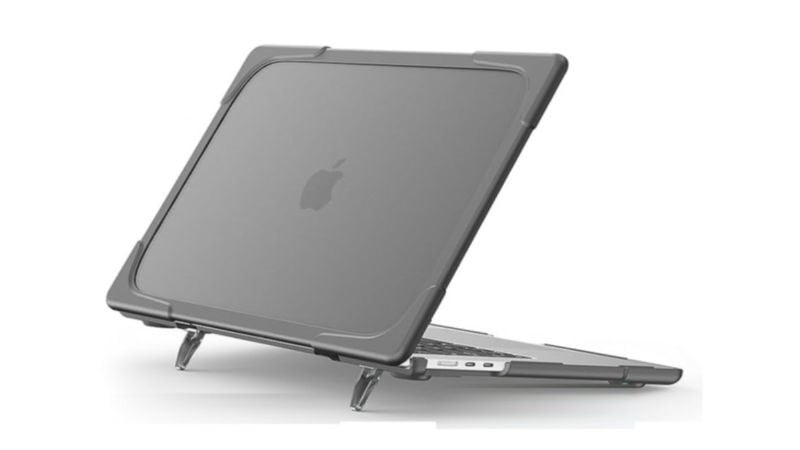
Hardshell Protective Case
The concept is simple: you use a case on your smartphone, so why not on your laptop? Sure, you are unlikely to drop your laptop, but a case can still protect your MacBook from scratches, dust, and, in this case, liquids. No, it won’t be sealed shut, but most general spills can be prevented easily. Plus, cases give your MacBook a design makeover, too!
Get Hardshell Protective Cases for MacBooks
Keyboard Covers
The semi-transparent silicon keyboard covers are pretty standard. Besides preventing dust, nasty oil stains, and fingerprints, keyboard covers can block a prominent entry point for liquid – the gaps around keycaps. They are cheap, easy to find, and effective in preventing damage caused by dirt and liquids.
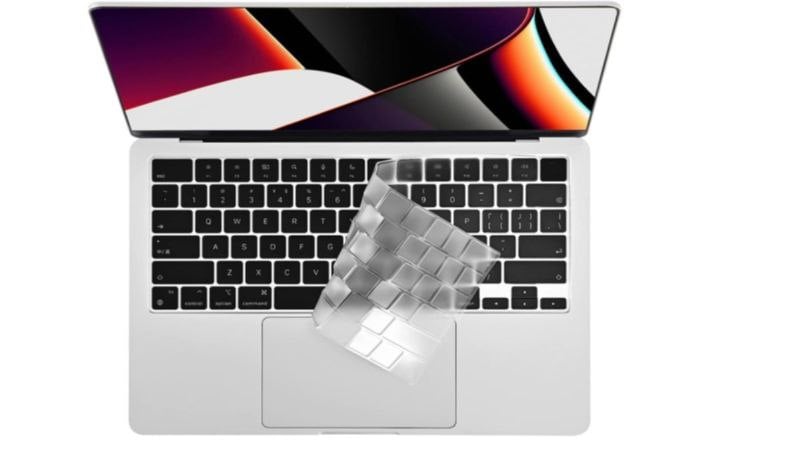
Get Keyboard Covers for MacBooks
Laptop Sleeves
Wouldn’t it suck to have your MacBook damaged while it’s not being used? Hitting the coffee cup kept beside your MacBook is the worst nightmare you can imagine. Thankfully, keyboard sleeves are here to save your day. A good waterproof sleeve protects your MacBook against dust, liquids, and drops. Backpacks serve a similar purpose but are a lot bulky in comparison.
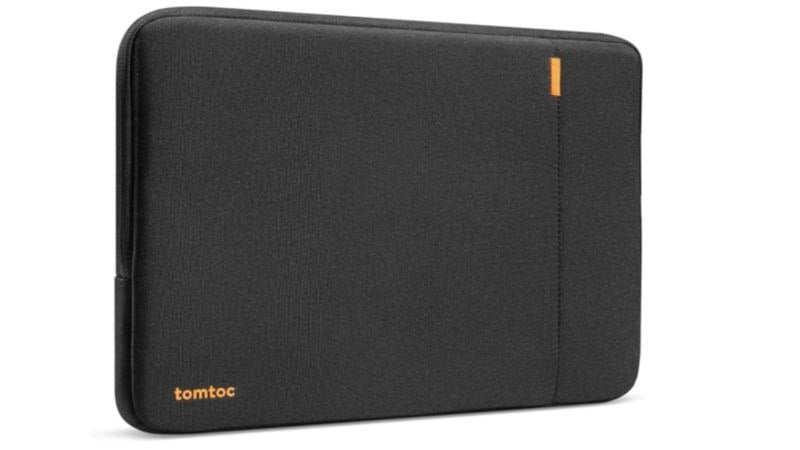
Get Laptop Sleeves for MacBooks
Port Covers
Port covers are plastic plugs that snug into your charging and other connectivity ports, thereby blocking a crucial entry point for liquids. These plugs are inexpensive and protect your MacBook without messing with its aesthetics. Port covers are available for most connectivity ports, including USB Type-C, USB Type-A, headphone jack, and more.

Apple Care+
Although not a hardware-based protective accessory, Apple Care+ has proved to be a godsend to many users. In case you are unaware, the one-year limited warranty that comes with every new MacBook doesn’t cover any form of liquid damage. On the other hand, Apple Care+ covers liquid damage of limited caliber (spills, splashes, etc.), subject to a service fee and taxes. With Apple Care+, you wouldn’t have to burn your wallet again to get your MacBook repaired.

Tackle Water Damage the Right Way
That sums up how to deal with water damage. Don’t panic; stop the liquid from spilling further, turn your Mac off, and clear your station. Moreover, don’t follow the myths, especially not the rice or hairdryer method. In severe cases, get your MacBook checked at the earliest at an Apple-authorized service center. Apple Care+ would be a worthy peace-of-mind purchase if you fear water damage.
FAQs about MacBook Water Damage
1. What are the possible sources of water entry in a MacBook?
There are plenty of places where water can enter a MacBook. Speaker grills, cooling vents, screen, keyboard, I/O ports, and even the trackpad are the most prominent of them. Although MacBooks are built with precision and no unnecessary gaps, the entry points mentioned are enough for liquids to enter inside and damage your machine.
2. What are the most common signs of water damage?
Water damage can be evident or hidden from plain sight, so detecting it can be challenging. Start praying already if you see water around or on your MacBook. Other instances include patches on the inner side of the display, traces of water inside connectivity ports, and extremely low-sounding speakers. Sudden power drops, faulty components, or random shutdowns are a few more warning signs to look for.
3. Does Apple Care+ cover water damage?
Yes, but it’s a half-no. While Apple Care+ claims to cover water damage in the form of spills and accidental splashes, Apple would still charge you a service fee of $299 plus taxes. If the screen is damaged too, you must pay $99 more. Apple Care or the default one-year warranty, which every MacBook comes with, doesn’t cover any sort of water damage. Submersion in water and similar damages aren’t covered under any warranty plan.
4. Will putting my MacBook inside a bag full of rice work?
The answer is straight-up no. Instead, it can damage your MacBook’s internals, leaving it unusable. Rice grains can get inside the connectivity ports and block their functionality. If they get inside, they can hamper the internal circuits, too. Moreover, rice grains are ineffective in drying up moisture content, so it’s best to avoid this remedy.
5. My MacBook isn’t turning on even after leaving it idle. What should I do?
In this case, we recommend taking your MacBook to an Apple-authorized service center. While we are not sure, your MacBook could’ve been severely affected due to water damage, leaving it unresponsive or, in the worst case, unrepairable. Thus, leaving it to the experts would be the ideal thing to do.

