

Battery life is one of the most important factors in a smartwatch. The Apple Watch offers a battery life of one day, which is practical if you wear it all day and charge it in the morning. Problems with battery life can be frustrating and have various causes, e.g., excessive app usage, high brightness, frequent notifications, or outdated software.

If you’re currently experiencing a battery life issue with your Apple Watch and looking for a solution? Look no further. In this guide, you’ll learn seven different troubleshooting methods and five helpful tips on how to avoid this problem in the future. When you’re ready, let’s get started.
Table of Contents
How to Fix Battery Issues on Apple Watch
Troubleshooting Steps:
- Review Battery Draining Apps: Check which apps consume the most battery on your Apple Watch and consider removing or limiting their background activity.
- Reduce App Notifications: Reduce the number of notifications from apps; you can turn off or limit notifications.
- Adjust Display Settings: Reduce the screen brightness and shorten the screen wake-up time to save battery.
- Disable Background App Refresh: Turn off the background refresh for apps to prevent them from updating when not in use.
- Restart Your Apple Watch: Sometimes, a simple restart of your watch can fix minor glitches that could be draining the battery.
- Unpair and Repair: Disconnect and then reconnect your Apple Watch to your iPhone. This can resolve underlying software issues that are affecting battery life.
- Reset the Apple Watch: If the other methods don’t work, reset your watch. This will delete all data, so make sure you create a backup beforehand.
Preventive Steps:
- Use Power Saving Mode During Workouts: This mode saves battery by limiting certain features.
- Regular Updates: Keep your Apple Watch updated with the latest software, which often includes battery performance improvements.
- Turn off Wi-Fi and Cellular When Not Needed: Disable Wi-Fi and cellular connection when not using them.
- Regular Reboots: Restart your Apple Watch regularly to prevent battery life issues.
- Optimize Watch Face: Choose simpler watch faces and save battery life.
Review Battery Draining Apps
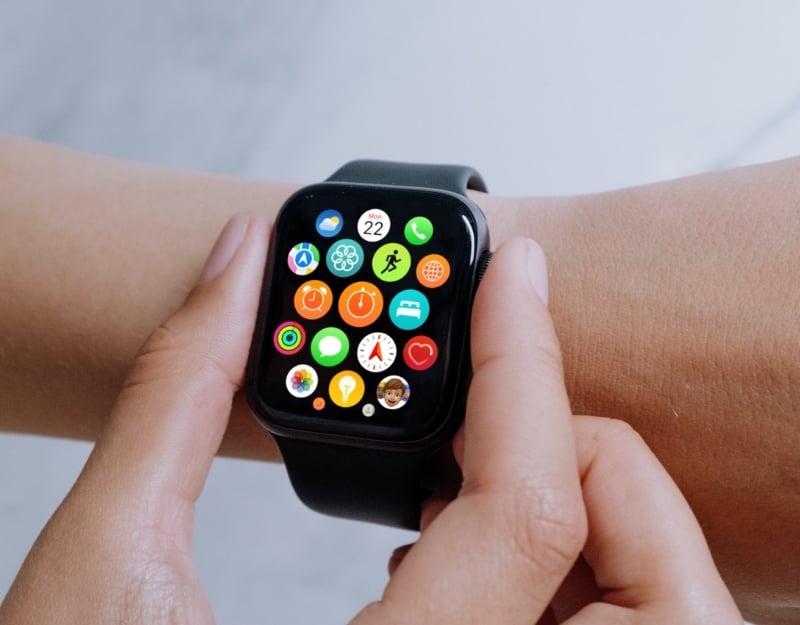
Some apps consume more battery than others. Check which apps are draining your Apple Watch battery. The Apple Watch doesn’t natively offer a feature to check the battery consumption of apps, but you can use parameters such as frequency of notifications, usage patterns, background app updates, and more. Once you have found the apps that consume more battery, you can limit background usage or uninstall them.
How to Limit Background App Usage:
On Your iPhone:
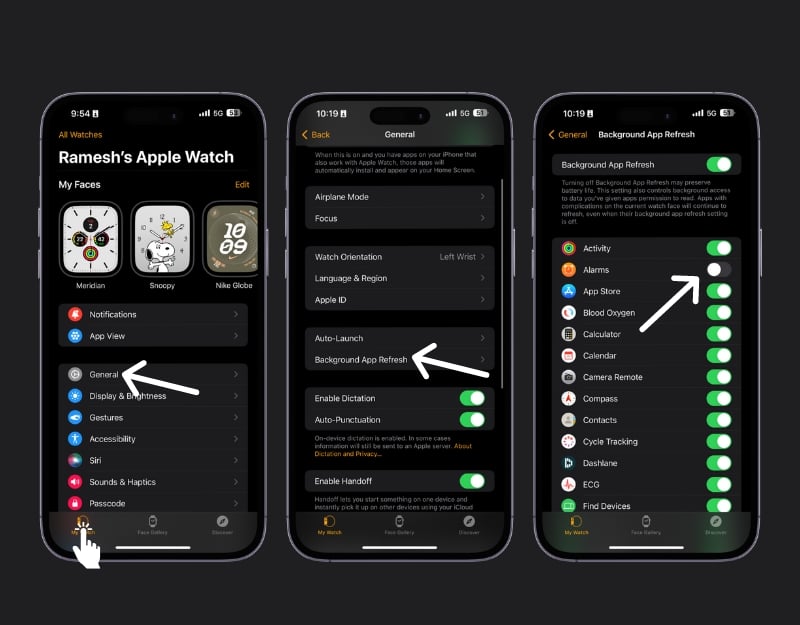
- Open the Watch app on your iPhone.
- Select the My Watch tab at the bottom.
- Tap on General.
- Then, choose Background App Refresh.
- Here, you’ll see a list of apps with background refresh capabilities. Turn off the switch next to each app you don’t want to refresh in the background.
Directly on Your Apple Watch:

- Press the Digital Crown to open the app screen. Tap on Settings.
- Select General and Tap on Background App Refresh.
- Scroll down; just like on your iPhone, you can turn off the toggle for specific apps or completely turn off background app refresh.
How to Uninstall apps of Apple Watch
From Your Apple Watch:

- Press the Digital Crown to see all your apps. Now, Touch and hold the display until the apps jiggle.
- Tap the delete button on the app you want to remove, then confirm by tapping Delete App.
- Press the Digital Crown again to finish.
Using the Watch App on Your iPhone:
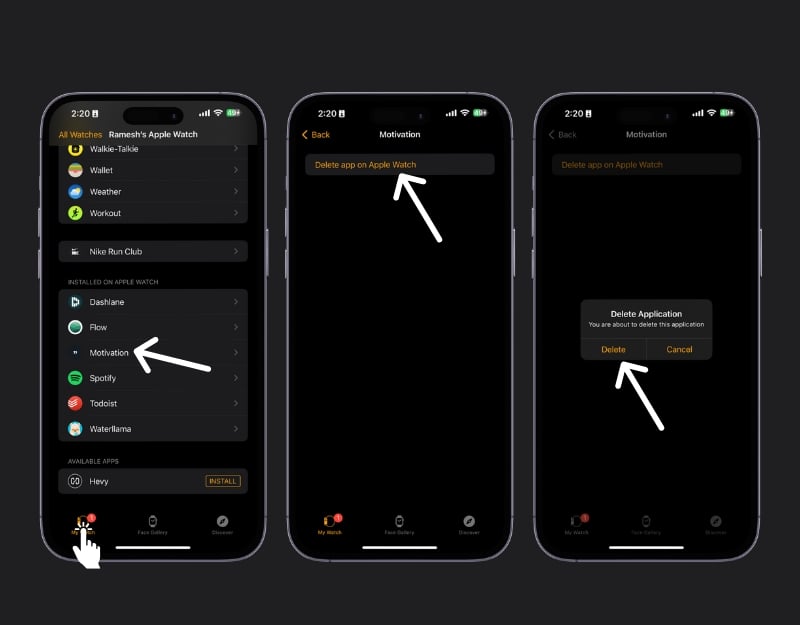
- Open the Watch app on your iPhone and Tap on the My Watch tab
- Scroll to the Installed on Apple Watch section and find the app you want to remove.
- Tap the app, then turn off the Show App on the Apple Watch or tap Delete App on the Apple Watch.
Reduce App Notifications

Frequent notifications can drain the battery of the Apple Watch. Every time a notification comes in, the Apple Watch wakes you up from sleep and displays a notification. This drains the battery. To fix this, you can turn off notifications on your Apple Watch or restrict which apps can send notifications to your watch.
How to Turn Off App Notifications:
Directly on Apple Watch:

- Access the Notification Center by swiping down from the top of the watch face.
- Find the notification from the app you want to disable.
- Swipe left on the notification.
- Tap the 3-dots button.
- Select Turn off to disable notifications from this app.
Using iPhone:

- Open the Watch app on your iPhone.
- Please tap on the My Watch tab.
- Select Notifications.
- For built-in apps: Choose an app and select Custom, then Notifications Off.
- For third-party apps: Scroll down to ‘Mirror iPhone alerts from’ and turn off toggles for apps you don’t want notifications from.
Turn Off Sound Notifications:

- Open the Control Center by swiping up from the bottom of the watch face on your Apple Watch
- Tap the Bell icon to enable Silent Mode, which turns off sound notifications but still allows haptic alerts.
Adjust Display Settings

The brightness and screen wake time can impact battery life. If you have problems with battery life, you should reduce the brightness of the Apple Watch and increase the wake-up time. Reducing the brightness can save your Apple Watch battery.
How to decrease brightness on Apple Watch
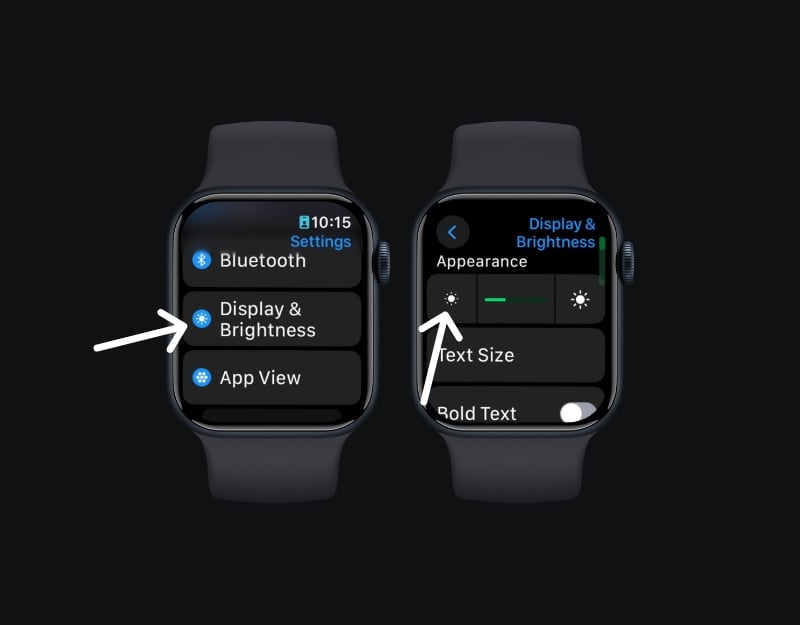
- Open Settings on Your Apple Watch
- Find Display & Brightness
- Here, you can see a slider for the brightness with a sun symbol. You can adjust the brightness by tapping on the sun icons. Tap on the smaller sun to reduce the brightness or on the larger sun to increase it.
Disable Background App Refresh

Background app refresh updates apps in the background and can impact the battery life of your Apple Watch. To fix this, you can turn off the background app update. If you turn off background refresh, app notifications may also be delayed, and apps may take longer to load content. You can also turn off background refresh for specific apps individually.
How to turn off Background App Refresh
Using the Watch App on Your iPhone:

- Open the Apple Watch app on your iPhone.
- Go to My Watch Tab: Tap on the ‘My Watch’ tab at the bottom-left corner of the screen,
- Scroll down a bit and select General. Now, find and tap on Background App Refresh.
- Here, you’ll see a list of apps. You can either turn off the background app refresh for all apps by tapping the toggle at the top or select any app by toggling off next to the specific apps you want.
Directly on Your Apple Watch:

- Open Settings App on your Apple Watch: Press the Digital Crown on your Apple Watch to go to the home screen and then open the ‘Settings’ app.
- Scroll down in the Settings menu and tap on General.
- Select Background App Refresh. Just like on the iPhone, you can turn off background app refresh for all apps or do it individually for each app.
Restart Your Apple Watch

As weird as it might sound, sometimes, a simple restart can fix battery issues on your Apple Watch. Some processes or specific glitches on your Apple Watch can affect battery life. To fix this, you can restart the Apple Watch.
How to restart the Apple Watch

- Open the Settings app on your watch.
- Tap on General. Scroll down and tap Shut Down.
- Then, press and hold the side button to turn it back on.
- Alternatively, you can long press the side button on your Apple Watch, click on the Power button, and slide to power off the Apple Watch.
Unpair and Re-pair Apple Watch
Try unpairing your Apple Watch from your iPhone and then repairing it. This can often solve deeper software problems and fix battery issues on your iPhone.
How to unpair and re-pair Apple Watch
Unpairing Your Apple Watch:

- Keep Your iPhone and Apple Watch Close Together:
- Open the Watch App on Your iPhone and Go to My Watch Tab. Please tap on the My Watch tab at the bottom.
- Tap on All Watches at the top. Here, you will see the list of all paired watches on your iPhone. Select the Watch, and next to your watch’s name, tap the ‘i’ Icon.
- Choose Unpair Apple Watch and tap on it.
- You might need to enter your Apple ID password to confirm. This process will back up your watch data to your iPhone and then unpair your watch.
Re-pairing Your Apple Watch:
- Turn on your Apple Watch: Press and hold the side button on your Apple Watch until you see the Apple logo. Make sure your Watch is charged.

- Open the Watch App on Your iPhone again and tap Start Pairing.
- You can choose to set up your watch as a new one or restore it from a backup. In this case, choose to restore it from a backup. Please note that setting up your Apple Watch as new will erase all the data. You might lose important health data from your Apple Watch.
- Follow the onscreen instructions to finish setting up your Apple Watch.
Reset Apple Watch
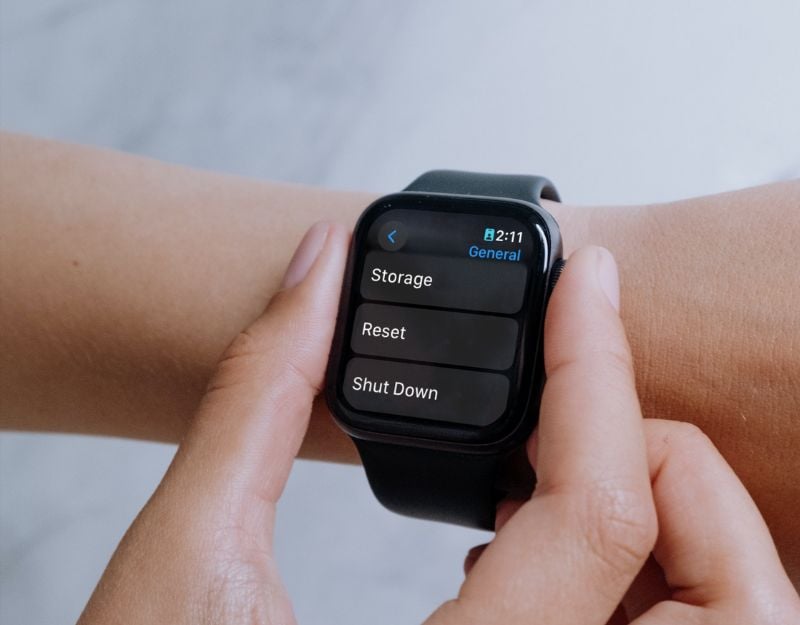
If none of the steps worked for you, try resetting the Apple Watch. Resetting the Apple Watch will erase the data, and you can set it up again. This is the best and most effective way to fix battery issues with your Apple Watch. Back up your Watch data before you reset it.
How to reset Apple Watch
If You Have Your iPhone:
- Open the Apple Watch App on your iPhone
- Go to the My Watch tab at the bottom of the screen.
- Tap on All Watches at the top of the screen.
- Next to your watch, tap the small ‘i’ icon for more options.
- Choose Unpair Apple Watch: Tap Unpair Apple Watch and confirm your choice. You might need to enter your Apple ID password to disable Activation Lock.
Resetting Directly on Your Apple Watch:

- Open Settings on your Apple Watch
- Go to General, then Reset
- Tap on Erase All Content and Settings. If prompted, enter your passcode.
- Finally, tap ‘Erase All‘ to confirm. This will reset your Apple Watch to factory settings.
How to Prevent Apple Watch Battery Drain Issues
Use Power Saving Mode

Low power mode limits the amount of battery your watch uses by turning off a few features on the Apple Watch. Low power mode turns off the heart rate sensor during walking and running workouts; enable it by going to the Watch app, selecting ‘Workout’, and turning on ‘Power Saving Mode’.
How to enable low power saving mode on Apple Watch
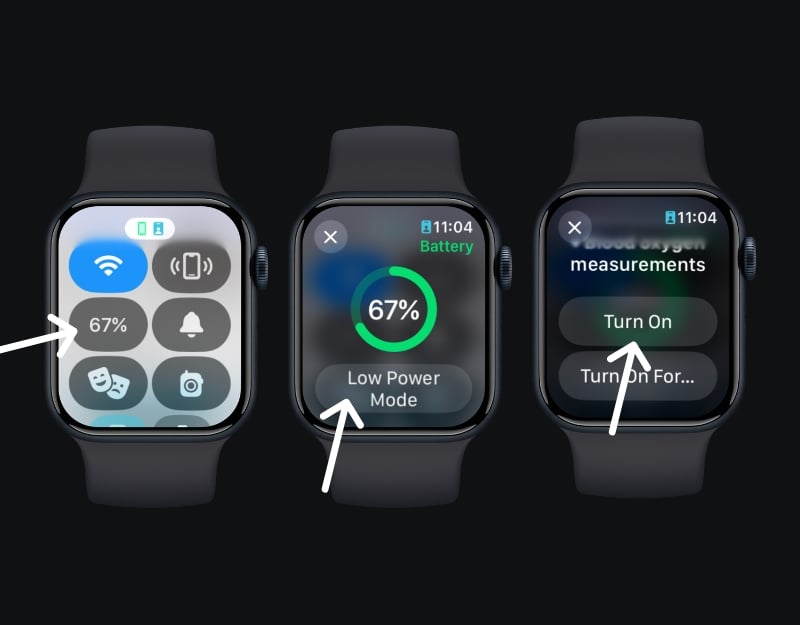
- Access the Control Center on Your Watch and Tap the Battery Percentage icon.
- Click on the Low Power Mode to activate.
- Note: Certain features like Always On display, heart rate notifications, and background measurements are turned off to save battery in the Low Power mode. Also, if your iPhone isn’t nearby, wifi and cellular connections will be disabled on your Apple Watch
Update Your Watch

Update your Apple Watch regularly to the latest version of watchOS. The updates often contain corrections for battery performance and optimize the performance of your Apple Watch.
How to update Apple Watch to the latest version
Update Using Your iPhone:

- Open the Apple Watch app on your iPhone and get to my Watch Tab.
- Go to General> Software Update.
- Now, Download the update. If prompted, enter your iPhone or Apple Watch passcode.
- Wait for the progress wheel to appear on your Apple Watch. This could take several minutes to an hour to complete the update. Keep your Apple Watch on its charger during the update.
Update Directly on Your Apple Watch (watchOS 6 or later):

- Make sure your watch is connected to wifi.
- Open the Settings app on your Apple Watch.
- Tap General > Software Update.
- Tap Install if an update is available and follow the onscreen instructions.
- Keep your Apple Watch on its charger during the update.
Turn Off wifi and Cellular Data if Not Needed
Enabling Wi-Fi and cellular data can impact the battery life of your smartphone. To fix this, you can turn them off when they are not in use.
How to Turn Off wifi on Apple Watch

- On your Apple Watch, touch and hold the bottom of the screen.
- Swipe up to open the Control Center.
- Tap the wifi icon. The icon will dim, indicating that wifi is turned off.
How To Turn Off Cellular Data:
- Just like with wifi, touch and hold the bottom button of your Apple Watch screen and open the control center.
- Find and tap the cellular data icon toggle to turn it off.
Regular Reboots
Make sure to restart your Apple Watch occasionally to maintain battery performance and stop the processes that affect battery life. Press and hold the side button (not the digital crown, but the other button). Until you see the power off slider.
Simple Watch Face
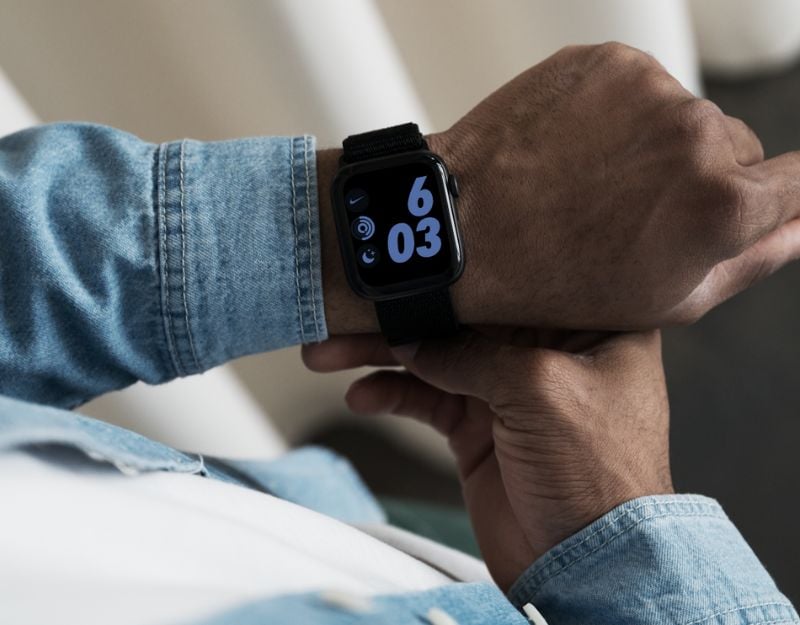
Animated watch faces can also affect battery life. To avoid this, you should use static and simple watch faces on your Apple Watch. You can set the simple watch from the Watch app on your iPhone. Go to the Face Gallery tab, Select the simple watch face, and click on Add.
Enhancing and Preserving Your Apple Watch’s Battery
This is the list of troubleshooting methods you can use to fix the Apple Watch battery drain problem. Battery drain issues can occur for reasons such as excessive app usage, high brightness, frequent notifications, or outdated software. You can use the simple troubleshooting techniques listed in this post to fix the problem. If you are still having issues, you can contact Apple Support to visit the nearest Apple Store and get further assistance.

