

The best use of a smartwatch, apart from fitness tracking and other benefits, is the ability to load songs and listen to them without needing your smartphone. I listen to the songs while I work out, like most of us. I used to have to take my smartphone with me to listen to songs. Now I can use my watch.

I recently bought an Apple Watch, installed Spotify, and quickly downloaded my favorite workout playlist to my Apple Watch. But I can’t connect my AirPods to the Apple Watch. This is frustrating. I’ve tried more than ten troubleshooting methods to fix the issue, and finally, restarting my Apple Watch fixed the problem. If you have the same problem, restarting your watch might help. But if the problem is different, here are the troubleshooting methods that can help you solve the problem of AirPods not connecting to your Apple Watch.
Table of Contents
How to Fix AirPods Not Connecting to Apple Watch
Turn Off Airplane Mode on Your Apple Watch
Turn off Airplane mode on your Apple Watch. When Airplane Mode is turned on, Apple Watch automatically turns off Bluetooth, and you can’t connect your AirPods to Apple Watch. To fix this, turn off the Airplane mode on the Apple Watch.

How to turn on Airplane mode on Apple Watch
- Click on the button on the side of the Apple Watch. This will open the Control Center.
- Look for the Airplane mode icon and turn it off if it is activated.
Restart Your Apple Watch

Restarting your Apple Watch can help you fix most problems, including the Airpods not connecting issue. It worked for me after trying several troubleshooting methods. If you have the same problem, try restarting your Apple Watch before looking for other solutions.
How to restart the Apple Watch
- Remove your Apple Watch from your wrist before restarting it.
- Press and hold the side button (not the digital crown, but the other button). Until you see the slider to turn it off.

Img: 1: Long press the side button | Img 2: Click on the power icon to power off the Apple Watch and Restart - A slider labeled “Power off” will appear on the screen. Drag this slider to the right. If you are using the latest Apple Watch 10 OS, you can click on the power icon to restart the Apple Watch.
- After turning off the device, wait 10-15 seconds and then press the same side button again. Release it when you see the Apple logo.
- Once the Apple Watch is turned on, try connecting your AirPods again.
Check AirPods Battery

A low battery can also affect the pairing of AirPods with your Apple Watch. Make sure the AirPods have enough battery to pair. If the battery is low, you will see a red indicator while trying to connect the AirPods. You can also see the battery life of the AirPods on your iPhone. If the battery is low, charge your AirPods for 10-15 minutes and pair them with your Apple Watch.
How to check AirPods battery life
- Put your AirPods in their charging case. Bring the AirPods (still in their case) close to your iPhone.
- Open the lid of the charging case of your AirPods. A few seconds later, a pop-up will appear on the screen of your iPhone. This display shows the battery level of both your AirPods and the charging case.
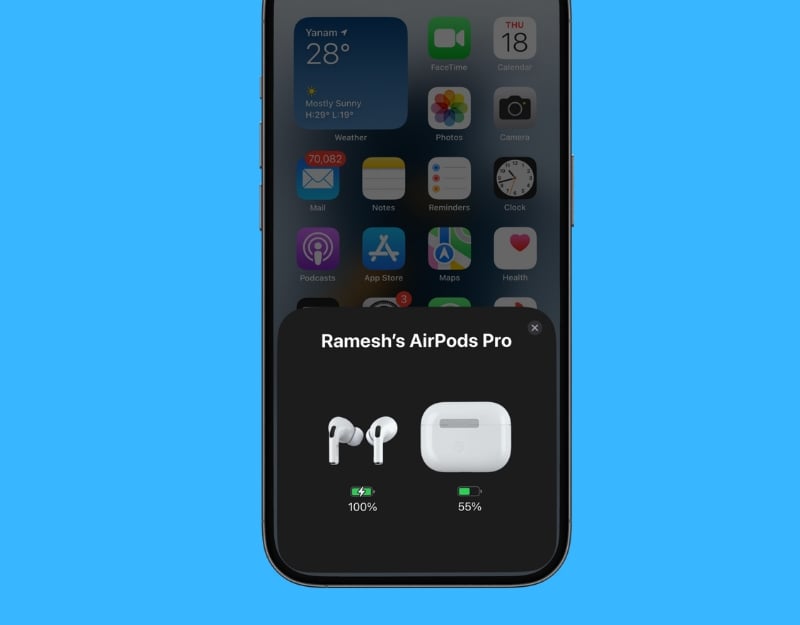
- If you don’t see the battery pop-up, you can also check the battery level using the battery widget on your iPhone. Swipe right on your iPhone’s home screen or lock screen to bring up the Today view and look for the battery widget. You can also add the battery widget by long pressing on the home screen, clicking the plus button, and selecting the battery widget.
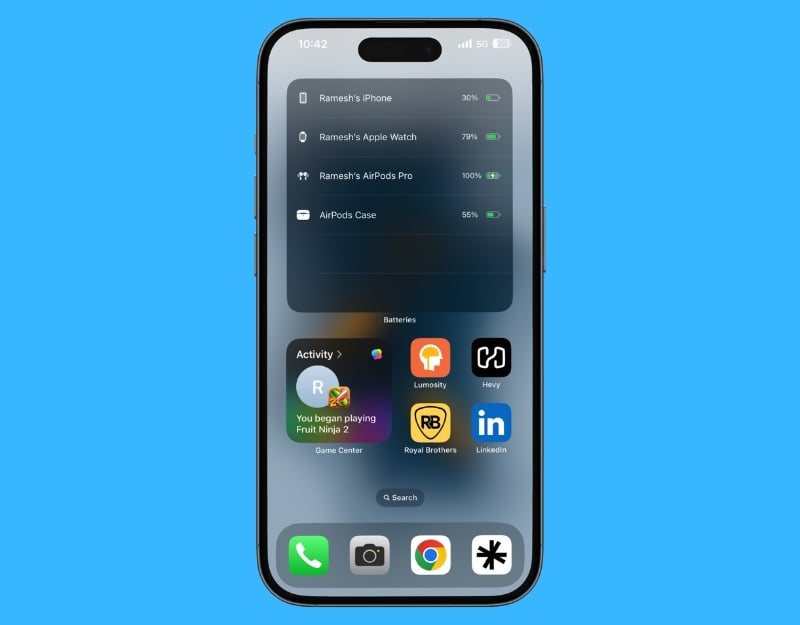
- The battery level is displayed as a percentage. If you see a lightning bolt next to the battery icon, this means that the AirPods or the case are currently charging. If the battery level is below 20%, charge your AirPods and pair them again.
Keep AirPods in Pairing Mode
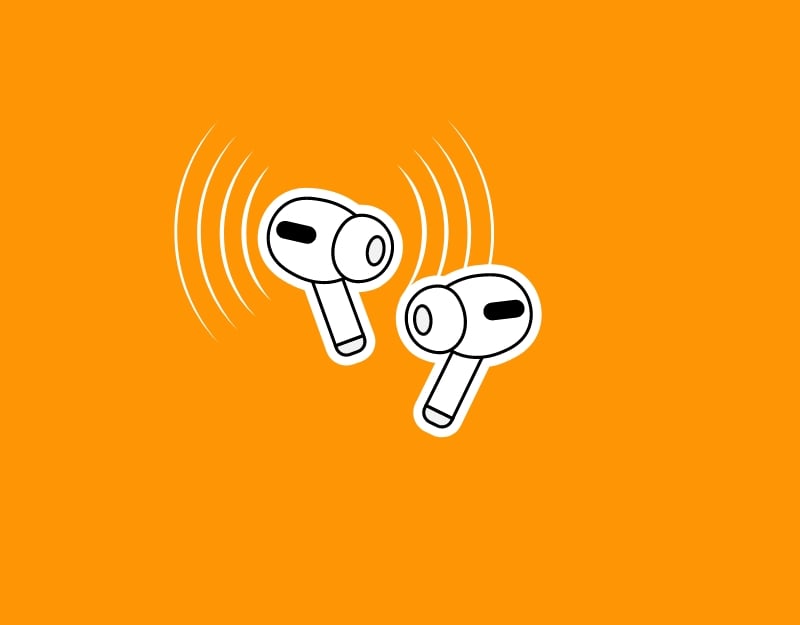
Make sure your AirPods are in pairing mode. To do this, you can put the AirPods into pairing mode and connect them to the Apple Watch.
How to pair AirPods to the Apple Watch
- Open the lid of your AirPods case. and long-press the setup button to put AirPods in the pairing mode.
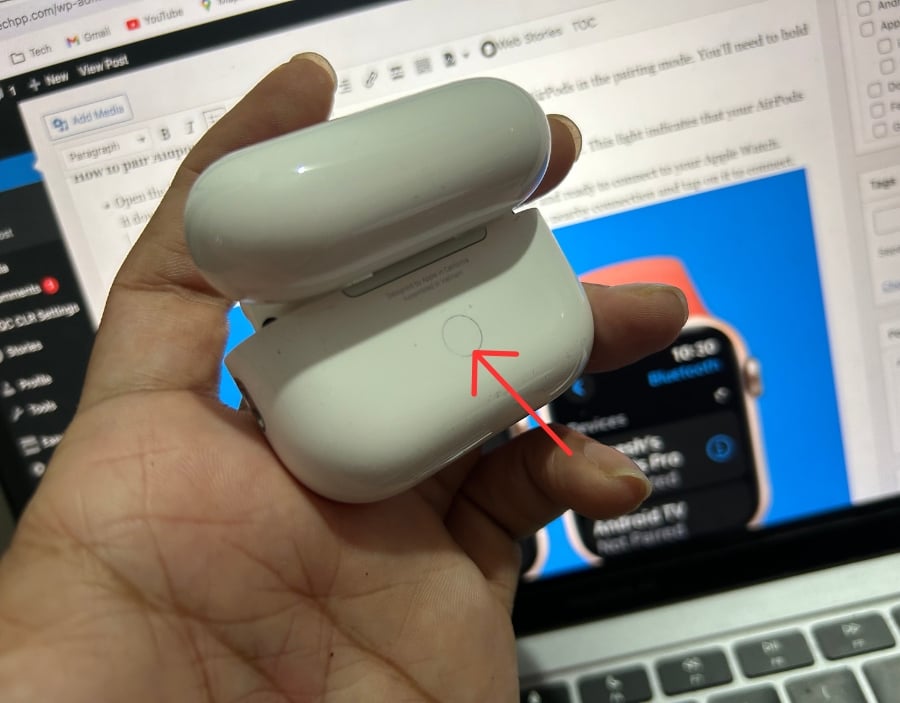
- Hold the button until a white flashing light appears on the front of the case. This light indicates that your AirPods are now in pairing mode.
- Go to Bluetooth settings on your Apple Watch, look for the AirPods in the nearby connection, and tap on it to connect.

Restart Your AirPods

If the problem persists, restart your AirPods. The problem could be due to a malfunction of the AirPods. To fix the problem, restart the AirPods.
How to restart AirPods
- Put both AirPods back in their charging case. Close the lid and wait for about 15 seconds.
- Open the lid of the AirPods case. After this quick process, your AirPods are ready to be connected to your device again.
Distance From iPhone
Suppose Bluetooth is enabled on both your iPhone and your Apple Watch. Physically move away from the iPhone to connect AirPods to the Apple Watch instead of the iPhone. When the iPhone is closer to the Apple Watch, it will use the iPhone to play songs on your AirPods. You can turn off the Bluetooth on your iPhone or move away from the iPhone.
How to Distance iPhone and Apple Watch
- Move your iPhone away from your Apple Watch. The Bluetooth range is typically about 30 feet (10 meters), so keeping your iPhone beyond this range can prevent it from automatically connecting to your AirPods.
- If moving the iPhone away is not possible, you can turn off the Bluetooth on your iPhone. Go to Settings > Bluetooth, and toggle it off. This will prevent your AirPods from connecting to your iPhone.
If the AirPods are connected to the Apple Watch, change the source to the AirPods and then to the Apple Watch.
- Swipe down from the top-right corner of your iPhone screen
- In the Control Center, long press on the audio card (where you see the music playback controls).
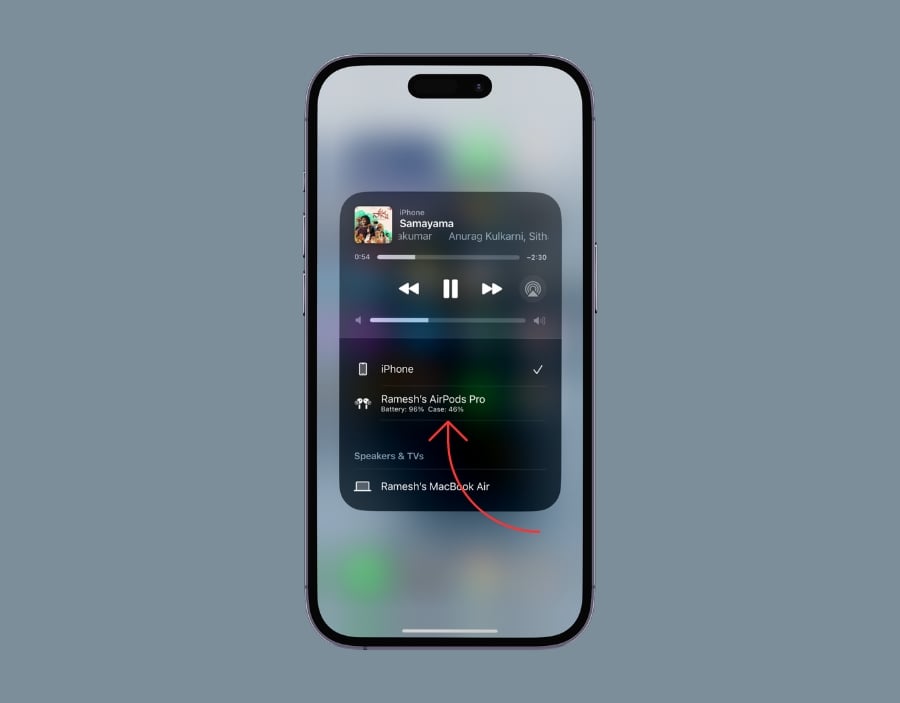
- At the top right of the audio card, you will see an icon that looks like a triangle with circles. Tap on this symbol.
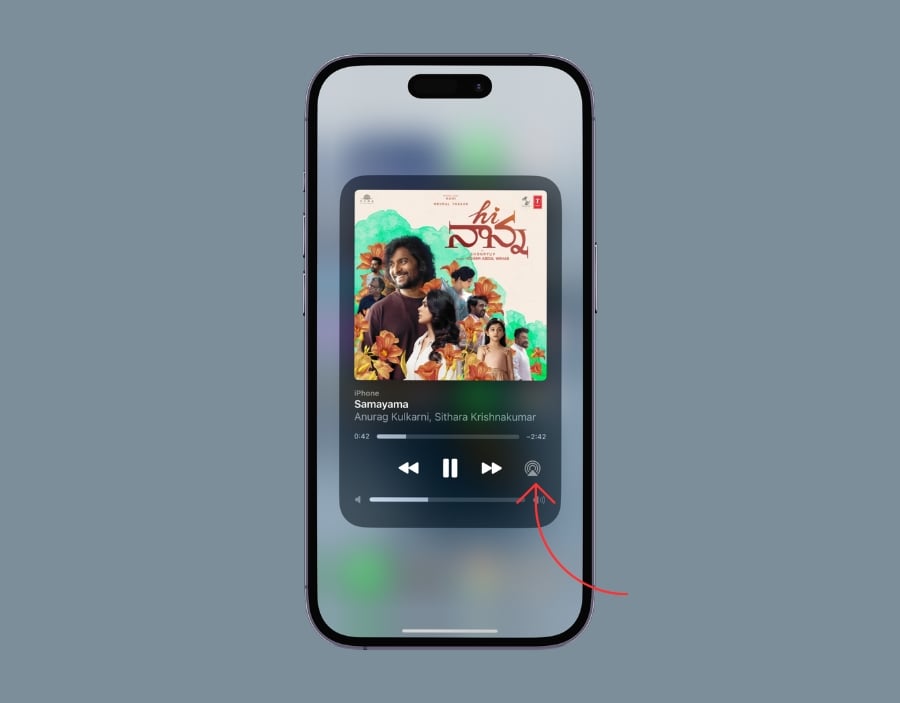
- Choose a Different Audio Route. Your AirPods. You can choose Airpods connected to your Apple Watch.
Repair AirPods With Your Apple Watch
If the problem persists, try to repair the AirPods with the Apple Watch. To do this, first, forget the AirPods on the Apple Watch and repair them again.
How to forget AirPods on Apple Watch
- Go to Settings on your Apple Watch.

- Click on the Bluetooth, Click on the AirPods, and then I (Info button), and click on the Forget Device.
Reset Network Settings on iPhone
Try resetting your iPhone’s network settings. Resetting the network settings on your iPhone will remove the AirPods from the list if the AirPods are likely paired with your iPhone.
How to Reset Network Settings on iPhone
- Open Settings on your iPhone. Scroll down and tap on ‘General’.
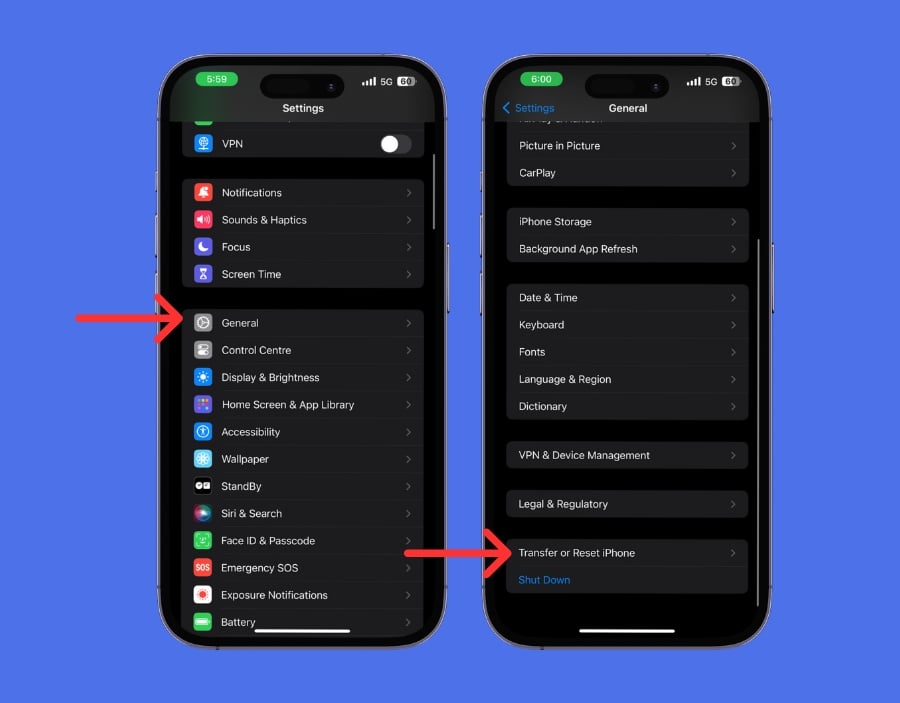
- Scroll down to find the option ‘Transfer or Reset iPhone.’
- In the Reset menu, Click on Reset tap, on ‘Reset Network Settings,’ and Confirm Your Action.
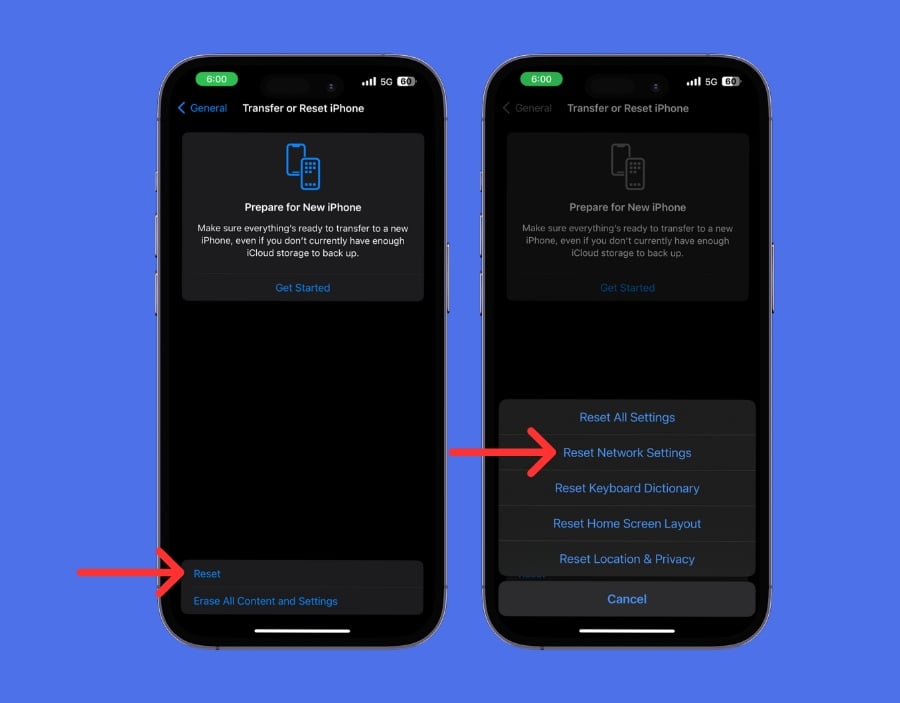
- If prompted, enter your iPhone’s passcode. Once you confirm, your iPhone will take a moment to reset the network settings. During this process, your iPhone might restart.
- After the reset, you need to reconnect to your wifi networks and re-pair Bluetooth devices like your AirPods or Apple Watch.
Update Software

Using outdated software or a specific version of the Apple Watch or AirPods that contains bugs can cause problems, such as the AirPods not connecting to the Apple Watch. To fix this, update your Apple Watch and AirPods to the latest version.
How to Update Software on Apple Watch
- Go to Settings on your Apple Watch, and Click on the General and Software update. Make sure that your Watch is connected to the internet. You can connect the Watch to the wifi if you are using the Non-LTE version.

- Open the Apple Watch app on your iPhone and click on General Settings.
- Select ‘Software Update. If there’s an update, you will see an option to ‘Download and Install.’ Click on it. The update might take some time. Your Watch will restart during this process.
How to Update AirPods Pro
The AirPods are updated automatically. You do not need to update them manually. You can check the current version of the AirPods in your iPhone’s settings. Go to the settings on your iPhone and then to Bluetooth. Find your AirPods Pro and tap on the ‘i’ next to them. Here, you can see the firmware version.
Reset Apple Watch
If none of the steps worked for you, try resetting your Apple Watch. This will fix any existing issues with your Apple Watch and allow you to set it up from scratch. Remember: If you reset your Apple Watch, all data stored on your Apple Watch will be completely deleted. The watch will be automatically disconnected from your iPhone, and you will need to pair it with your iPhone again to use it.
How to reset Apple Watch

- On your Apple Watch, press the Digital Crown to go to the home screen. Then, tap on the Settings app.
- Scroll down, tap on General, and click on Reset.
- Tap on Erase All Content and Settings. This option will reset your Watch to its factory settings, removing all your data and apps.
- If you have set a passcode for your Apple Watch, enter the passcode and tap Erase All to confirm.
Contact Apple Support

Contact Apple Support if the issue persists even after resetting your Apple Watch. You can contact Apple support for assistance. You can book an Apple Genius bar appointment or go to the nearest Apple store to fix the issue.
How to contact Apple support
- Visit the Apple Support (https://getsupport.apple.com/topics-Direct Link) website and select the option that says Pairing & Connectivity.
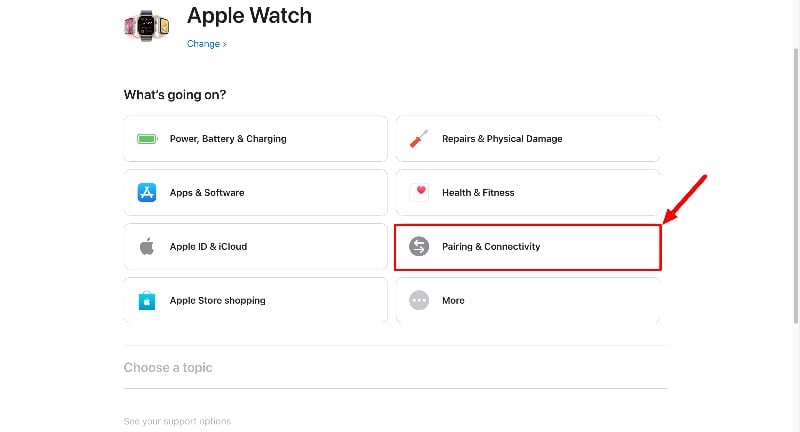
- Scroll down and describe the issue and describe the issue. From the drop-down, select any issue. The issue isn’t highlighted. You can select Unable to pair Apple watch to the iPhone and continue the process.
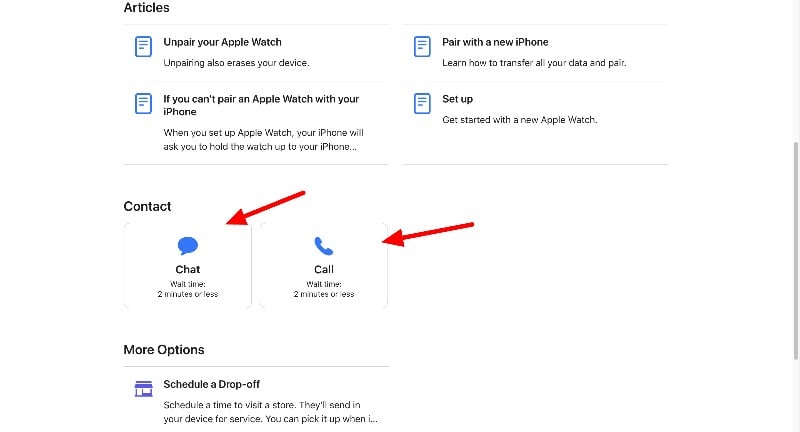
- On the next page, You can live chat or make a phone call to the Apple service. After selecting the option, you can describe the issue you are having. And Apple support and help you to fix the issue.
- Before you get in touch, ensure you have your Apple ID, your device’s serial number, and any relevant details about the issue you are currently experiencing.
Effortless Solutions for Pairing AirPods With Your Apple Watch
You can use these troubleshooting methods to fix the AirPods not connecting to the Apple Watch. You can start with a simple restart of both devices, as this often fixes the problem. Make sure your AirPods have enough battery and are in pairing mode. Also, make sure that the Apple Watch and AirPods have been updated to the latest software versions so that they work optimally. If these steps don’t work, try resetting the network settings on your iPhone or contact Apple Support for further assistance.
FAQs about Connecting AirPods with Apple Watch
1. How Do I Connect My AirPods to My Apple Watch?
To connect the AirPods to your Apple Watch, switch on Bluetooth on the Apple Watch. Now open the AirPods case near the watch and they should appear in the list of available Bluetooth devices on your Apple Watch. Select the AirPods and connect them to your Apple Watch.
2. Why Won’t My AirPods Connect to My Apple Watch?
There can be many reasons why your AirPods are not connecting to your Apple Watch. Make sure that Bluetooth is switched on and your AirPods are charged. Restarting both devices can also help. Also, check whether your AirPods are already connected to another device, e.g., your iPhone, and disconnect them first.
3. Can I Use My Apple Watch Without My iPhone Nearby?
Yes, you can use your Apple Watch without your iPhone nearby, especially for functions such as listening to music stored on the watch, tracking your workout, or making payments. However, some functions require an iPhone connection or a Wi-Fi network.
4. How Do I Check the Battery Life of My AirPods Using My Apple Watch?
To check the battery life of your AirPods on your Apple Watch, swipe up to bring up Control Center and look for the battery percentage indicator. If your AirPods are connected, you should also see their battery level here.
5. How Often Should I Update My Apple Watch and AirPods?
You can update the software of your Apple Watch and AirPods as soon as there is an update. These updates usually bring new features and contain important bug fixes and security patches.

