

Apple Watch offers a convenient way to see calls, texts, and app notifications on your wrist without pulling out your phone every time it buzzes. You can perform quick actions like sending instant replies to texts or accepting and declining calls directly from your watch. You could miss important updates if your Apple Watch doesn’t receive notifications.

You can quickly resolve this issue by following simple troubleshooting steps, such as making sure Bluetooth is turned on, restarting the watch, disabling focus mode, and more. In this guide, you’ll learn fifteen methods to fix the problem of Apple Watch not receiving notifications. Whether you’re worried about missing an important call from your boss or a reminder for a doctor’s appointment, this guide will help you fix the problem.
Table of Contents
How to Fix Your Apple Watch Not Receiving Notifications
Connect Apple Watch to iPhone via Bluetooth

Ensure your Apple Watch is connected to your iPhone through Bluetooth. Your iPhone uses Bluetooth to send notifications to the Apple watch. If the Bluetooth is turned off on any device, notifications won’t be transmitted. You can turn on Bluetooth on your iPhone and Apple Watch to fix this.
How to Turn on Bluetooth on Apple Watch

- Press the Digital Crown on your Apple Watch, and in the apps screen, select Settings app.
- Scroll down and tap on Bluetooth.
- Make sure the Bluetooth toggle is switched on.
How to Turn on Bluetooth on iPhone

- Swipe up from the bottom of your iPhone screen to open Control Center.
- Look for the Bluetooth icon and Tap on it to turn it on (it should light up blue).
Turn Off Do Not Disturb Mode

Do Not Disturb mode on your iPhone or Apple Watch automatically mutes the notifications. When you turn on the do no-disturb mode on the iPhone, it automatically turns to DND mode on your Apple Watch. To fix this, check and disable Do Not Disturb mode on your iPhone and Apple Watch.
On iPhone:

- Swipe down from the top of your iPhone screen to open the Control Center.
- Look for the Focus button and tap Do Not Disturb to turn it off.
On Apple Watch:

- Swipe up on your Apple Watch face to open the Control Center. Or click on the side button if you are using the latest version.
- Scroll down to find the Moon icon.
- Tap on the Moon icon to turn it off.
Remove Mirror DND settings from iPhone to Apple Watch:
You can also disable Mirror My iPhone mode on the Apple Watch to prevent the Apple Watch from automatically going into DND mode when you enable it on the iPhone.

- Open the Watch Please tap on your iPhone.
- Tap on the My Watch tab, then go to General.
- Tap on Do Not Disturb.
- Turn off the toggle for Mirror iPhone.
Turn off Focus Modes
Similar to DND mode, Focus modes like Sleep and Work mode can also disable the notifications on your Apple Watch. Focus mode is an extended version of the Do Not Disturb (DND) mode. With Focus mode, you can set custom schedules and control app notifications more precisely. If you’re not receiving notifications on your Apple Watch, you can either turn off the Focus mode on your iPhone or edit the Focus mode settings to allow notifications. Here is how you can do both:
How to Turn Off Focus Mode on Your Apple Watch

- Turning off-focus mode is very similar to the DND mode. Swipe up on your Apple Watch face to open the Control Center.
- Scroll down to tap on the Moon icon to turn it off.
How to Turn Off Focus Mode on iPhone
- Turning off-focus mode is very similar to the DND mode. Swipe up from the bottom of the screen for iPhones with a home button.
- On iPhones without a home button, swipe down from the top-right corner.
- Tap the Focus icon to view the active Focus modes (like Do Not Disturb, Work, etc. ).
- Tap the active Focus mode to turn it off.
- You can also turn off focus mode from Settings. Open the Settings app and go to the Focus section.
- Tap on the currently active Focus mode.
- Turn off the toggle next to its name.
How to Edit Focus Mode and Allow Notifications on Your iPhone
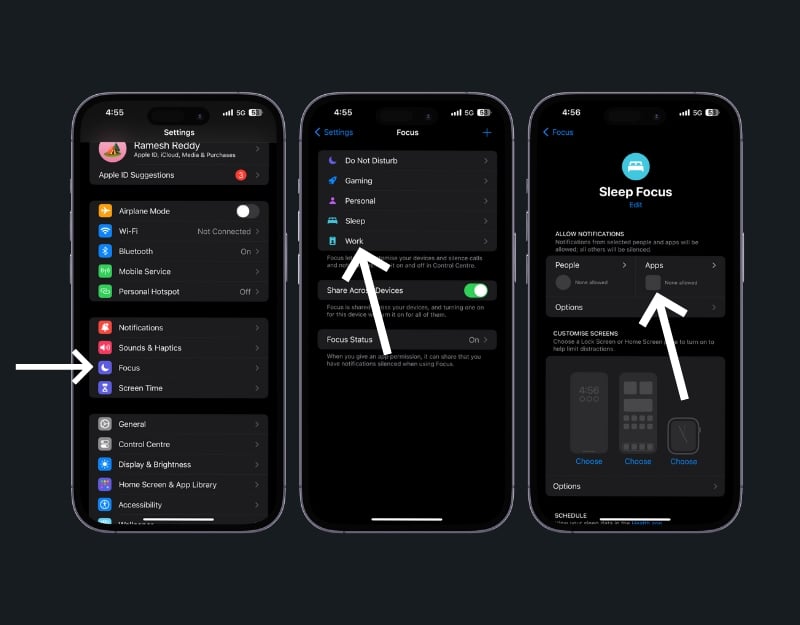
- Open Settings and Go to Focus
- Select the Focus mode you want to edit (e.g., Personal, Work).
- Under the Notifications section, tap on People or Apps.
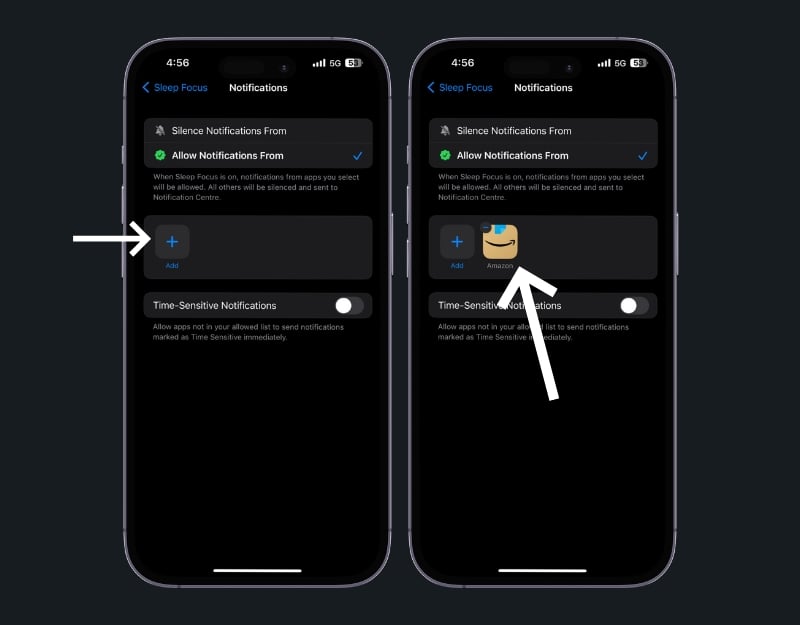
- Add contacts or apps from which you want to receive notifications, even when the Focus mode is active.
Restart the iPhone and Apple Watch

If you are still not getting notifications after pairing with your Apple Watch to your iPhone and turning off the DND mode. You can restart your Apple Watch and iPhone or a quick fix. Sometimes, the glitches can cause this issue. Restarting your Apple Watch and iPhone reboots the system and might fix the problem.
How to restart the Apple Watch

- Press and hold the side button (not the digital crown, but the other button). Until you see the slider and turn it off.
- Drag this slider to the right. If you are using the latest Apple Watch 10 OS, you can click on the power icon to restart the Apple Watch.
- After turning off the device, wait 10-15 seconds and press the same side button again to restart the Apple Watch.
How to restart an iPhone
- Press the side button until the power-off slider appears. Drag the slider.
- To restart your iPhone, Press the top button until the Apple logo is visible.
Keep iPhone and Apple Watch Close

If your Apple Watch is too far from your iPhone, it might not receive notifications. Keep your Apple Watch within a reasonable range of your iPhone to maintain a stable connection. You can consider the Bluetooth parameter to stay in connection. As long as your iPhone and Apple Watch are connected to Bluetooth, you will not have any issues with notifications on your Apple Watch.
Turn Off Airplane Mode

Make sure Airplane Mode is not active on your iPhone or Apple Watch. Airplane Mode turns off cellular communication, Wi-Fi, and Bluetooth, and when it’s turned on, it disables the notifications on the app and disconnects from your iPhone. To fix this, you can turn off the Airplane Mode on your Apple watch. Here’s how to do it:
How to turn off Airplane Mode on Your Apple Watch:

- Swipe up from the bottom of the watch face to open the Control Center.
- Look for the Airplane icon. If it’s orange, Airplane Mode is on.
- Tap the Airplane icon to turn it off.
How to turn off Airplane Mode on Your iPhone

- Swipe down from the top-right corner of your screen to open the Control center.
- Look for the Airplane icon. If it’s highlighted in orange, Airplane Mode is active.
- Tap the Airplane icon to deactivate it. The icon will turn grey, showing that Airplane Mode is now off.
Check Network Connection

Network issues on your iPhone can also affect notifications on the Apple Watch. To fix this, make sure your iPhone has a stable network connection to receive notifications. You can reset the network settings to make sure your iPhone has a stable network connection.
How to reset network settings on your iPhone
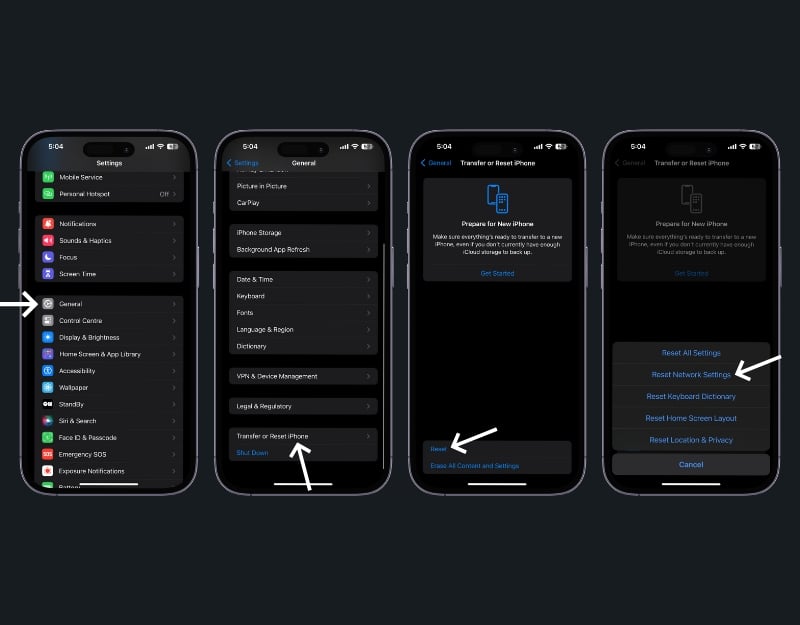
- Open the Settings app on your iPhone.
- Go to General and scroll down to find Transfer or Reset IPhone. Tap on it, then choose Reset. From there, select Reset Network Settings. You might need to enter your iPhone’s passcode to confirm this action.
The Apple Watch doesn’t have a direct option to reset network settings. However, if your Apple Watch has connectivity issues, you can try unpairing and then re-pairing it with your iPhone.
Enable Wrist Detection

When you take off the watch, the notifications are no longer displayed on the watch but on your iPhone. This is the default functionality developed for the Apple Watch. To fix this, you can either wear the Apple Watch or, if you want to turn on Apple Watch notifications even when you’re not wearing it, enable wrist detection on your Apple Watch.
How to turn on Wrist detection on the Apple Watch

- Open the Watch App on Your iPhone
- Go to the My Watch tab and Select Passcode
- Now, Turn off the Wrist Detection.
Battery Saving Mode

Power saving mode disables notifications on your Apple Watch to save battery. To fix this, you can disable power saving mode on your iPhone and Apple Watch. However, not all notifications will be disabled when Low Power Mode is turned on. You may still be able to receive important notifications, such as critical alerts.
How to turn off battery save on Your iPhone
- Go to Settings on your iPhone and then tap on Battery. Here, you’ll find the option for Low Power Mode. Toggle it off.
- Another way to do this is through the Control Center. Swipe down from the top-right corner of your screen to access the Control Center. If you’ve added the Low Power Mode icon to your Control Center, you can easily tap it to turn the mode off.

How to turn off battery saver on Apple Watch

- Swipe up from the bottom of your watch face to bring up the Control Center of your Apple Watch. Tap the battery percentage icon, and then you’ll see the option of Low Power Mode. Tap it ag in to turn it off. The icon will turn from yellow to grey when disabled.
- Another method is to press the Digital Crown to access your apps, then tap on Settings. Scroll down and tap Battery, and here, you can toggle Low Power Mode off.
Update WatchOS and iOS
Outdated software on both devices can lead to issues with notifications. To fix this, you can update both your iPhone and your Apple Watch to the latest version.
How to update iPhone
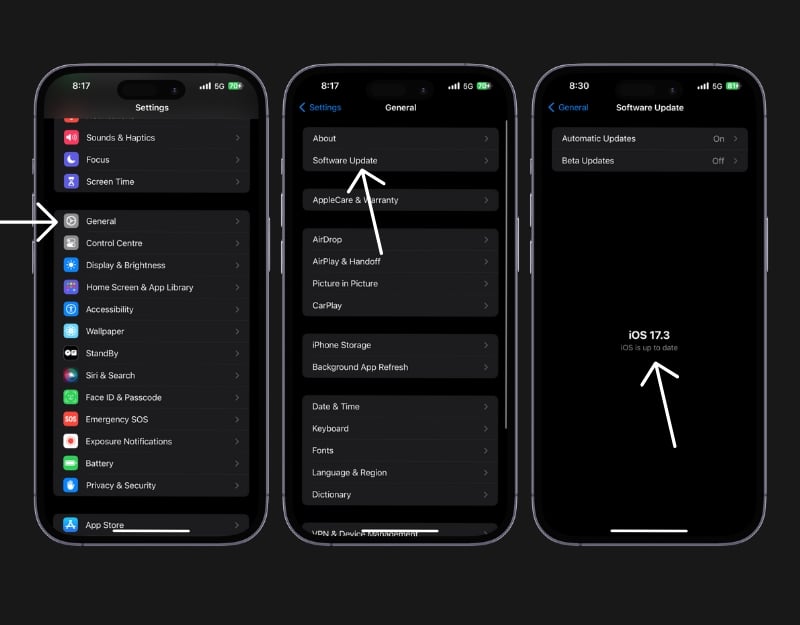
- Back up your iPhone. Ensure your iPhone is connected to a power source and has Wi-Fi access.
- Open the Settings app, then tap General.
- Tap Software Update to see if an update is available.
How to update Apple Watch

- Go to Settings on your Apple Watch, and Click on the General and Software update. Make sure that your Watch is connected to the internet. You can connect the watch to the Wi-Fi using the Non-LTE version.
- You can also update your Apple Watch using the Watch app on your iPhone. Open the Apple Watch app on your iPhone and click on General Settings.
- If there’s an update, you will see an option to Download and Install. Click on it. The update might take some time. Your Watch will restart during this process.

Re-Pair Apple Watch and iPhone

If the Apple Watch is not paired properly with the iPhone, it will not receive notifications. To fix this, you can unpair and repair the pairing between your Apple Watch and your iPhone.
To Unpair Your Apple Watch from iPhone

- Open the Watch app on your iPhone.
- Tap on All Watches in the upper-left corner, and next to your Apple Watch, tap the orange info icon.
- Select Unpair Apple Watch. You’ll need to tap to confirm and might have to enter your Apple ID Password.
Repair Your Apple Watch with iPhone:
- After unpairing, keep your Apple Watch and iPhone close together.
- Turn on your Apple Watch by pressing and holding the side button.
Check App Notification Settings

If you are not receiving notifications from a specific app, you may have disabled notifications for that particular app. Sometimes a problem with a specific app can also prevent its notifications from being sent to the watch. To fix this, make sure notifications are enabled and the app is working properly. You can update the app or uninstall and reinstall it to make it work properly. How to enable app notifications:
How to allow app notifications on your iPhone
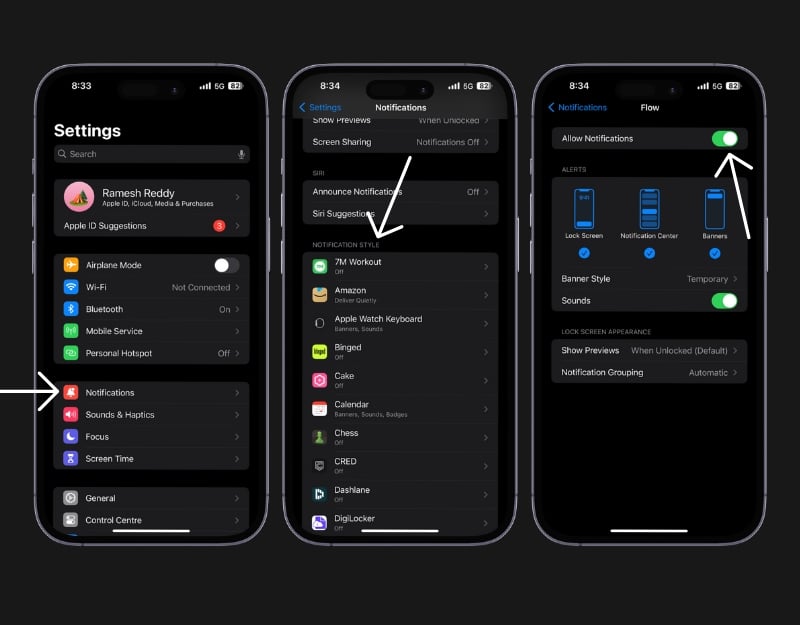
- First, go to the Settings app on your iPhone.
- In Settings, scroll until you find Notifications and tap on it.
- You will see a list of apps under Notification Style. Tap on the app you want to get notifications.
- Here, you can turn on Allow Notification to enable notifications for that app.
On your Apple Watch:

- Open the Apple Watch App on your iPhone.
- Tap Notifications and Scroll to find the app you want to manage notifications for.
- Click on the app and enable Mirror My iPhone to use the same settings as on your iPhone or Custom to set specific notification preferences for your Apple Watch.
Reset Apple Watch
If none of the steps worked for you, try resetting your Apple Watch. Resetting your Apple Watch will erase all data and allow you to set it up from scratch. It can also eliminate the errors associated with the Apple Watch. Make sure you have a backup of your important data before resetting your watch.
How to reset Apple Watch

- On your Apple Watch, press the Digital Crown to go to the home screen. Then, tap on the Settings app.
- Scroll down, tap on General, and click on Reset.
- Tap on Erase All Content and Settings. This option will reset your Watch to its factory settings, removing all your data and apps.
Solving Apple Watch Notification Glitches
This is the list of troubleshooting methods you can use to fix Apple Watch not receiving notifications. Make sure the Apple Watch is properly connected to the iPhone and change the settings that affect notifications when they are delivered to the Apple Watch. If the issue persists, you can contact Apple Support for further assistance. You can contact Apple Support online or make an appointment at the Apple Genius Bar in your local Apple Store. To avoid this problem in the future, make sure your Apple Watch and iPhone are connected, check the DND and Focus modes, update your Apple Watch and iPhone to the latest versions, and restart your Apple Watch regularly to avoid temporary glitches.
FAQs about Apple Watch Notification Issues
1. Are there any specific iPhone settings that could stop my Apple Watch from getting notifications?
Yes, if your iPhone is in focus mode or has disabled certain app notifications, it can affect notifications on your Apple Watch. Check your iPhone’s Focus mode and app notification settings.
2. Why don’t I see notifications on my Apple Watch?
There might be a few reasons. First, check if your Apple Watch is connected to your iPhone through Bluetooth. If it’s not connected, you won’t get notifications. Also, check if Do not Disturb or Focus mode is on. If they are, you won’t get notifications.
3. My Apple Watch is far from my iPhone. Will that stop notifications?
Yes, if your Apple Watch is too far from your iPhone, you might not get notifications. Keep them close to each other.
4. What should I do if Do Not Disturb is stopping my notification?
Turn off Do Not Disturb mode. On your iPhone, swipe to open the Control Center and tap the moon icon to turn it off. On your Apple Watch, swipe up to open Control Center and tap the moon icon there too.
5. If I have multiple Apple Watches, do I need to set up notifications for each one separately?
Yes, If you have multiple Apple Watches, you need to set up notifications for each Apple Watch you use. Each watch has its settings, so you need to make sure each one is set up the way you want.

