

Quick Answer
Dial Assist automatically adds the country code to the number when you are making an international call, instead of manually typing the country code every time you make a phone call. Dial Assist is available on all iPhones running iOS 9 or later. To enable: Open Settings, go to Apps and then the Phone app, scroll down, and enable Dial Assist.
If you make a lot of international calls with your iPhone, the “Dial Assist” function could be helpful. This function ensures that the necessary country codes are automatically added when dialing phone numbers.

If you don’t know what Dial Assist is on your iPhone or are just looking for more information about it, this article will answer your questions. Whether you want to enable or disable the feature, understand how it works, or discover its benefits.
By the end of this article, you’ll be well-informed and able to use the feature for a smooth international calling experience. So, without further ado, let’s get started!
Table of Contents
What is Dial Assist on iPhone?
Dial Assist on the iPhone is a practical tool for international calls. It helps you find the right area code for your calls and makes it easy. Dial Assist proves advantageous when communicating with friends or relatives in other countries or if you travel a lot internationally.
Imagine you are in the USA and want to call a friend in the UK. Without Dial Assist, you would normally have to enter the international dialing code for the UK (+44) before dialing your friend’s local number. With the iPhone’s Dial Assist feature, you can simply dial your friend’s default UK number, and the feature will automatically add the correct area code.
It is important to note that Dial Assist does not work optimally in all regions, as certain countries may not be added, and certain phone providers may not support Dial Assist. Despite these limitations, Dial Assist can be useful for many.
How Does Dial Assist Work on iPhone?
The iPhone’s Dial Assist function simplifies phone calls by automatically adding the correct international or local area codes. This is particularly useful for international calls. It recognizes the destination country and adjusts the dialing conditions immediately, if necessary, to simplify the dialing process for users.
This automated feature improves the user experience by enabling straightforward international calls. By using historical data and contextual cues, Dial Assist minimizes dialing errors and promotes more efficient communication.
How to Turn On or Off Dial Assist on iPhone
Here are the simple steps to activate Dial Assist on your iPhone. Once the feature is enabled, you can seamlessly make international calls without having to remember to enter the country code first.
- Open Settings on your iPhone.
- Scroll down and tap on the Phone.
- Continue scrolling down until you find the Dial Assist option.
- Turn on the toggle next to Dial Assist.
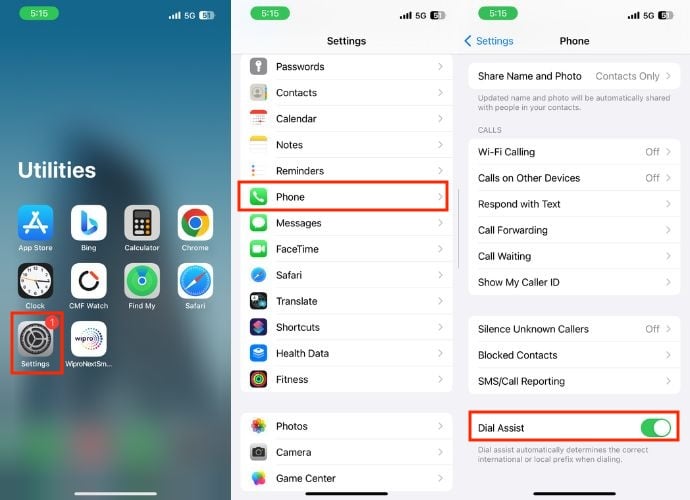
If your mobile service provider doesn’t support the Dial Assist feature or you encounter issues when making calls, you can disable it. Follow the below steps to do so.
- Launch Settings.
- Scroll down and tap Phone.
- Continue scrolling until the end, and turn off the toggle right to Dial Assist.

When Should You Turn Dial Assist On or Off?
Although Dial Assist proves to be a valuable tool, there are certain situations where you might want to consider turning it on or off, depending on your needs and circumstances. Let’s take a look at when it makes sense to activate Dial Assist and when you should turn it off.
When to Turn Dial Assist On:
Make sure that Dial Assist is activated for international calls. This feature automatically adds the appropriate country code or area code so that no manual entry is required. Whether you frequently communicate with people in different countries or simply prefer a hassle-free calling experience, Dial Assist guarantees a seamless connection. For everyday use, Dial Assist makes calling easier. You won’t need to worry about remembering or inputting country codes for every call.
When to Turn Dial Assist Off:
1. If you mainly make calls within your own country, you can deactivate this function. It is not necessary to activate Dial Assist for local calls and can be deactivated to avoid possible complications.
2. If you encounter problems or connectivity issues with specific carriers or in any country while using Dial Assist, you may consider turning it off temporarily for those particular calls.
3. Ultimately, it’s a question of personal preference. Some users prefer to enter codes manually, while others appreciate the convenience of Dial Assist.
How Can Dial Assist be Helpful?
This not only reduces the risk of dialing the wrong area code but also saves time, especially for those who frequently communicate across borders. Dial Assist is a practical solution for anyone who regularly makes international calls or travels frequently. This function simplifies the dialing process and improves rough communication. By automatically adapting to different country codes, Dial Assist guarantees smoother and more effective communication, making it an invaluable tool for anyone who communicates worldwide.
How Can Dial Assist Cause Problems?
Dial Assist is a helpful feature on iPhones and generally works smoothly. However, users have reported some significant problems.
1. If you have saved a contact’s number with a specific country code at the beginning, Dial Assist can cause a problem by adding the area code again when you try to make a call. This duplication can cause you to dial the wrong number or have difficulty reaching the contact.
2. Dial Assist works well in many countries but not in some. These inconsistencies can lead to the wrong country codes being used or calls not connecting as they should.
3. Sometimes, Dial Assist doesn’t work properly with certain phone carriers. If your carrier doesn’t fully support this feature or if there are compatibility issues, there may be problems with the Dial Assist function. This means that there may be interruptions in the call connection.
4. Many people like me prefer to dial their phone numbers manually because there can be disruptions after Dial Assist is switched on. These disruptions can be annoying for those who prefer to have everything in their own hands. If you dial the numbers yourself but Dial Assist automatically adds codes or changes the format, it can be frustrating.
How to Fix Dial Assist Not Working on iPhone
If you find that the Dial Assist function does not work on your iPhone, even though the feature is available in your country and is also supported by your network operator. Then you should try the following troubleshooting steps to fix the problem and get the feature working again:
1. Restart Your iPhone
If you’re having problems with Dial Assist on your iPhone, restarting it can be a quick fix. Here are the steps to restart your iPhone:
- Press and hold the side button (or Power button) along with either of the Volume buttons simultaneously for a few seconds.
- A screen with a slider (slide to power off) will appear at the top; slide it all the way.
- Wait for about a minute.
- Turn your iPhone back on by pressing the Power button until the Apple logo appears.
2. Update iOS
To ensure that Dial Assist works smoothly, check that your iOS software is up to date. Problems may be related to certain software versions, which Apple often fixes with updates. To update your device, follow these steps:
- Go to Settings.
- Tap on General.
- Select Software Update.
- If an update is available, proceed to install it on your device.

3. Reset Network Settings
If the problem persists, you should consider resetting your network settings as a possible solution. This can often resolve problems with the network connection. Here are the steps to reset your network settings:
- Open Settings on your iPhone.
- Go to General.
- Scroll down and select Transfer or Reset iPhone.

- Tap on Reset.
- As soon as you hit Reset, a popup will appear. Choose Reset Network Settings from the options.
- Enter your iPhone passcode on the new window.
- Tap Reset Network Settings when the confirmation prompt.

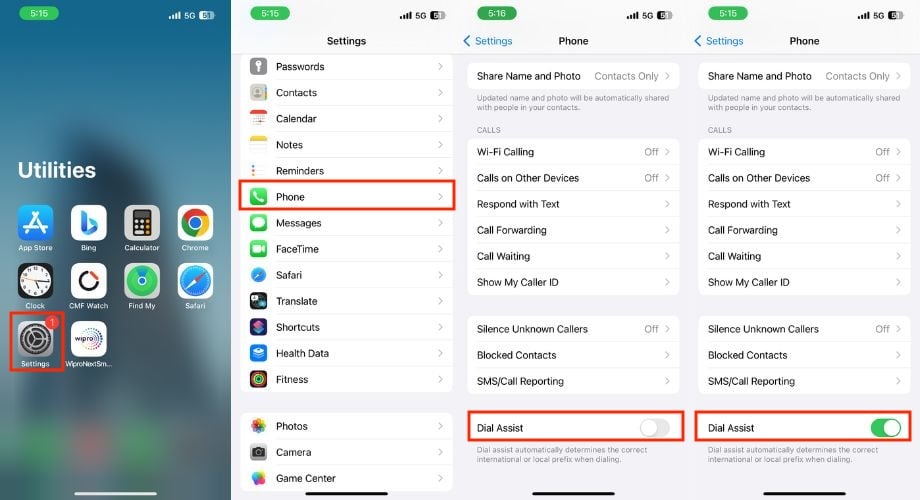
4. Re-enable Dial Assist
If the Dial Assist isn’t working, it might be due to a temporary glitch. In that case, you can try disabling and then re-enabling the Dial Assist feature once, which might get it working again. To do so, follow the below steps.
- Open Settings.
- Scroll down and hit the Phone option.
- Scroll down all the way and turn off the toggle next to the Dial Assist.
- Wait for a few seconds, and toggle it on again.
5. Reset All Settings
If the problem persists, even though you have tried all the steps above, you should consider resetting all settings on your iPhone. This won’t delete your data, but it will reset all settings to their default values. And maybe Dial Assist will work as well as before. To do this, follow the steps below.
- Access the Settings app on your iPhone.
- Navigate to General.
- Scroll down until you find the option Transfer or Reset iPhone.
- Select Reset.
- Upon tapping Reset, a popup menu will appear; opt for Reset All Settings from the list.
- You’ll be prompted to enter your iPhone passcode on a new window.
- Confirm the action by tapping Reset All Settings.

Wrap Up
Dial Assist is a very useful feature for people who frequently make international calls. In this guide, we have explained what Dial Assist is on the iPhone, how it works, what its advantages and disadvantages are, and how you can activate or deactivate it.
If you run into problems when using Dial Assist, we’ve explained five important troubleshooting steps in this article to help you solve them. Thanks for reading; cheers!
FAQs
1. Why can’t I find Dial Assist on iPhone?
If you can’t find Dial Assist in your iPhone settings, it means that your carrier has not enabled international calling for your account. Contact your carrier to resolve any issues with your account or SIM card.
2. Does Dial Assist work with emergency numbers?
Dial Assist does not normally interfere with emergency numbers. Even if Dial Assist is activated, it should ensure that emergency calls are connected without interference, as they are important for the safety of users.
3. Can Dial Assist be disabled for specific regions or countries?
Dial Assist on iPhones cannot be disabled for specific regions or countries. If you have problems with Dial Assist in certain regions, you can deactivate it by following the steps above.
4. How can I check if Dial Assist is available in my country?
To check whether the function is supported in your region, you can go to the “Phone” option in your iPhone’s settings and search for the Dial Assist feature.
5. Can I customize Dial Assist based on my preferences?
Dial Assist on iPhones does not offer any advanced customization options. The feature works automatically by recognizing country codes. However, users can switch the feature on or off.

