

Most iPhone users use their devices heavily for various purposes like entertainment, study, and more. However, during high-priority work, you may have noticed that notifications can be overwhelming. They can be irritating at times, but we also can’t disable all notifications on our iPhones, as some are important.

To address this, Apple has introduced Time Sensitive Notifications. They’re like urgent messages that you can control better. You can use them to only get important notifications when you’re busy doing some other important stuff, which helps you save time.
Before you start experimenting with this feature, let’s start figuring out what Time Sensitive Notifications are and how they can save you time from useless notifications during high-priority work. I’m going to explain everything about it, from how you can use them effectively, enabling or disabling them in Focus Mode, to using them individually for any specific apps. Even tho we will explore how we can set up and use Time Sensitive Notifications on Mac, too.
Table of Contents
What are Apple Time Sensitive Notifications?
Apple’s Time Sensitive Notifications feature was introduced during the release of iOS 15, which ensures you receive important updates even when your iPhone is in silent or in focus mode. These notifications present themselves as urgent and important information that requires immediate attention from the user.
Imagine you’re busy doing important work and waiting for a delivery. You’ve set your iPhone to Focus Mode for zero distractions. Then, your iPhone buzzes with a message: “Delivery arrived at the doorstep!” That’s thanks to Time Sensitive Notifications in iOS 15 and later. They make sure you don’t miss important alerts, even when you’re busy doing anything important or your phone is on silent mode.
Additionally, Time Sensitive Notifications offer customized notifications that fit your preferences. Within the Settings app, you have the option to enable or disable notifications for individual apps. Moreover, you can specify whether certain notifications should trigger alerts during Focus Mode. You also can enable notifications for particular contacts, with the freedom to personalize settings directly from the Settings app.
Why Time Sensitive Notifications are Important?
Time Sensitive Notifications on your iPhone are important for several reasons. Enabling them can help you stay informed about important matters. Conversely, if you are worried about potential disruptions to your workflow, consider reviewing the following four points to understand the benefits the Time Sensitive Notifications feature can provide.
1. Staying Informed About Important Notifications: Time Time-sensitive notifications ensure you don’t miss prime alerts even when your phone is silenced or in Focus mode. This can be helpful for situations like medication reminders, delivery updates, financial alerts, and more.
2. Improved Productivity and Focus: Time Sensitive Notifications prioritize urgent alerts, reducing distractions from less important ones. This helps maintain focus on tasks, allowing for later handling of urgent notifications and reducing the need to look for updates constantly.
3. Peace of Mind and Awareness: Being promptly informed of critical information brings peace of mind and enables timely action when needed. This is crucial for safeguarding your health, preventing inconveniences, and staying informed about potential emergencies.
4. Flexibility and User Control: You can manage Time Sensitive Notifications by enabling or disabling them for specific apps in Settings.
Effects of Enable or Disable Time Sensitive Notification on iPhone
Turning on Time Sensitive Notifications on your iPhone makes them VIPs. They jump the line, appearing before all other notifications. A special “Time Sensitive” label sets them apart. And even if new notifications fall, time-sensitive labeled notifications still be the first in a long line, though, showing up before any other notification.
If you wish to enable Focus Mode and grant access to this feature for specific apps, note that it may not be supported by all apps. Moreover, disabling Time Sensitive Notifications will convert all incoming notifications on your iPhone to regular notifications. With Focus Mode enabled, no notifications will be received on your iPhone.
How are Time Sensitive Notifications Different?
Time Sensitive Notifications stand apart from other notifications on your iPhone. To understand this, we’ve categorized all four levels of notifications on iOS. By reviewing them, you’ll gain a clear understanding of the uniqueness of Time Sensitive Notifications. This breakdown will also help you understand your iPhone’s notification levels.
1. Active Notification: These are the standard default notifications that you receive on your device. If your device is silenced or in Focus mode, you might not see them right away, but they can still make a sound or show a banner. These notifications are affected by Focus mode. Unlike Time Sensitive Notifications, regular ones don’t have a set time limit for when they’ll be visible. They’ll stay on your lock screen until you either dismiss them or take action.
2. Passive Notifications: Passive notifications on iPhone deliver information silently, without sound, vibration, or screen lighting. These non-urgent updates rely on your notification settings for visibility. For example, a food delivery app asking for a rating is a typical passive notification that won’t disrupt you but will be visible on the lock screen.
3. Time Sensitive Notifications: Time Sensitive Notifications ensure you receive important alerts even when your iPhone is in silent or in focus mode.
4. Critical Notifications: These notifications are visible on your iPhone during critical emergencies. They override Focus Mode, silent mode, or notification settings and are entirely managed by Apple. Examples include safety alerts, health notifications, or detecting suspicious account activity.
How to Enable or Disable Time Sensitive Notifications on iPhone
So far, you have learned what Time Sensitive Notifications are, why they are important, and what effect enabling or disabling them will have on your iPhone. Now, let’s explore how we can use Time Sensitive Notifications, how to enable or disable them in Focus Mode, and how to use them for particular apps.
How to Enable or Disable Time Sensitive Notifications in Focus Modes
The most effective method to enable Time Sensitive Notifications is by using the Focus Mode setting. This is because when you prioritize your work over your device’s notifications or simply want to take a break from your iPhone, you can enable Focus Mode. This ensures that you only receive important notifications during that time.
When you’re ready to use your device again, simply turn off Focus Mode or Do Not Disturb (DND), and everything returns to normal. You’ll receive regular notifications from all apps as usual. This is how Focus Mode helps you manage your notifications effectively.
- Open the Settings app on your iPhone.
- Tap on Focus.
- Select the Focus mode you want to edit (e.g., Work, Personal, Sleep).

- Tap on Apps under the ALLOW NOTIFICATIONS section.
- Enable the toggle right to Time-Sensitive Notifications. This allows all apps with Time Sensitive Notifications enabled to bypass Focus mode and deliver notifications.
- And if you want to disable it, simply toggle it off.
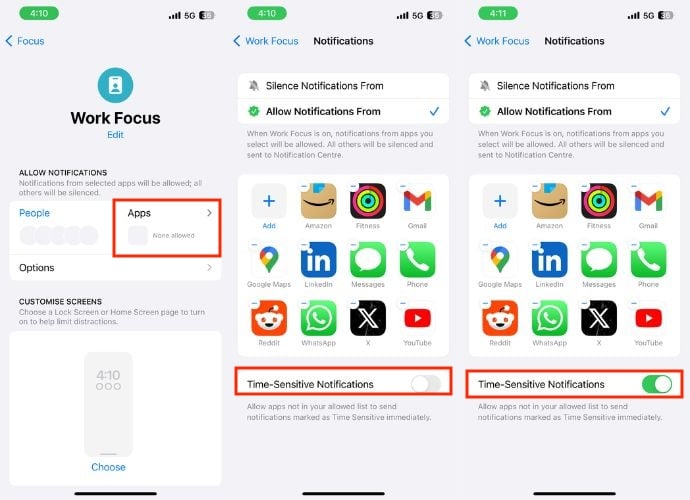
By following the above steps, you have already enabled or disabled Time Sensitive Notifications. However, if you want to add more apps to the list or remove some apps from the list, you can follow the steps below:
- Tap on the Add button.
- By doing so, a list of all available apps will appear.
- If you want to add any app other than Suggestions, scroll through this list and select that app. You can even choose multiple apps at once.
- Click Done in the upper right corner of the screen once you are satisfied with your selection.
- To remove apps from the Time Sensitive Notifications list, Hit the Add button.
- Uncheck the app you want to remove from the list.
- And finally, tap Done in the upper right corner.
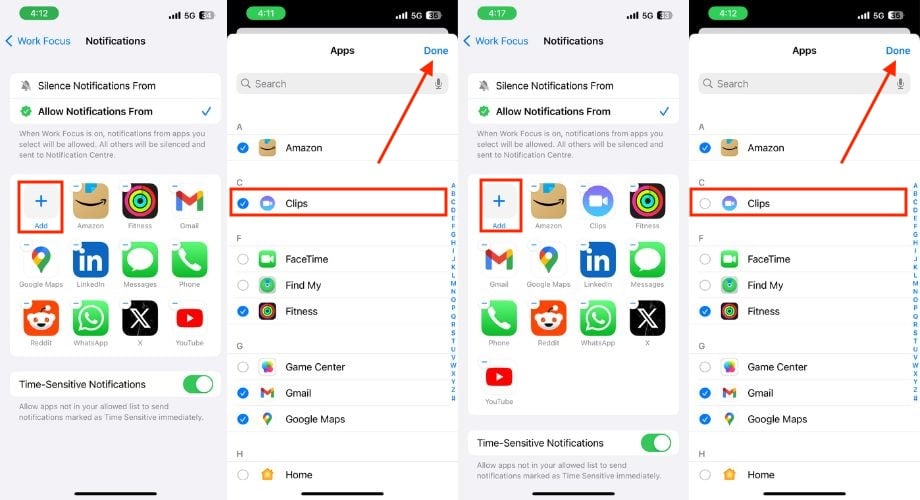
- Alternatively, click on the ‘–’ mark on the corner of each app.

How to Enable or Disable Time Sensitive Notifications for Individual Apps
Apart from enabling or disabling Time Sensitive Notifications from Focus Mode, you can also do the same for individual apps from the Settings. It’s important to note that by default, Time Sensitive Notifications are enabled for each app that supports this feature. However, if you want to be sure, you can check by visiting the app notifications settings. Alternatively, you can browse to see which apps support Time Sensitive Notifications on iPhones.
- Open Settings on your iPhone.
- Select Notifications.
- Scroll down to find the app under NOTIFICATION STYLE for which you want to enable Time-sensitive notifications.
- Verify the toggle next to Allow Notifications. If it’s disabled, simply toggle it on. This action guarantees you will receive all the notifications from the application, including those that are time-sensitive.
- Turn on the toggle right to Time Sensitive Notifications under ALWAYS DELIVER IMMEDIATELY.

- You can repeat these steps for any app from which you want to receive time-sensitive notifications.
See Also: What is Dial Assist on iPhone [Explainer]
Turn On or Off Time Sensitive Notifications Using Emergency Bypass Settings
When you set your iPhone on DND mode, you might miss important calls or messages from family or friends. This can be a problem in emergency situations. The Emergency Bypass feature on iPhone for text messages or calls can be really helpful in such situations. You can enable it for specific contacts to ensure that you receive their calls or messages, even if you have enabled Focus Mode or DND.
The Emergency Bypass feature is not related to Time Sensitive Notifications. You don’t have the option to enable Time Sensitive Notifications while following these steps. However, you can use it to receive emergency notifications on your iPhone, even when your iPhone is in Focus Mode or silent.
- Open the Contacts app on your iPhone.
- Tap on the desired contact for which you want to enable Emergency Bypass.
- Tap the Edit button in the top right corner.
- Scroll down and tap Ringtone and Text Tone one after another.

- You can find the Emergency Bypass toggle in both sections. Simply toggle it on to enable emergency bypass settings.
- As soon as you turn on the toggle right to Emergency Bypass, click on the Done button that appears in the right corner in both the Ringtone and Text Tone sections.
- Finally, tap Done again.

Set Up and Use Time Sensitive Notifications on Mac
If you have an Apple ecosystem and want to enable Time Sensitive Notifications on your Mac too, you can do so by following the below steps. The process to enable Time Sensitive Notifications is quite similar to the iPhone. But you can only use it if your Mac is running macOS Monterey or later.
Enabling Time Sensitive Notifications in Focus Mode:
- Click the Apple icon in the menu bar.

- Select System Settings from the menu prompt.
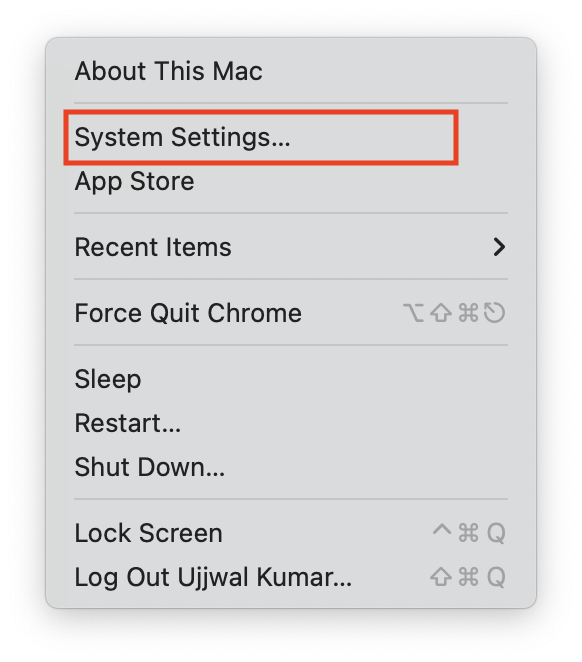
- Click Focus in the left side panel.
- Choose the desired Focus (e.g., Work, Sleep, etc.).
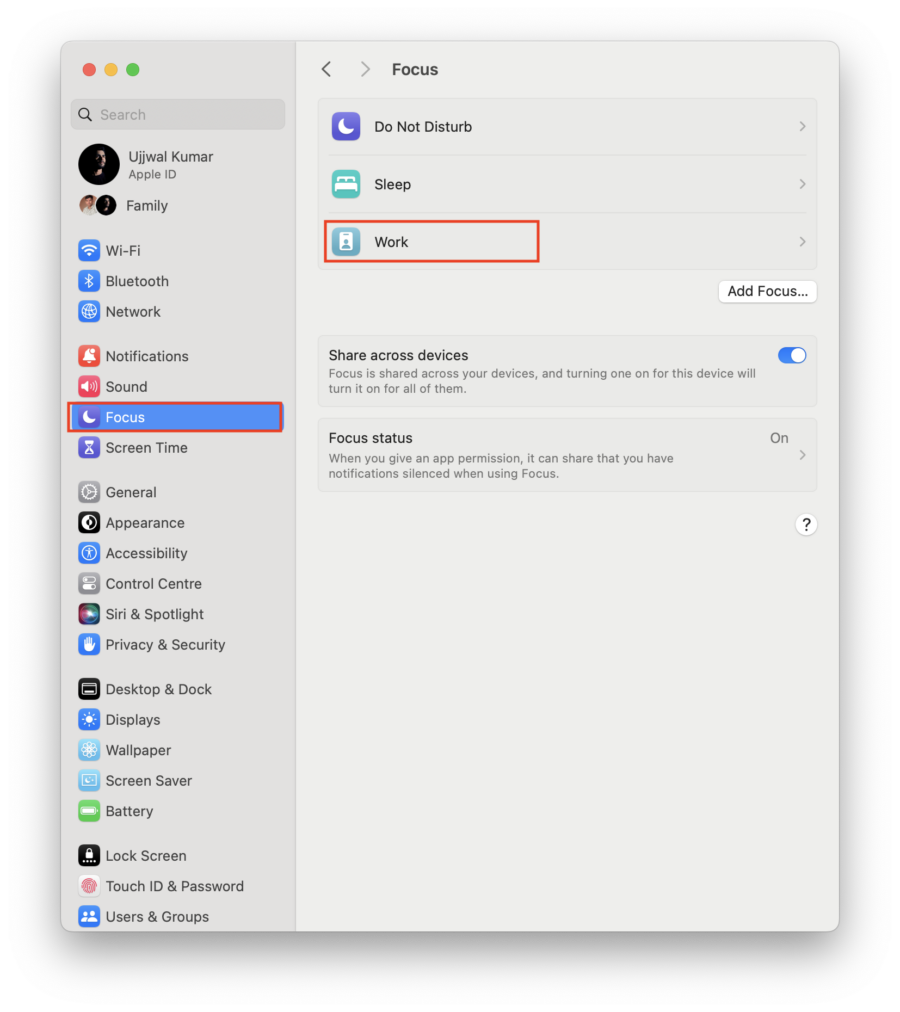
- In the Focus settings, hit Allowed Apps located under the Allow Notifications section.

- Turn on the toggle right to Time-Sensitive Notifications.
- Click Add.
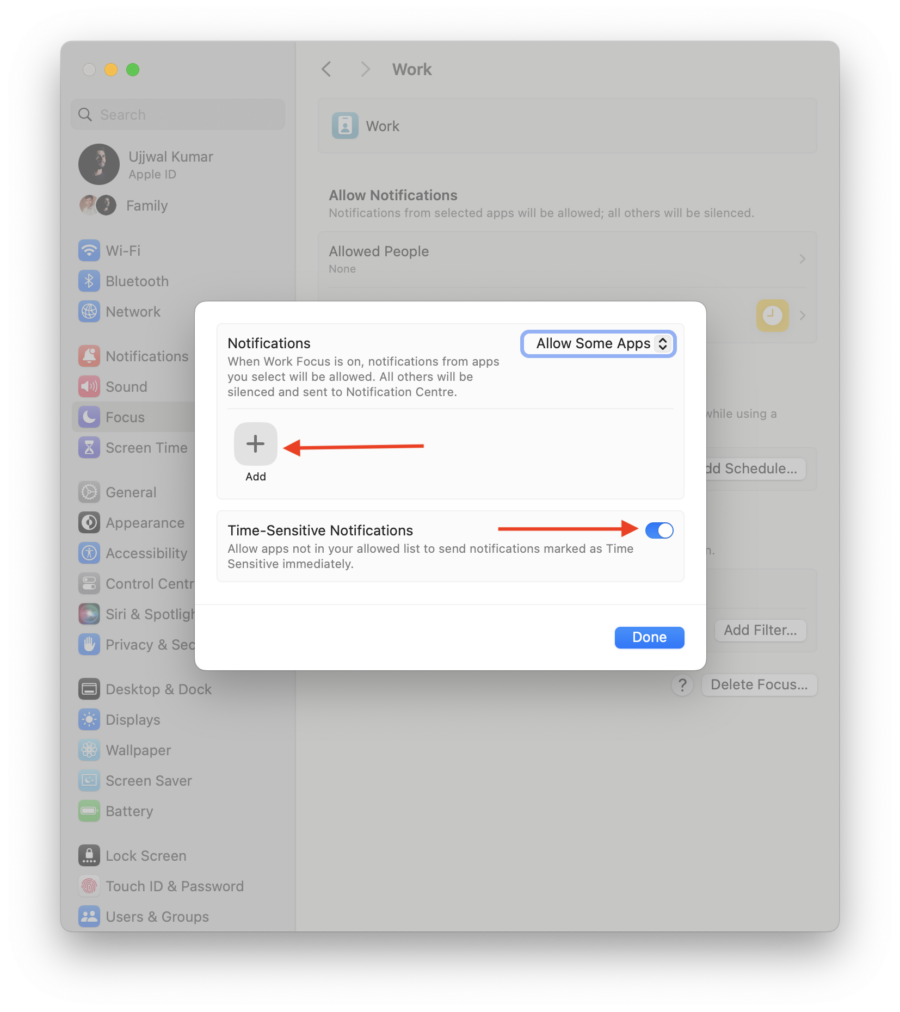
- As soon as you click on Add, a list of apps that support the time-sensitive notifications feature will appear in a new window.
- Choose the app for which you want time-sensitive notifications enabled.
- Tap Add.
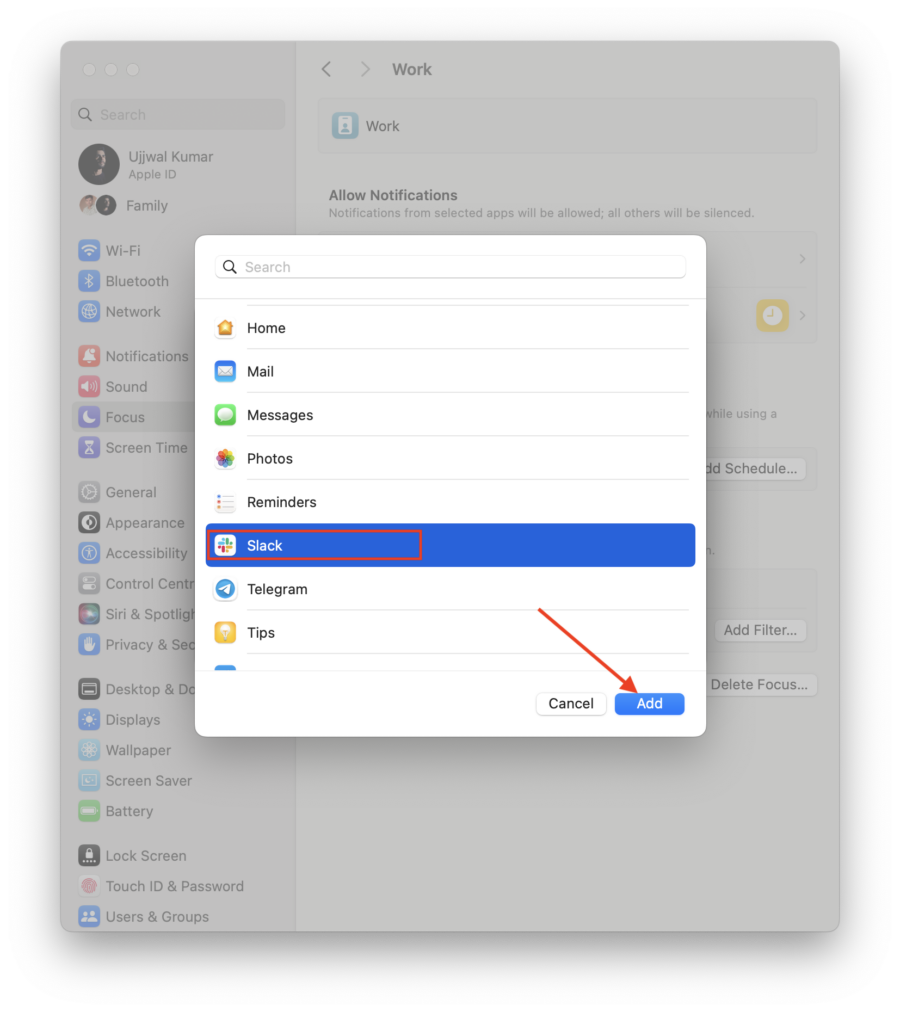
- If you want to add more apps, follow the same steps.
- Lastly, tap Done.
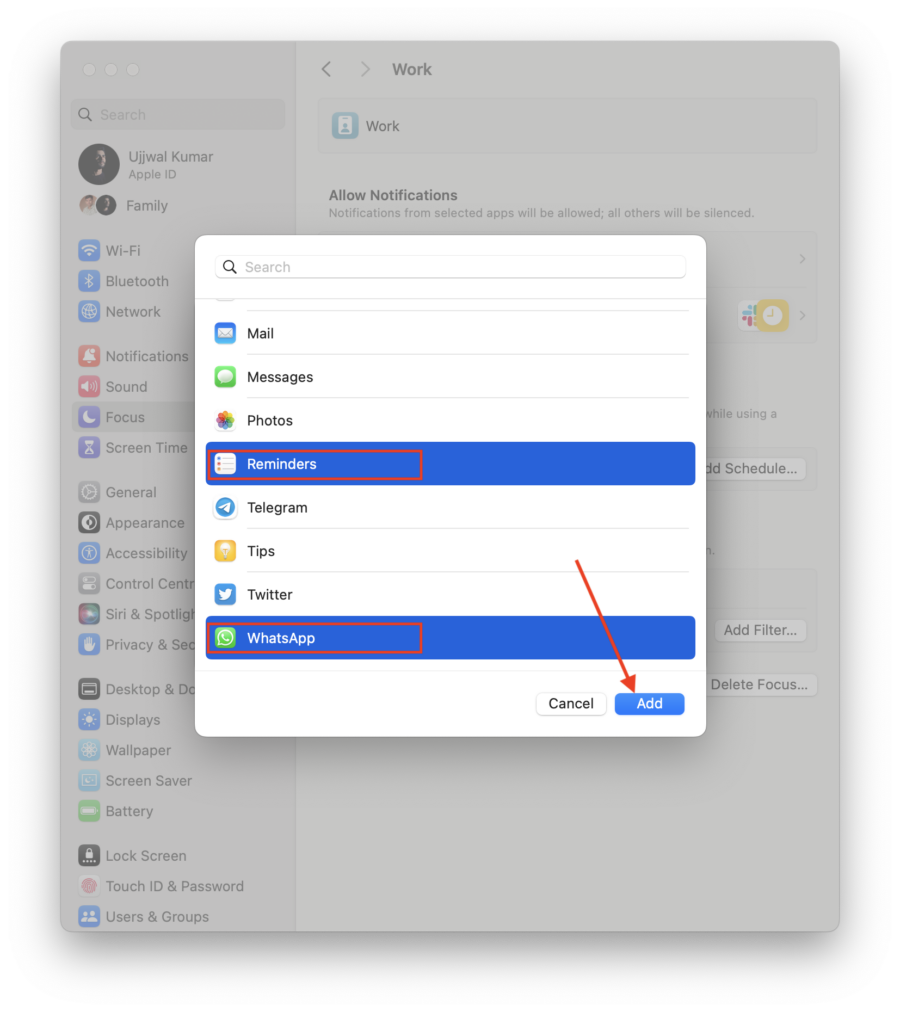
However, if you want to remove any of the apps, you may follow the steps below:
- Click Allowed Apps under Allow Notifications.
- To remove the apps, click on the cross symbol.

- Finally, tap Done.
Enabling Time Sensitive Notifications for Specific Apps
- Click the Apple logo in the Apple menu bar.
- Choose System Settings.
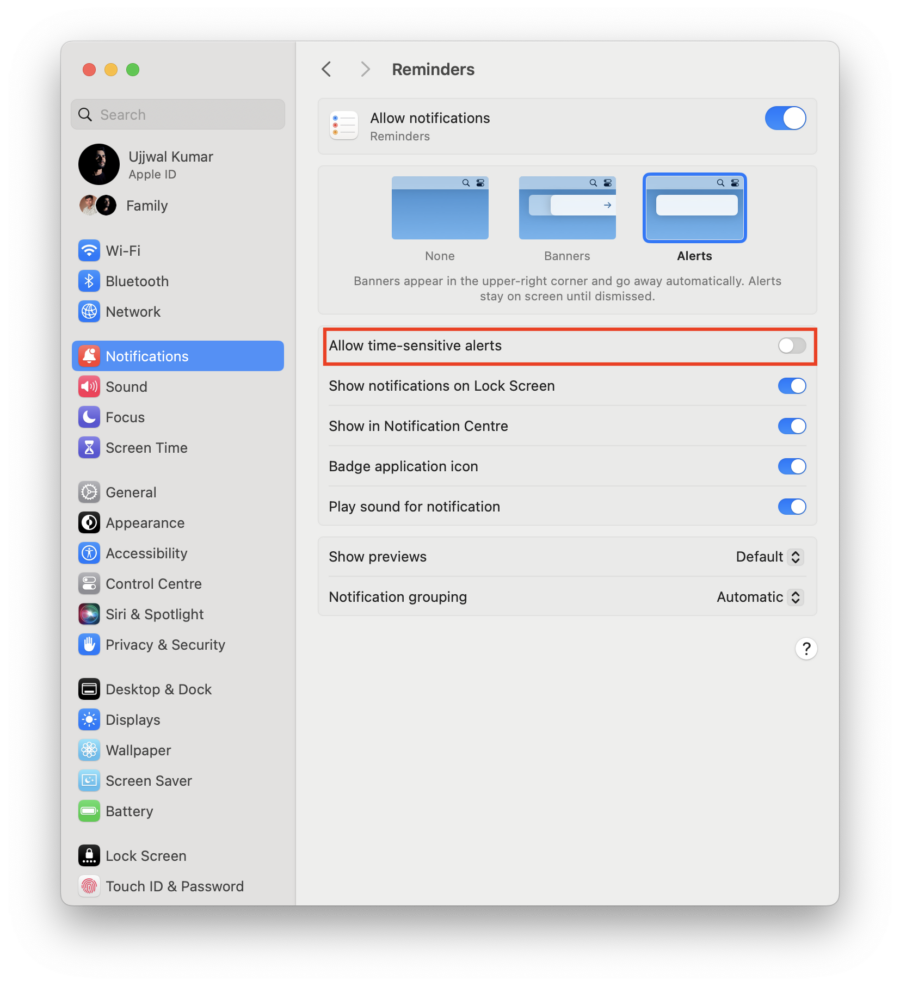
- Click Notifications in the left side panel.
- In the same Notifications settings, scroll down and locate the app from which you want to receive time-sensitive notifications.

- Turn on the toggle next to Allow time-sensitive alerts.
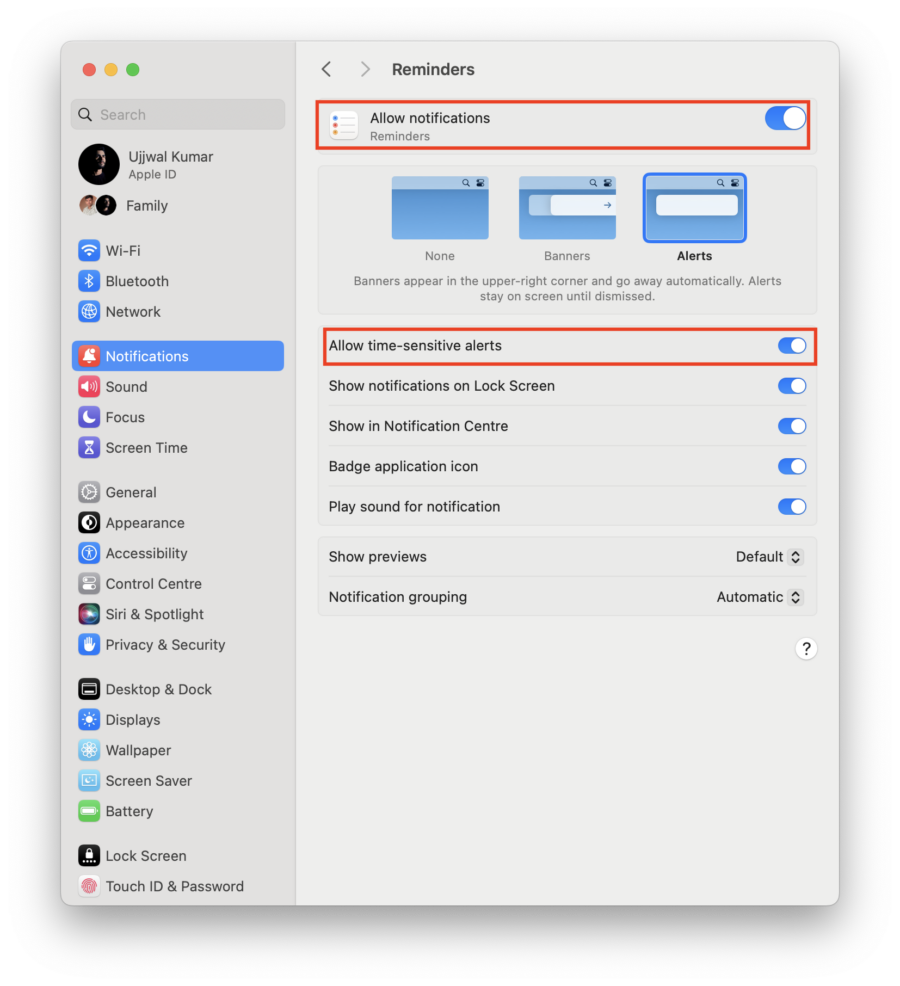
- To turn off time-sensitive notifications for specific apps, turn off the same toggle.
Focus on What Matters
Apple’s Time Sensitive Notifications offer a solution for managing distractions without missing crucial information. You even get alerts during focused work sessions or when your device is in silent mode. By enabling them in Focus Mode or for specific apps, you can personalize your notification experience. This helps maintain productivity, peace of mind, and awareness, especially during important tasks. Whether on your iPhone or Mac, Time Sensitive Notifications offer a valuable tool for managing the information flow in today’s fast-paced world. Thanks for reading; cheers!
FAQs about Apple Time Sensitive Notifications
1. Can you enable Time Sensitive Notifications on all iPhones?
No, Time-Sensitive Notifications are only available on iPhones running iOS 15 or later. If your iPhone is running an older version of iOS, you won’t have access to this feature.
2. Can I customize the appearance of Time Sensitive Notifications?
Unfortunately, you cannot directly customize the individual appearance of Time Sensitive Notifications, like their sound or banner style. However, you can adjust general notification settings for each app or globally through your iPhone settings.
3. Can I schedule Time-Sensitive Notifications?
No, Time Sensitive Notifications are designed to be immediate and can not be scheduled in advance. Their purpose is to deliver crucial information promptly, not for planned reminders.
4. What happens if I receive multiple Time Sensitive Notifications at the same time?
If you receive multiple Time Sensitive Notifications simultaneously, they will appear on your lock screen in chronological order, with the most recent one on top. Only the newest Time Sensitive Notifications will play a sound, while the others will remain silent.
5. Do Time Sensitive Notifications appear in the Notification Center even after they disappear from the lock screen?
Yes, even after disappearing from the lock screen, Time Sensitive Notifications remain accessible in the Notification Center. This allows you to review them later if you missed them on the lock screen.

