

Quick Answer
Files is a powerful, modern alternative to Windows File Explorer, built on WinUI 3 with a clean UI, dual-pane support, tabs, tags, and advanced tools like previews, Git, and FTP. It fixes many Explorer limitations while staying free, open-source, and actively developed.
Microsoft has been at it to improve File Explorer—the default file manager on Windows—and bring it more in line with Windows 11 aesthetics. While it has managed to improve usability with the introduction of tabs and a modern-looking home screen, it’s still far from perfect.
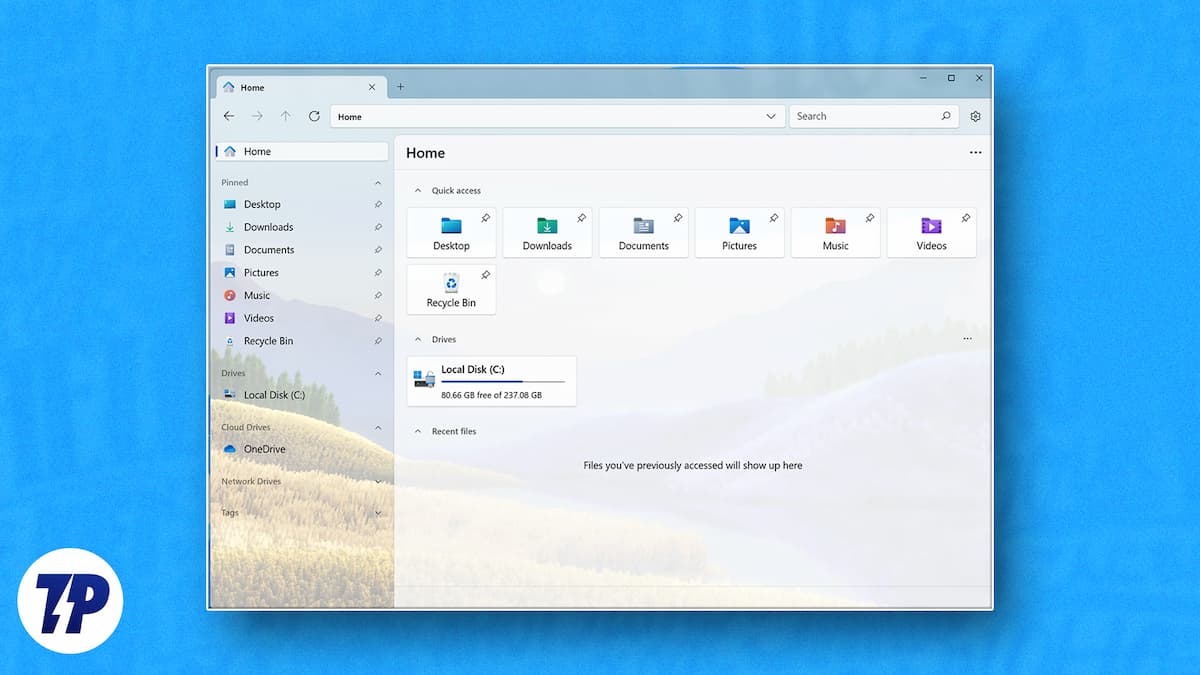
Take a look at the top toolbar, for example. It blends well with Windows 11 aesthetics. Then, dig a layer deep and open Properties or Folder Options. You’ll see a dated dialog box—one from back in the Windows 7 or XP days. Similarly, on the functionality front, despite supporting multiple tabs, File Explorer still doesn’t let you split a window into two panes side-by-side. As such, you need to open multiple windows, which can clutter your desktop.
Thankfully, you don’t have to make these compromises. If you’re looking for the best file explorer alternative for Windows, Files is one of the strongest options available. Built by the open-source Files Community, it can significantly improve the file management experience on Windows 11 and Windows 10 alike.
Table of Contents
What Is Files App? The Modern File Explorer Alternative for Windows
Files is a modern-looking file management app for Windows. Unlike File Explorer, which has a mix of modern and archaic UI elements, Files is built from the ground up on WinUI 3 — Microsoft’s latest UI framework for building desktop applications. This makes it look more like a native Windows 11 app than File Explorer itself. However, its visual appeal is just one of the aspects, and the Files has many other things to offer than File Explorer that make it a worthy alternative.
The numbers back this up too. Files has accumulated over 43,200 GitHub stars and 2,700 forks, with more than 310 contributors actively shaping the project. Across 133 releases, the team has consistently pushed improvements, and commits are still landing as recently as today. It is one of the most actively developed open-source Windows applications available.
System Requirements
Files is not a particularly demanding app, but it does require a reasonably modern version of Windows since it is built on the WinAppSDK framework.
Requirement | Minimum |
|---|---|
Operating System | Windows 10, version 1809 (October 2018 Update) or later; Windows 11 (all versions) |
Architecture | x64 or ARM64 (x86 not supported) |
Storage | ~150 MB free space |
RAM | 4 GB (8 GB recommended for large folders) |
Internet | Required for download only |
If you are on Windows 10 version 1809 or later and have not upgraded to Windows 11, Files will still work without issues. The app is actively developed and currently runs on .NET 10, so keeping Windows up to date ensures the best experience.
Files vs File Explorer: At a Glance
Feature | Files | File Explorer |
|---|---|---|
UI Framework | WinUI 3 (fully modern) | Mixed modern + legacy (Win7-era dialogs) |
Dual Pane | Yes | No |
Tabs | Yes | Yes (Windows 11 only) |
Miller Columns | Yes | No |
File Tags | Yes (color-coded) | No |
Folder Size in Details View | Yes (built-in toggle) | No |
Archive Preview (no extraction) | Yes (.zip, .7z, .rar) | No |
File Preview Pane | Yes (Markdown, SVG, code files) | Basic (images/PDFs only) |
Git Integration | Yes | No |
FTP/SFTP Client | Yes (built-in) | No |
Command Palette | Yes (Ctrl+Shift+P) | No |
Hash Tool | Yes (MD5, SHA256, and more) | No |
Custom Themes | Yes | No |
Clipboard to File (Paste) | Yes | No |
Open Source | Yes (MIT License) | No |
Default File Manager | Manual setup required | Yes (built-in default) |
Performance | Slightly slower on large folders | Faster (native) |
Price | Free (or $8 on Microsoft Store) | Free (built-in) |
Dual-Pane View, Miller Columns & Flexible Layouts
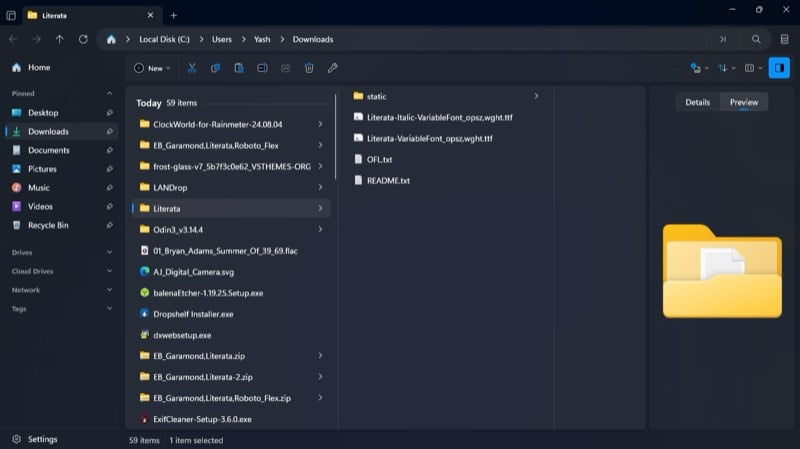
Since Files is built on a modern UI framework, it features an adaptive interface that responds fluidly to resizing. You can even size it down to a phone-sized window, and it will still be usable. This isn’t something you can do with File Explorer.
Another thing I like about Files is support for Miller columns. For those unaware, the Miller columns is essentially a cascading column view that makes jumping forward and back into nested folders easy. You can enable it by clicking the Layout button and selecting Columns. Files also offers other views — Details, List, Cards, and Grid — that you can switch between based on what you’re doing. Want all the information? Switch to Details. Need a quick preview? Use Grids.
Files is also completely free to download and is open source, which means the code is publicly available on GitHub and maintained by a community of over 310 contributors.
Finally, there’s support for dual pane, making Files a proper dual pane file manager for Windows that lets you to split the Files app window into two separate panes whenever you want to compare two folders or move items between two different destinations. This saves you the need to open two separate app windows, as you’d need to do on File Explorer, and thus keeps your desktop uncluttered.
Key Features That Beat Windows File Explorer
Alongside a better navigation experience, the Files app comes with a nifty feature set. It packs all the essential features plus some quality-of-life features to make your life easier. For example, you have tags—similar to what Apple offers on its Finder app—that allow you to color-code similar files and folders stored at different locations on the computer for quick and easy access. You can view all your tags in the left sidebar and click on them to access all the associated files and folders.
Another really useful feature that File Explorer lacks is the ability to view folder sizes at a glance. Sure, you can use Windhawk mods to add this ability, but it doesn’t match the built-in offering on the Files app. To enable it, click Settings and select Files & Folders. Scroll down and toggle the Calculate folder sizes option on. Now, simply switch to the Details view by clicking the Layout button and selecting Details, and you should see folder sizes in the Size column.
For times when you copy text or an image to your clipboard, Files gives you the ability to quickly create a file out of it without having to open any specific program. Head into the folder where you want the file and paste it using Ctrl+V or by right-clicking and selecting Paste. You’ll now have a .txt or .png file.
The Files app also offers rich file previews in its preview pane, which comes with support for Markdown rendering and syntax highlighting. As a result, you can preview code files and SVG files, alongside other kinds of files, natively. This makes it one of the few Windows file managers with a preview pane capable of rendering code files without third-party tools.
Likewise, Files makes previewing archive files easy too. Unlike File Explorer, you don’t need to extract archive files (.zip, .7z, and .rar) to view their content. You can simply double-click the file—just like how you open a folder—and you can see all the files inside it. Not only does this offer instant access to the file’s content and save storage space, but it also helps prevent accidental execution of malicious scripts or programs that may come bundled in the archive file.
Command Palette is another Files feature I use all the time. It’s essentially a quick action window—accessible with the Ctrl+Shift+P shortcut—that gives you a list of actions (commands, features, and settings) you can perform instantly. For instance, you can toggle hidden items or toggle file extensions inside a folder.
Similarly, you can perform slightly more advanced operations, such as copying and pasting paths, creating a folder with selected items, opening an item with the application picker, and sorting items by tags, among other things. My favorites include creating a .zip archive with selected items, smart extraction mode (for automatically extracting archive files based on format), and opening a folder in Command Prompt.
Power User Tools: Git, SFTP, and Hash Checker
Alongside the above features, which a majority of users would find useful, the Files app bundles some additional tools for those with advanced needs. These include a built-in hash tool that lets you view and compare MD5, SHA256, and other checksums to verify the downloaded files. You can use this tool to ensure that you downloaded the files you actually wanted—not some corrupted or maliciously altered files.
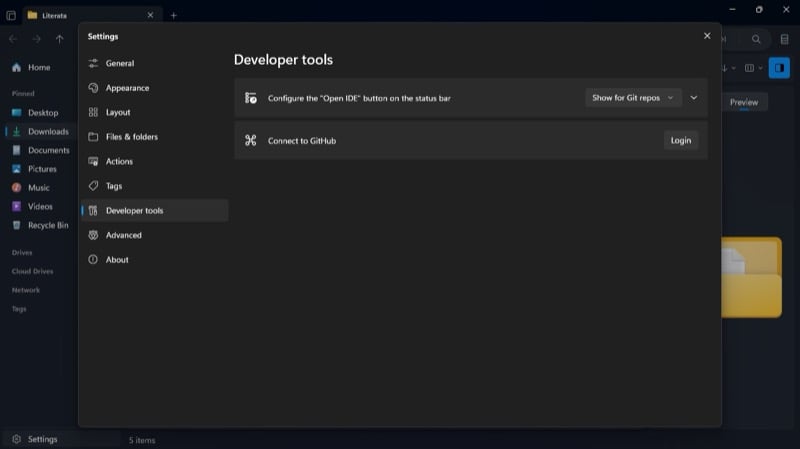
Similarly, there’s native Git integration that makes working on projects easier for developers. Thanks to it, you can quickly see the status of the repositories and push, pull, and sync changes with remote repositories, among other things, all from the Files app. All you need to do is connect Files with GitHub.
With the Files app, you also get a modern FTP/SFTP client built in. If you frequently connect to remote servers and manage files, this can prove to be an invaluable tool, allowing you to perform the entire operation within Files and eliminating the need for third-party tools for basic file transfers. Altogether, these tools make Files an excellent pick for developers looking for a file manager that goes well beyond basic file navigation.
Themes, Hotkeys & Deep Customization
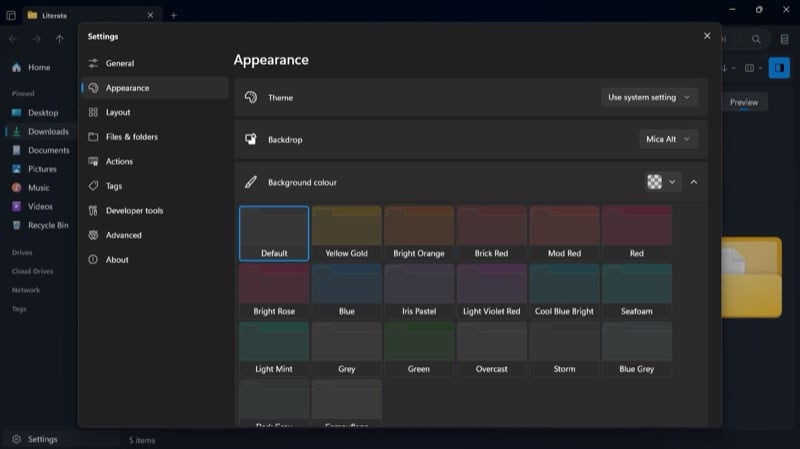
Last but not least, the Files app offers plenty of customization options that File Explorer lacks. For example, you get the option to switch backdrops or set specific images as the background for a personalized touch. Similarly, the app lets you download and create custom themes by changing the background image and color.
Then, you get to customize the widgets available in the sidebar, set the behavior of dual-pane mode, and configure the actions under the context menu. You can also configure which columns you want to see in the columns view.
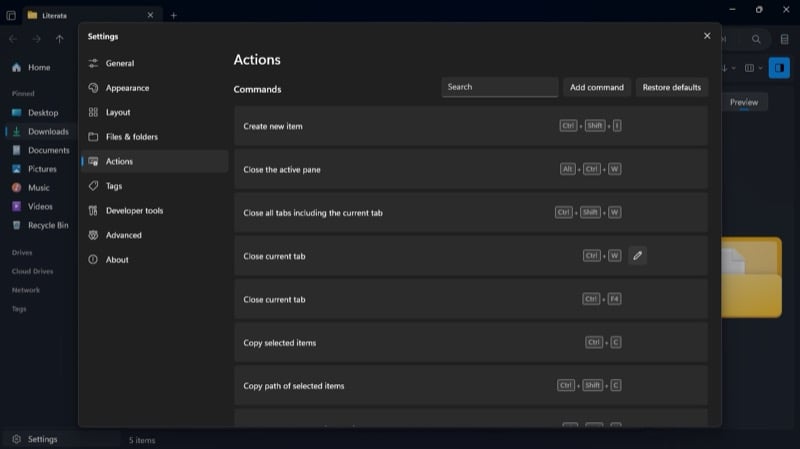
Among other things, you can customize existing tags by changing their name and color, or create custom tags based on your needs. You even have the ability to change the hotkeys for various actions, as well as add a new command if one doesn’t exist. Click the Settings button to check out these and other customization options.
Limitations of Files App vs File Explorer
Despite being one of the best free file managers for Windows 11, the Files app isn’t without its downsides. For one, it feels a little slower than File Explorer. Part of the reason for this is that it isn’t native to Windows and uses a modern UI framework that’s more resource-intensive.
Setting Files as the default file manager—to ensure Windows opens Files instead of File Explorer for all related tasks—isn’t straightforward either and requires modifying the Windows Registry. While you could choose to do this, keep in mind that you’ll need to reset the modified key back to default when you decide to switch back to File Explorer.
Among other things, Files could sometimes take a split-second extra to load some UI elements and content. I’ve noticed this in two scenarios: loading thumbnails within large folders and populating actions in the right-click context menu.
That said, if you don’t like File Explorer and are looking for a replacement, Files is a worthy contender that’s worth a try. The app is actively developed and offers detailed documentation to help you get started. The best part? It’s completely free to use if you download it from their website. In case you wish to support the developer, you can download Files from the >Microsoft Store for $8.
Download Files from Website [Free]
Download Files from Microsoft Store [$8]
How to Set Files as the Default File Manager
By default, Windows always opens File Explorer for folders and file system tasks. Setting Files as the replacement requires a small Registry tweak, so proceed carefully and back up your Registry before making changes.
- Make sure you have the sideloaded version of Files installed from files.community rather than the Microsoft Store build, as the Store version uses a packaged path that can complicate this.
- Press Win + R, type regedit, and press Enter to open the Registry Editor.
- Navigate to HKEY_CURRENT_USER\SOFTWARE\Classes\directory\shell\open\command and set the (Default) value to the full path of your Files executable.
- Repeat the same change at HKEY_CURRENT_USER\SOFTWARE\Classes\drive\shell\open\command.
- Restart Windows Explorer (or reboot) for the changes to take effect.
To revert to File Explorer, restore the original (Default) values at both Registry paths. The Files app documentation at files.community/docs has the exact executable paths and current instructions, which are worth checking since these can change across app versions.
Other File Explorer Alternatives Worth Trying
Files is our top recommendation, but it is worth knowing that it is not your only option. Here are a few other capable alternatives if Files does not quite suit your needs.
1. OneCommander
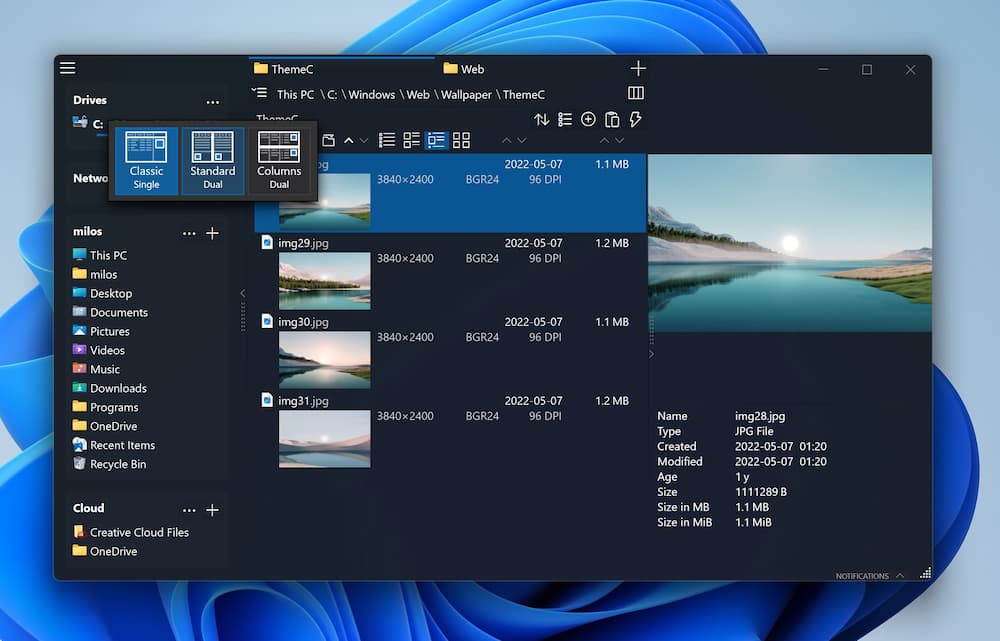
OneCommander is a modern, DirectX-powered file manager built specifically for Windows 10 and Windows 11. Like Files, it supports dual-pane layouts, tabs, Miller columns, and color tags for files. It is free for home use with no ads, which makes it a solid no-cost option for everyday users. You can download it from the Microsoft Store or the OneCommander website.
2. FreeCommander
FreeCommander takes the classic dual-pane commander approach and is entirely free to use. It opens folders noticeably faster than File Explorer, and packs in built-in ZIP support, tabbed browsing, file previews, and batch renaming into a compact interface. It is a good pick if you want something lightweight with proven reliability and do not need the polished modern UI of Files. You can download it from the FreeCommander website.
3. Directory Opus
Directory Opus is the premium option in this space and the one most power users tend to swear by. It fully replaces File Explorer system-wide, supports scripting with VBScript and JScript, and offers a highly customizable dual-pane interface with advanced search and automation tools. It is not free, but a 30-day trial is available so you can test it before committing to a purchase. Download it from the Directory Opus website.
4. XYplorer
XYplorer is a portable file manager that requires no installation and stores all its settings within the application folder itself. This makes it a particularly useful choice if you want a powerful file manager you can carry on a USB drive and use on any Windows PC. It supports dual-pane layouts, extensive scripting, and a highly configurable interface. A free trial is available, with a one-time license required for continued use, at the XYplorer website.
FAQs about Files app, the best File Manager alternative
Is the Files app safe to use?
Yes. Files is an open-source project licensed under the MIT License, with its source code publicly available on GitHub. The project has over 43,200 GitHub stars and is actively maintained by more than 310 contributors, which means the code is regularly reviewed by the community.
Does the Files app work on Windows 10?
Yes, Files supports Windows 10 version 1809 (October 2018 Update) and all later versions, including Windows 11. You do not need to be on Windows 11 to take advantage of its features.
Is Files faster than Windows File Explorer?
No. File Explorer, being a native component of Windows, is faster than Files in most scenarios. Files can take a split-second extra to load thumbnails in large folders and populate the right-click context menu. That said, for most everyday tasks, the difference is not significant enough to be disruptive.
How do I uninstall Files and go back to File Explorer?
If you used the Registry method to set Files as your default, you need to restore the original values at HKEY_CURRENT_USER\SOFTWARE\Classes\directory\shell\open\command and HKEY_CURRENT_USER\SOFTWARE\Classes\drive\shell\open\command. After that, you can uninstall Files normally through Windows Settings.
What is the best free file manager for Windows 11?
Files is our top pick for its modern design and feature depth. OneCommander is a strong runner-up if you want something that feels lighter. FreeCommander is worth a look if you prefer the classic dual-pane commander layout.

