

In Summary
Genius Scanner is the best option for scanning documents on an iPhone with its quick, easy scan functionality. Adobe Scan offers high-quality PDF conversion. Microsoft Lens is free without limitations. DocScan offers advanced document editing capabilities with its extensive tools. We also like Camscanner, iScanner, Evernote, Quick Scan, Apple Notes, and Google Drive.
A document scanner app allows you to scan, edit, and save documents in digital format easily without needing a physical scanner. A few apps offer advanced features like OCR, which helps you copy text from scanned documents, edit and annotate documents, secure documents with a password, and convert documents into multiple formats.

However, like any other app, choosing a document scanner can be tricky, considering the overwhelming number of options. You might end up using an app that is too complex for your basic needs or even choosing an app that constantly interrupts with ads, leading to dissatisfaction. After testing several of them, here are the eleven best document scanner apps for the iPhone.
Table of Contents
Our Picks for the Best Document Scanner Apps for iPhone
Sl No | App | What We Like |
|---|---|---|
1 | Genius Scanner (Freemium) | Super fast and easy to use. |
2 | Adobe Scan (Freemium) | Best PDF quality, free OCR, no watermarks, and integrates well with other Adobe tools. |
3 | Microsoft Lens (Free) | Free, no ads, integrates with Microsoft Office apps like Word and Excel. |
4 | DocuScan (Freemium) | Clean interface, powerful text extraction, and comprehensive document editing tools. |
Best Overall: Genius Scanner

Genius Scanner is my top pick among the tens of apps I have tested. There are primarily two reasons for this. First, it is faster than any other app on this list, and next, it is simple. To simplify things, Genius Scanner might be your best option if you are looking for a quick and fast scanner app.
It instantly captures the document, converts it into a PDF, and lets you share it immediately with others. It also offers comprehensive editing features, including curvature correction and more.
After editing, you can instantly share it with others and e-sign the documents. However, you need a separate app for e-signing and to add signatures to the documents. You can capture, import, or add images from the gallery, and it also supports batch processing. I have yet to encounter a single ad, which is best considering what the app offers.
Pros:
- Faster compared to other apps.
- No ads, even in the free version.
- Batch processing is smooth and easy to use.
Cons:
- Basic compared to other apps.
- You need a separate app for e-signing documents.
Why Choose Genius Scanner: Fastest document scanner app with all essential functions.
Best for PDF Management: Adobe Scan
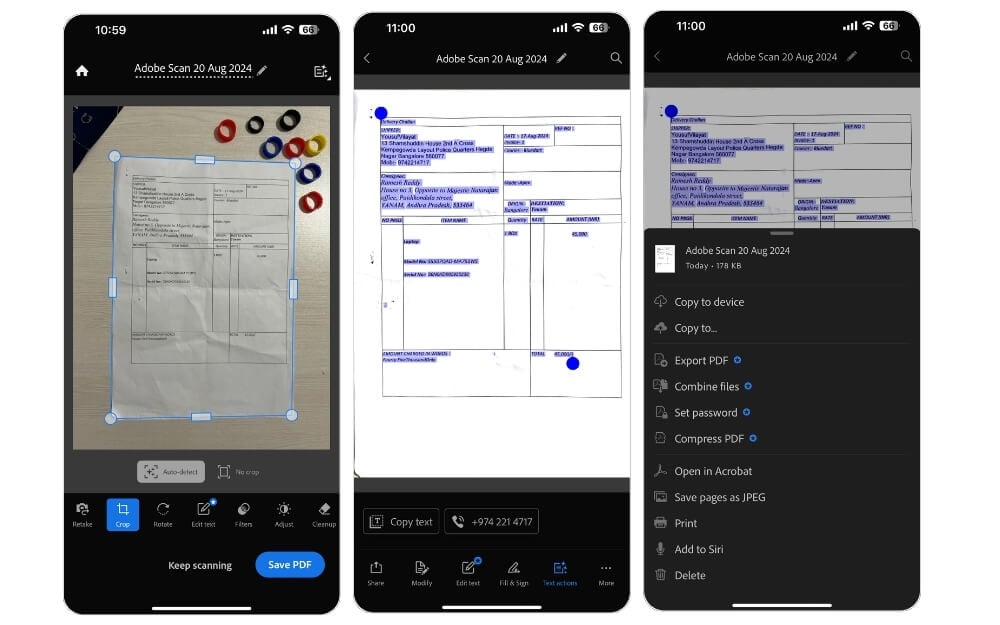
Adobe, famous for its wide range of software, also has a dedicated scanner app, Adobe Scan. If you work with PDFs more and frequently convert all your scanned documents into PDFs, then Adobe Lens might be an excellent choice. First, the quality of the PDF files it generates is unmatched by any other app on this list (including Scanner Pro). It also offers advanced image processing capabilities that automatically remove distortions in the software, such as shadows, perspective correction, and more.
Next, it offers features like OCR, which can extract text from documents for free, but it is mostly limited to premium features on other apps. Another advantage of Adobe, similar to Microsoft Lens, is that it doesn’t add watermarks to documents created using the app. However, Adobe Lens comes with limitations. It does not let you edit the PDF. You need to subscribe to Adobe Premium to edit PDFs.
When you create an Adobe account, you get 20GB of free cloud storage, which can be helpful to store your documents in the cloud and revisit them in the future. If you primarily want a scanner to convert documents into PDFs and edit on the go, Adobe Lens might be your choice.
Pros:
- Produces excellent quality PDFs.
- The free OCR works well and doesn’t add watermarks.
- Integrates smoothly with other Adobe tools.
Cons:
- Editing PDFs requires a premium.
- Most advanced features are locked behind a subscription.
Why Choose Adobe Scan: Best PDF Scanner tool
Best Free Option: Microsoft Lens

If you are looking for a free simple document scanner app, install Microsoft Lens straight up from the app store. There are plenty of reasons why Microsoft Lens stands out as the best. First, unlike most document scanner apps, it doesn’t have ads or paid versions that limit the free version’s capabilities. It is simple to use and allows you to scan documents, IDs, and handwritten text directly from the camera, which many of us do daily.
The OCR functionality is also free and works well for recognizing and copying text from documents. On top of that, if you’re a Microsoft user, you can directly export the documents to your Microsoft apps like Word, Excel, PDF, PowerPoint, and more.
All these features make Microsoft Lens a great app for regular use. However, it can be limited if you’re looking for pro features like the ability to add a signature, watermark, or other advanced document editing options.
Pros:
- Completely free without ads.
- Integrates perfectly with Microsoft Office apps like Word and Excel.
- The OCR feature is solid and doesn’t cost extra.
Cons:
- Lacks some advanced features like adding signatures or watermarks.
- Great for basic scans but might not meet all professional needs.
Why Choose Microsoft Lens: Perfect for everyday scanning tasks with seamless integration into Microsoft Office.
Best for Editing: DocuScan
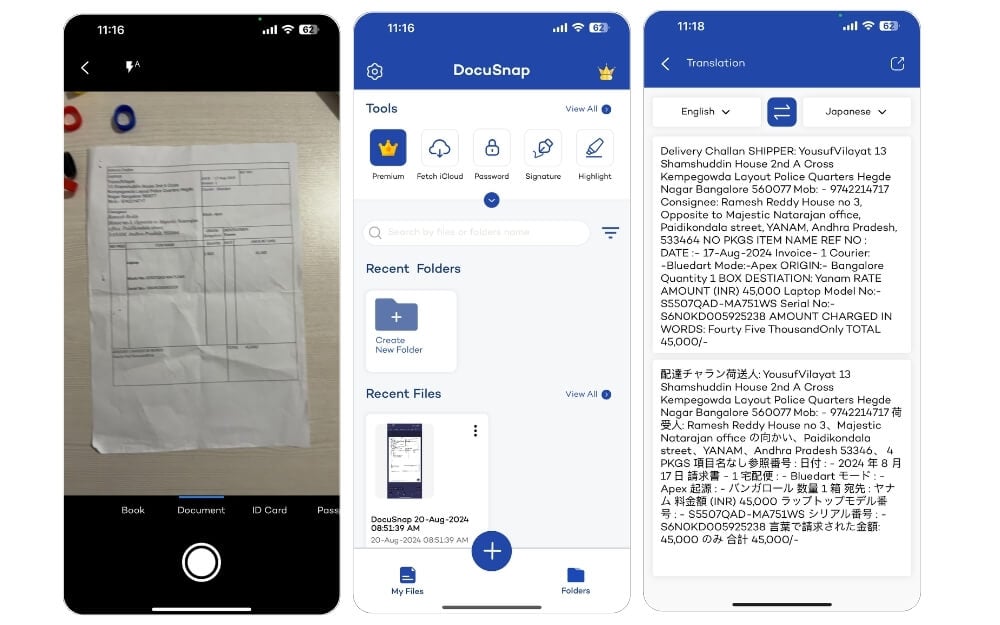
DocuSnap is a feature-rich scanner app for your iPhone. One of the biggest highlights of the app is its interface. It doesn’t use a modern or fancy design, but it is clean throughout the app, and there are no ads in the free version.
It allows you to scan documents and ID cards. You can scan the image using the camera or import it from the gallery or the Files app. Once you capture the documents, you get a handful of editing features. It includes all the essential features such as crop, rotate, rearrange, etc. Additionally, you can add text, your signature, color filters, and even highlights to the document.
It also offers a tool for extracting text from images. You can copy the text or translate it into other languages, which is super handy, especially when scanning menus or materials. Other tools include merging PDFs, extracting PDFs, compressing files, converting text to PDF, reading PDFs, and more. With these helpful tools, DocuSnap is a better option for those who want to edit documents easily.
Pros:
- Offers a clean, ad-free interface in the free version.
- Packed with editing tools like text extraction and PDF management.
- Great for editing your documents.
Cons:
- No Major concerns.
Why Choose DocuScan: Offers plenty of document editing features for free.
Other iPhone Scanner Apps You Can Consider
Sl No | App | What We Like |
|---|---|---|
5 | CamScanner (Freemium) | Plenty of tools, no watermarks in the free version |
6 | Evernote Scannable (Freemium) | Easy to scan and add them Evernote |
7 | iScanner (Freemium) | Feature-packed, including cool AI tools |
8 | Scanner Pro ($19.99) | High Quality scans, organise into folders, and helpful auto-capture. |
9 | Apple Notes (Free) | Built right into your iPhone Notes app, easy to use, and syncs across all your Apple devices. |
10 | Quick Scan (Freemium) | Quick and easy to use, with no ads in free version. |
11 | Google Drive (Free) | Scan and upload documents to Google Drive. |
Cam Scanner: Feature-Rich Document Scanner App
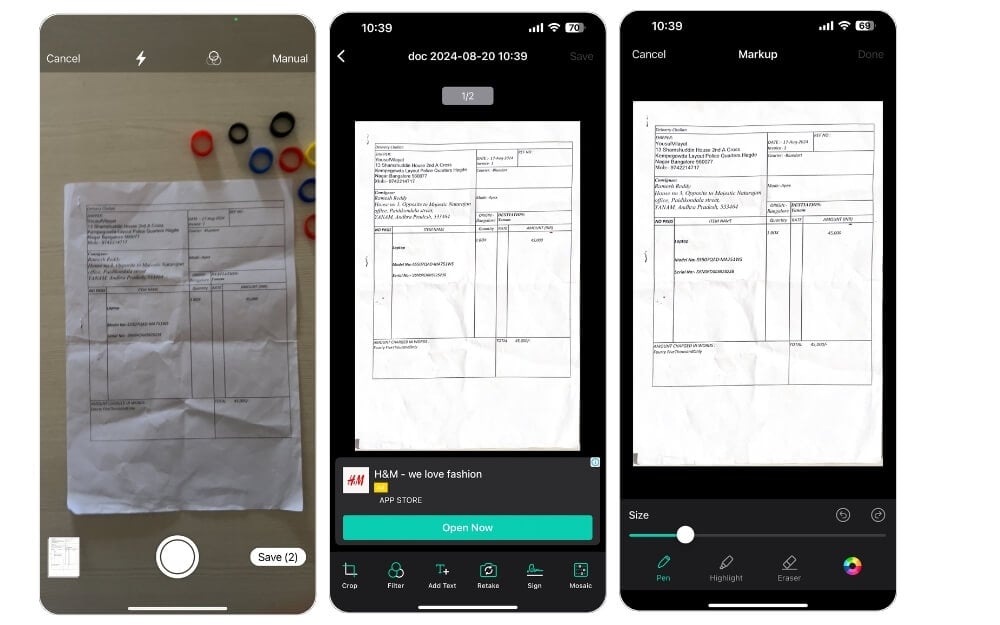
CamScanner is the best option if you are looking for a batch scanner and watermarking scanner app. It has plenty of features that help you scan and edit your documents. You can edit the text, apply filters, and reorder pages, and it also supports batch scanning. Additionally, CamScanner allows you to sign documents and create your watermarks.
The free version is limited to basic features. Creating and adding your watermark and OCR support are only available in the premium version. The free version also includes ads that appear every time you use the annoying app. The app offers an auto-capture feature, which can be handy in certain situations. The document quality could be better, but better than the quality provided by the Scanner Pro app.
It has a dedicated tools section that offers plenty of tools to convert documents into other formats. It also lets you create QR codes for any link, a print function that enables you to print documents directly made on the app, and more. Additionally, the free version doesn’t add a watermark to the documents.
Overall, CamScanner is the best option if you are looking for a feature-rich, free document scanner app that helps you save and create documents without watermarks. Altjog’s free version is limited, but it still doesn’t add watermarks. The only annoying element of the app is the ads that appear every time you perform any action inside the app.
Pros:
- Loaded with features like batch scanning, text editing, and more.
- The free version doesn’t add watermarks, which is a huge plus.
- Auto-capture feature works well for quick scans.
Cons:
- Ads in the free version can get pretty annoying.
- Some key features, like OCR and watermarking, are locked behind a paywall.
Why Choose Camscanner: Feature-rich document scanner app.
Evernote – Scannable: Ideal for Evernote Users
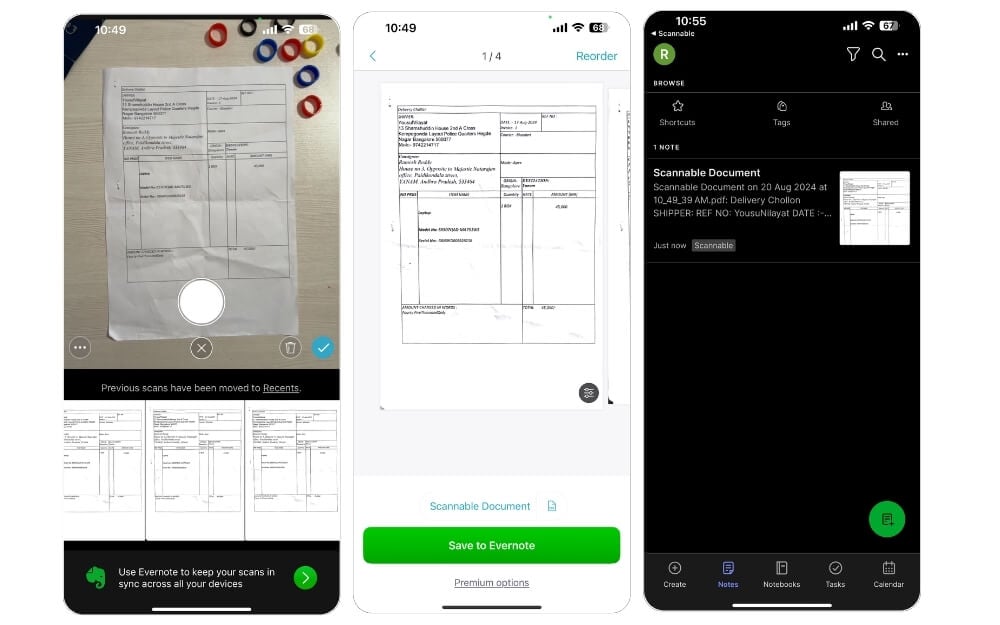
Evernote, a popular notes and organizer app, has a simple scanner that lets you scan and store documents directly in Evernote. Consider the Evernote Scannable app as a gateway to convert all your physical notes into digital ones and save them on Evernote.
First, the scanner app is very basic. You can scan and edit documents with basic edit options like rotate, crop, etc. It comes with auto-capture and auto-detects the documents. The documents captured using the app are also high quality; you can scan unlimited documents.
Next, you can connect to Evernote to save the scanned documents into your gallery. Thankfully, the app offers two-way flexibility. However, you must subscribe to the weekly or yearly plan to use the app without connecting to Evernote; all your documents will be saved locally on your device. It is free if you want to connect to Evernote. You need to install the app and then share and store documents directly to Evernote.
However, there’s also a downside considering limitations: Evernote only lets you create 50 notes. If you’ve never used Evernote, you can only save up to 50 notes/documents. If you’re already an Evernote user (free), this limit can be even more restrictive since you might have already used some of the quota. However, you get extra limits if you’re an existing Evernote Premium user. Overall, Scannable helps scan and save documents to the Evernote app but is limited to free users.
Pros:
- Super handy if you’re already using Evernote
- Auto-capture makes scanning quick and easy.
- Saves to Evernote for Free (50 Free Notes)
Cons:
- The free version limits you to 50 notes, which can run out quickly.
- Skip, If you’re not an Evernote user.
Why Choose Evernote’s Scannable: Integrate scanned documents directly into their Evernote.
iScanner: All-in-One Scanning and Document Management Tool with AI Features
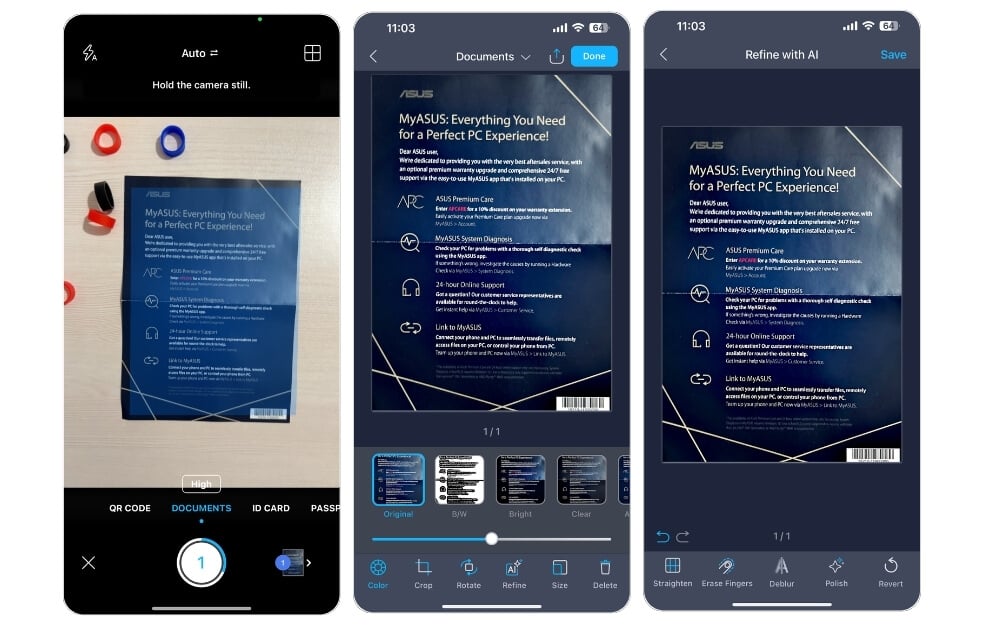
If you want a comprehensive scanner tool for your iPhone, then iScanner is your best option. It offers plenty of tools to help you scan, edit, merge, and even count objects using the scanner. The best part of the app is it doesn’t deviate from offering a core scanning function.
You can scan from the camera or import from your files or gallery and instantly convert them into documents or PDF files. You can even categorize them into folders. Most features limited to the pro versions of other apps are accessible in the iScanner app.
More than just a scanner app, iScanner lets you count objects by pointing to the camera, scanning documents and ID cards, measuring specific areas, scanning passwords, solving math problems, generating QR codes, and more. You can also sign documents, add text, markup PDFs, hide specific text in the PDF, add images, merge PDFs, add your custom watermark, convert PDFs into different formats, chat and summarize with AI, and more.
However, one of the app’s downsides is the ads, which appear even in standby mode. Sometimes, back-to-back ads pop up within 30 seconds, which is honestly really annoying despite the features it offers. Apart from this, everything about the app is excellent.
Pros:
- Useful AI tools.
- The free version includes a lot of free tools.
- Can handle everything from scanning to editing and organizing.
Cons:
- Frequent and can be disruptive in the free version.
Why Choose iScanner: All-in-one scanning and document management tool with useful AI features.
Scanner Pro: High-Quality Scans

If you are looking for a reliable scanning app and are okay with paying a premium, then Scanner Pro is the best option. In my testing, it scans high-quality documents better than any other app on this list (Adobe scan tops for best PDF Quality). Scanner Pro offers nifty features that are very helpful when scanning documents.
The Scanner Pro app has an auto-capture feature that automatically takes a picture of your document. This feature is handy when you need to hold the document with one hand and use your phone with the other.
Another helpful feature is the ability to create folders and organize documents within those folders. Folders keep things clutter-free and help you quickly find the document you need in the future. All these small features make this app great for professionals who frequently scan documents.
Speaking of other features, you can scan documents or import files from your gallery. It supports various document modes, including books, IDs, and more. The app also includes Optical Character Recognition (OCR), though this feature is limited in the free version.
After capturing the documents, you can edit them. There’s also an eraser tool to remove unwanted marks from the document. Once your documents are ready, you can share them directly in PDF or JPG format and export them to other apps or cloud services. The app also works offline and allows you to protect your PDFs with a password.
However, the free version is quite limited. All scanned documents in the free version have watermarks; you need to subscribe to the premium version to remove them. The free version also has limited OCR functionality and restricted sharing options.
Pros:
- High-Quality Scans.
- OCR Support
- Simple user interface.
- Organization features
- Auto Capture feature
Cons:
- Free version limitations
- Limited OCR support in the free version
- Only yearly plan.
Why Choose Scanner Pro: Ideal for those willing to pay for premium features for the best scanning experience.
Apple Notes: Free, Built-in Scanner for Apple Ecosystem Users

The pre-installed Apple Notes app on your iPhone has a built-in document scanner that allows you to scan documents and export them as PDFs. However, unlike most other scanning apps, the scanner functionality in Apple Notes is limited in features and export options.
On the plus side, the app seamlessly integrates with iOS, so all your scanned documents will stay within the Notes app and sync across the Apple ecosystem of devices. This integration makes document sharing in other apps, like Mail, Files, Reminders, and more accessible. The app is straightforward to use.
Since the scanner is directly integrated with Apple Notes, you can keep scanned documents alongside your other notes, checklists, and ideas. One of the biggest highlights of Apple Notes is its privacy documents can be stored securely in the cloud.
However, Apple Notes has limitations compared to dedicated scanning apps like Adobe Scan or Microsoft Lens. The editing options are essential; you can crop the scanned documents but can’t add signatures or make other advanced edits.
Additionally, since it is a notes app, documents are directly added to notes, and you can only export them as PDFs. It doesn’t support other formats like DOCX or TXT, and there’s no support for separate document management. Your quick scans are saved within the notes.
Consider Apple Notes a simple, free alternative for scanning documents and integrating them with your other Apple devices for added convenience. However, consider installing a third-party document scanner app if you are looking for advanced features and want to organize documents.
Pros:
- Free feature inside pre-installed Apple Notes app.
- Integrates with other Apple apps like Mail and Files.
- Perfect for quick, simple scans on the go.
Cons:
- Limited editing options.
- Saved in Notes directly.
Why Choose Apple Notes: Free, built-in scanner feature in the Notes app that integrates well with the Apple ecosystem.
Quick Scan: Simple and Straightforward Scanner
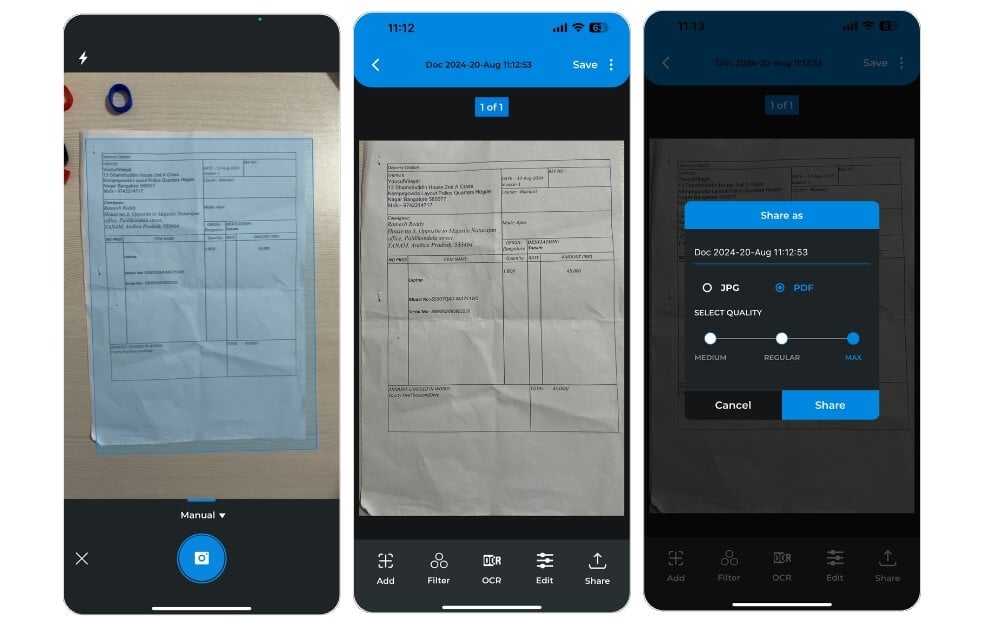
Quick Scan, as the name suggests, lets you quickly scan documents, edit them, and export them easily. It is good at all three core functions. First, it allows you to scan documents. You can scan the documents or import images from the gallery. It also supports an automatic scan feature, which automatically captures the document once it detects it, which is very helpful in many situations.
Next, a few editing features make it quick and easy to use. You can crop, delete, or arrange the pages in order if you’re scanning multiple images simultaneously, and what’s next is sharing, which is also straightforward. You can rename the document, select the format (it supports JPG and PDF), and then select the quality.
You can also export high-quality content in the free version, and then click on “share” to export. Plus, you can save all your documents in the app, and there is a sort option that allows you to quickly find your documents based on the date, last modified, or by size. The entire process of scanning, editing, and sharing remains consistent.
Also, the cherry on top, no ads don’t let you deviate from those core experiences. Overall, as the name suggests, Quick Scan is quick if you want a fast, simple, straightforward tool to scan documents and export them.
Pros:
- Fast and straightforward with no distractions.
- No ads in the free version.
- Simple editing options make it easy to get the job done quickly.
- Control the quality of the output.
Cons:
- Basic editing features.
Why Choose Quick: Scan, edit, and share with a straightforward interface.
Google Drive: Scan and Store Files Securely on the Cloud
Highlights:
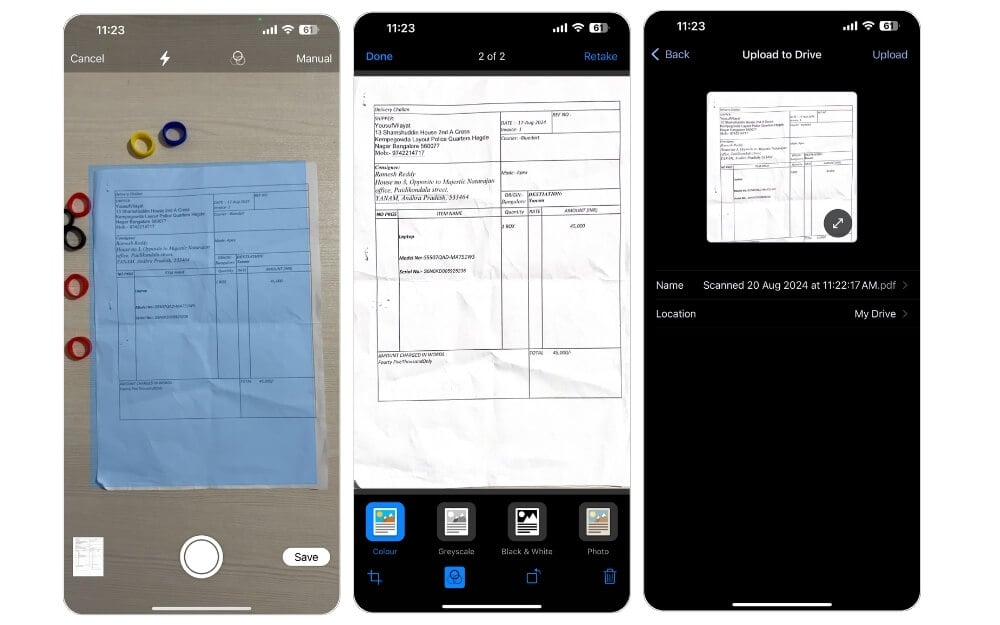
If you’re wondering why Google is missing from the list, it’s because Google needs a dedicated scanner app. However, it does offer apps designed for specific usage. For instance, Google Lens lets you scan, translate, and copy text from various scenes. In contrast, Google Drive, Google’s cloud storage app (also available for iPhone), lets you scan and upload documents to Google Drive instantly.
Google Drive offers essential functions. It lets you capture documents and comes with an auto-capture mode that instantly captures documents when detected. It auto-detects the edges and captures the document for you. It supports four filters, including color, grayscale, black and white, and photo, and it offers essential editing functions like crop, rotate, and more.
It supports batch scanning, but it doesn’t allow you to rearrange the scanned documents. After editing, you can store them directly in Google Drive. You can also easily copy text from documents by long-pressing; this feature is only available for iOS. Overall, Google Drive is the best option for capturing and securely storing your documents in the cloud and sharing them with others.
Pros:
- Scans and upload documents directly to the cloud.
- Free with 15 GB free storage (Google account)
- Basic editing tools get the job done for simple scans.
Cons:
- You can’t rearrange scanned pages.
Why Choose Drive: Lets you scan and store documents easily in the cloud.
Quick and Easy Document Management
These are the top eleven best scanner apps for your iPhone. It can be hard to distinguish between apps as they offer similar features. The only difference between them is user experience and feature limitations in the free version. Also, the built-in Apple Note document scanner feature is sufficient for most people to scan and save documents. If you can afford Scanner Pro, it offers the best experience. If you want free, it is best to consider Microsoft Lens or Adobe Scan. I hope you find this list helpful. Let me know in the comments below if you have any other suggestions.

