

Apple is officially letting third-party app stores for iPhones in the EU, starting with iOS 17.4. Developers can create alternative app stores for iPhones and offer different apps and services outside the Apple App Store. Mobiventon App Store, the Epic Game Store (in trouble), and MacPaw’s Setapp alternative app store are coming to iPhone.

Currently, these changes only apply in the EU unless some countries require Apple to open a third-party app store if you live outside the EU and want to sideload apps on your iPhone. You can use the legacy store to download apps without jailbreak.
In this guide, you will learn how to install Altstore and sideload apps using Altstore on your iPhone. If you are ready, let’s get started.
Table of Contents
Prerequisites for Sideloading Apps on Your iPhone
- A Windows or Mac Machine: You need a Mac or Windows PC to run the Altserver.
- iTunes and iCloud: You need iCloud and iTunes on your PC to authenticate and enable Wifi sync. Use the official links to download, not the Microsoft Store versions.
- An Apple ID: You need an Apple ID to authenticate the connection and refresh apps on your iPhone. You can create a dummy ID if you’re concerned about your privacy.
- A Lightning /Type C Cable: You need a cable to connect your iPhone device to your computer. Ensure you have cable in hand.
Installing Altserver on Mac and Windows
Altserver is a companion application for the Altstore that runs on your computer. It allows the Altstore on your iPhone to sideload, refresh, activate, and deactivate third-party apps. You can easily set up Altserver for both Windows and Mac. Follow the steps.
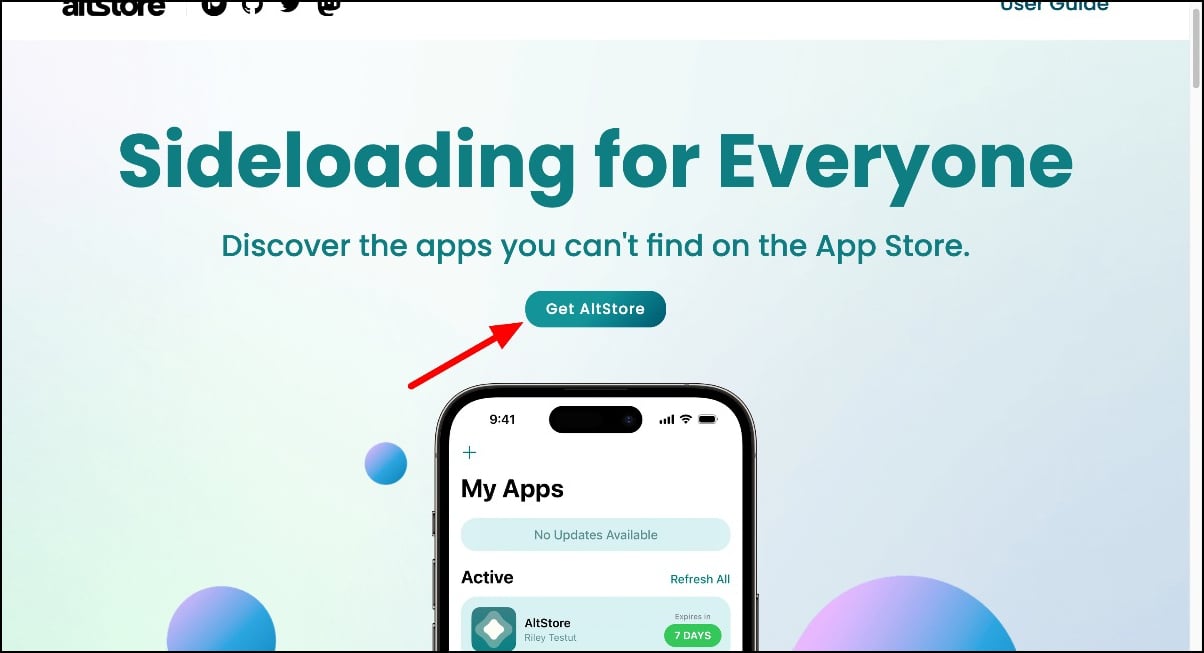
- Step 1: Open any browser on your Mac or Windows, visit the Altstore website, and click on Get Started button.
- Step 2: Click on the Download button.
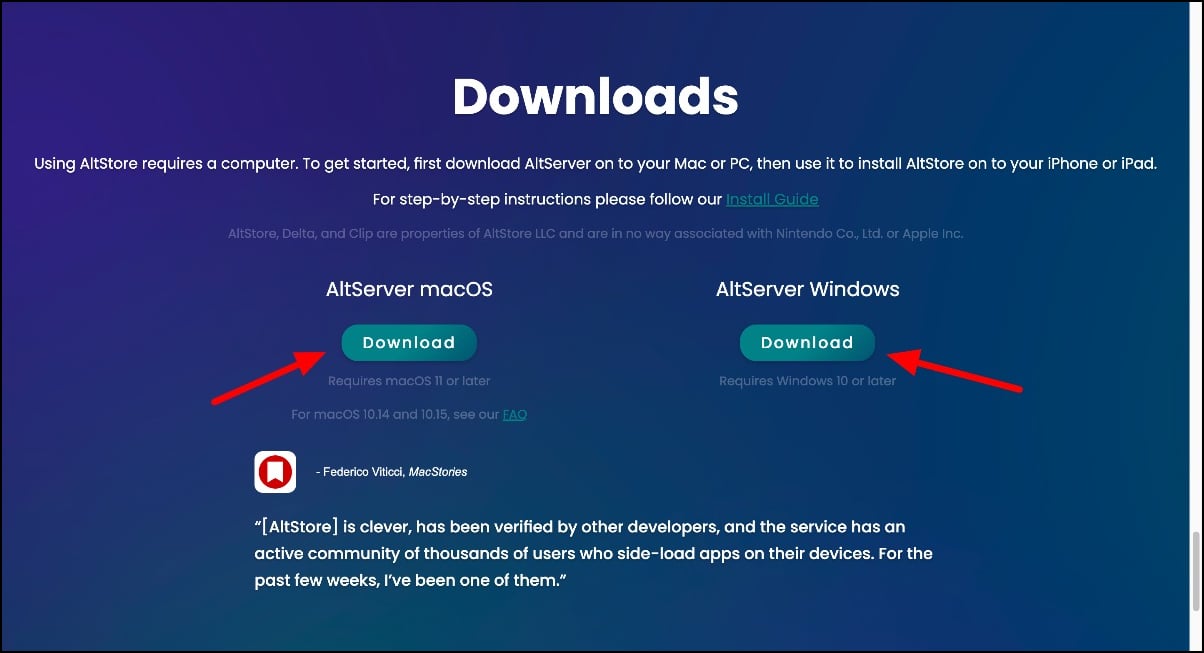
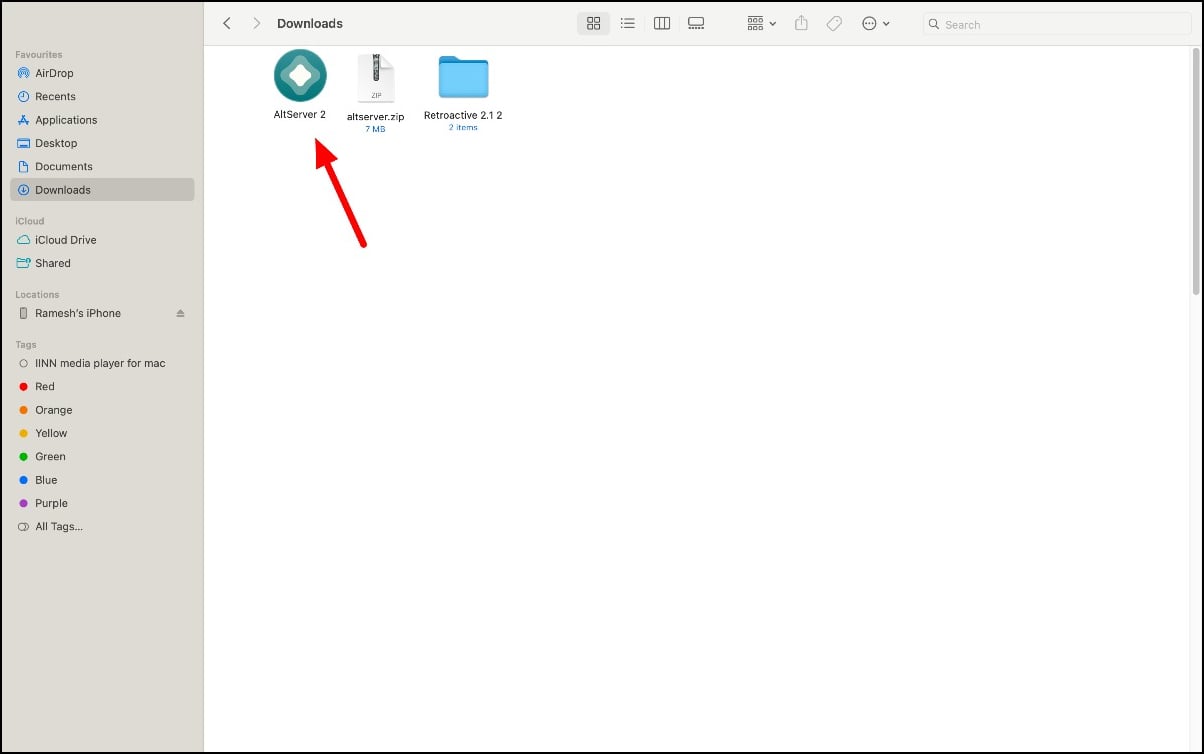
- Step 3: Download the file and extract the files on your Windows or Mac.
Setting Up the Altserver on Windows and Mac
After installing the Altserver on your computer, you can sign in with your Apple ID and set up the Altserver on your PC. You need iTunes and iCloud on Mac and Windows to set up.
Setting up iTunes on Mac
Since iCloud is already available on the Mac, you don’t need to install the iTunes. Apple discontinued iTunes for Mac in 2019. The latest Apple silicon Macs running on MacOS Catalina don’t support iTunes.
However, you can download iTunes using the Retroactive. The app allows you to run Run Aperture, iPhoto, and iTunes on the latest macOS, including macOS Catalina or later versions. You can follow this video to install iTunes on Mac.

If your Mac runs on macOS Mojave or lower and uses the Intel processor Mac, you can download iTunes directly using this link. Visit the website and install the latest 12.8 iTunes version for Mac and install it on your device.
Windows
On Windows, you need iTunes and iCloud to install Altserver. Download iTunes using this direct link, and iCloud. Log in with your Apple ID on iTunes and iCloud on your Windows.
Turn on Wifi Sync on Mac and Windows
Ensure your PC and the iPhone are connected to the same Wifi network. Connect your iPhone to the Mac/Windows PC using a cable. Click on Continue on your PC and Trust this computer on your iPhone to establish a connection. Open iTunes and click on the iPhone icon; scroll down, and under options, enable “Sync with this phone over Wifi” and tap the Apply button. After that, launch the Altserver and sign in with your Apple ID.
We installed the Retroactive, but it crashed whenever we tried to change the Wifi Sync options on the Mac. If you have the same issue on your Mac, try turning on Wifi Sync using the Mac settings. Connect your device to your Mac using a Lightning or USB-C cable. Open Finder on your Mac and select your iPhone in the sidebar. Go to the General tab and check the box that says Show this iPhone when on Wifi. Click on Apply. After finishing the steps, open Altstore and sign in with your Apple ID.

How to Install Altstore on an iPhone
You should enable the developer mode before installing the Altstore on your iPhone. We have made an infographic to help you understand more about iOS developer mode, which you can find here.
- Step 1:Open the Settings on your iPhone.

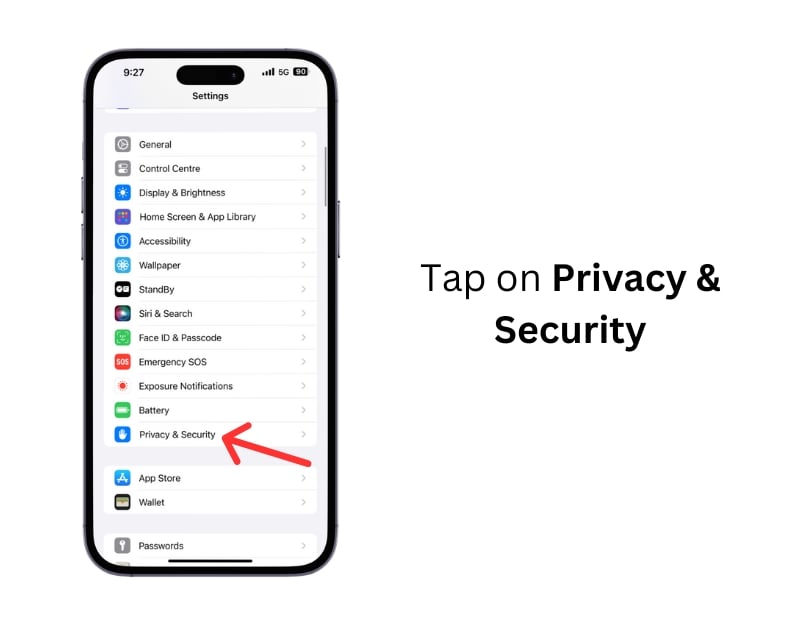
- Step 2: Scroll down and tap on Privacy & Security.
- Step 3: Navigate to the Developer Mode section.
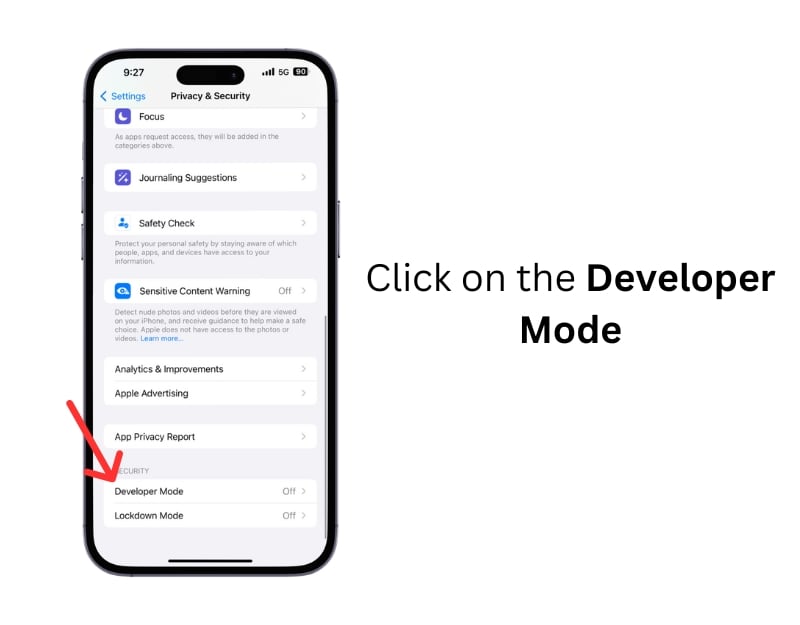
- Step 4: Turn on Developer Mode by enabling the toggle. Tap the Restart on the alert to proceed.

- Step 5: Your iPhone will restart. After the restart, confirm the changes and enter your passcode to use developer mode on your iPhone.
- Step 6: Go to the toolbar on the top of the Mac or the taskbar on the bottom of Windows and click the Altserver icon (If you don’t see the icon, double tap on the Altserver app to run). Click on the Install Altstore, select the iPhone you want, and then install the Altstore.
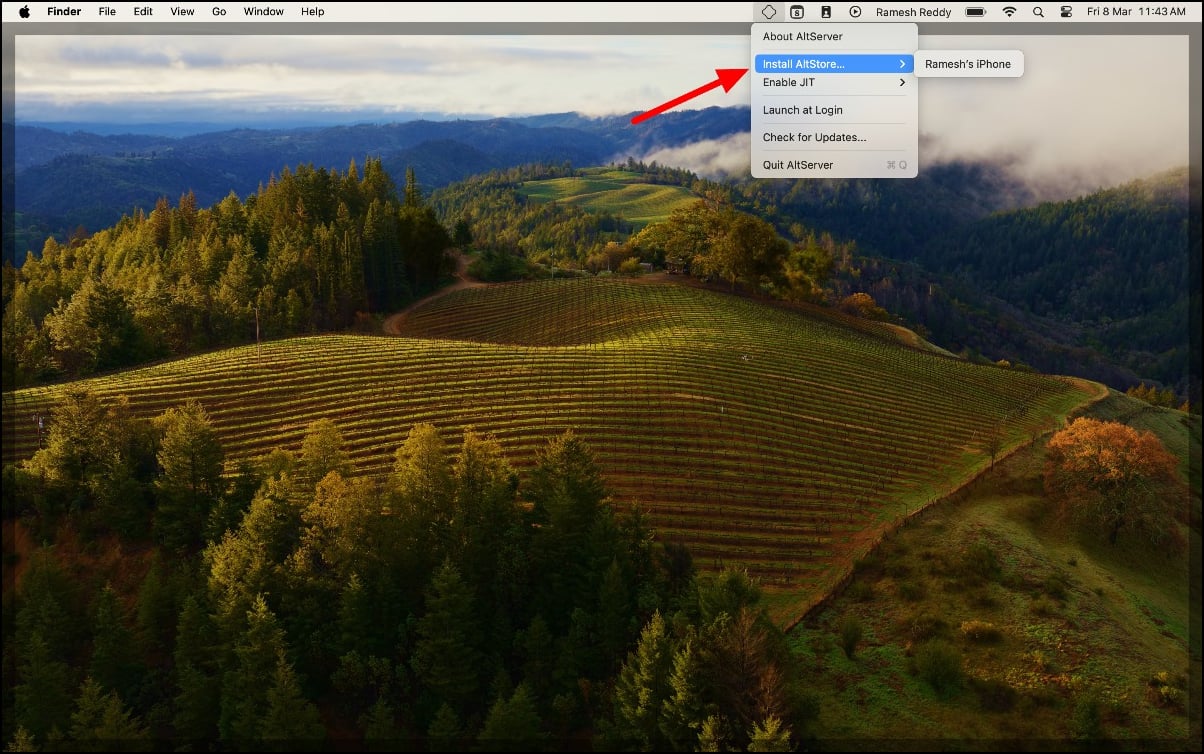
- Step 7: You will not see any windows while running. Instead, you will see a new Altserver icon on the top.
- Step 8: Wait for a few seconds. You will see the Altstore installed on your iPhone.
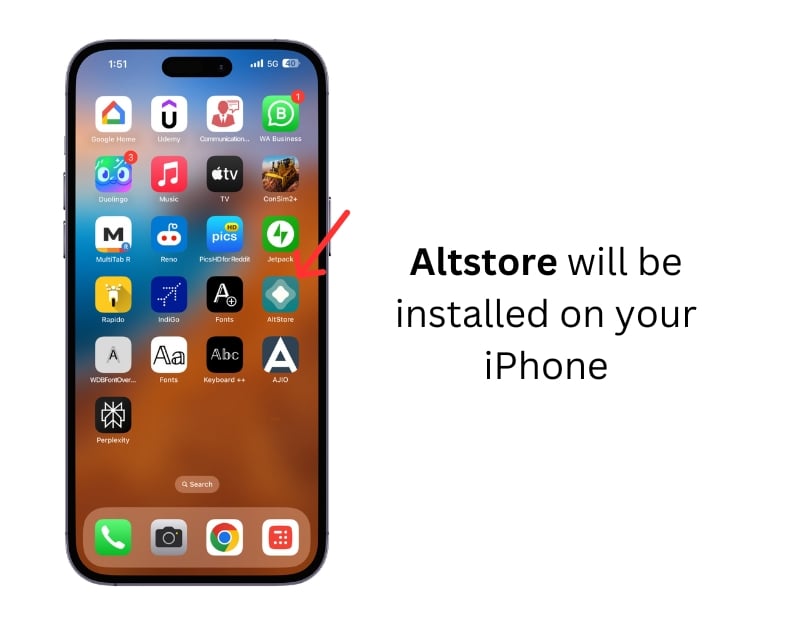
- Step 9: Now, Open the Altstore on your iPhone.
- Step 10: You might see the ‘Untrusted Developer’ error when opening Altstore.

- Step 11: This error occurs because your iPhone hasn’t yet trusted the developer certificate used by Altstore. You can quickly fix this using Settings > General > VPN & Device Management.
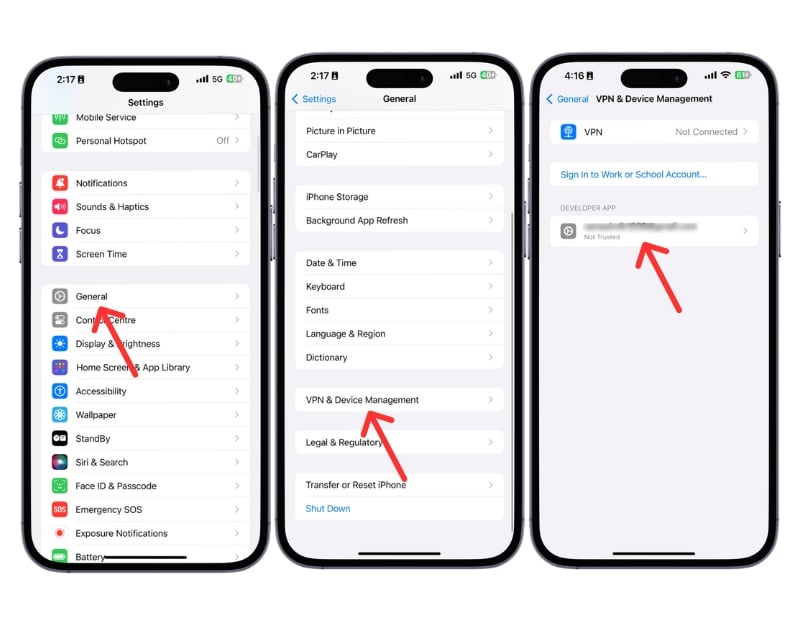
- Step 12: Find the developer profile (Your Apple ID) for Altstore and Trust the developer.

- Step 13: After doing this, you can open Altstore. Sign in with your Apple ID and start using the Altstore.

How to Sideload Apps on iPhone Using the Altserver
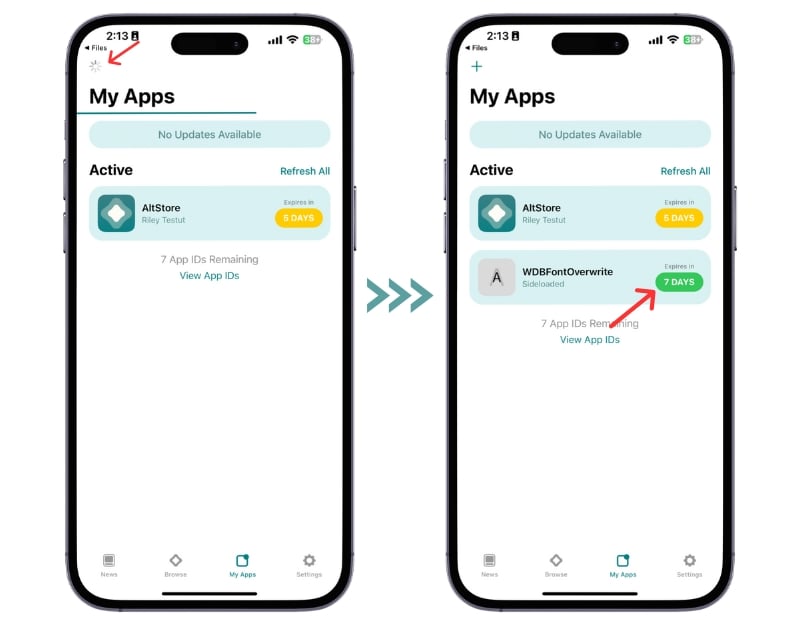
- Step 1: Download the app you want to install and share it with the Altstore. Or open Altstore and go to My Apps. Click on the Plus icon on the top and select the app you want to install.

- Step 2: Give it a second, and the Altstore will install the app.
Limitations of Altstore
Sideloading apps using Altstore on iPhone is easy but has some limitations. Each app you sideload with Altstore needs a certain number of App IDs. You can only register up to 10 App IDs at a time. You can find the number of Apple IDs left under the installed apps.
Apps installed with Altstore expire after seven days. To avoid this, you can connect to the Altserver on your computer and Altstore on your iPhone. The server will refresh the sideloaded apps in the background. You can also manually refresh your iPhone using the Refresh All button in the My Apps section on the Altstore.
Finally, you can sideload as many apps as you want with Altstore, but due to Apple’s restrictions, only three sideloaded apps can be active at a time.
Is it safe to use SideLoad apps on iPhones?
It is safe to sideload apps on your iPhone unless you are downloading third-party apps from un-trusted sources and using the jailbreaking method to sideload apps on your iPhone. Jailbreaking will void your device warranty, and downloading apps from unofficial sources can be harmful and expose your device to malware or other security threats. Ensure you download the apps from trusted sources and do not try methods that need to jailbreak your iPhone.
Sideload Apps on iPhone without Jailbreaking
Sideloading apps can help you install apps that are unavailable in the App Store or restricted by Apple. You can use Altstore to easily sideload apps to your iPhone without jailbreaking. This method also works outside of the EU. I hope you find this guide helpful.
FAQs about Sideloading Apps on iPhone
1. Does sideloading void my iPhone’s warranty?
Sideloading apps, especially if it involves jailbreaking, can void your iPhone’s warranty. Apple’s warranty does not cover issues caused by unauthorized modifications made to the iPhone. Using the Altstore is safe and doesn’t require jailbreaking your iPhone.
2. Are sideloaded apps safe?
The safety of sideloaded apps depends on the source you are downloading. It is crucial to sideload apps only from trusted developers and sources.
3. Will sideload apps receive updates?
No, sideloaded apps don’t receive updates. You have to install and update the app manually.
4. What happens if a sideloaded app stops working?
Make sure that you download the app from legitimate sources, and if you have any issues after installing the app, you might need to reinstall it using the sideloading tool or check for an updated version from the source.
5. Are there any restrictions on what apps can be sideloaded?
Technically, there is no limit on what apps can be sideloaded to your iPhone. You can sideload any supported app. Make sure that you download the apps from trusted sources.

