

Launcher apps help you open apps, files, and folders quickly. MacOS has a built-in launcher called Spotlight. However, some people prefer third-party launcher apps because they offer more features and customization options than the native option. In this guide, you’ll learn the ten best third-party launcher apps for macOS.

With third-party launcher apps, you can search the web directly, perform complex calculations, or even control smart home devices – all without opening another app. Although Spotlight is good for basic things, a third-party launcher can give you more power and flexibility.
Table of Contents
8 Best Launcher Apps for Mac
- Alfred: Simple, Power launcher for Mac (Overall Best Pick)
- Hotlaunch: Set custom shortcuts for apps, files, and folders.
- Snap it: Create personalized keyboard shortcuts for both system applications and the apps found on your dock
- Raycast: Best Alternative to Alfred with the best user interface.
- Keyboard Maestro: For power users. Automate tasks on your MacOS.
- Verve: Simple, free, and open-source launcher for Mac.
- iDock and Orbital: Bring AssistiveTouch feature for Mac.
- Paste: Launch and Manage all your Clipboard content.
Alfred

Highlights:
- Compatibility: Compatible with all MacOS versions
- Customization: You can customize the launcher’s appearance and layout
- Keyboard shortcuts support: Yes
- Built-in Suggestions: Yes, But limited
- Widgets or plugins support: No
- Price: Free to use.
Alfred is a popular and powerful user-friendly launcher for macOS. It helps you quickly open apps, find and open files on your Mac, search the Internet, solve simple math problems, check spelling mistakes, control your Mac with simple commands, and much more. It’s free to use, and there are several settings that let you customize the look and functionality of the launcher.
By default, Alfred offers four different themes that you can apply. You can also set light and dark themes depending on what you prefer. Alfred also lets you adjust the size of the window when it launches. By default, it appears as a Spotlight search on the Mac. You can adjust the settings and set it to full-screen mode. You can also hide various elements on startup to make it look more minimalist or add more features to make it more feature-rich.
You can adjust even the smallest details, like automatically highlighting the top result or showing the Alfred window. You can also set the number of results that are displayed in the Finder. By default, 7 results are displayed. You can set up to 9 results and limit them to 2 or 3. You can set the location based on which the launcher will automatically include the in-app features.
You can also customize the results with various settings; you can add what type of results to display when you search. This includes filters, text files, archives, documents, images, Apple Scripts, and more. You can also add different search ranges and enable unintelligent search to search all file types. You can also add exclusions and search ranges if you don’t want the app to search and return specific results. You can’t exclude individual files, which is something I really miss about this launcher.
The launcher also shows simple calculator results. You can turn them off if you don’t need them. You can add calculation settings that come in handy for quick calculations. The best thing about the launcher is that it also supports system commands. It supports eight system commands, including screen saver, show trash, empty trash, shutdown, lock, sleep, reboot, and more. You can type the command in the search, and it will be executed.
Overall, Alfred is the best free launcher for your Mac. It offers advanced customization options that let you customize the launcher and set various settings for the launcher to work. It is available for free on the Mac App Store. You can download the launcher and start using it right away. You can launch Alfred by typing Alt + Spacebar on the keyboard.
Alternatively, you can choose Quicksilver or Launchbar. You can find and open apps, files, and websites by typing short names in the search. They also offer clipboard management features. They keep track of what you copy, so you can easily paste it later. You can also play music, send files to different apps or people, and even do math calculations.
Related Read: 15+ Essential Mac Productivity Apps
Hotlaunch

Highlights
- Compatibility: Compatible with all MacOS versions
- Customization: Not supported
- Keyboard shortcuts support: Yes
- Built-in Suggestions: Not supported
- Widgets or plugins support: No
- Price: Freemium.
Hotlaunch App Launcher helps you efficiently switch and open apps, folders, files, and URLs. You can set different keyboard shortcuts for apps, files, URLs, and more and launch them instantly using the shortcuts. You can also use the mouse to switch between and open different items quickly.
Hotlaunch is free to use, and unlike other launchers, you have to preset the apps you want to open through the launcher and set keyboard shortcuts. To put it simply, it is the app drawer without a search button, but each app can be opened with unique shortcuts.
In the free version of Hotlaunch, you can only set keyboard shortcuts for apps. To create shortcuts for folders, files, bookmarks, URLs, and more, you need to upgrade to the Pro version. You can select as many apps as you want and set shortcuts for each app or file. The launcher supports the Option, Control, Command, Shift, and fn shortcuts.
Hotlaunch is compatible with all macOS versions, and you can download it for free from the Apple Mac Store. After installing it on your devices, open the app and go to the area you want to add shortcuts to. If you’re using the free version, you can only create shortcuts for the Mac. If you’ve upgraded to the Pro version, you can create shortcuts for folders, files, bookmarks, and more. Now, add apps or files; click on the record shortcut and add the shortcuts. The launcher supports the discussed Option, Control, Command, Shift, and fn keys. You can set different combinations to set shortcuts.
Overall, the Hotlaunch app is the best option for people who want to set shortcuts for frequently used apps and files. The free version only gives you the option to set shortcuts for apps, which is enough for most people. You can combine different supported keyboard shortcuts and set them for the apps.
Download Hotlaunch app launcher
Snap

Highlights
- Compatibility: Compatible with all MacOS versions
- Customization: Not supported
- Keyboard shortcuts support: Yes
- Built-in Suggestions: Not supported
- Widgets or plugins support: No
- Price: Free
If you thought you could launch apps instantly with a snap of your fingers, no, unfortunately, this app can’t do that. Instead, Snap provides functions for managing shortcuts to launch apps. It automatically assigns keyboard shortcuts to the apps in your dock and allows you to set custom shortcuts for each app. The app is similar to Hotlaunch but only supports apps and provides automatic dock shortcuts. The app can be downloaded for free from the Mac Store.
Snap lets you launch apps in the Dock instantly. You can type Command+number to launch apps. For example, typing Command+2 will instantly open the second app in the Dock from left to right. This is really cool, and the best part is that you can rearrange the apps in the Dock and use Snap shortcuts to customize them. You can also manually set different shortcuts for each app, similar to Hotlaunch. You can add as many apps as you want.
The user interface is simple and easy to use. You don’t need to use the Snap app. It runs in the background after you set certain shortcuts. You can type the shortcuts and the app will open for you instantly. Snap is free and available in the Mac App Store.
Raycast
Highlights
- Compatibility: Compatible with all MacOS versions
- Customization: Yes, but limited
- Keyboard shortcuts support: Yes
- Built-in Suggestions: Yes
- Widgets or plugins support: Yes
- Price: Freemium
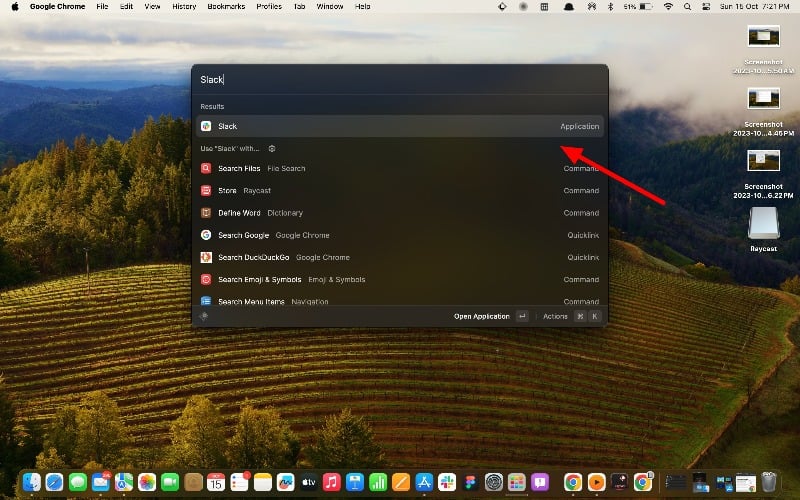
Raycast is a good alternative to Alfred. The user interface is one of the biggest highlights of the app. It offers functions to run script and system commands and the ability to search and run macOS shortcuts. You can also easily search for files and folders, control your Mac with the built-in system commands, and take quick notes with Floating Notes and more. It also supports extensions.
The appearance of the app is good; it easily blends in with the other macOS elements. You can also customize Raycast with various settings like text size, window size, dark and light modes, and more. Raycast also offers support for extensions. You can search and add various extensions created by the Raycast community. Popular extensions include calculator apps, dictionaries, floating notes, and more. You can enable or disable extensions at any time in the settings. By default, most extensions are enabled.
You can easily search for apps, files, notes, and other files on your device. Raycast offers settings that let you customize the search results. Based on your search history, the app automatically shows suggestions and discoveries from news apps. It also supports integrations with other apps and lets you open commands directly in the app.
The app also has AI support and is only available to premium users. I haven’t found any helpful use cases for the AI features. It just helps you answer your questions. You can use alternatives like ChatGPT or other AI text generator apps. If you get instant results in Spotlight, you can upgrade to the premium version and get Raycast AI. It also comes with cloud integration that automatically syncs your data to the cloud. And again, not so useful premium features.
You can download and install Raycast Launcher from the official website. You don’t need to create an account. You can launch the application. Also, you can set a custom shortcut to open Raycast Spotlight. You can also replace Raycast with macOS Spotlight. There is also a Pro version that generates AI search results for Spotlight and offers a cloud syncing feature.
Keyboard Maestro

Highlights
- Compatibility: Compatible with all MacOS versions
- Customization: Powerful customization options.
- Keyboard shortcuts support: Yes
- Built-in Suggestions: Not supported
- Widgets or plugins support: No
- Price: Paid
Keyboard Maestro allows you to create macros to automate simple tasks on macOS. With the launcher, you can set hotkey triggers to run macros, launch apps, expand text with snippets, organize your workspace, and more. It is the best option for power users who want to automate simple tasks and save time.
Some users find it difficult to use Keyboard Maestro, especially when you first start using it. To help you a bit, I’ll explain how to set up and use the app. Follow the steps below. First, install Keyboard Maestro; you can download it from the official website. After the installation, open the app; on the left side, you will find the “Groups” section. These are folders you created for all your macros. They can be your keyboard shortcuts, system shortcuts, and more. Tap on the folder, and in the middle, you will see the list of macros in the folder, and on the right side, you will see the macro settings.
To create a macro, select the folder and click the plus icon in the middle of the macro area. Rename the macro to the name you want. Now select the trigger. (A trigger is like a signal that tells the system to do a task. For example, you could set up a trigger that sends you an email every morning at 9 a.m.; in this case, the time (9 a.m.) is the trigger for the email task.) Click on “New trigger” and select the trigger. Choices include hotkey triggers for keyboard shortcuts, system settings such as time and date, application triggers such as when the application is opened, and more.
Now, add the action when the trigger is activated. Keyboard Maestro has hundreds of built-in actions you can choose from. You can select the action from the sidebar and drag and drop it to the action bar. You can customize individual actions depending on the type of trigger. You can select multiple actions to automate the recurring tasks. You can create multiple actions and customize them.
Overall, Keyboard Maestro is a powerful launcher app for macOS power users. The launchers help you automate simple tasks and set keyboard shortcuts for specific actions. You can create hundreds of macros. You can download the app from the official Keyboard Maestro website. It also offers a free trial version if you want to try it out.
Verve

Highlights
- Compatibility: Compatible with all MacOS versions
- Customization: Simple Customisation options
- Keyboard shortcuts support: No
- Built-in Suggestions: Not supported
- Widgets or plugins support: Extension support is coming soon
- Price: Free forever. Open source
Verve is an open-source and lightweight launcher for macOS. It’s fast and allows you to open apps, files, and documents. Verve is free, and you can download it from the Git repository. According to the developer, it takes less than 3 ms on average to display search results. That’s very helpful for anyone looking for an alternative to the Mac OS’s Spotlight features.
Verve lets you search files, apps, folders, and more. You can customize the look of the search bar. There’s also a calculator and currency converter in the search function’s selection. You can do a text input, and the results will be displayed instantly. Extension support is said to be coming soon, which can further improve the app’s functionality.
You can download Verve from the Github repository. Click on the download link below, scroll down, and under the Assets tab, download the .dmg file. Open the file and install it on your Mac. Verve is free to download. If you are looking for a lightweight and best alert store for macOS Spotlight, Verve might be the best option for you.
iDock and Orbital

Highlights
- Compatibility: Compatible with all MacOS versions
- Customization: Simple Customisation options
- Keyboard shortcuts support: No
- Built-in Suggestions: Not supported
- Widgets or plugins support: Extension support is coming soon
- Price: Free forever. Open source
With iDock – Quick Launcher and HotKey app, you can select your favorite apps and access them instantly with a single click. The app lets you create shortcuts to quickly access frequently used apps. The app also lets you create your own shortcuts for individual apps. The app is only available in the paid version. You can change the look of this area with your own layout style and background image.
Adding frequently used apps and quick access with a single click is a handy feature. With the launcher, you can add the apps of your choice. You can add the system apps and third-party apps of your choice. You can set a custom layout of how you want the apps to be displayed. The apps are displayed in a circle or in the layout you specify around the mouse pointer. You can tap on any app and launch it instantly. You can also set different animations for how you want the apps to appear when you access the IDOC.
The app also lets you create custom shortcuts for specific apps. You can add as many apps as you want. The app offers the option to customize the dock with background images, a feature that I personally don’t find very appealing. However, if you like adding a visual element to your dock, you can use this option. The app is only available in the paid version, and you have to pay upfront to use it.
You can also try Orbital, another popular app launcher that works on a similar principle. You can launch the app and access apps. Obrial is also a paid app, but you can try it for free if you want to.
Paste

Highlights
- Compatibility: Compatible with all MacOS versions
- Customization: Simple Customisation options
- Keyboard shortcuts support: No
- Built-in Suggestions: Not supported
- Widgets or plugins support: Extension support is coming soon
- Price: Free forever. Open source
Paste is primarily a clipboard manager, meaning it helps you keep track of the things you copy so you can easily find and use them again. While it’s not a traditional launcher app like Alfred or Raycast, it has some cool features that let you access your copied items quickly and easily. Paste lets you see your clipboard history, search, and even organize and arrange the contents of your clipboard into different folders.
Speaking of features, Paste has extensive features that let you easily manage and view the contents of your clipboard. You can easily keep track and see all the texts, links, or images you have copied to your device. You can access the clipboard contents via a keyboard shortcut or by opening an app.
There is a pinboard where you can put important things that you copy often. You can also browse your copied items to find what you need quickly. That means if you copy something on your Mac, you can find and use it on your iPhone, too.
The Paste app is available for Mac, iPhone, and iPad, so that you can use it on almost all of your Apple devices. Paste is free to use. There is also a premium option that offers additional features for the app. Overall, Paste provides an easy way to manage and view all of your clipboard content. With the shortcuts, you can access the content that you have copied on your Apple devices.
How to Choose the Best Launcher for Your macOS
- Use case: Look for the features you need in the launcher apps. Do you frequently open specific apps, files, or folders? or want to perform the basic calculations.
- Speed: A good launcher should be fast and responsive. It should allow you to access your apps and files quickly.
- Customization: Look for a launcher that lets you customize shortcuts, themes, and icons to match your preferences.
- Advanced Features: Some launchers offer extra features like clipboard history, text expansion, and more. Decide if these are important for you.
- Free vs. Paid: Some launchers are free but offer limited features. Paid versions usually offer more customization and advanced features.
- Ease of Use: The launcher should be intuitive and easy to use. If you find it complicated, it might not be the best choice for you.
FAQs on Best Launcher Apps for macOS
1. How Do I Customize Shortcuts in My Launcher App?
To customize the shortcuts in your launcher app, you usually have to go into the app’s settings. There, you will find an option to create or change shortcuts. You can assign specific keys or shortcuts to launch apps, open files, or even run scripts and more.
2. How Do I Install a Launcher on a Mac?
You can use the same traditional methods as you would install apps on your macOS. If you’re installing apps from the App Store, find the app and install it on your Macbook. If you download an app from an online store, download the file and open it. Now drag the Launcher app into the Applications folder. That’s it. Some apps require you to sign in to use them. You can create an account and use them.
3. Can I Use Multiple Launchers?
Yes, you can. Here are some of my favorite app combinations. Alfred to search and launch apps, Keyboard Mastro to automate repetitive tasks, iDock for quick app access, and Paste to manage all the contents of your clipboard. The only problem with using multiple apps is the keyboard shortcut limitations. You can’t assign the same keyboard shortcuts that are already set for another app.
4. How Do I Uninstall a Launcher?
To uninstall Launcher on Mac, you can follow the traditional uninstall process. Keep in mind that deleting launcher apps also removes shortcuts and automation associated with the app. To uninstall a launcher app on a Mac, drag the app from the Applications folder to the Trash and then empty it.
5. Is It Safe to Download Third-Party Launcher Apps?
Although most third-party launcher apps are safe, especially those available on the Mac App Store, it’s important to play it safe. Always download apps from reputable sources like the Mac Store or official websites.

