

Quick Answer
To use emojis on a Chromebook, use the keyboard shortcut Search/Launcher + Shift + Space to access the emoji picker. You can also right-click or double-tap to access the context menu and select Emoji from the options. Alternatively, you can enable the input option on the shelf to access emojis. If you use a touchscreen Chromebook, click on the emoji icon on the on-screen keyboard to access the emojis. This method can also be used on standard Chromebooks.
Emojis are very common, and I use them every time I have text conversations. I recently shifted from Windows to a Chromebook; this is my first Chromebook experience. One of the first challenges I encountered was using emojis on ChromeOS. If you have the same issue, accessing emojis on a Chromebook is a lot easier than you might think. There are four different ways to use emojis on a Chromebook. All these methods are built-in. In this guide, you will learn about each method in detail.

Table of Contents
How to Use Emojis on Chromebook
S.no | Method | How to Access |
|---|---|---|
1 | Quick access emojis using keyboard shortcut | Press Search or launcher + Shift + Space keys on your keyboard. |
2 | Access emoji from the context menu | Right-click or two-finger tap in a text field, then select Emoji from the menu. |
3 | Access emojis using the input shelf | Enable Show input options from Settings > Language and inputs > Enable show input shelf. Click on input method and select Emoji icon to access. |
4 | Insert emojis using the on-screen keyboard | Tap the emoji icon on the on-screen keyboard (enable on screen keyboard from Settings> Accessibility>Keyboard and Text Input) |
Quick Access Emojis Using Keyboard Shortcut
You can use the Search or Launcher key (usually the search icon or the round dot icon) + Shift + Space to bring up the emoji picker menu. Remember, this shortcut only works in text input areas such as messaging, Gmail, or any other social media sites, and it also works on Google apps like Google Docs. To use it:
- Step 1: Go to any text input field; in this case, I use Gmail.
- Step 2: Use the shortcut Search or Launcher key + Shift + Space on your keyboard. Press all three keys simultaneously, and the emoji picker will appear. (The emoji picker only appears when you are in the text input field).
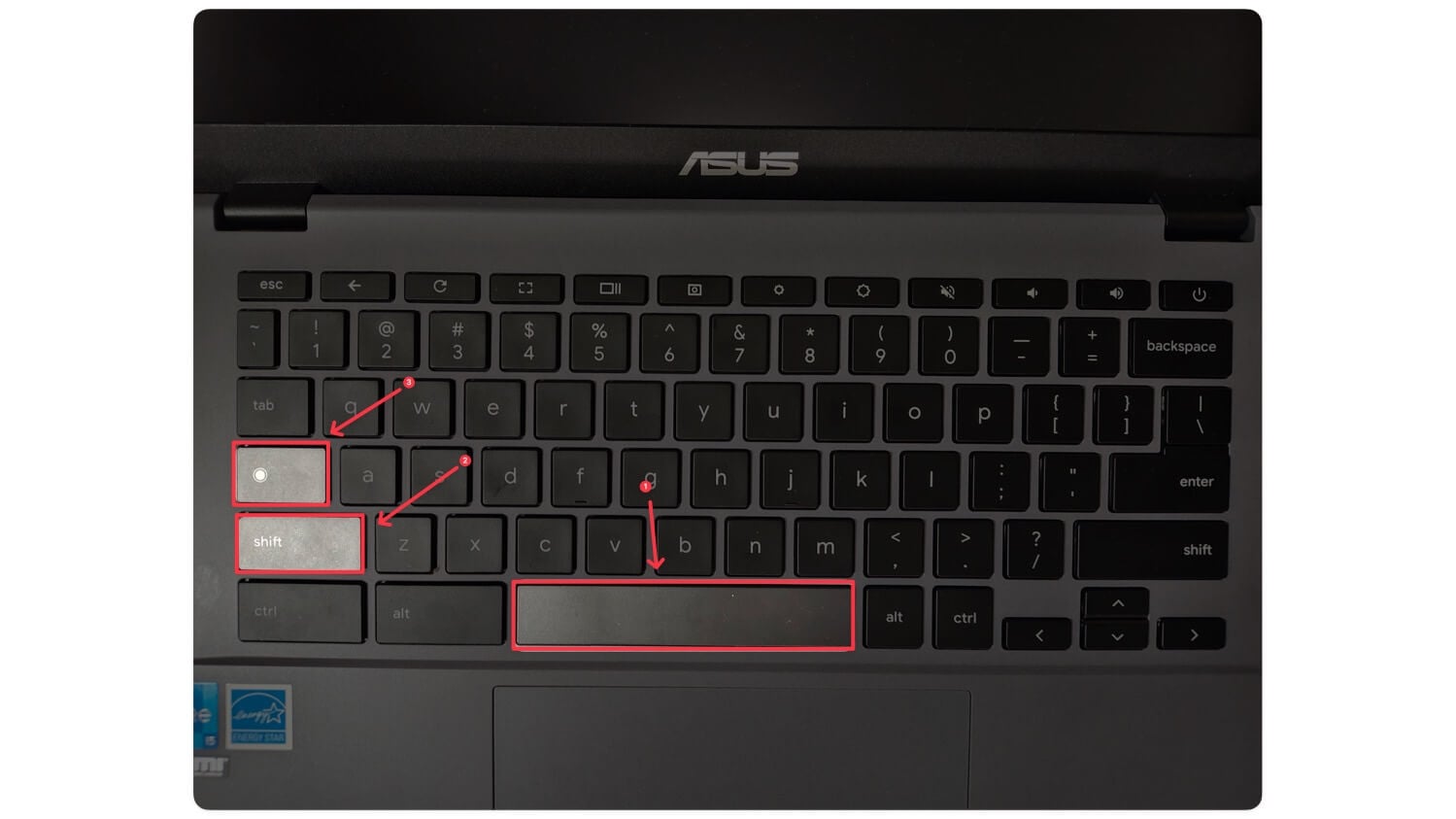
- Step 3: You can search for an emoji, select it, and tap on it to insert it. You can follow the same process to add more emojis.

While this method is most reliable, integrating it into your routines requires practice. To make it easier, you can also access emojis in other ways. See the method below.
Acccess Emojis From Context Menu
You can simply right-click or two-finger tap on the trackpad in any input text field where you want to insert your emoji. From the context menu, select the emoji option, and the emoji picker will pop up. Like the keyboard shortcut, the emoji picker only works in text input fields across various apps and websites. If the double-tap function is not working, ensure that “Enable tap-to-click” is turned on in the touchpad settings. You can find this in Settings > Device > Touchpad.
- Step 1: Open any input text field; in this case, I use Gmail.
- Step 2: Double-click the touchpad to access the context menu and select the Emoji option.
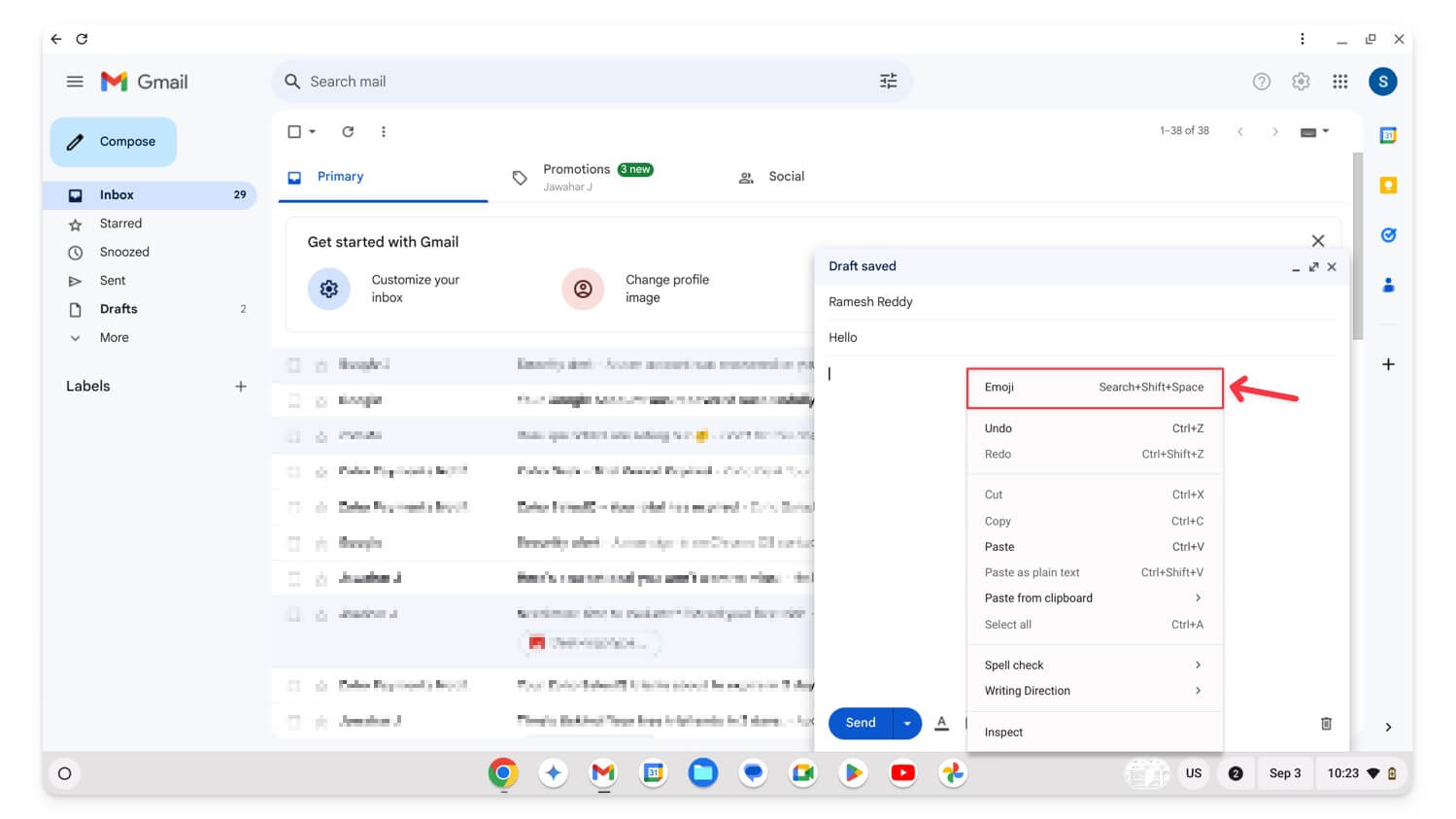
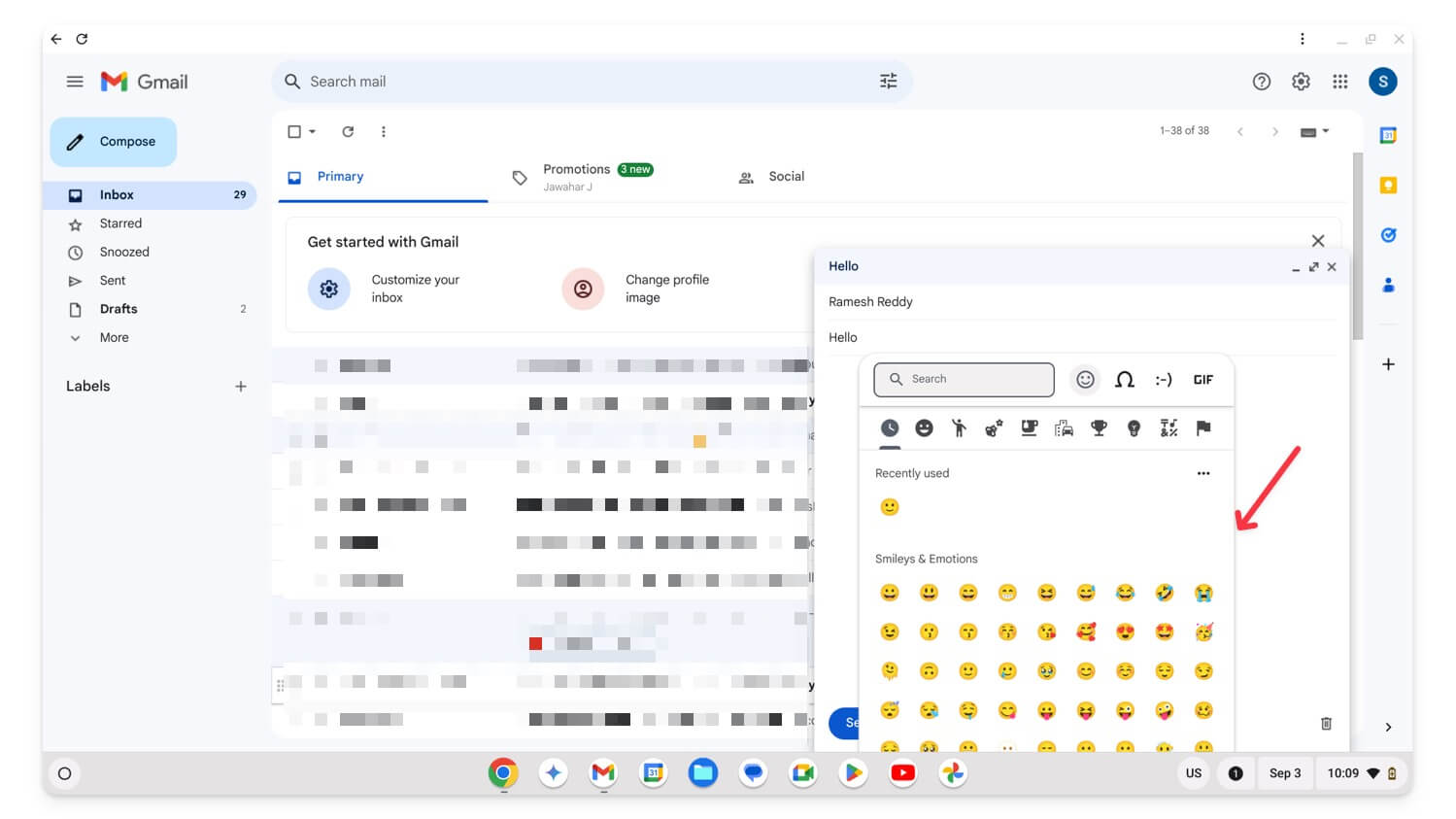
- Step 3: Click on any emoji to insert.
Access Emojis Using the Input Shelf
Another easier way to use emojis is by using the input shelf. Unlike other methods, when the input method is enabled, it is always visible and allows you to select emojis at any time without accessibility issues. To use this method, you must first add the input method to the taskbar shelf.
How to enable input shelf
- Step 1: Go to Settings on your Chromebook.
- Step 2: Click on Advanced and tap on Language and inputs
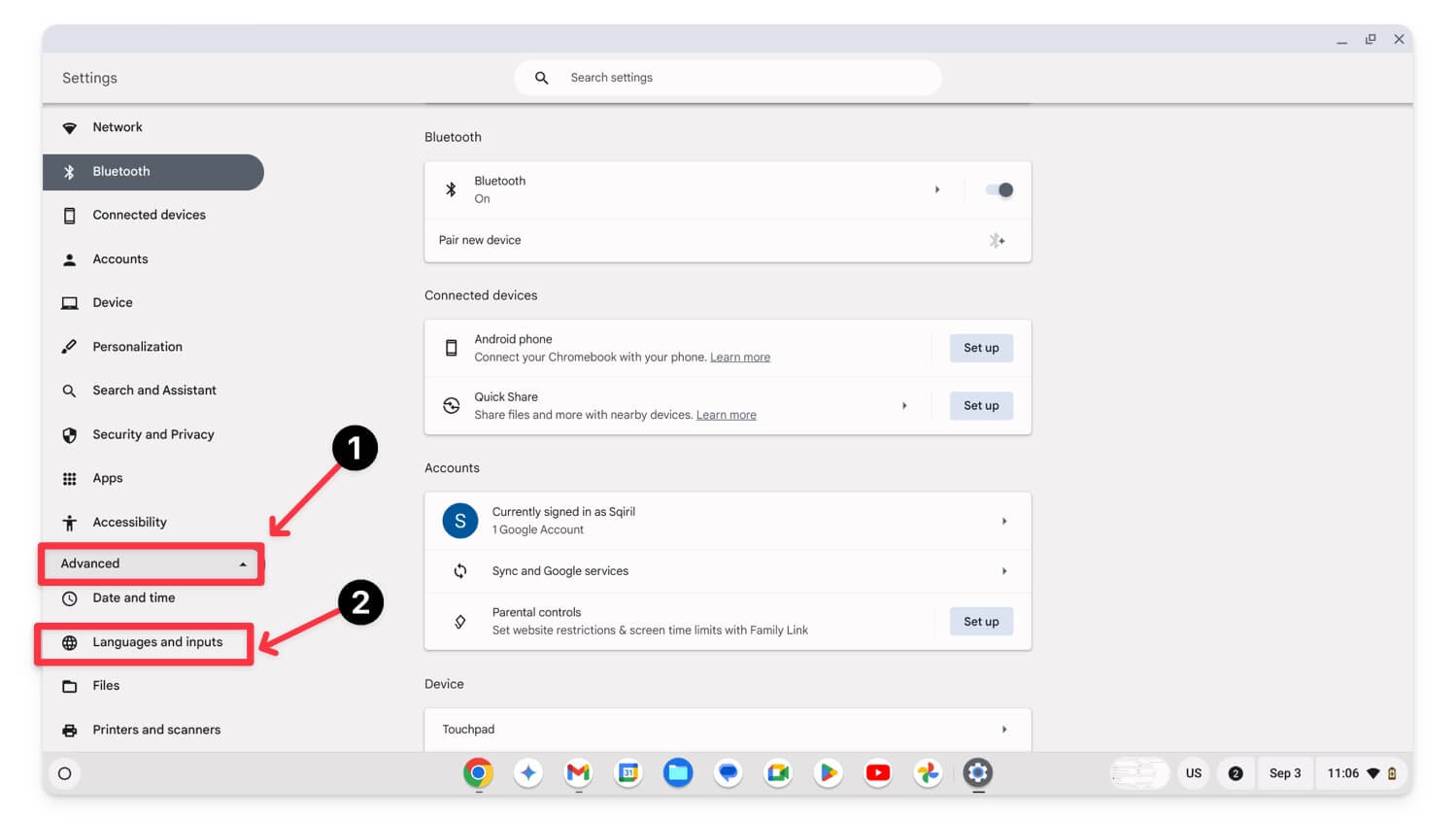
- Step 3: Scroll down and select the Input and keyboard.
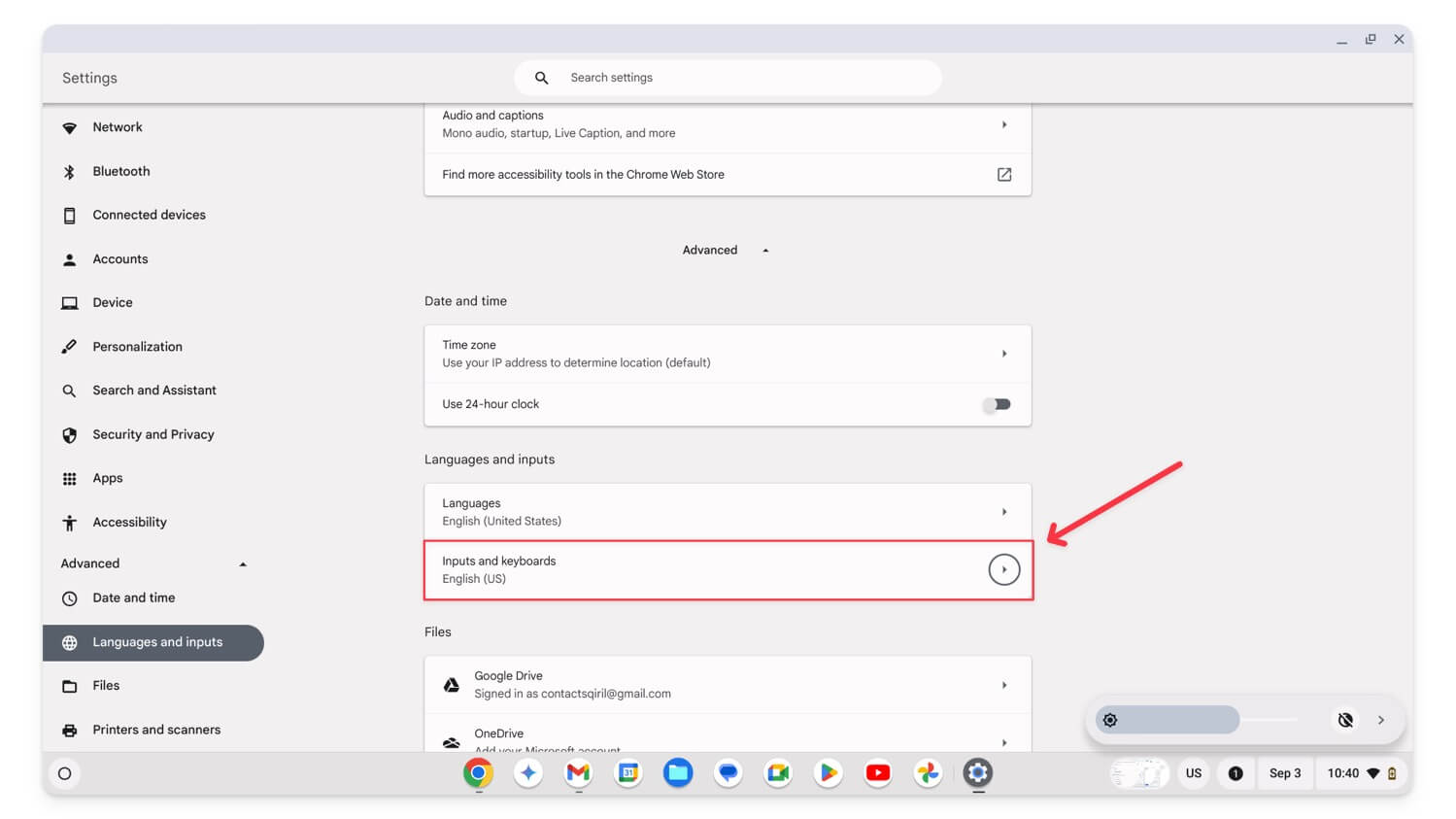
- Step 4: Enable show input options on the shelf option.

- Step 5: To access the emoji using the shelf. Click on the input method and click on the emoji icon. Remember, this only works when you are using a text input field.

Insert Emojis Using the On-Screen Keyboard
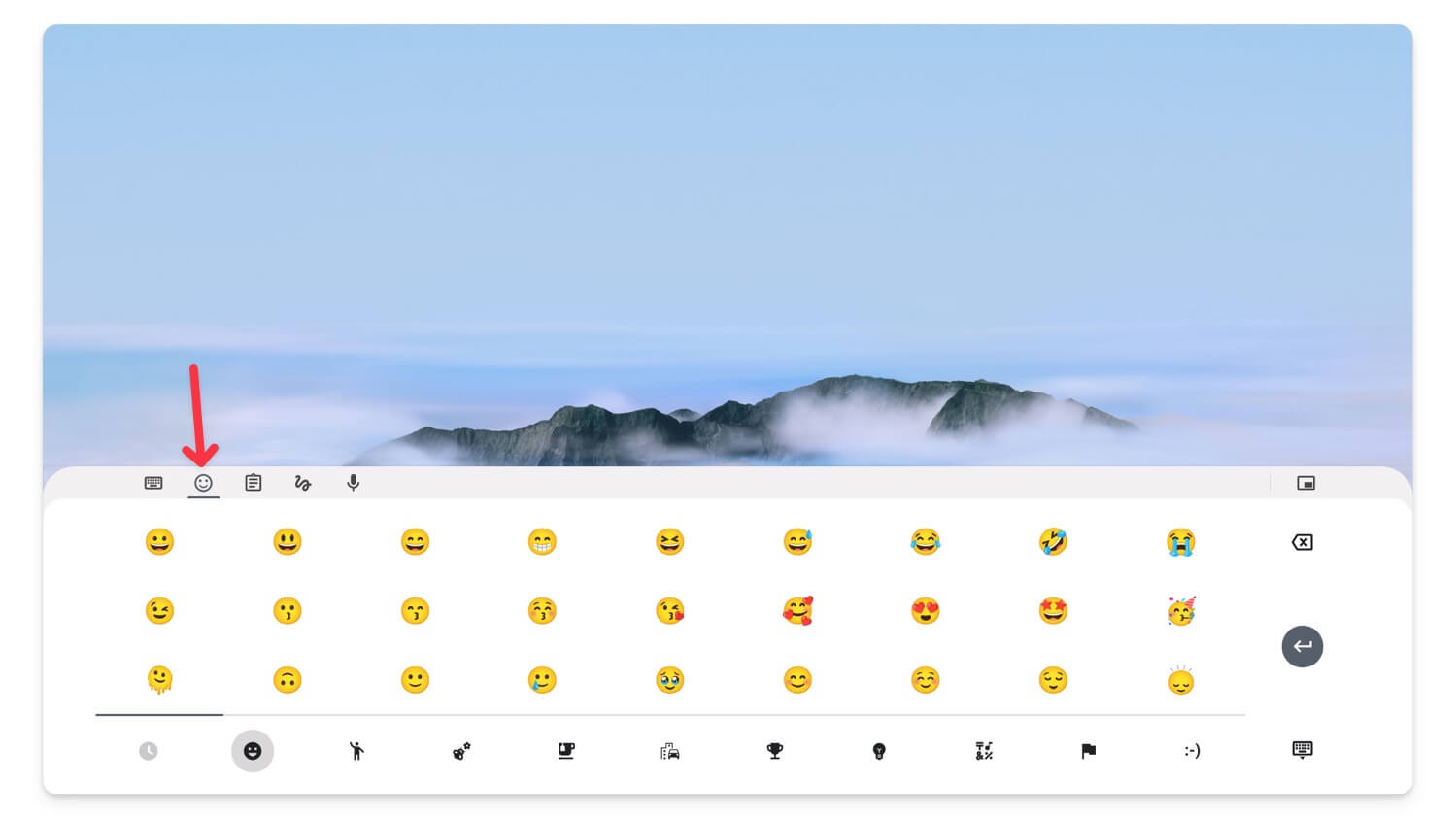
If you use a touchscreen Chromebook, you can access emojis by tapping on the emoji icon in the left corner of the on-screen keyboard. This is very similar to how we access emojis on our mobile keyboards. You can tap on the emojis and insert them into your text. Here how
Open the on-screen keyboard. Click on the emoji icon to access the emojis. You can tap on any emoji to insert it.
You can also use the On-screen keyboard on a standard Chromebook to access emojis. To enable:
- Step 1: Go to Settings, tap on Accessibility, and tap on Keyboard and Text Input.
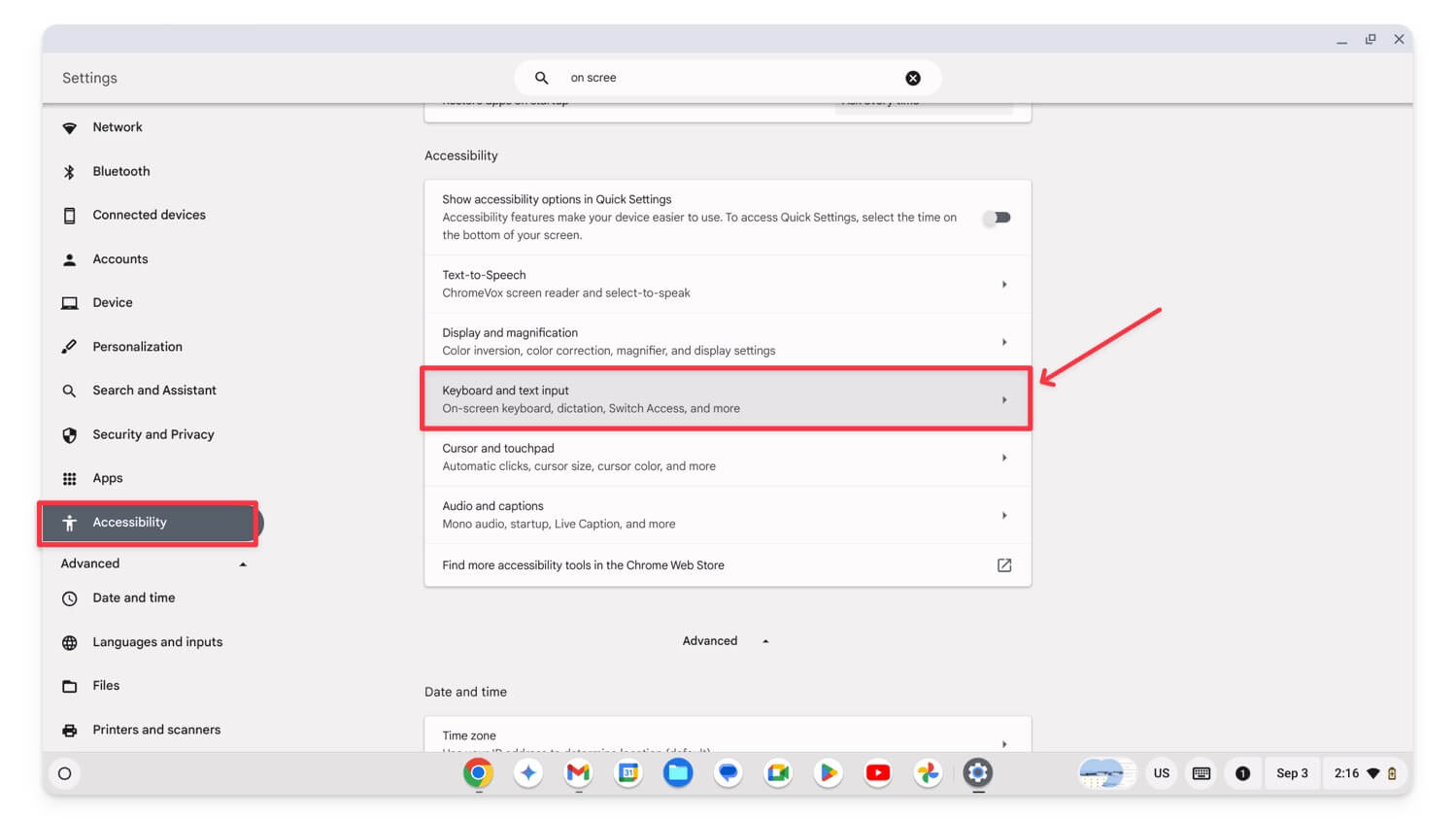
- Step 2: Now, enable the On-screen keyboard.

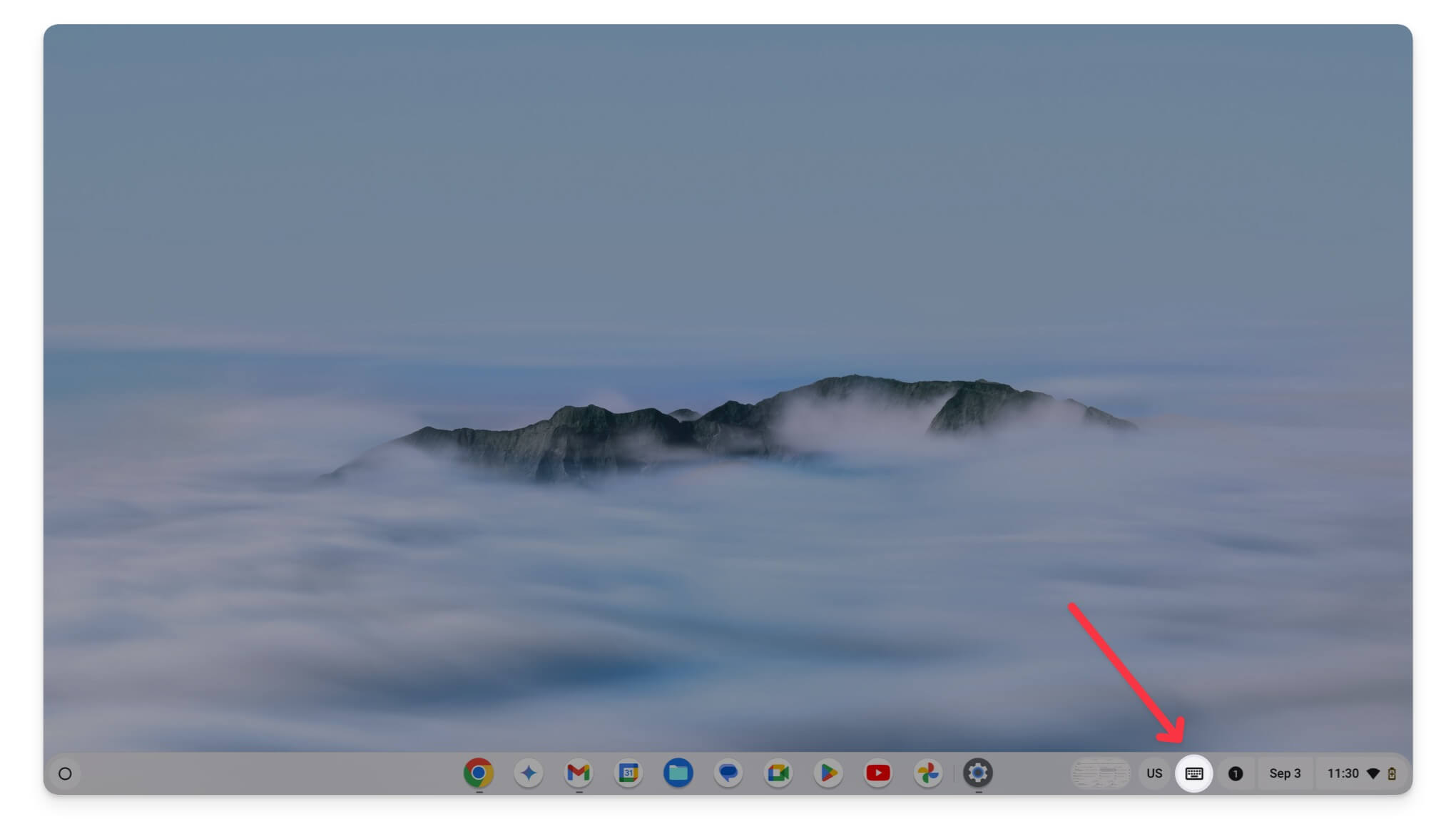
- Step 3: To access the on-screen keyboard. Click on the keyboard icon on the shelf and tap on the emoji icon to access emojis.
Express Your Emotions with Chromebook Emojis

Those are the four easy methods to access emojis on a Chromebook. You can use emojis on any text input field using these methods. You can use the built-in special characters or any of the above-mentioned methods to insert emojis into Google apps. I have also tried different emoji Chrome extensions; however, they require you to copy and paste, which is extra work. I hope these methods help you use emojis on your Google Chromebook.

