

Quick Answer
- If your Chromebook becomes completely unresponsive, Try Force restarting by holding the power button. Hard reset your Chromebook by holding the refresh and power button on your keyboard. If any peripherals are connected to your Chromebook, disconnect them. If you cannot hard reset or shut it down, wait for the battery to drain completely and restart.
- Suppose your Chromebook is partially responsive. You can use the task manager to close unresponsive apps or tabs. Finally, If none of these steps works, as a last resort, you can factory reset your Chromebook to fix the issue.
Chromebooks are lighter and faster than other devices, But they can still freeze and become unresponsive, making them unusable. There are plenty of reasons why your Chromebook might freeze. One of the most common is overloaded resources, a buggy app, or an extension on Google Chrome. You can quickly fix your frozen Chromebook and prevent the problem from happening in the future by following simple troubleshooting steps. Follow along to resolve and prevent the issue from re-occurring again.

Table of Contents
How To Fix if Your Chromebook Freezes
S.no | Method | How to |
|---|---|---|
1 | Force Restart | Hold Power button, turn it off and on. |
2 | Close Unresponsive Apps | Press Shift + Esc, end the app. |
3 | Disconnect Devices | Unplug peripherals, restart. |
4 | Hard Reset | Hold Refresh + Power to restart. |
5 | Check Error Messages | Look for error and troubleshoot based on it. |
6 | Disable Extensions | Go to Chrome > Extensions, turn them off. |
7 | Free Up Storage | Go to Settings > Device > Storage management to check storage. |
8 | Update Chrome OS | Go to Settings > About Chrome OS, update. |
9 | Wait for Battery Drain | Wait for the complete battery discharge and then plugin and restart |
10 | Factory Reset | Press Ctrl + Alt + Shift + R, and select Powerwash. |
Fix Fully Frozen Chromebook
Suppose your Chromebook is completely frozen and unresponsive, and you cannot move the cursor or have no input from the keyboard or touchpad. Follow the steps to fix the issue.
Force Restart Your Chromebook

If your Chromebook has become unresponsive, press and hold the power button until the Chromebook turns off. Wait a few seconds, then press the power button again to turn it back on.
This is the most effective method and works in most cases. However, it has some downsides. If you force restart your Chromebook, any unsaved work or data will be lost, and it may interrupt ongoing processes. If you want to avoid this, you can follow other methods that won’t disrupt the functions of your Chromebook.
Disconnect External Devices

If you have any connected peripherals, disconnect them and force restart your Chromebook. Sometimes, faulty external devices might cause your Chromebook to freeze. You can directly unplug your peripherals and then perform a force restart on your Chromebook.
Hard Reset Your Chromebook
If your Chromebook freezes frequently, you can perform a hard reset. When you hard reset a Chromebook, it reboots the system and hardware components without erasing any data on your device. It can fix most issues, including unresponsive Chromebook, touchpad, and keyboard problems. A hard reset is different from a factory reset.
How to hard reset your Chromebook:
- Press and hold the Refresh button and tap the Power button.

- Your Chromebook will shut down and restart.

To prevent the issue from happening in the fire, update your Chromebook, remove unsupported extensions on Chrome, and ensure you have at least ten percent free storage.
Wait for Battery Completely Discharge and Shutdown

If your Chromebook froze and you cannot force restart or hard shut it down, the only way to resolve it is to wait until your Chromebook discharges entirely and shuts off on its own. Depending on your current battery level, this might take some time, but you must wait patiently to fix the freezing issue.
Once shut down, remove any unwanted peripherals connected to the device, plug it in, and restart your Chromebook.
If Your Chromebook Is Partially Responsive
The Chromebook is partially responsive; you can move the cursor and switch between apps; the issue might be due to the specific app, extensions, or memory overload. Follow the steps below to fix the problem.
Close Unresponsive Apps or Tabs
If the Chromebook is partially unresponsive and you can still access other apps and tabs, try closing the unresponsive app or tab causing the issue.
You can do this by opening the task manager, selecting the unresponsive app or tab, and clicking End Process. This will force the process to stop. You can restart the app afterward. If it becomes unresponsive again, check for updates to the app or consider reinstalling it.
How to End a Process or App on a Chromebook:
- Use the keyboard shortcut Search+Escape to open Task Manager.

- In Task Manager, select the process or app you want to shut down.

- Click on End Process to stop it.
Check for Specific Error Messages
You typically don’t see an error message when your Chromebook freezes completely. However, sometimes, it displays a specific error if you are on a browser or using any app. This helps troubleshoot and identify the root cause of the problem. Many errors can occur, but here are the most common ones when a Chromebook freezes:
- Aw, Snap! : This error occurs when Chrome tabs or apps crash due to memory overload. To fix it, you can restart Chrome or close the remaining takes.
- System UI isn’t responding: This error appears when the user interface crashes or too many tasks run in the background. To fix this, you can restart your Chromebook or end the current processors from the taskbar ( follow the step 1)
- Low on Memory: This error occurs when the system runs out of RAM when too many tabs or apps are open. To fix this, you can kill unnecessary tasks in the task manager or restart the device (follow step 1)
- The device is out of storage space: This error occurs when your Chromebook has insufficient storage. You can delete the apps or data to free up storage on your Chromebook.
Based on these errors, you can start troubleshooting the root cause of the problem and fix the issue.
Disable Google Chrome Extensions
There are many cases where faulty Google Chrome extensions can freeze your Chromebook. If you have extensions installed on your Google Chrome browser and your Chromebook freezes every time you open it, the issue is likely due to that faulty Chrome extension. You can disable or reinstall the extension or use an alternative extension.
To disable Google Chrome extensions:
- Open the Google Chrome browser and click on the three-dot menu.

- Click on Extensions, select the extension, and turn it off, or click on the remove to uninstall it completely.

- After, Quit Chrome and relaunch it.
Ensure Your Chromebook Has Enough Storage
Another common reason your Chromebook might freeze is because of insufficient storage space. Ensure your Chromebook has at least 10% of free storage to run smoothly without any issues.
How to manage storage on a Chromebook:
- Open Settings and go to System Preferences.

- Click on Storage Management.

- Here, you can see all your files and apps using your Storage.
- You can uninstall apps, clear browsing data, and more to save space.

Update ChromeOS
If your ChromeOS is outdated, it can cause issues with freezing and crashing your apps. To fix this, update ChromeOS on your Chrome book to the latest version.
How to update Chromeos on your Chromebook:
- Open Settings, scroll down, and go to About ChromeOS

- It automatically downloads updates if there are any.
- Wait for it to download, and click Restart to apply the Update.
Powerwash Your Chromebook (Factory Reset)
If none of the above steps resolve the issue, you can factory reset your Chromebook as a last resort. It is one of the most effective ways to fix any errors on your Chromebook. However, remember that when you reset your Chromebook, all your data will be lost, and you will need to set up the device as if it were brand new. Ensure you back up your Chromebook before rest.

How to reset your Chromebook:
- First, you need to sign off your account. Click on the quick settings in the bottom right corner of the screen.

- Now, click on the power off icon and then tap on Signout.

- Press Ctrl + Alt + Shift + R on your keyboard and a reset window will appear.

- Click on Powerfash. Click on Continue.

- Now, click on the Restart. Your Chromebook will restart. This will reset your Chromebook and also the issues associated with it.
Resolve Chromebook Freezing
Those are the ten easy methods to fix Chromebook freezing issues. Ensure you back up your data before performing a factory reset. If your Chromebook still freezes after applying all these methods, try reinstalling ChromeOS using the Chromebook Recovery Tool. Here is a detailed video guiding you through the step-by-step process.
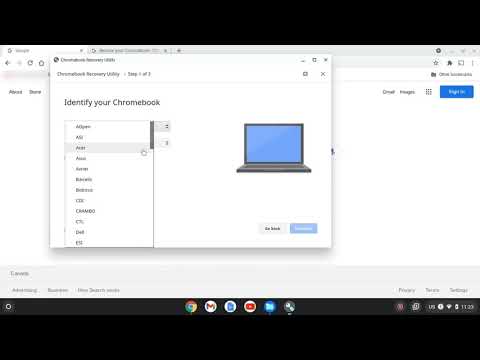
If you still face the issue even after reinstalling ChromeOS, a hardware-related problem might be causing the freezing. In this case, contact Chromebook support or visit the nearest store. I hope you find this guide helpful.

