

In Summary
Pixelcut’s Uncrop is the best free option, with an easy-to-use interface and no need for sign-up. PicsArt is best for quality image extension results for social media. Canva Magic Expand is great for Canva Pro users. AI Image Extender is affordable if you don’t want free limits. Adobe Photoshop is a great option for advanced photo editing with high-quality output. Finally, installing Stable Diffusion locally and extending images using the outpainting feature.
You no longer need complex photo editing software and spend hours editing photos. AI has made photo editing much simpler and easier. Now, anyone with a smartphone can make complex edits in seconds and get the desired output.
One area where AI saves time and removes a lot of manual work is image extension. Using AI image extension tools, you can now extend images in seconds without requiring complex software. These tools can come in handy if you want to extend the image of your pet or if it doesn’t fit in the frame and you want to extend it without compromising quality. After testing several tools over the weeks, here are the eight best image extenders to extend your images. I have included five free and five paid tools based on your needs.
Table of Contents
Best Image Extender Tools
Need for Image Expansion | Best Tool | Why It’s Ideal |
|---|---|---|
If you need a quick, free tool to extend images | Pixelcut's Uncrop | Free, simple to use, no account needed |
If you want high-quality and social media ready | PicsArt | A simple advanced Photo editing tool |
If you want a simple user friendly tool | Canva | Perfect for quick expansions, intergrated with other graohic design tools |
If you want an affordable option | AI Image Extender | Budget-friendly, straightforward to use |
If you’re looking for quality with image editing features | Fotor | Offers image expansion alogn with advanced Photo editing tools |
If you want multiple AI image editing tools | Clipdrop's Uncrop | Get multiple AI photo editing with one subscription. |
If you are a professional photo editor and wants to make you work easy | Adobe Photoshop | Produces High-quality results with photo editing features |
If you are tech-savvy and want full customization | Stable Diffusion (Local) | Set up you own image expansion tool locally on your device. |
Pixelcut’s Uncrop (Free): Easy-To-Use Image Extender Tool
Highlights:
- Price: Free
- Mobile Compatibility: Yes
- Output Quality: Good
- Customization Options: Adjustable aspect ratios and manual cropping
- Batch Processing: Not supported.
- Compatibility with Other Software: No

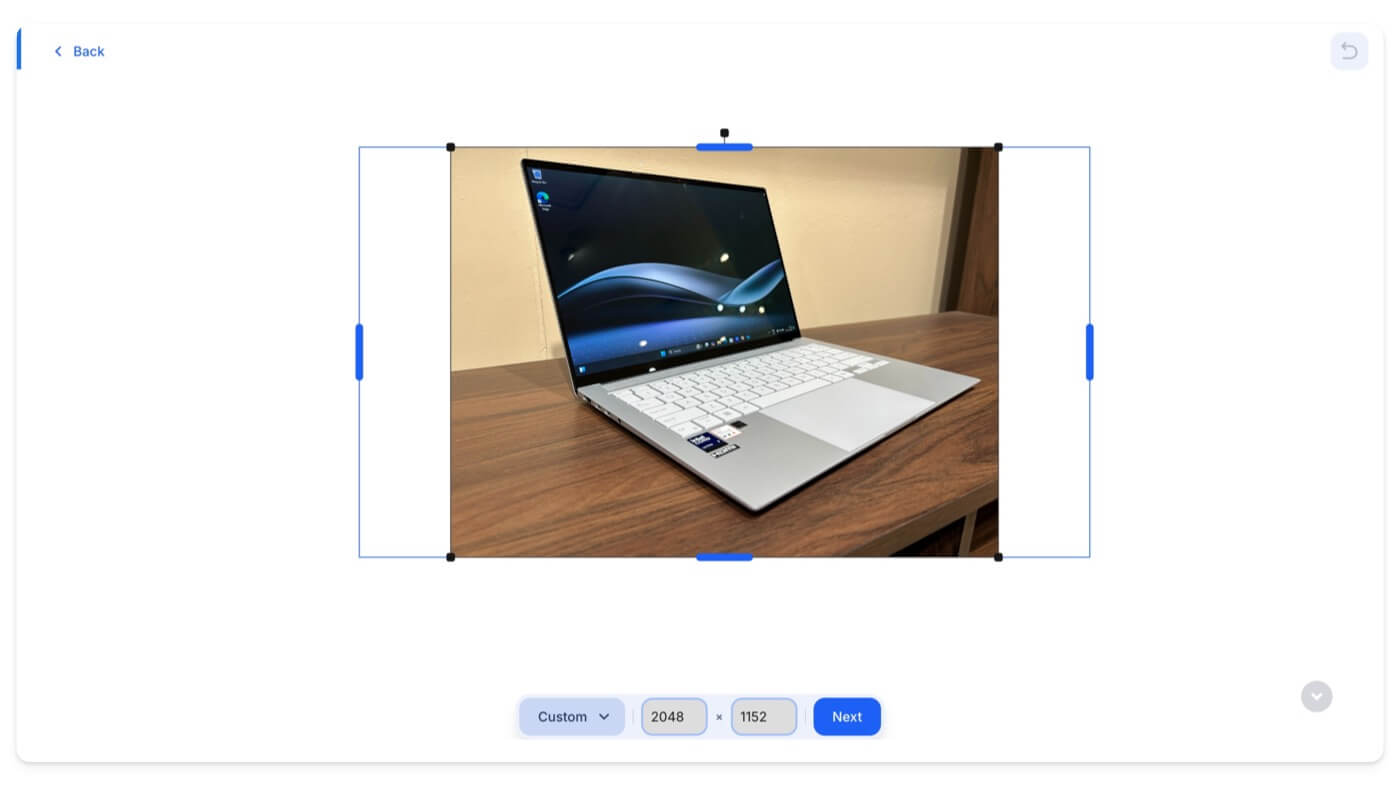
If you are looking for a simple, free tool without much customization or advanced image editing options, UnCrop Image by Pixelcut is the best option. It is free to use and doesn’t require creating an account. You can simply upload the image and use AI to expand it. You can adjust the direction or crop the image to expand it. In addition, The free version allows you to download images at up to 5350×3490 resolution in both PNG and JPG formats.
Speaking of the quality output, it’s one of the best tools, though it misses out sometimes depending on the image. For instance, I used the image of my laptop that I was reviewing, which was a product image, and I wanted to expand it. As you can see from the image above, it looks very natural and unlikely that it was AI-generated.
This also has an advanced editor that brings more photo editing tools and lets you add image layers, text, and graphics.
Pros:
- Free to use without requiring an account.
- User-friendly interface.
- Produces high-quality expanded images.
- Supports adjustable aspect ratios and manual cropping.
Cons:
- Lacks advanced editing features.
- Does not support batch processing.
- Limited compatibility with other software.
Pics Art (Free and Paid): All-in-One Editing App

Highlights:
- Price: Freemium, With 10 Free Credits.
- Mobile Compatibility: You can access via the Picsarts mobile app or web browser
- Output Quality: High-quality images.
- Customization Options: You can add text prompts to guide AI.
- Batch Processing: Not supported.
- Compatibility with Other Software: No
PicsArt is a popular photo editing app on all major platforms, including the web. It recently introduced an image resize option, which lets you expand images using AI. Currently, this feature is in beta and available for free for all users; however, it might be limited in the future with limited credits and may require you to subscribe to the premium version to get access to the tool.
I tested image resizing with several images, and the results were amazing. The best part is that PicsArt is a complete photo editing tool providing access to other AI and advanced features from the same editor. After editing or expanding an image, you can refine it using other editing tools.
It is available for Windows and Mac and has a standalone web application. It is also accessible on the mobile app. To use it, upload the image, select the template or the crop handle to fit your design output, and click expand. It takes a few seconds, and then it expands the image. You can export the image into other formats or save the image locally on your device.
As mentioned, the free version offers limited free credits, but you can play for the premium if you want a complete solution. Picsart also supports batch image processing, allowing you to select multiple images and upscale, scale, and expand all of them at once.
If you’re looking for a complete photo editing tool that can upscale images and work with many images, and if you are a content creator or someone who works with images regularly, the PicsArt tool might be a great option.
Pros:
- Primarily a photo editing app.
- Produces high-quality output.
- Available on multiple platforms, including mobile.
- Offers free credits for new users.
Cons:
- A premium subscription is required for full access.
- Batch processing is not supported in the free version
Visit PicsArt AI image extender
Canva (Paid): For Graphic Designers With Image Extension
Highlights:
- Price: Available with Canva Pro and Canva for Teams
- Mobile Compatibility: Canvas mobile app
- Output Quality: Good
- Customization Options: Adjustable aspect ratios.
- Batch Processing: Not supported
- Compatibility with Other Software: Only within Canva
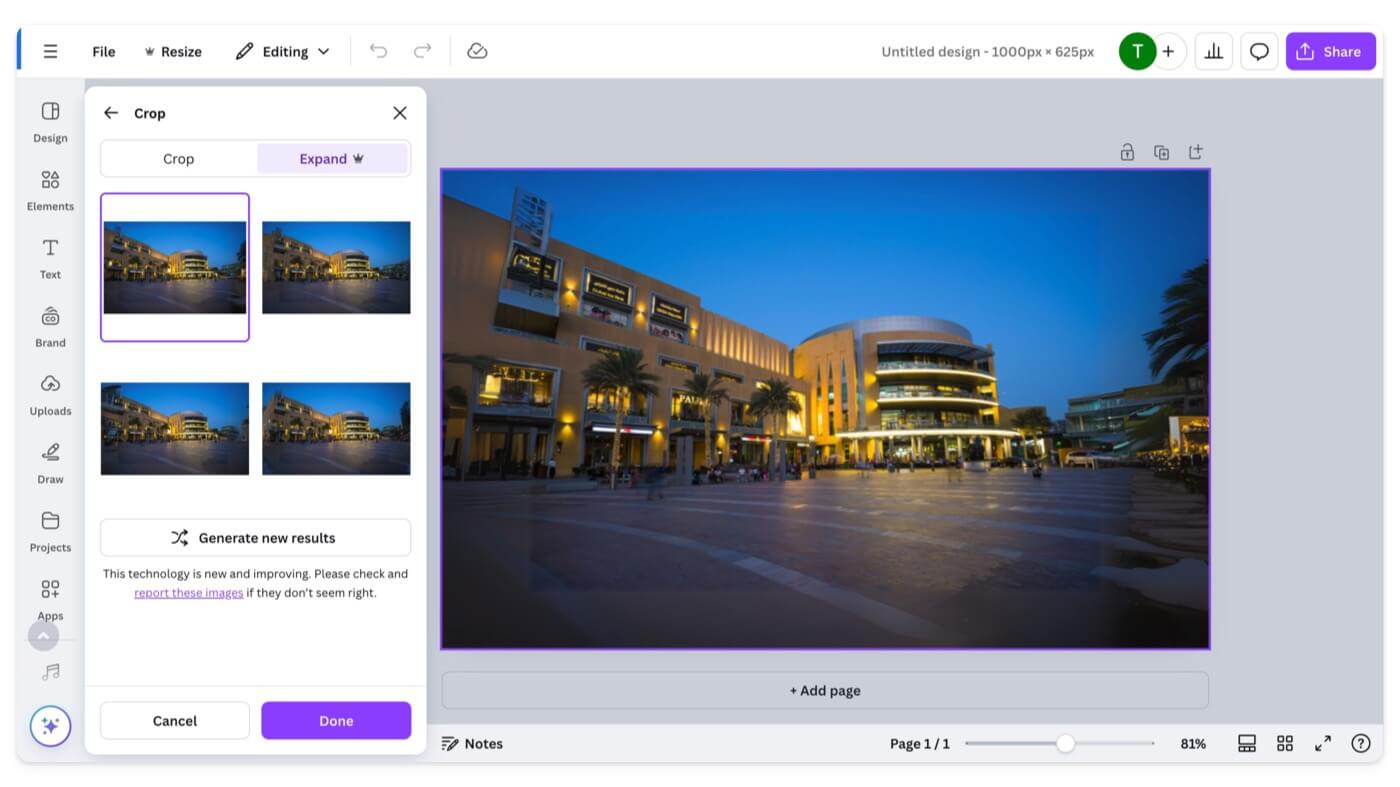
If you are a Canva Pro user, you can use the built-in Magic Expand image extension tool to extend your images using AI. The tool is baked directly into the Canva ecosystem, which perfectly aligns seamlessly with your current design flow on Canva.
You can select any image or upload an image and extend the image. It allows you to set customizable aspect ratios and manually adjust a crop handle to expand the images. It also supports directions where you can choose which direction to extend the image. Note that Canva is primarily a graphic design tool and not meant to be an advanced photo editing solution, so remember this before investing in the tool.
I have been using Canva to extend images for most of my work, and it works great most of the time; however, there are some issues, but there is always flexibility. It also offers multiple options to select which one meets your needs. If you are a Canva Pro user, you can use the tool for free, and in my experience, there are no limitations if you are a pro user.
If you have multiple images in your design, you can select each image and extend the image individually. When writing this article, I found no support for batch processing.
If you are already a Pro user, you can access Magic Expand by uploading the image you want to expand, clicking, and selecting it. In the side panel, click on Edit Image in the toolbar. In the side panel under Magic Studio, scroll right if needed and select Magic Expand. Now, choose the ratio, adjust the crop you want to expand, and click the Expand button. It will generate four images similar to the one you want to expand.
Pros:
- Built into Canva.
- Offer easy manual adjustments.
- Good quality for extending images.
Cons:
- Only available with Canva Pro (paid).
- No batch processing.
- Mainly for design, which lacks deep photo-editing tools.
AI Image Extender (Paid): Affordable, Easy-To-Use Tool
Highlights:
- Price: Paid tool. Subscriptions start at $7.99/month
- Mobile Compatibility: Supported via the web.
- Output Quality: High-quality.
- Customization Options: Add text prompts to guide AI for specific extensions
- Batch Processing: Not supported
- Compatibility with Other Software: No
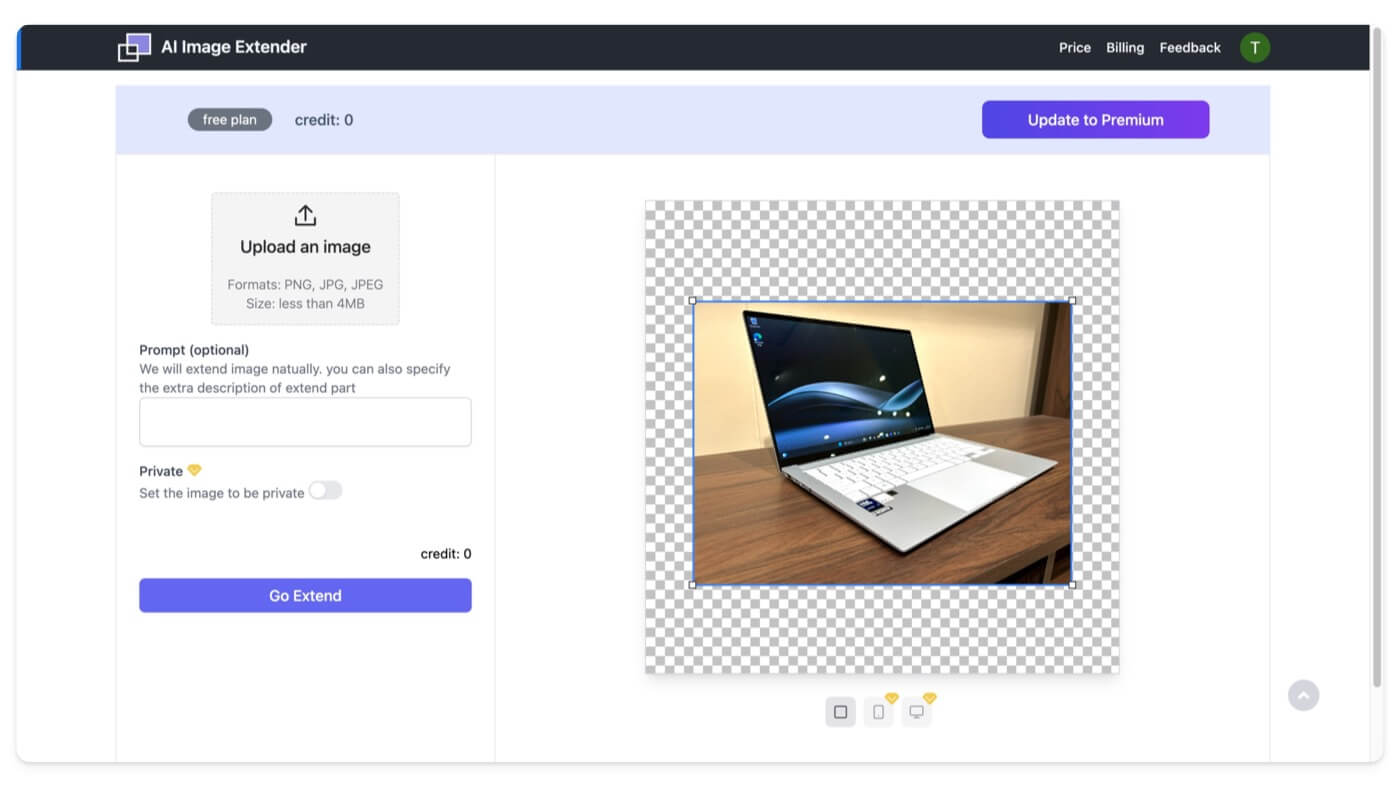
If you are looking for a simple, easy-to-use, straightforward AI image extender, AI Image Extender is the best option. Similar to others, it lets you expand images using AI.
You can upload the image, select the extended frame, and click expand. It also supports AI-generated extensions using prompts. You can describe your desired result, and the AI will generate it. Note that the tool is paid, and there are no free credits upon signing up. You have to create an account and use it.
Remember, you cannot get a refund once you have paid or opted into the plan. The monthly plan, which gives up to 50 image expansions, starts at $7.99, and there is also an annual plan, which costs $5.99 per month and offers 600 image credits.
Pros:
- Simple and straightforward.
- Lets you use text prompts to expand images.
- Produces high-quality out.
Cons:
- Paid only, no free trial or credits.
- No refunds once subscribed.
- It doesn’t support batch processing.
Fotor (Paid): Photo Editor with image expansion tool
Highlights:
- Price: Freemium; Pro plan starts at $8.99/month
- Mobile Compatibility: Yes
- Output Quality: High-quality
- Customization Options: With advanced photo editing tools.
- Batch Processing: Not supported
- Compatibility with Other Software: No
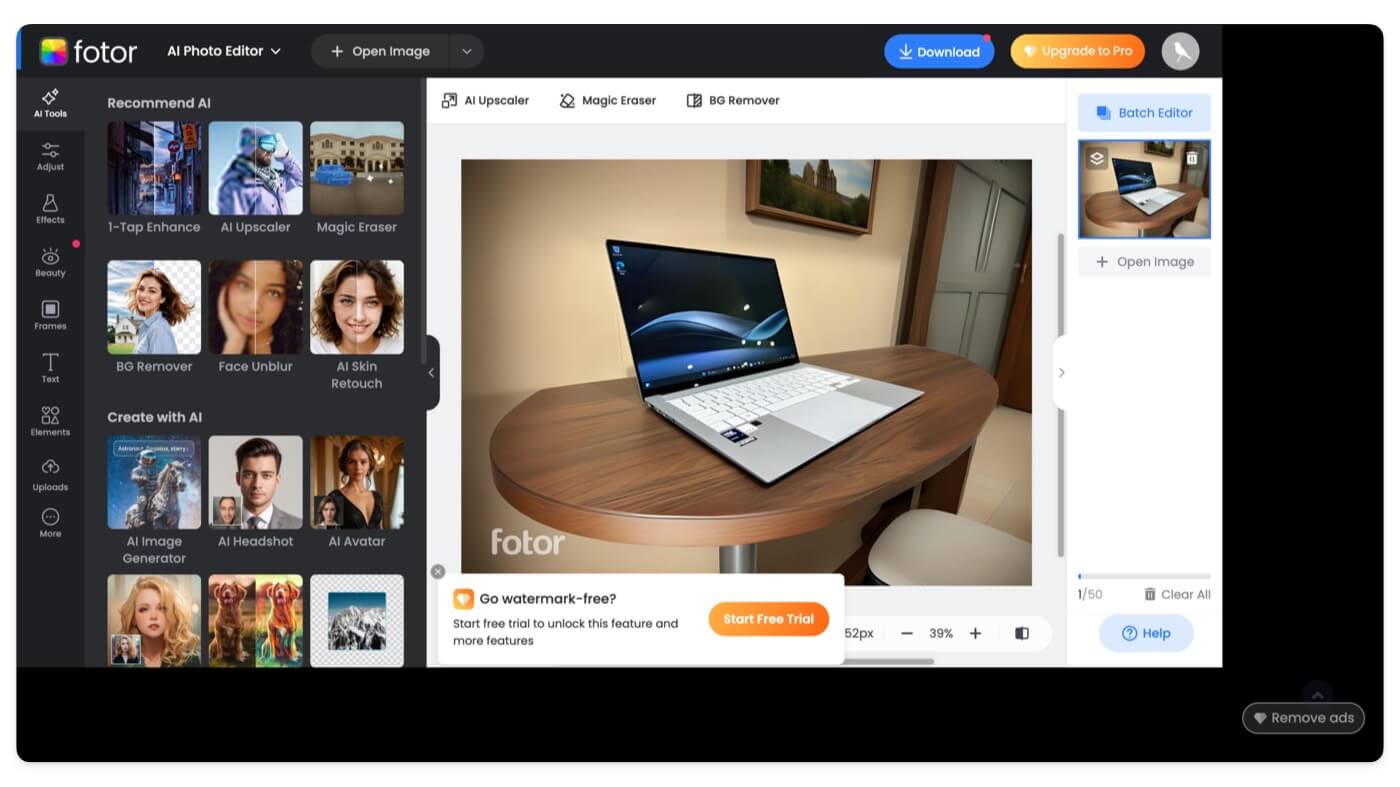
Fotor is another popular photo editing tool that offers comprehensive image editing options. Recently, it also gained the ability to extend images using AI and other AI features such as background remover, AI photo enhancer, enlarger, and more.
Like Canva and PicsArt, the AI image extender is integrated into the software and the web app and can be used alongside other editing tools. I used the same image I used for PicsArt and other AI extenders for Photo, and it generated a unique image, as you can see above. But the only downside is it adds a watermark to the edited images in the free version.
You can customize the settings to adjust the aspect ratio, copy ratio, and more to get the desired image. It does offer free credits for creating or extending images using AI, but you need a paid account to download the image. The Fotor premium plan is $8.99 per month with 100 extra monthly credits, alongside access to all AI photo editing features.
Pros:
- Offers advanced photo editing features.
- High-quality expansions.
- Available on multiple platforms, including mobile.
Cons:
- No download option for free credits.
- The free version adds a watermark.
Visit the Fotor Image Extender
Uncrop by Clipdrop by Jasper: Image Expansion With Extra Useful AI Tools
Highlights:
- Price: Freemium; Pro plan starts at $9.99/month
- Mobile Compatibility: Yes
- Output Quality: High-quality
- Customization Options: Offers tools like background removal, object cleanup, and image upscaling
- Batch Processing: Not supported
- Compatibility with Other Software: No
Crop by Clipcrop used to be a free tool to expand images using AI. However, when I checked it recently, the free trial has been removed, and now you have to subscribe to the premium to use this tool.
However, the premium features are affordable compared to other AI image extension tools. Plus, the Clipcrop website has plenty of other AI tools you can use with 1000 credits every 24 hours. If you often work with a wide variety of images and are looking for an affordable option, this might be the best option.
You can also get access to the tools, including background remover, cleanup tool, image Upscaler, sketch-to-image, image-to-create multiple variants of images, instant text-to-image generation, text generation, replace image background, swap face, a universal generator to fill, and more when you subscribe to the premium.
Speaking specifically about Uncrop, it works like any other AI tool on this list. You have to upload the image, and then you get a simple editor where you can customize and crop the size and generate AI images. The output quality was good when I tested it.
Pros:
- Lots of useful AI tools beyond just image expansion.
- Good quality results.
- Affordable subscription.
Cons:
- No free trial; subscription required.
- No batch processing.
Adobe Photoshop: Professional-Grade Image Expansion
Highlights:
- Price: Paid; starts at $20.99/month
- Customization Options: Precise control with Content-Aware Fill and Generative Fill
- Output Quality: High
- Compatibility with Other Software: Yes, with Adobe Creative Cloud.
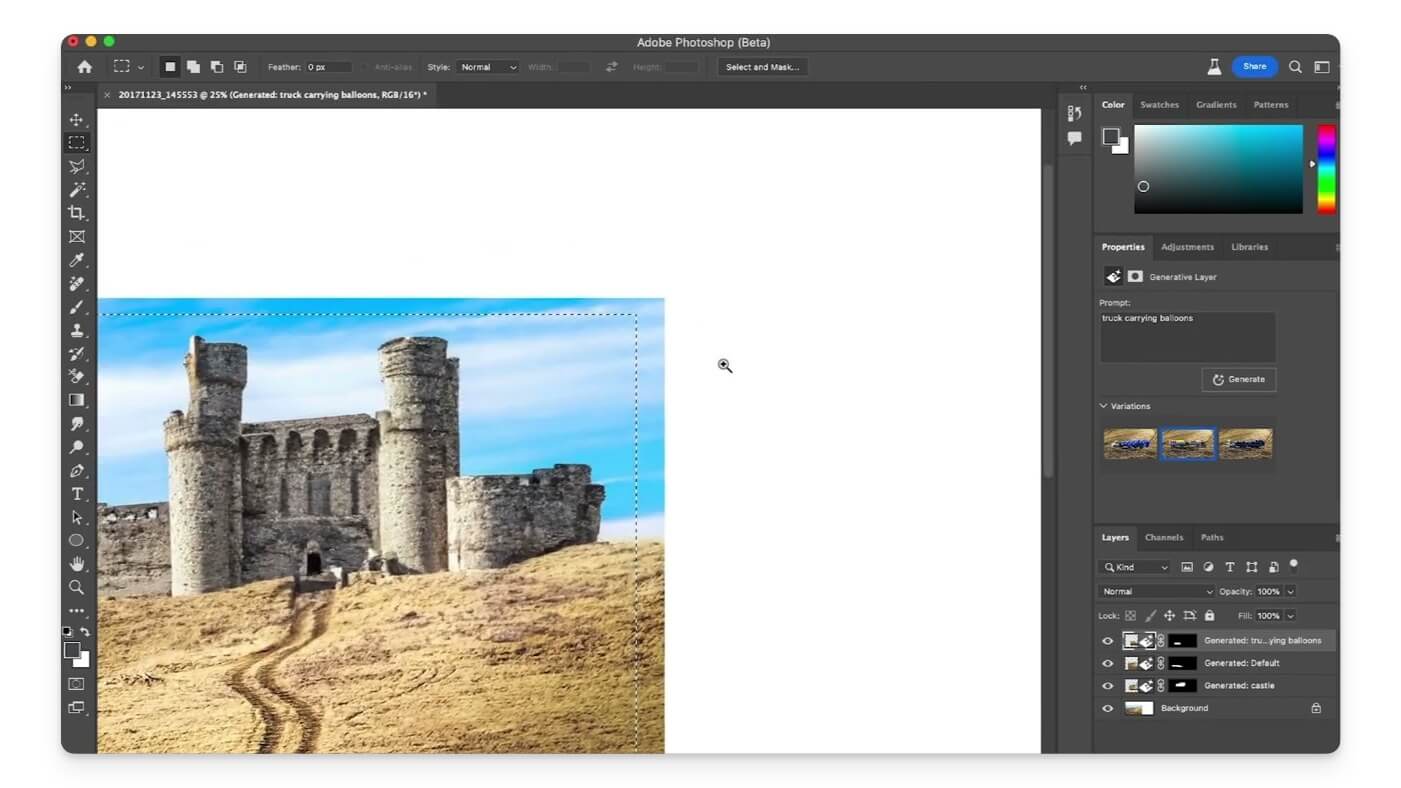
Adobe Photoshop is the best option if you are a professional photo editor looking to simplify your work using AI expansion tools. The Generative Fill feature in Photoshop allows you to expand images using text prompts and produces quality outputs, unlike other tools in this list.
However, Photoshop is a professional editor, which requires learning how to use it. Still, if you are specifically looking for the Generative Fill, it is easy to use since you can use the traditional tools, type in the prompt, and get the design. The best part of this tool is you can also use it alongside other advanced professional photo editing tools. Also, you can use it as a standalone photo editing option or upscale.
However, it is a paid tool, and you should subscribe to the Adobe Creative Cloud or individual Photoshop plan. If you already have Photoshop, upload the image, select the borders, grab the image you want to expand, and click on Generative Fill. Then, you can enter the prompt to get a design. It produces high-quality results that are better than any other tool. Before investing, ensure that this tool is meant for professional image editors and costs $20.99/month.
Pros:
- A pro-level tool with lots of advanced features.
- High-quality expansions using text prompts.
- Fully integrates with other Adobe tools.
Cons:
- Paid tool and can be pricey.
- Not ideal for beginners.
- More suited for professionals than casual users.
Stable Diffusion: for Tech-Savvy Users with Full Customization

Highlights:
- Price: Free (open-source)
- Hardware Requirements: Required dedicated GPU.
- Customization Options: Highly customizable with prompts.
- Output Quality: High Quality results.
- Compatibility with Other Software: No
You can set up and run your own image generation models locally on your device using Stable Diffusion. Running AI models takes a lot of resources. That is why most of the above image expanders are only available in premium, and a few free tools offer limited credits. You can set up Stable diffusion locally on your device and use it for free without any limits.
However, setting up and using Stable Diffusion on your device requires meeting minimum hardware requirements. For instance, you need a powerful GPU to run the model and a minimum of 8GB of RAM to run Stable Diffusion on your device. Also, image expansion using Stable diffusion is not as user-friendly as the other tools mentioned in this post. Watch the video above to set up stable diffusion locally on your device and the video below to learn how to use the outpaint image extension tool in stable diffusion.

Pros:
- Free, open-source, no limits.
- Highly customizable with prompts.
- High-quality results if you have the setup.
Cons:
- Should meet minimum hardware requirements.
- The technical setup is not very user-friendly.
FAQ’s on Best Image Extender tools
For beginners, which tool is the easiest to use without compromising output quality?
Pixelcut Uncrop is the best option if you are a beginner. It is free and easy to use without a complex editing process. It also produces high-quality results; most importantly, you don't need to create an account to use the tool.
Should I choose Stable Diffusion or Adobe Photoshop for high customization with text prompts?
Choose Stable Diffusion if you have a high-spec PC that can run locally on your device and have no problem with the setup. Keep in mind Stable Diffusion's user interface is not friendly and requires technical knowledge. While Photoshop is made for advanced photo editing and Generative Fill produces high-quality results, you need to pay for the premium version and be prepared for the learning curve in Photoshop.
Which is better for extending images within a graphic design workflow, PicsArt or Canva?
If you are a graphic designer, go for Canva. It offers a simple and easy-to-use interface and is mainly designed for graphic design. On the other hand, if you want advanced photo editing tools and want to edit photos along with image extension functionality, PicsArt is the best option for you. Remember, both require a subscription to use but PicsArt comes with free credits for the free version.
For professional results, is Adobe Photoshop worth the investment over free options like Pixelcuts Uncrop?
If you do professional image editing, Photoshop is a must-have tool if you use Adobe services. However, if you are a casual user looking to expand photos for your friends and share them on social media, you can choose alternative tools. Go to Pixelcut's Uncrop if you are looking for a free tool.

