

People hide photos and videos on their smartphones for privacy and security reasons. Some may have personal pictures that they don’t want others to see. Hiding sensitive pictures can help if your phone is lost or someone wants to use your phone.

In this guide, you’ll learn about different photo hiding apps as well as native methods for Android and iPhone to hide your photos and videos. If you’re ready, let’s get started.
Table of Contents
How to Hide Photos and Videos Using Native Methods
Before we get to the list of apps: In case you don’t know, Android phones and iPhones have a built-in option to hide photos and videos. You can easily hide any picture or video without installing third-party apps. You can also lock them for added security. However, third-party apps offer more features and sometimes have other options that are not included in your phone’s default settings. Learn how to hide photos and videos using native methods on Android.
Lock Photos and videos on Android
Android phone manufacturers offer various ways to hide and lock photos and videos.
- Samsung phones have a ‘Secure Folder’ to which you can move files using the Samsung Gallery app.
- On Xiaomi phones, photos and videos can be hidden in the File Manager app.
- On Pixel phones, users can hide their photos with the Google Photos app.
- OnePlus phones have a ‘Private Space’ in the Photos app to hide media.
The Google Photos app is available to everyone and is the default app on many Android smartphones. You can use Google Photos to hide photos on your smartphone.
Lock Photos and videos on iPhone
You can also easily hide your photos and videos on your iPhone. Compared to Android, hiding photos and videos on the iPhone is much less complicated. Here’s how:
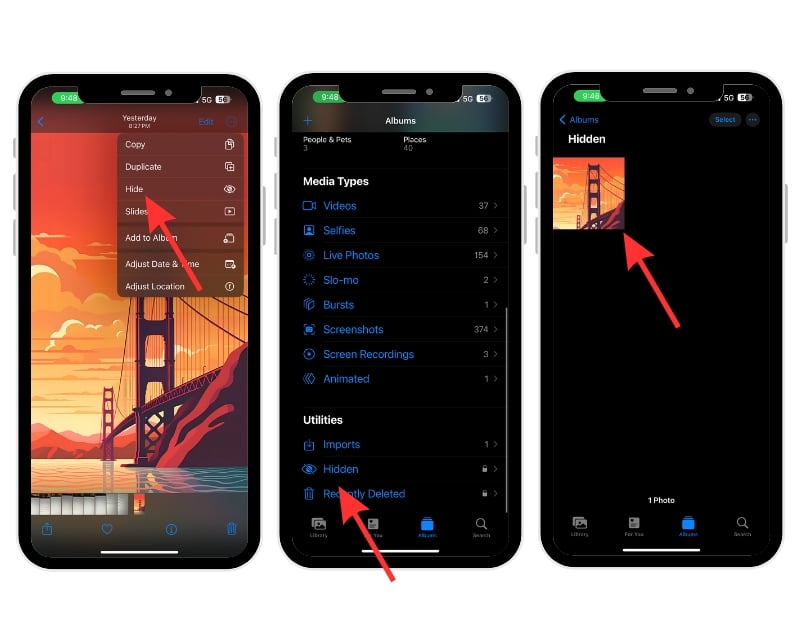
- Open the Photos app on your iPhone and select the photo you want to hide.
- Tap on the photo to open it. Click on the three-dots icon () and tap on it.
- Choose ‘Hide’ from the options and Confirm by tapping ‘Hide Photo. ‘
- This moves your photo to a Hidden album.
- To access hidden photos, click on the Albums tab, scroll down, and click on the hidden tab
- Use your FaceID and enter the passcode to view the hidden files.
Best apps to hide photos and videos on iPhone or Android
- Private Photo Vault – Pic Safe: Highly rated for its security features, this app offers photo and video protection with intrusion alerts, a decoy password, and cloud backup.
- 1Gallery: Photo Gallery & Vault: A versatile gallery app with encryption and hiding features for photos and videos, editing tools, and theme options.
- Calculator – Photo Vault: Looks like a calculator; this app hides photos and videos with encryption and includes a private browser and selfie feature for intruders.
- Files by Google: File management app by Google for Android with options to hide files. The app offers the best cleaning recommendations and locks the file securely with a pin and pattern.
- Safe Lock – Photo Album Vault: Offers multiple lock options, a hidden photo camera and cloud/WiFi transfer features and focuses on protecting private photos and videos.
- Vault-Hide photos & videos: Offers space encryption and multiple access methods, including Touch ID and cloud backup, with a focus on privacy and security for the iPhone.
- Secret Photo Vault – SA: A secure app for hiding photos and videos. The app offers features such as a decoy PIN, break-in alerts, and cloud backup.
- Secret Photo Vault – SPV: Hides private pictures and videos with PIN passcode, FaceID/Touch ID, and offers secure cloud backup and personal internet browsing.
- Gallery Vault – Hide Pictures And Videos: The app hides photos and videos with a stylish interface and secure data management.
- Photo Locker – Hide Pictures: A straightforward photo hiding app that allows PIN access and ensures your pictures are stored securely and privately.
Private Photo Vault
Private Photo Vault is a top-rated app designed to securely store your photos and videos. By setting a unique PIN for the app, separate from your phone’s PIN, you ensure that no one can access your private files.
Key Features:
- Decoy PIN: You can create a secondary PIN that unlocks a set of fake photos, providing an additional layer of protection.
- Break-In Report: If someone attempts to break into the app, it will capture a photo of the intruder and record their GPS location.
- Organization Tools: Easily organize your photos into folders and subfolders, with the ability to wirelessly sync them to your computer.
- Complete Privacy: All your data is encrypted, and only you have access to it.
Download: iOS/Android
Google Photos
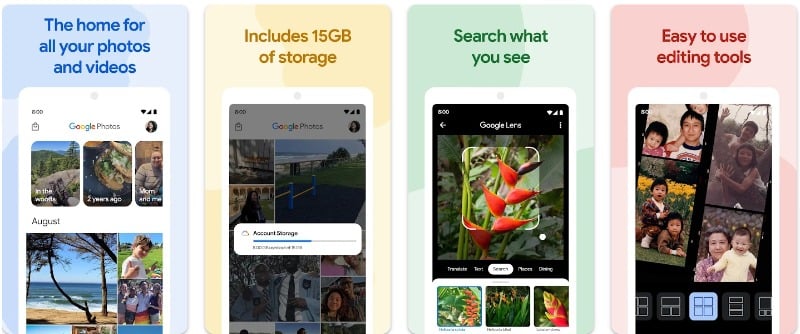
Google Photos is the standard photo app on most Android smartphones. You can hide your photos and videos on your Android and iPhone.
Google Photos offers a “Locked Folder” feature where you can keep your private photos and videos. Moving pictures or videos in the locked folder are not visible in your main photo library. You can select any photo or video and immediately move it to the locked folder.
Google Photos is the default app on most Android smartphones, and you can also set it as the default app on your iPhone. It is designed to be user-friendly and has three main navigation icons: Photos, Search, and Library. The Photos section displays recent photos and memories. You can use the search function to search for photos of people, places, categories, or objects. In the library, you can access albums, favorites, archives, and trash and create movies, collages, and animations.
The Google Photos app also offers unique tools such as the map view, where you can see photos organized by location, and integration with Google Assistant to search, view, and share photos.
How to use the Locked Feature on Google Photos
- First, open the Google Photos app on your smartphone. The app is available for both Android and iPhone, and the locked folder works on both of them. Tap the Library tab at the bottom right corner, then select Utilities at the top of the screen. Inside Utilities, tap on the Locked Folder option, then select “Set up Locked Folder.” Follow the on-screen instructions to complete the setup. If your phone doesn’t already have a screen lock, you’ll need to set one up, as it’s required for the Locked Folder to work.
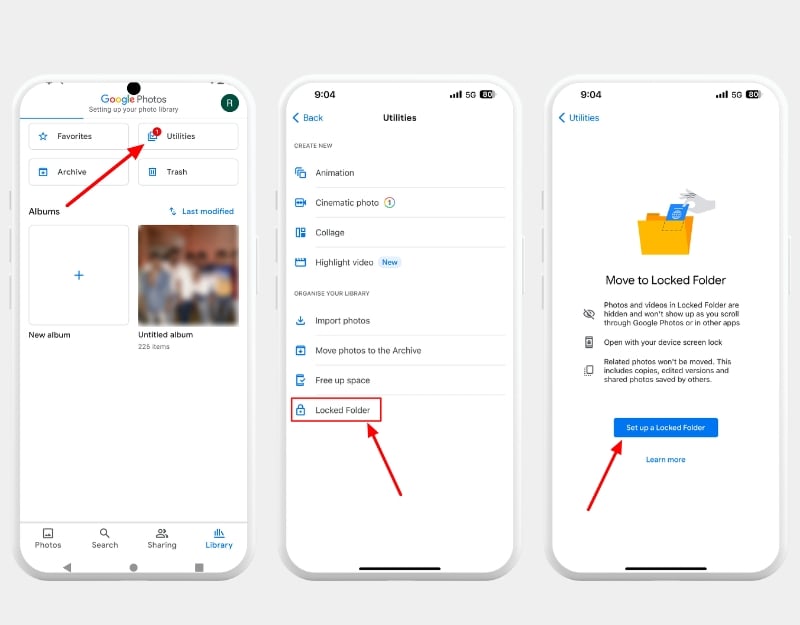
- To add photos or videos to the Locked Folder, open Google Photos and find the items you want to hide. Tap and hold on to an item to select it (you can select multiple items). Then, tap the three-dots icon at the top right corner and choose “Move to Locked Folder” from the menu. Confirm by tapping “Move,” and the selected items will be removed from your regular Google Photos library and moved to the Locked Folder.

- To access the items in the Locked Folder, Open Google Photos, tap on the Library tab and then select Utilities. Tap on the Locked Folder option. You’ll need to unlock the folder using your screen lock or fingerprint. Once unlocked, you’ll see all the items you’ve moved to the Locked Folder.

Click on the Library from the Bottom Navigation Bar>Click on the Utilities to view the Locked Folder (Image 1)
Download Google Photos: Android | iOS
Keep Safe Photo Vault
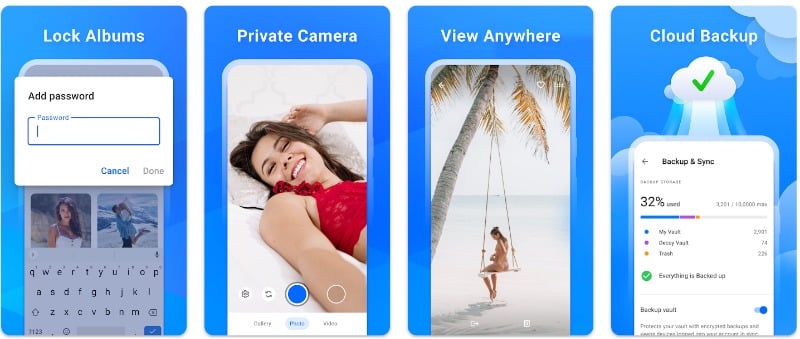
KeepSafe Photo Vault is an app that helps you keep your private photos and videos safe and secure from others. You can lock your stuff with a PIN code or fingerprint to see the hidden files.
The app uses strong encryption to secure the photos and videos loaded into the app. In the free version, you can store up to 200 photos. With the premium version, you can store up to 10,000 photos if you need more space. And if you accidentally delete something, you can restore it. The app lets you create your own albums to categorize your photos. You can view private photos and videos in full-screen mode or as a slideshow. The app allows you to share and send private photos for a limited time.
The app also has some nifty features. You can make the app look like something else on your phone. This way, no one will know you’re using a photo vault. You can also share your photos securely with a few selected people. The app stores your pictures in the cloud.
You can hide photos and videos by uploading them manually or recording them directly in the KeepSafe app. You can upload photos from the Photos app or import images from the Keepsafe app. Afterward, the original files will be deleted from the Photos app with permission. You can allow the app to make changes, in which case they’ll be deleted automatically.
The user interface is clean and easy to use. The app is free, and there is also a premium version that offers additional benefits such as locking certain albums with individual PIN codes, compressing photos and videos after backing them up to the cloud, recovering accidentally deleted photos, removing ads, setting certain images as album thumbnails and more. The app is available for both Android and iPhone.
1Gallery: Photo Gallery & Vault

1Gallery: Photo Gallery & Vault is a nifty app for your phone, designed for anyone who wants to keep their photos and videos safe and hidden. The app is a gallery app and is great for organizing your pictures and videos. You can also edit them, e.g., with tools for cropping and adding filters. It’s handy for all types of files, even large ones.
The app allows you to lock and hide your photos and videos. You can hide photos and videos with a code, pattern, or fingerprint. You can select any photo or video in the Gallery app and move it to the secure folder. You need to set up a specific folder to protect your files. You can create it via email after you have moved the files to the attached folder. The photo or video that you have moved to the Gallery app will be automatically deleted from the Photos app. You can use the app to show or hide the hidden files in the gallery.
In the hidden folder, you can share photos, create new albums, edit photos, and much more. The app doesn’t allow you to back up the images. The app is free and comes with a premium version that unlocks additional benefits.
Overall, 1Gallery is a solid choice if you want to keep your photos and videos neat and private on your phone. The app comes with a PowerPoint and allows you to hide your photos and videos. The app offers a clean interface, and you can set different themes such as light, dark, and automatic. So you can choose what looks best or suits the time of day.
Download: Android
Calculator – photo vault

The Calculator – Photo Vault app is a clever tool for hiding your photos, videos, and other files on your smartphone.
This app looks like a simple calculator, but it’s a secure vault for hiding photos and videos on your smartphone. You can secretly store your files in it, and they’re only accessible after entering a numeric PIN on the calculator panel. It’s ideal for hiding things and cleverly concealing the Photo Vault app on your smartphone.
For security, the app uses AES encryption, so your files are safe. The app also has a private browser for secure web browsing. You can also download photos directly into the app without leaving the app.
The app also has unique features. It supports gesture control. The app can quickly close when you shake your phone, take a selfie of anyone trying to break into your vault with the wrong password, and even create a fake vault with a different password for fake photos and videos. It supports fingerprint unlocking and offers a variety of colorful themes. The calculator function isn’t just an attraction; but works like a normal and scientific calculator.
The user experience is clean and simple. However, the app contains ads and offers in-app purchases. You can retrieve your password by entering a specific number and answering your security question if you forget it. The files are stored locally on your device, so it’s important to back them up before changing your phone or performing a factory reset. Overall, Calculator – Photo Vault is the best app for photos and videos on your phone.
Download: Android
Files by Google (Safe Folder)
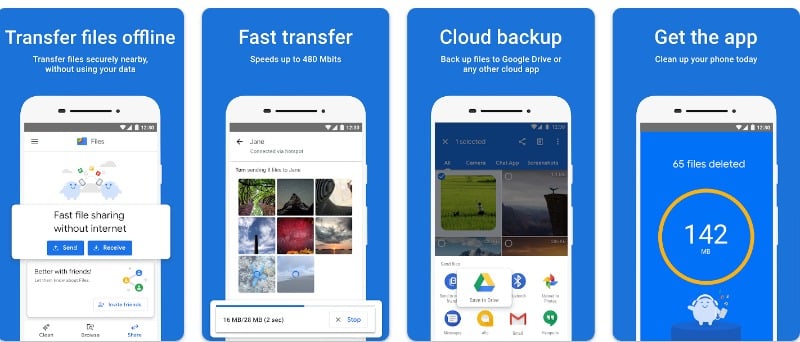
Files by Google is a versatile app that helps you manage files on your smartphone more efficiently and securely. It also has privacy features that allow you to hide your files on your smartphone securely.
First of all, the app is useful for saving space on your Android smartphone. The app gives tips on how to free up space on your device, SD card, and USB drive. Next, we have the app’s built-in security features to hide files on Android safely.
You can protect your sensitive files with a PIN or pattern that can be different from your device lock. You can hide any file in the file manager, not just photos and videos. You can protect the files with a PIN or password. Remember that this pattern or PIN is different from your lock screen. You can delete files, move them from the secure folder, view file information, and more. There is no option to share locked folder files.
Overall, Files by Google is a popular file management app for Android. You can manage your files efficiently, clear storage, and hide all files in the file manager app with a password and pin. The app is free and only available for Android.
How to hide files using files by Google app on your Android smartphone:

- Download files by Google from the Play Store.
- Select the files you want to hide and click on the three-dot menu
- Tap on Move the file to the safe folder. You can select multiple files and move them to the safe folder
- Create a pin or pattern if you are doing it for the first time.
- Your file will be moved the the safe folder.
Download: Android
Private Photo Vault – Pic Safe
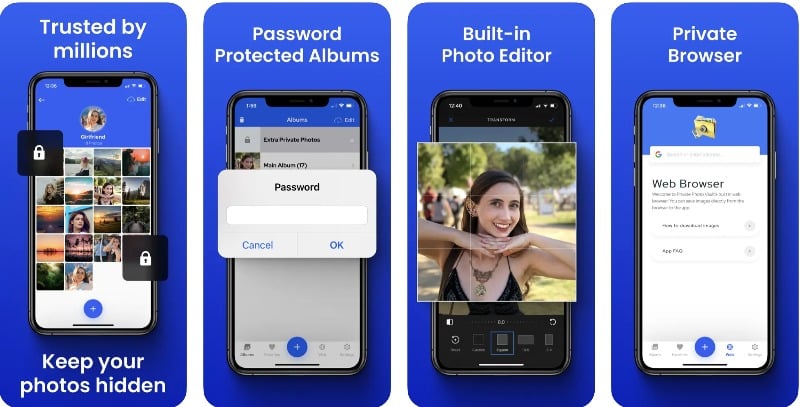
Private Photo Vault – Pic Safe was developed for iPhone and iPad users who want to keep their photos and videos private and secure. With the app, you can easily hide pictures and videos on your iPhone, iPad, and Android.
You can select photos and videos and hide them in the app. The app offers various security features such as password-protected app entry, pin lock, pattern/dot lock, password-protected photo albums, and even a decoy password to hide your files. There is also an intrusion detection feature that records a photo and GPS location if someone tries to access your private albums with the wrong password.
The app allows you to create albums, import and export photos from your device’s photo app, sync with iTunes and transfer pictures wirelessly. You can also send photos directly from the app via email or SMS. The app supports video and even includes a private web browser so you can safely browse the internet and download images to the app.
One of the most important features is the Cloud Vault, which offers encrypted cloud backup. You can use the app to back up your photos to the cloud securely. Note, however, that the free version of the app does not include Cloud Vault backup, so you will need to back up your photos and videos manually. The app requires a premium subscription to use all functions. The app is about 216 MB in size and is compatible with iPhone, iPad, iPod touch, Mac, and Android devices.
Safe Lock – Photo Album Vault

Safe Lock: Photo Album Vault is designed for iPhone users who want to keep their photos, videos, and notes secure and private.
The app offers multiple lock options, including PIN code, Touch ID, Face ID, DotLock, and numeric or alphabetic passwords to lock your photos and videos in a hidden folder. You can also use the app to hide important documents such as driver’s licenses, passports, and bank cards from unauthorized access.
The app has unique gesture features, such as innovative locking methods like shaking or flipping the device to lock the app quickly. The app offers easy data management with WiFi transfer and cloud import/export options, slideshow and sharing functions, as well as anti-theft measures that provide burglary reports with photos. In addition, the fake gallery feature allows you to customize the app icon for more discretion. The app also includes a hidden camera feature that allows you to take photos and save them directly to your secure photo vault.
The app is free and comes with a premium subscription. This includes all the features you need to manage your content. The premium version of the app offers additional lock patterns, security features for internal albums, a photo camera on the go, and more. It is free and available for iPhone and iPad.
Download: iOS
Vault – Hide photos & videos

Vault: Hide photos & videos is designed to protect and hide your private photos and videos. The app provides space encryption and multiple methods to access the Vault, including a personal digital password and Touch ID.
The app offers features such as bulk import and intelligent management of photos and videos to keep your phone organized. The app encrypts and stores newly taken pictures within the app instead of in your normal photo album.
The app also has an innovative exit function: when you turn the screen down, Vault closes, and another app is launched. The app is free and comes with a Vault Pro. It offers additional features as part of subscriptions, such as one month for $2.99, 3 months for $7.99, and 12 months for $19.99.
Overall, Vault-Hide photos & videos is the best app to hide photos and videos on your iPhone safely. The app is compatible with iPhone and iPod touch devices that require iOS 12.1 or later. It supports multiple languages, including English, Arabic, French, Portuguese and more.
Download: iOS
Secret Photo Album – SA
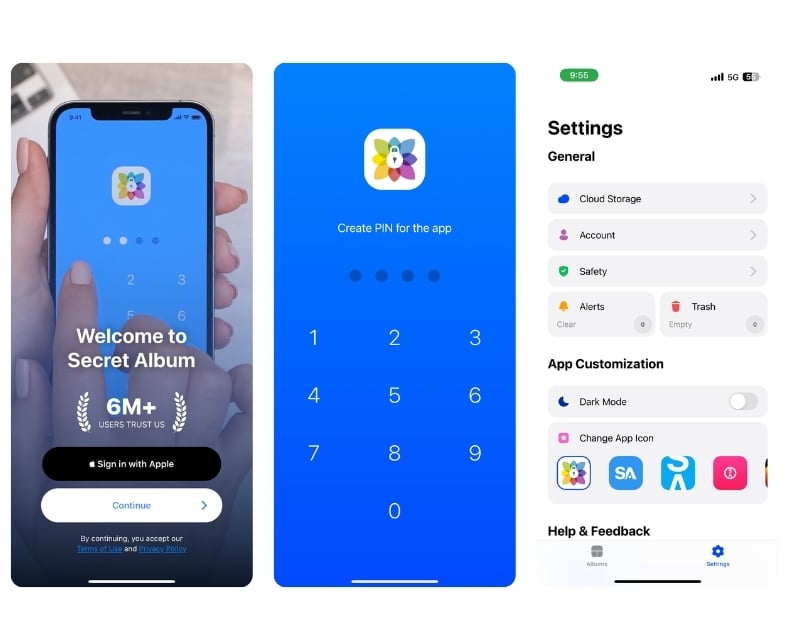
Secret Photo Album: SA keeps your photos and videos hidden and secure on your iPhone or iPad. It’s a great tool if you have sensitive files on your phone that you don’t want others to see. You can hide your private photos and videos in a secret folder that is locked with a PIN, Touch ID, or Face ID.
The app also has a fake PIN function. This allows you to show fake photos and videos if someone tries to snoop.
The app also comes with break-in alerts. If someone tries to break into your secret folder but fails, the app takes a photo of them and creates a report. The app locks itself after three incorrect PIN attempts, which provides additional security.
You can personalize the app with different color themes and album covers. It has a built-in camera, so you can take photos directly in the app and keep them hidden immediately. You can also recover photos or videos that you have accidentally deleted.
The app is free and is also offered in a premium version. The premium subscription offers unlimited cloud storage so you can access your hidden photos and videos anytime, from any device, and much more. It is available for Android and can be downloaded for free from the Play Store.
Download: Android
Secret Photo Vault – SPV
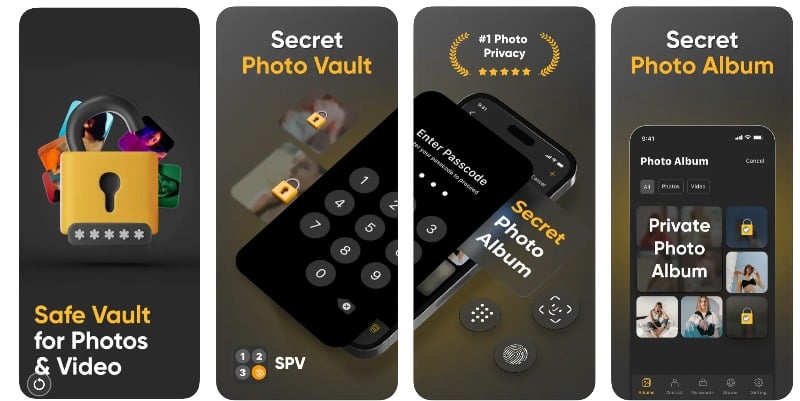
Secret Photo Vault: SPV is for those who want to keep their private pictures and videos under lock and key. It’s a good choice for people who want to protect their personal memories and sensitive information on their iPhones or iPads.
With the app, you can hide your private photos and videos in a secret album. You can lock the remote folder with a PIN passcode and FaceID/Touch ID. The app isn’t only suitable for photos and videos. You can also save your private contacts and passwords and surf the internet privately.
The app doesn’t store your photos or data on a server. It saves the data locally on your smartphone. If you delete the app, your data will also be deleted. Make sure that you back up or export the data before you uninstall the app.
The user interface (UI) is clean and clear and offers an easy-to-create secure PIN for your hidden albums. The app is free to use, but there is also a premium subscription that allows you to take advantage of additional benefits.
Overall, Secret Photo Vault – SPV is the best option for users who want to hide photos and videos on their smartphones. The app is compatible with various Apple devices, including iPhones, iPads, iPod touch, and Macs with an Apple M1 chip or later. The app supports multiple languages, including English, French, German, and Italian.
Download: iOS
Features to look for when choosing the best app
- Security: Look for apps with robust security features like PIN, password, Touch ID, or Face ID protection.
- File Support: Make sure the app supports different file formats.
- Local vs. Cloud Storage: Some apps hide and store data locally on the device, while others offer cloud storage. Both methods have pros and cons, such as accidentally removing the app, deleting data, and uploading files to the cloud, which can lead to compression of photos and more. Also, check if the app offers cloud backup for added security.
- User Interface: The app should be easy to use and navigate.
- Privacy: Make sure the app respects your privacy and doesn’t access your data without permission.
- Break-In Alerts: Some apps will notify you if someone tries to access your hidden photos or enters the wrong password multiple times.
- Additional Features: For additional functions such as private browsers, fake PIN settings, and document management.
App Name | Hidden Photo/Video | Cloud Backup | Security Options | Intruder Alert | Editing Tools | UI Design | File Import/Export | Data Encryption | File Sharing |
|---|---|---|---|---|---|---|---|---|---|
Private Photo Vault | Yes | Yes | PIN, Password, Pattern | No | Yes | Classic | Yes | Yes | Yes |
1Gallery: Photo Gallery & Vault | Yes | No | PIN, Pattern, Fingerprint | No | Yes | Simple, Clean | Yes | Yes | No |
Calculator – photo vault | Yes | No | PIN | Yes | No | Calculator | Yes | Yes | No |
Files by Google | No | Yes | PIN, Pattern, Fingerprint | No | No | Google-like | Yes | Yes | No |
Private Photo Vault – Pic Safe | Yes | Yes | PIN, Password, Pattern | Yes | No | Classic | Yes | Yes | Yes |
Safe Lock – Photo Album Vault | Yes | Yes | PIN, DotLock, Numeric, Alphabetic | Yes | No | Modern | Yes- | Yes | Yes |
Vault-Hide photos & videos | Yes | Yes | PIN, Touch ID | No | No | Simple | Yes | Yes | Yes |
Secret Photo Vault – SA | Yes | Yes | PIN, Touch ID, Face ID | Yes | No | Elegant | Yes | Yes | No |
Secret Photo Vault – SPV | Yes | Yes | PIN, FaceID/Touch ID | No | No | Modern | Yes | Yes | No |
Gallery Vault – Hide Pictures And Videos | Yes | Yes | PIN, Fingerprint | Yes | Yes | Stylish | Automatic | No | No |
Photo Locker – Hide Pictures | Yes | No | PIN | No | No | Basic | Yes | Yes | No |
FAQs about Hiding Media Files on iPhone and Android
1. What happens to my hidden photos when I uninstall the app?
A few apps save the files locally on a device that is connected to the app. As soon as the app is removed, the data is also removed. However, some apps have a feature that backs up your hidden photos and videos to a cloud service. In such cases, the data is absolutely safe and will not be lost when the app is uninstalled. You can reinstall the app and restore your data from the cloud. To prevent your hidden photos and videos from being accidentally lost, you should check the app’s specific settings and functions for backing up and restoring data before uninstalling it.
2. Are there any risks of my hidden photos and videos being accessed by third parties?
The apps listed in this guide do not share data with third parties. However, these guidelines may be changed in the future. It is always advisable to check the apps’ privacy policies before downloading the app and adding your files.
3. Can I organize hidden photos and videos into separate albums or categories within these apps?
Yes, these apps allow you to create separate albums and categories to organize your photos easily.
4. Will these apps compress or alter the quality of my hidden photos and videos?
In most cases, the answer is no. Only a few apps save the photos locally on your device in a separate folder. In this case, the quality of the photos is not changed. However, if the app uploads the files to the cloud storage, there may be a reduction in quality, and only a few apps offer separate settings to reduce the photo quality in order to gain storage space.
5. Can I share photos and videos from within the app securely?
Yes, a few apps on this list allow you to share photos and videos with the app securely.

