

In Summary
Spotify has various icons and symbols for controls. The home page features search and library icons. Playlists let you save, download, shuffle, or search songs. The song screen includes playback, output control, and lyrics. The podcast player has similar controls. The search page also allows scanning Spotify Codes and finding songs directly.
Spotify is unarguably the most popular music streaming service of all time, all thanks to its sheer popularity and its oh-so-big music library. However, at the end of the day, it all comes down to the Spotify app, which the majority of us use to stream music. Mastering an app’s dynamics cannot be developed overnight, but you can certainly begin by understanding the icons.

Indeed, we’re returning to basics with this one as this article explores Spotify’s in-app icons and symbols. If you are a newbie in the world of Spotify or a seasoned user confused by the new icons and symbols that keep popping up after every other update, buckle up as we elaborate on each icon individually to ease your listening experience on Spotify. Let’s get going!
Table of Contents
Spotify Home Page
Start things off with the home page, which is where you’ll arrive after opening the app. The most obvious element is the bottom toolbar, which contains four icons:
- Home – This highlighted icon shows that you are currently on Spotify’s home page.
- Search – A magnifying glass depicting the search icon to search for music, playlists, podcasts, and more.
- Your Library – This bookshelf icon will take you to your saved and created playlists, albums, and podcasts.
- Premium – It’s the Spotify logo that is present to persuade you to upgrade your subscription tier. If you are already a Spotify Premium user, this icon won’t be there for you.
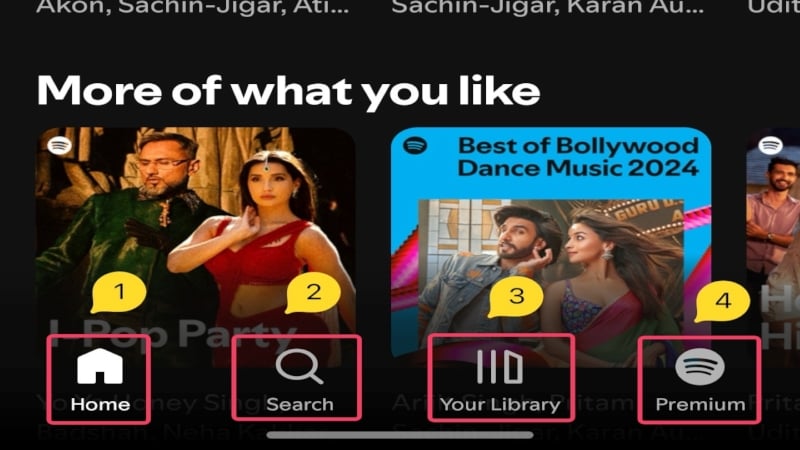
Other than this, the top section includes dedicated tabs for music and podcasts so you can quickly switch between them. The home page also showcases all the recommended playlists, songs, and podcasts using their album covers. They are based on your listening habits, popularity, new releases, and recent listenings.
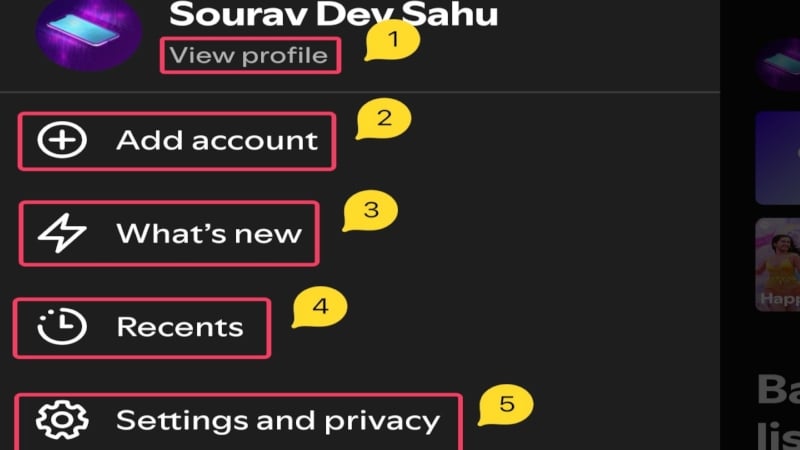
You can find a plus icon (+) beside recommended playlists, which can be used to save the playlist directly to your library. On the top-left corner of the screen, you’ll see your account’s profile picture, which is also an interactable entity. Clicking it will reveal a side menu containing the following options:
- View profile – You can access your Spotify account using this option. It can be used to edit your account name and profile picture.
- Add account (plus icon inside a circle) – This option lets you connect additional Spotify accounts on the same device.
- What’s new (lightning bolt icon) – Clicking this icon takes you to your releases center, where you can keep track of all the latest releases from the artists you follow. What’s new was previously a part of the notification center.
- Recents (clock icon with dotted borders) – This option takes you to your recently played songs, playlists, and podcasts.
- Settings and privacy (gear icon) – Self-explanatory; this option takes you to the Spotify settings page.
Spotify Playlist Page
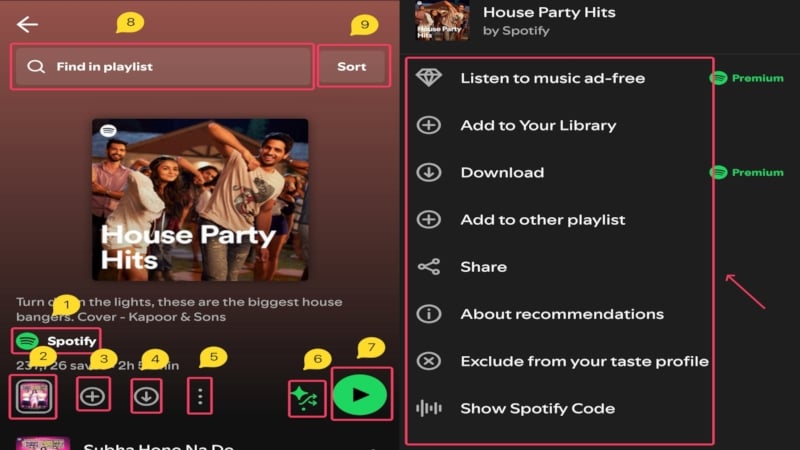
Now that you are done with the tour of the Spotify home page, how about you tap on your favorite playlist from the home page and start playing some songs? Below the playlist cover and description, you’ll find a bunch of icons. Here is what they mean:
- Artist’s name – It depicts the playlist creator’s name, which could be an artist, a random user, or even Spotify if it’s a Spotify-recommended playlist.
- Video highlights – This is a tiny video preview that takes you to the video highlights of the playlist.
- Plus (+) icon inside a circle – Clicking this icon will save the playlist to your library.
- Down arrow inside a circle – Provided you are a Spotify premium subscriber, tapping this icon will download the entire playlist for offline listening.
- Kebab menu icon (⋮) – Clicking this option will reveal a menu from the bottom containing several other self-explanatory options, as shown in the picture below.
- Criss cross arrows with a star on top – This icon is called Smart Shuffle and is turned on by default if you are not a Premium user. Tapping on it reveals other options, such as Shuffle and Play in order, both of which are exclusive to Spotify Premium users only.
- Black triangle inside a green circle (Play button) – This icon is used to play or pause the playback. Once the song is playing, the icon changes to two straight parallel lines (pause button), clicking which will pause the playback temporarily.
- Find in playlist – This option is shown when you scroll down a little and can be used to search for songs within the playlist.
- Sort – This option is present beside the search option and lets you sort the playlist. Clicking it reveals the sorting parameters.
Scrolling down a playlist shows you all the songs present in the playlist, and tapping on a song will start playing it. Alternatively, you can click the Play button mentioned above to start the playback.
Spotify Song Player
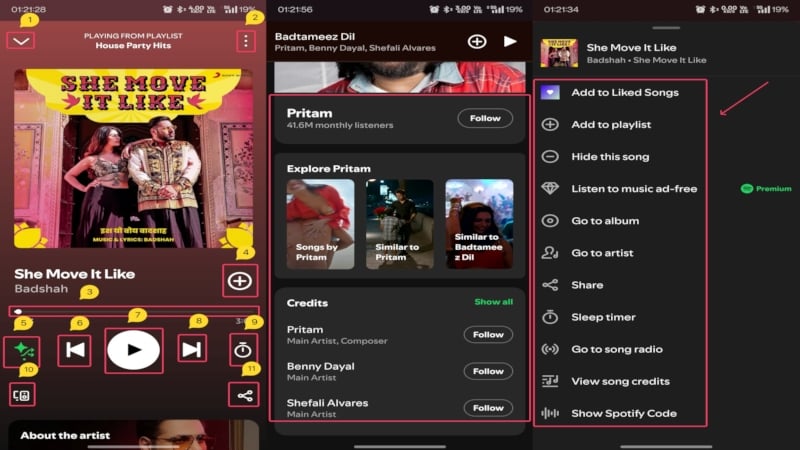
The song player is probably the page you’ll interact with the most. So, knowing how it works and what the icons mean is essential.
- Downward arrow in the top-left corner – This lets you minimize the page and turn it into a mini-player.
- Kebab menu icon (⋮) in the top-right corner – Clicking this option will reveal a menu from the bottom containing several other self-explanatory options, as shown in the picture below.
- Slider/seek bar – It’s a white progressing line with a circle at its end depicting how far the song has progressed. You can drag it left or right to jump to a specific section in the media.
- Plus (+) icon inside a circle – Clicking this icon will save the playlist to your library. By default, the song will be saved to your liked songs, but you can change its location by clicking the option again. It changes to a tick (✓) inside a green circle if the song is successfully saved to a playlist.
- Criss cross arrows with a star on top – This icon is called Smart Shuffle and is turned on by default if you are not a Premium user. Tapping on it reveals other options, such as Shuffle and Play in order, both of which are exclusive to Spotify Premium users only.
- Left facing arrow – This option replays the current song upon clicking once and the previous song upon clicking twice.
- Black triangle inside a green circle (Play button) – This icon is used to play or pause the playback. Once the media is playing, the icon changes to two straight parallel lines (pause button), clicking which will pause the playback temporarily.
- Right facing arrow – This option switches to the next song when clicked.
- Timer icon – It’s called sleep timer, which allows you to set a timer, after which the playback will be stopped. As the name says, it’s helpful for those who often sleep with music on and forget to pause it before falling asleep. Clicking it reveals a set of presets to choose from.
- Speaker in front of a screen at the bottom left corner – It lets you choose the sound output device. If your account is being used across multiple devices, you can turn any device into a remote to control the media playback.
- Share icon (left facing arrow with three dots) – This option lets you share the media you are currently playing with others. Clicking it brings up various platforms you can use to share the media, such as WhatsApp, text message, X, and more. You can also edit the thumbnail of the media if you want.
These were all the basic playback controls, but you can find additional options if you scroll down a little. These include the artist’s information, with the option to follow the artist right away. Furthermore, you can also find other playlist recommendations from the same artist and a credits section that mentions other artists involved with the option to follow them.
You’ll also find a lyrics section with a Show lyrics option. Clicking it reveals a new page with the following icons –
- Downward arrow in the top-left corner – This lets you close the lyrics page.
- Flag icon in the top-right corner – This option lets you report problems with the lyrics. Clicking it reveals the three sets of probable issues to choose from.
- Slider/seek bar – It’s a white progressing line with a circle at its end depicting how far the lyrics’ playback has progressed. You can drag it left or right to jump to a specific section.
- Black triangle inside a green circle (Play button) – This icon is used to play or pause the lyrics playback. Once the playback is going on, the icon changes to two straight parallel lines (pause button), clicking which will pause the playback temporarily.
- Share icon (left facing arrow with three dots) – This option lets you share the lyrics of the song you are currently playing with others. You will have to select the lines you want to share individually.

Spotify Search Page
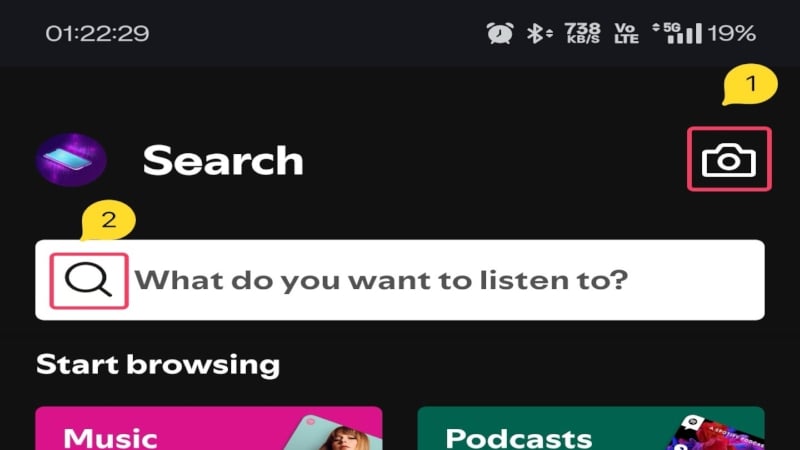
The Spotify search page is another quintessential page to search for specific songs, playlists, albums, or podcasts. It’s a relatively simple page with a few icons to understand –
- Camera icon in top left corner – Clicking this option launches your phone’s camera feed to perform a visual search. It can only read Spotify Codes, which are unique codes to identify songs, playlists, or albums. In other words, if you have a Spotify Code for a song or playlist on Spotify, you can scan it directly instead of performing a manual search.
- Magnifying glass icon – This depicts the search box to search for music, playlists, podcasts, and more.
Spotify Your Library Page
As mentioned above, the ‘Your Library’ page is where you’ll find all your saved playlists, albums, and podcasts. Here are all the icons you need to know about –
- Magnifying glass icon – This option is used to search for songs and other media within your saved albums, playlists, and podcasts.
- Plus (+) icon in the top-left corner – This option is simple: it lets you create a new playlist or Spotify Blend.
- Upside down arrows – It lets you sort your playlists, albums, and podcasts in a defined order.
- Four squares icon – This option lets you change the ordering style from list to block format. Notice the shift in the icon when you tap it.

Spotify Podcast Page
The podcast page contains a few icons that are different from any aforementioned icon. They include the following icons –
- Bell icon – The bell icon lets you turn on new episode notifications for the current podcast. You’ll automatically follow the podcast if you turn on notifications for it.
- Follow option – As the name speaks, it lets you follow the podcast and receive necessary updates.
- Gear icon – As far as all gear icons are concerned, this one, too, takes you to the podcast settings, where you can turn on automatic downloads and manage other settings.
- Kebab menu icon (⋮) – Clicking this option will reveal a menu from the bottom containing several other self-explanatory options, as shown in the picture below.

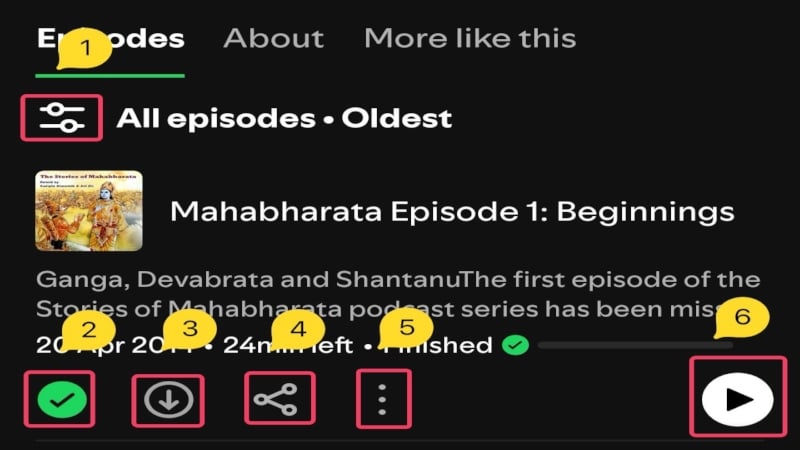
The podcast page primarily consists of podcast episodes, which also contain a few other icons, as mentioned below –
- Two horizontal lines with dots – This option lets you filter and sort the podcast episodes in order.
- Plus (+) icon inside a circle – Clicking this icon will save the playlist to your library. By default, the episode will be saved to ‘Your Library,’ but you can change its location by clicking the option again. If the episode is successfully saved, it changes to a tick (✓) inside a green circle.
- Down arrow inside a circle – Tapping this icon will download a specific episode for offline listening.
- Share icon (left facing arrow with three dots) – This option lets you share the episode you are currently playing with others. Clicking it brings up various platforms you can use to share the media, such as WhatsApp, text message, X, and more. You can also edit the episode thumbnail if you want.
- Kebab menu icon (⋮) – Clicking this option will reveal a menu from the bottom containing several other self-explanatory options, as shown in the picture below.
- Black triangle inside a green circle (Play button) – This icon is used to play or pause the episode playback. Once the playback is going on, the icon changes to two straight parallel lines (pause button), clicking which will pause the playback temporarily.
Spotify Podcast Player
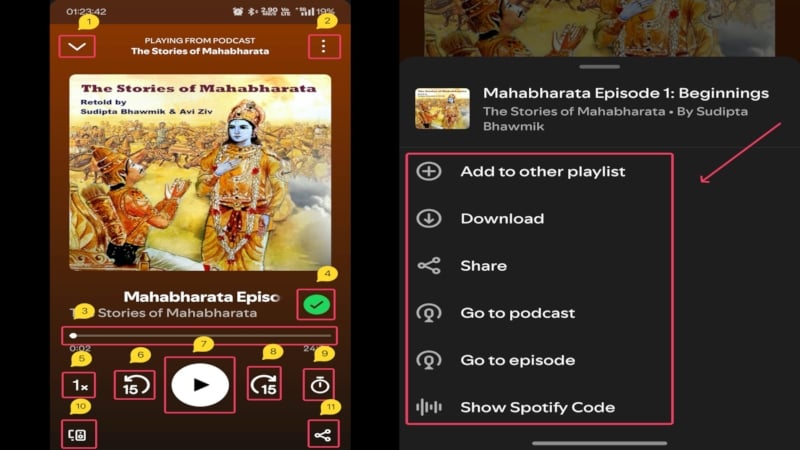
Albeit similar to the Spotify song player, the podcast player contains a few exclusive icons that you should know about. Here are all the icons present in the Spotify podcast player –
- Downward arrow in the top-left corner – This lets you minimize the page and turn it into a mini-player.
- Kebab menu icon (⋮) in the top-right corner – Clicking this option will reveal a menu from the bottom containing several other self-explanatory options, as shown in the picture below.
- Slider/seek bar – It’s a white progressing line with a circle at its end depicting how far the playback has progressed. You can drag it left or right to jump to a specific section in the media.
- Plus (+) icon inside a circle – Clicking this icon will save the episode to your library. By default, the episode will be saved to ‘Your Library,’ but you can change its location by clicking the option again. It changes to a tick (✓) inside a green circle if the episode is successfully saved to a playlist.
- 1x icon – This option lets you set the playback speed and ranges from 0.5x to 2x.
- 15 inside an arrow facing left – This option rewinds the playback by 15 seconds. It’s useful when you miss something and cannot replay the entire episode.
- Black triangle inside a green circle (Play button) – This icon is used to play or pause the playback. Once the episode is running, the icon changes to two straight parallel lines (pause button), clicking which will pause the playback temporarily.
- 15 inside an arrow facing right – This option lets you fast forward the playback by 15 seconds. It’s helpful if you wish to skip to a later part of the episode.
- Timer icon – It’s called sleep timer, which allows you to set a timer, after which the playback will be stopped. As the name says, it’s helpful for those who often sleep with music on and forget to pause it before falling asleep. Clicking it reveals a set of presets to choose from.
- Speaker in front of a screen at the bottom left corner – It lets you choose the sound output device. If your account is being used across multiple devices, you can turn any device into a remote to control the media playback.
- Share icon (left facing arrow with three dots) – This option lets you share the media you are currently playing with others. Clicking it brings up various platforms you can use to share the media, such as WhatsApp, text message, X, and more. You can also edit the thumbnail of the media if you want.
Additionally, scrolling down shows details about the podcast and its author. Spotify also throws in podcast recommendations based on the current podcast and your listening activity.
Notification Center, Lock Screen, and Always-On Display
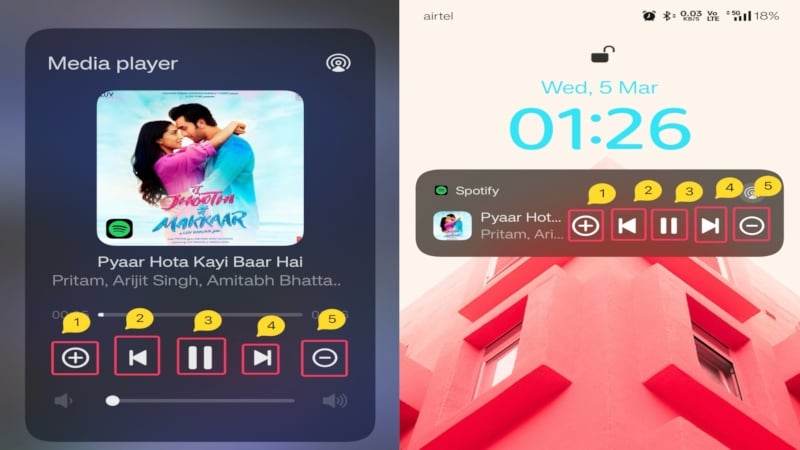
Although not every phone has it, Spotify controls can be accessed from your phone’s notification center/control panel, lock screen, or even the always-on display. The controls present there vary with phones, but here’s what’s generally there –
- Plus (+) icon inside a circle – Clicking this icon will save the media to your library. By default, songs will be saved to your liked songs playlist. It changes to a tick (✓) inside a white circle if the media is successfully saved to a playlist.
- Left facing arrow – This option replays the current media upon clicking once and the previous one upon clicking twice.
- Black triangle inside a green circle (Play button) – This icon is used to play or pause the playback. Once the media is playing, the icon changes to two straight parallel lines (pause button), clicking which will pause the playback temporarily.
- Right facing arrow – This option switches to the following media when clicked.
- Minus (-) icon inside a circle – Clicking this icon will remove the playlist from your library.
Spotify Icons Meaning: Simplifying Your Spotify Experience
Indeed, mastering all icons comes with practice, or must we say acquaintance, but you will still need to know the basic functionalities of most icons and symbols. Even if you use Spotify regularly, you might still not know the meaning of a particular icon, which you should. All the icons mentioned in this article are the elementary ones necessary for performing the intended tasks within the Spotify mobile app.
FAQs about Spotify Icons and Symbols
1. Why are the icons in my app different from those shown?
Since the Spotify app is frequently updated, the icons and symbols often undergo a design change. If the icons in your Spotify app don’t match ours, it could be because of a mismatch between our Spotify app versions. You could either be on an older or newer build than ours, causing the disparity.
2. Can I change the icons to my liking?
Unfortunately, Spotify doesn’t allow changing its core icon set, so you are stuck with what you have. It shouldn’t be a concern since the icons are easy to use and don’t have a big learning curve.
3. The icons don’t stay the same after I click them. Why is that so?
Some icons are dynamic, meaning they change with the required action. For instance, the play icon changes to the pause icon when the playback is started. Another example is the icon that saves songs and podcast episodes to your library, which also changes after you have clicked it.
4. Some icons have changed after I updated the app. Why?
In such cases, the app must have undergone design changes, causing some of the in-app icons to be replaced by new ones. If not, Spotify usually includes a walkthrough to guide you through the latest design changes. Otherwise, you can roll back to the previous version by installing the requisite APK file.

