

Quick Answer
Claude’s icons and symbols help you navigate chats, projects, coding tools, voice mode, web search, artifacts, and settings across desktop and mobile. Common icons include New Chat, Plus for attachments, Incognito Mode, Web Search, Retry Response, and Artifacts for mini apps.
AI companies behind popular AI models are now obsessed with coding benchmarks. Almost every model that started as chat first or image generation has slowly pivoted to coding. However, Claude initially focused on coding and is now pivoting into other categories.
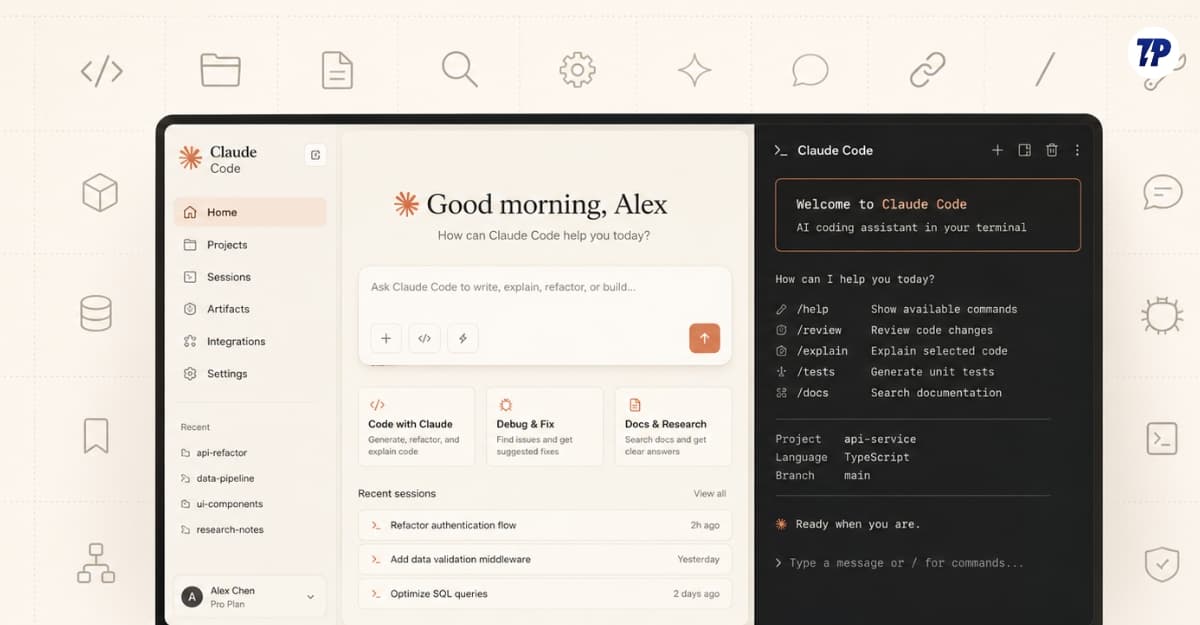
Claude can now do more than just your coding tasks. Anthropic, the company behind Claude, has recently launched several features making Claude useful for most daily tasks, whether it’s for coding, automation, business, or even for design.
I use Claude daily for my routine tasks. I published a detailed guide on how you can use Claude for everyday tasks. However, the biggest ambiguity for many people is that most of them are confused about how to use Claude or these new AI applications. It is understandable, since AI applications are new to the market and not many people are aware of them. Moreover, they are in the early stages and often experiment with new designs.
We have created UI guides to help with what the various features, icons, and symbols mean on the apps. We already have a detailed guide on Gemini icons, and a recently published icons guide on Perplexity. In this guide, you will learn everything about Claude icons and their meanings.
Table of Contents
Claude Icons Explained: Meaning of Every Claude Symbol and Button
Claude uses unique names for its features and uses icons compared to the rest of the AI apps. Even I get confused most of the time. To make it easy for you, I have divided the Claude icons explanation guide into multiple sections.
First, you will learn the meanings of the various icons in the Claude web interface and in the mobile app. Each section is divided into pages to help you understand what each icon means. Before that, here is a simple icon reference.
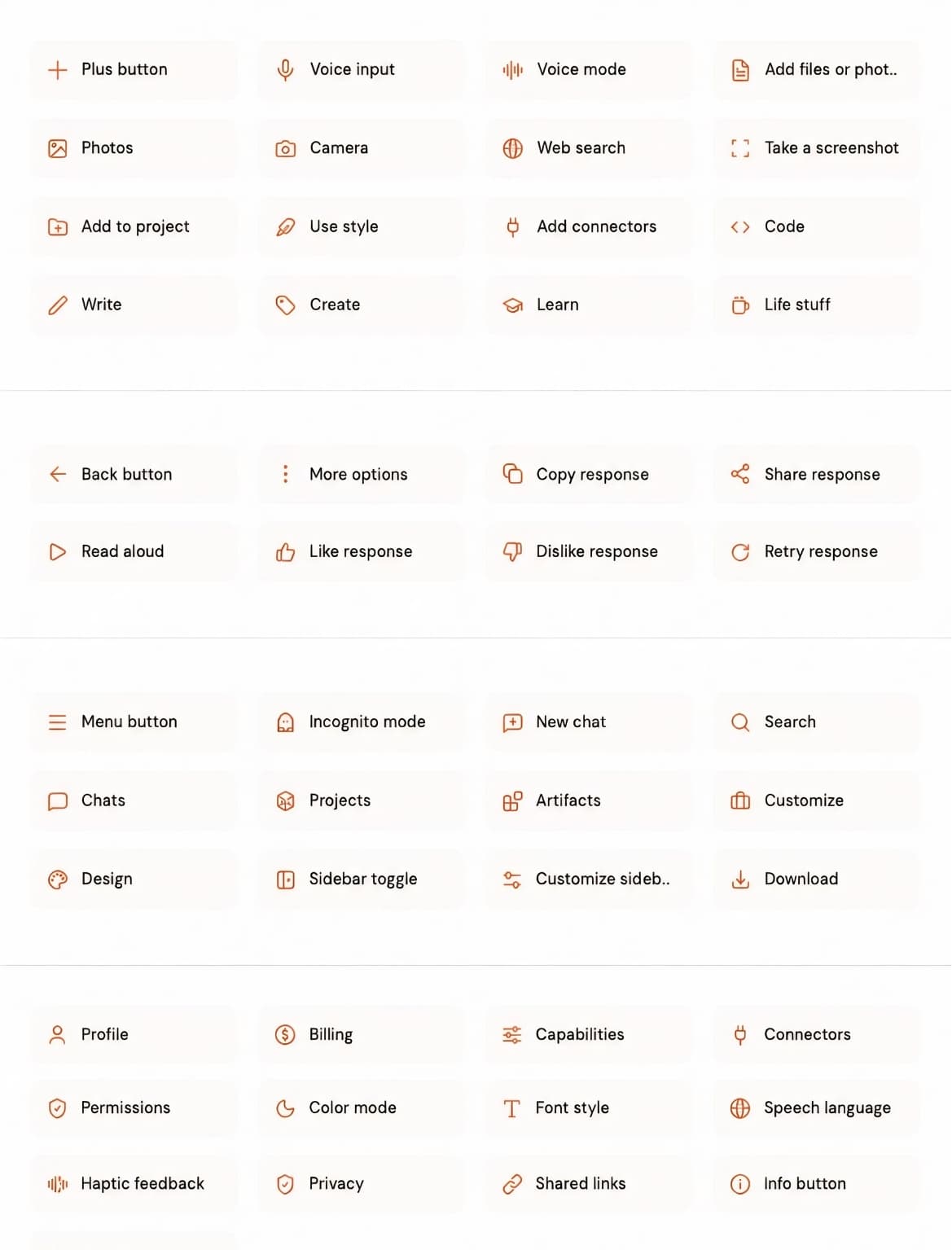
Related: View full Claude icons guide.
Claude Desktop – Home Page
During the early days, the Claude Homepage used to be very minimal, with just the prompt box. But today, the homepage is filled with plenty of features. Here is what each icon and feature means on the Claude homepage.
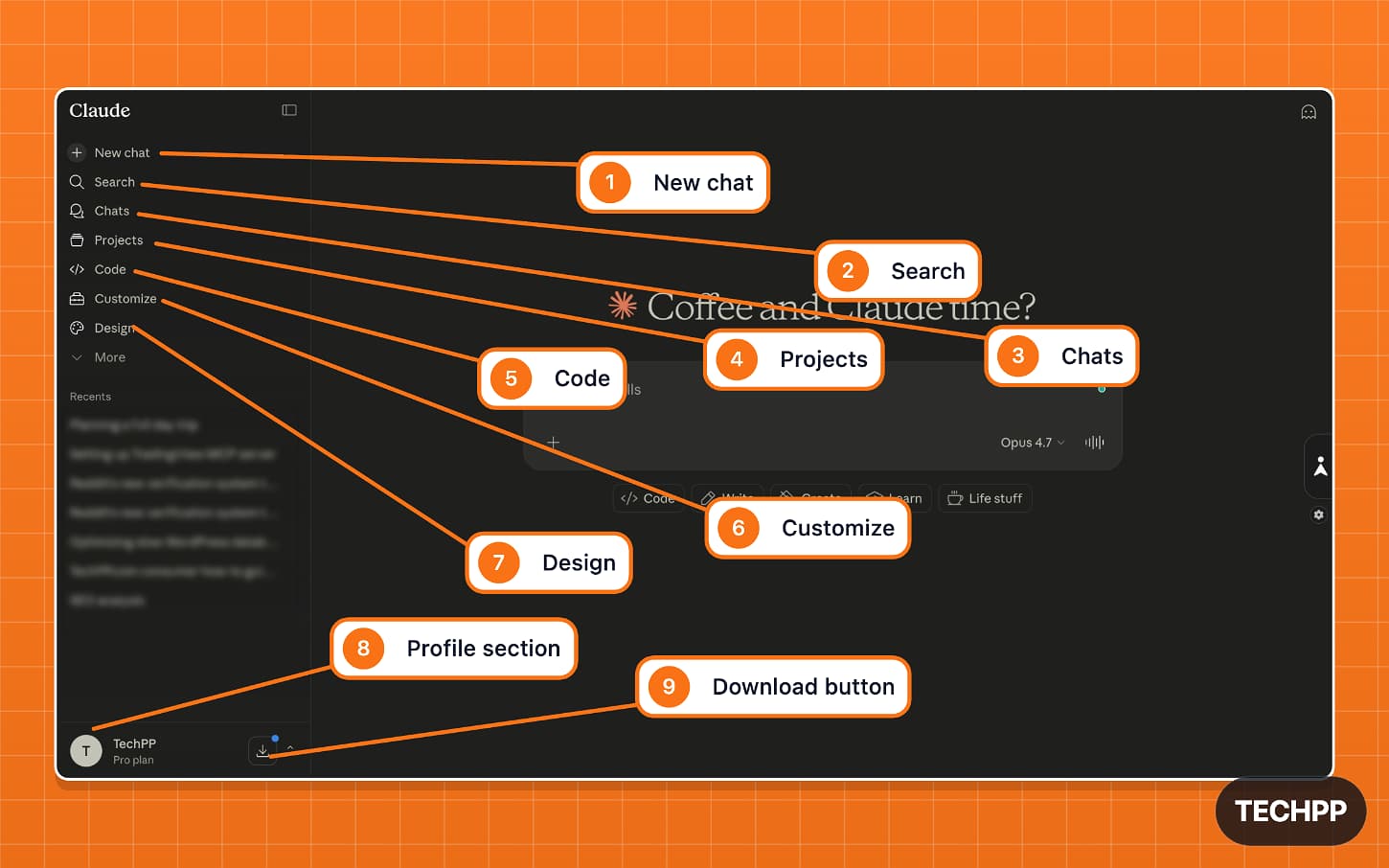
| Sl no | Symbol | What it does |
| 1 | New chat | You can start a new conversation with Claude. |
| 2 | Search | Let’s you search your previous chats |
| 3 | Chats | It opens your chat history. You can view all your past conversations here |
| 4 | Projects | It lets you create and manage your projects. |
| 5 | Code | It opens Claude’s code. A specialized coding environment inside Claude. |
| 6 | Customize | It lets you change or personalize how Claude responds to your questions. |
| 7 | Design | It has recently launched Claude Design, where you can create UI designs using Claude. |
| 8 | Profile section | It shows your account details and plan. You can access all your profile-related settings here. |
| 9 | Install / Download button | A marketing button that prompts you to download Claude apps. |
Claude’s Main Prompt Box
This is where you spend most of your time. To help you understand various icons and features, here is what each icon means on Claude desktop main prompt box.
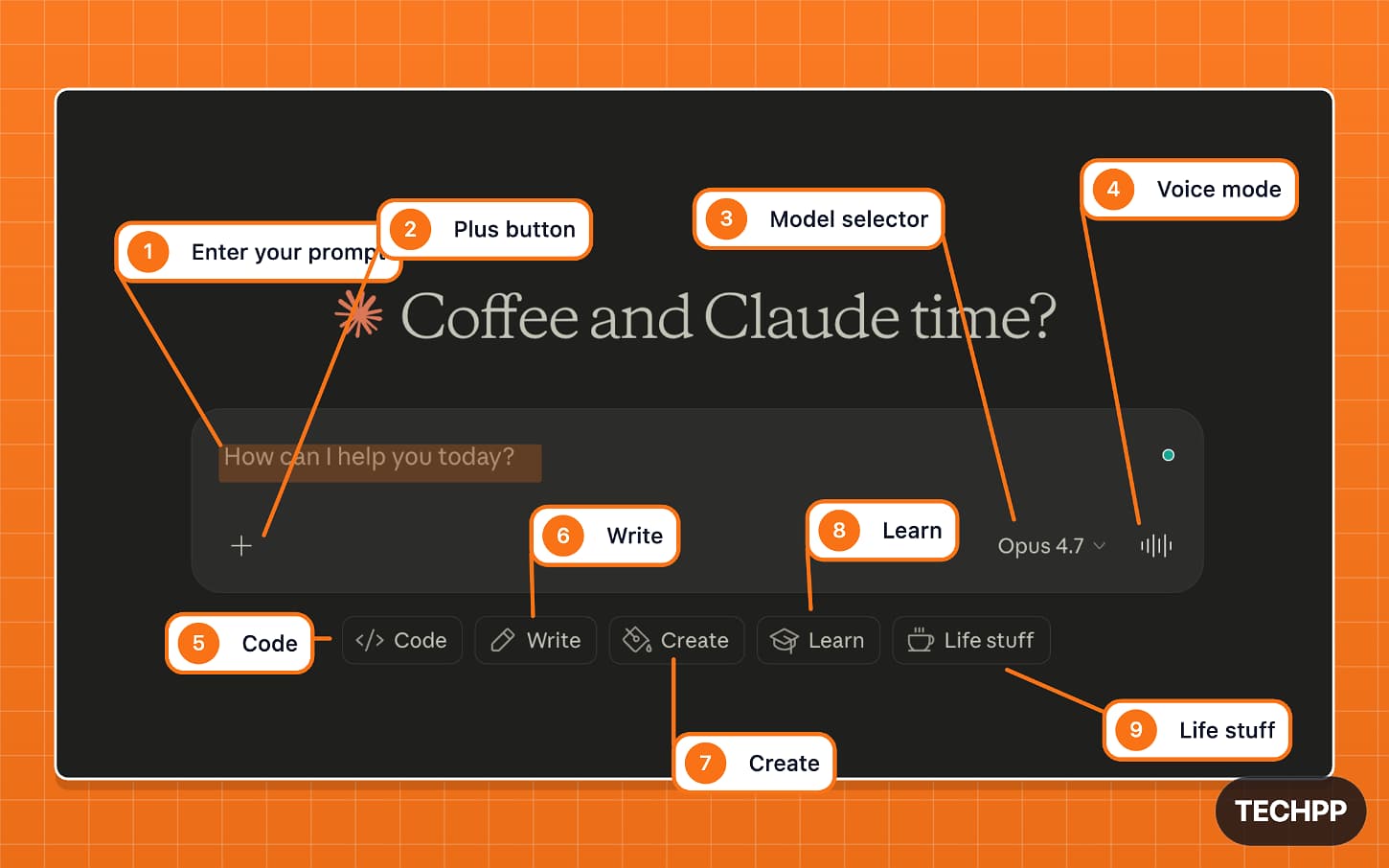
| S.no | Symbol | What it does |
| 1 | Enter your prompt | This is where you type your question |
| 2 | Plus button | Lets you add or attach media to your prompt. You can learn about these options in the table below |
| 3 | Model selector | Lets you switch between different Claude models based on your needs. |
| 4 | Voice input | Lets you speak instead of typing your prompt. It also responds to you in a voice. |
| 5 | Code | Get prompt suggestions for coding-related tasks. |
| 6 | Write | Get prompt suggestions for writing-related tasks. |
| 7 | Create | You can use this to create suggestions for creating related tasks. Example: Develop storytelling frameworks. |
| 8 | Learn | Get suggestions to help you learn something. |
| 9 | Life stuff | Get suggestions for daily life tasks. You can use it for planning, routines, advice, and personal work. |
Claude Desktop Incognito Mode
Similar to other applications, Claude also offers incognito mode. Claude uses this cute octopus icon.
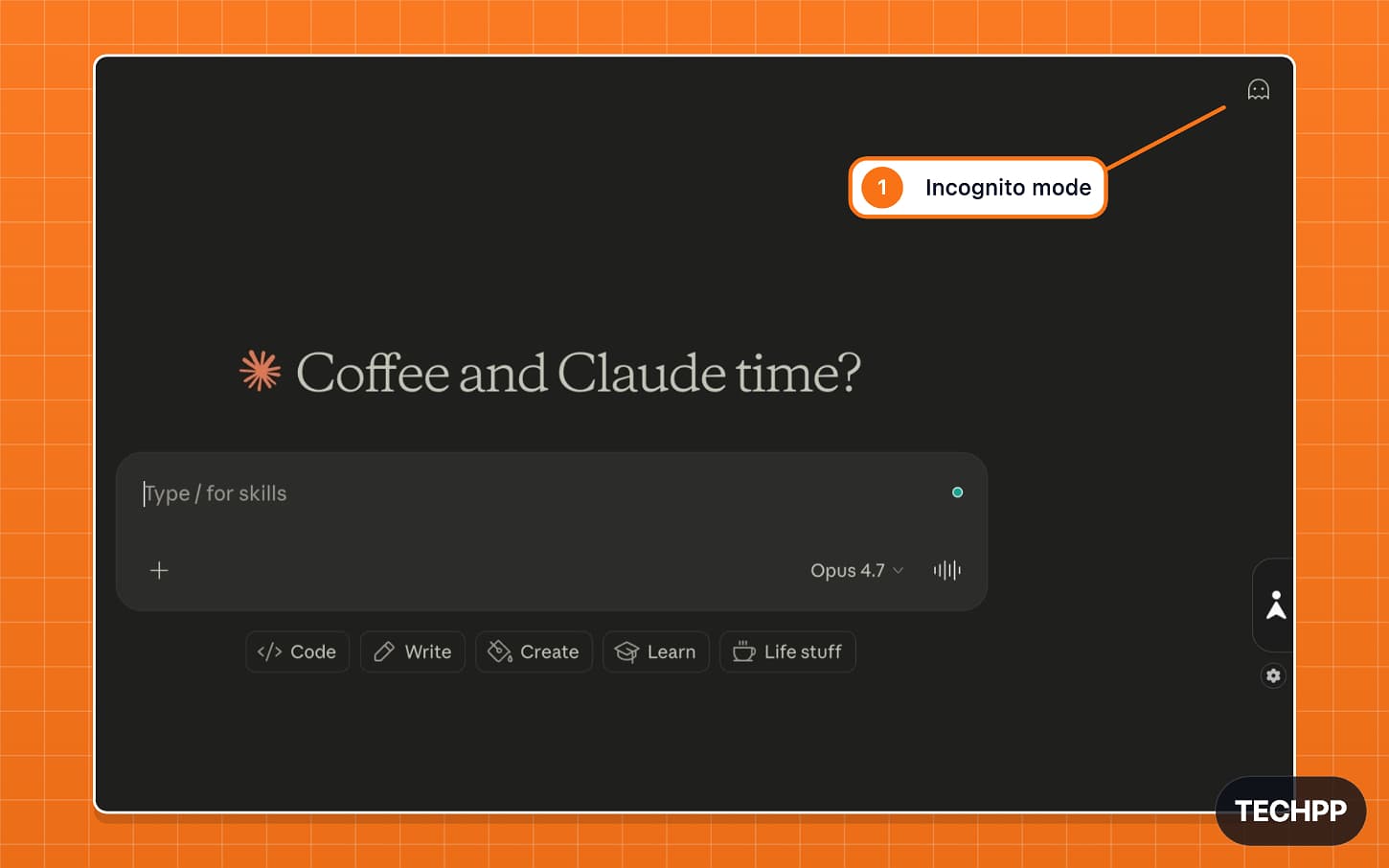
| S.no | Symbol | What it does |
| 1 | Incognito mode | Let’s start a private chat in Claude. Your conversations in incognito mode will not be saved and will not be used for training. |
Claude Desktop Plus Menu Symbols and What They Do
The plus icon in the prompt bar allows you to attach media files to the Claude. You can also enable several tools such as deep research, web search, and much more.
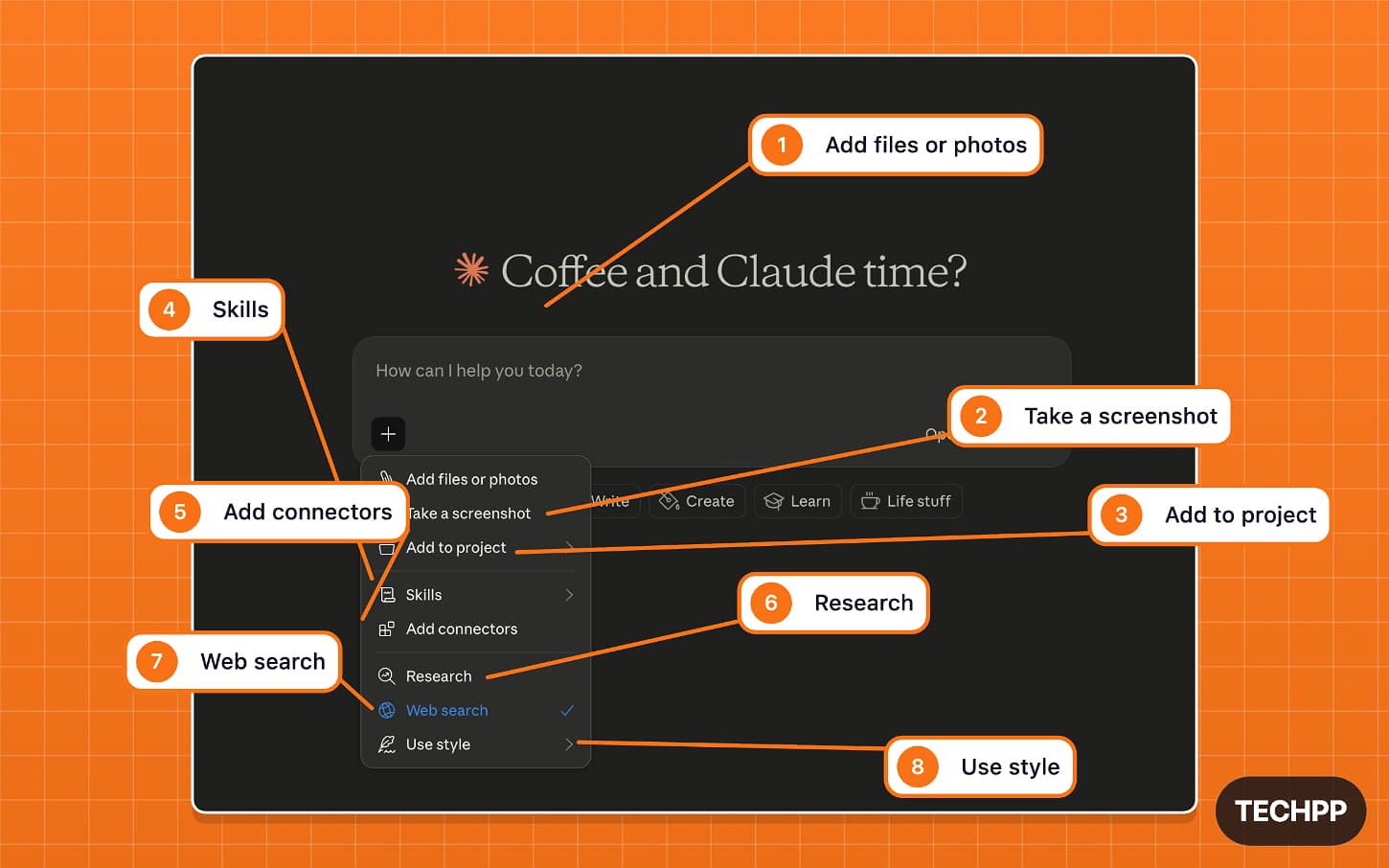
| S.no | Symbol | What it does |
| 1 | Add files or photos | It lets you upload files or images to Claude. You can select files locally from your device. |
| 2 | Take a screenshot | Capture a screenshot and add it to your chat. When you tap on the icon, it allows you to select a specific tab in which you can take a screenshot. |
| 3 | Add to project | Add the current chat to specific projects. |
| 4 | Skills | Here you can add Claude’s skills or select your own skill for Claude. Skills are specialized instructions and abilities that you can use for specific tasks. |
| 5 | Add connectors | It lets you connect your Claude to external applications such as Slack, Google Drive, Gmail, and much more. |
| 6 | Research | It does more research by referring to multiple sources before answering. Deep Research consumes more tokens. |
| 7 | Web search | Allow Claude to search the internet to find the latest information. |
| 8 | Use style | Set Claude to follow a specific tone and structure for your outputs. Currently, it supports concise, explanatory, learning, and much more. |
Claude Desktop More Menu Symbols and What They Do
Claude recently rolled out plenty of features, so much so that some of them are hidden under more options. Here is what they mean.
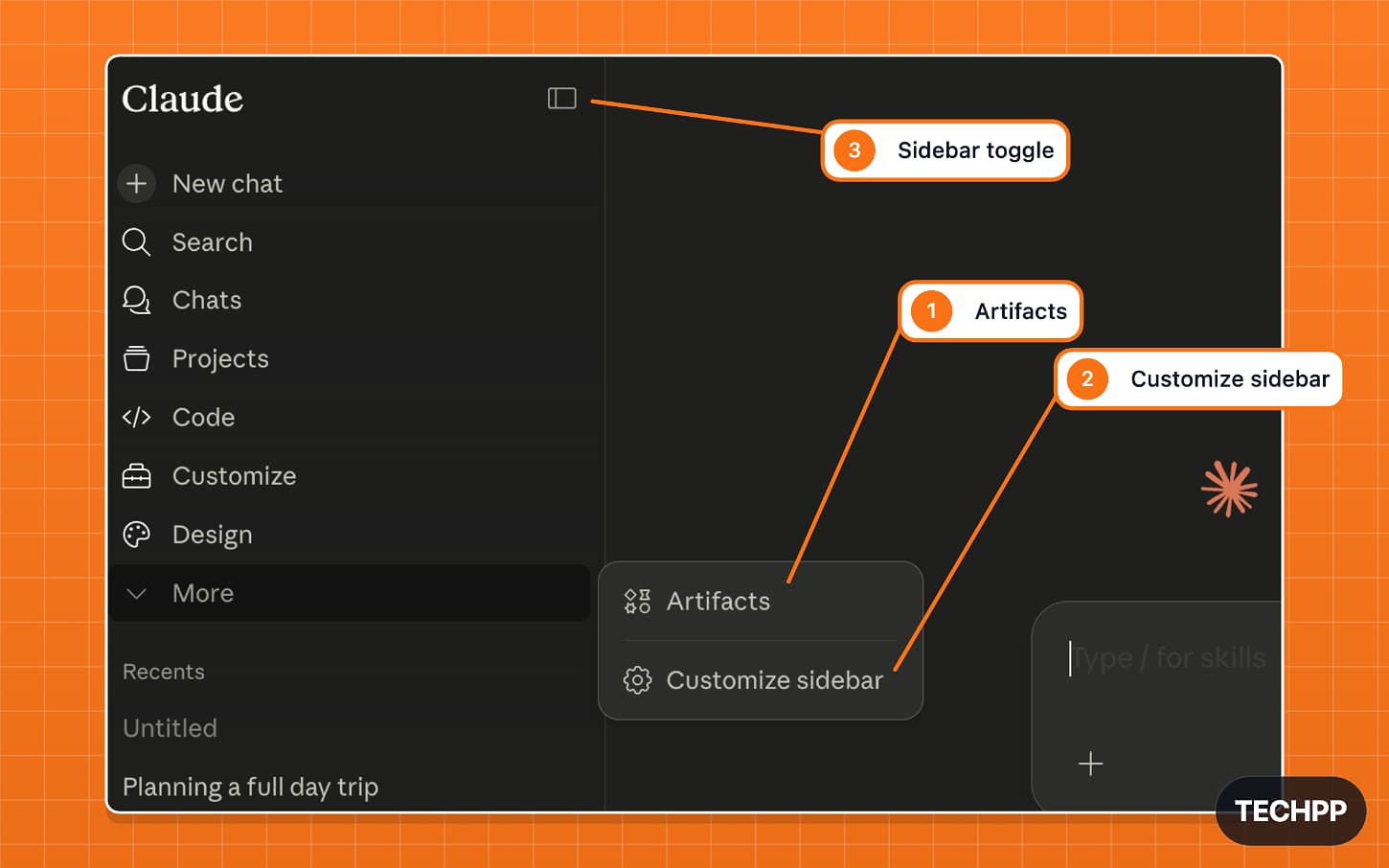
| S.no | Symbol | What it does |
| 1 | Artifacts | Claude artifacts are mini apps that you build inside the Claude. These apps are mini-applications or websites run directly inside Claude. You can also manage all your Claude artifacts from here. |
| 2 | Customize sidebar | You can remove unwanted options from the Claude sidebar. For example, you can hide the new design and code options. |
| 3 | Sidebar toggle | Lets you collapse or expand the sidebar. |
Claude Desktop Chat Response Symbols and What They Do
Claude chat interface also comes with plenty of icons. Here is what they mean.
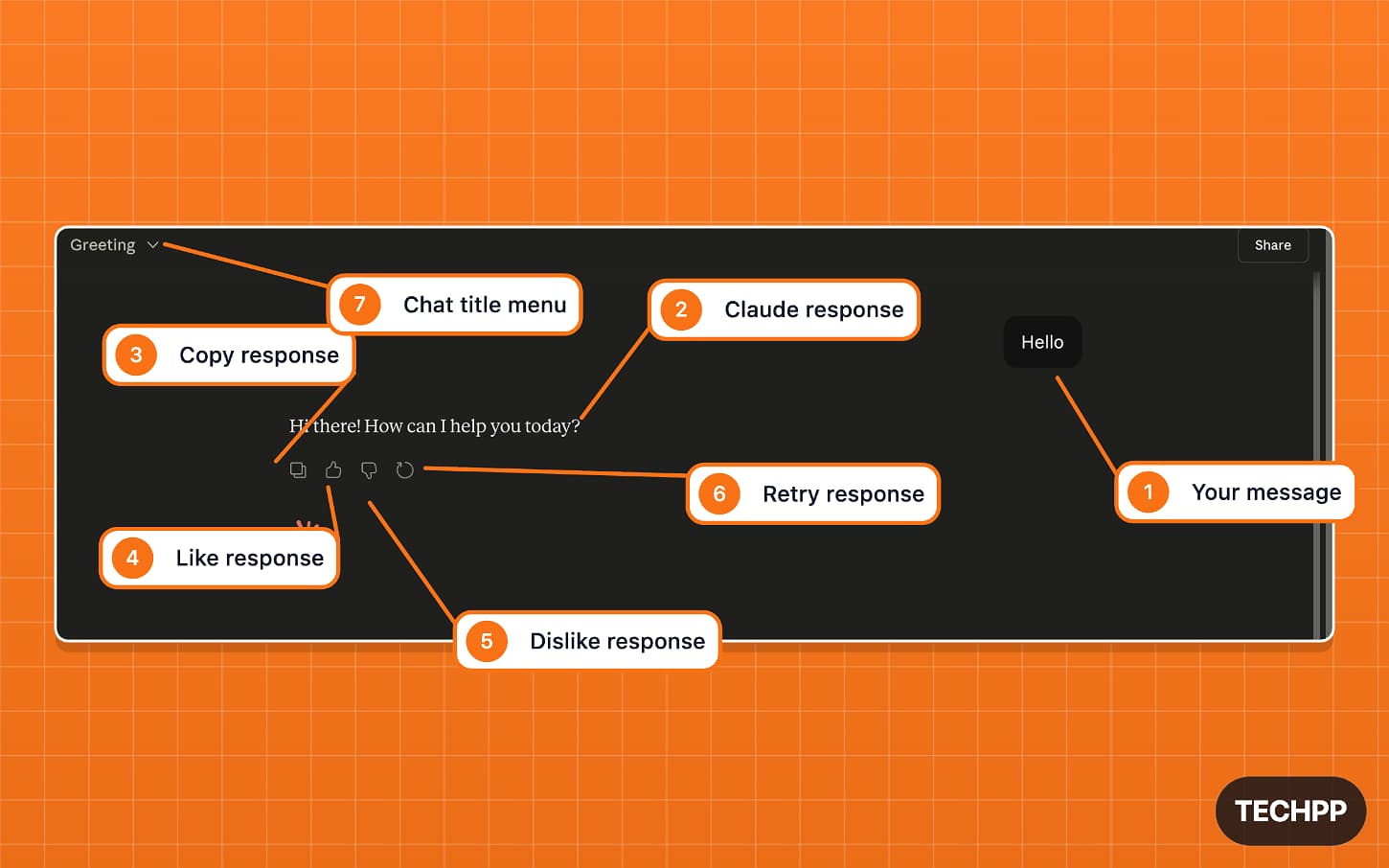
| S.no | Symbol | What it does |
| 1 | Your message | This is your prompt that you sent to Claude. All your prompts appear on the right. |
| 2 | Claude response | Shows Claude’s answer to your question. All of Claude’s answers appear on the left. |
| 3 | Copy response | Let’s you copy Claude’s answer. |
| 4 | Like response | Let’s give positive feedback when the answer is useful. |
| 5 | Dislike response | Let’s give feedback when the answer is not useful or not correct. |
| 6 | Retry response | Regenerate the answer if you don’t like the output. It also allows you to view the previous response. |
| 7 | Chat title menu | This is the chat title menu where you can rename, star it, or add it to any project. |
Claude Mobile
1. Claude Mobile Home page
Unlike the desktop or web version, the mobile version is less cluttered and minimal interface. It still has plenty of options, which can confuse users. Here is what each icon and feature means.
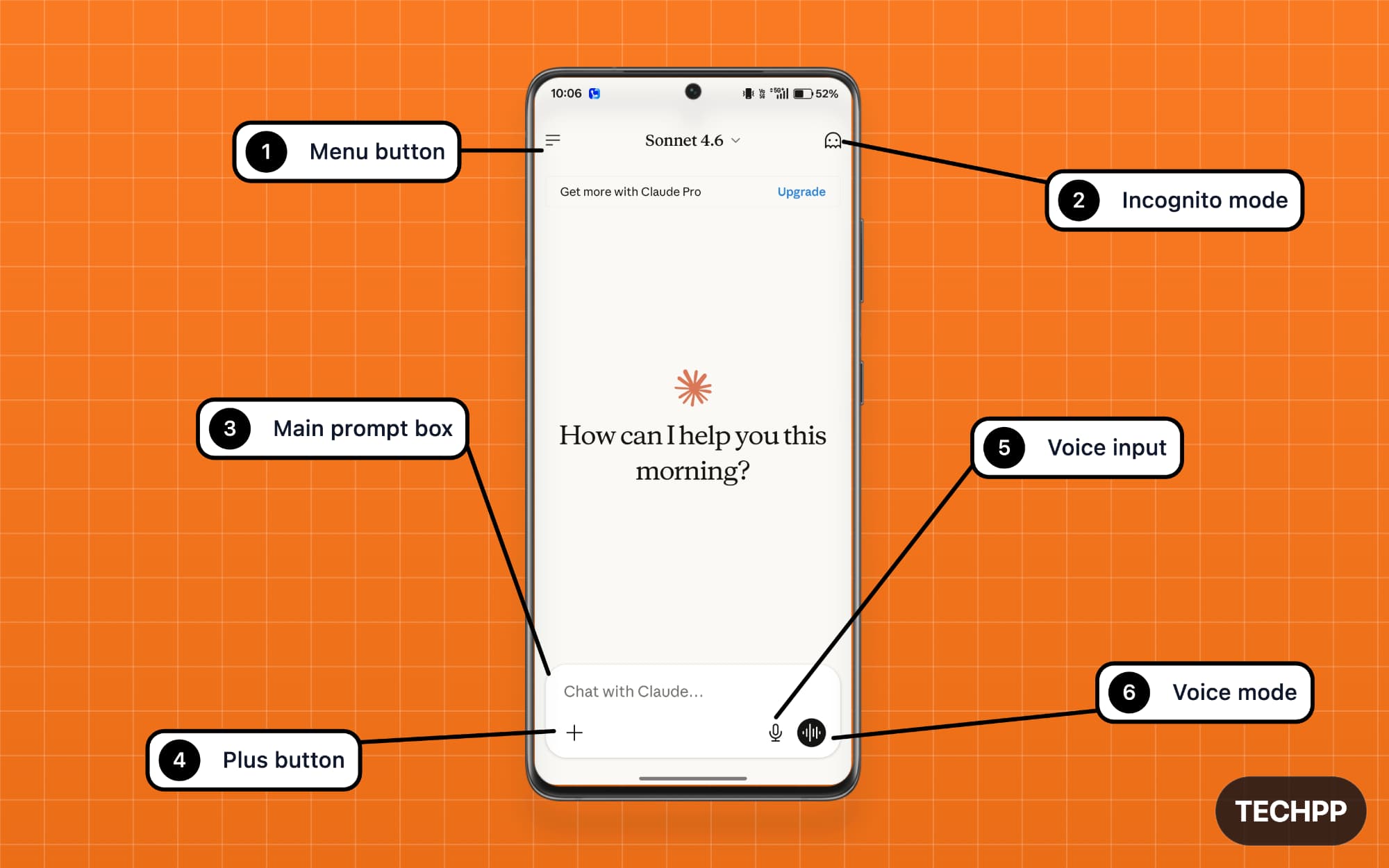
| S.no | Symbol | What it does |
| 1 | Menu button | It opens the main Claude sidebar menu on top. From here, you can access chats, projects, settings, and other options from here. |
| 2 | Incognito mode | You can enable Incognito Mode in Claude using this icon. All your conversations will not be saved and will not be tracked. |
| 3 | Main prompt box | This is where you type your prompt for Claude. |
| 4 | Plus button | The plus icon gives you more options to customize your prompt. You can attach media, enable search, and much more. |
| 5 | Voice input | Let’s you speak your prompt instead of typing it. |
| 6 | Voice mode | Opens voice conversation mode. You can talk with Claude directly instead of using normal text chat. It also replaces you in the voice mode. |
Claude Mobile: Add to chat Symbols and What They Do
The Plus interface on Claude mobile is neatly aligned with an easy-to-access tools. On the top, you can find all the file options you can attach to the prompt, and at the bottom, you can find all the other tools.
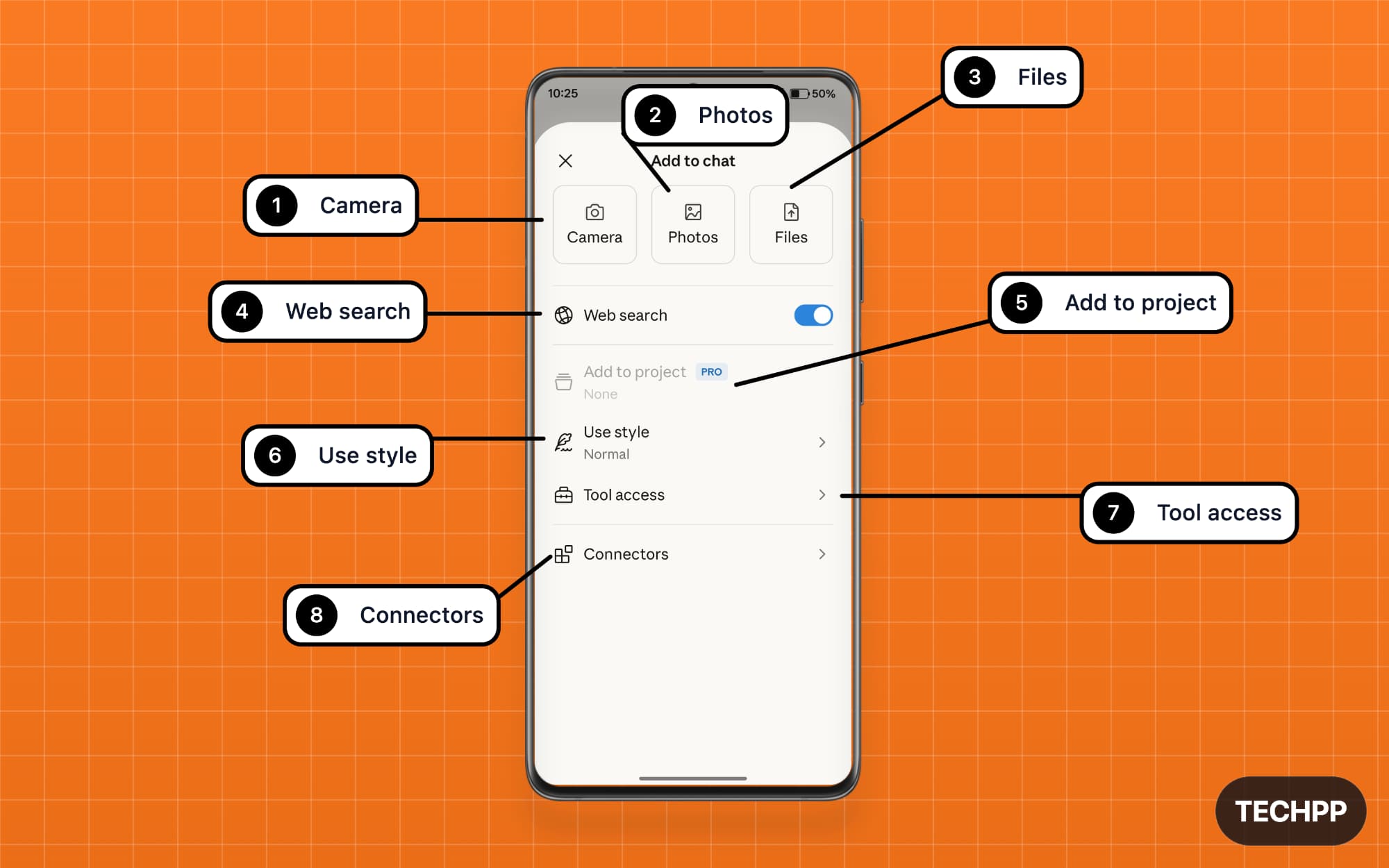
| S.no | Symbol | What it does |
| 1 | Camera | Attach photos to your Claude by taking shots directly from the camera |
| 2 | Photos | You can upload an image from your phone’s gallery |
| 3 | Files | Let’s you upload a file from your phone |
| 4 | Web search | Let Claude search the web to answer your questions with the best, latest, and most accurate answers |
| 5 | Add to project | Let’s you add the chat to a project |
| 6 | Use style | Let you choose a writing style for Claude’s response. Currently, you can select options that include concise, learning, short, and much more |
| 7 | Tool access | Customize how Claude decides which tools to load. Currently offers three options. Auto is where Claude decides which tools to load based on the task, and On Demand, where Claude only loads the tool when necessary, and finally, always available, which preloads all the tools before you even chat. |
| 8 | Connectors | Allow Claude to connect to the external apps. You can browse and add multiple connectors. |
Claude Mobile Sidebar Symbols and What They Do
The sidebar on the mobile also comes with plenty of options. Here is what each icon means.
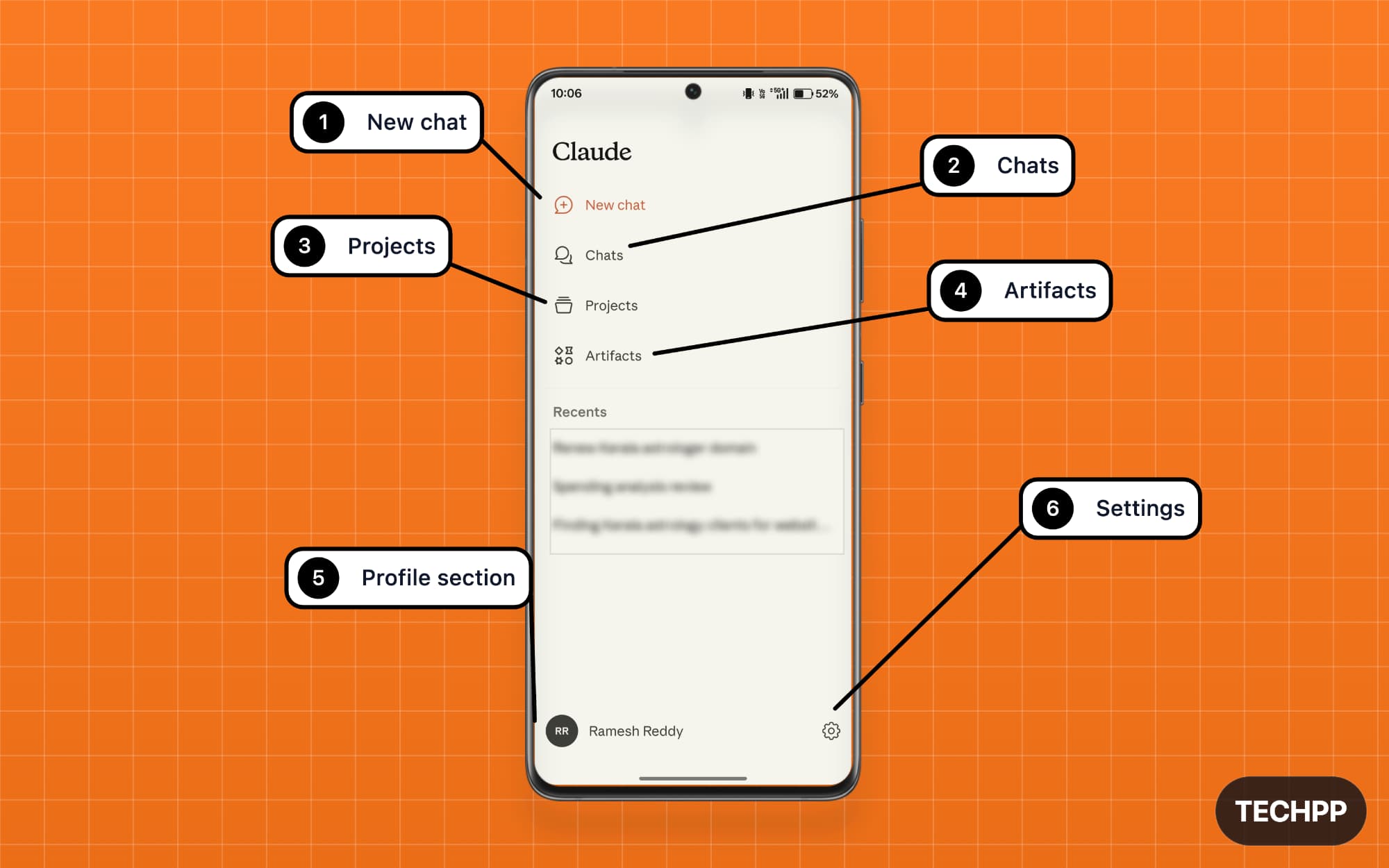
| S.no | Symbol | What it does |
| 1 | New chat | Start a new chat with Claude |
| 2 | Chats | Opens your chat history. You can view and manage all your old chats there. |
| 3 | Projects | Let’s you create and manage projects. Projects are similar to folders where you can store all your chats, resources, and reference files in one place. |
| 4 | Artifacts | Opens Claude Artifacts. Claude Artifacts are small mini-apps that you build inside Claude. |
| 5 | Profile section | This is your profile picture and your username. You can tap to go to settings. |
| 6 | Settings | Opens the Claude app main settings. |
Claude Mobile Chat Symbols and What They Do
The chat interface on Claude mobile comes with a few extra options, such as Read aloud. Here is what all icons mean.
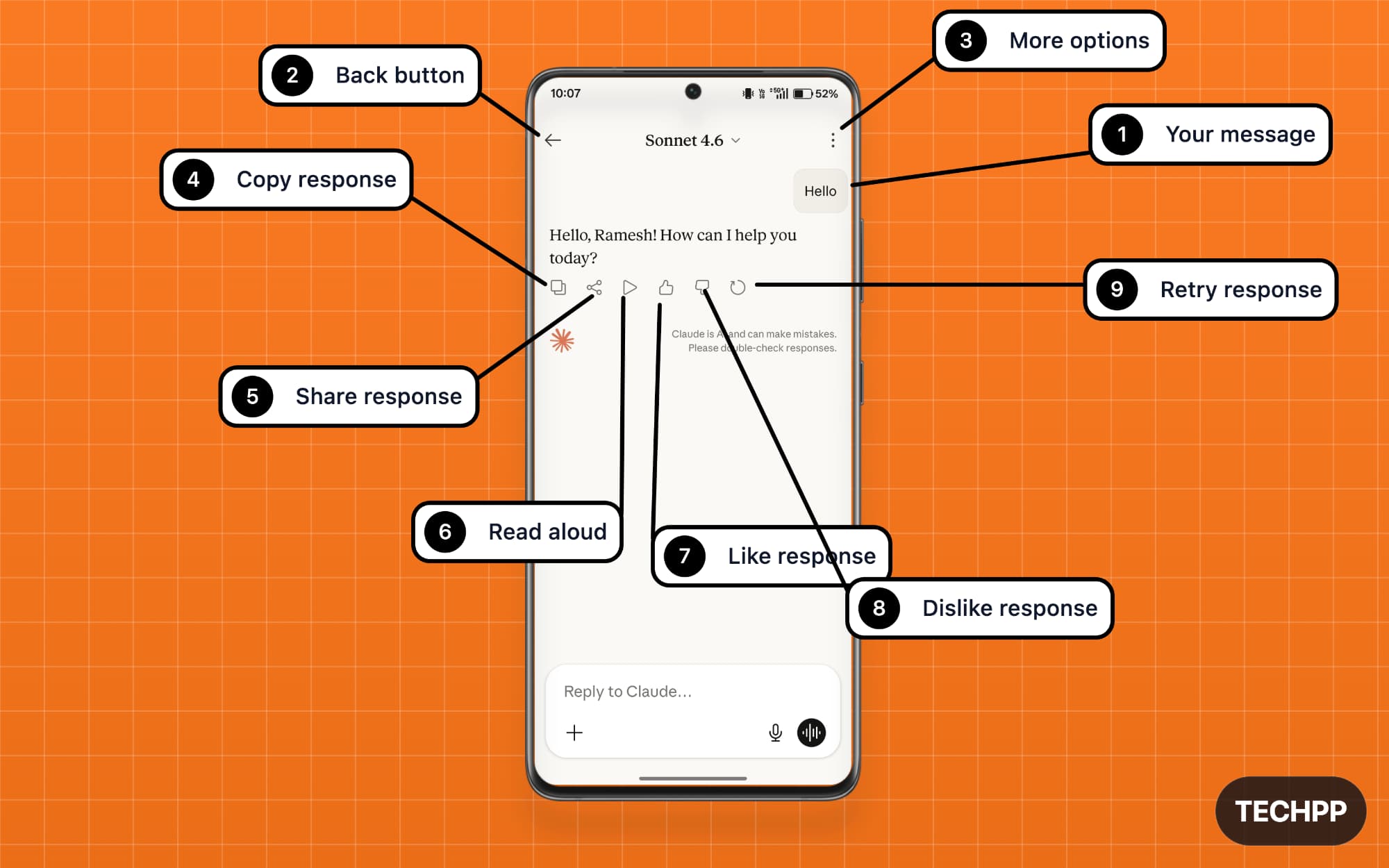
S.no |
Symbol |
What it does |
|---|---|---|
1 |
User message |
Shows all your messages on the right side. |
2 |
Back button |
Takes you back to the home screen. |
3 |
More options |
Opens more options for the current chat. It consists of options such as rename, star, add to home, and delete, and more. |
4 |
Copy response |
Let’s you copy Claude’s answer. |
5 |
Share response |
Let’s share Claude’s response with others. When you share, it shares the entire conversation instead of individual messages. |
6 |
Read aloud |
Convert text output into voice. |
7 |
Like response |
Let’s give positive feedback if the answer is useful. |
8 |
Dislike response |
Give feedback when the answer is not useful or not accurate. |
9 |
Retry response |
Regenerate the answer if you don’t like the current output |
Claude Mobile Settings Symbols and What They Do
Claude offers plenty of options on desktop, while on mobile, they are limited. So here is what the features and icons mean in the Claude mobile app.
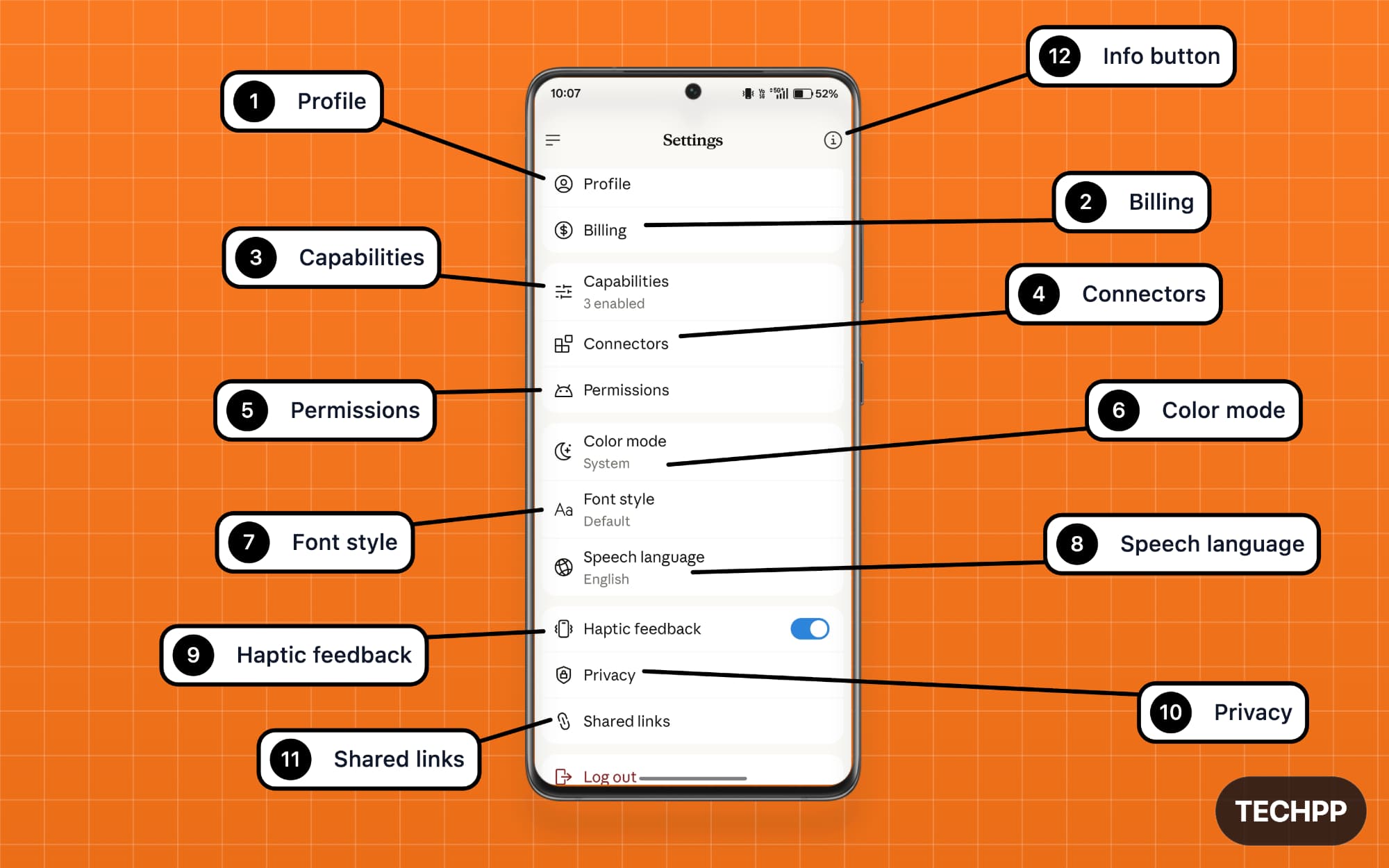
| Number | Symbol | What it does |
| 1 | Profile | It opens your profile screen, where you can edit your full name and change the name by which Claude should call you, and also provide personalized instructions. You can also delete your account from here. |
| 2 | Billing | If you are a premium subscriber, you can manage all your billing from here. |
| 3 | Capabilities | Capabilities are Claude’s abilities to perform and use different tools. You can manage all Claude capabilities in a single place, including whether or not to let Claude web search, code execution, generate memory from chat, access tools, and much more. |
| 4 | Connectors | Connect Claude to external apps such as Gmail, Google Calendar, Notion, and Slack. |
| 5 | Permissions | Manage Claude’s permissions from here. |
| 6 | Color mode | You can change the theme of the Claude app. Currently supports light and dark modes. |
| 7 | Font style | Change the font style. You can select the default app font or the system font. |
| 8 | Speech language | Select the language in which Claude wants to reply to you. |
| 9 | Haptic feedback | It turns on vibration every time Claude responds to your questions. You can turn it off to save battery life. |
| 10 | Privacy | It lets you view data privacy and allows you to opt out of using your chats and coding sessions to train AI models |
| 11 | Shared links | Manage all your Claude shared chat links here |
| 12 | Info button | View more privacy and terms, and also see your Claude app version number. |
Claude is Easier to Understand Once You Know the UI
Those are the meanings of icons and features in the Claude web and mobile app. Claude Web on the desktop interfaces has a very similar experience, so knowing Claude Web will also make you familiar with the Claude desktop interface.
Like the new AI application, Claude uses very unique icons, which can be confusing for beginners. You can treat this post as a Claude Legend and Icons Guide.
Since Claude is experimenting with new features every week and also launching new ones, I frequently update this post to stay updated and help you navigate Claude easily on all platforms. If you are still confused, let me know in the comments below, and I will be happy to help you.
FAQs on the Meaning of Claude Icons
1. Does Claude keep changing its icons and interface often?
These AI tools are new to the market, and Claude is launching new features every single day. While most of the UI and elements will remain similar, you will find new additions every day until all these AI applications find their final functional design.
2. Why do some Claude icons appear on desktop but not on mobile?
Anthropic, the company behind Claude, intentionally limits some features on mobile to make it less cluttered for the user, and moreover, some features are restricted because of the mobile limitations.
3. How can I know what an icon does before clicking it?
There are no tool tips to help you know what each icon does in Claude. However, you can download our legend and icon guide as a reference.
4. Why does my Claude interface look different from the screenshots in this guide?
Some of the latest versions of the Claude might look different than the screenshots used in this post. However, we update this post regularly. If the interface still looks different, let me know in the comments, and I will help you.
5. What is the easiest way to navigate Claude as a beginner?
Even though Claude is new, most features are easy to understand, and the interface is beginner-friendly. You can view our guide for reference. Once you understand the interface, it becomes easier to navigate.

