

Quick Answer
You can download YouTube videos for offline viewing using tools like 4K Video Downloader Plus for high-quality and batch downloads, or YouTube Premium for a seamless native option. Once downloaded, apps like Kodi or VLC help you organize videos into folders and playlists, making offline viewing smooth and well-managed.
YouTube is the go-to source for video entertainment, whether you are bored, or looking for inspiration, or trying to learn something new. YouTube is the app that everyone chooses the most. However, if you want to watch videos offline, YouTube has recently imposed a few restrictions. Currently, free users are only allowed to download a limited number of videos, and downloads are restricted to lower quality.
Fortunately, there are plenty of ways you can download and watch YouTube videos offline and even organize downloaded content for the best viewing experience. In this guide, you will learn how to download and organize YouTube videos using various methods.
Table of Contents
How to Download YouTube Videos for Free
There are plenty of YouTube downloader tools that let you download YouTube videos. You can choose any method:
1. Download Videos using the 4K Video Downloader tool: Best if you download YouTube content frequently
YouTube video downloaders have still remained the go-to source to download videos offline. You can just paste the links, and they instantly offer you a download link.
While these tools are convenient for occasional use, most of them come with limitations. For instance, they only allow you to download videos up to 720p or 1080p max, which results in poor quality on bigger screens. And also, most tools lack support for multilingual content and batch downloads for people looking to download entire YouTube playlists at once.
Since these are web tools, many of these sites are also filled with spam links and unwanted advertising, and include multiple steps to download videos. All this can be fine for those who occasionally download YouTube videos, but it can be time-consuming and frustrating for those who often download YouTube videos; it can quickly become frustrating.
The solution is to use a dedicated video downloader software. Unlike the web tools that come with more features and fewer restrictions.
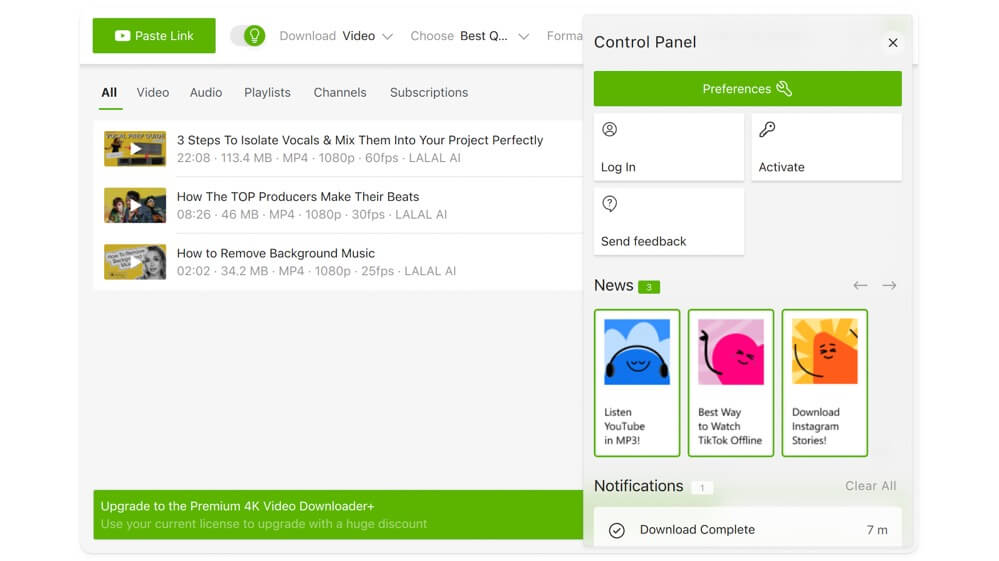
For instance, the 4K Video Downloader Plus https://www.4kdownload.com/vd/ tool supports up to 8k quality, allowing you to download the maximum available quality without compromising on quality, and even supports batch and auto downloads, which let you download the entire playlist at once and even automatically download and save it to your device from your favorite channels.
Since it’s a native software, you won’t have to deal with unwanted redirects and ads. A single interface allows you to download and manage all videos in a single place.
Not just limited to this, the tools also support YouTube shorts download, the ability to share all downloaded videos to your Android phone, and even bypass restrictions that are blocked by your ISP or YouTube itself. 4K Video Downloader Plus also allows you to download videos from all popular websites, including YouTube, Vimeo, TikTok, Facebook, X, and more.
2. YouTube Premium: For convenience and a native experience
If you prefer convenience and don’t want to spend your budget, downloading videos using YouTube Premium is the best option. It eliminates the need for downloading external tools and copying and pasting links between them. With YouTube Premium, you can download all the YouTube content natively in the YouTube app in the highest quality possible.
Another advantage is that it works seamlessly across all your devices since YouTube Premium also offers downloads on the web. Since all your downloads are stored in the YouTube app, it also eliminates the need for organizing or making them separately. making it a great option for people who prefer convenience.
3. Online YouTube video downloaders: If you download YouTube videos occasionally
Despite their limitations, YouTube downloaders are still a great option for casual users who want to quickly download YouTube videos offline without needing a dedicated YouTube downloader setup or even paying for YouTube Premium.
However, not all the tools offer a similar experience. A few good tools that offer the best experience and have handy additional features for frequent downloaders. Here are three of the best options:
- easywma.com
- tubeninja.net
- peggo.online
Organize Your YouTube Videos Offline Using Media Management Apps
There are plenty of media management tools that let you organize your videos and categorize them. If you are looking for a simple, free tool, VLC media player is the best option, and it offers the best video viewing experience.
However, if you want a fully featured media center to manage all your videos, organize them into categories, and want a powerful search and metadata support, Kodi is the best option. It lets you organize all videos into different folders and track them.
Google Drive and Notion (Pro) are the best options if you want to access your videos on other devices, but they require an internet connection.
In this case, I am using Kodi to organize the videos and track them. Ensure you have downloaded the YouTube videos and organized them into folders.
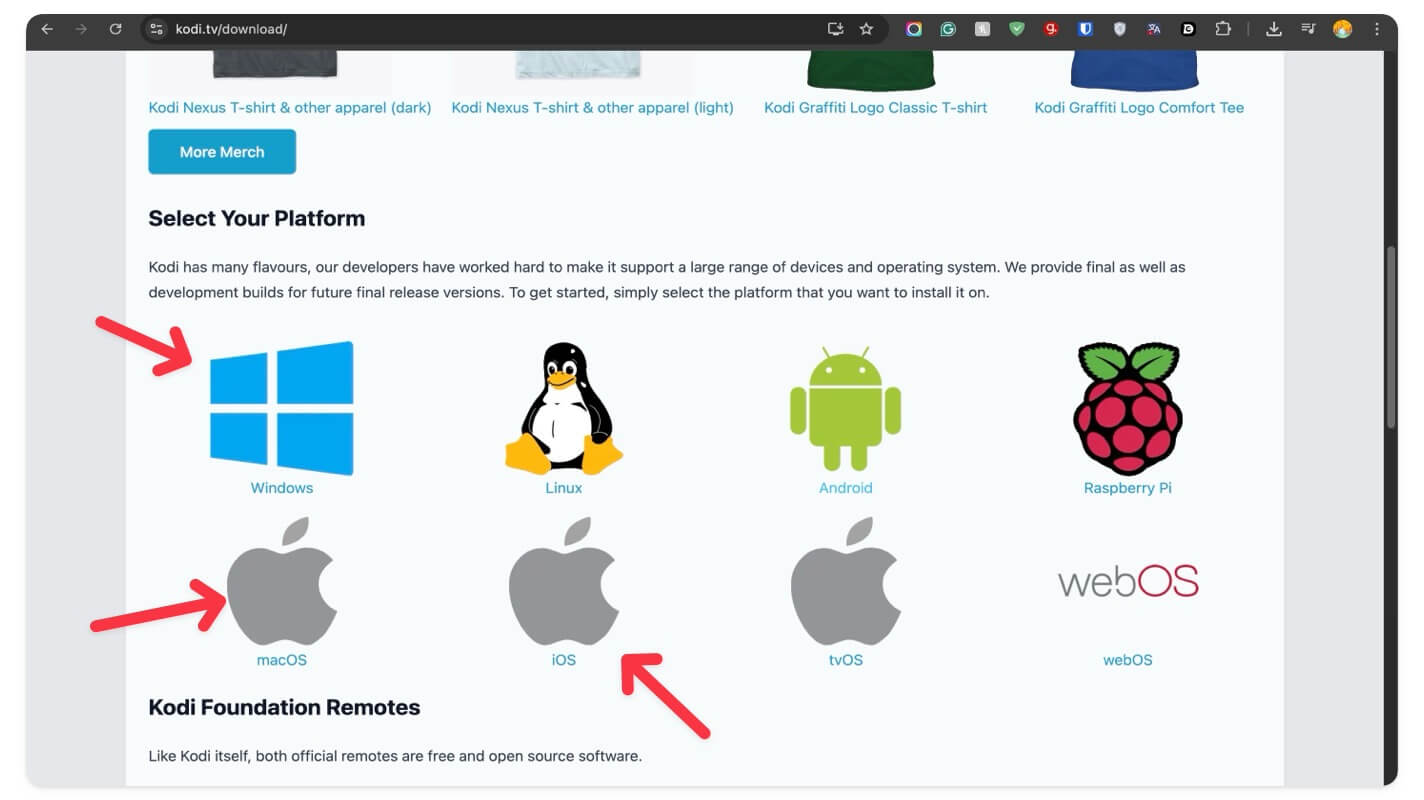
- Visit kodi.tv/download and download the app for your Mac or Windows PC. It is also available for older Intel x86 machines and new Apple Silicon MacBook. You can also download the Kodi app on your phone. For Android, you can download it from the Play Store, and for iOS, visit this link.
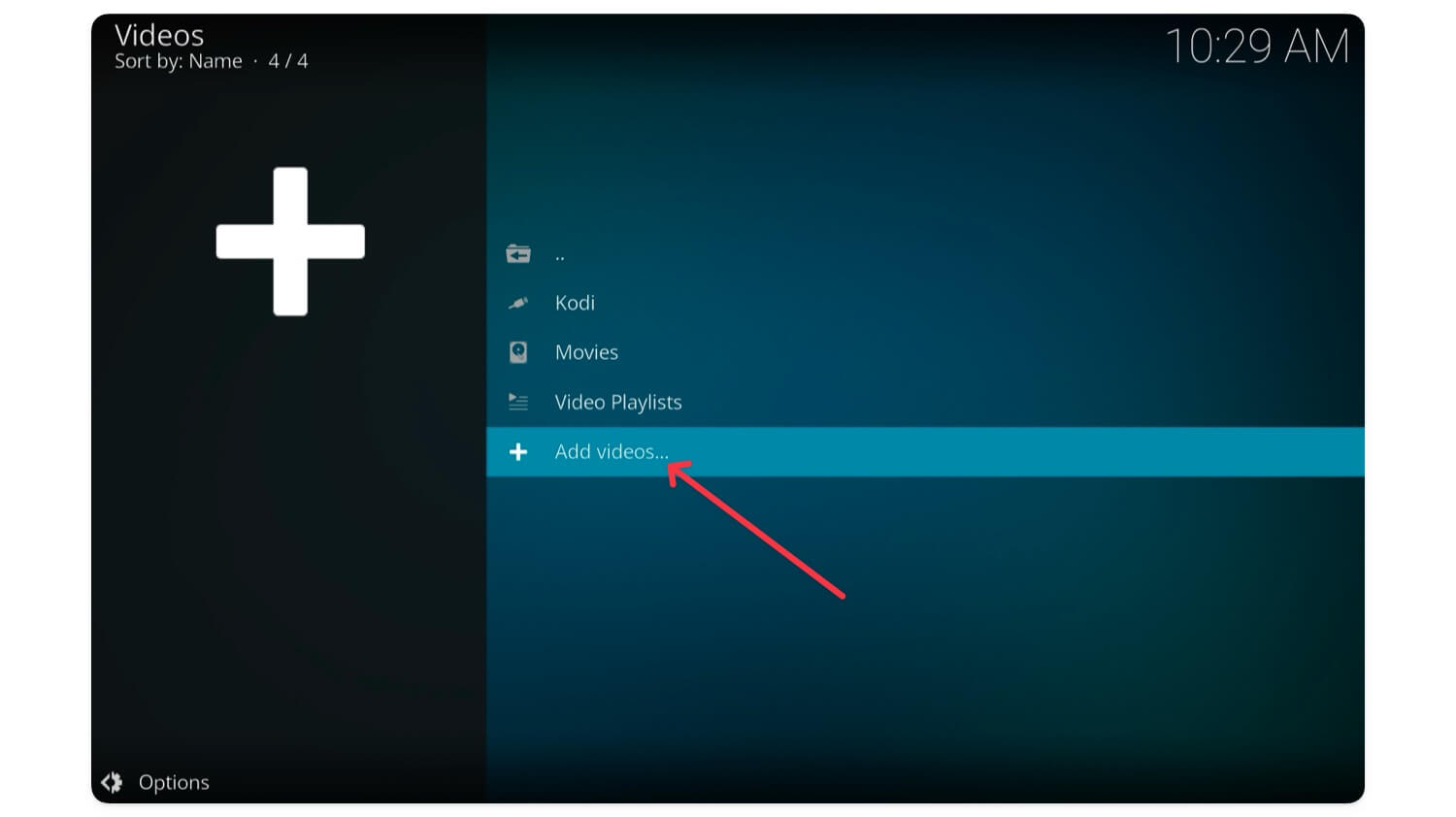
- Open Kodi and click on the Videos in the sidebar. If you are using Kodi for the first time, you can click on the Enter file section and add the source folder. You can follow the same steps on your mobile too.

- Click on the file and tap on the Add videos.
- Click on the Browse
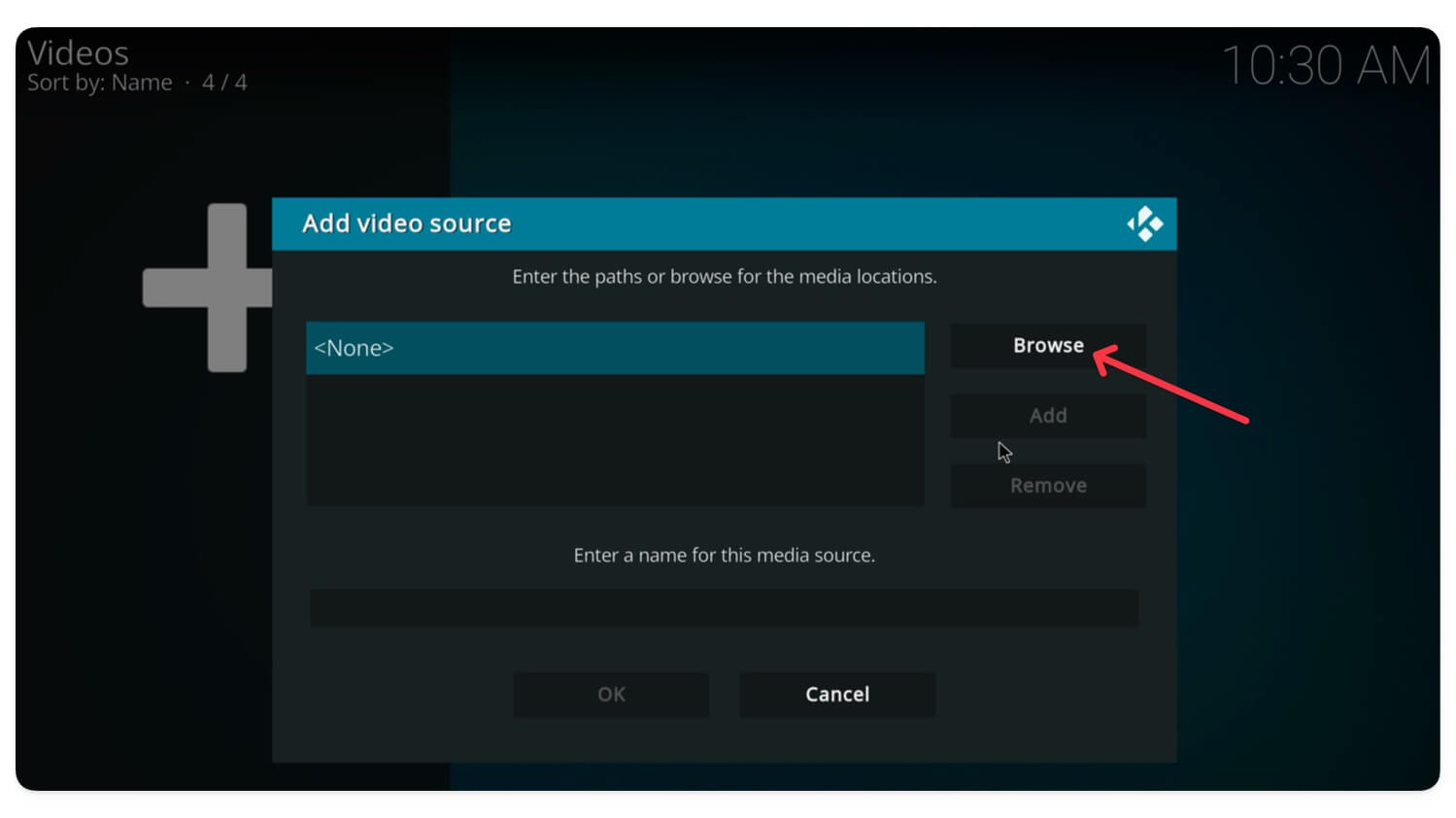
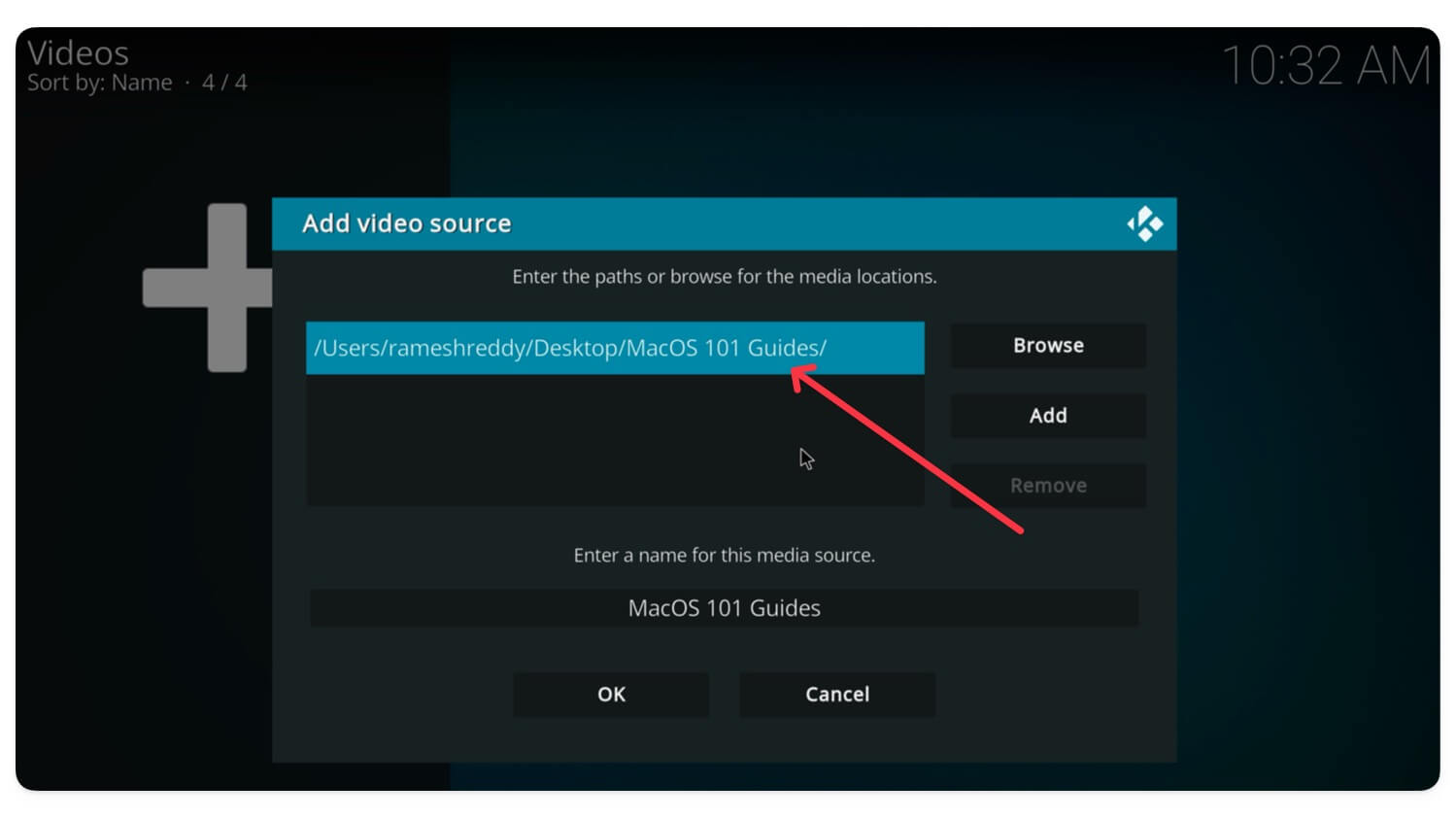
- Select the videos folder where you saved all your YouTube downloads and tap on OK.
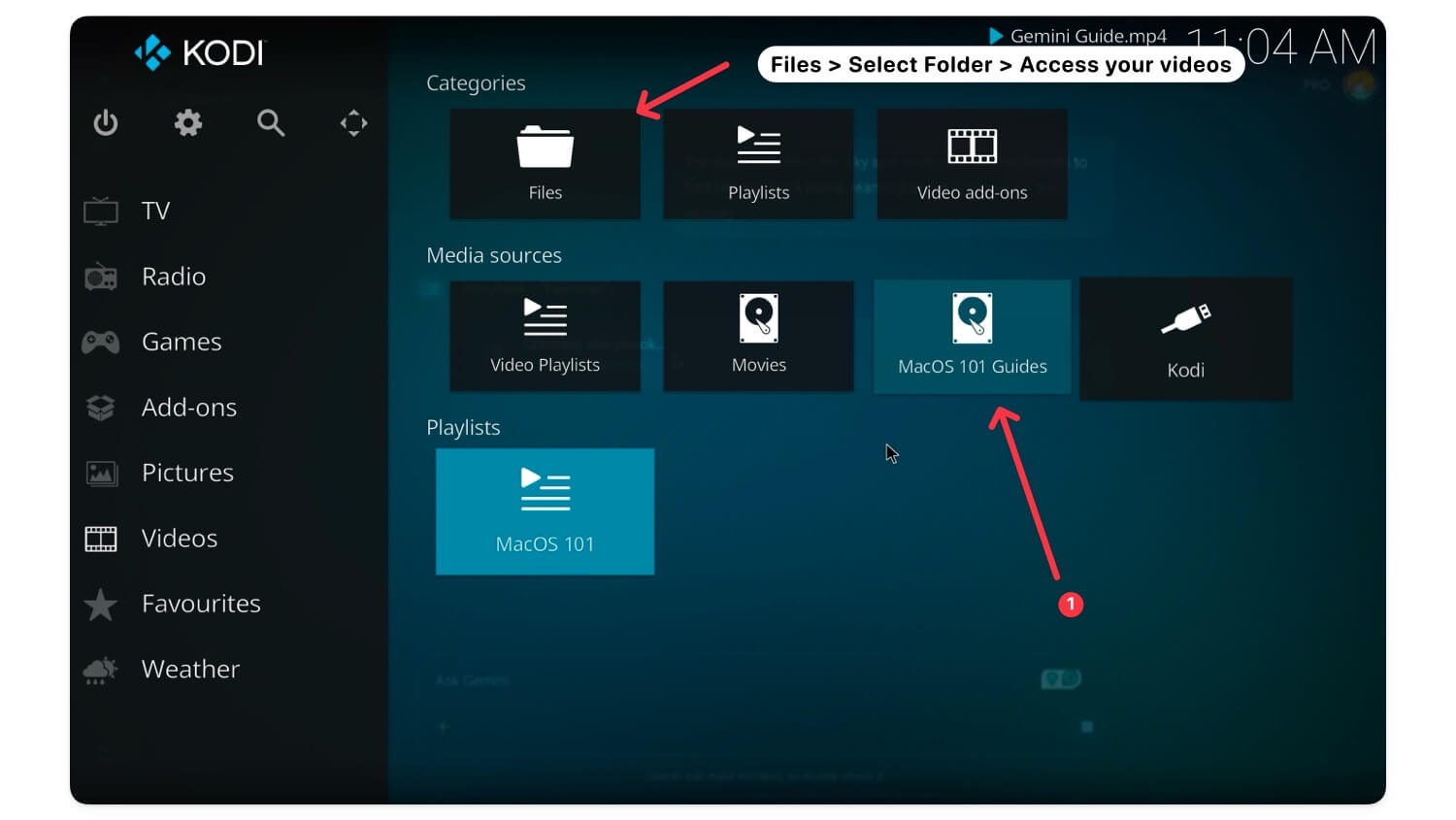
- Once added, you can access your videos from the home page directly or go to Files > Select your YouTube videos folder and get access to your videos.
- You can view all your YouTube videos here
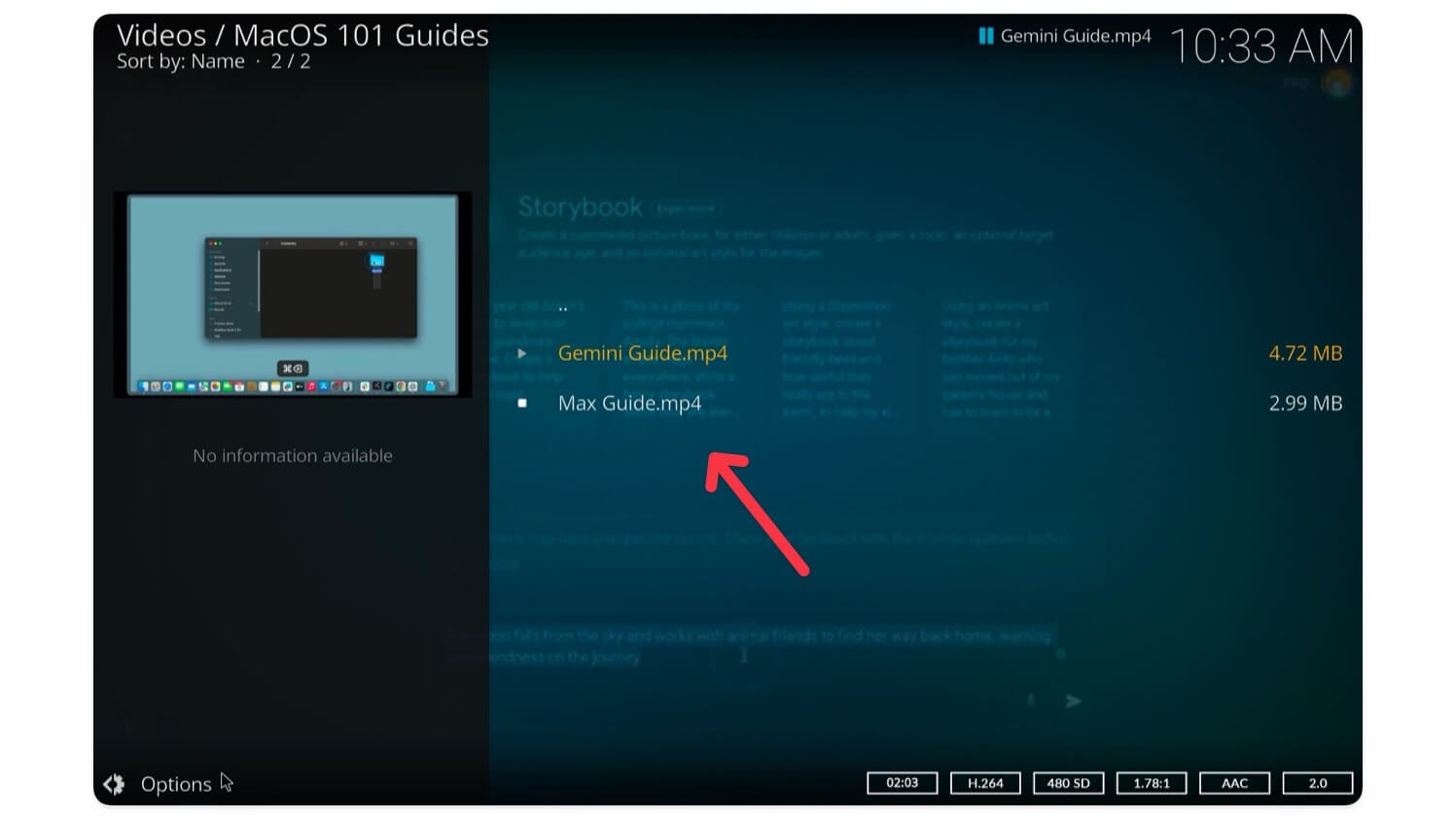
- To update your playlist, click on the Options and tap on the Update library, and the media will be updated with the new videos you have added to the folder.

Remember to keep the folder and the downloaded videos locally on your device, since Kodi only lets you categorize and view them and doesn’t create a copy of your videos. Similarly, you can create new folders, download new videos, and organize them locally on your device and access videos offline with better controls than YouTube itself.
So this is how you can download YouTube videos using a free YouTube downloader and organize them locally on your device, using Kodi media player. You can update the folders with the new videos and update and refresh Kodi to get the videos instantly loaded on your media streaming device.
Currently, there is no limit on how many videos you can store since all these videos are stored locally on your device. It depends on your device storage (You can also purchase portable SSDs, and if you have limited storage). Kodi also allows you to stream videos from external devices. You can connect external devices like hard disks and see the videos directly, which is very useful, especially for students and content creators who have a large media library and want to store it on external devices.
If you want to access videos on all devices, you can upload them to Google Drive. Google Drive offers 15 GB of storage for each Google account. Depending on your storage needs, you can sign up for Google Drive and store all your YouTube videos. But it requires an internet connection. Similarly, you can also upload all your videos to Notion, but the free version only allows you to upload a maximum file size of 5MB. If you are a Notion Pro user, you can upload YouTube videos up to 5GB in length, which is more than enough to store an archive of your YouTube videos locally on your device.
So, this is how you can download and save your YouTube videos offline. By following all the steps, you can create a local YouTube content library. If you have any issues while setting up, comment below.
FAQs on Downloading and Organizing YouTube Videos
1. Is downloading YouTube videos legal?
It is ok to download YouTube videos for education and storing content for yourself; however, downloading YouTube videos through third-party tools is against YouTube’s terms of service.
2. Can I use this method on my phone or tablet instead of a PC?
Yes, you can follow similar steps on your mobile to create offline playback.
3. Can I sync my Kodi library across multiple devices automatically?
Yes, however, you need to store your YouTube downloads in a library and connect it with your local network, and access them on any device. Here is the detailed tutorial on how to set it up.
4. What’s the best way to back up this offline video library?
Your downloaded videos are safe until you manually delete them from your device; however, if you want a completely safe option, I would recommend copying the videos into an external device and accessing them when you need.
5. What video formats are best for offline storage to save space?
Most YouTube downloaders, including the one I mentioned in this post, download the file in WebM format; however, you can convert them into MP4 for better output and support on all devices.

