

Quick Answer
spacedesk is a free program that turns an Android tablet into a portable display for your Windows PC that you can easily carry with you anywhere. You can use it when you need extra screen space or want to present content on your PC to multiple people sitting across the room. spacedesk is also available for Android smartphones, iPhones, and iPads.
If you have an Android tablet, you can transform it into a portable display for your Windows PC. This can be useful when you need extra screen space or want to present content on your PC to multiple people sitting across the room.

While there are several solutions to use a tablet as a second display for your PC, most are paid, and many of the free ones have limitations and don’t provide the best user experience. Datronicsoft’s spacedesk is an exception, though. It’s one of the best solutions I’ve used to turn my tablet into a second display for my Windows PC, and you can, too.
Table of Contents
What Is spacedesk? And What Can It Do?
spacedesk is a free program that makes it really easy to use your tablet or smartphone as a second display for your Windows PC. It offers two modes to do this: Extend and Mirror.
The Extend Mode, as its name implies, lets you turn your second device into an extended desktop for your PC. This comes in handy when you want to increase your overall screen workspace. For example, you can use it when you want to work with multiple apps, but there’s no space left on the screen to accommodate them.
On the other hand, with the Mirror Mode, you can make the second device mirror your PC’s desktop. Giving presentations or showcasing the content open on your screen are two scenarios where mirroring can be helpful.
spacedesk is available for Windows 11 and Windows 10 on the PC side and Android, iOS, and iPadOS devices on the mobile side of things. It’s completely free to use for non-commercial use.
How to Use spacedesk to Mirror or Extend Your PC’s Screen Onto an Android Tablet
Before you can mirror or extend your Windows PC’s screen to your Android tablet, you need two things.
First, you must download the spacedesk Driver on your Windows PC. Head to the spacedesk website and download the latest spacedesk Driver for your version of Windows on your PC. Double-click the installer and follow the on-screen instructions to install the software. You may need to restart your PC after the installation is complete.
Second, you need to install the spacedesk Viewer—a mobile app—on your Android tablet (or its iPadOS app if you plan to use your iPad) to view the contents from your PC. You can find the spacedesk Viewer on the Play Store and App Store for both devices, respectively.
Connecting the Android Tablet and Windows PC Wirelessly
Once you have the spacedesk Driver and Viewer ready, mirroring or extending your PC’s screen to your Android tablet is straightforward. Ensure your Windows PC and Android tablet are connected to the same local network either via the same Wi-Fi or a LAN cable. Alternatively, you can connect them using a USB cable that supports data transfer.
Now, launch the spacedesk Driver on the PC and the spacedesk Viewer on your Android tablet. If both devices are on the same network, the spacedesk Viewer app on your tablet should automatically detect your PC and show its name and IP address. Tap it, and you should be connected.

Alternatively, if the spacedesk Viewer doesn’t show your PC details, tap the plus (+) button in the top-right corner. Then, enter the IP address of your Windows PC and hit Add.

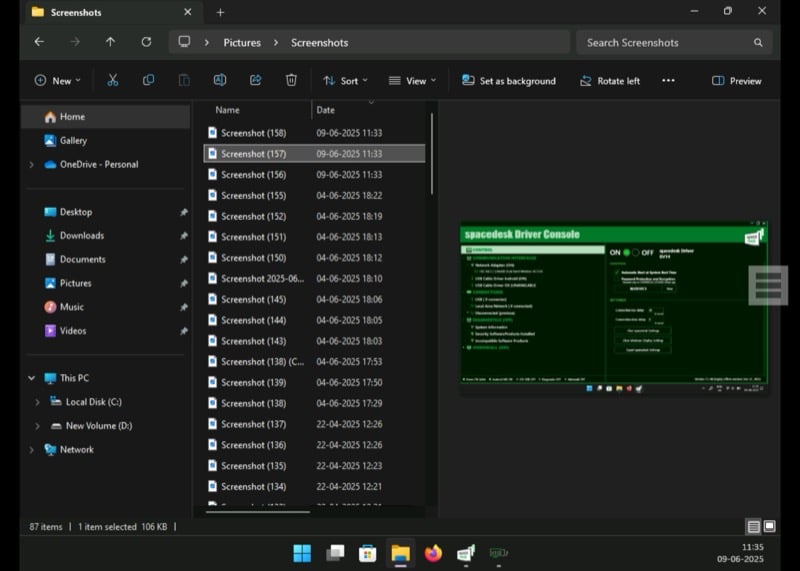
You can find your PC’s IP address on the spacedesk Driver app. Just click the Communication Interfaces tab to expand it and click on Network Adapters. You’ll see your IP address on the right.
Once connected, you should see the contents from your Windows PC on your Android tablet.
Connecting the Android Tablet and Windows PC with a Wired Connection
You can also use your Android tablet as a second display for your Windows PC using a wired connection. This mode offers the lowest latency and ensures an overall better performance compared to Wi-Fi or LAN connections.
To use the wired mode, all you need is a USB cable that supports data transfer. Simply use the USB cable to connect your Android tablet to your PC and select the File Transfer (or equivalent) mode when prompted on your tablet. Then, on the spacedesk Driver on your PC, expand the Communication Interfaces tab and select USB Cable Driver Android (OFF). On the right, check off the checkbox for the USB Cable Android option. Open the spacedesk Viewer app on your tablet, and you should be connected.

Switching Between Mirror and Extend Display Modes
By default, spacedesk mirrors the screen. If you want to use your tablet’s screen in extended mode, you can do so from your PC’s display settings.
To do this, right-click on your PC’s desktop and select Display Settings. Click the Duplicate these Displays drop-down button and select the Extend these Displays option. Click Keep Changes on the confirmation prompt to confirm the change.
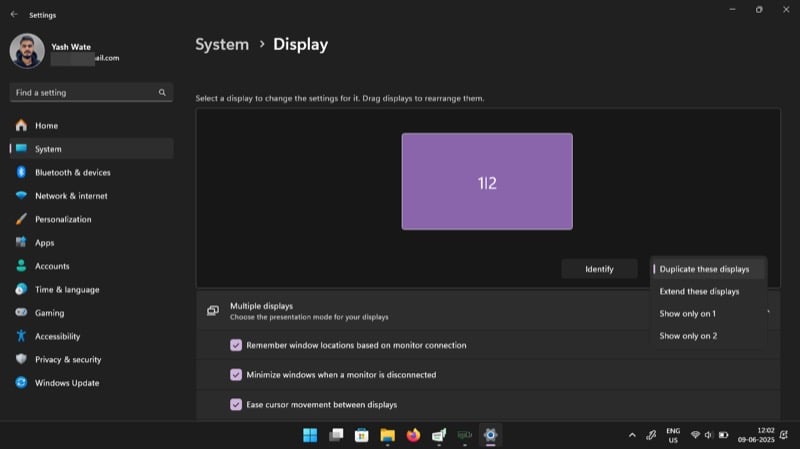
Now, click the Identify button on the Display settings page on your PC. You’ll see a large number on the screen on each device, indicating the number corresponding to the display’s position as identified by Windows. To rearrange the display, click the 1 or 2 window on the screen and move it to the left or right of the other window. Click Apply to save.
Navigating and Controlling the Screen
With the setup complete, interacting with what’s on your tablet’s screen is easy. If you’re using it in mirroring mode, you can use your PC’s trackpad or connected mouse to interact with the contents right on your PC, and it’ll reflect on the tablet’s screen, too. Alternatively, since touch input is supported, you may interact with the tablet’s screen directly.
Similarly, if you’re in extended mode, you can use both ways to interact with the content. You’ll, however, need to move your cursor across the screen—depending on the display arrangement—to interact with the contents on your PC and tablet.
At any point, if you want to use your tablet’s features, swipe up from the bottom to exit the spacedesk Viewer app. Use the device as you normally would and tap the spacedesk Viewer app to jump back and continue using it as a second display for your connected PC.
Configure spacedesk for a Better Screen Mirroring or Extending Experience
While you can use spacedesk in its default settings, there are a few settings and options you should consider changing to improve overall performance and usability.
Adjust the Screen Resolution
If you aren’t satisfied with the size, clarity, size, and overall display quality on your Android tablet, you can change the screen resolution from the spacedesk settings. Remember you can only do this if you’re using your tablet as an extended display. If you’re using it in the mirroring mode, it would use the PC’s native settings.
To do this, first terminate the connection, either from the spacedesk Viewer or the Server app. Then, in the spacedesk Viewer app on your tablet, tap the hamburger menu button on the screen and go to Settings > Resolution. Enable the Use Custom Resolution option and tap Choose Custom Resolution. Now, select your desired resolution on the following prompt and hit Apply.
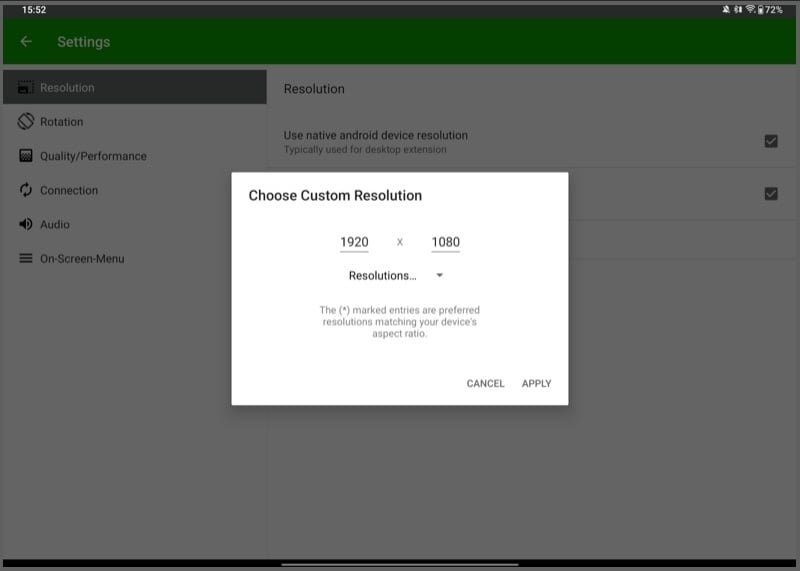
If you’re experiencing performance issues, reducing the screen resolution can often help.
Adjust the Frame Rate
Just like changing the screen resolution, adjusting the frame rate can also be helpful. You may want to do this if you want a smoother performance or are facing instability and want to fix that. Similar to changing the resolution, changing the frame rate is also possible when you’re using the tablet in extended mode.
To do this, end the connection, then go to Settings in the spacedesk Viewer app. Next, select Quality/Performance and tap Custom FPS Rate. Choose your desired frame rate.
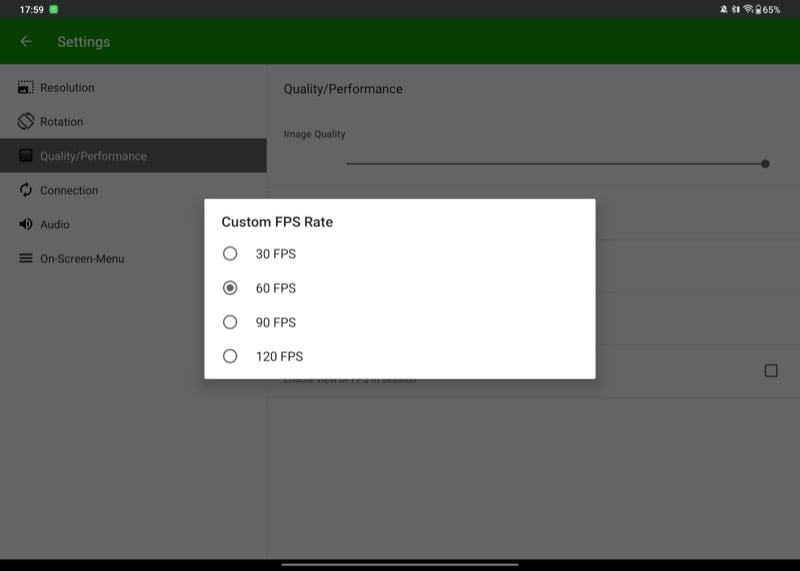
While here, you can also adjust the Image Quality. Increase it to improve the visuals or decrease it to reduce stuttering as needed.
Adjust the Encoding Color Depth and Rendering Color Depth
If your Android tablet isn’t showing accurate colors from your PC’s desktop, you should adjust its Encoding Color Depth and Rendering Color Depth settings.
The latter is responsible for controlling the fidelity of the source image, i.e., the image created and displayed by the primary machine, which is your Windows PC. On the other hand, the former takes care of the same for the transmitted image, which makes its way to the Android tablet from the Windows PC based on its display settings.
To do this, head to the Quality/Performance settings on the spacedesk Viewer on your tablet. Tap Encoding Color Depth and select an appropriate option based on your needs.

Similarly, tap on Rendering Color Depth and choose your preferred color depth option.
Transform Spare Screens Into Portable Displays With Ease
spacedesk offers a straightforward way to turn any spare screen—smartphone or tablet—you have lying around into a portable display that you can carry around in your backpack or pocket and hook up to your Windows PC when needed. So, if you’ve been thinking of getting a portable screen for your PC or wondering what to do with your old, unused Android tablet, give spacedesk a shot and bring it back in use.

