

Quick Answer
iOS 26 brings several hidden features Apple didn’t highlight, like custom ringtones from MP3s, adjustable snooze times, partial text copy, visited places in Maps, charge time estimates, adaptive power mode, 3D Spatial Scenes, Apple Music lyric translation, message backgrounds, and built-in PDF editing with Preview.
Just like Google, Apple also releases new iOS updates yearly that bring some great features. While Apple talks about most of them, there are a few that they miss out mentioning due to some reason, or leave them for the iOS users to explore. Apple started rolling out the iOS 26 update to the general public on September 15, and based on the reviews across social media, public forums, etc., iOS 26 is a mixed bag. Of course, if you were on Android or use an Android as a secondary device, then you would definitely think Apple is still way behind them (in most cases).

But for iOS users, the latest iOS 26 update brings a bunch of new features and welcome changes. The glass interface, which Apple dubs “Liquid Glass,” has been pretty troublesome to users, with some even looking for options to disable the Liquid Glass effect. But that doesn’t mean that iOS 26 doesn’t bring cool features. While Apple is still taking its time to bake Apple Intelligence, here are some of the hidden iOS 26 features you might want to explore.
Table of Contents
First, install iOS 26

The new version of iOS is known as iOS 26, while the previous version was called iOS 18. Don’t worry, you did not go into a coma for several years because in June, Apple announced that all of its operating systems — macOS, iOS, iPadOS, watchOS, and tvOS — will take a unified name.
As far as eligible devices are concerned, you can install iOS 26 on iPhone SE 2, iPhone 11, or anything released after them. However, only the iPhone 15 Pro, 15 Pro Max, iPhone 16 series, and the latest iPhone 17 series can use Apple Intelligence features. With that out of the way, here’s how you can install iOS 26:
Installing iOS 26 is simple. You need to head over to Settings > General > Software Update. Install it and enjoy the following hidden iOS 26 features.
Hidden iOS 26 features
Create a custom ringtone
Before iOS 26, if you wished to create a custom ringtone, you had to rely on GarageBand or a Mac. Now, Apple has unlocked the potential, and you can easily set any song or file that is in MP3 or M4A format as a ringtone. All you need to do is open Files > choose an MP3 or M4A that is within 30 seconds > tap Share > select Use as Ringtone. That file will be immediately sent to Settings > Sounds & Haptics > Ringtone. From here, you can choose the file that you selected and make it your ringtone.
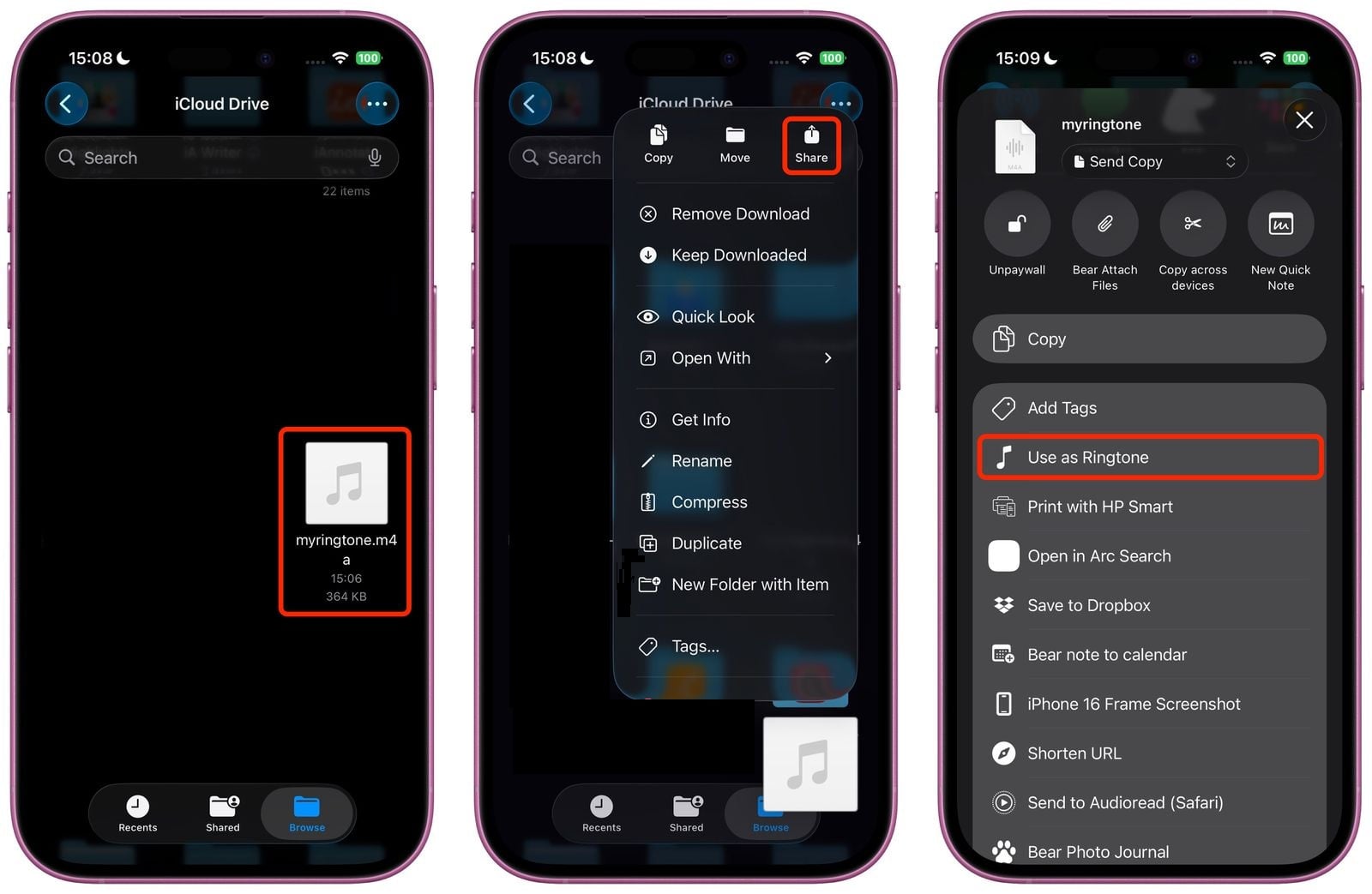
You can delete a ringtone file from the list by swiping left and tapping Delete. Moreover, you also have the option to set a custom ringtone for individual contacts. Notably, Apple Music files cannot be set as ringtones, even with a subscription.
Change default snooze duration
Till iOS 18, users could set the snooze duration to a maximum of 9 minutes. The reason? It is tied back to our history of mechanical clocks, in which setting double-digit intervals was a bit tricky. But that doesn’t get applied to the digital clock; still, Apple kept it. Now with iOS 26, you can set the snooze duration between 1 and 15 minutes.
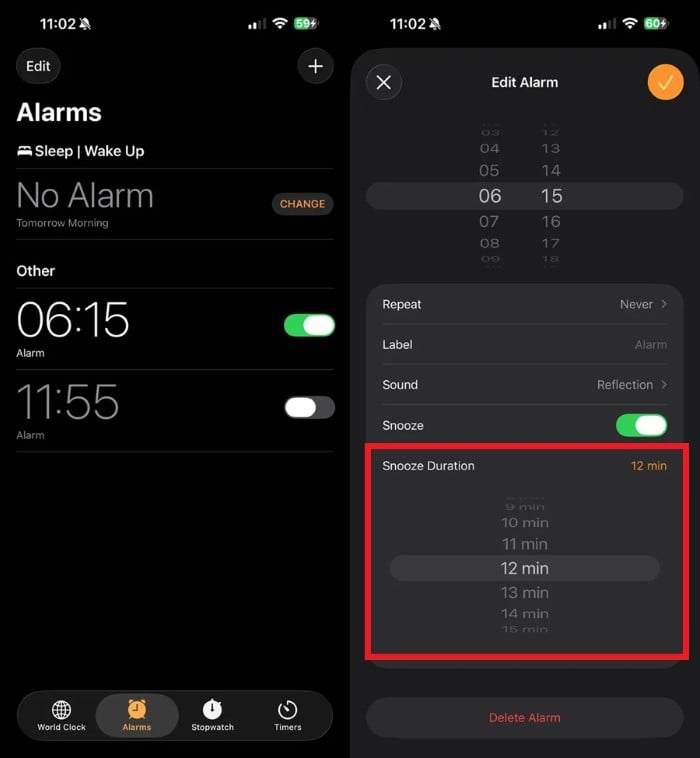
To change the snooze duration, head over to Clock > tap on the alarm for which you wish to change the snooze duration > select Snooze Duration at the bottom > select the snooze duration between 1 and 15 minutes. Do note that for each alarm, you need to set the snooze duration separately, meaning it isn’t universal. Also, for each newly created alarm, you need to set the snooze time individually.
Copy only a portion of a message
In iOS 18, if you wanted to copy a message, then long-pressing the message would, by default, give you only the option to copy the entire message. There was no option to select a specific portion of the message. But now with iOS 26, you can select a part of the message that you wish to copy and send to someone.
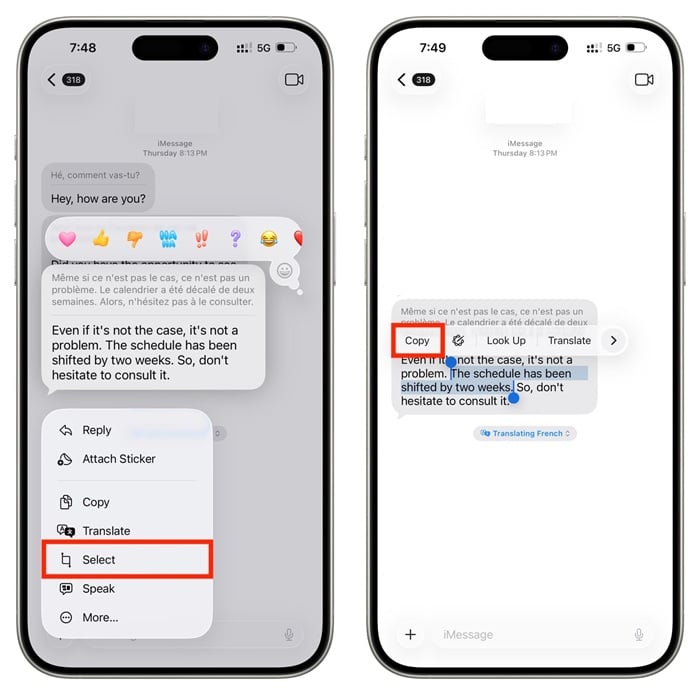
To do that, simply press and hold the message, choose Select from the context menu, then use the selection handles to select only the specific part of the message that you wish to copy. It is quite handy when you just want to extract or send some specific information from a long message. It is also available on other social media apps, including WhatsApp, Messenger, etc.
View visited places on Maps
Apple has also added a new “Visited Places” option in the Maps app, which remembers the places that you have visited. Once you turn on this tool, it automatically remembers places that you have visited, without you needing to save them. This makes it easier for you to go back to that place or recommend the places to someone.
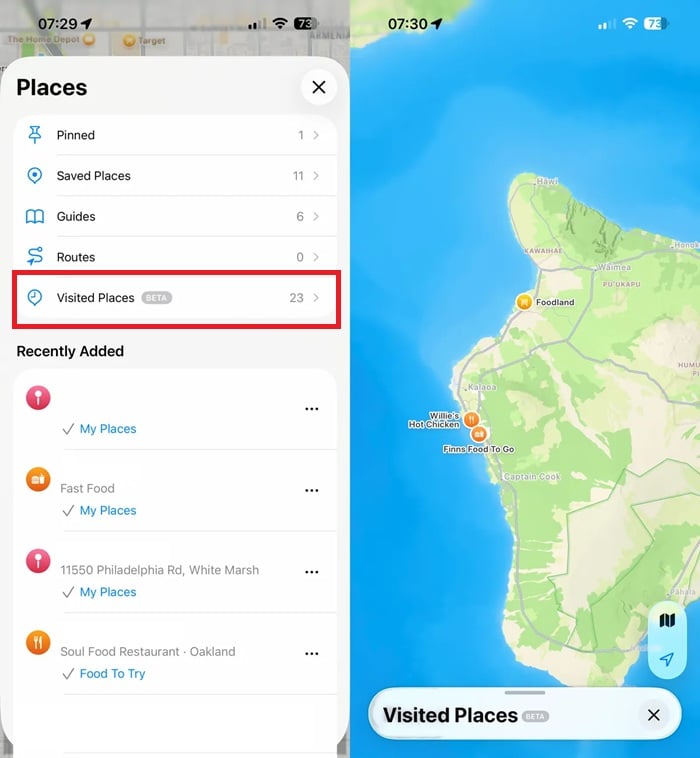
You can view the history by heading over to Maps > Profile > Places > Visited Places. According to Apple, the data is end-to-end encrypted and not even Apple can access it.
Battery charge time estimates
With iOS 26, another useful addition that Apple has made is that when you plug the charger into your iPhone, it will show you the battery charge estimate. Meaning, your iPhone will now tell you how long it will take for the battery to charge to 80% and 100%.

The information will be shown just above the time on your lock screen. You can also head over to Settings > Battery to see this information.
Adaptive power mode
Before iOS 26, there were only two power modes to choose from — Low Power and Standard. With iOS 26, Apple has added one more option called “Adaptive Power Mode” that adjusts the performance and battery usage based on your usage. Meaning, if you are doing heavy tasks like gaming or video recording, it pushes performance.
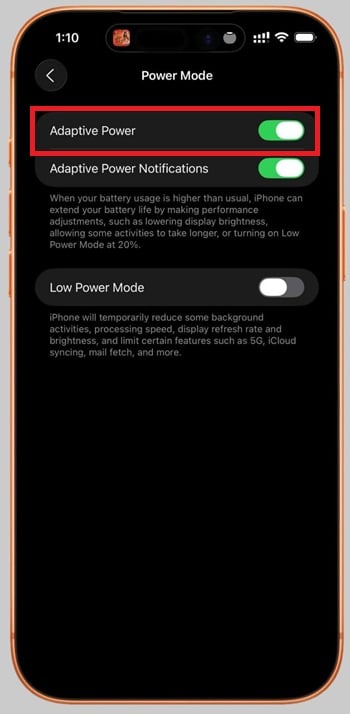
On the other hand, if you are listening to audio, then your iPhone will save battery and tone down the performance. You can manually turn it on by heading over to Settings > Battery > Power Mode.
Create 3D Spatial Scenes
With iOS 26, Apple has also added the ability to turn your images into 3D-like images. Notably, a new feature called “Spatial Scenes” has been added, which adds depth and immersiveness to the image with a subtle motion.

All you need to do is head over to the Photos app, choose a photo, and turn on the Spatial logo on the top right. The best part is that it also works on the lock screen. Meaning, you can select a photo and turn on Spatial Scene on the lock screen as well.
Apple Music lyrics translation
You know how much of a great help real-time translation is. You no longer need to know the language that you don’t speak, but you can still carry out conversations without any issue. What about songs? Yes, you can use the translation facilities to know the literal meaning of the words spoken in the song in your language. Apple has added that ability in Apple Music itself.
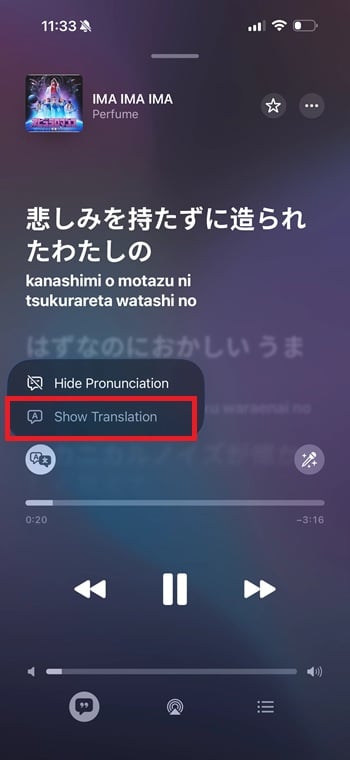
Now you can open Apple Music, tap on Lyrics view, and choose the new Translate These Lyrics option on the bottom left. This will show you the translated lyrics just below the actual lyrics, so that you can follow what the singer is saying in that language. Aside from lyrics translation, Apple has also added the AutoMix feature that fades one song to another, Music Pins that let you easily access your favorite songs, and a lock screen animated artwork that will show a huge image of the album art for the song that you are playing.
Add background to your text message
Text messages on iOS 26 running iPhones can now be assigned a custom conversation background. This gives your conversations a bit of flair and makes them more interesting.
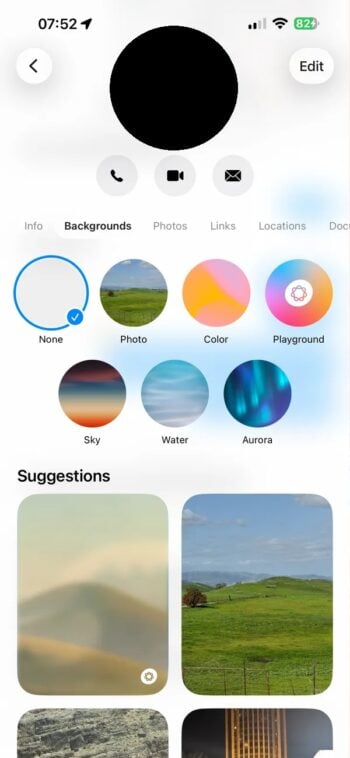
All you need to do is open a chat in Messages, tap on the profile name at the top, and select Backgrounds. From here, you will see options such as colors, gradients, photo selection, or use the AI-powered Image Playground to create one.
Edit PDFs with Preview
Apple has integrated the Preview app from macOS into iOS for PDFs. Thanks to this integration, you can now edit PDFs right on your iOS 26 iPhone.
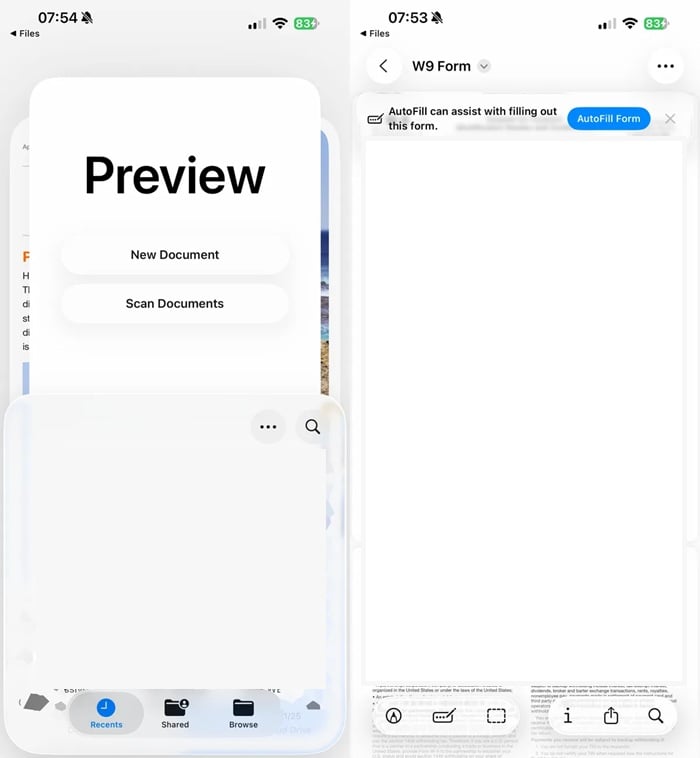
Simply, open a PDF in Files or Mail, select Markup, and you can now highlight text and add notes/comments, sign documents, or even change the order of pages. This eliminates the need for installing a third-party app to do all the needful.

