

Quick Answer
iOS 26 unlocks hidden AirPods Pro tricks: auto-pause music when you fall asleep, use AirPods as a camera remote, get live translation in real-time, receive charging case battery alerts, and stop unwanted audio switching to car speakers, making your AirPods smarter and more convenient than ever.
After months of beta testing, Apple has finally rolled out iOS 26 for eligible iPhones. The update brings a fresh design, new lock screen customization features, and plenty of new features.
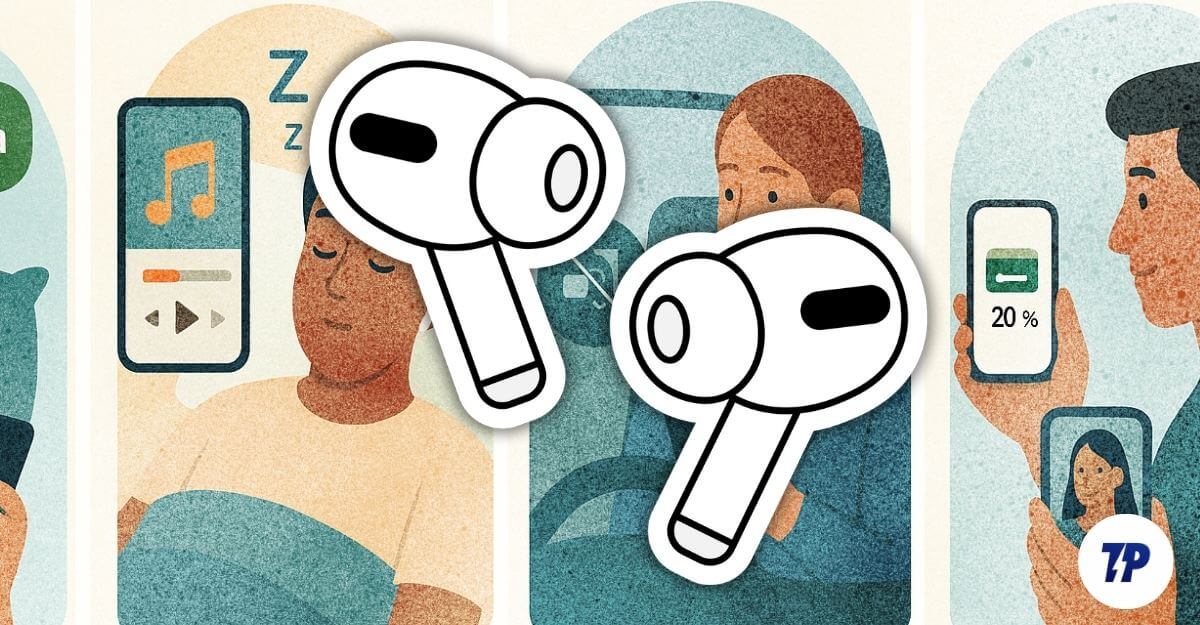
If you also own AirPods Pro, now with iOS 26, your AirPods can automatically detect and pause music when you fall asleep, control the camera app on your iPhone, and also live translate in real-time, along with other useful features.
If you own an AirPods Pro and upgraded your iPhone to the latest iOS 26, here are the 5 hidden features that you need to know.
Table of Contents
5 Hidden AirPods Pro Features in iOS 26
Feature | What It Does | Supported AirPod Models | Required iPhone Model |
|---|---|---|---|
Live Translation | You can translate conversations in real time using your AirPods. | AirPods Pro 2, AirPods Pro 3, AirPods 4 with ANC | iPhone 15 Pro or newer with Apple Intelligence |
Pause When You Sleep | Automatically stop music or video when you fall asleep. | AirPods Pro 2, AirPods Pro 3, AirPods 4 with ANC | Any iPhone compatible with iOS 26 |
Keep Audio in AirPods Only | Stop musicm playing in your AirPods switching to car play speakers | AirPods Pro 2, AirPods Pro 3, AirPods 4 with ANC | Any iPhone compatible with iOS 26 |
Battery Notifications | Get notified low or high battery alerts for AirPods case. | AirPods Pro 2, AirPods Pro 3, AirPods 4 with ANC | Any iPhone compatible with iOS 26 |
Camera Control | You can use AirPods as a remote shutter for photos and videos. | AirPods Pro 2, AirPods Pro 3, AirPods 4 with ANC | Any iPhone compatible with iOS 26 |
Apple Live Translation
Apple Live Translation feature is a game-changer for live translation. Instead of pulling out your smartphone every time, now you can use your AirPods Pro to translate conversations in real time.
If the other user also uses AirPods, you can have fully seamless conversations with real-time translation in your preferred languages.
The only downside is that it is only available for the latest models. Your iPhone should be iPhone 15 or later with Apple intelligence support, and you need to have AirPods Pro 2 or later with the H2 chip inside. If your device meets the requirements, follow the steps to set up live translation on your iPhone.
- Before ensure your device is upgraded to Apple iOS 26 and AirPods firmware to the latest version.
- Open the Settings on your iPhone
- Go to Bluetooth settings and select your AirPods Pro.
- Scroll down and under the Translation section, select Languages.
- Now download your preferred language.
How to use live translation
- Once you set up live translation on your device, to use it, Press and hold the stem on both of your AirPods simultaneously.
- Now it will automatically activate live translation.
- That’s it, when the user uses AirPods, they will automatically translate the voice into their preferred language as they speak. If you want to translate your language for others, you can use your iPhone, or if the other person is also using the AirPods, they can follow the same process to translate your voice into their preferred language in real-time. \
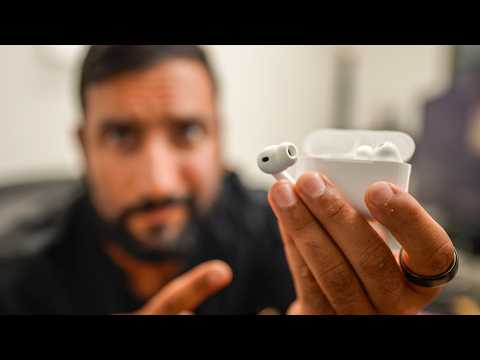
Here is the video on how to use Apple Live Translation feature on your iPhone and AirPods Pro:
Automatically Pause Music When You Fall Asleep
If you listen to music or a podcast before going to bed, this can be very useful.
Plenty of apps, including Spotify, offer a sleep timer that automatically stops playback after a certain time. However, the downsides are that if you forget to set the time, your iPhone will keep playing the music until you wake or manually turn it off, which not only drains the battery but also the quality of your sleep.
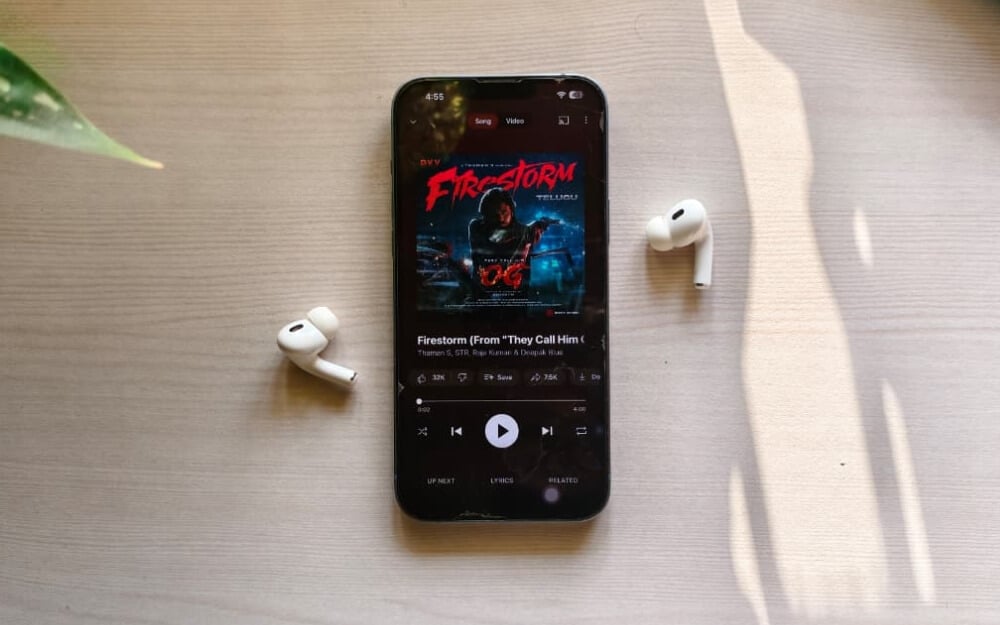
With iOS 26, Apple added an automatic sleep detector that detects when you fall asleep while listening to music or watching a video and pauses it automatically. Now, instead of relying on a fixed sleep timer in apps that only stop after the time is reached, your AirPods use a motion sensor or another signal to determine if you fall asleep and automatically pause the music.
Similar to live translation, this feature is only currently supported on AirPods 4, AirPods Pro 2, and AirPods Pro 3, and it only works when you are connected to a compatible device like an iPhone, iPad, Mac, or Apple TV with the latest 26 OS versions.
How to enable this feature on your iPhone
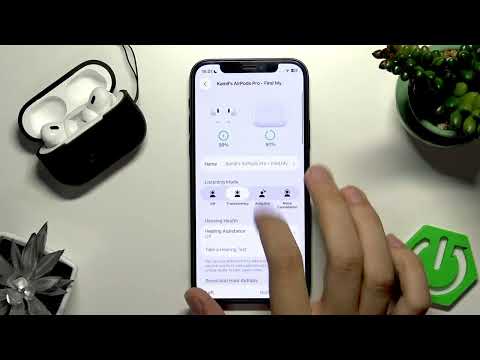
- Connect your AirPods to your iPhone.
- Open Settings on your iPhone and tap on the Bluetooth settings, and then tap on the (i) next to your connected AirPods.
- Now scroll down and turn on the feature that says Pause Media when falling Asleep.
- If you don’t see this feature, update your AirPods firmware to the latest version.
Stop Audio Automatically Switching to You Car Speakers
Apple seamless switching can come in handy to easily switch audio to different devices, but there are times you want to keep your audio on a device without switching. Apple CarPlay is one such example, where the audio switches from your AirPods to your car speakers, which can be uncomfortable. Especially when you are on a private call or having a meeting.
Previously, the only solution was to turn off the entire seamless connection feature, but with iOS 26, Apple has now added the ability to lock audio into the AirPods, preventing switching automatically to other devices like CarPlay while still keeping the seamless connection.
How to Prevent Audio Switching to Other Devices

- Open Settings on your iPhone and go to General Settings
- Scroll down and tap on the AirPlay & Continuity
- Now enable the option that says, Keep Audio with Headphones.
Receive Battery Notifications for Your Charging Case

Another useful addition to iOS 26 for AirPods is the battery notification for your AirPods charging case. This not only helps you to know the exact battery percentage of your AirPods charging case and how long your AirPods can last, but it can also avoid carrying a dead charging case, which has happened to me several times.
While Apple already shows a low battery percentage warning for AirPods when you are wearing them, with the new iOS 26 update, you will be notified even when you are not wearing your AirPods Pro. Apple reminds you to charge your AirPods case battery when it drops to a certain level, or also when the charging is full. Follow these steps to enable it.
How to Get Battery Notifications for your AirPods Pro

- Connect your AirPods to your iPhone
- Open Settings on your iPhone and go to Bluetooth settings
- Now tap on the (i) symbol next to your AirPods
- Scroll down and tap on the Battery option
- Here, turn on the option that says Charging Notifications.
Using Your AirPods to Control the Camera on Your Phone

No matter how advanced phone cameras have become over time, if you want to take a group selfie, placing the smartphone at a distance and setting a timer to capture the photo is still the most used method.
If you own an Apple Watch, you can use it as a remote shutter, but it takes multiple steps.
With iOS 26, you can now use your AirPods as a remote shutter. While you are wearing them, you can simply tap on your AirPods to capture photos and start recording your video. This is a very convenient feature if you want to take group selfies, and also if you are a content creator who wants to record videos.
How to turn on AirPods camera control
- Connect your AirPods Pro to your iPhone.
- Open Settings on your iPhone and go to Bluetooth settings, and here tap on the (i) next to your AirPods.
- Scroll down and go to the Camera Control section, and then select Camera Remote.
- Now choose the gesture you want to use to control your iPhone camera from your AirPods. You can select Press Once or Press and Hold to turn on the camera control.
How to use your AirPods as a camera control
- To use it, ensure your AirPods are connected to your iPhone
- Open the camera app on your iPhone and then perform the gesture, and that’s it. You can also use the same gesture to start or stop the video recording.
Conclusion: Unlocking New AirPods Pro Features
Those are the five best features getting for AirPods in the latest iOS 26. In addition to these, with iOS 26, supported AirPods now also come with improved audio recording features. Apple claims studio-quality performance, which means your AirPods can record high-quality audio and also come with improved call support if you take or make calls using your AirPods Pro.
And also, if iOS 26 also brings new charging indicators. Now, when you charge your AirPods, if you see a Green colour, it indicates that the case is fully charged, and if you see a yellow LED light, it means your AirPods are currently charging, and finally, if you see a red light, it means your AirPods case has a low battery and it needs to be charged.
To use these features, ensure your iPhone is running on iOS 26 or later, and you need to have supported AirPods. These features are currently rolling out, with live translation currently limited to countries outside the EU.

