

Quick Answer
Disable AI features on OnePlus (OxygenOS 16) via Settings by going to OnePlus AI and turning off options like Mind Space, AI Writer, and AI Service Engine. For full removal, use ADB commands to uninstall AI packages, though features may return after updates.
The launch of ChatGPT began the AI revolution. Companies are competing to enable more features in their products through AI. Every word related to AI has been viewed positively by the markets. To cash in on the AI models and to implement better features, smartphone manufacturers are incorporating AI features into their phones’ software.
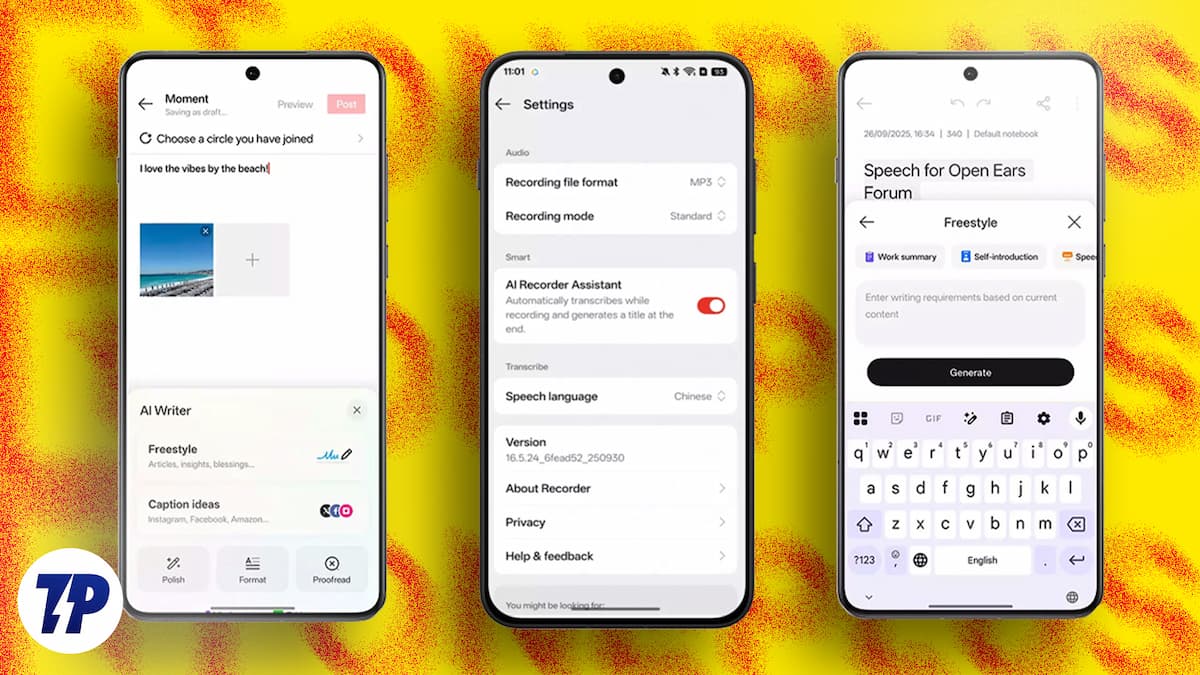
It is impossible to control data security when the AI is natively implemented on different apps. Keeping the data aside, some of the AI features come in the way of normal usage. They come in as a speed breaker and at times disturb the flow of how we use an app. For example, we normally type a message on WhatsApp with the keyboard. Imagine seeing pop-ups of an AI writer just above the keyboard on your phone while you are typing something important or urgent. It instantly irritates us.
Any feature that manufacturers implement on the phones must be activated with the consent of users. But these AI features are enabled by default, and we get to know about them with such pop-ups. Until then, we may not even know such features exist on our phones that run silently in the background.
OnePlus has also introduced a considerable number of AI features in its OxygenOS 16. For a normal user who uses various AI chatbots, these features have no use. Let’s see what AI features OnePlus has introduced in OxygenOS 16 and how to disable them. If you still haven’t got the OxygenOS 16 update on your OnePlus device, check out the rollout timeline and the list of eligible devices on our OxygenOS 16 Update Tracker.
Table of Contents
What Are the AI Features of OxygenOS 16?
OnePlus introduced many features with OxygenOS 16. They are embedded into the apps like Photos, Recorder, etc. Here is the list of all AI features on OxygenOS 16.
Mind Space
Mind Space on OxygenOS 16 is touted as a powerful personal intelligence that uses the data on your phone from screenshots, clipboard data, notes, and links to everything. This feature is powered entirely by AI to categorize your data and help you plan things, ignite your brain, and act as an assistant.

It connects to Google Gemini and helps you get personalized answers based on your phone’s data. This may sound alarming, but it is the most ambitious AI feature on One Plus.
AI Call Assistant
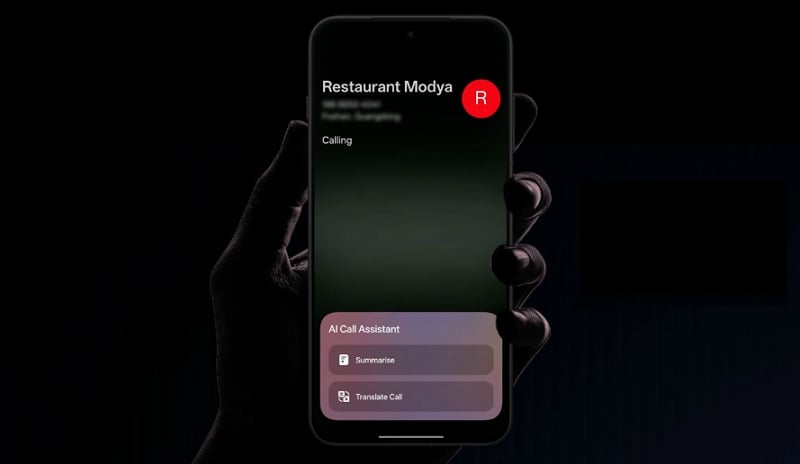
The AI Call Assistant feature helps you translate or transcribe calls in real-time. Though this feature is unavailable in some countries, it can translate calls or summarize your calls in the OnePlus Dialer.
AI Translation
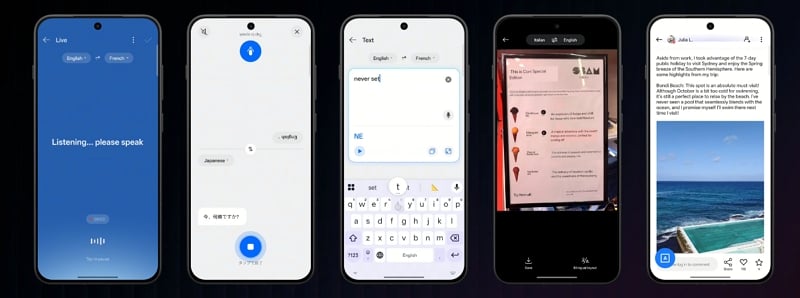
Google Translate used to be the go-to option for any translation through text or images. The AI Translation feature on OxygenOS 16d ups the translation game with extremely helpful features to translate live conversations, audio files, text, images, and your OnePlus screen.
AI VoiceScribe
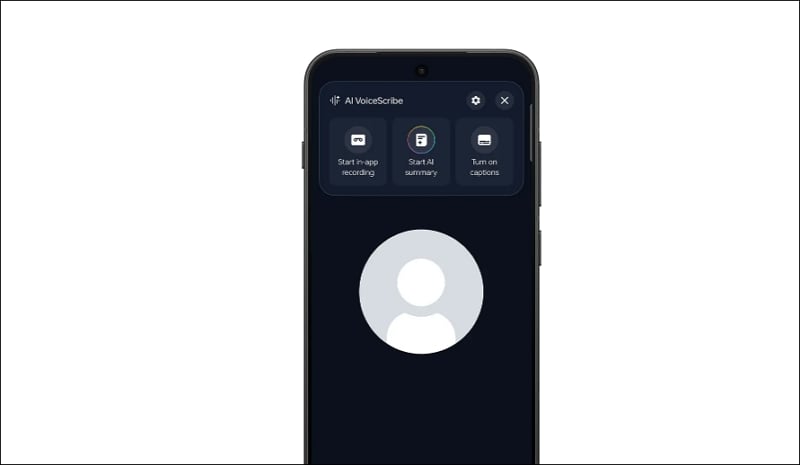
The AI VoiceScribe on OxygenOS 16 scribes your calls on WhatsApp, Snapchat, and other such apps. You can elevate the communications with AI VoiceScribe features like in-app recording, AI Summary, and live captions. You can even translate foreign language videos in real-time with AI VoiceScribe.
AI Writer
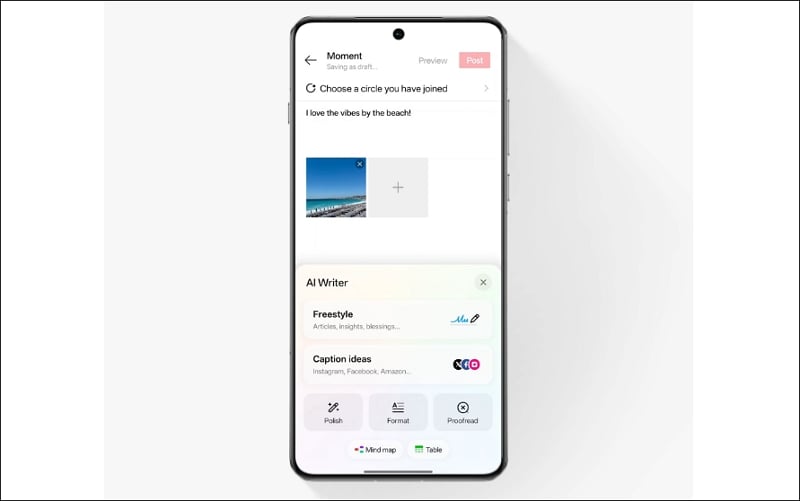
AI Writer helps you write well on your OnePlus device. You can create captions, improve writing, and emulate any writing style. AI Writer pops up as a tiny button above your keyboard. You can even create Mind Maps and tables with the AI writer and visualize your text for simple understanding.
AI Scan

With AI Scan, you do not need third-party programs to scan physical documents and make digital documents. AI Scan helps you preserve details of the scans from any angle without any shadows or curves. You can save the scans as PDF or photos.
AI Image features on OxygenOS 16
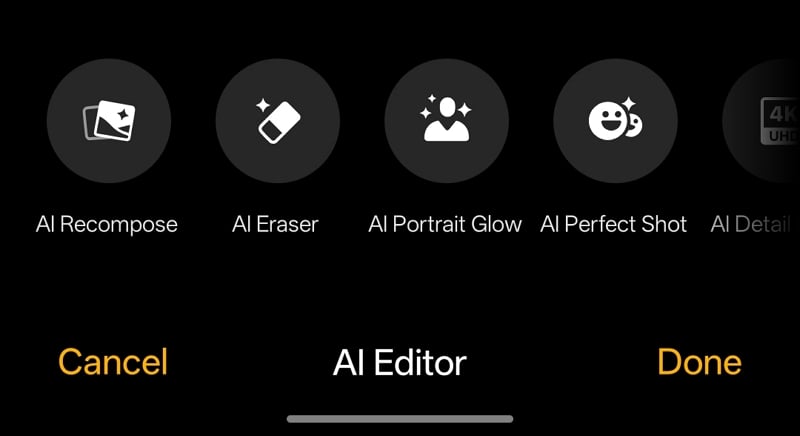
AI Perfect Shot: Some moments happen instantly without planning. When we click a picture and find any issues like closing eyes, or looking not ready for a click, the AI Perfect Shot feature can help make the picture better by correcting the mistake using AI.
AI Unblur: If you mistakenly focused on an unimportant subject in a picture, want to refocus the subject and remove the blur, the AI Unblur feature will help.
AI Reflection Eraser: Reflections are common when we click a picture through glass. Those reflections add a beautiful visual sense to the picture. But at times, they might ruin the entire image and make it look odd. The AI Reflection Eraser feature helps us get rid of such reflections to get a clear picture.
AI Eraser: The AI Eraser feature on OxygenOS 16 lets you remove things or objects from an image with a simple click.
AI Detail Boost: If you have a pixelated picture and want to make it better by improving the details in it, the AI Detail Boost helps you recover such pixelated or non-detailed pictures and make them better.
AI Portrait Glow: When you take pictures in bad lighting and do not feel the happy vibe in your clicks, you can just use the AI Portrait Glow and make the image look better by improving the lighting on the subjects.
AI Clear Face: It is impossible to focus on multiple subjects in a selfie, especially when we click a group selfie. The AI Clear Face feature helps unblur those faces to make them look clear.
AI Reframe: When you click a picture with an odd framing, the AI Reframe makes the picture look good by cropping and rotating it to a perfect frame.
Let’s see how we can disable these features.
How to Disable AI Features on OnePlus/OxygenOS 16
We can disable AI features on your OnePlus device with the latest OxygenOS 16 in two different ways. One is using the Settings app, and the other is by uninstalling or removing the AI-related applications using the ADB Shell via USB-Debugging. Before proceeding, note that the AI features you disable might return with the reset of your phone or updating to a newer version of the operating system. These methods do not involve rooting your phone, which makes it invalid for future OTA updates.
Disable AI Features on OnePlus/OxygenOS 16 via Settings App
Using the Settings app on your OnePlus device, you can disable a lot of AI features, including AI Writer, AI Translate, Mind Space, AI VoiceScribe, etc. This method does not remove or uninstall anything from your phone. It just turns off some features that you do not want to use.
To disable AI features on OxygenOS 16 using the Settings app, open the Settings app and tap on OnePlus AI. In the OnePlus AI settings, go to Mind Space, AI Suggest, AI Writer, AI Search, etc., and turn them off one after another.
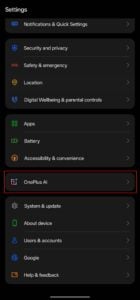


You need to tread carefully when disabling features in AI Suggest. They may make Weather, Health tracking, and such essential features redundant if turned off. Only turn off the features that you do not bother to use.
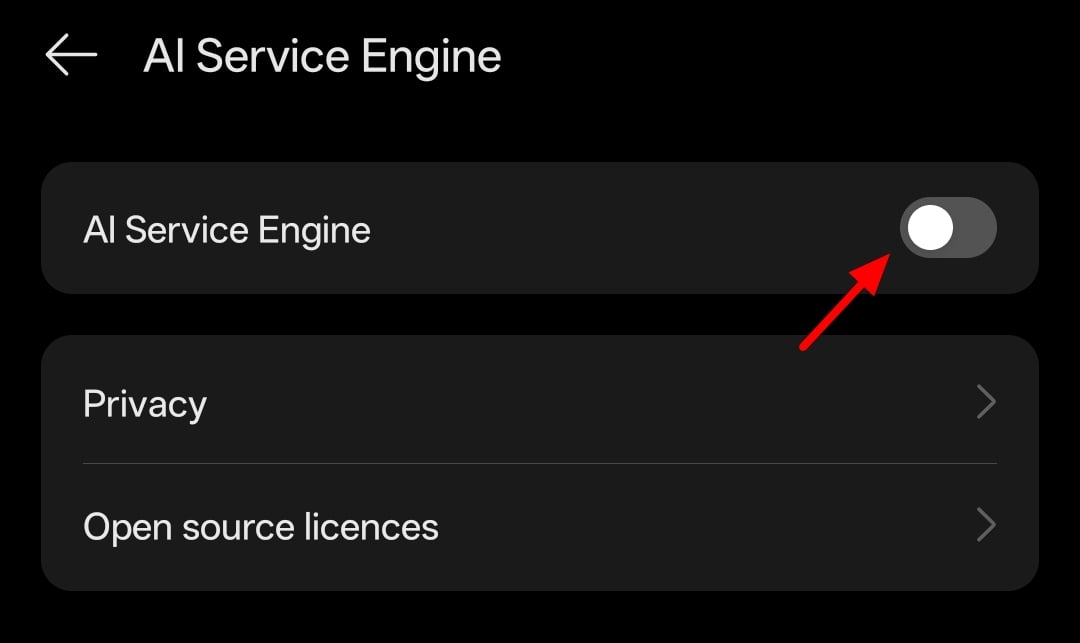
Then, tap on AI Service Engine in the OnePlus AI page and toggle the button beside it to turn it off.
The AI features available in the Photos app or the Recorder app are not disabled by turning off AI features in the Settings app. They are embedded into the apps by OTA updates. If you do not like using them, you can disable the Photos app or the Recorder app and use a third-party app that does not have any AI features. You can enable these apps anytime you want in the App Management options.
Permanently Disable AI Features on OnePlus/OxygenOS 16 via ADB Shell
This is a complex approach to disabling AI features on your OnePlus device. You need to connect your device to a Windows PC to be able to use ADB Shell commands. Follow the steps below exactly to make it work and not mess up with any essential features.
To get started, you need to enable Developer Mode on your OnePlus device. Open the Settings app. Scroll down and tap on About device. Tap Version in the About device options. Then, tap Version No. for 7 times.
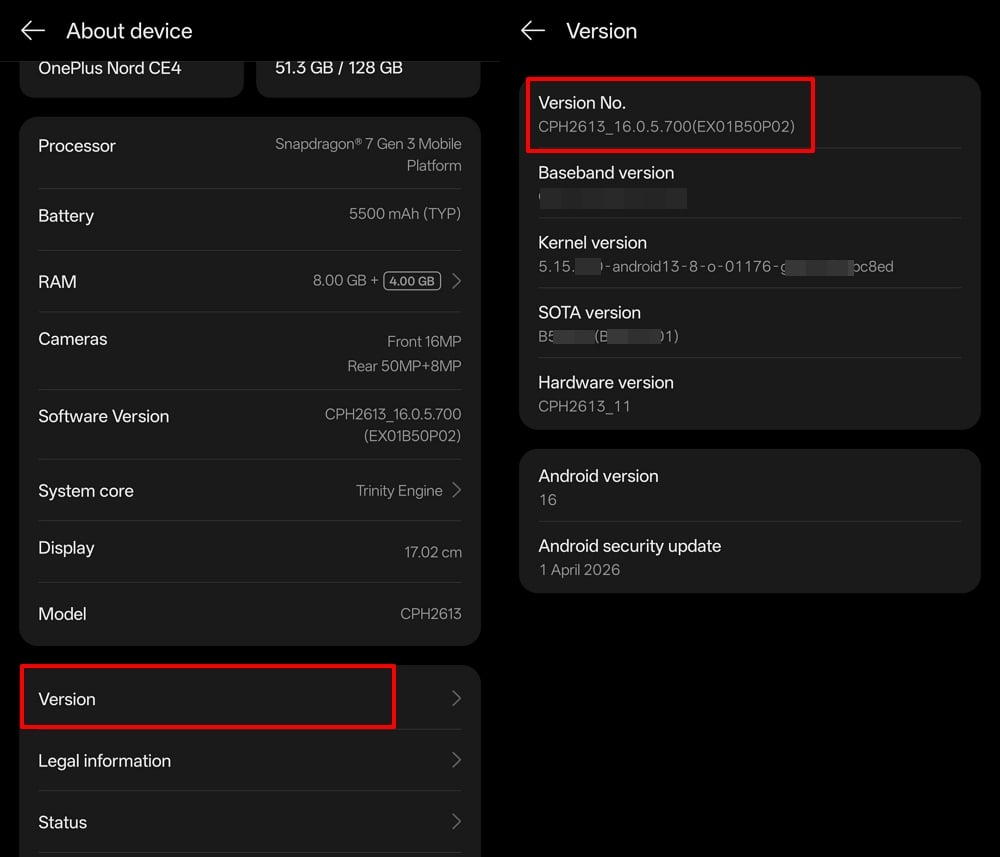
You will see the status or the number of remaining taps to enable developer mode on your device.
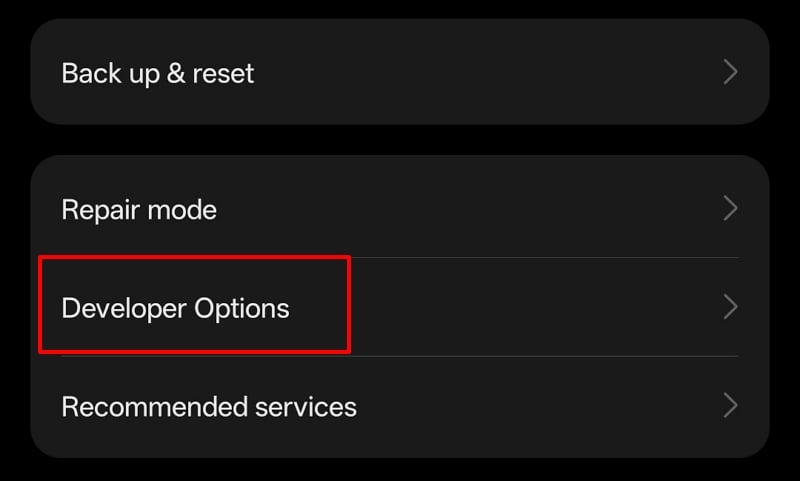
After enabling the Developer mode, tap System & update in the Settings app, and go to Developer Options.
Scroll down to the Debugging section in Developer Options and toggle the USB debugging button to enable it.
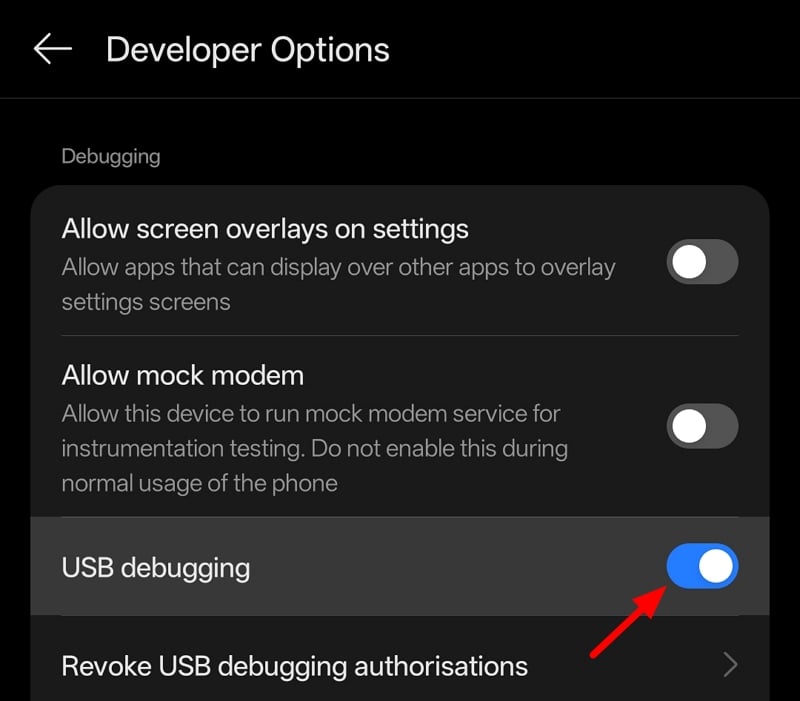
Accept the prompt that appears asking you to confirm enabling USB debugging on your device.
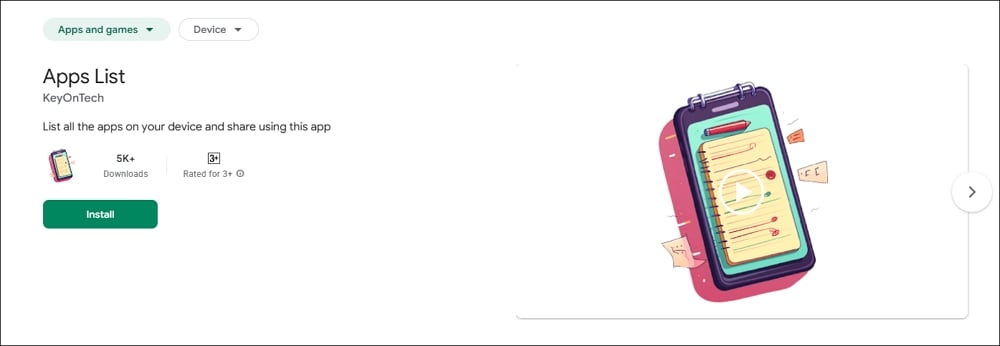
Open the Google Play Store and install Apps List or any such app that lists all the apps installed on your device and shows you the package name of each app installed on your OnePlus device.
At the same time, download the ADB or Android SDK Platform Tools on your Windows PC from the Android Developers’ official website.
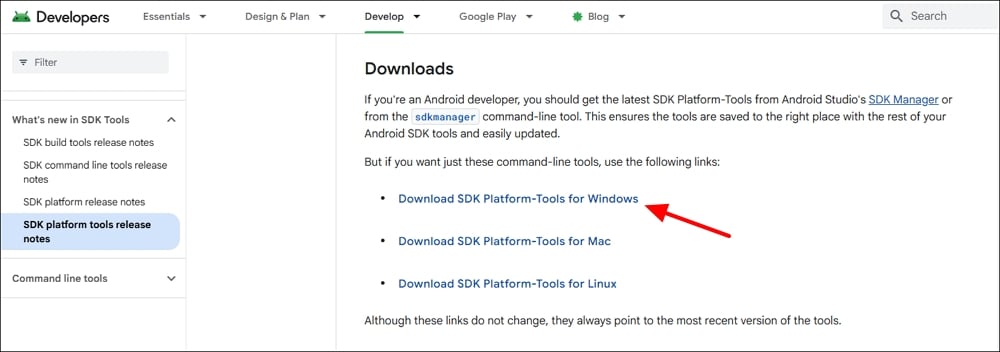
It will download a Zip file. Extract it on your PC.
Connect your OnePlus device to the Windows PC and select File transfer / Android Auto. Then, open the extracted SDK platform tools folder on your Windows PC, right-click in the folder, and select Open in Terminal.
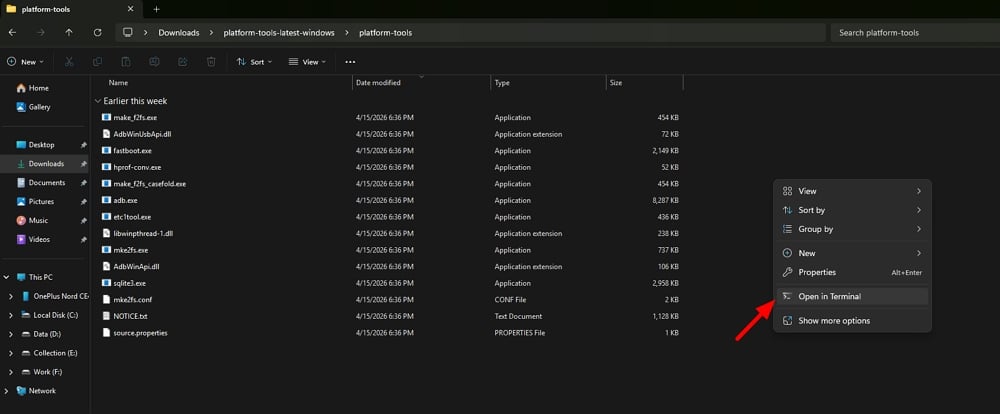
It will open a Windows PowerShell window. Type the following command and press Enter.
./adb devices
It will show a prompt on your OnePlus device asking you to Allow USB debugging. Tap Allow. If you are using your personal PC, check the box beside Always allow from this computer to avoid this prompt again while using USB debugging options.
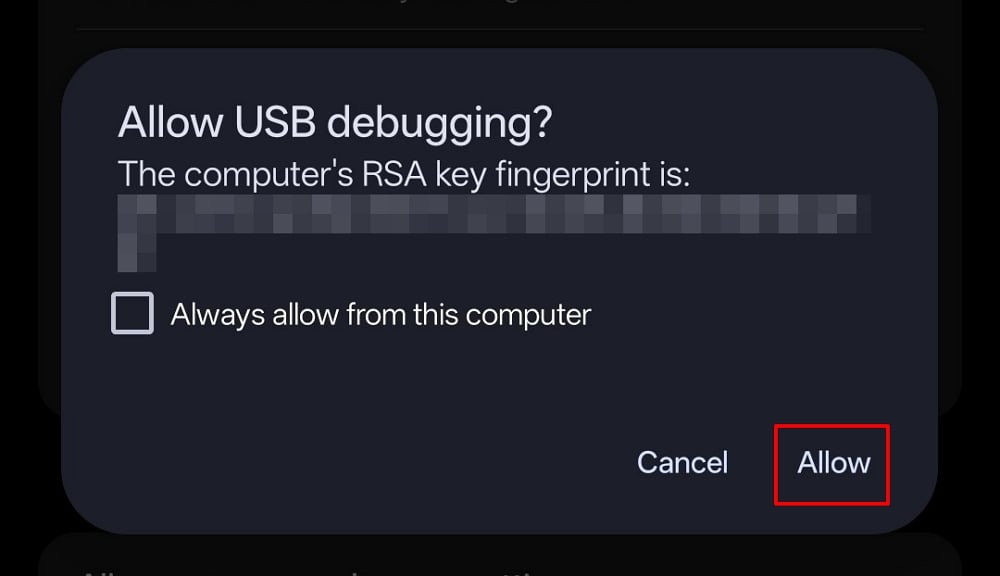
After successfully allowing USB debugging, type the following command in the PowerShell window and press Enter.
./adb shell
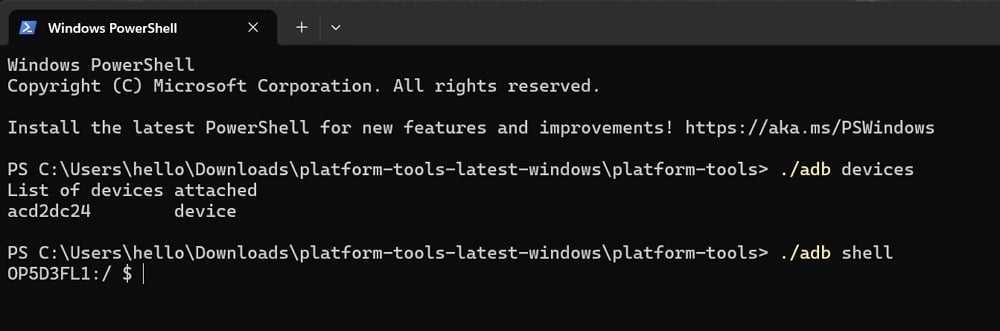
You can now proceed to remove AI-feature-related apps on your OnePlus device to permanently disable AI features on your OnePlus device.
Open the Apps List app on your OnePlus device, and list out the package names of AI features available on OxygenOS 16. Then, type the following path followed by the package name you find in the Apps List and press Enter.
pm uninstall
Or you can just use the following commands directly on PowerShell to uninstall them.
pm uninstall com.oplus.aiunit

pm uninstall com.coloros.accessibilityassistant

pm uninstall com.oplus.aiwriter

pm uninstall com.oplus.aimemory
Paste the commands in Terminal and press Enter.
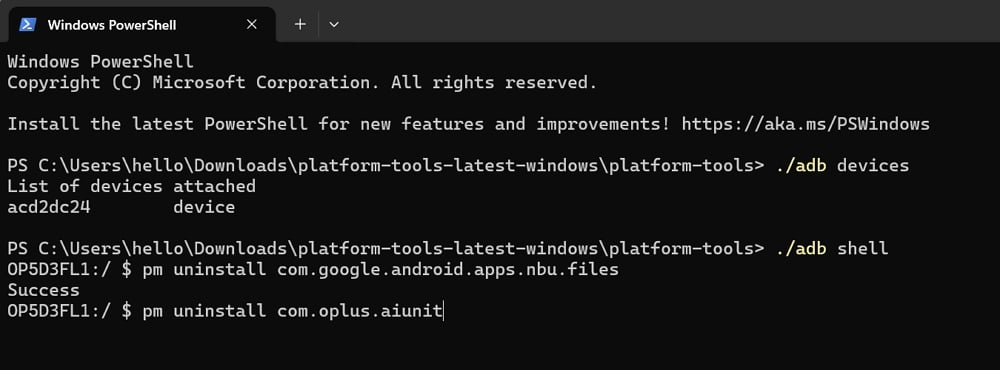
Your OnePlus device with OxygenOS 16 will now be free of the default AI features. They may come back with the next OS update.
Disable or Fully Remove AI Packages on OxygenOS 16
Whether you want to disable the AI junkware or completely remove the AI packages that power the AI features on OxygenOS 16, it is possible. You can just disable them through the Settings app and can re-enable them when you find a need to use them. If you fully remove AI packages, you cannot use the AI features even if you find a need in the future, unless there is an OS update that replaces the existing version of the OS.
FAQs on Disabling AI Features on OnePlus/OxygenOS 16
Can you disable OnePlus AI?
Yes, you can disable OnePlus AI in the Settings app. Open the Settings app, go to OnePlus AI and disable each feature manually, including the AI Service Engine. You cannot completely remove the OnePlus AI listing on your OnePlus device.
How do I stop Gemini in OnePlus?
Find the Google app on your OnePlus device, open the App info page. Then, tap to disable the Google app. It will stop Gemini in OnePlus and make it inaccessible even with the AI features on OnePlus. It will also disable the annoying Google Discover page that appears with the right-swipe on your OnePlus homepage.

