

Quick Answer
Tired of bloated PDFs tools? Okular is the best free Acrobat Reader alternative right now, offering fast performance, zero ads, full annotations, digital signatures, and support for multiple file formats, all without subscriptions or hidden costs.
There are certain software that have become the default for specific tasks. For instance, most of us use VLC Media Player as our default media player while using Microsoft Office for our word, presentation, and spreadsheet-related needs. Similarly, most of us rely on Adobe Acrobat Reader for our PDF-related needs. But lately, Acrobat Reader has become so bloated, and most features are locked behind a paywall. It has now started asking for your credit card information just to access a few basic features.
If you are also tired of such “Buy Pro” pop-ups, the slow loading times, and the bloated interface, then you will be glad to know that the best free Acrobat Reader alternative already exists, and it does everything Acrobat offers and more, without costing you a single penny. The tool is called Okular, and it is the best free PDF editor and viewer that you will ever use. After using it, you won’t need to look for anything else.
Table of Contents
Why You Need an Adobe Acrobat Reader Alternative?
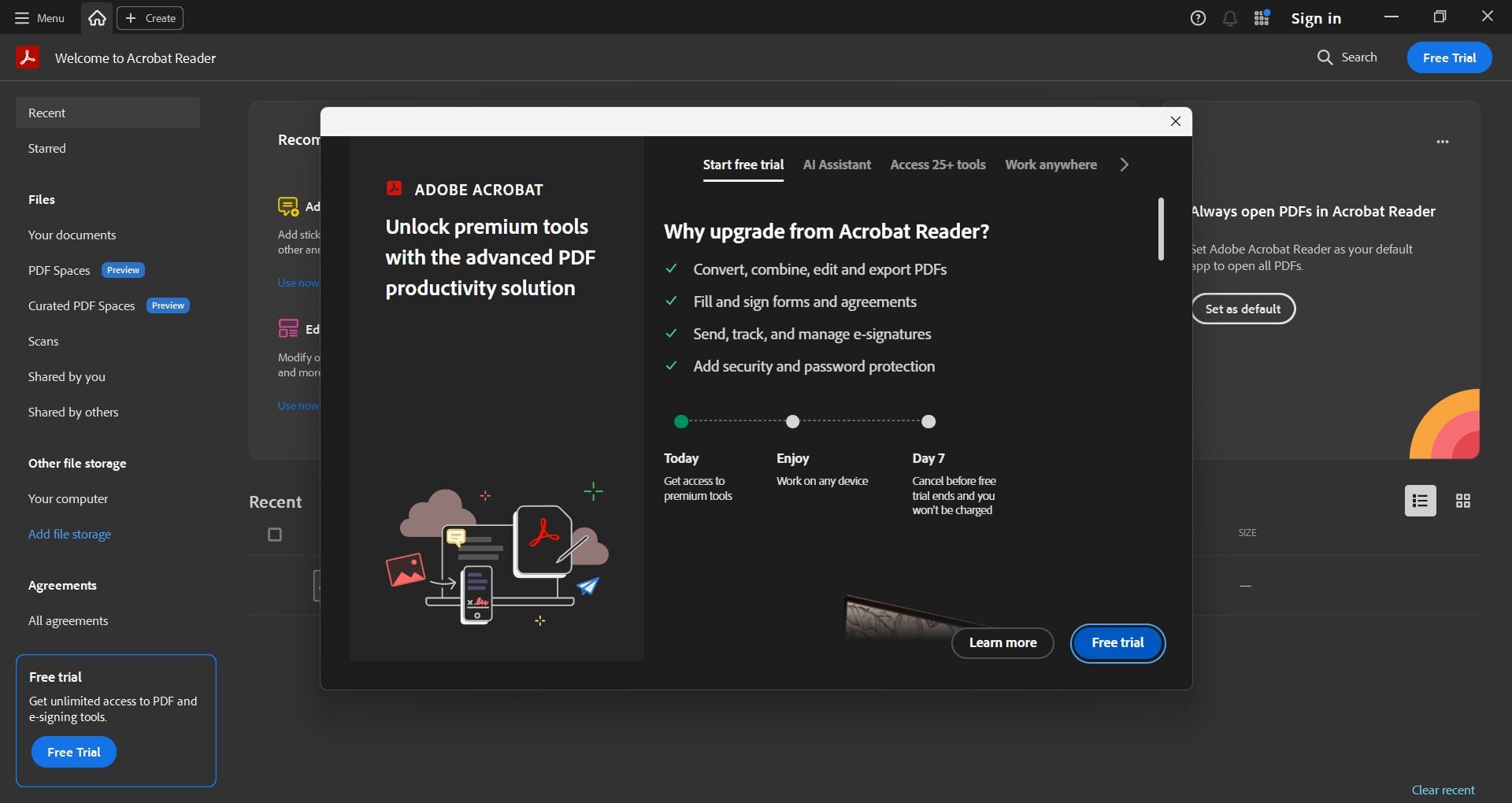
Before we go ahead and understand why Okular is a great replacement for Acrobat Reader, we have to talk about why Acrobat Reader is not the tool that it once was. I have been using a PC for multiple decades (I am not that old, still in my 30s), and I know how Acrobat Reader used to be back then. I have also personally used Okular for over a year now, for everything from reading research papers and annotating contracts to filling government forms and extracting tables from financial reports. It has not failed me once. I know how Acrobat Reader used to be back then – a simple, efficient tool, which is why it quickly became the default PDF-handling software for almost everyone. But fast forward to now, and it has transformed into a massive suite of services that most casual users do not care about.
If you open a PDF in Acrobat Reader, you are greeted with unwanted pop-ups and a cluttered sidebar full of features that are unusable (you have to pay for them). Want to edit a line of text? Pay up. Want to combine two files? Pay up. Want to sign the PDF? Pay up. The Adobe Acrobat subscription starts at around $19.99/month, a steep price for features that you can get for free elsewhere. Features are so restrictive that Acrobat Reader seems like just a PDF viewer with a messy interface and unnecessary pop-ups.
At this point, finding a good PDF reader without subscription is not just a preference, it is a necessity. On top of this, the software runs background processes that hog your resources and also slow down your PC. In fact, Adobe Acrobat Reader’s installer alone is over 300 MB, and its background service (AdobeUpdateService) runs even when you are not using it. Okular’s installer, by comparison, is under 100 MB, and it runs zero background processes.
This is why I say Okular is the perfect Acrobat Reader alternative and changes the way a normal user can view and edit their PDFs. Originally developed for the Linux world as a part of the KDE project, this open-source PDF reader is now fully available for Windows and Mac as well. It brings a no-nonsense interface and feature list that most users would find handy.
Meet Okular: Free Acrobat Reader Alternative

If you are thinking that Okular is just another PDF viewer or a generic Acrobat Reader alternative, then you are mistaken. Yes, Okular is an efficient PDF viewer, but it is a universal document viewer. It is like a Swiss Army knife for your files. Just to give you some context, with Okular you can open:
- PDFs
- Epubs (for digital books)
- CBR and CBZ (Comic book fans would know)
- Markdown files (for writers and coders)
- Images (JPEG, PNG, etc.)
- DjVu, XPS, and even PostScript files
This means that instead of having four different tools for handling each type of file, you can just download Okular on your PC, and you are set. Throw any type of document into it, and it will open it for you. And while Okular covers viewing and annotation beautifully, if you ever need a PDF merger, compressor, or OCR tool, we have covered some great options for that in the alternatives section below.
But that is just half of Okular. Another important thing, which you will see when you switch from Acrobat Reader to Okular, is the speed.
Since Okular is built with efficiency in mind, it opens instantly and gets to work at lightning-fast speeds. You don’t have to wait through a splash screen, a bunch of unwanted subscription messages/popups, or a progress bar, to get to view your PDF. Okular opens your document instantly. This is even true for a massive 500-page manual or high-resolution blueprints. You can zoom in and out with buttery smoothness, and it won’t stutter mid-way as many web browsers and PDF viewers do. As a lightweight PDF reader, it does not drain your laptop’s battery, use excessive CPU power, or run background processes that slow your system down.
Getting Started with Okular
Getting Okular up and running takes about two minutes. Here is all you need to know:
- Download (link above) and grab the installer for your operating system: Windows, Mac, or Linux.
- Install: Run the installer and follow the standard setup steps. No account creation, no credit card, no opt-in newsletters.
- Set as default: Once installed, you can right-click any PDF on your PC, choose “Open With,” select Okular, and check “Always use this app.” From that point on, every PDF opens in Okular automatically.
Okular runs comfortably on any modern PC. It does not have steep system requirements. If your machine can run Windows 10 or macOS 12 and above, Okular will run on it without any issues. Mac users will also find Okular listed among the best free open-source Mac apps worth installing.
One honest limitation worth mentioning: Okular does not have native OCR support. If you frequently work with scanned documents, like scanned invoices or physical contracts photographed and sent as PDFs, you will need to use a complementary tool like PDF24 (covered in the alternatives section below) to first make the text selectable, and then use Okular for everything else. For the vast majority of everyday PDF users, this will never come up. But it is worth knowing.
Top Okular Features That Beat Adobe Acrobat (All Free)
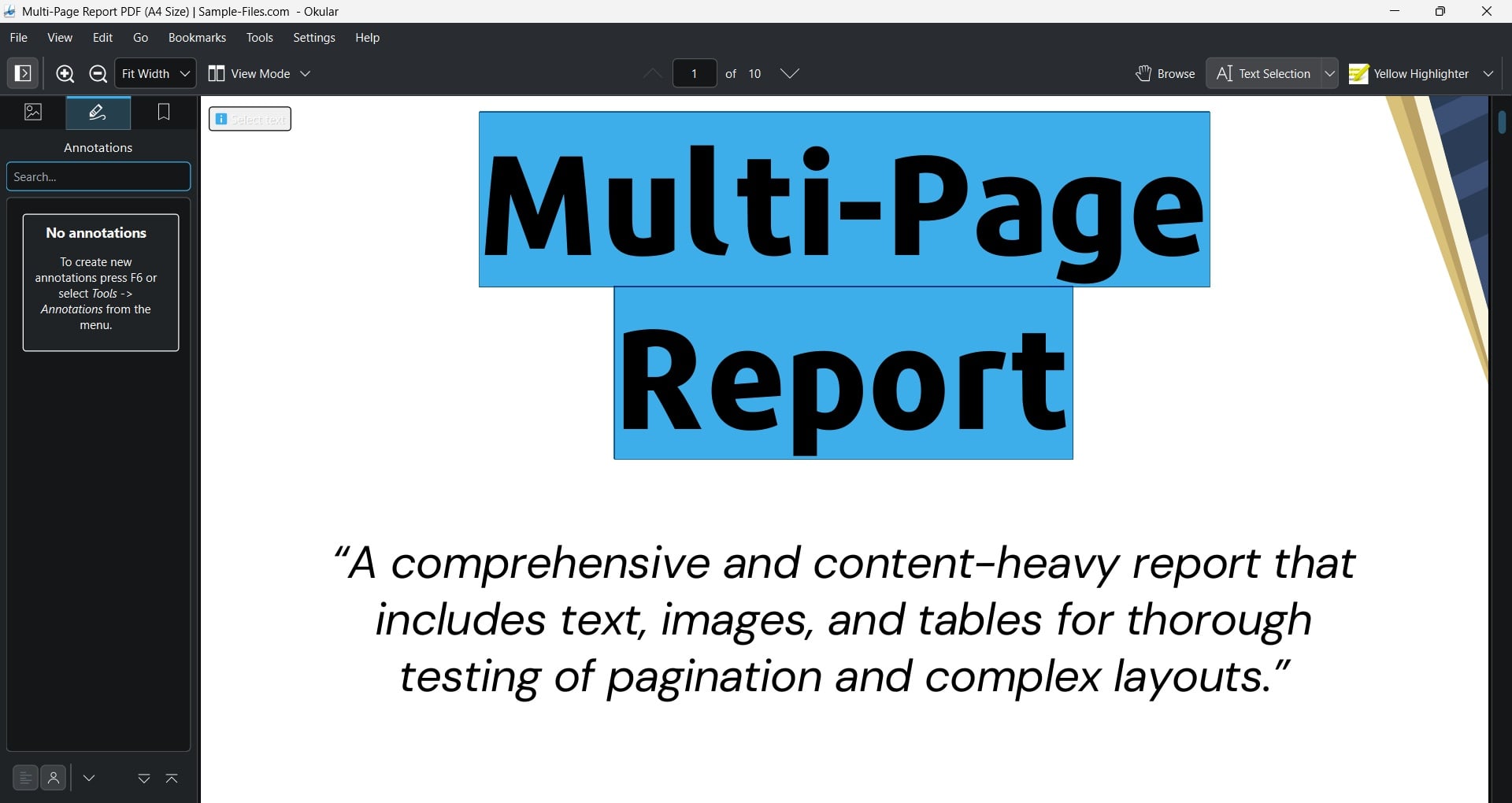
Let us talk about the features that make Okular stand out. When a software is free, you don’t get many editing tools with it. With Okular, it is the opposite. Its annotation suite makes it the most capable free PDF annotator you will find, giving you all the tools to edit your PDF at your disposal. You just have to open your PDF and enter “Review Mode,” and you get access to the following tools:
- Highlight text: You can choose any color to mark important sections of the documents.
- Underline and Strikethrough: You can use it for proofreading.
- Inline Notes: You can type notes directly onto the page.
- Pop-up Notes: You can keep your document clean by hiding long comments behind a small icon.
- Freehand Drawing: Want to express yourself creatively? Then you can do that as well using your mouse and stylus.
- Stamps: Mark documents as Approved, Confidential, Cancel, or anything using this feature. You can also use custom emojis.
The best thing about Okular is that all of the above features, unlike Acrobat, are available for free. Also, Acrobat saves certain edits, such as annotations, in a way that forces you to use their own software to see them. Okular follows open standards. Meaning, whatever you highlight using Okular will show up correctly in any other viewer – no watermark, no forced branding, and no proprietary lock-in.
Okular offers advanced features for free
Beyond the basic features you would expect from a PDF viewer, Okular offers a range of quality-of-life features designed to improve your experience and make it feel like a modern tool for real people.
- The Selection Tool: If you have ever tried to copy a table from a PDF into an Excel Sheet, then you would understand the mess it creates. But that is true for Acrobat because Okular has the dedicated “Table Selection” tool. You can draw a box around the table in a PDF, and it intelligently understands rows and columns, allowing you to copy the table cleanly. Additionally, there is an “Image Selection” tool that lets you grab any part of the document and save it as a separate image file. If you want to convert pages from a PDF into images in bulk, we have a full guide for that too.
- Magnifier and Trim View:
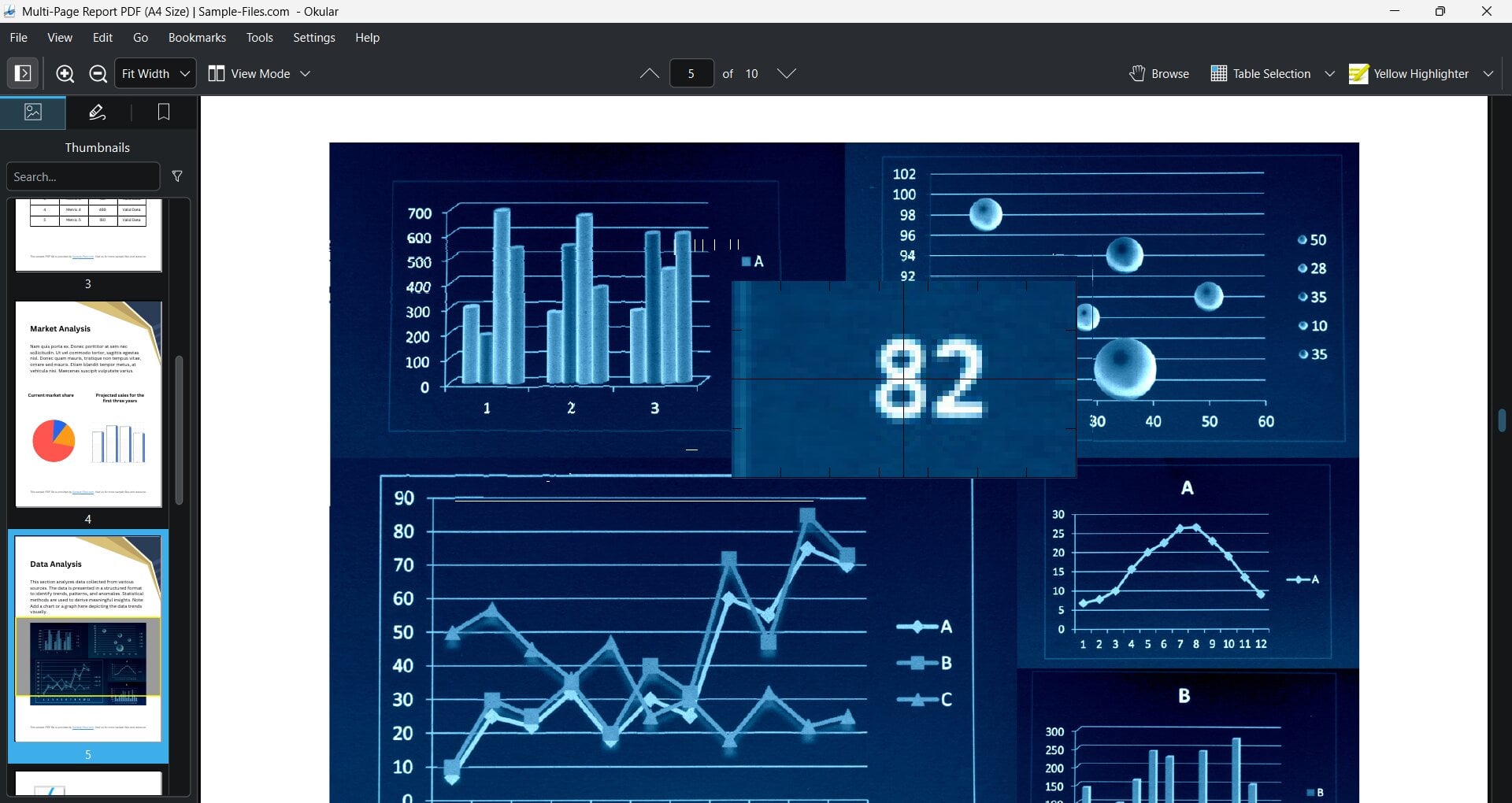 PDFs often contain complex diagrams, which are a bit hard to view clearly with the naked eye. For this, Okular has a “Magnifier” mode, which, instead of zooming the whole page, gives you a digital magnifying glass that follows your cursor. The “Trim View,” on the other hand, lets you grab any part of the document and save it as a standalone image file.
 - Digital Signature and Forms:
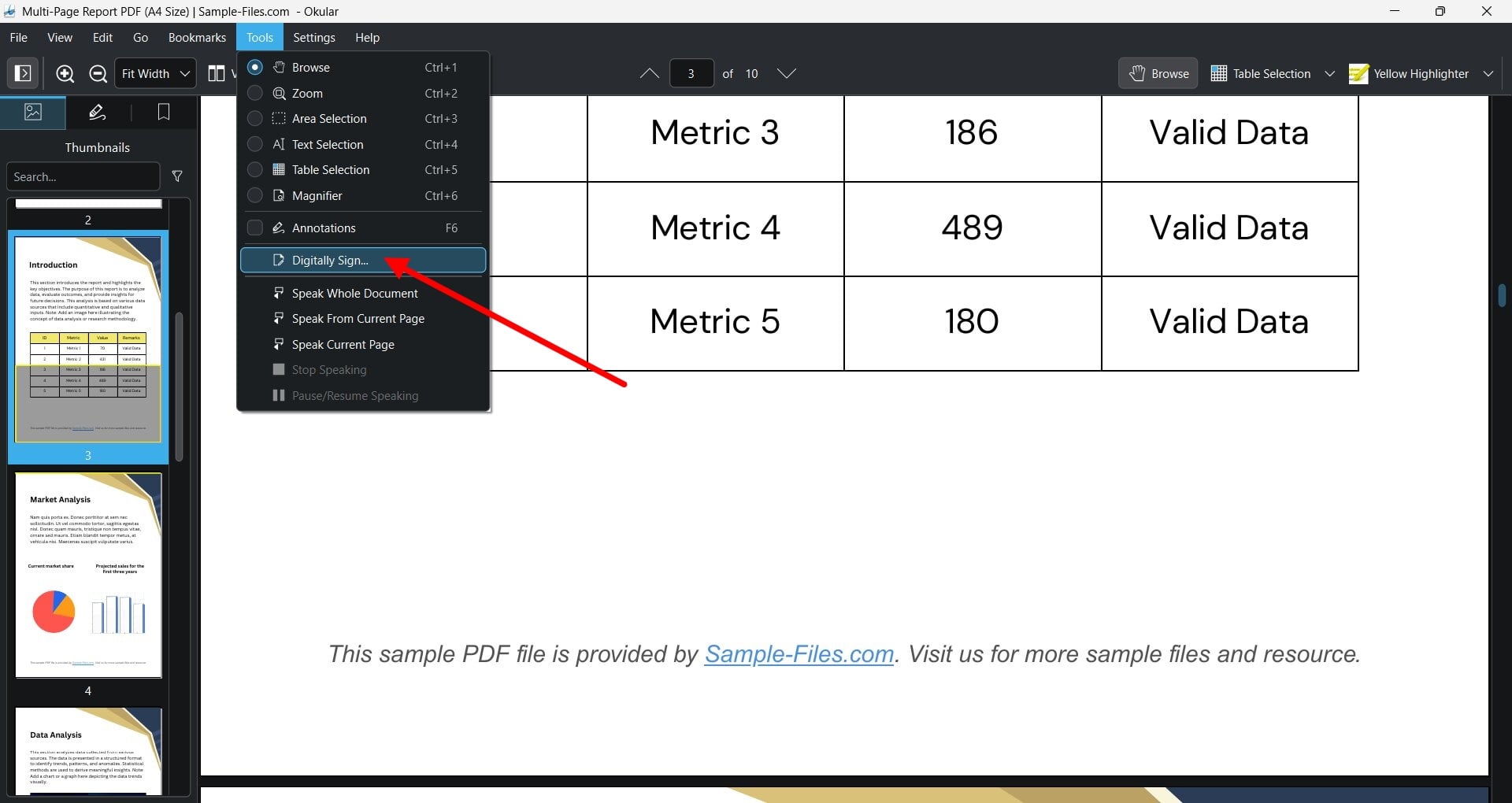 One of the absolute best features that is locked behind a paywall on Acrobat is digital signatures, which is available for free in Okular. You can create digital signatures and fill out PDF forms. It is secure, straightforward, and doesn’t require cloud-syncing your signature or any of the crap that Acrobat asks you to.
 - Thumbnails and Bookmarks:
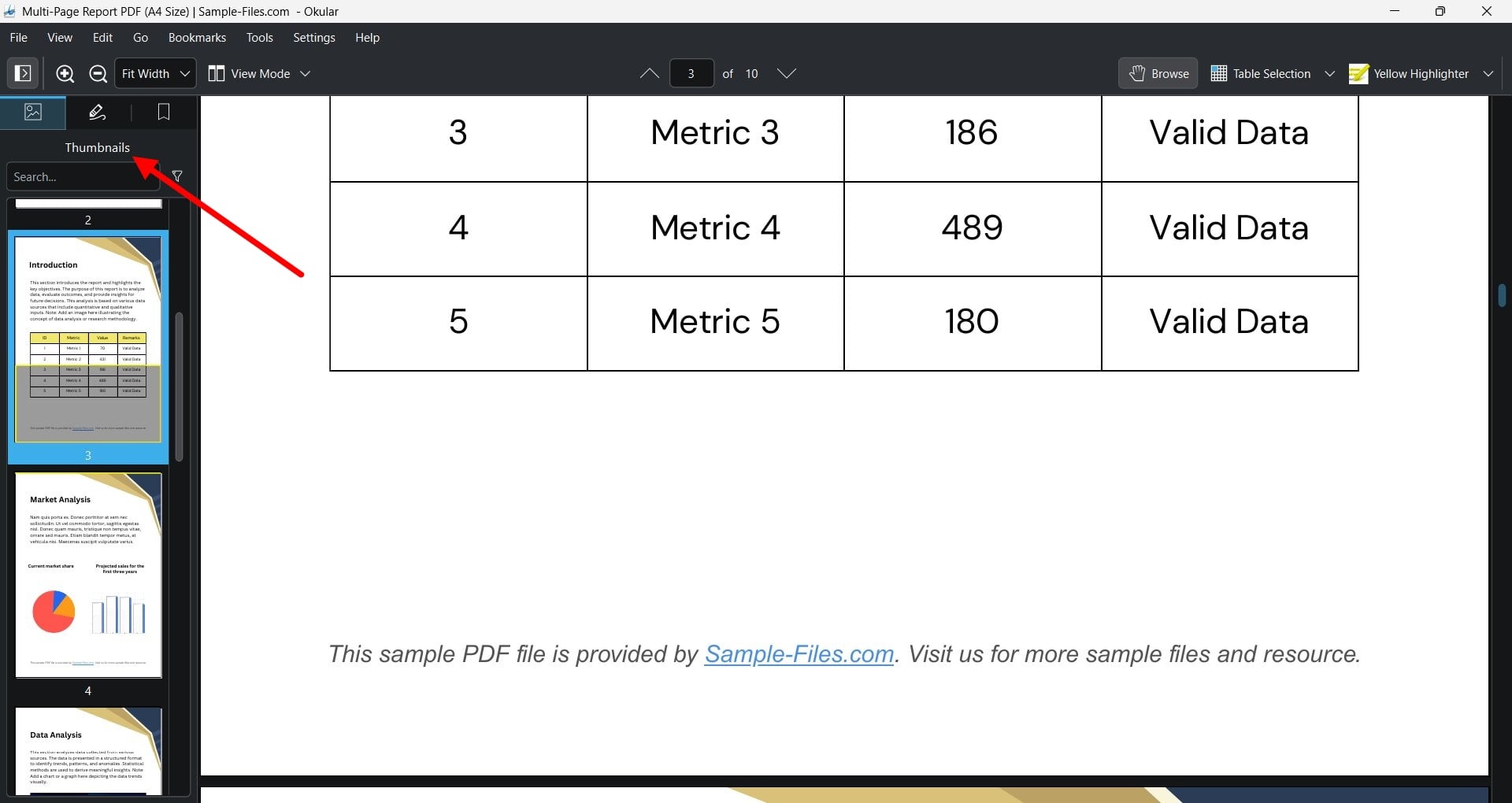 The sidebar in Okular is highly customizable. You can view page thumbnails to jump around easily, look at the nested table of contents, or see a list of every annotation that you have made in the document.
On top of all this, Okular ensures that your privacy is not compromised. Unlike other PDF viewers, Okular comes with no tracking, no ads, and is open-source and community-driven, which ensures that features that users want are added to the software. Here is a simple comparison between Okular and Adobe Acrobat that makes it clear why Okular is the best free Acrobat Reader alternative you will find today:
Feature |
Adobe Acrobat (Free Version) |
Okular |
Price |
Free (with constant upsells) |
100% Free forever |
File Support |
Mostly PDF |
PDF, EPub, Comics, Images, Markdown |
Speed |
Heavy/Slow |
Fast/Lightweight |
Annotations |
Basic (limited) |
Full suite (professional grade) |
Editing |
Locked behind a paywall |
Comprehensive annotation and review |
Privacy |
High data collection |
No data collection |
Signature |
Limited |
Full Digital Signatures |
Other Free Acrobat Reader Alternatives
Okular is, without question, our top pick. But we understand that no single tool is the right fit for everyone. So here are a few other solid Acrobat Reader alternatives that are worth knowing about, depending on what you specifically need.
1. SumatraPDF: For When You Just Want to Read
If you are the kind of person who just wants to open a PDF and read it with no fancy annotations, no review mode, just clean and fast reading, then SumatraPDF is worth a look. It is so lightweight that it barely exists on your system; the whole application is around 10 MB (yes, really). You open it, your file is there instantly, and you close it. That is literally the entire experience. It also supports EPUB, MOBI, CBZ, CBR, and XPS files, which makes it a great tool for people who read a lot of e-books and comics on their PC.
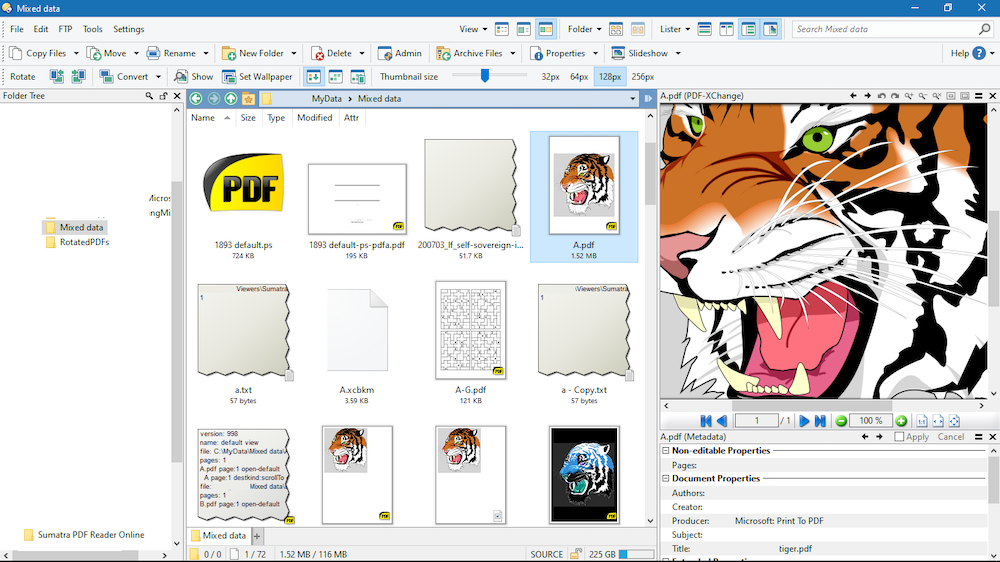
The one caveat: SumatraPDF is intentionally stripped-down. There are no annotations, no digital signatures, no review mode. If you need a free PDF viewer without subscription that simply opens files instantly and gets out of your way, SumatraPDF is your answer. But if you need editing tools, keep reading.
2. PDF24: For the Heavy Lifting
Think of PDF24 as the toolbox version of this list. If Okular is your everyday open-source PDF reader and editor, PDF24 is what you pull out when you need to do the heavy lifting. Want to merge two PDFs into one? Done. Want to compress a 50MB PDF down to 5MB before emailing it? Done. Want to run OCR on a scanned document and make the text searchable and editable? Also done. And for free. OCR (Optical Character Recognition) is something Okular does not natively support, and this is exactly where PDF24 fills that gap perfectly.
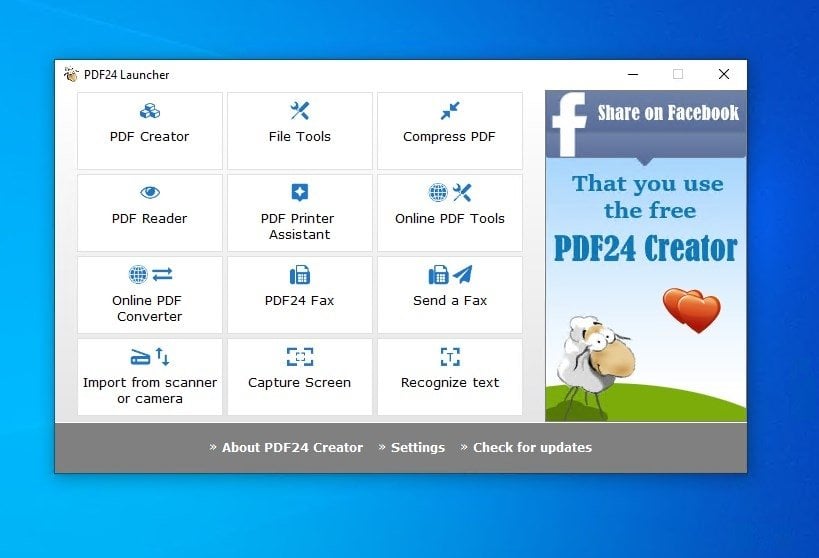
PDF24 also works completely offline, which is great for privacy. It is not the sleekest-looking tool on this list, but it makes up for it with sheer functionality. If you are dealing with scanned invoices, contracts, or any document that was originally a physical piece of paper, PDF24 is the free PDF editor you should turn to. We have a detailed guide on free ways to edit PDFs online and offline that covers more tools.
3. Foxit PDF Reader: For the Familiar Feel
Foxit PDF Reader is the most “Acrobat-like” option on this list. If you have been using Acrobat for years and the idea of a completely different interface makes you nervous, Foxit gives you that same familiar layout, but without the bloat, the constant pop-ups, or the painfully slow load times. It supports annotations, form filling, digital signatures, and even cloud sync if that is something you need.

There is one thing worth knowing: Foxit also has a paid “Foxit PDF Editor Pro” tier, and like Acrobat, the free version will occasionally remind you that it exists. The free version, however, is more than capable for most users. If you are looking for a lightweight PDF reader for Windows that your non-technical colleagues or clients can pick up without any learning curve, Foxit PDF Reader is a solid recommendation.
4. Stirling PDF: For the Privacy-First User
Stirling PDF is for the tech-savvy user who takes their privacy very, very seriously. Unlike everything else on this list, Stirling PDF is a self-hosted application; meaning you run it on your own machine, and your files never leave your computer. If you shudder at the idea of uploading your financial documents or legal contracts to any cloud service (even Acrobat’s), Stirling PDF was built exactly with you in mind.
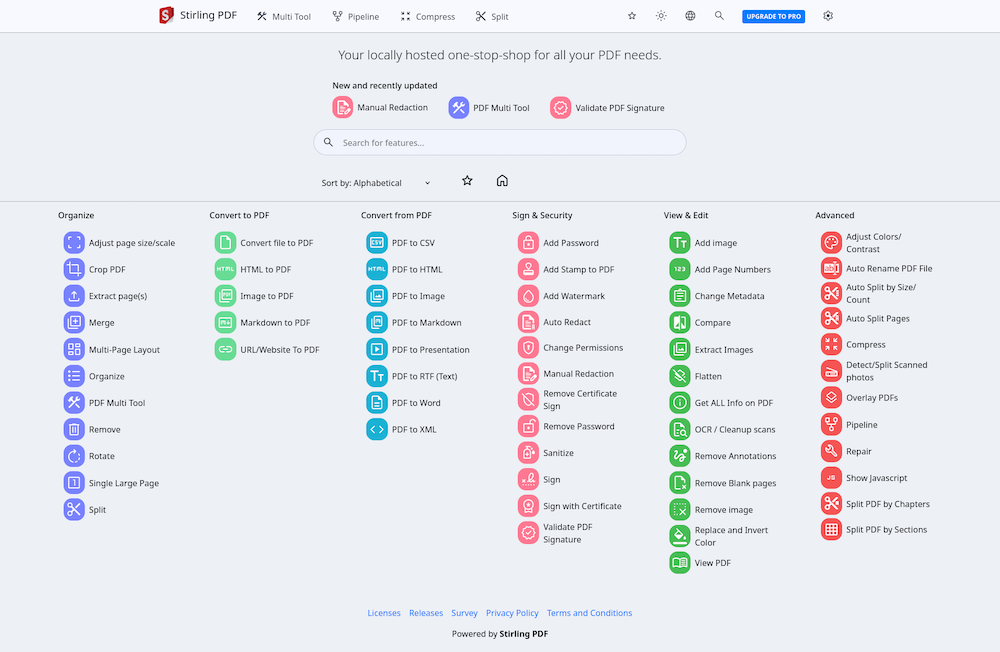
Do not let “self-hosted” scare you away. If you have ever used Docker, getting it running is fairly straightforward. Once it is up, you get a powerful PDF editing software suite like merging, splitting, OCR, format conversion, watermarking, compressing, and even comparing two PDFs side by side, all from a simple web interface in your browser. It even got a proper desktop app in version 2.0. For anyone who needs a no-compromise, privacy-first open-source PDF reader and editor, Stirling PDF is in a league of its own.
If you prefer browser-based tools instead, check out our look at all-in-one online PDF tools. Or, if you are open to spending a little for a premium experience, we have also reviewed an affordable PDF editorthat sits between free and full Acrobat pricing.
Switch From Adobe Acrobat to Okular Today
Adobe Acrobat has now become something that you should open if you are interested in getting frustrated. Just for viewing a PDF, it takes forever to load, shows a progress bar, and hundreds of pop-ups to buy their subscription. On the other side, Okular is the best free Acrobat Reader alternative out there: it’s super fast, easy to use, provides you with all the features, and is available for free. Our verdict: If you are hunting for the best free PDF reader that does not slow down your PC or ask for your credit card, uninstall Acrobat and get Okular today.
FAQs About Okular and Acrobat Reader Alternatives


