Quick Answer
Adjust the system settings and remove the unwanted features within the Truecaller app. Turn off last seen, disable after-call details, and reminders for missed calls. Additionally, restrict app background activity, manage media and data settings, reduce backup frequency, and turn off ads using private DNS to improve performance.
Truecaller has lived consistently on millions of users’ home screens for years. However, if there’s one criticism it can still not escape, it is its aggressive resource demands. Adding many new features, such as flash messaging and digital payments, didn’t improve situations. Hence, this article will walk you through tips for ensuring the app doesn’t choke your Android phone’s performance.
Table of Contents
How To Optimize Truecaller on Your Phone for Better Performance
Method | Description |
|---|---|
Turn Off ‘Last Seen’ | Disable ‘Availability’ in the app’s privacy settings. |
Disable After-Call Details | Hide after-call notifications in Calls settings. |
Turn Off Missed Call Reminders | Disable missed call alerts in the Calls settings. |
Manage Media and Data | Prevent auto-download of media and reduce data use. |
Reduce Backup Frequency | Change backup settings from weekly to monthly. |
Disable Ads | Use private DNS settings to block ads in the free version. |
Update the App | Keep Truecaller updated for better performance. |
Restrict Background Activity | Limit Truecaller’s background usage in phone settings. |
Turn Off Last Seen
Truecaller now also shows you whether the other person is available at any particular moment, on a call, or has put the ringer on silent mode. Since the feature continuously checks for each of your contact’s statuses, disabling it can dramatically alleviate the app’s performance. At least for me, it did. Follow the same steps on iOS and Android, and you’ll find a switch for ‘Availability.’
How to turn off last seen in Truecaller
You can turn on the last seen from the settings on Android. If you use an iPhone running on iOS 12.0 or later, this setting is turned off by default. Here is how to disable ‘last seen’ on Android.
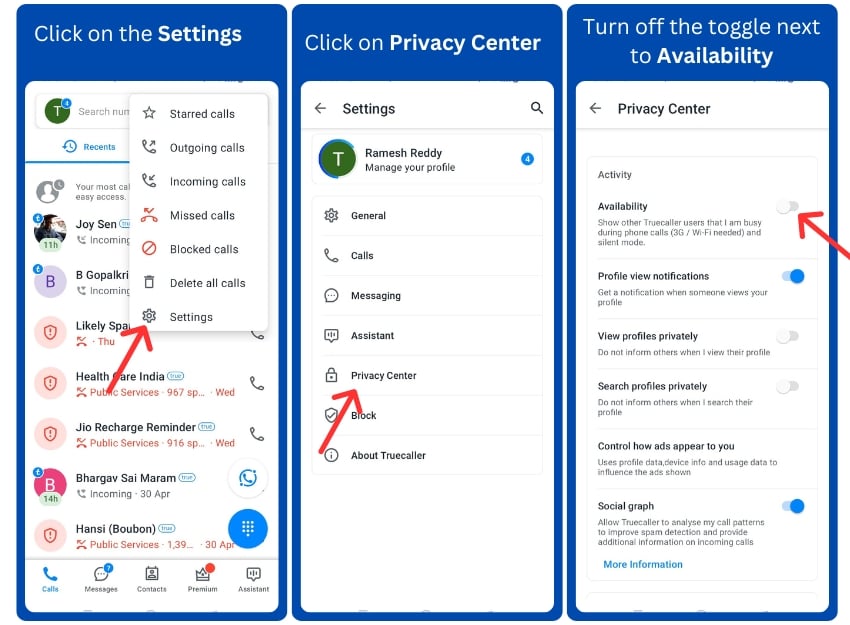
- Step 1: Open Truecaller on your Android. Make sure that you are using the latest version of the app.
- Step 2: Click on the three-dot menu and tap on Settings.
- Step 3: Click on the Privacy Center.
- Step 4: Now, under activity, turn off the toggle next to the Availability.
Turn Off After Call Details
Truecaller’s Android app, apart from throwing a pop-up every time you receive a call from an unknown number, also shows an additional notification after you end the call. This floating alert is often redundant and a serious memory hogger, especially if you have a budget or underpowered smartphone. You can easily get rid of it from the app’s settings. It’s situated inside the ‘Caller ID’ section.
How to turn off caller ID after call

- Step 1: Open the Truecaller app and go to Settings.
- Step 2: Tap on the Calls.
- Step 3: Scroll down, and under after-call details, Turn on Hide for phonebook contacts. If you are using premium, also enable Hide for non-phonebook contacts to prevent call IDs for unknown contacts.
Remind Me of Missed Calls
Another unnecessary Truecaller feature you should turn off immediately is “Remind Me of Missed Calls.” It sends you notifications every hour, nudging you to call the person back. It probably won’t have any significant impact on the app’s performance, but hey, who doesn’t like fewer notifications?
How to turn off Remind me of the missed calls feature
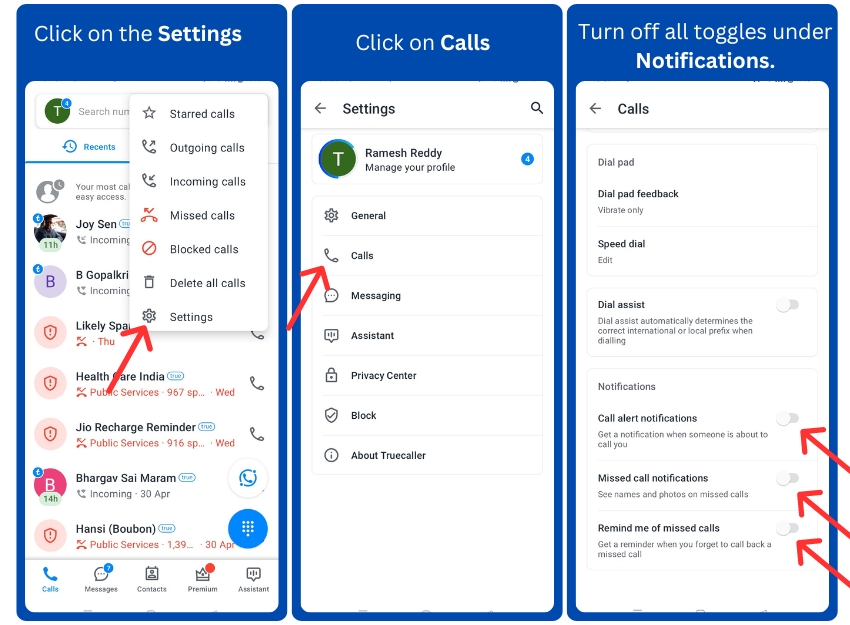
- Step 1: Open the Truecaller app and go to Settings.
- Step 2: Tap on the Calls.
- Step 3: Scroll down. Under the Notification tab, turn off all the toggles.
- Step 4: When you turn off ‘Call alert notifications,’ you will not receive a notification when someone is about to call you. This is the latest feature added to Trucealler recently, but it drains the battery. Next, the ‘Missed call notifications’ remind me of missed calls, and the ‘Remind me of missed calls‘ reminds me to call back.
Other Helpful Tips
- Restrict Truecaller background activity: Go to Settings > Apps > Truecaller >Pause app activity if unused. Also, restrict the battery usage to improve the app performance, Settings > Apps & notifications > Truecaller > Advanced > Battery > Background restriction.
- Update the Trucaller app to improve performance and fix bugs.
- Disable auto-download media and download translation files: Go to Settings>General>Under Data & Storage and set it to Never.
- Reduce the backup frequency: Change the default data backup frequency from weekly to monthly. Go to Settings>General>Under the backup section, select the backup frequency and set it to Monthly.
- Turn off the ads in the Truecaller free version: This setting alone has shown impressive results and significantly decreased the app’s load time. You can use the private DNS to block ads on Truecaller. To set it, go to Settings > Network & Internet > Advanced > Private DNS, enter ‘dns.adguard.com’ and save.
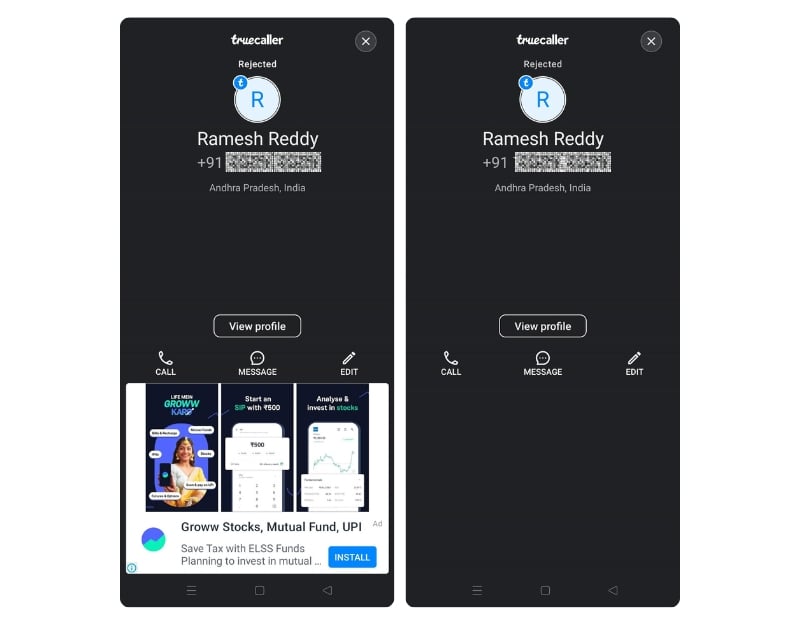
Comparison of Truecaller Interface: With Ads (left) vs. Without Ads (right). Blocking ads has significantly increased the app’s performance.
Keep Truecaller From Slowing Down Your Phone
Those are the helpful tips you can use to optimize the Truecaller performance on your smartphone, as a part of finding ways to prevent the Truecaller app from impacting the performance.
I also tested Truecaller alternatives such as Hiya, Whoscall, Caller ID by CallApp, and several other apps. None of them offered superior performance like the truecaller.
However, many reports complained about the Truecaller performance, leading to battery drain and negatively affecting the performance; the steps that I recommended should help you increase the performance and fix the issue. I hope you find this helpful; if you have any other tips, let me know in the comment below.