

I’ve been using Chrome for years and recently switched to Firefox. I did this because I had privacy concerns with Google, such as being tracked all the time. When I tried other Google Chrome alternatives like Edge and Opera, I found Firefox to be safer and more user-friendly.

However, Firefox is not perfect. Like other web browsers, it can sometimes be slow and doesn’t have all the features you need. This is where add-ons and extensions come into play, allowing you to optimize Firefox to better suit your needs and requirements.
In this guide, I’ll tell you about my personal experience with Firefox and introduce you to some of the best add-ons for Firefox that not only add functions and features to your browser, but also ensure that it is fast, efficient and customized to your needs.
Table of Contents
How to Optimize Firefox with Add-ons
Firefox is one of the best web browsers for web developers. With its extensive customization options, you can make the most of your browsing experience. But sometimes these customizations can lead to sluggish performance, slowing down your browsing speed and affecting your overall user experience.
In this guide, I’ll introduce you to some of the best add-ons for Firefox that not only add functionality and features to your browser, but also keep it fast, efficient and customized to your preferences. I’ll also show you a few tweaks that will help you keep your browser fast and snappy.
The Best Add-ons and Extensions for Firefox
Firefox has an extensive library of add-ons (still smaller than Chrome’s), and you can find add-ons for almost every function imaginable, from ad blockers to password managers.
Here’s a list of some of the best Firefox add-ons you should use right away.
FoxyTab
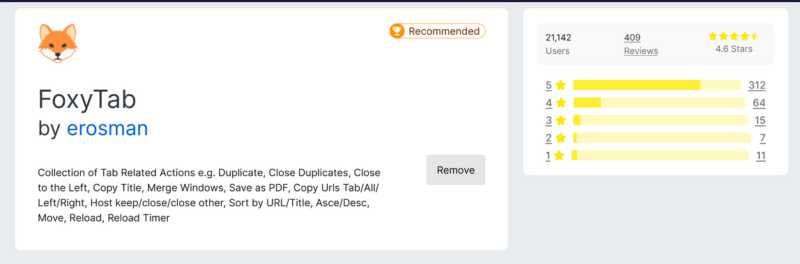
If you’re someone who has tons of tabs open like me, you should try FoxyTab. Once I got to know this add-on, my tab management has become so much easier and organized.
It offers some unique options and features that you should use right away. It includes:
- Tab related actions that allow you to duplicate tabs, close duplicate tabs, move tabs, merge windows and much more.
- Information display that shows the number of tabs, country flags, time zones, etc.
- URL and page handling features that allow you to download entire tabs as PDFs, clean up URLs (to remove tracking or redirect strings) and set custom rules for redirect tabs.
- It also offers tab sorting features that allow you to sort tabs by URL, title or last accessed time.
- And finally, it offers flexible customization options that allow you to create your own Firefox themes.
Imagus
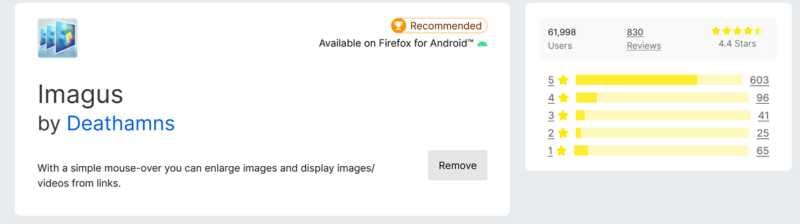
I didn’t know there were extensions like Imagus. This simple Firefox add-on saves me so much time previewing content (images and thumbnails) by simply hovering over a link. You don’t have to click on the links to see the content, which makes web browsing more efficient.
It offers the following features:
- It allows you to enlarge thumbnails, media, and other thumbnails.
- It has numerous customization options, such as site-specific and general settings that allow you to personalize your browsing experience./li>
- You can decide which pages you want the extension to work on and which not.
uBlock origin
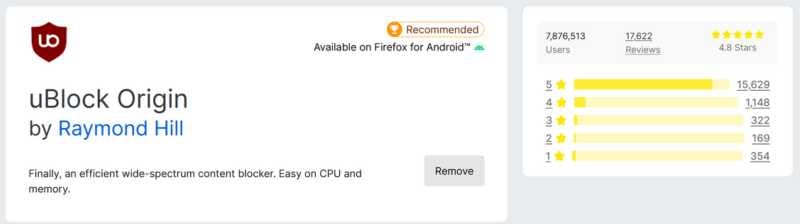
uBlock Origin is a free, open-source ad blocker that is designed to do a lot more than just ad blocking. This add-on is a must-have for all Firefox users as it not only prevents ads and pop-ups but also protects your privacy.
Here are a few noteworthy features of this tool:
- It blocks almost all types of internet ads, including pop-ups, banners and video ads.
- It is lightweight and doesn’t consume a lot of system resources while running in the background.
- It improves page loading speed by blocking ads and videos from loading.
600% Sound Volume

I tried this add-on by accident, as it was suggested by Firefox Add-ons, and it actually works. The add-on is great for switching between tabs when playing music. You can also control the music in each tab individually. I found 600% Sound Volume useful as it gives me more control over the music with just one click.
Here are a few features that this add-on offers:
- The developers mention that it can increase sound quality by up to 600%. Personally, I did feel a noticeable increase in the volume of the music when I adjusted the volume slider, but it doesn’t magically get 6 times louder. To find out how big the difference is, I compared the sound quality before and after using the add-on with a sound meter software on my phone.
- Sound Played: Music
- The sound meter’s peak decibel value without using this add-on was 75.2 decibels.
- The sound meter’s peak decibel value with a 600% increase in volume controller was 79.1 decibels.
The results showed a noticeable improvement in sound quality, I could feel it too, but as I said, it doesn’t work like magic.
With the tab control, you can set different volumes for each tab and even seamlessly switch between them without any interruptions.
A Few Settings to Tweak!
In addition to the add-ons mentioned above, there are a few settings you can customize to make your browsing experience faster and safer.
Set up Firefox Auto Clean
This setting is a good way to automatically delete your browsing history, cookies and cache when you close the browser. It helps protect your privacy and keeps your browser running smoothly.
You can easily do this by following the steps provided:
Go to “Settings” and enable the “Delete cookies and site data when Firefox is closed” checkbox. You can also add exceptions for the sites you want to keep cookies for by clicking on the “Manage Exceptions” button.

Moreover, I would also suggest you check on the “Tell websites not to sell or share my data” and “Send websites a “Do Not Track” request” checkboxes. By enabling these settings you can have absolute peace of mind while browsing the internet. Firefox is known for its privacy and safety-centered features, it’s best to put them at work.
You can watch this video to learn more about the privacy settings.

Disable Web Notifications
One thing that’s often annoying are the web notifications that keep popping up while you’re browsing. It’s as if you’ve accidentally allowed notifications and are now bombarded with pop-ups every few minutes. To avoid this problem, you can completely disable spam web notifications in Firefox.
Here’s how you can do it:
- In the search bar type – “about:config” and hit Enter.
- You will get a warning screen. You can ignore it by clicking on “Accept the risk and continue.”
- Now search for “webnotification” and look for “dom.webnotifications.enabled”, change its value to “false”.

Enable Memory Cache
If your browser is running slowly, you can activate the memory cache to improve performance by a factor of 4 or 6. This allows Firefox to store temporary data in your computer’s memory and not have to constantly reload information from the Internet. However, only do this if you really have problems with slow performance, because the price you pay for this is your computer’s RAM.
- To enable memory cache, go to “about:config” again, and search for “browser.cache.memory”.
- Now, in the “browser.cache.memory”, set this value to “true”.
- In “browser.cache.memory.capacity” you will find an integer -1. You will need to change it to 128000 (this means you are allocating 128 mb for Firebox). You can also assign more space, for example, 512000 for 512 mb space.

Remember, however, that the disk space is taken up by your computer’s RAM, so be careful how much you allocate. Increasing the cache memory can improve performance, but can also affect the overall speed and responsiveness of your computer.
Why Should You Switch to Firefox?
As I mentioned, I’ve been using Chrome for years, but recently I realized that Chrome tracks and collects a lot of my data for targeted advertising. So I switched to Firefox. And this is what I experienced:
- At first, I felt that Firefox was a bit slow compared to Chrome. But as the number of tabs increased, I realized that it does a good job in terms of memory management and speed. One possible reason for this is that Firefox automatically blocks all trackers in the backend, making it more efficient than Chrome.
- Firefox offers better privacy features compared to Chrome, so you can browse the internet with peace of mind. I am not tracked by unwanted advertising or tracking cookies. As it is an open source project, you can trust that the data will not be sold to third parties.
Firefox Optimisation Done Right
That was my guide to optimizing Firefox. There are certainly more optimization techniques, but this guide is enough to get you started. Educate yourself before making unnecessary changes to your browser settings, as this could do more harm than good. Add-ons can be a great way to improve your browsing experience, but make sure you only download the ones you need the most and be careful about installing too many as they can also slow down your browser.
If you have any questions or need further help, feel free to get in touch in the comments. I’ll be happy to help. I’m sticking with the Firefox browser for now to see what other features it has to offer.

