

Quick Answer
App crashing is one of the most common problems on Android devices. To fix this, Try force-stopping the app; if that doesn’t work, restart the smartphone. If you are still facing issues, clear the app cache and update the app to the latest version. If those don’t fix your issue, try advanced troubleshooting methods like checking app permissions, Internet connection, device storage, and Google Play services.
Apps are an essential part of any smartphone. They expand the range of functions and uses of smartphones. One of the most common problems with apps is crashes. The app sometimes behaves differently or stops working altogether without the user making changes.

There can be many reasons for this, such as network problems, compatibility of the app, bugs in the particular version, memory issues, and many more that cause the problems.
This guide will introduce you to various methods to prevent apps from crashing on your smartphone and give you some tips on avoiding this problem.
Table of Contents
How to Fix It When Apps Keep Crashing on Android
Apps can crash on your device for many reasons. Before troubleshooting, you should try basic methods, such as restarting the device, force quitting the app, and clearing the app’s cache. Most users have solved the problem using these basic methods. If the problem persists, try the other troubleshooting methods in this guide.
First, Try these Quick Fixes:

- Force-stop and open the app: To force-stop an app and see if the issue persists, Open Settings > Apps> Select the app > Tap Force Stop> Confirm.
- Reboot your smartphone: A simple reboot can fix most issues on your smartphone. Rebooting refreshes the memory and restarts the app process. Perform a quick reboot and check if the problem persists.
- Clear app cache: Try clearing the app cache and check if it resolves the issue. To clear, Open Settings > Apps or App Manager> Select the app > Tap Storage > Tap Clear Cache> Confirm.
- Update the app: Update the app from the Play Store and see if the issue persists. Open the Google Play Store app > Tap profile icon > Tap Manage apps & device > Tap Update.
- Check app compatibility: Open Google Play and search for the app you have issues with. Open the app, click About the App, scroll down, and check the app compatibility.
Advanced Troubleshooting Methods
Free Up Storage Space
Sometimes, insufficient storage can cause apps to crash on your smartphone. On most Android smartphones, you’ll see a warning in the notification bar saying there isn’t enough storage or that you’re running out of storage.
Most apps use internal or external memory to read or write data. Make sure that your device has enough storage space. If you’re running out of storage space, follow the steps below to free up storage space on your Android smartphone.
How to free up storage on your Android smartphone :
You can free up storage manually by deleting large, unwanted files from your smartphone. Alternatively, you can use the Files by Google app to delete and manage storage efficiently on your smartphone. Here is how
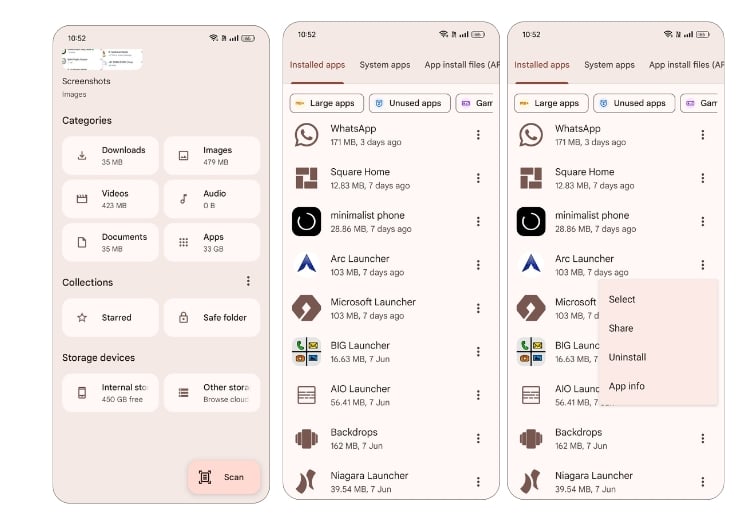
- Install Files by Google app from the Play Store.
- Open the app under the categories and select any file.
- Here, you can see all the files and the file size. Delete the file you want to.
Update Google Play Services
Google Play Services is a background service provided by Google. Outdated Google Play services can impact the app’s performance and might cause app crashes.
How to update Google Play services on Android:
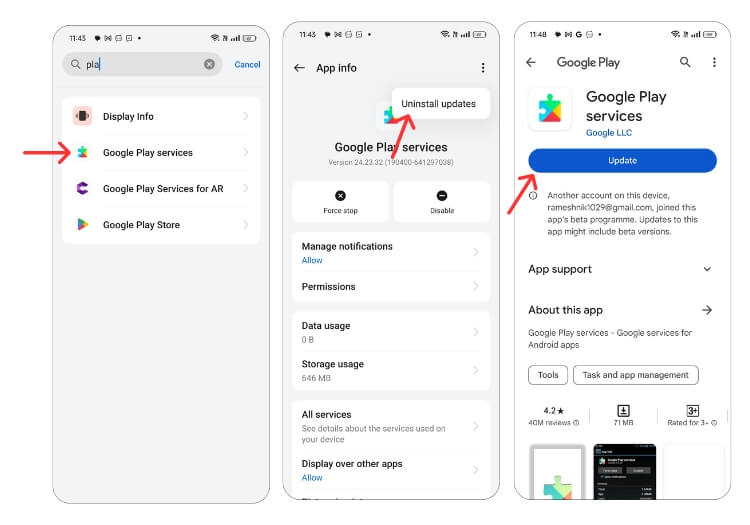
- Open the Settings app.
- Go to Apps or App Manager.
- Search for Google Play services and tap on them. Click on the three-dot menu and click on uninstall updates. Click on Storage and click on Clear Cache and Clear Data.
- Click this link, open the Google Play Services app in the app store, and click Update.
Check Your Internet Connection
Most apps these days require a constant internet connection to function. Make sure your smartphone has an active internet connection. There are several ways to test your smartphone’s internet connection. The most common and easiest method is an internet speed test website. You can go to https://www.speedtest.net/ to verify your internet connection status.

How to fix network issues on your smartphone:
- Ensure you are connected to a Wi-Fi network or your mobile data connection is enabled.
- Turn airplane mode on and off
- Restart your device
- Reset your network settings, go to the Settings app, select System, then Reset Options, then Reset Wi-Fi, Cellular & Bluetooth. This will reset your network settings, including Wi-Fi, mobile data, and Bluetooth.
- If you are still facing network issues, try contacting your ISP provider to resolve the issue.
Related Read: [FIXED] Unfortunately, Google Play Services Has Stopped Error on Android
Check App Permissions
Apps need system permission to access data on your device. If an app crashes on your smartphone, it may be because the app does not have permission to read or write data or that the app permissions have been reset. To allow permissions:
How to check app permissions on Android:
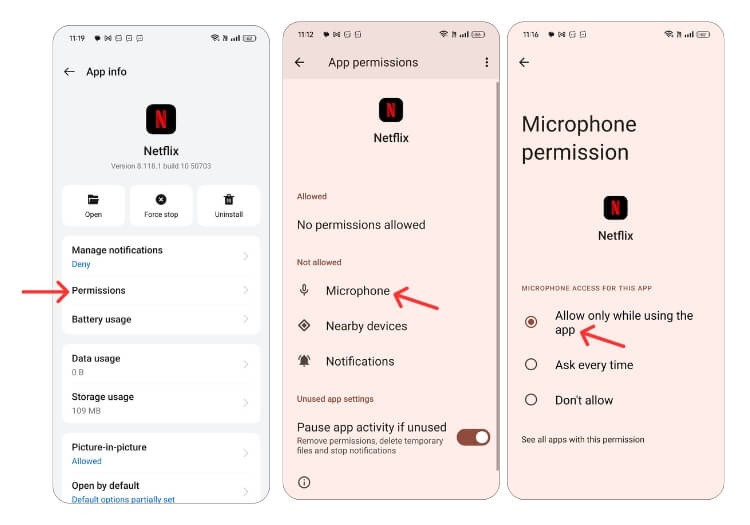
- Select the app, long press, and click on the app info. Or go to the app info section.
- Click on the permissions tab.
- Now, look for the basic requirements like storage, internet, and everything.
- Select the permission and click on Allow.
Factory Reset Your Android Smartphone
If the above troubleshooting methods don’t work, you can reset your Android smartphone as a last resort. When you factory reset a device, all data, settings, and apps are deleted, and it’s reset to the original factory settings, just like the new device. All your data, including contacts, Google accounts, photos, videos, music, and documents, will be deleted from the device’s internal storage.
You need to set up your reset device just like a new one. Android smartphones require a different factory reset procedure, so look for the specific instructions before resetting.
How to factory reset your Android smartphone:

How To Prevent This Issue Happening in the Future
- Ensure your Android smartphone has enough storage to run the apps. A minimum of 1-2 GB of free storage is recommended to prevent app crashing errors on your smartphone.
- Disable automatic updates to avoid unstable versions. Make sure you opt for the beta version if you opt for any.
- Check compatibility before downloading apps.
- Regularly update your system and apps to prevent issues.
FAQs on Android App Crashing Issues

How do I deal with the possibility of my app crashing?
There can be many possible reasons why the app crashes. The most common problem is a network error, a memory error, an app version that is not compatible with your device's software, and more. To fix these types of issues, follow the troubleshooting steps listed in this guide and make sure that the network connection is stable, that you have enough storage on your smartphone, that the app version is compatible with the software version currently running on your smartphone, and more.
Why does my phone crash after changing the default home app?
If you change the default home app on your phone, it may crash for a variety of reasons. Here are a few possibilities:
- Compatibility issues: different Home apps may have different compatibility requirements with your phone's operating system, and switching to a new app can cause issues that lead to crashes.
- App Conflicts: sometimes, switching to a new home app can cause conflicts with other apps on your phone. If two apps try to access the same resource at the same time, it can lead to a crash.
- Corrupted Data: When you switch to a new Home app, some changes to your phone's settings and configurations may be required. If these changes are not done correctly, it may lead to a crash.
- Bugs: The new Home app may have bugs or glitches that can cause your phone to crash.
To fix this issue, you can try uninstalling and reinstalling the new Home app or switching back to the old Home app. You can also try clearing the cache and data of the new Home app or resetting your phone to factory settings.
All my apps on my phone crash. What can I do?
Here are some troubleshooting steps you can try to fix the issue:
- Restart your phone: the first step is to restart your phone. This can help fix any temporary glitches or issues that might be causing your apps to crash.
- Update your phone and apps: Make sure your phone's operating system and all your apps are up to date. Developers often release updates that can fix bugs and improve performance.
- Clear app cache and data: Clearing your apps' cache, and data can sometimes fix issues that cause them to crash. To do this, go to Settings > Apps > [App Name] > Memory > Clear Cache / Clear Data.
- Uninstall and reinstall apps: If the above steps don't work, try uninstalling the crashing app and then reinstalling it from the App Store.
- Check network settings: Make sure your phone has an active internet connection. Most apps require an internet connection to work.
- Perform a factory reset: If none of the above steps work, you may need to perform a factory reset. This will erase all the data on your phone. Therefore, back up your important files before proceeding.
How to stop an update from crashing your app?
Here are some steps you can take to prevent the update from crashing your app:
- Roll Back the Update: If the update is causing significant problems, you should reset the update to the previous version until you can identify and fix the problem.
- Identify the Issue: You can follow reviews on Reddit or other community forums if the app update is causing the problem.
Disable auto update on Google play store:
- Open the Google Play Store app on your Android device.
- Tap the three horizontal lines in the upper left corner of the screen to open the menu.
- Tap on "Settings."
- Under "General," tap on "Auto-update apps."
- You'll be presented with three options. Select "Don't update apps automatically" to disable automatic updates for all apps on your device.
How do I know if an app is compatible with my phone?
To find out if an app is compatible with your phone, you can follow the steps below:
- Check the app's system requirements: each app in the Google Play Store has a section that lists the system requirements for the app. This will tell you if the app is compatible with your device's operating system, processor, RAM, and other hardware specifications.
- Check the app developer's website: Alternatively, if you are not sure whether an app is compatible with your phone, you can check the app developer's website for compatibility information. Many developers provide information about which devices the app is compatible with.
- Read user reviews and forums: Reading user reviews on the App Store can give you an idea of how the app works on different devices. Look for reviews from users who have a similar device to yours to see if they have had any compatibility issues. You can also visit popular forums like Reddit or Quora.

